Payment Providers – Connecting Mentortools with Zapier
In this guide, you'll learn how to connect Zapier with Mentortools to create automated workflows. This allows you to connect external tools like Google Sheets, Slack, Mailchimp, and many more with Mentortools—all without any programming.
Last updated 11 months ago
Register Your Mentortools Account in Your Zapier Account
To do this, navigate to the “My Apps” section from the sidebar menu on the Zapier platform, or go directly here: https://zapier.com/app/connections
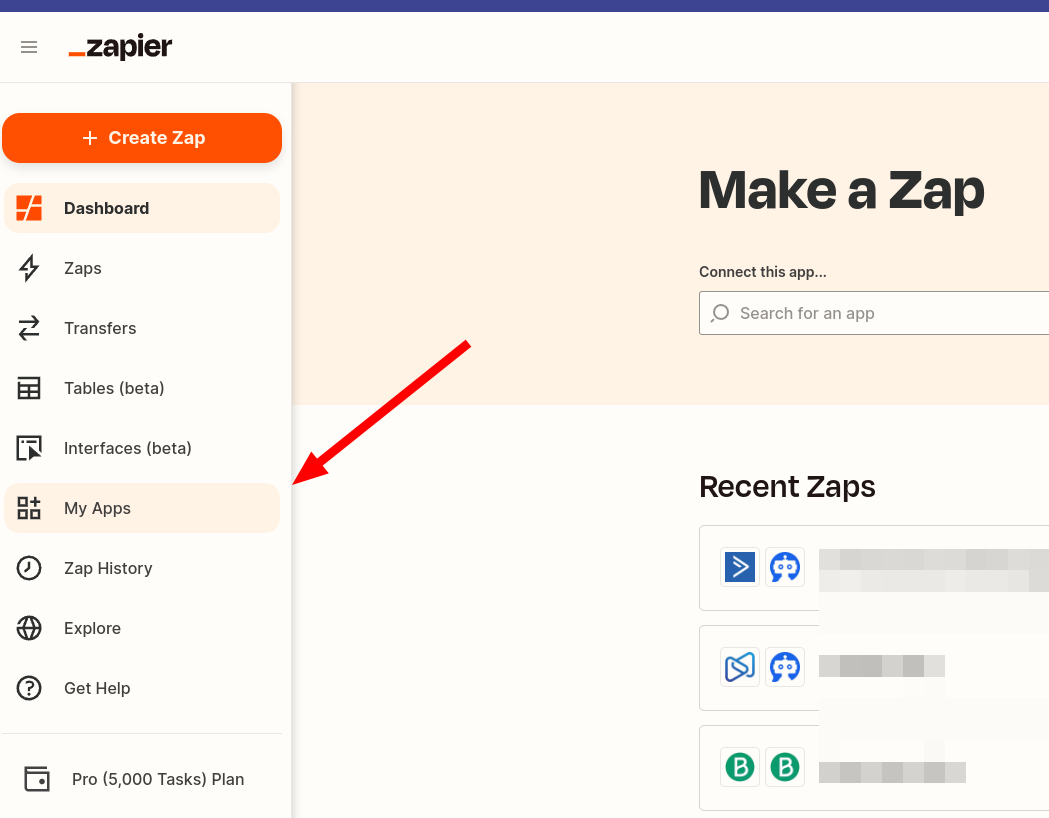
Then, click on “Add Connection.”

Next, enter "Mentortools" into the search bar and select Mentortools as the app you want to connect with Zapier.

In the next step, you'll be asked to enter your personal API key from Mentortools.
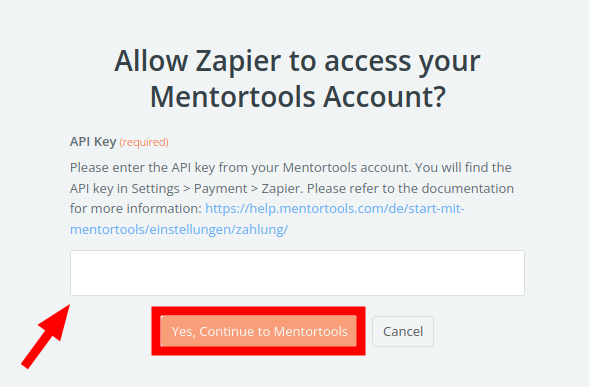
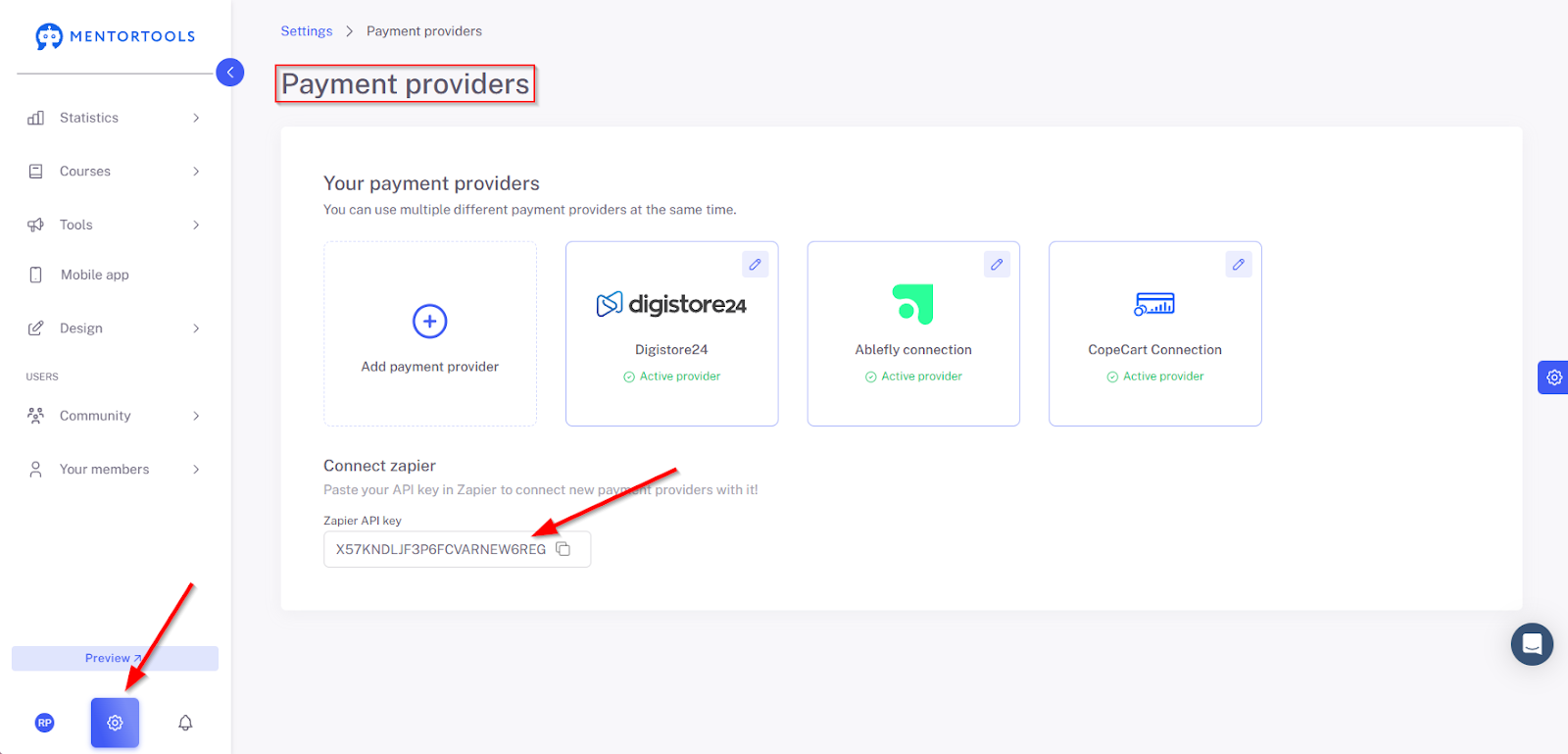
Paste your API key. You can retrieve it from your Mentortools account under the Payment Provider settings. Important: Treat your API key like a password. The API key allows Zapier to retrieve course data from your Mentortools account.
Once you've entered your API key, a “Connection Successful” confirmation message should appear in a few moments.
If you're not sure, you can explicitly test the connection again. To do this, go back to the “My Apps” section in the left-hand menu and select Mentortools from the list, or go directly here: https://zapier.com/app/connections/mentortools
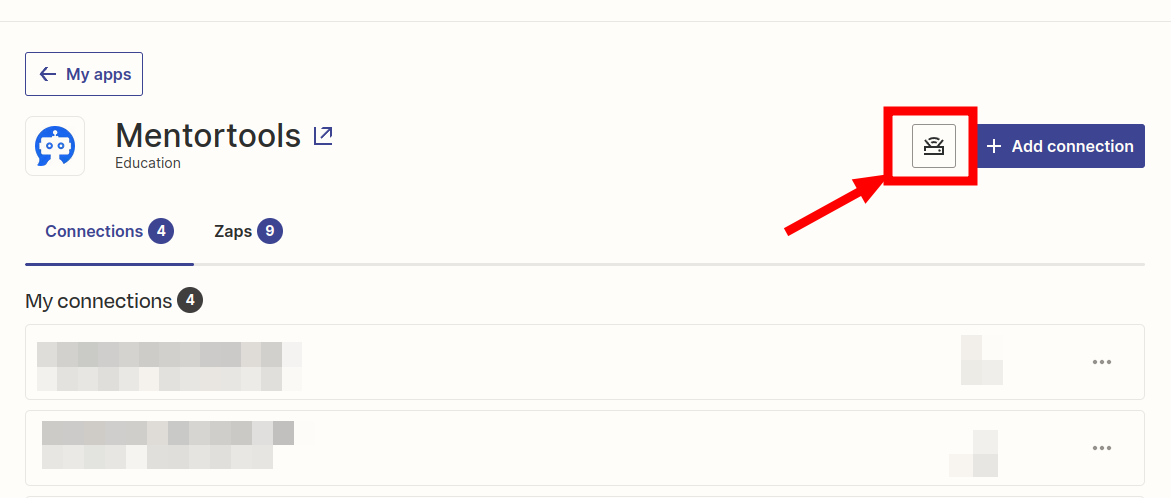
Next to the “Add Connection” button is a small button for testing the connection. Click this button. A green “Test Successful” message should appear in a few moments.
Common Questions and Solutions for Zapier
My Mentortools account doesn't show up in Zapier.
Make sure that you have already connected your Mentortools account and the associated application you want to link to your Zapier account. This step is always necessary.
You can find your connected accounts here: https://zapier.com/app/connections
The entries are not present in the second Zap step (Action).
For Zapier to transfer the correct data from your payment provider or email marketing provider to Mentortools, you must retrieve it from the context menu in the Mentortools step within Zapier.
See the “Insert Data…” context menu in the second step here:
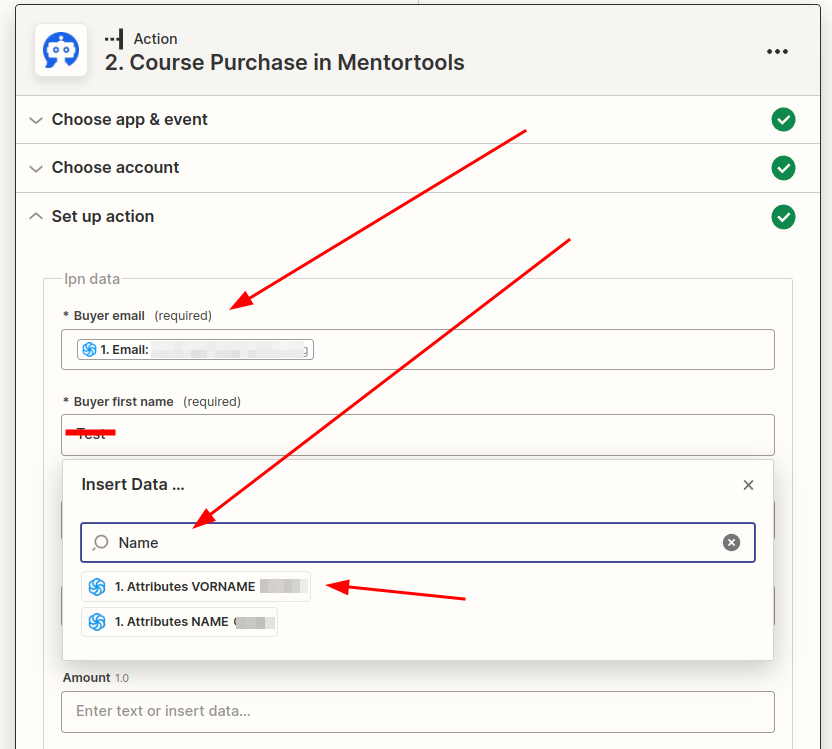
This information is absolutely essential from your application in the first (Trigger) step. Make sure you have clicked on “Test Trigger” and made a test purchase or a test entry when testing your first step.
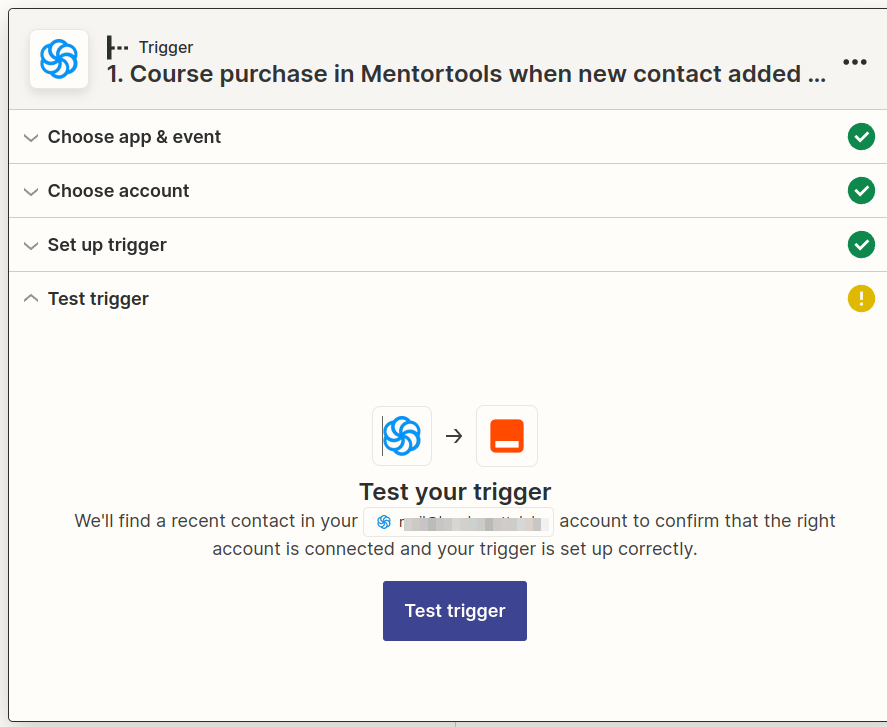
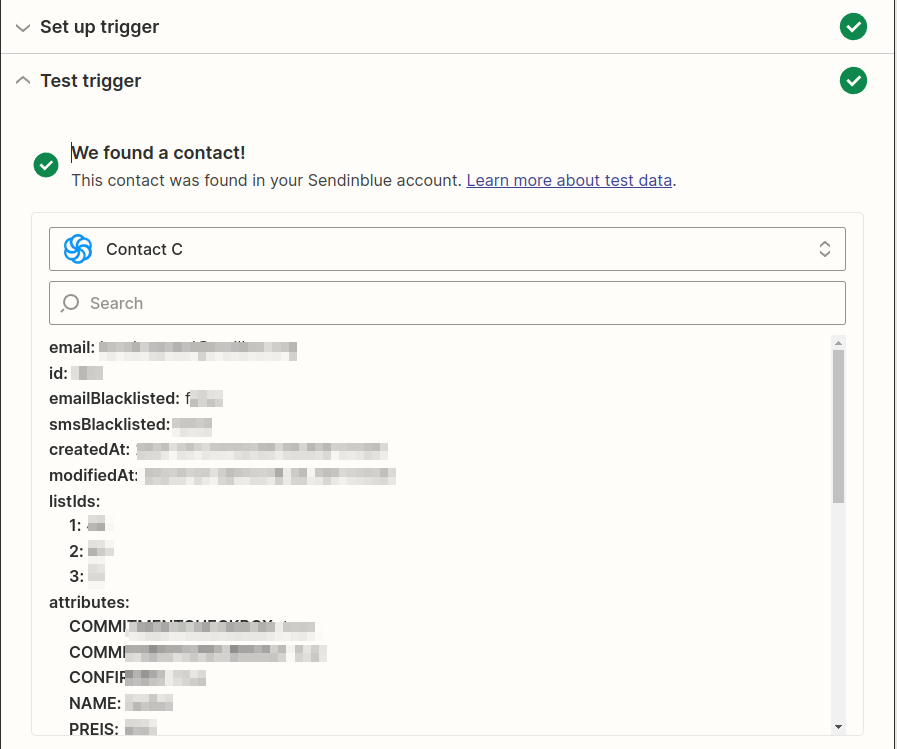
If this is completed successfully and a test purchase or test entry is found, it will look something like this. Look for a green checkmark. If it doesn't appear, something is still wrong.
The data you see in this “Code List” below the test is what we pass to Mentortools in the next Action step.
This data is individual for each entry or purchase and adapts to the respective entry or purchase.