Create an “Advent Calendar” in Mentortools (Dec 1–24)
Last updated 10 months ago
Goal
Build a course called Advent Calendar with:
Module 1: two lessons — Welcome and How it works (both immediately available)
Module 2: Advent Calendar containing 24 lessons that unlock daily from December 1 to December 24.
Step-by-step
1) Create the course
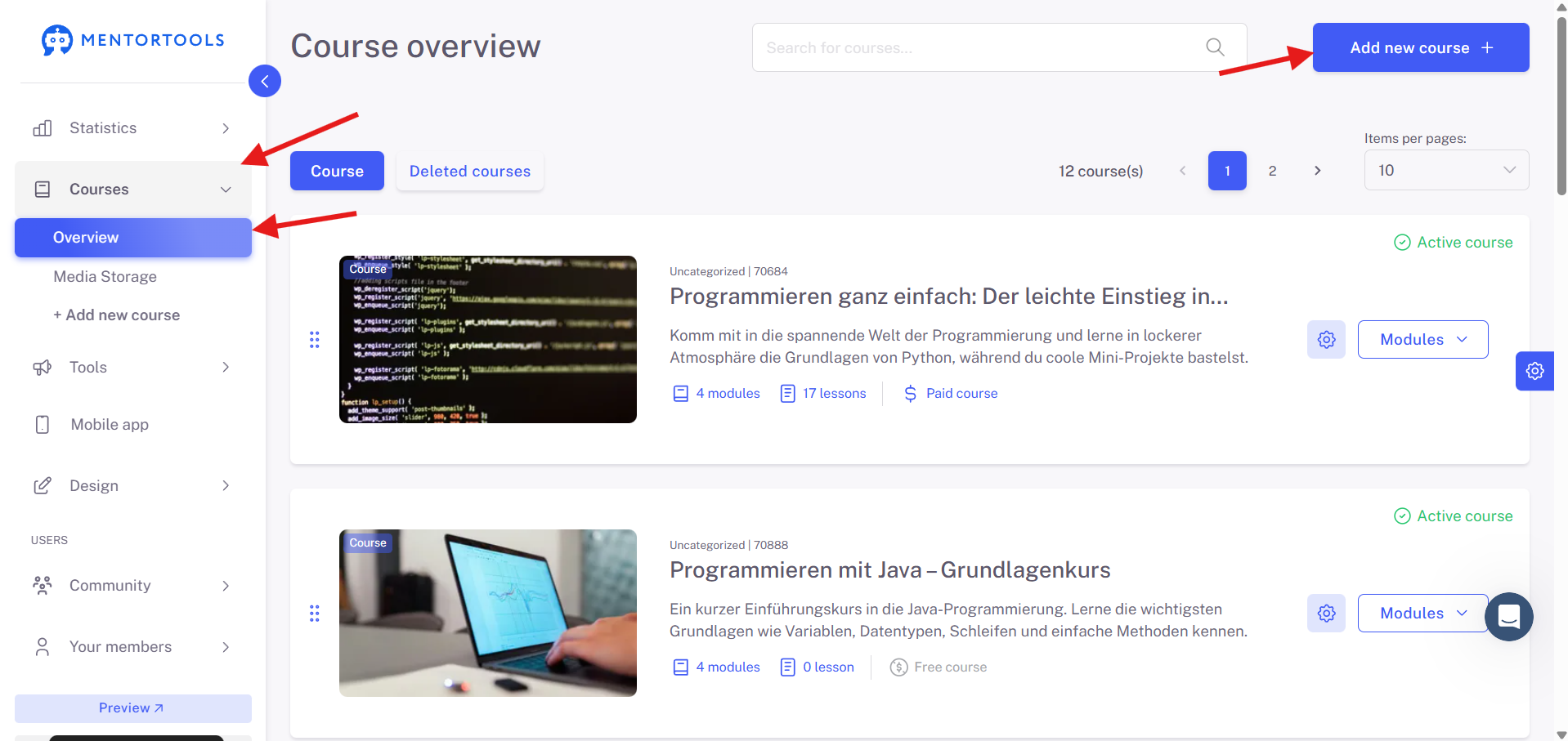
Go to Courses → Overview → Add new course.
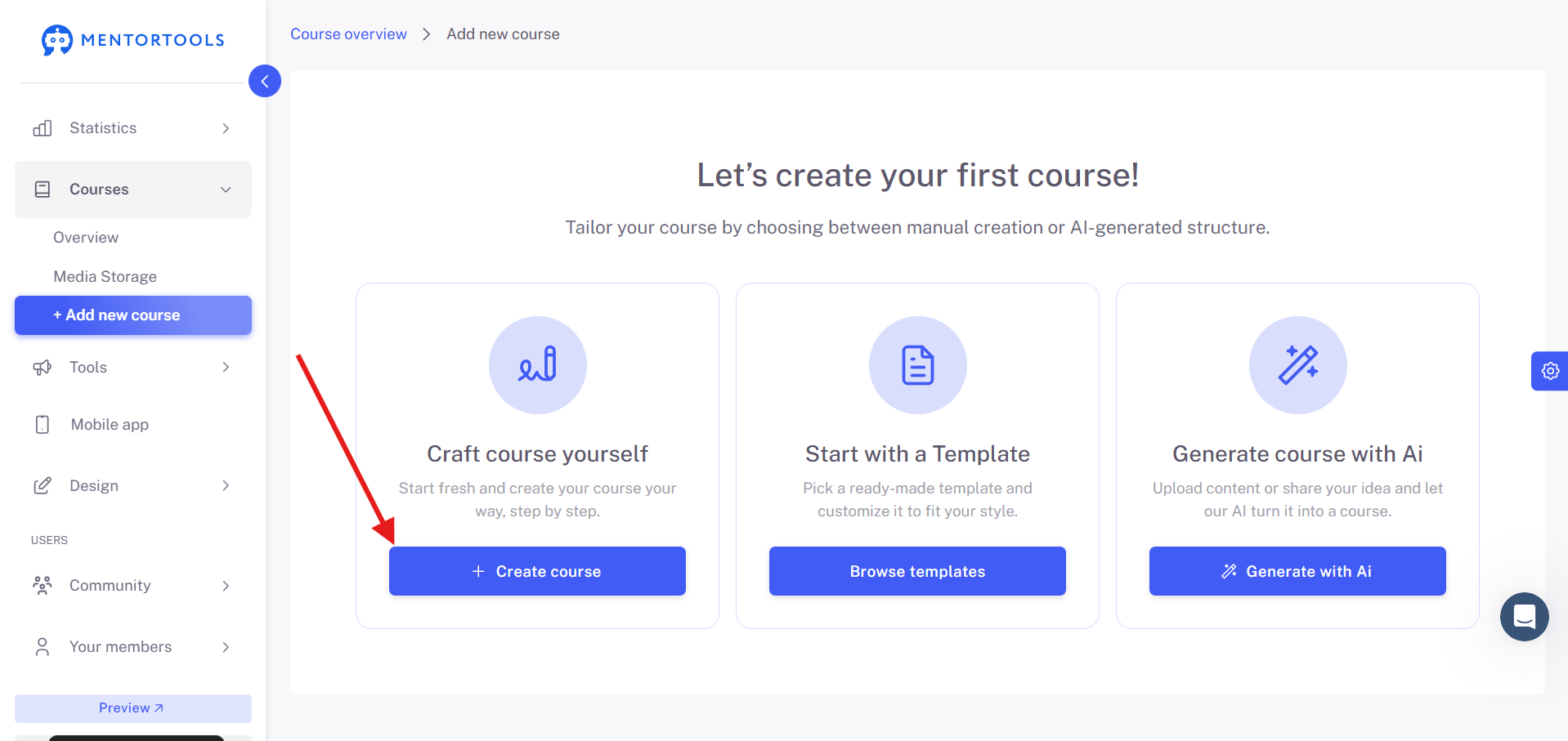
and select “Craft course yourself”
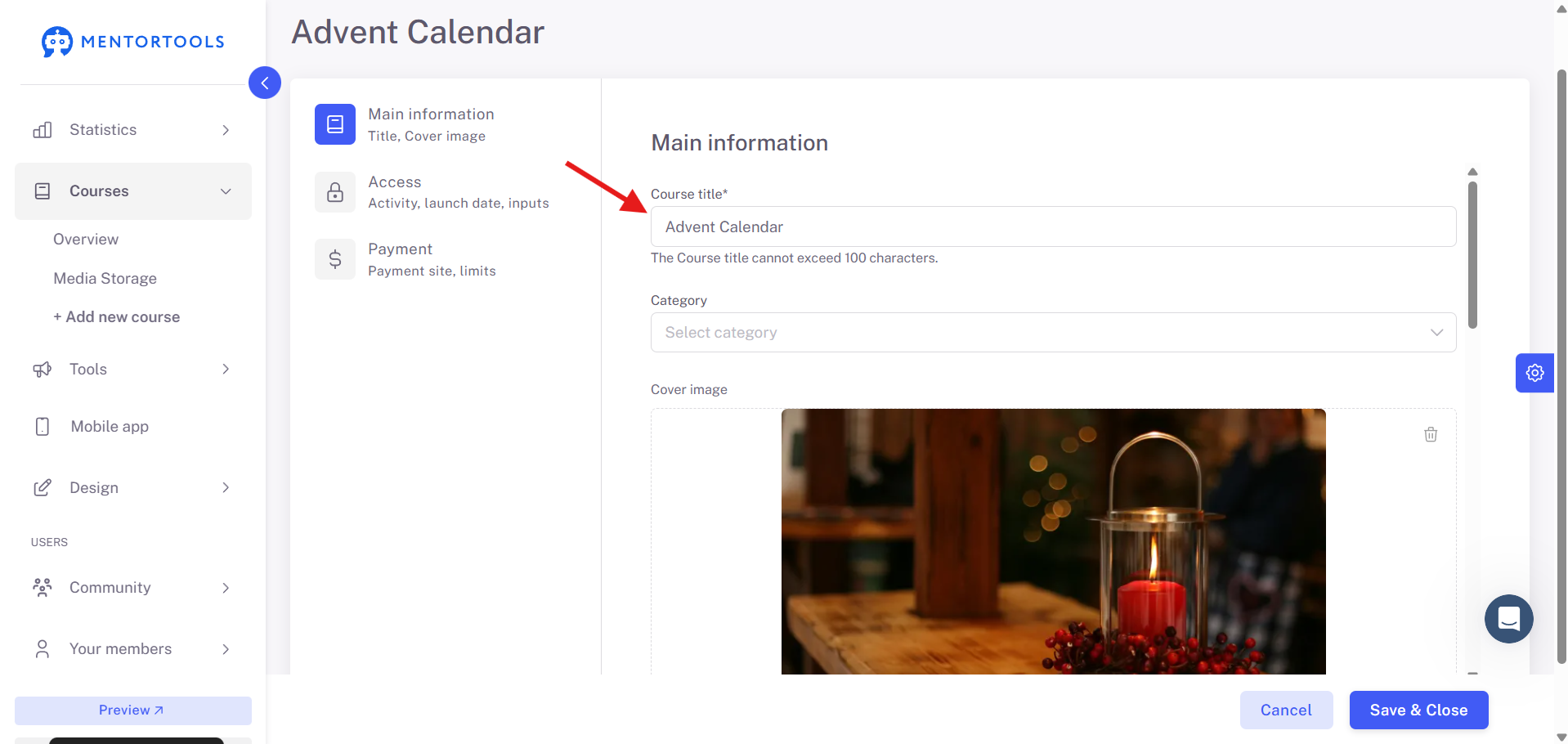
Course title: Advent Calendar.
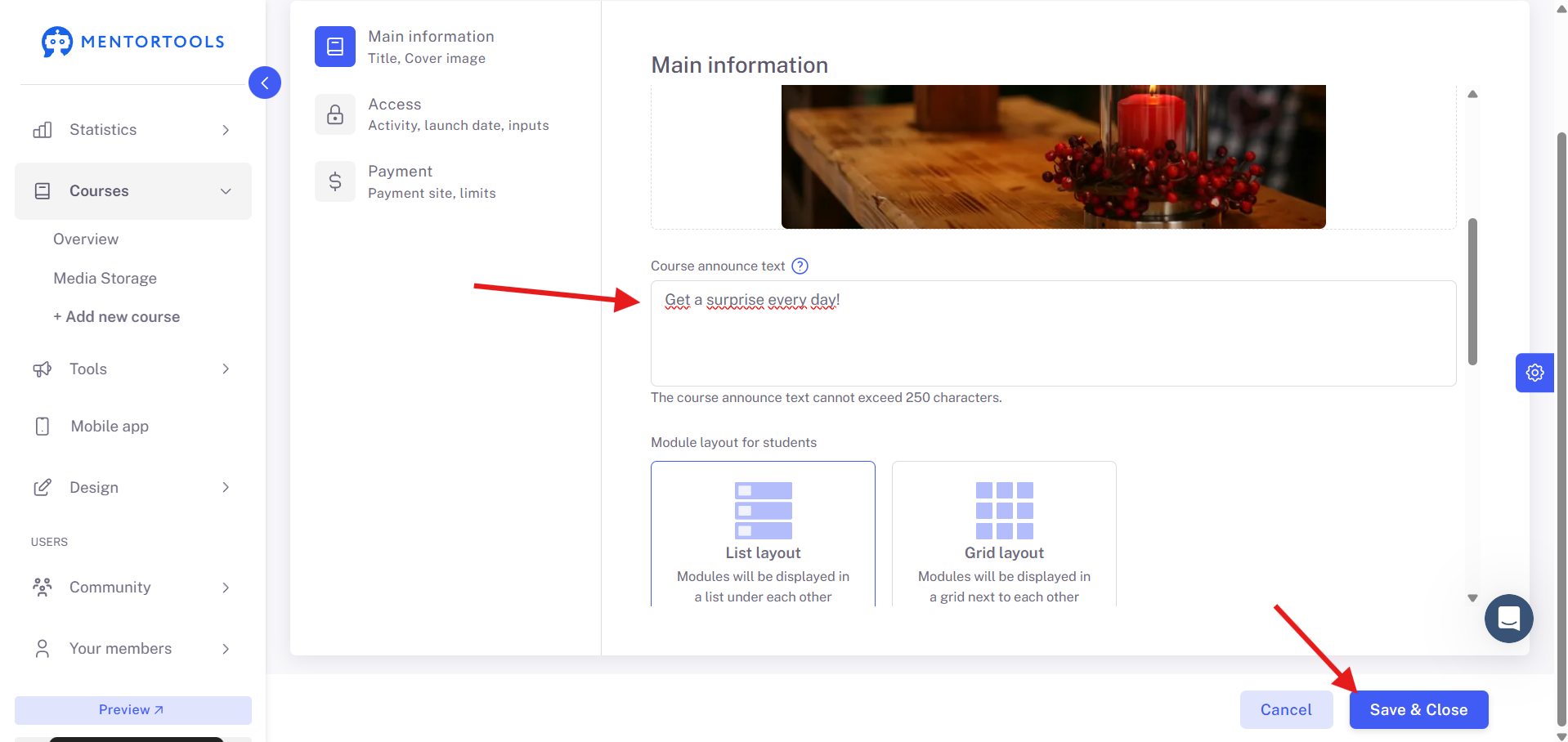
Add a cover image and short description. Save.
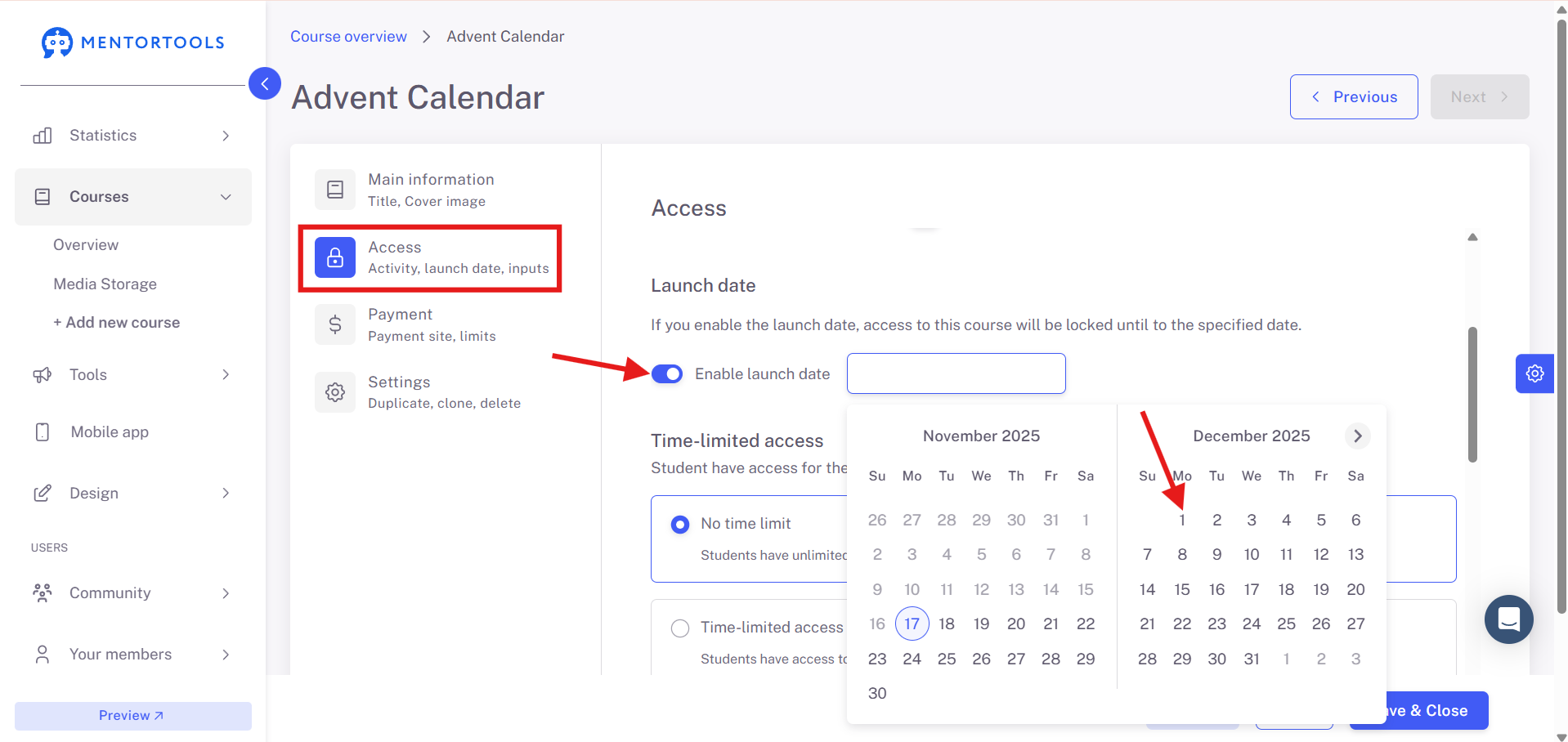
In the course scheduling settings, choose Release on a fixed date and set December 1
2) Module 1 — Onboarding
Click Add module → Name: Start here (or Onboarding).
Availability: Release immediately.

Add two lessons:
Welcome → Unlock after 0 days
How it works → Unlock after 0 days
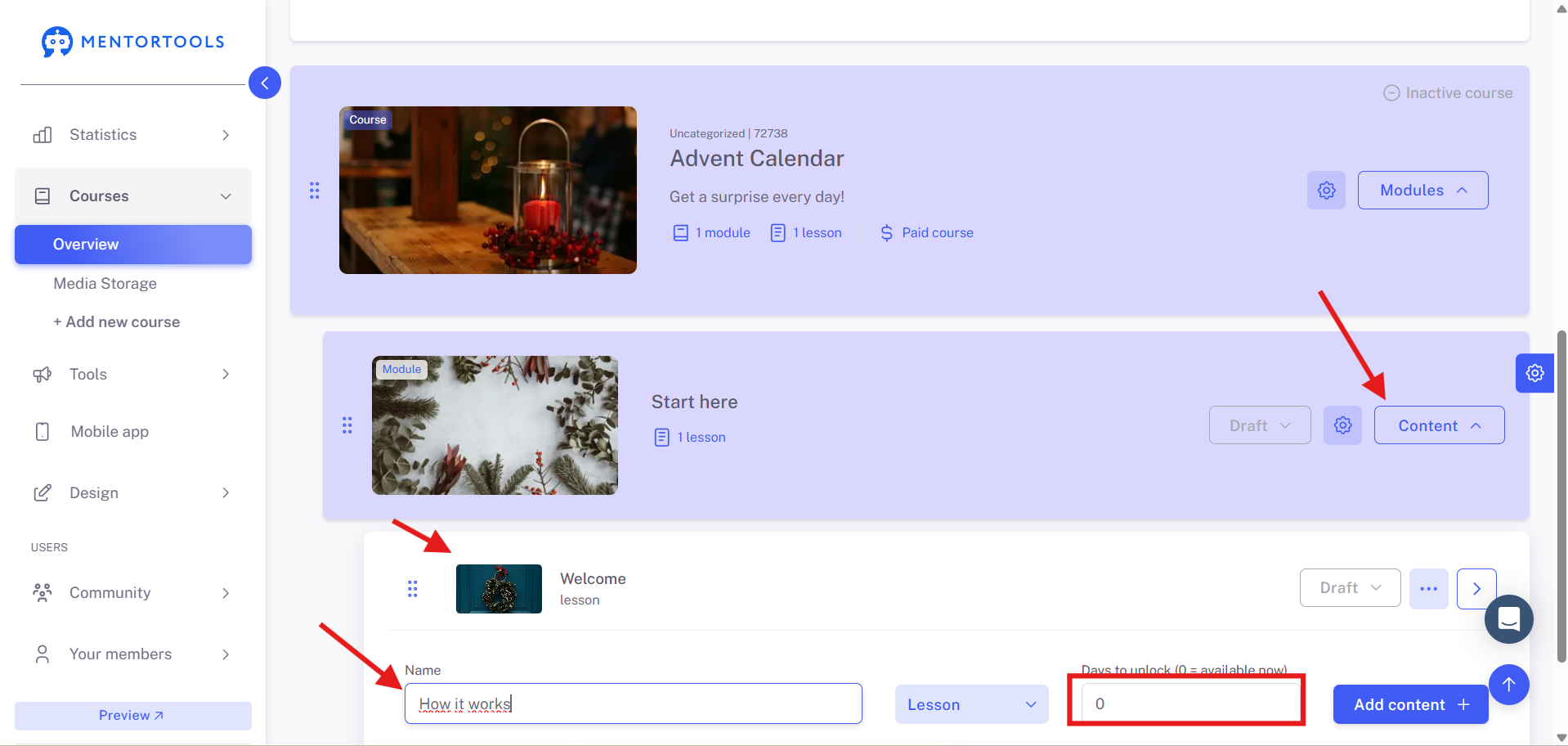
In How it works, explain that daily content lives in Module 2 and unlocks from December 1 to 24.
3) Module 2 — Advent Calendar (daily content)
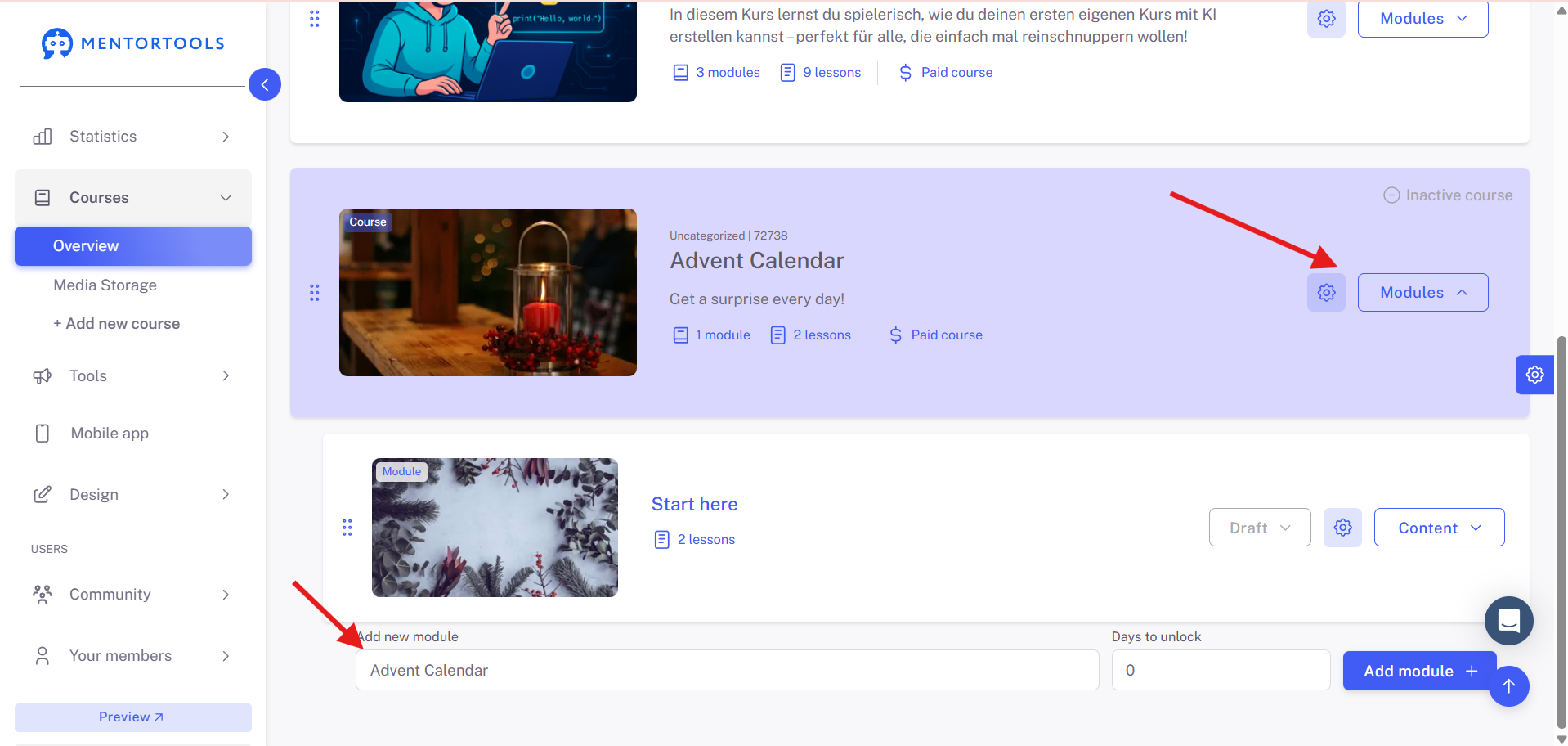
Click Add module → Name: Advent Calendar.
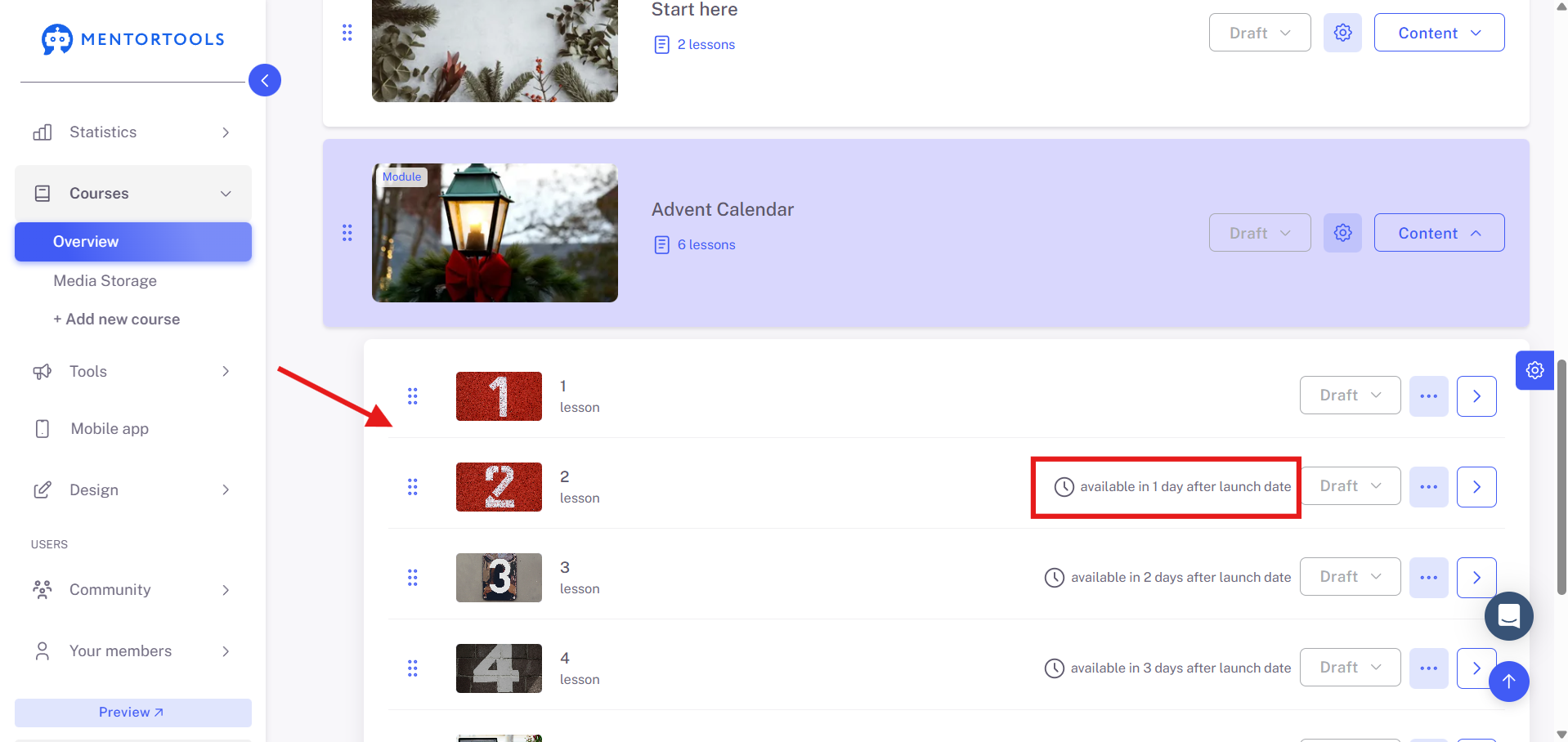
Add 24 lessons inside this module with these delays:
Day 1 – December 1 → Unlock after 0 days
Day 2 – December 2 → Unlock after 1 day
Day 3 – December 3 → Unlock after 2 days
…
Day 24 – December 24 → Unlock after 23 days
Quick reference
Polish
Optionally add thumbnails or numbers (01–24), and attach downloads/worksheets per day.
Troubleshooting
All days appear at once: A lesson is likely set to 0 days by mistake—adjust to the correct delay.
Nothing visible on December 1: Confirm the course is scheduled to Release on a fixed date = December 1.
Final checklist
Course named Advent Calendar
Course launch set to December 1
Module 1 with Welcome and How it works (both 0 days)
Module 2 (Advent Calendar) with 24 lessons, delays 0–23 days, ordered Day 1 → Day 24
That’s it—your Advent Calendar will open one door per day from December 1 to 24, based on the course launch date.