Creating and Granting Access to an Apple Developer Account
In this article, we will show you how to create an Apple Developer Account and then grant our team access. This step is required for your app to be successfully published on the Apple App Store. We will guide you through the registration, verification, and access sharing of your account—step by step.
Last updated 11 months ago
Apple ID
To create a developer account on the Apple App Store, you need an Apple ID if you don't already have one. You can create an Apple account here by simply filling in these fields:
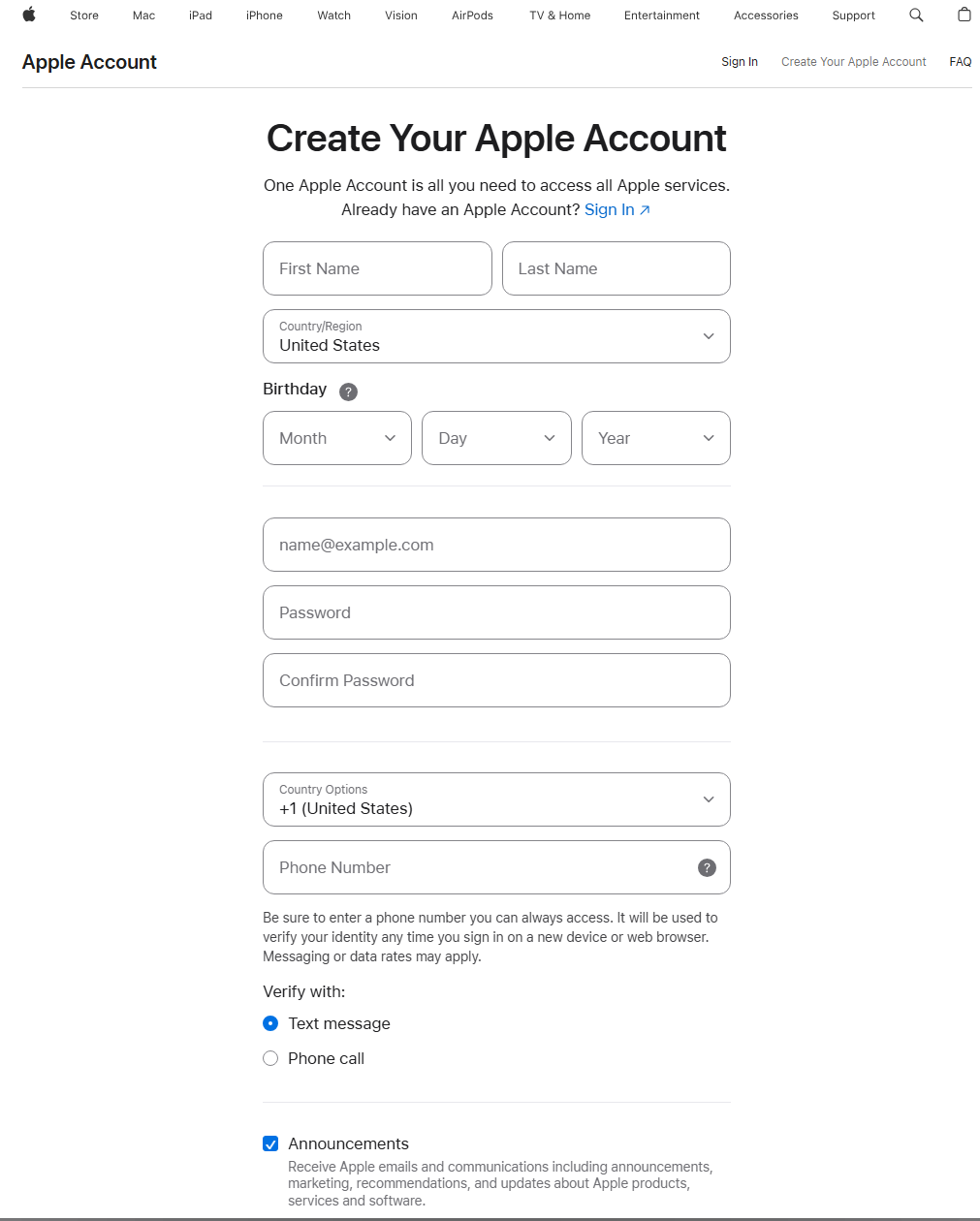
As soon as you have confirmed your email address and phone number with the codes sent to you, you have successfully completed your Apple ID. This also automatically sets up two-factor authentication.
Two-Factor Authentication
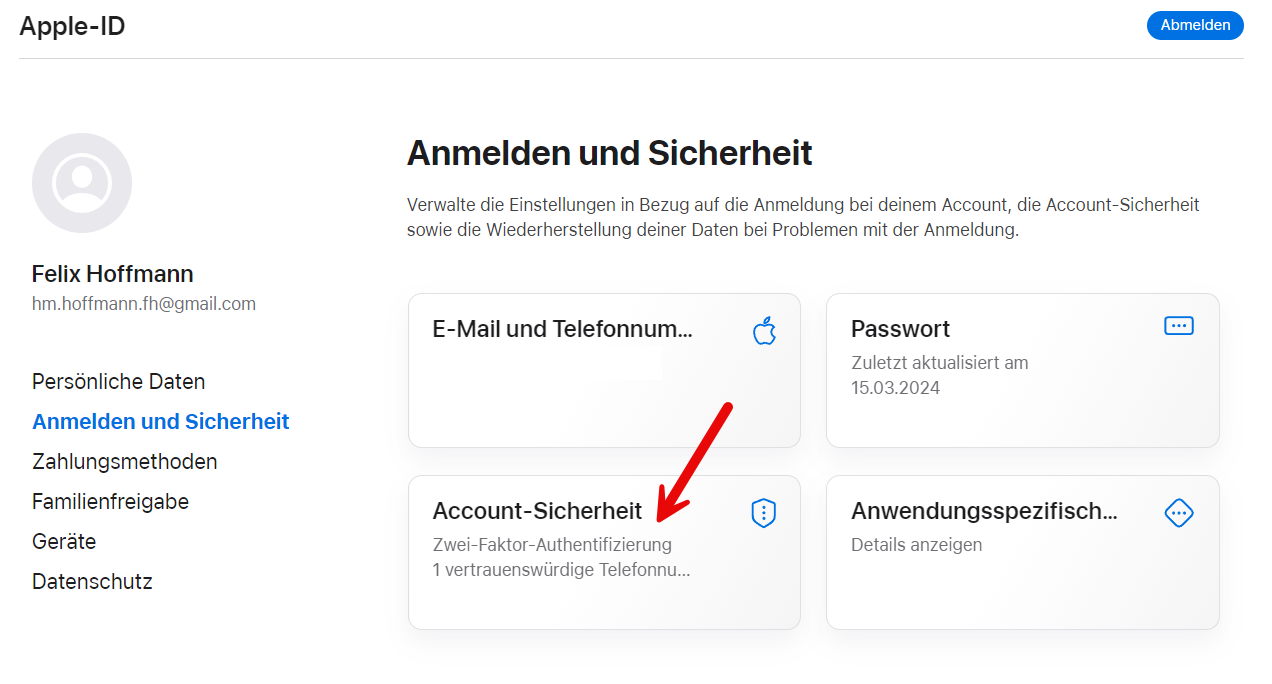
If you already have an Apple ID, you just need to check if two-factor authentication is set up for you: https://appleid.apple.com/account/manage/section/security
Enrolling as a Company in the Developer Program
You can click on the following link: https://developer.apple.com/enroll
1. Log in with your Apple ID.

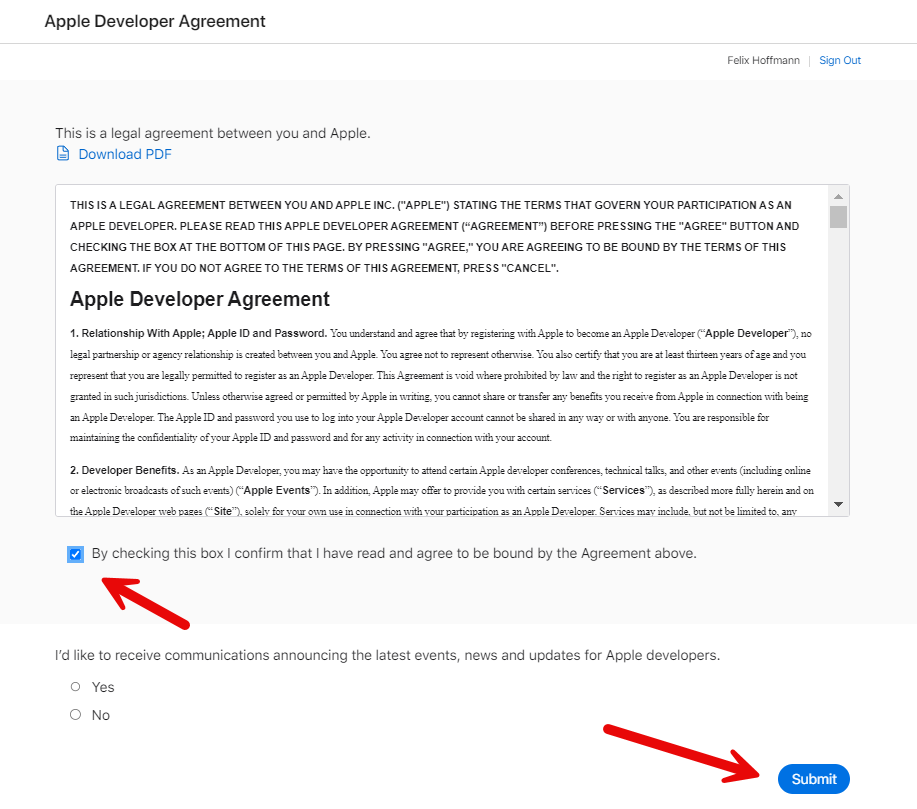
2. Accept the Terms and Conditions.
3. Enter your personal data.

4. Be sure to enroll as a Company / Organization.

To register as a company or organization for a developer account, you need a D-U-N-S number. You can check here if your company is already registered: https://developer.apple.com/enroll/duns-lookup/#!/search If you are not yet registered, you can apply for one there or follow our simple step-by-step guide.
Additional Steps
Enter your name and D-U-N-S number.
Fill out the remaining forms and the Terms and Conditions.
Pay the annual fee of 99€.
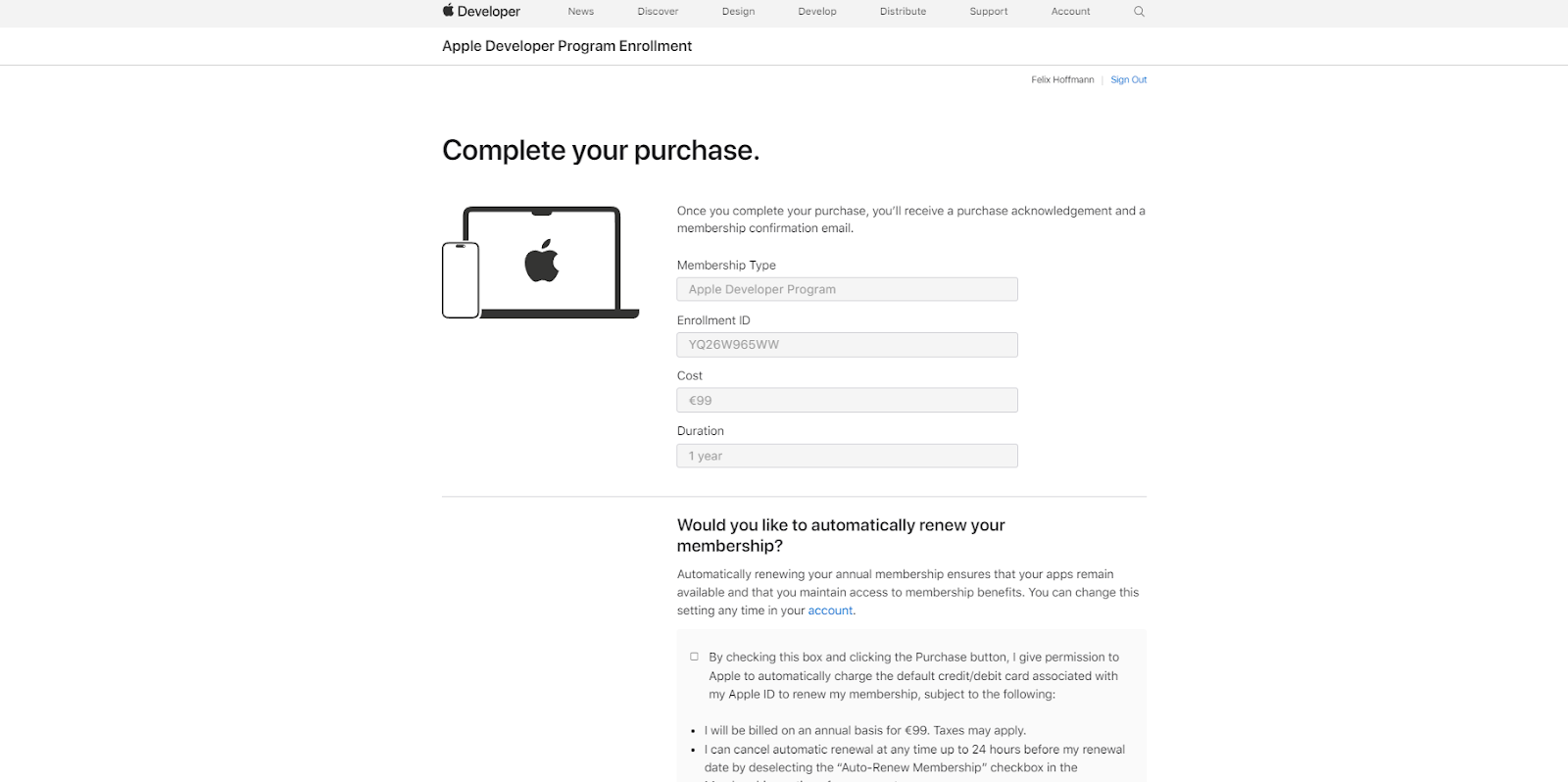
Please note that it can take up to 48 hours for your registration to be processed.

After you have successfully enrolled, go to Apple Connect and create a technical user. https://appstoreconnect.apple.com/access/users
Create a Technical User
When you are here: https://appstoreconnect.apple.com/access/users Click on the small blue plus sign and add the technical user app@mentortools.com.

Please make sure you assign ALL PERMISSIONS to this user, including the Additional Resources, which allow the apps to be created. This includes, in particular, App Permissions, General Permissions, and most importantly, Developer Permissions.
Then go to https://appstoreconnect.apple.com/access/integrations/api and click on "Request Access."

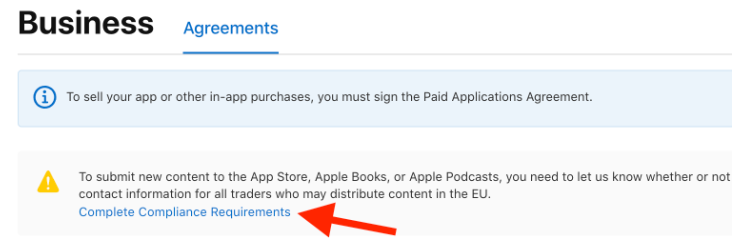
Then go to https://appstoreconnect.apple.com/business Here, select your company and click on "Complete Compliance Requirements."
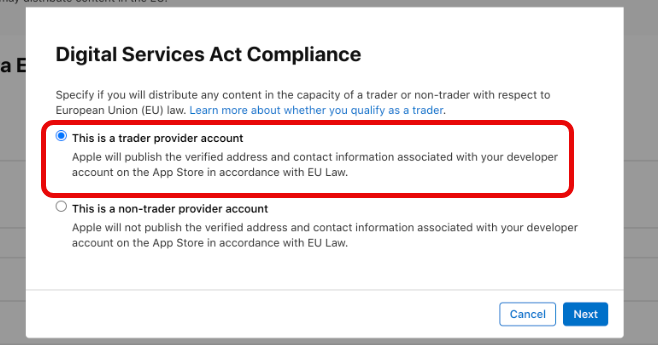
Select "This is a trader provider account" and fill out the subsequent forms.
Conclusion
From here, the Mentortools Support team will take over the next steps for you.