How to Test Your Member Area
Last updated 11 months ago
To view your member area from the perspective of an end-user, you have two different options. First, through the Preview function, where you, as a logged-in Admin, adopt the view of an end-user. Second, by logging in with new access data and viewing the member area from there. In this guide, you will learn how to use these two options to test your member area.
Preview Function
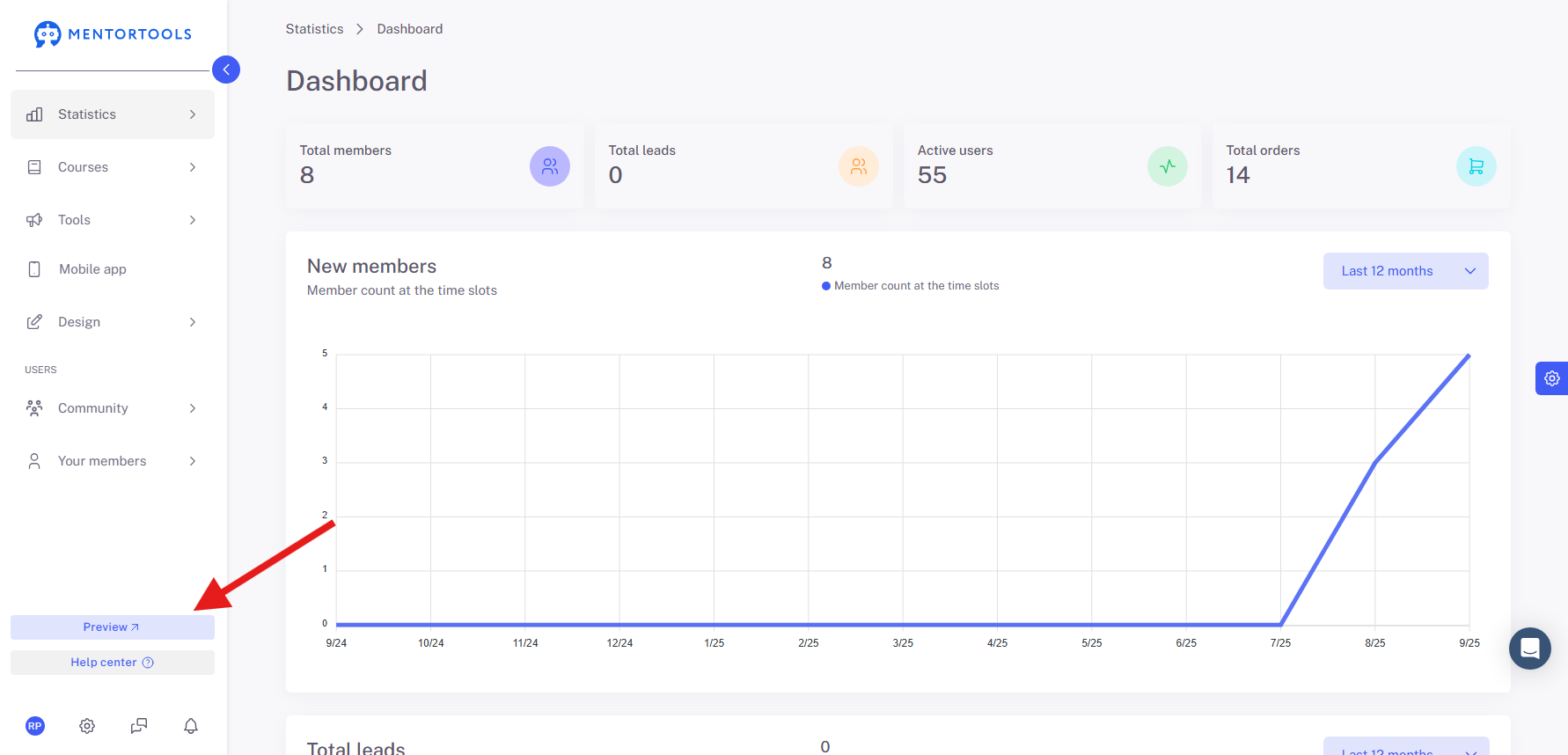
If you are already logged in as an Admin in Mentortools, you have the immediate option to take on the view of an end-user. To do this, click on "Preview", and the area will be displayed to you.
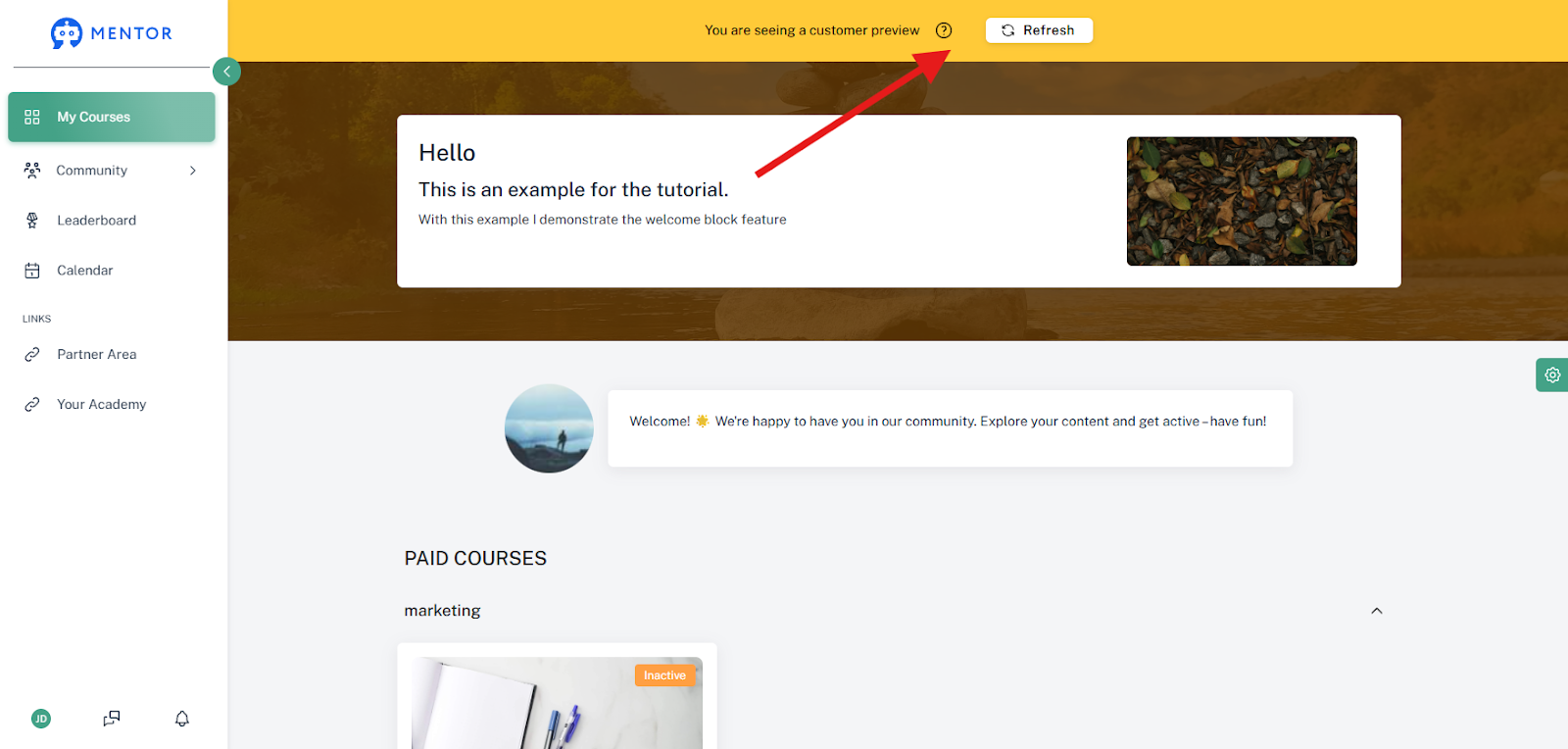
The yellow bar at the very top is only an indication that you are in the Preview function. This will not be visible to the end-user.
Log in with New Access Data
If you want to log in completely with new credentials as an end-user, you should first consider the following points:
Open a private browser window and test everything from an Incognito mode.
When testing, use an email address that you have not used in your member area before.
The registration process can now be tested through various procedures:
Direct Link to the online course
Registration through a Landing Page, e.g., for a free e-book
Registration for the member area
Test payment via a payment provider
Delete Test Email Address
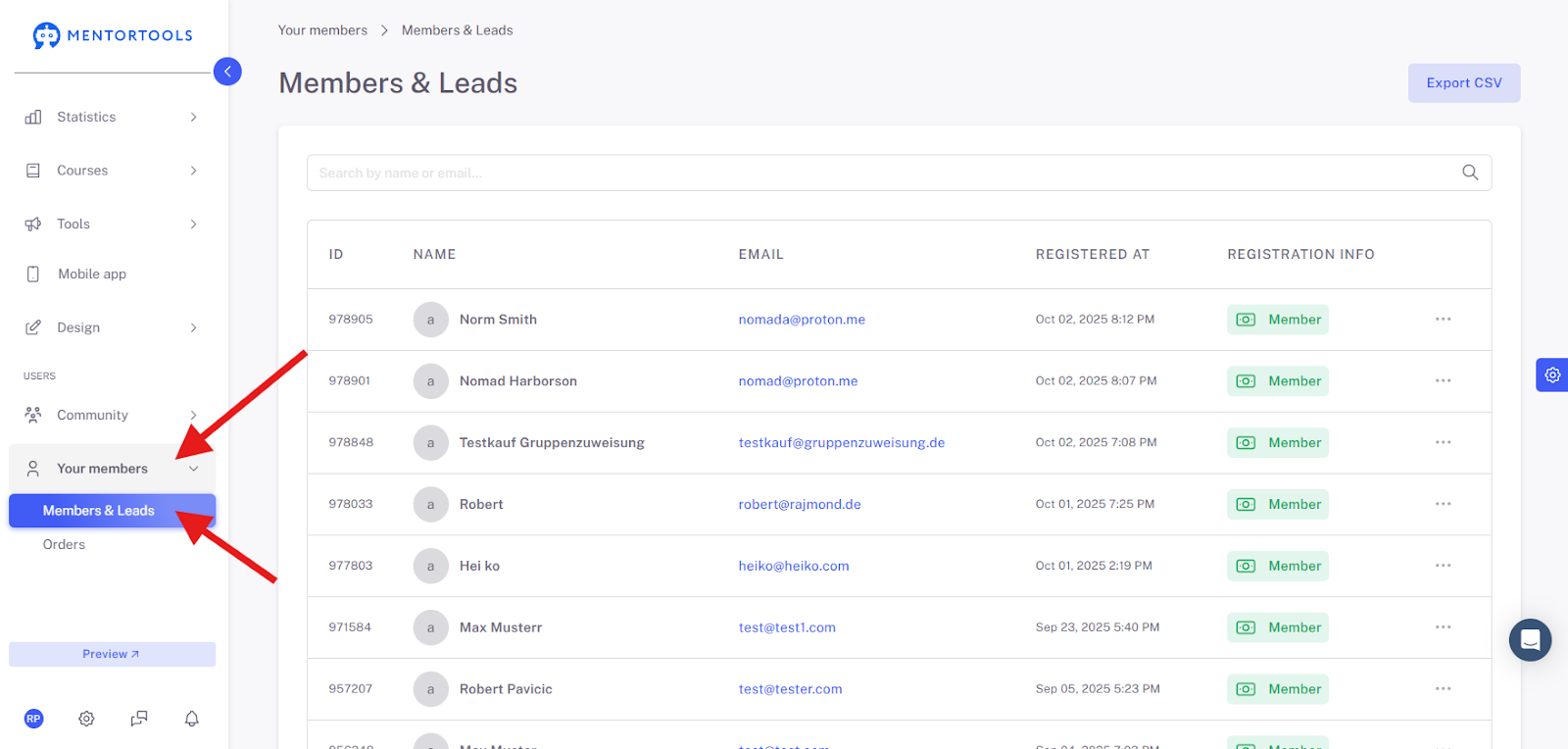
If you want to test several processes, you can delete the test email address. To do this, navigate to the menu item "Members", then the submenu item "All Members".
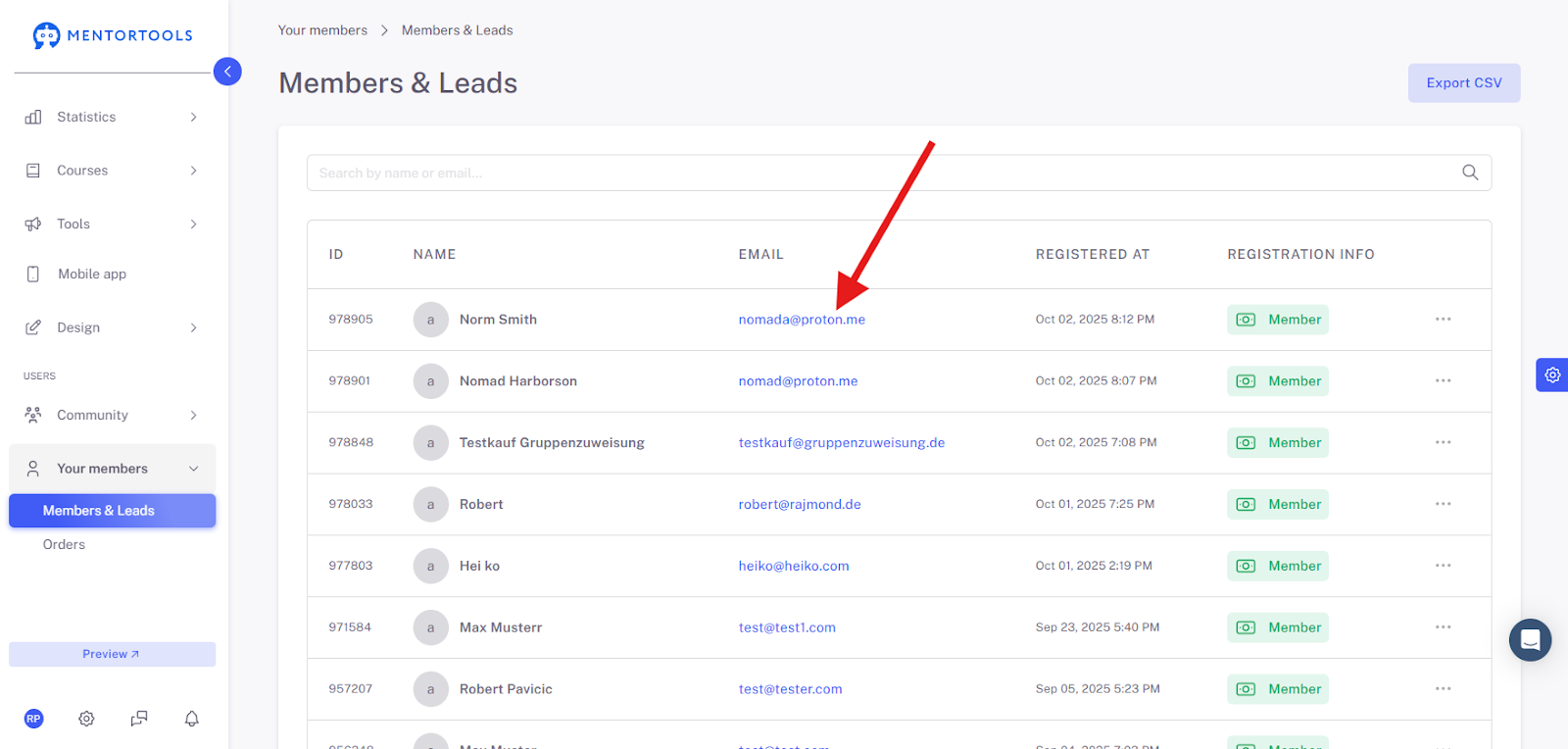
Then click on the desired email address or the name you want to delete.
A new window will then open—click on the "Delete" button on the far bottom left.
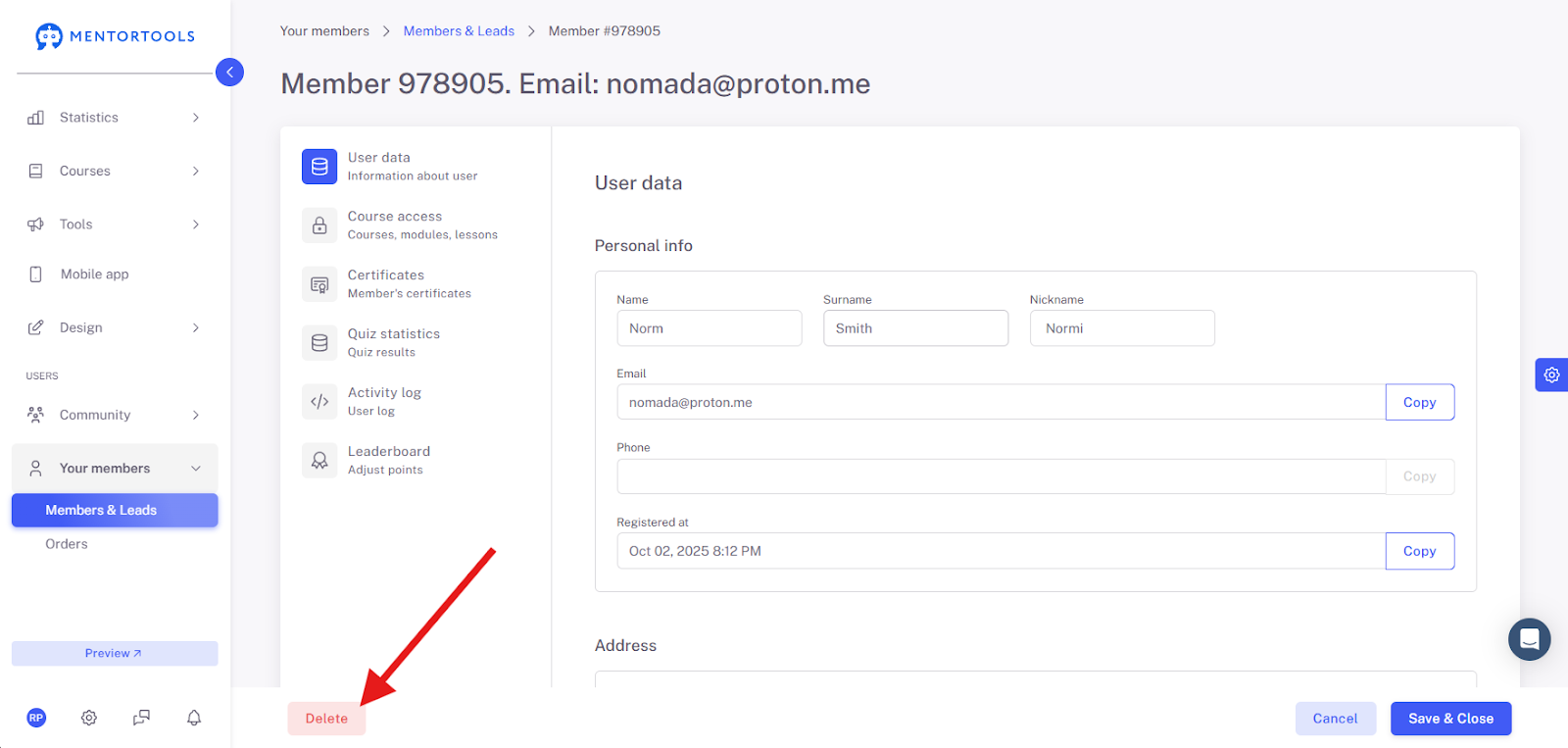
You can now use the deleted email address again for a registration process.
Wishing you success and fun,
Team Mentortools