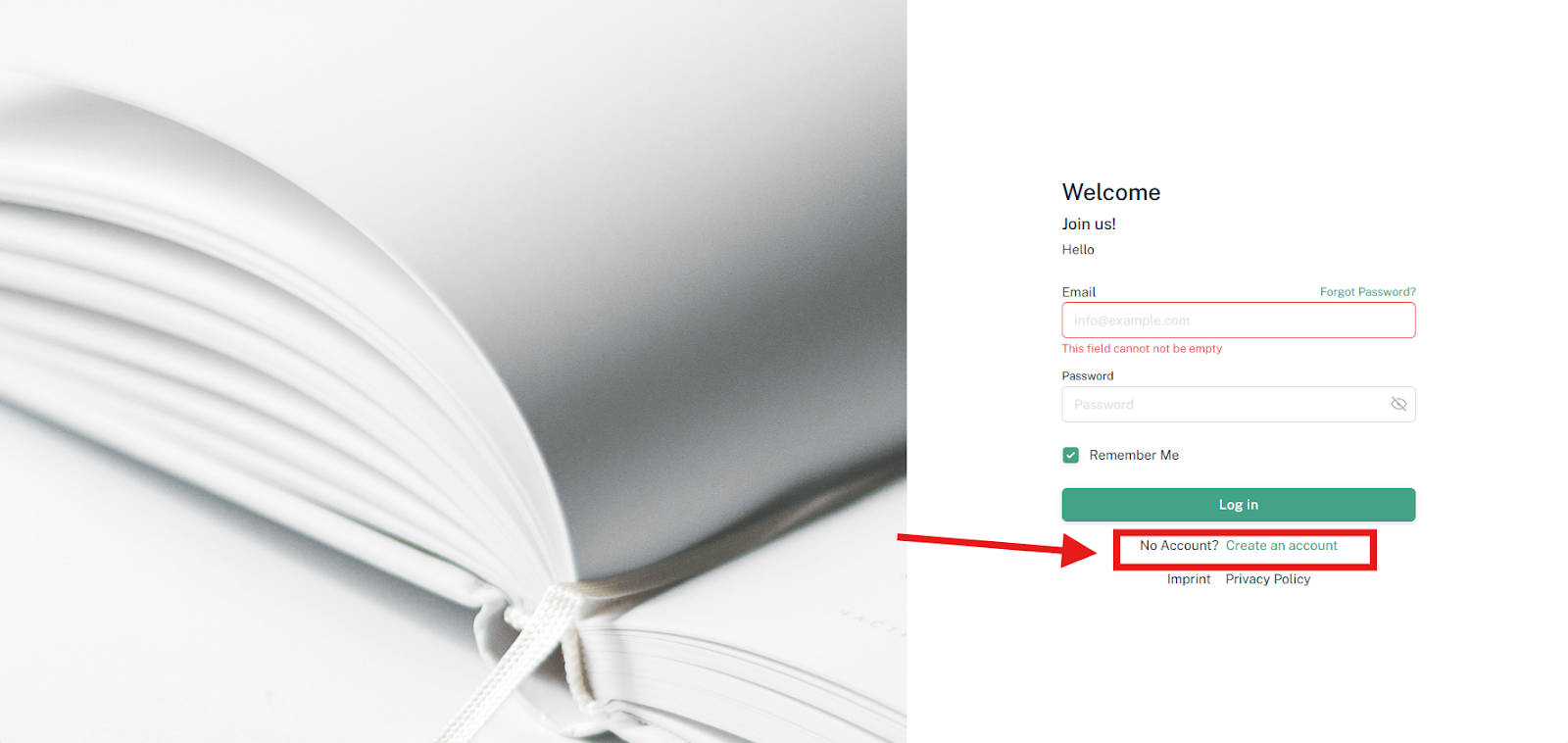
Activate Registration
Last updated 11 months ago
The "Allow Registration" function is for users who are not yet able to log into your member portal to register. This gives users access to your member area and allows them to view all the courses you have made available for free. All paid courses are excluded from this.
If you want this, move your mouse over the menu item "Settings", then click on the submenu item "General".
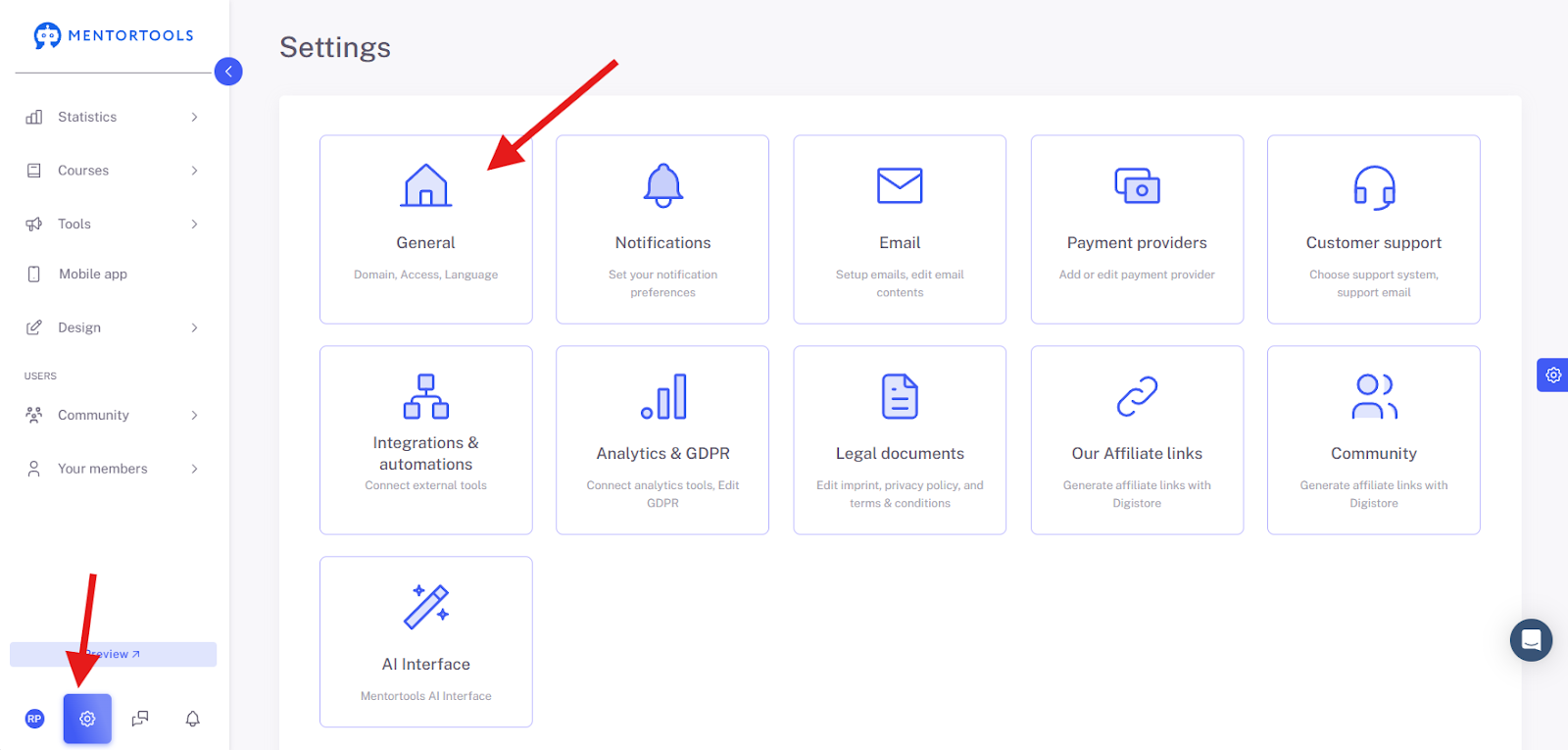
Afterward, you will arrive at a new page; please select "Access Settings" there.
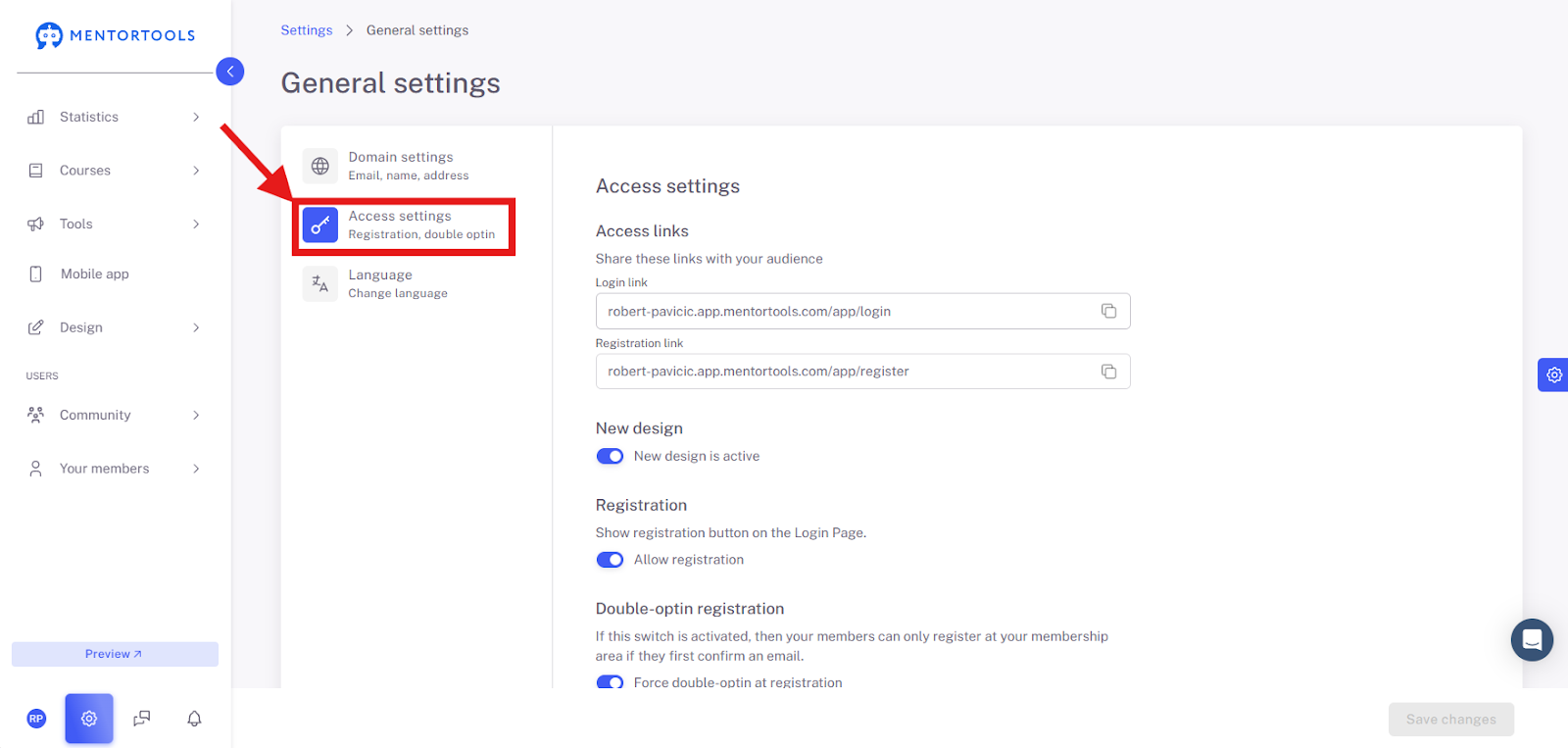
Subsequently, you have two different options to choose from. (1) Registration using a so-called Single Opt-in process. This means the user who registers does not have to confirm their email address. In this case, you would not have permission to send marketing emails to the registered user.
Then there is the second option (2), where the user confirms the email address. This automatically sends the user a confirmation email, and if they confirm the link in their inbox, you have the option (legally speaking) to send them further emails.
Now select which option you want and activate the function by clicking in the white-gray box.
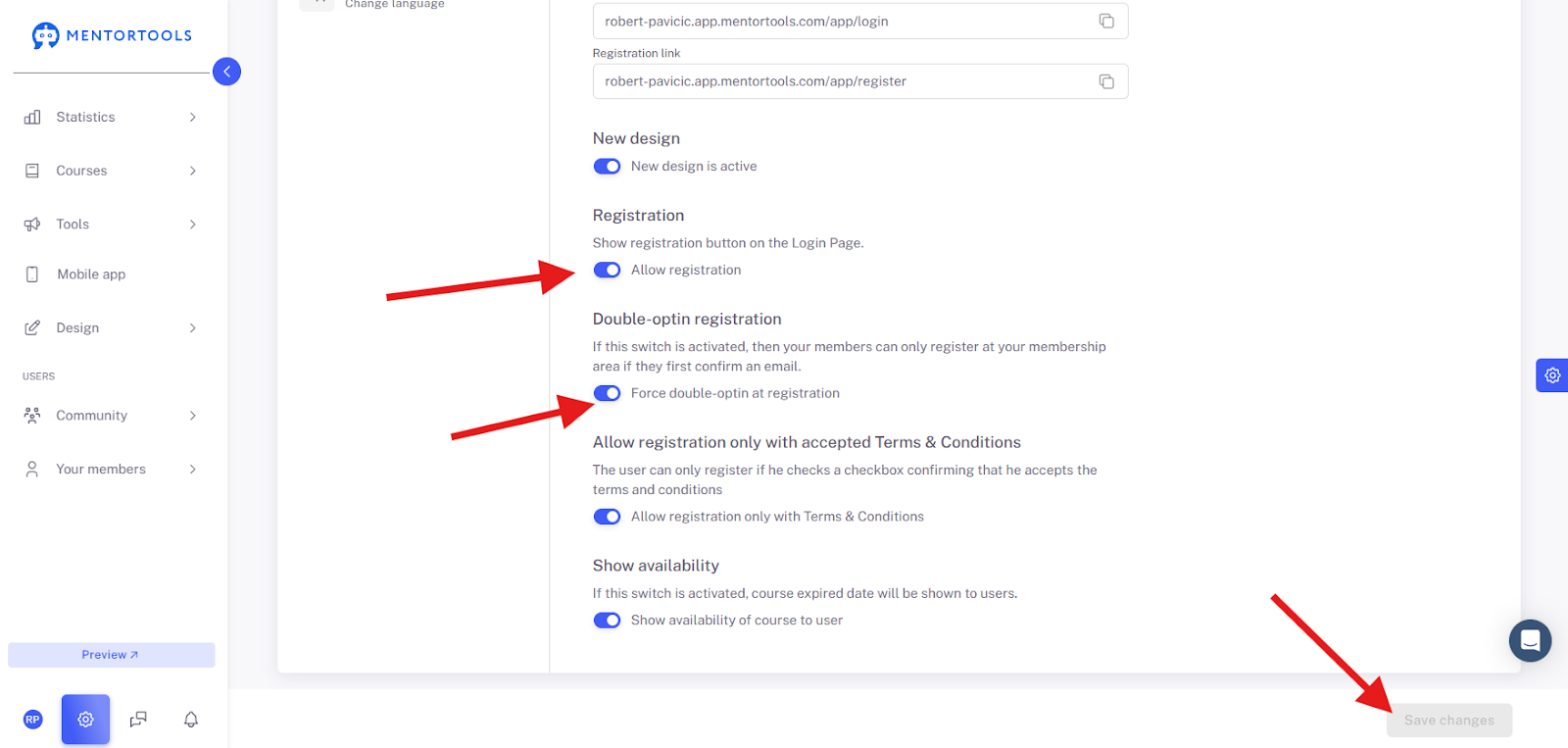
If you have done this correctly, the button will now appear in blue.
IMPORTANT: To save the setting permanently, finally click the blue button (Save & Close).
To see the result, log out of your member account and check if the "Registration Button" appears on your login page.