How to Connect Shopify with Mentortools (Make)?

Last updated 4 months ago

You can use the following guide to grant access to your courses based on sales through Shopify. You will need:

  • A Mentortools course you want to sell.

  • A Shopify store with a subdomain.

  • A Make account.

1. Create a New Scenario for the Connection Between Shopify & Mentortools

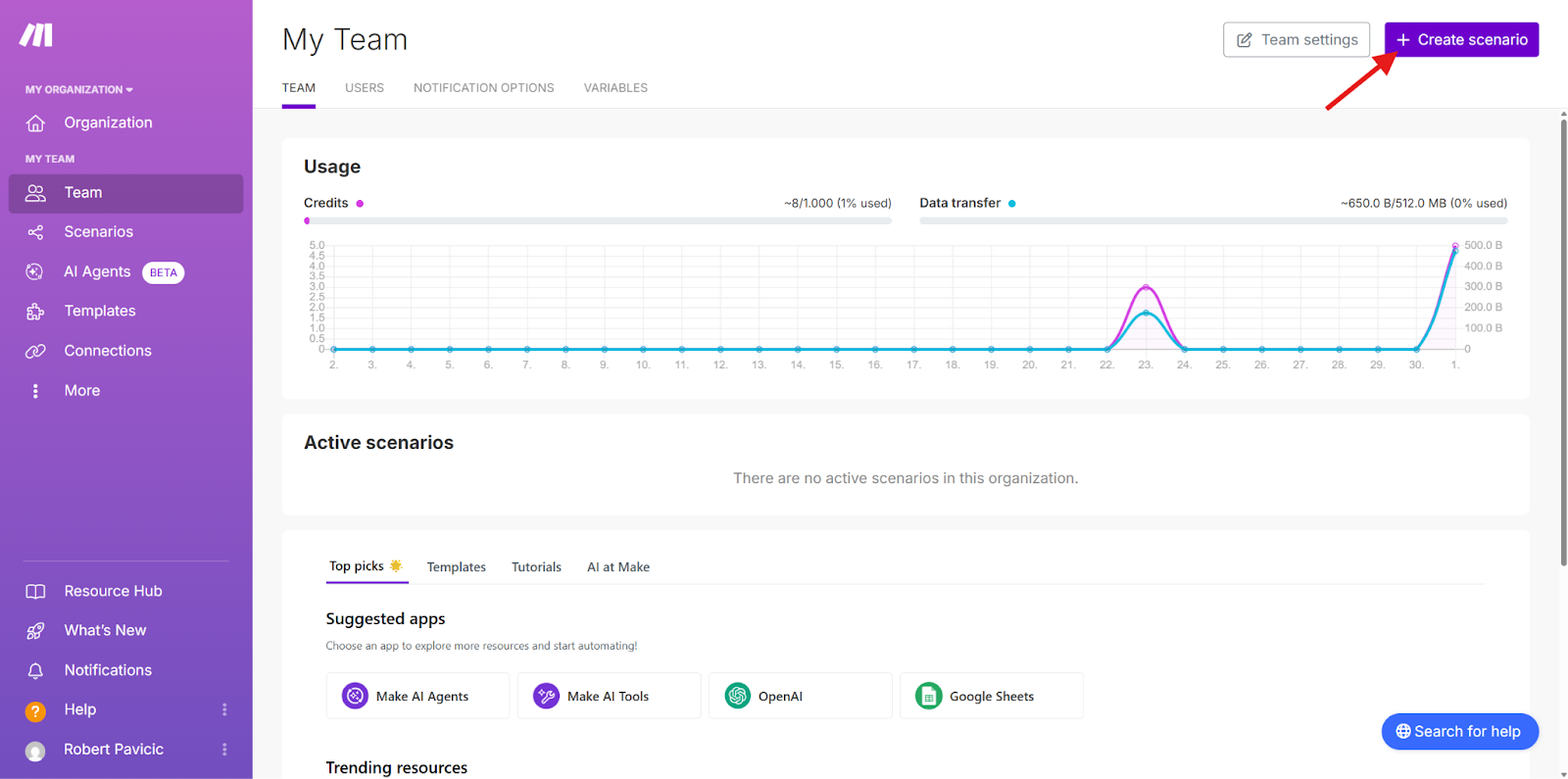
Open the following link for the Make platform and click on “Create scenario”.https://eu2.make.com/2706588/team/dashboard
2. Select Shopify as the Trigger

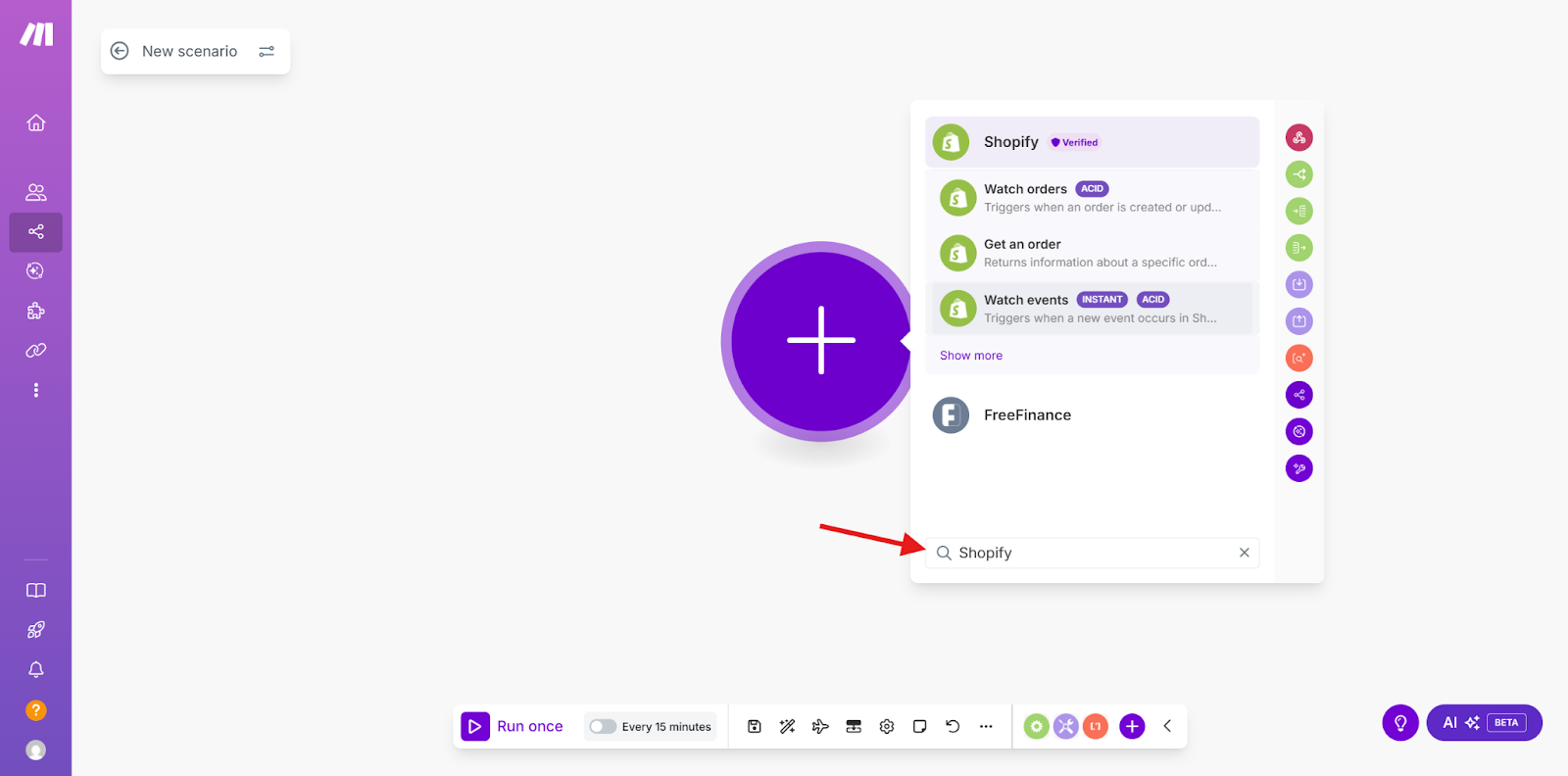
In the Make Editor, you will be prompted to set up the first step, the workflow's Trigger. Enter Shopify into the search field and select Shopify as the App.
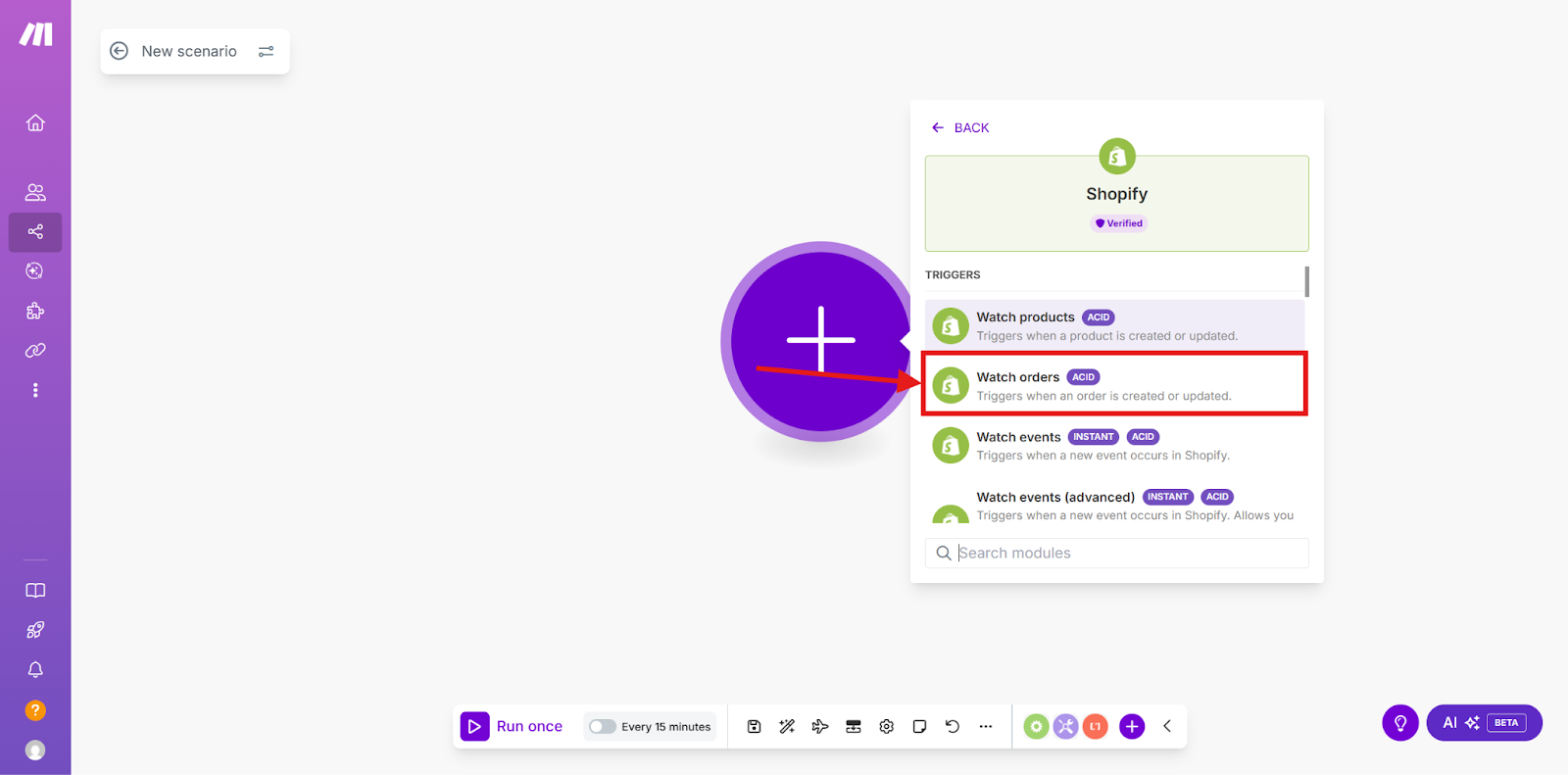
Now choose the appropriate “Trigger.” In this example, we use “Watch orders”.
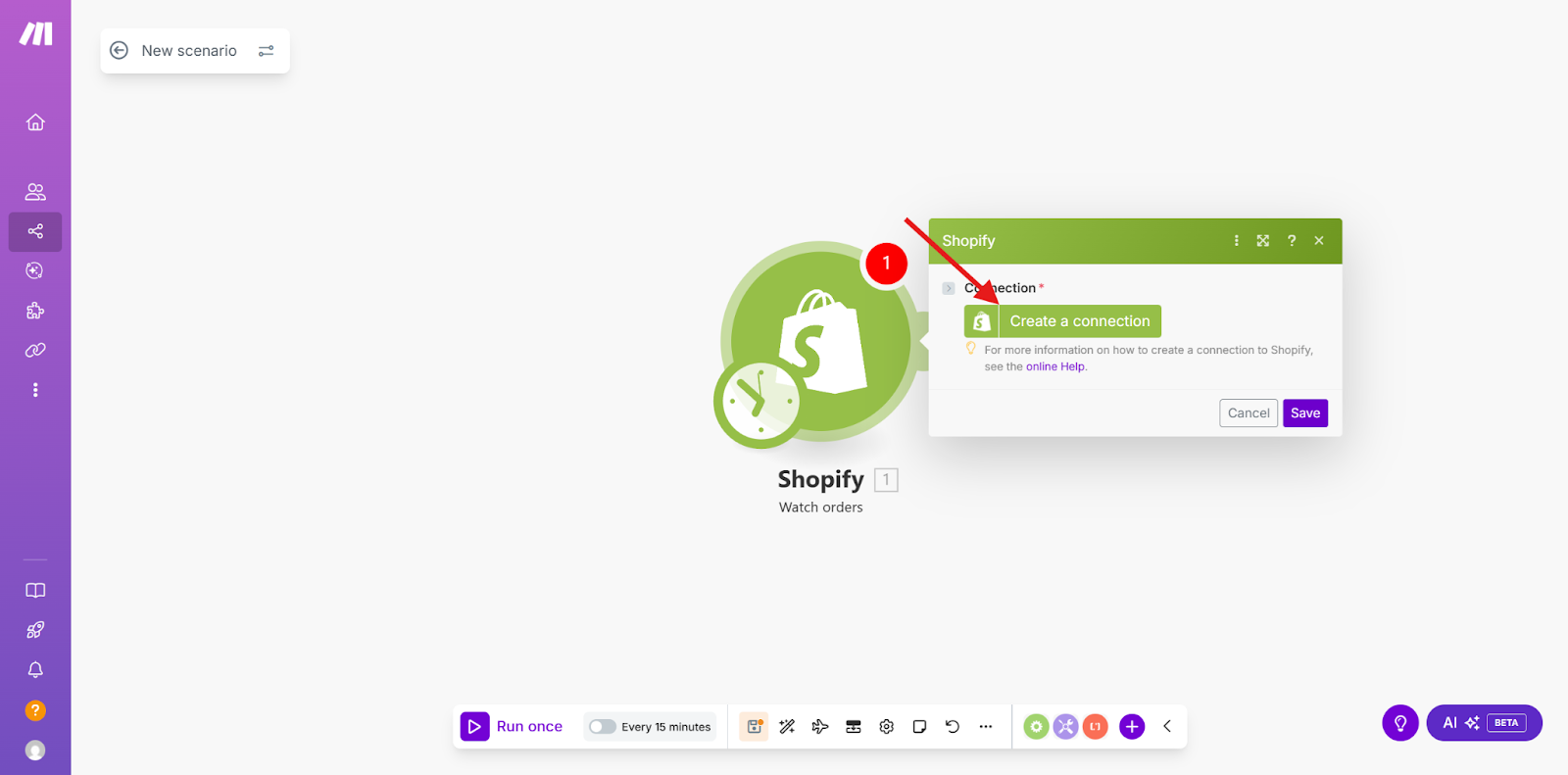
Now go to “Create a connection” to set up the connection between Make and Shopify.
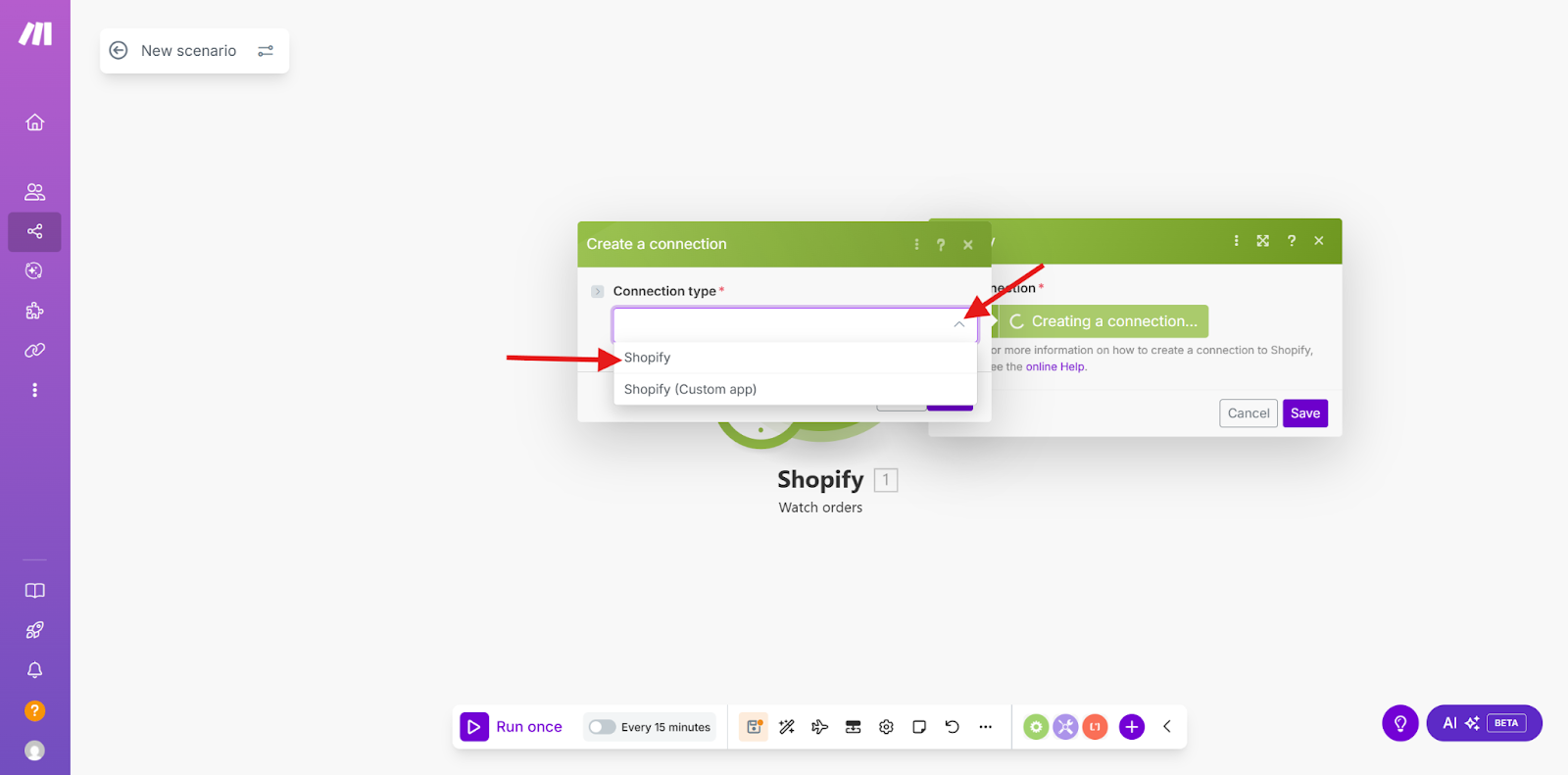
In the next step, “Connection type,” select “Shopify.”
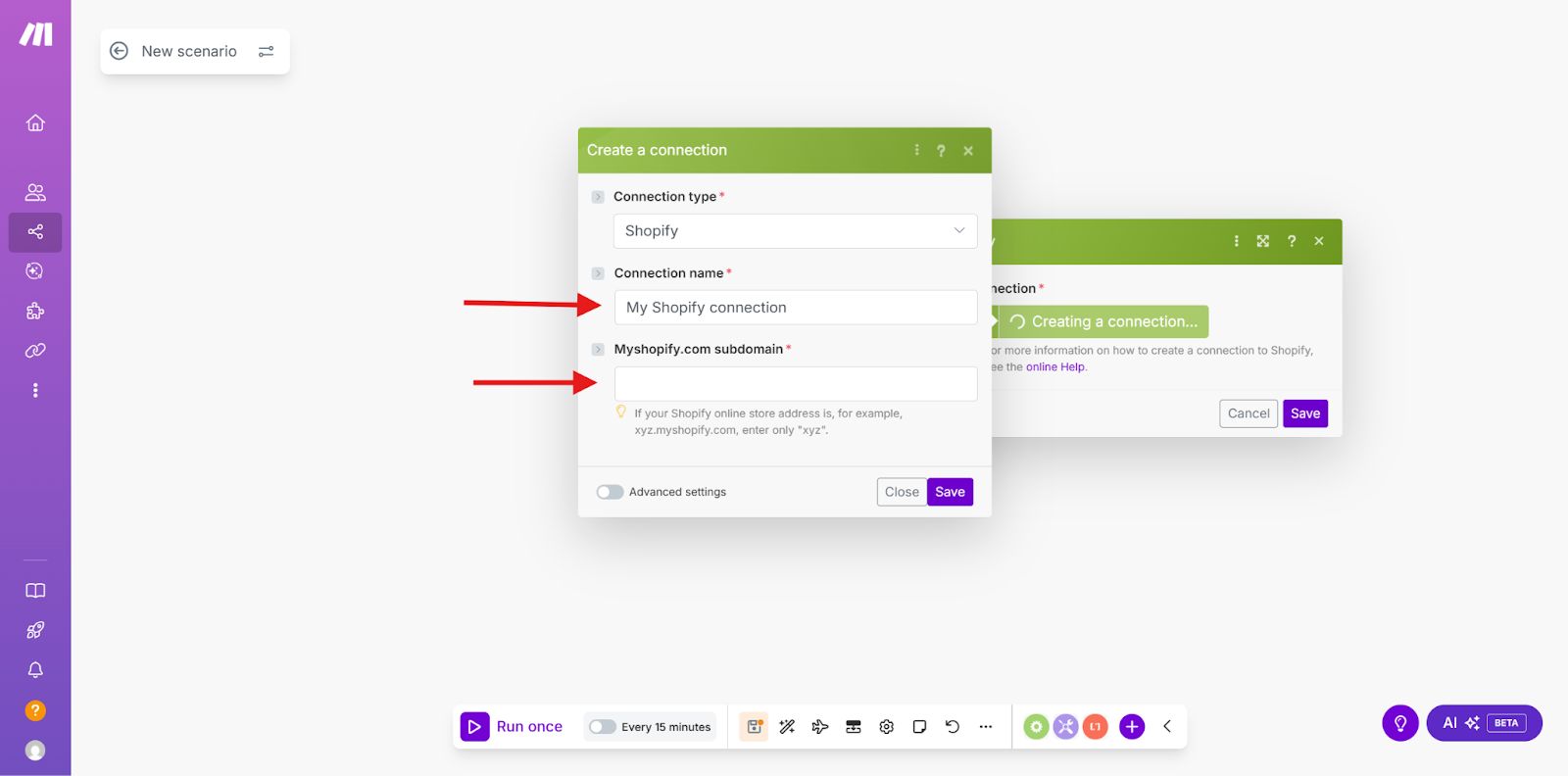
Now give the connection a name and enter your Shopify subdomain.
You can find your subdomain in your Shopify account under “Domains.”
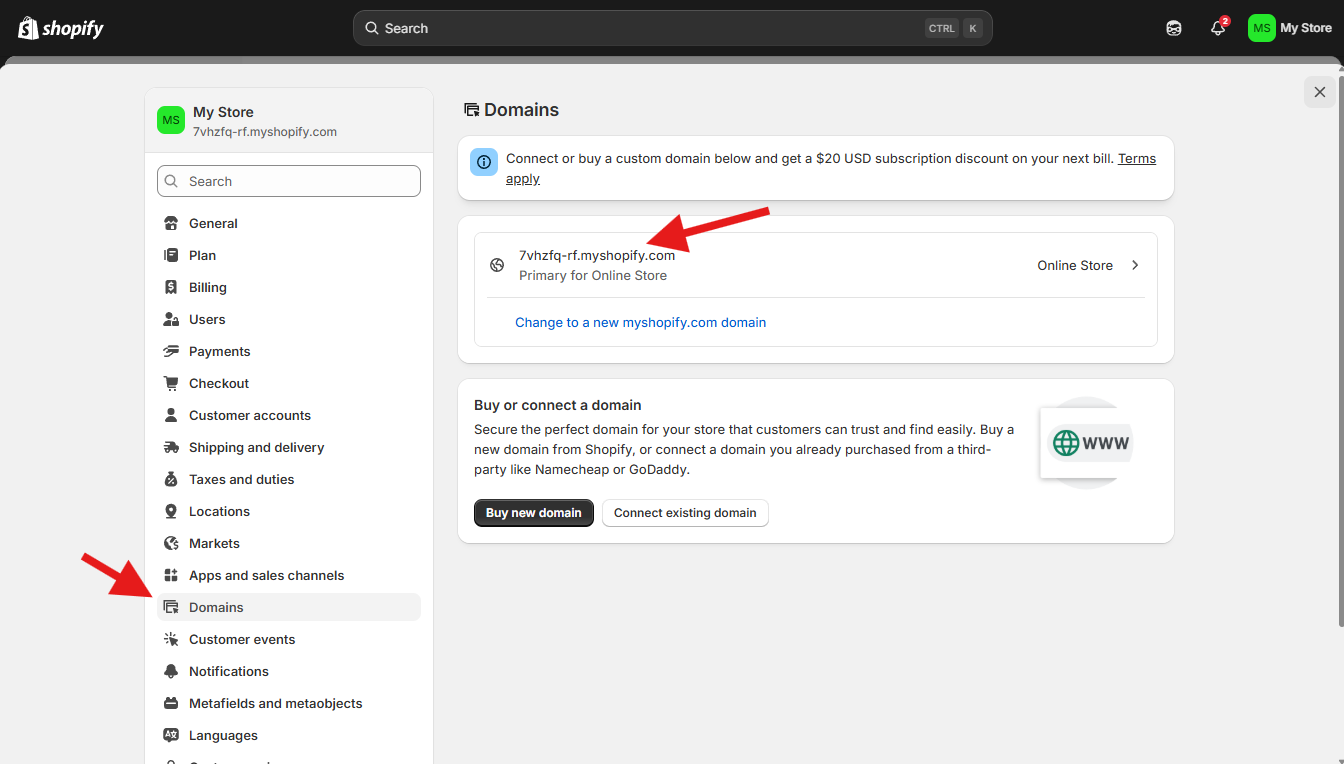
Note: Make sure you only enter the part beforemyshopify.com.” In this case, that would be “7vhzfq-rf”.

Now click on “Save.”

Shopify Module Settings Explained
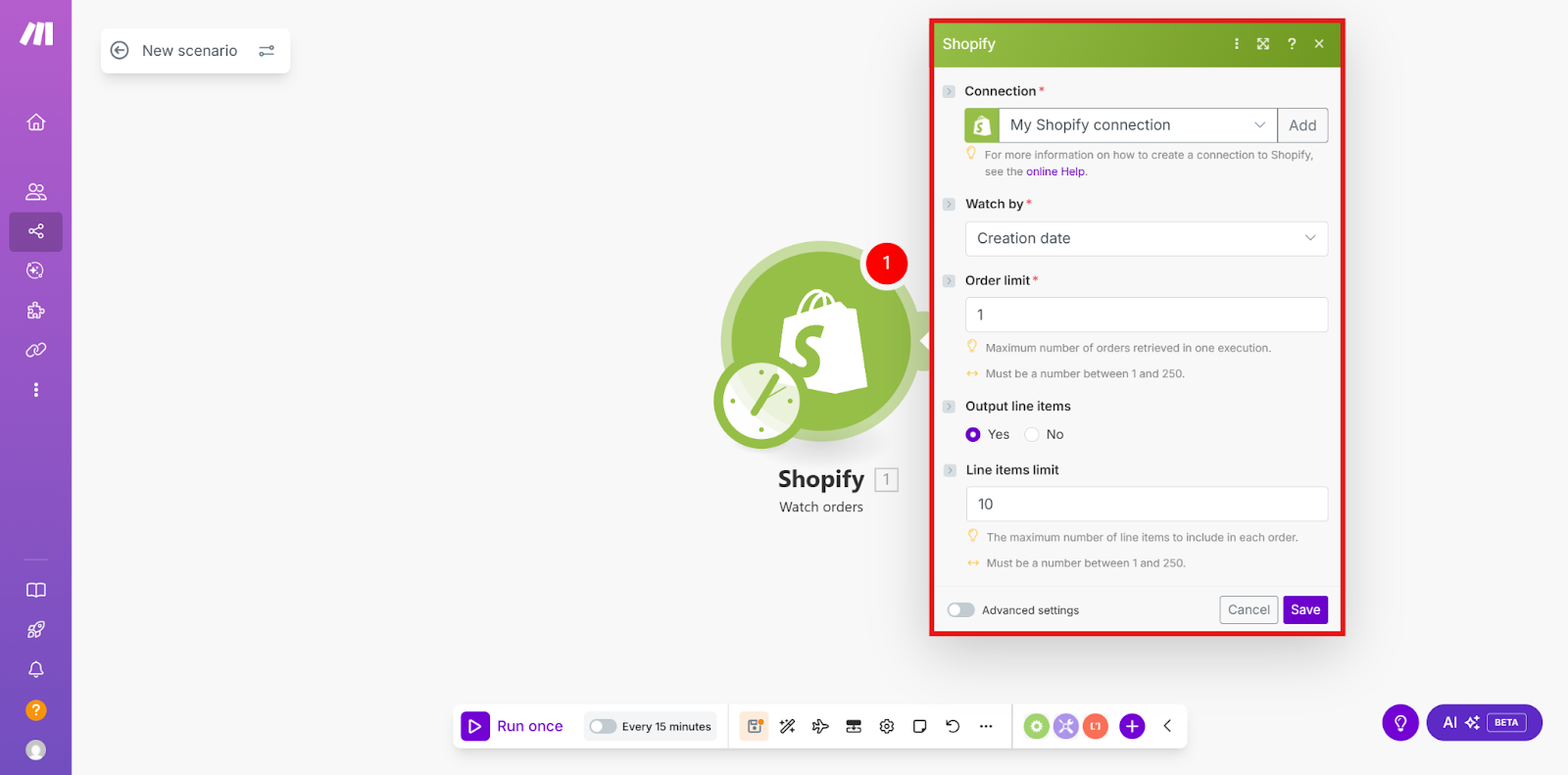
Setting

Purpose & Recommendation

Connection

Purpose: Select your connected Shopify account here. Important: If no connection exists yet, click "Add" and follow the instructions to link Make with your Shopify store (you'll need your store credentials).

Watch by

Purpose: Defines the criterion by which Make should check for new entries (e.g., new orders). Recommendation: For automating new purchases, Creation date is almost always the correct choice.

Order limit

Purpose: Sets the maximum number of orders Make should retrieve per run of the scenario. Recommendation: 1 is ideal for the first test. For live operation, you can increase the value (e.g., to 10 or 50) to ensure no data is lost even with high order volume.

Output line items

Purpose: Determines whether Make should retrieve the details of the purchased products (the "Line Items") along with the order. Recommendation: Choose Yes.

Line items limit

Purpose: The maximum number of line items (products) to be retrieved per order. Recommendation: The default value of 10 is sufficient in most cases. You only need to increase this value if customers regularly buy large quantities of different products in a single order.

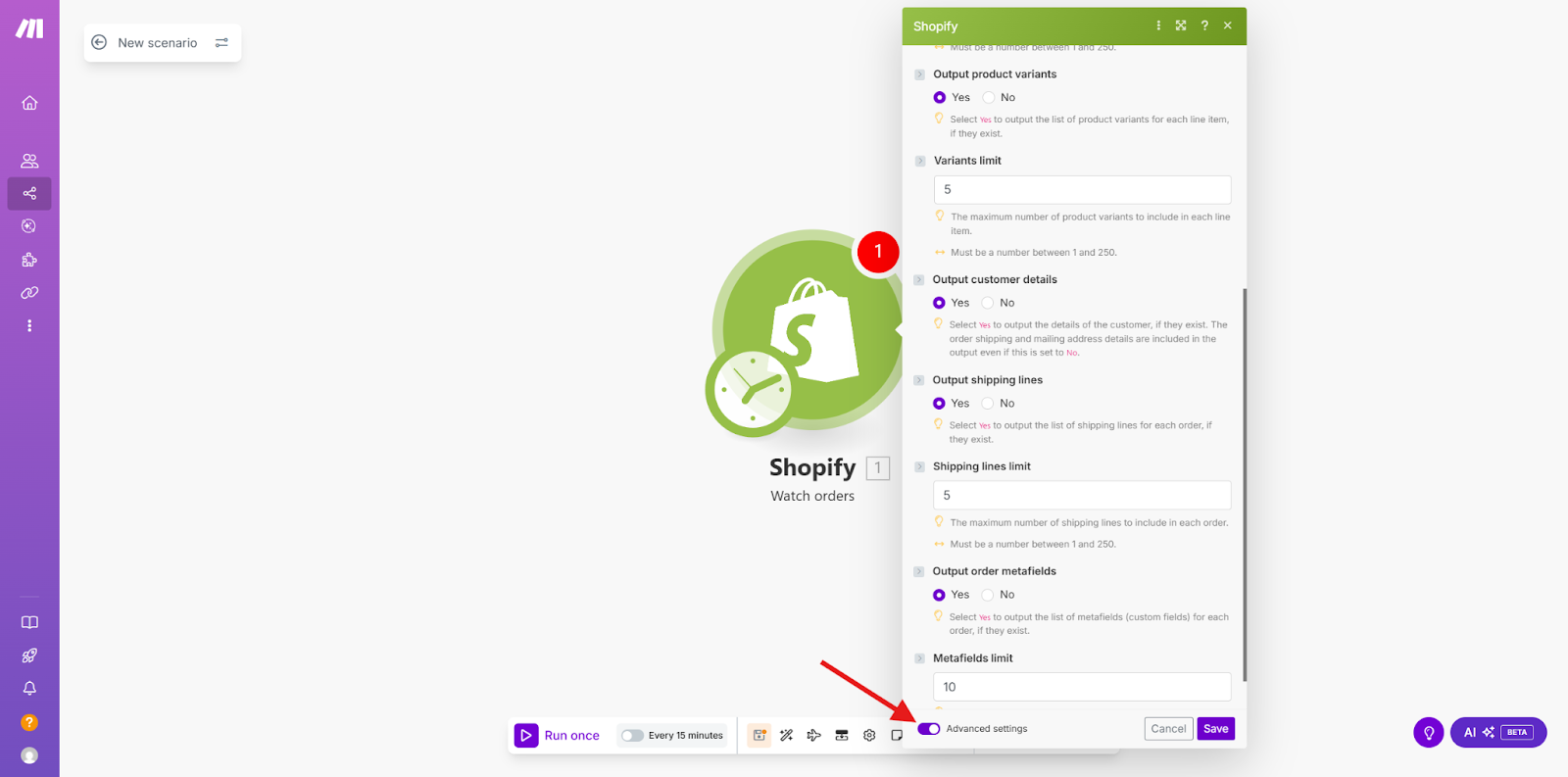
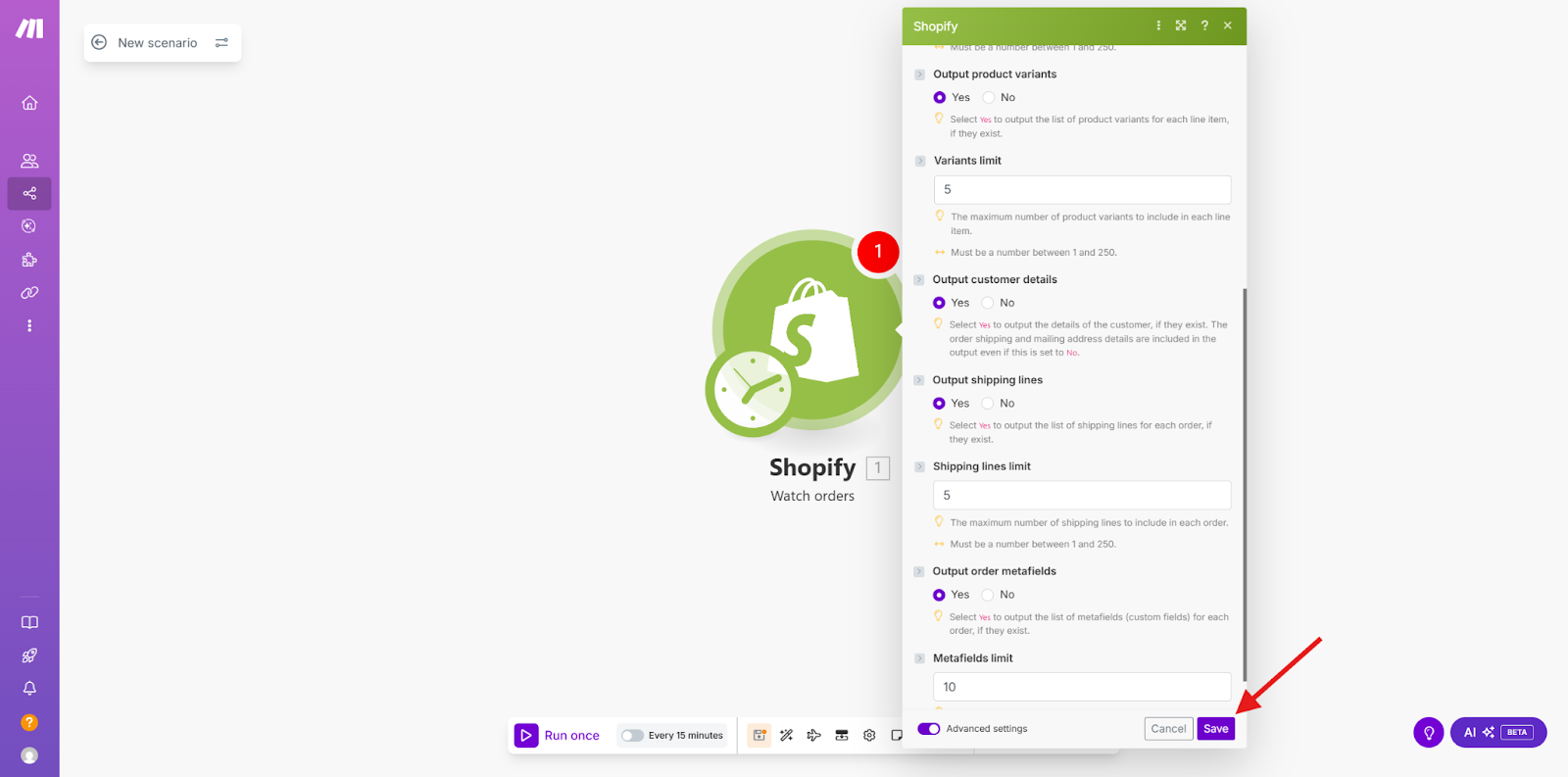
Advanced Options

Click the switch to show advanced settings:

Output product variants

Purpose: If you have variants (e.g., "Size S," "Color Red") for your products, you determine here whether these specific variant details should also be retrieved. Recommendation: Choose Yes if your courses have different variants (e.g., "Standard Access" vs. "Premium Access") that you need to treat differently in Mentortools.

Variants limit

Purpose: The maximum number of variants to be retrieved per line item. Recommendation: The default value of 10 is usually appropriate.

Output customer details

Purpose: Determines whether Make should retrieve the complete customer information (name, email, billing, and shipping address) along with the order. Recommendation: Definitely choose Yes. You need these details (especially the email address and name) to create the buyer as a member in Mentortools. Without these details, you cannot create an order.

Output shipping lines

Purpose: Determines whether the details of the chosen shipping method (name, cost, etc.) should also be retrieved. Recommendation: Choose Yes if this information is important for your internal documentation or workflow logic. If you only sell digital courses, you can choose No to keep the data lean.

Shipping lines limit

Purpose: The maximum number of shipping lines to be retrieved per order. Recommendation: The default value of 5 is more than sufficient, as orders rarely have more than one or two shipping options.

Output order metafields

Purpose: Metafields are custom fields that you or your apps add to orders. If you need such additional, non-standardized information (e.g., an internal order ID or special checkout information), you must choose Yes here. Recommendation: Only choose Yes if you definitely know you need custom data. In the standard case, you can choose No.

Metafields limit

Purpose: The maximum number of custom metafields to be retrieved per order. Recommendation: 10 is a good default value.

After you have filled in all the fields, please click on “Save.”
3. Create the Mentortools Course Unlock in the Scenario

Now select “Mentortools” as the App in the Action step by clicking on the plus sign.

and entering “Mentortools” in the search field.
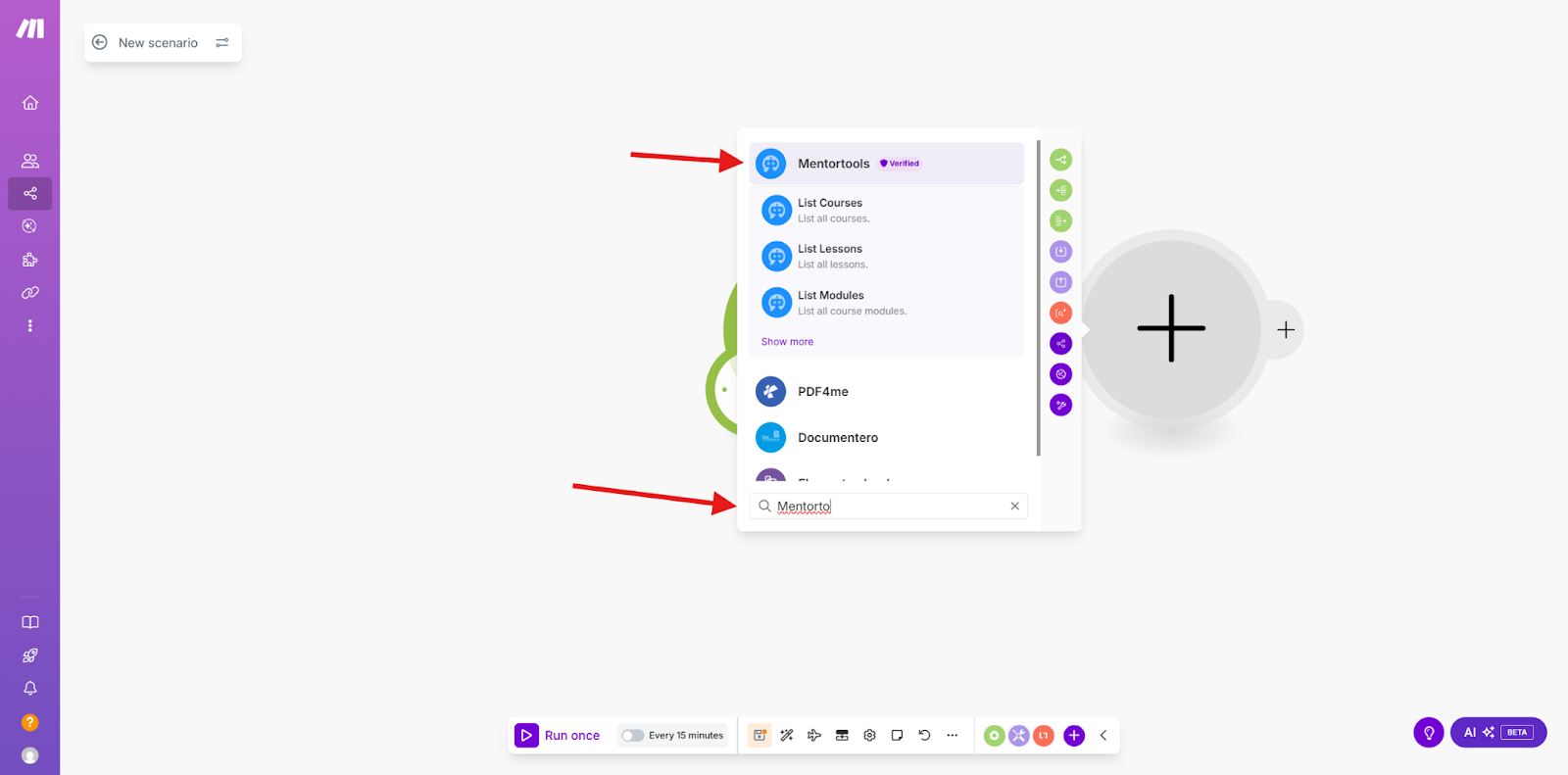
Now choose the action that must be performed in Mentortools after the action in Shopify has triggered the event. In this case, we select “Create an order.”

4. Connect the Data Fields from Shopify with Mentortools

Now the customer data form for course unlocking opens. Here we connect Mentortools with the values from the data in step 1 of the scenario. To do this, click on the input field to open the list of available variables.

In the list of variables, you will find all the necessary information to fill out the form.

Now choose the variable “Email” for the Email field. 
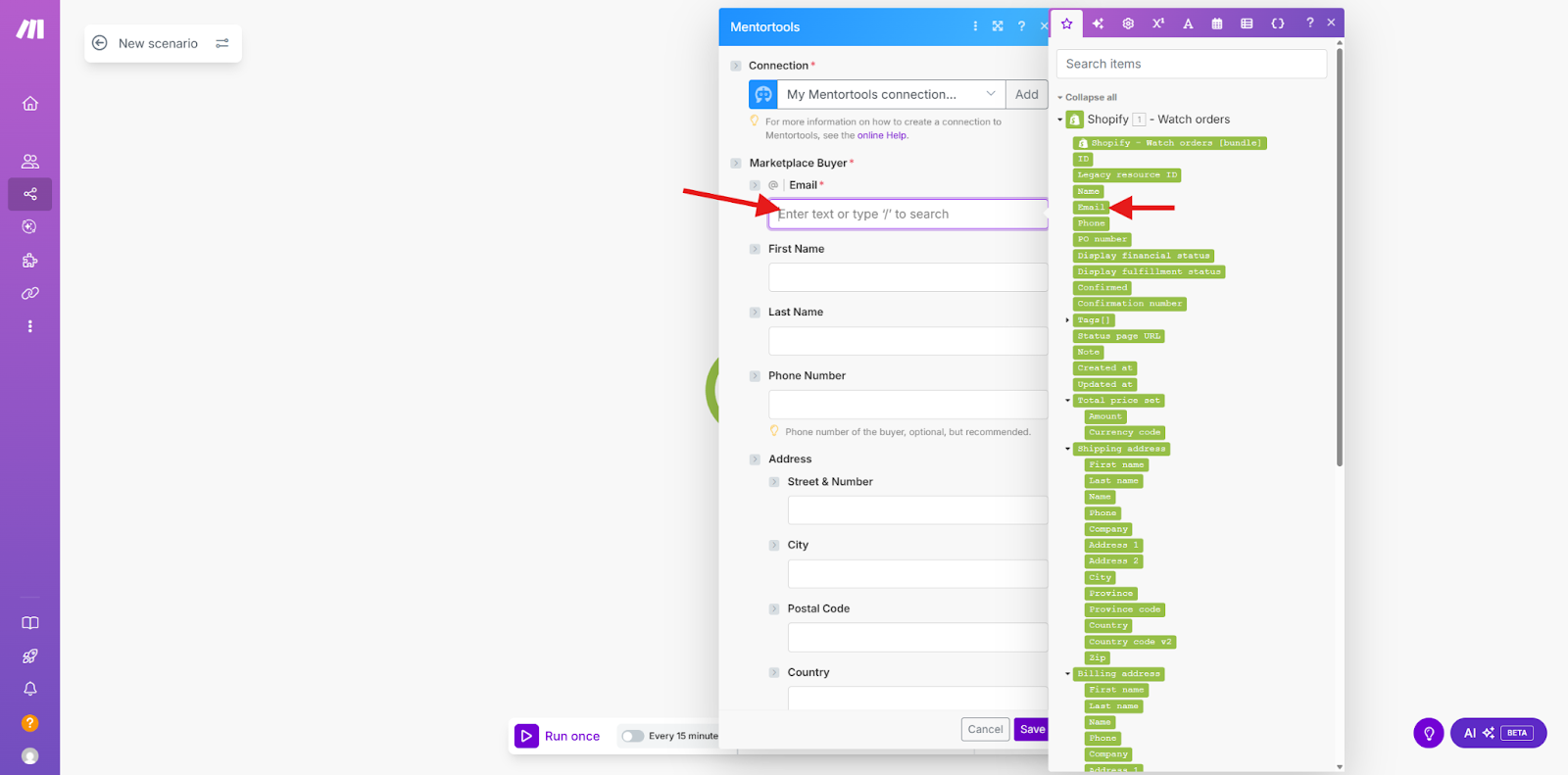
For “First name,” choose the variable “First name,” and so on. When you are done, it should look like this:

Now scroll down in this form to fill in the remaining fields.
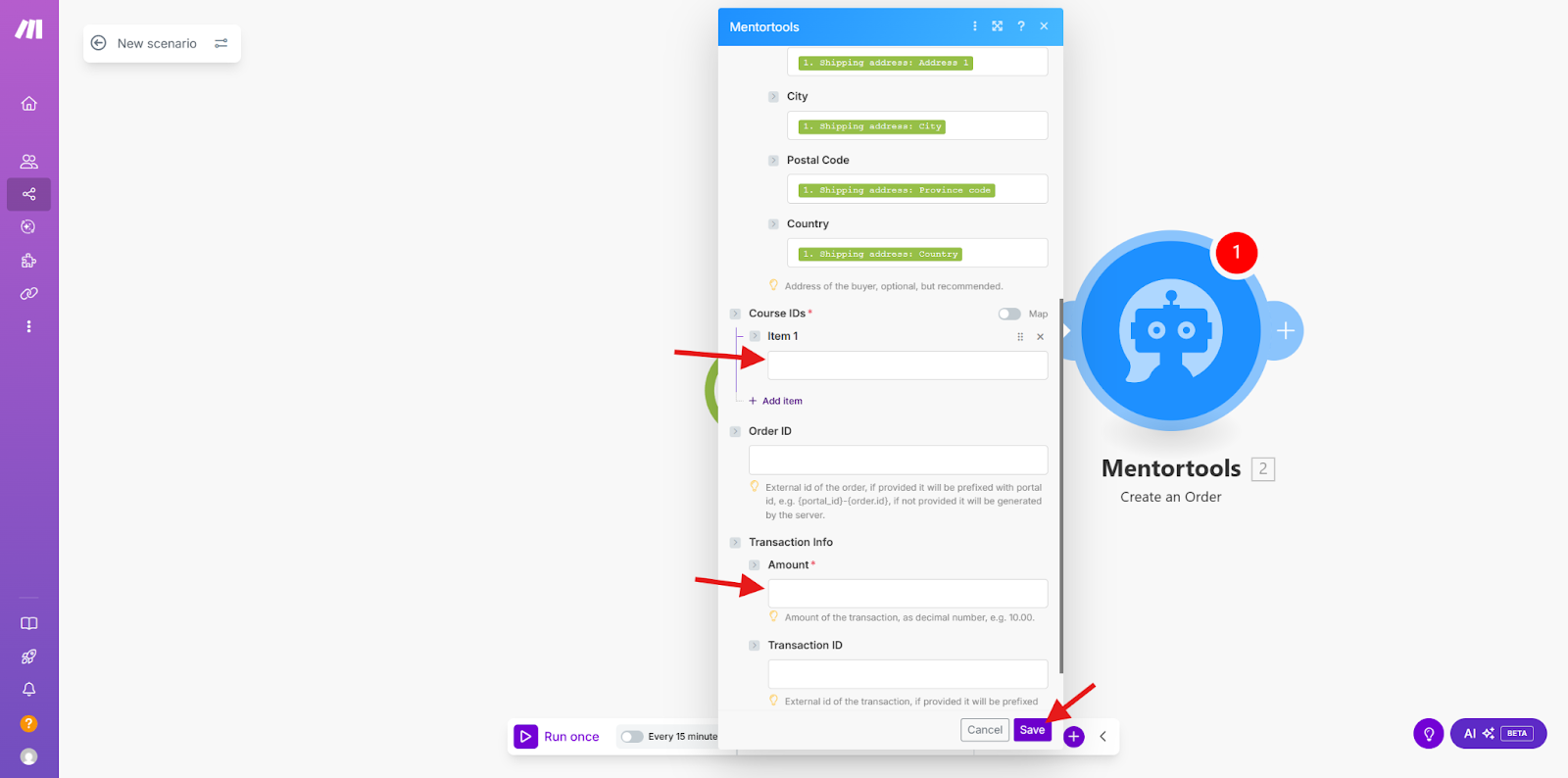
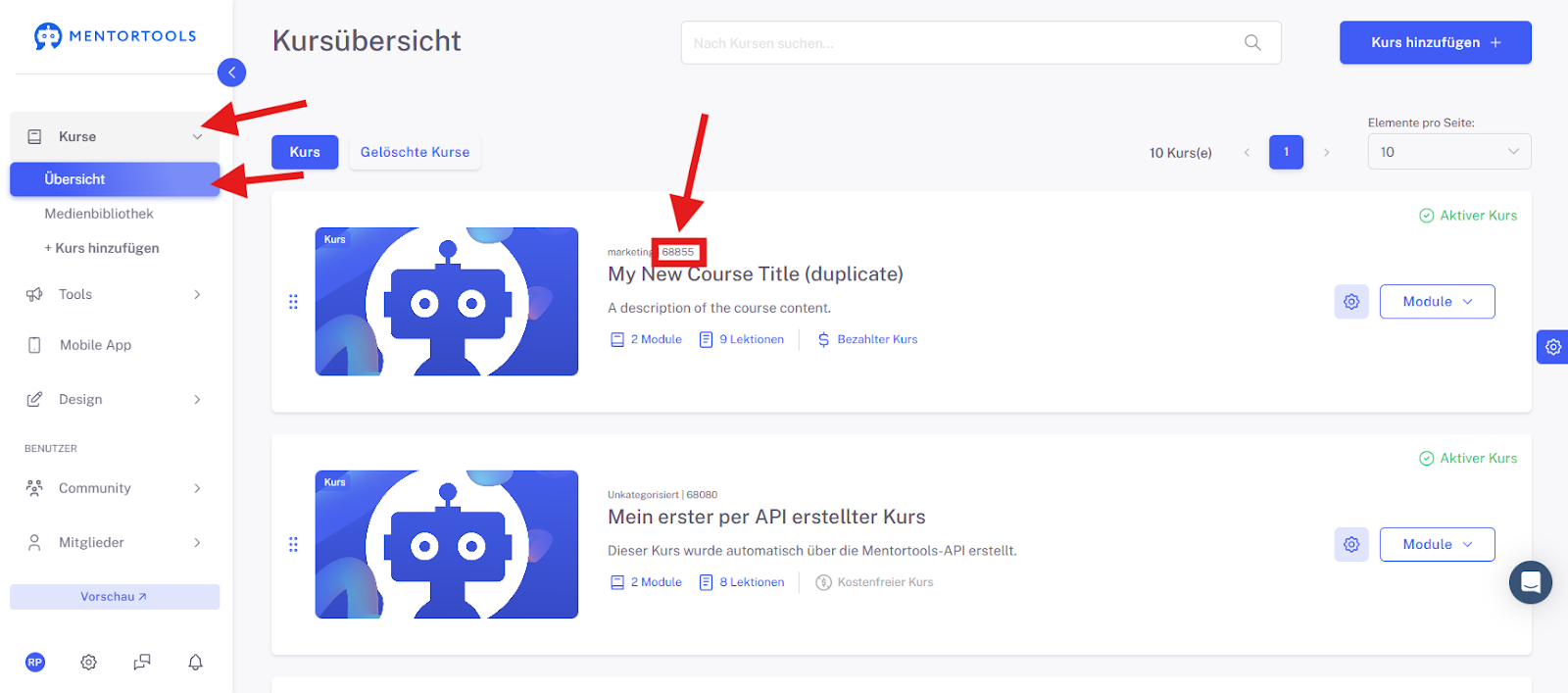
Under Course ID, enter the ID of the course the customer should receive. You can find the course ID here in the Course Overview:
For “Amount,” enter the quantity of courses to be created, in this case “1,” and then click on "Save" to complete the connection. You can then test the connection.

Your Shopify Sale is Now Automated!

Awesome, you did it!

With this guide, you have successfully built a real bridge between your Shopify store and Mentortools using Make. You've learned how important the correct Shopify Subdomain and the Module Settings are so that all customer data (email, name, etc.) arrives cleanly.

The best part: As soon as you activate your scenario, the course unlock runs fully automatically.

Every purchase in your Shopify store immediately triggers the creation of an order and the unlock of the correct course in Mentortools. This saves you a ton of manual work and gives your customers the best possible buying experience with instant access.