Unlock Modules and Lessons by Time
Last updated 11 months ago
For unlocking modules and lessons, you have the option to set them to be available with a time delay. This means users viewing a course will automatically be granted access to subsequent modules and lessons.
A course is available on the order date or on the start date, if a start date is defined. The start date can be in the future or in the past. If a user buys a course before the start date, they must wait until the start date to access the entire course.
You can set the start date of a course as follows:
Go to "Courses" and then to the category "Overview", click on the Settings of the relevant course, and select "Edit" there.
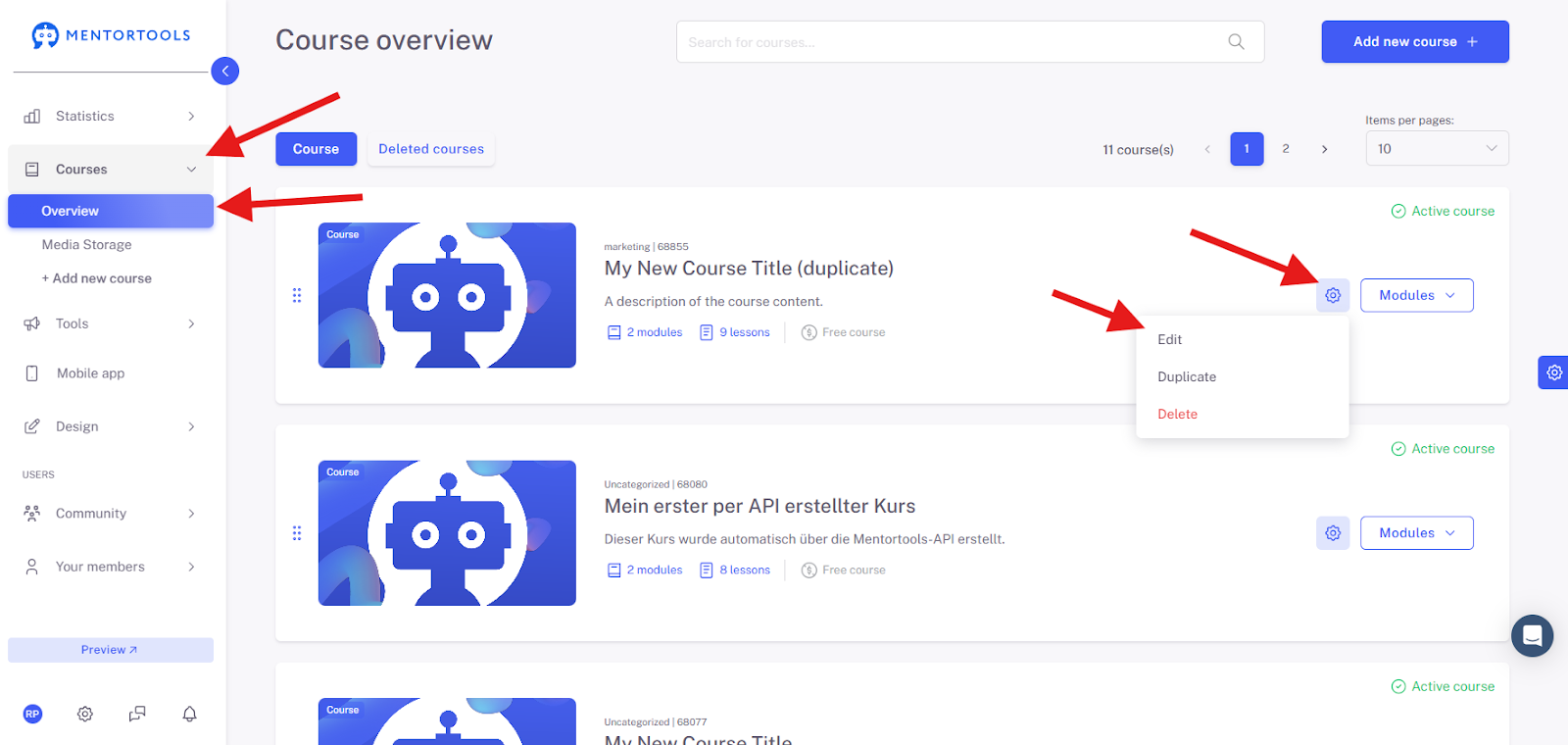
Now select "Access". On this page, you can set the start date for the entire course.

Modules and lessons can be made available immediately or later. If a module is unlocked later, e.g., in 7 days, then this module will be available 7 days after the course's availability, which is either the start date (if a start date is defined) or the order date (if no start date is defined).
Example: If you set March 17th as the start date for a course and the first module is available after 3 days, this means the first module is available on March 20th. In this example, it doesn't matter on which day the user orders the course. If the user orders the course after March 20th, the module is available immediately.
If you don't set a start date and a user buys the course, the first module is available exactly 3 days after the purchase. The time from which the module is available is the same as when the course was purchased. So, if the course was bought at 3:30 PM, the module is available 3 days later at 3:30 PM.
A time can be set within the start date. If no start date is defined, Mentortools uses the time of the order.
Lessons can also be made available later. A lesson is always available after a module. If a lesson is available "immediately", it is available at the same time as the module. If a module is available in 2 days and a lesson is available in 3 days, then the lesson is actually available in 2 + 3 = 5 days after the start date or order date (if no start date exists).
Setting the days in modules and lessons works as follows:
Navigate to a course you want to edit and click on "Modules". The modules will then open one below the other.
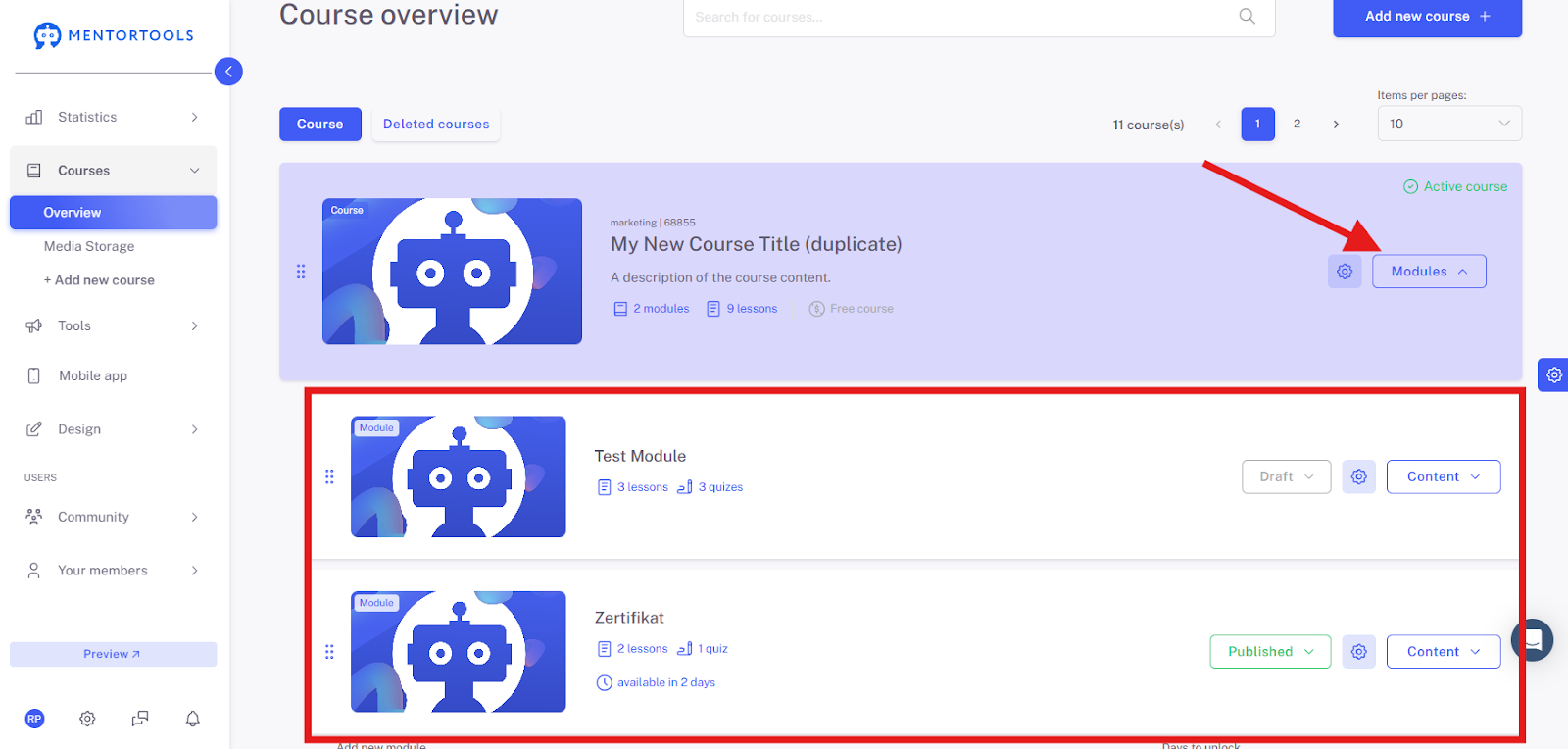
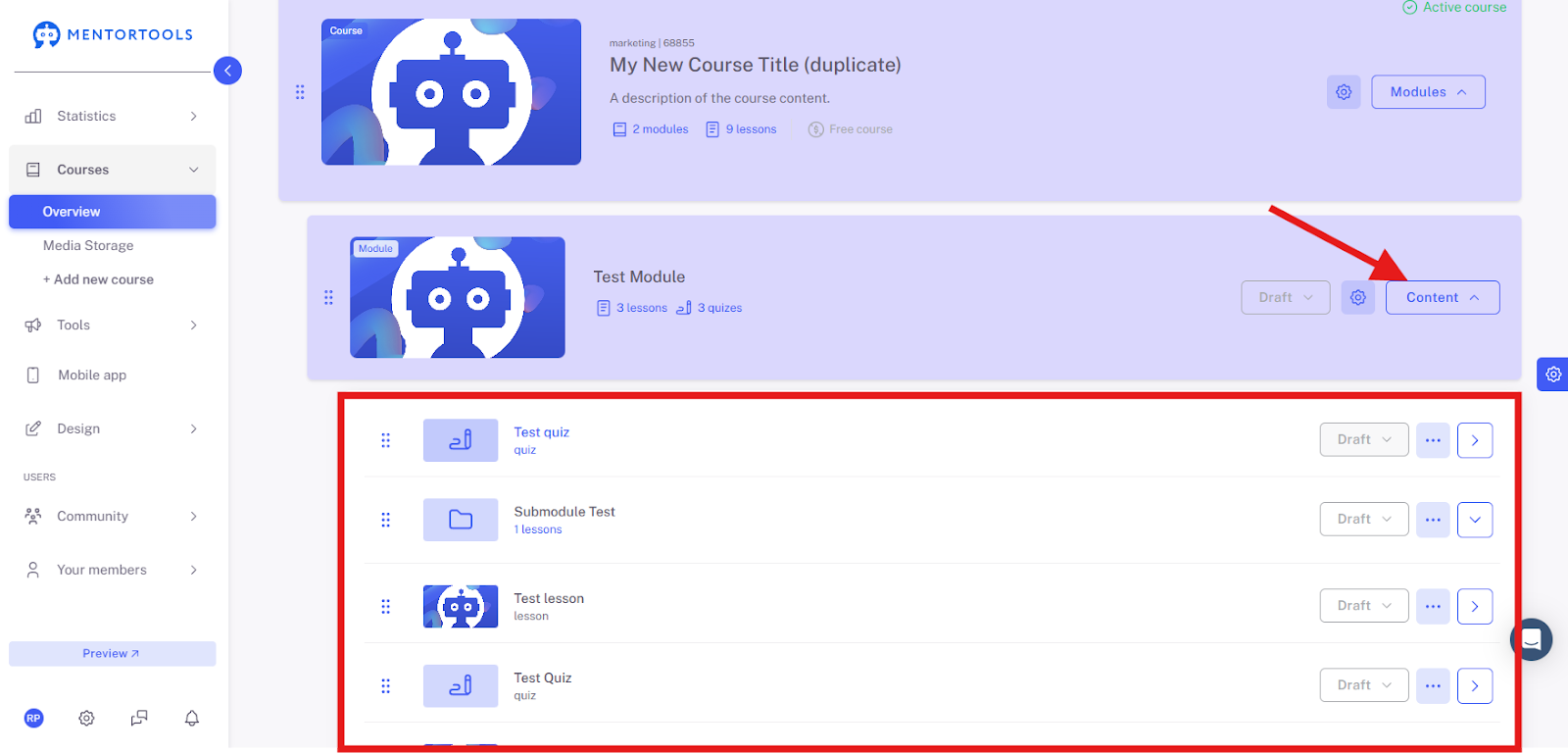
To display lessons, quizzes, or submodules, click the "Content" button of the respective module.
Depending on whether you want to edit a module or the lessons, click on the Settings of the respective area.
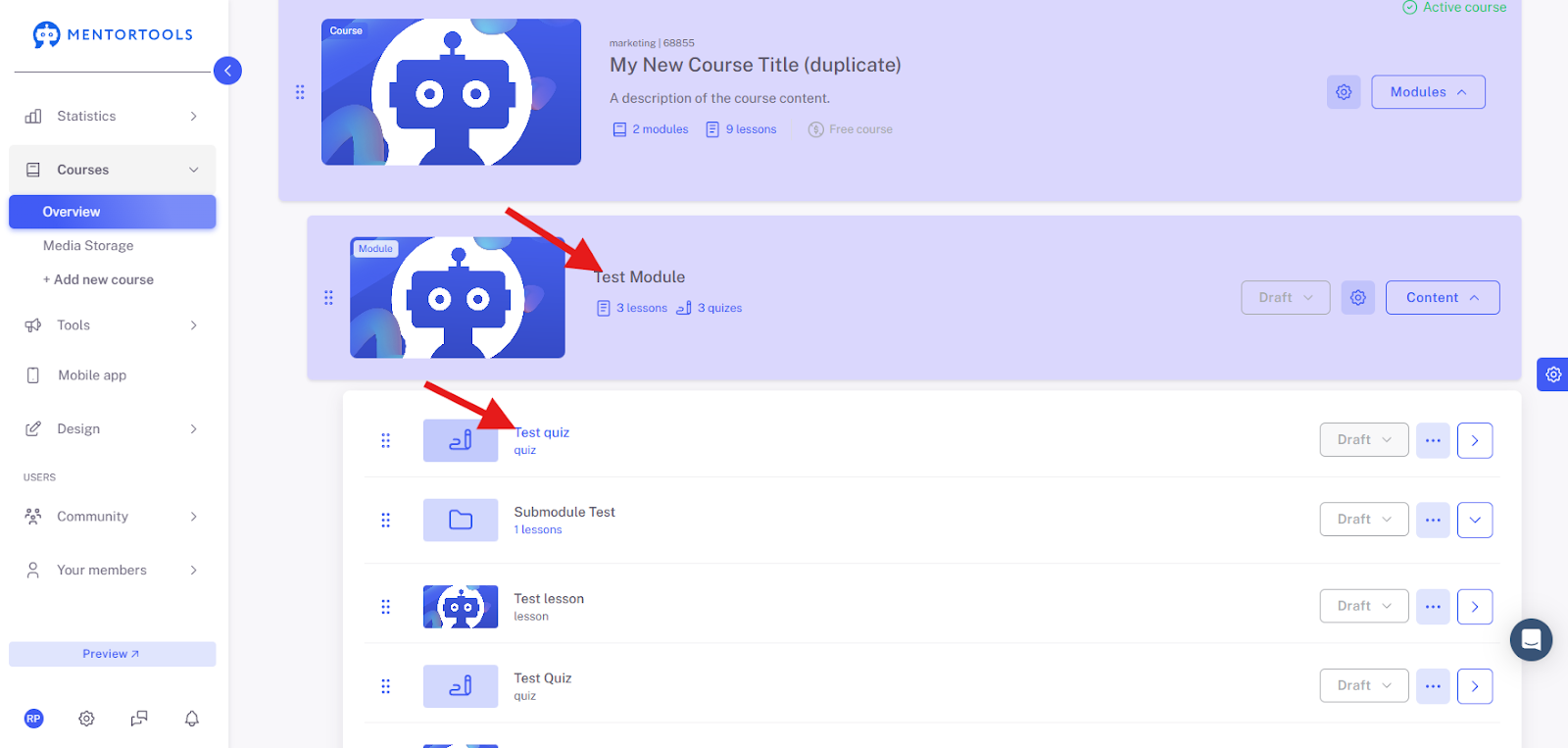
A new window will then open; go to "Settings" there. In the "Days until release" field, you can enter the number of days after which the module or lesson should be unlocked automatically.
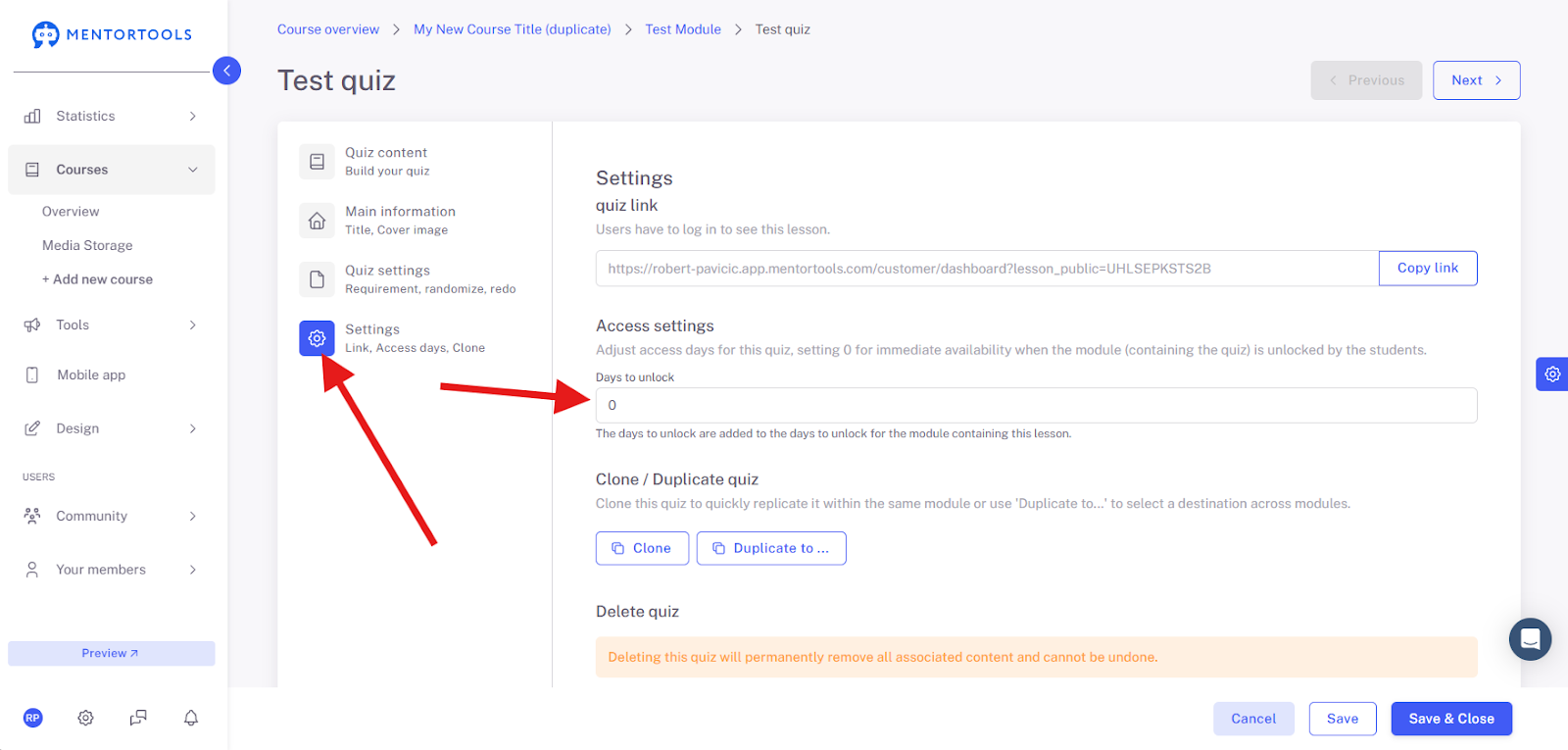
Once you have done that, click the blue button "Save & Close".
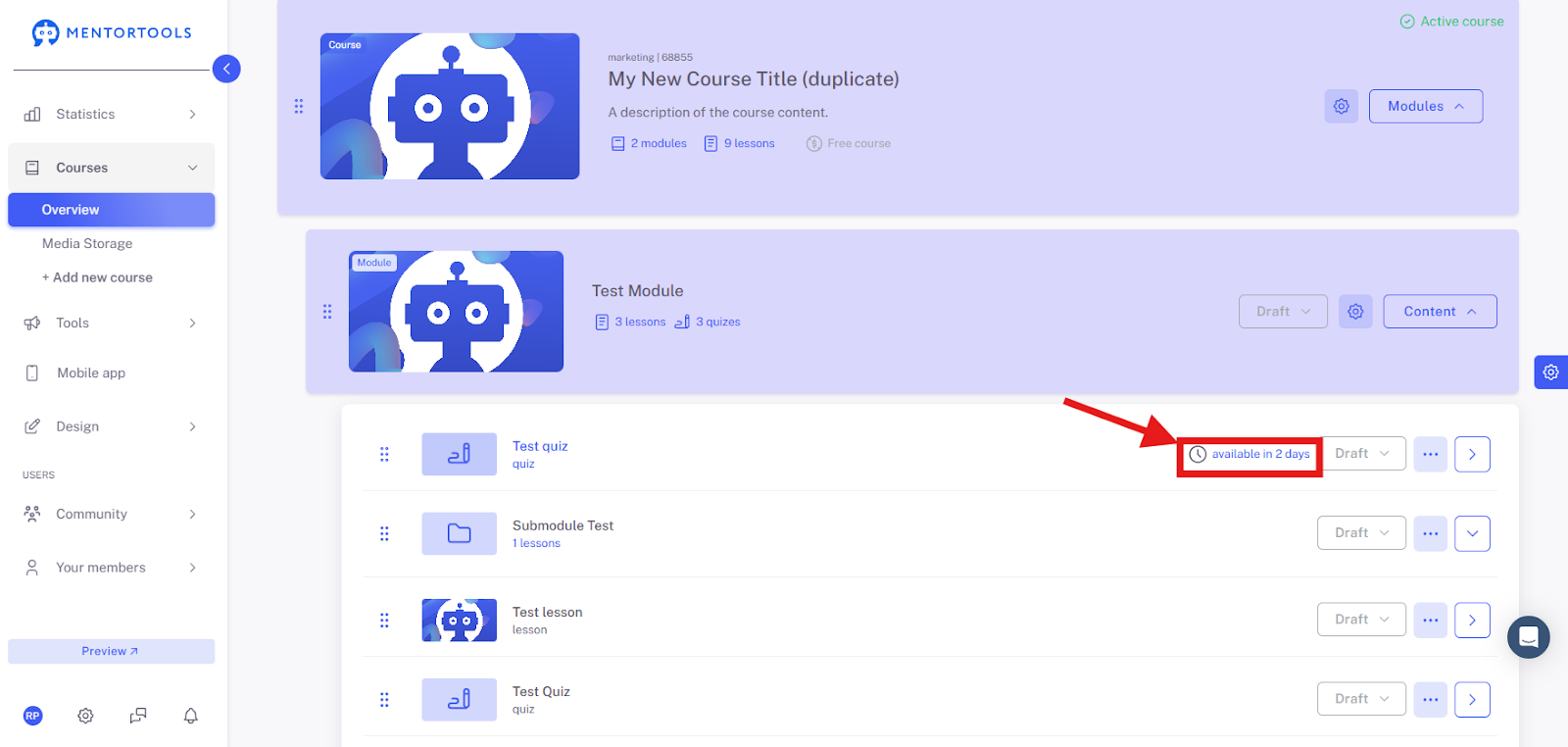
After you have adjusted all modules and lessons, you can check the day-based release again in the Course Overview.
We wish you much success and fun,
Team Mentortools