Payment Providers – Connecting Mentortools with Affilicon
In this guide, you'll learn how to link Affilicon as a payment provider with your Mentortools account. This will allow you to process payments for your digital products directly through Affilicon and automatically manage course access.
Last updated 11 months ago
1. Open Mentortools
Log in with your admin access at https://app.mentortools.com.
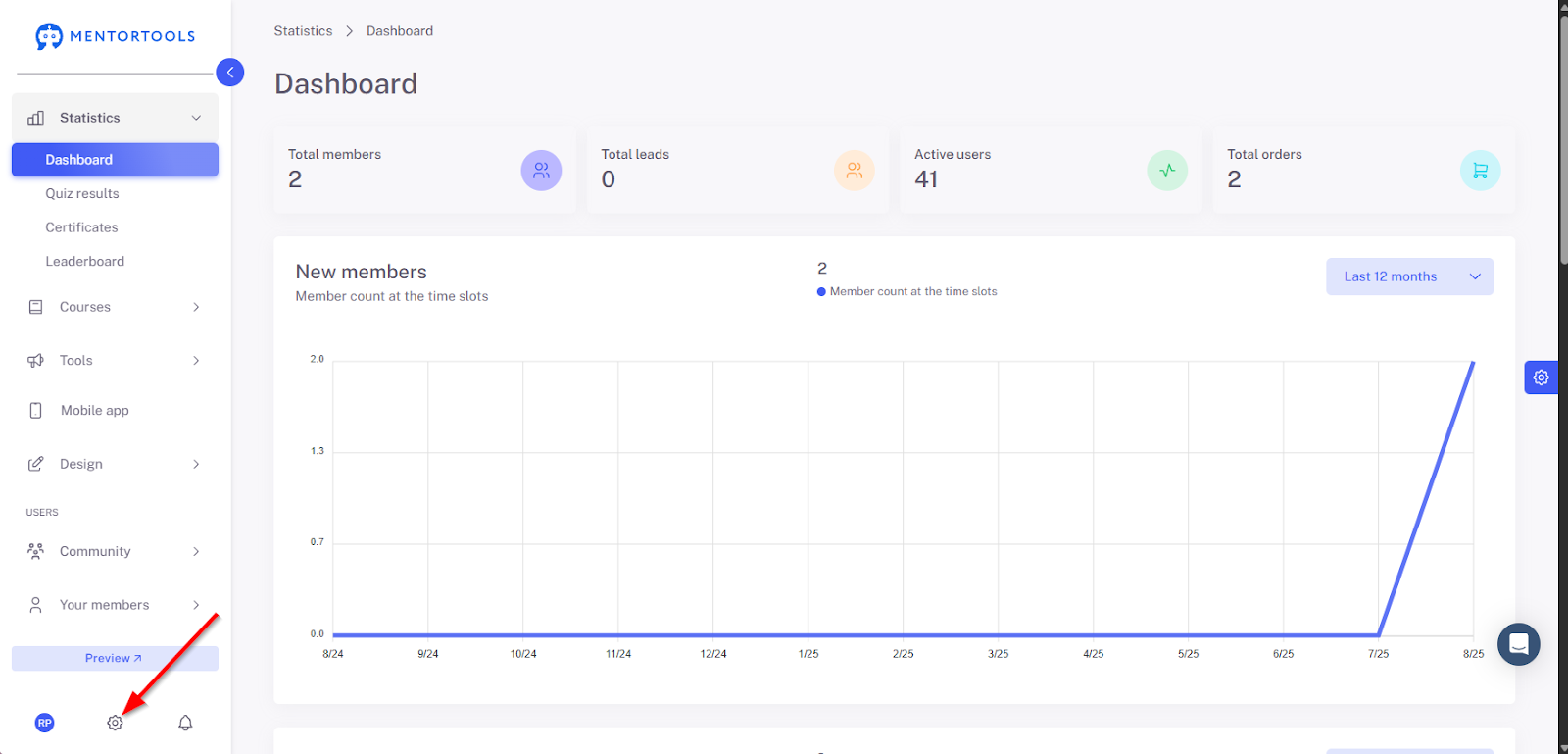
2. Open Settings
Click the gear icon in the lower-left corner to access the general settings.
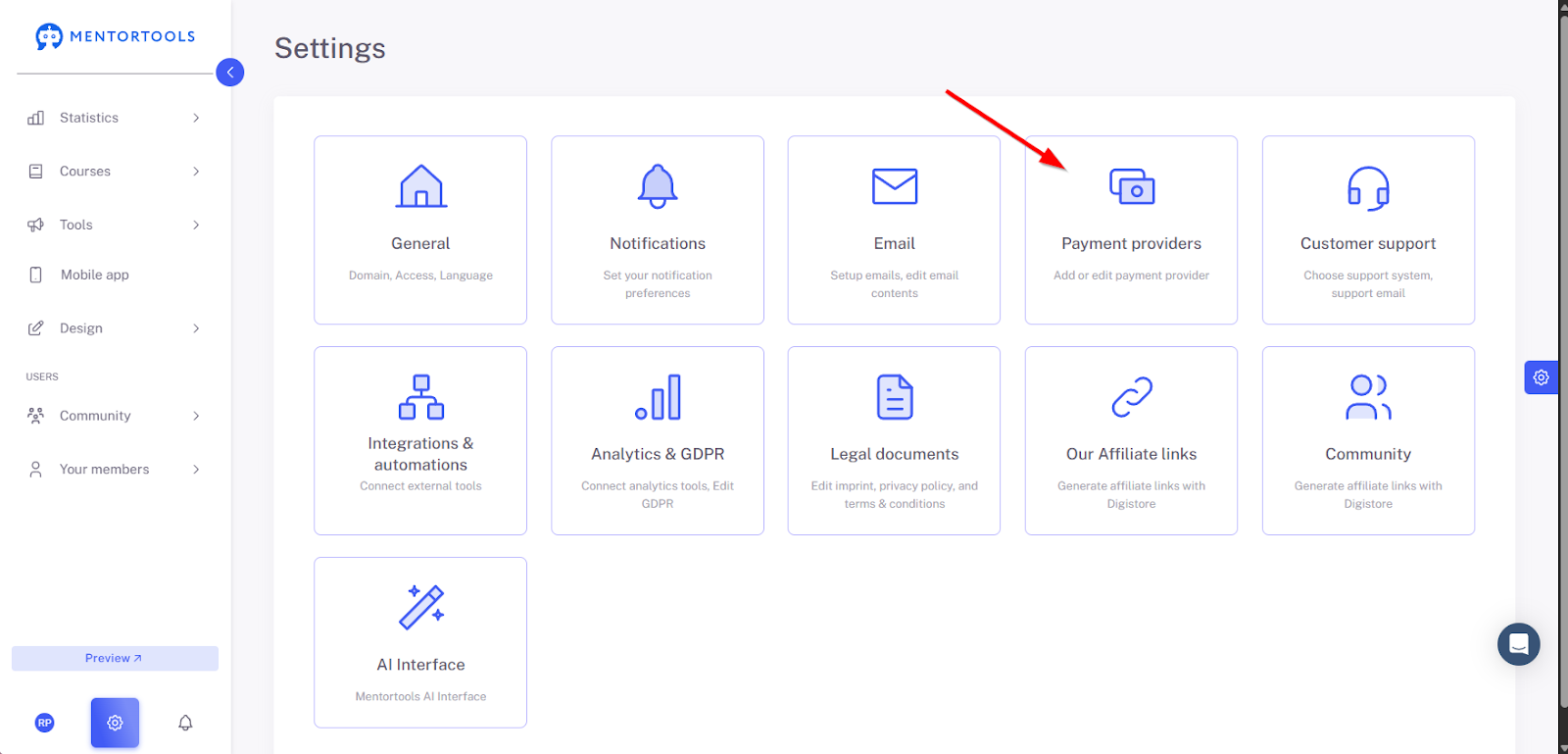
3. Navigate to Payment Provider Settings
Select "Payment Providers" from the menu.
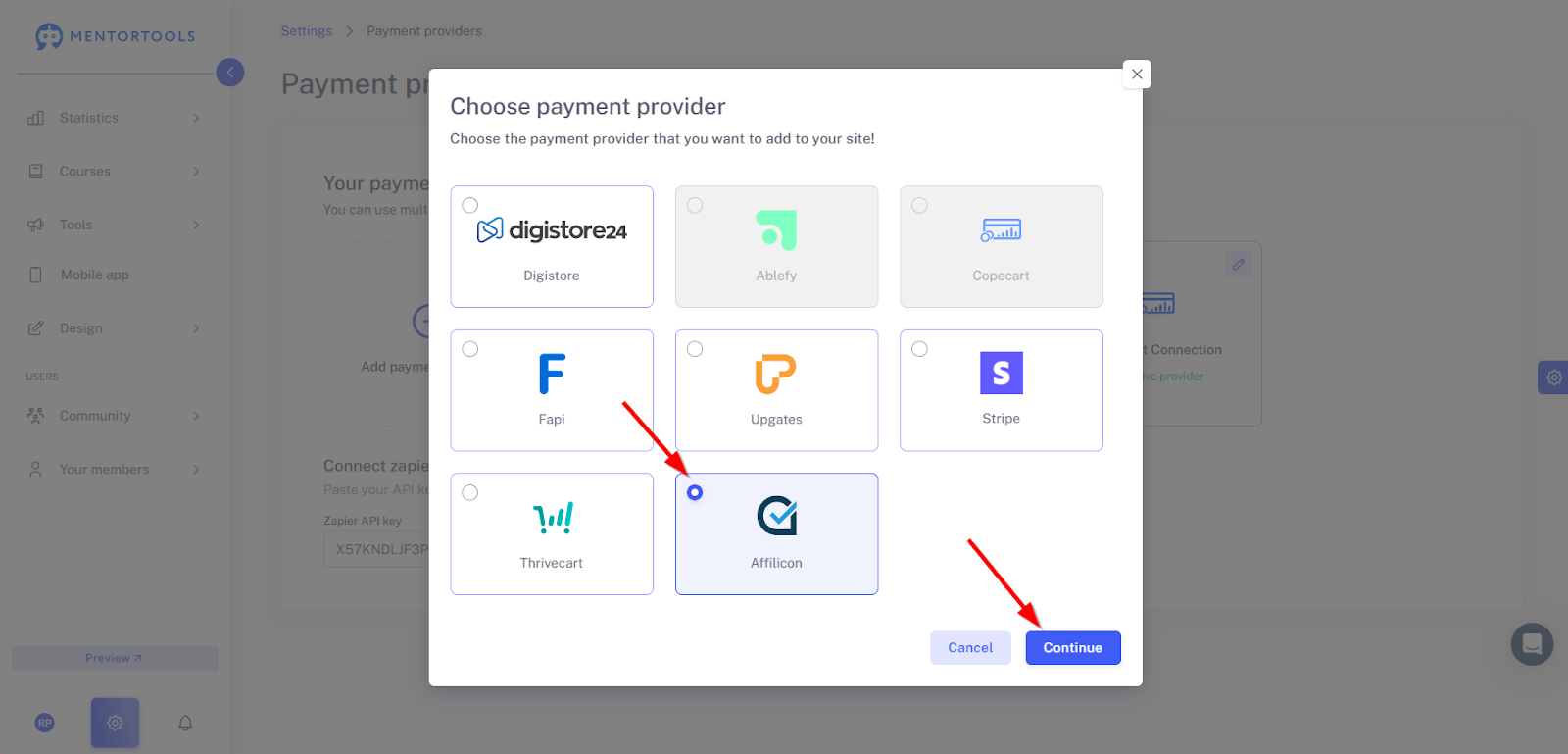
4. Select Affilicon
Find Affilicon in the list of providers and select it.

5. Click "Continue"
Confirm your selection by clicking "Continue."
6. Enter Affilicon Credentials
Now, enter the required information:
Integration Name (e.g., "Affilicon")
API Key, which you can find in your Affilicon dashboard
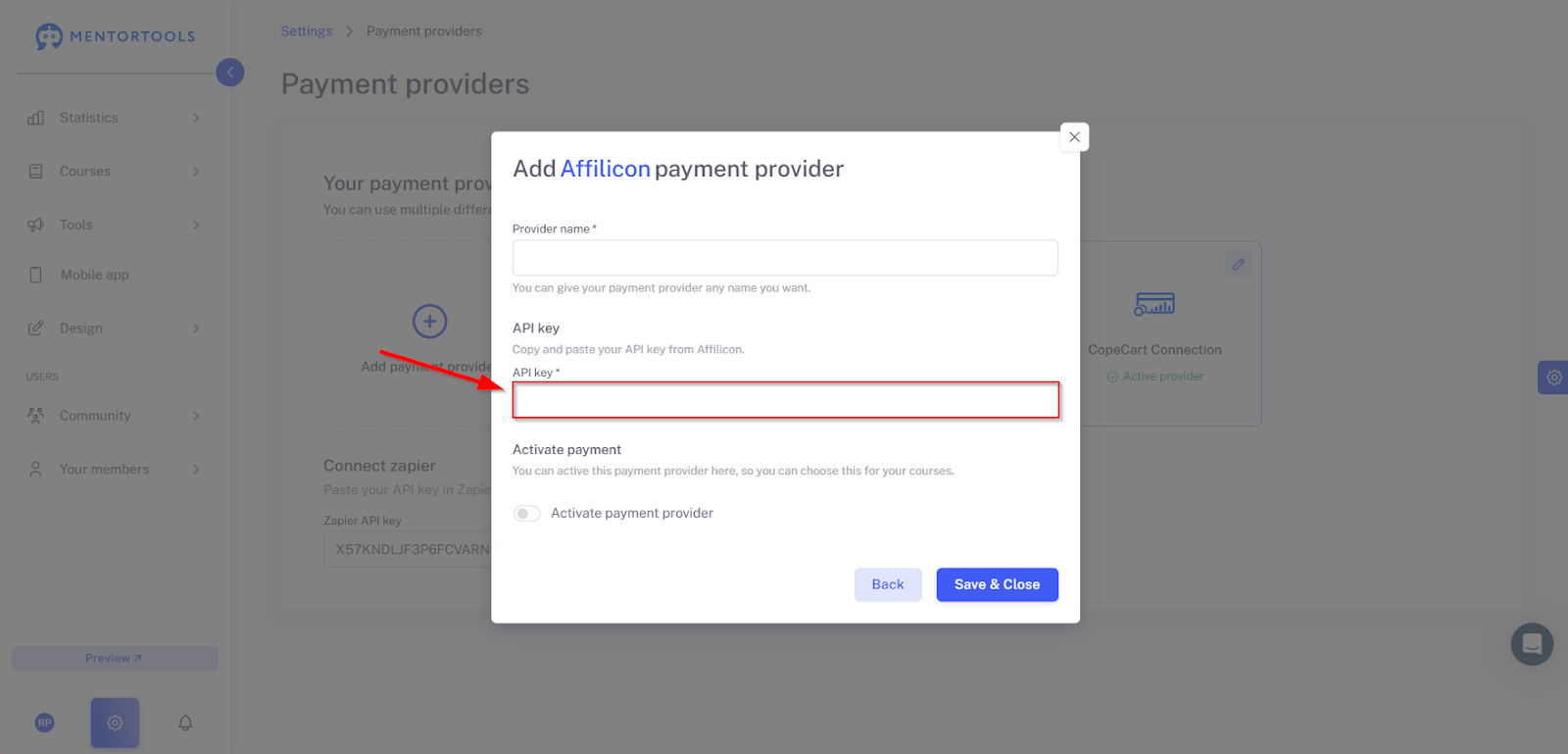
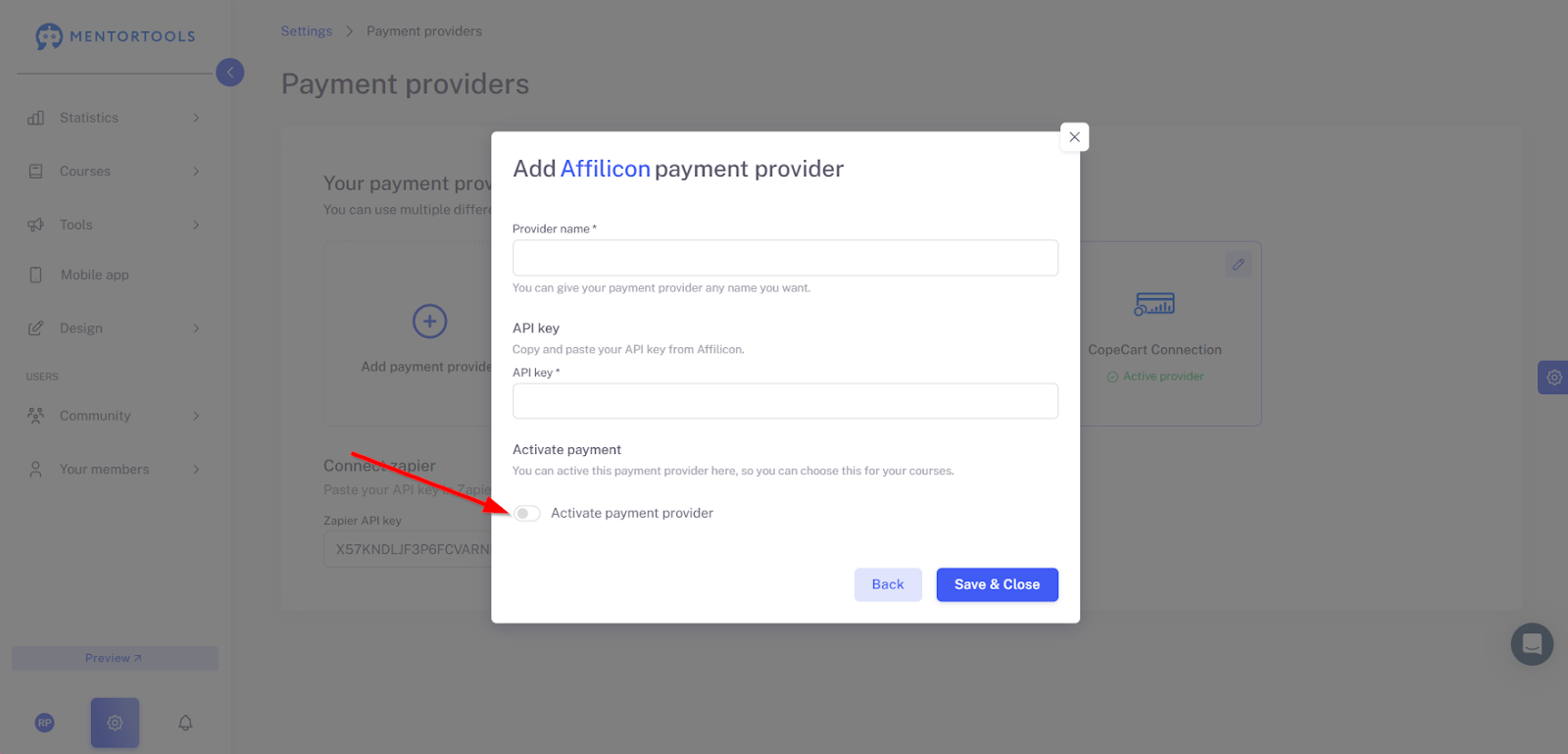
7. Activate the Payment Provider
Enable the "Activate payment provider" option to make Affilicon available for your courses.
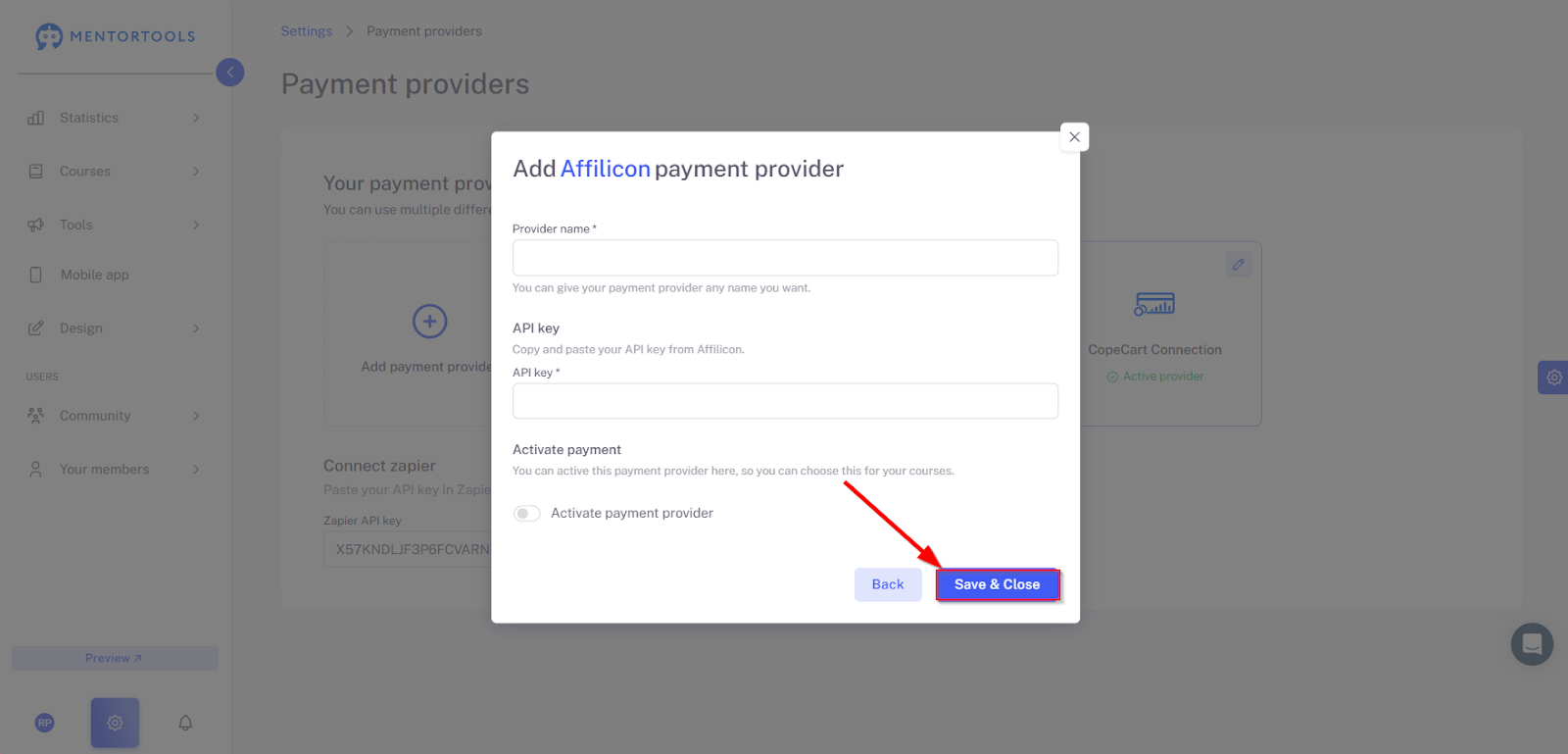
8. Save and Finish
Click "Save and close" to successfully complete the integration.
Conclusion: Connecting Affilicon to Mentortools is a quick process. The API link allows you to automatically process purchases and grant participants immediate access to the courses they've booked.