Payment providers – How do I connect Mentortools to a payment provider?
Ready to finally process payments for your courses through Mentortools? It's easy with the right payment provider! In this guide, we'll show you step-by-step how to quickly and securely connect a provider to your Mentortools account so your customers can pay for your courses directly. We have additional guides that explain how to connect Mentortools with specific payment providers.
Last updated 11 months ago
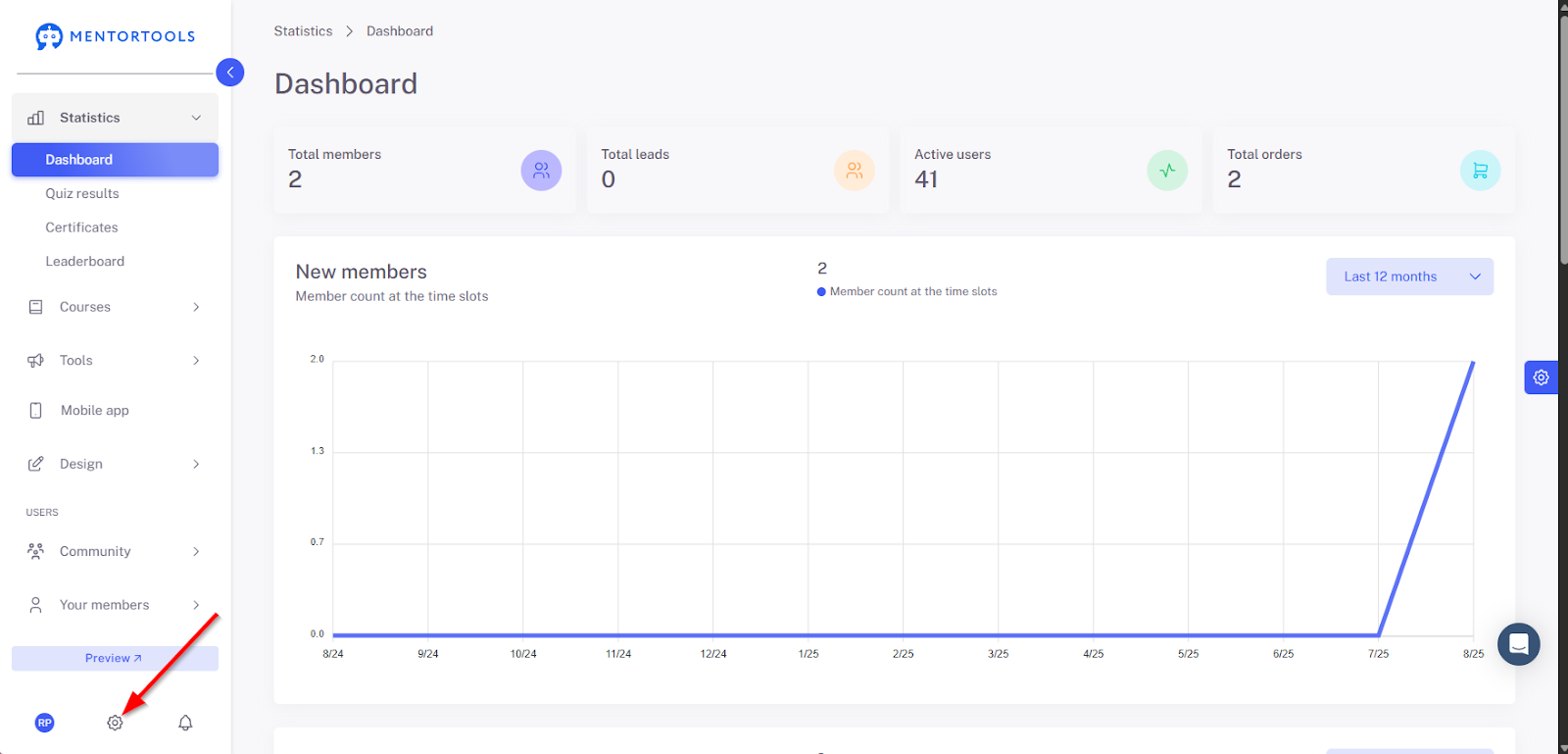
1. Open Settings
Click the gear icon in the lower-left menu bar.
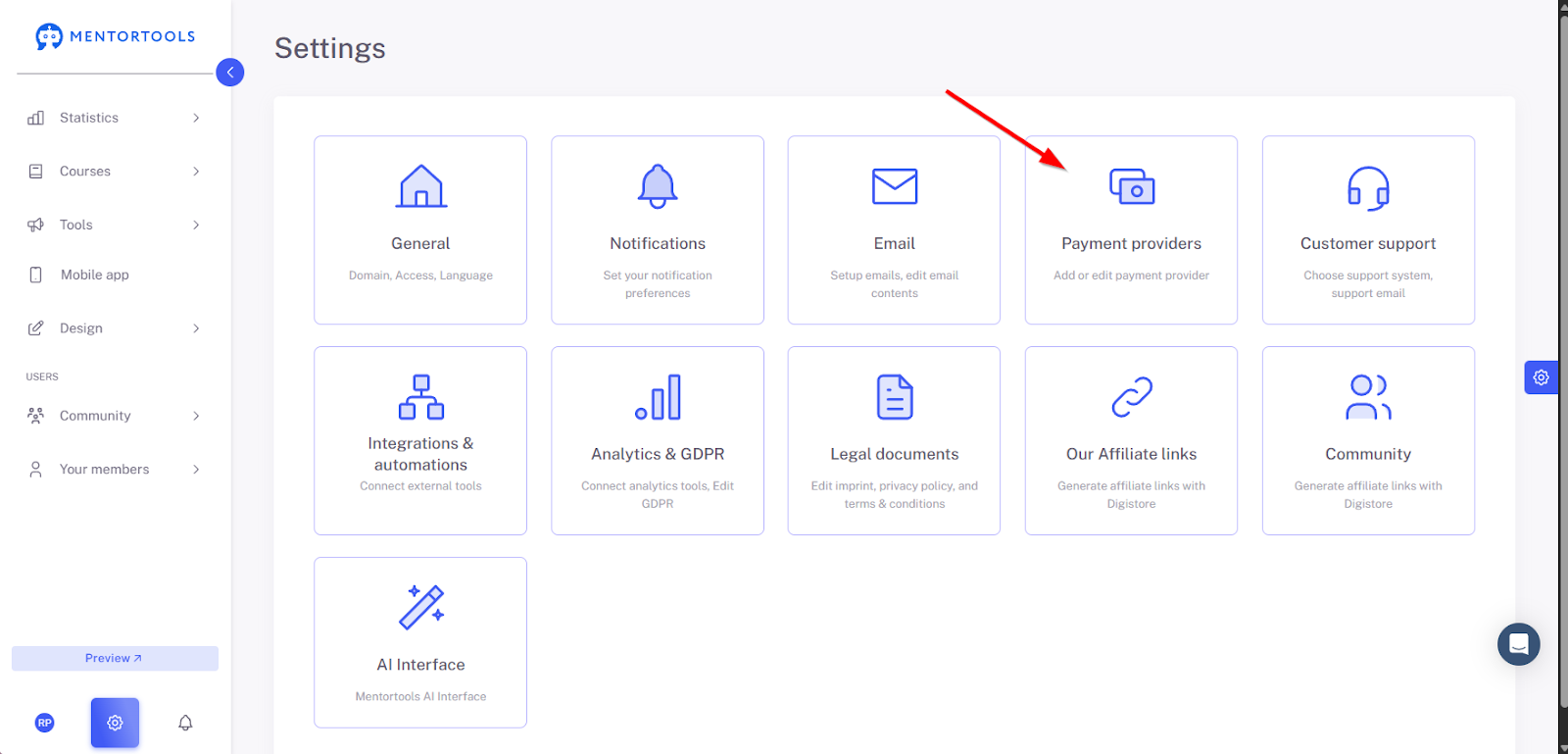
2. Navigate to Payment Provider Settings
In the menu, click on “Payment Providers” to open the settings.
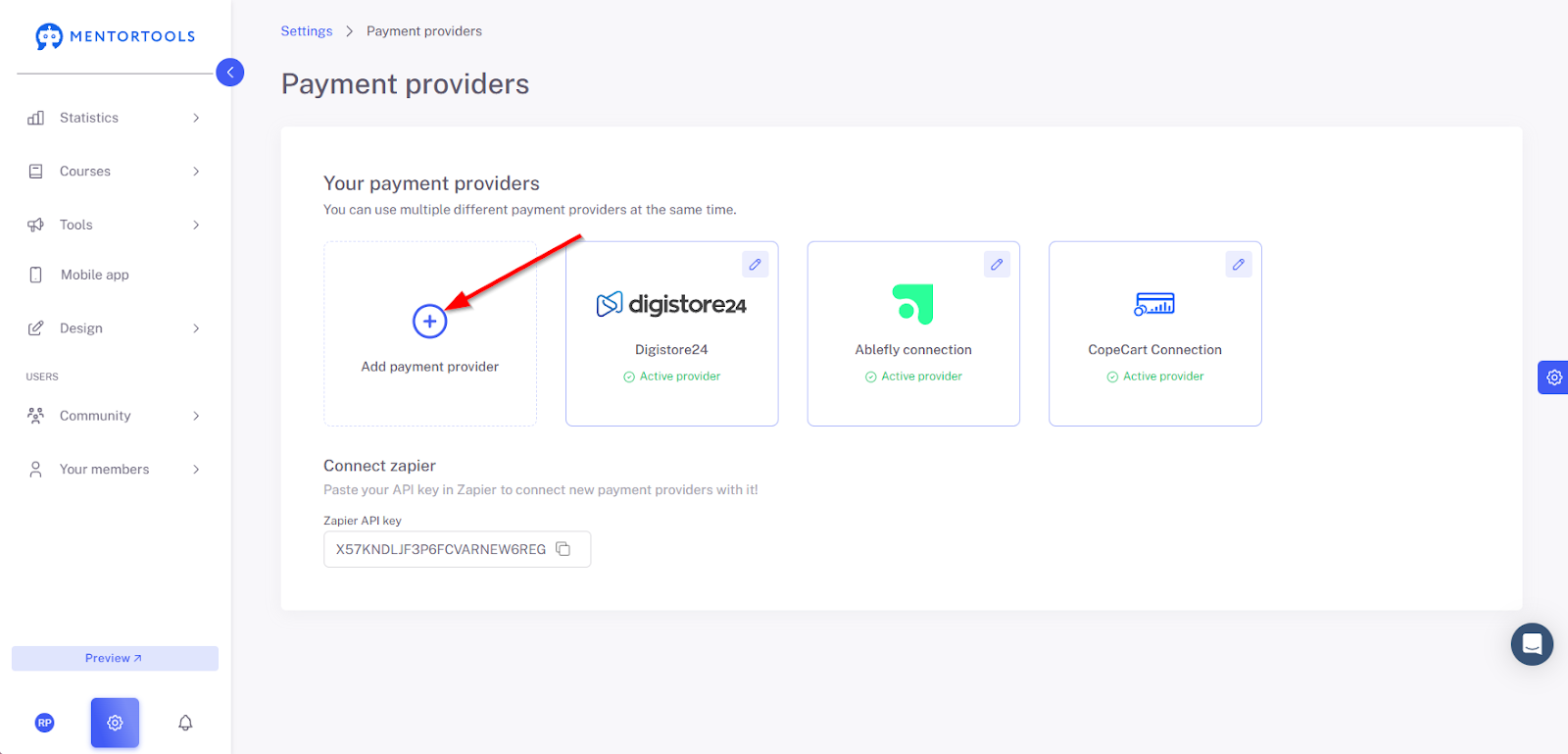
3. Add a Payment Provider
Click the "+" symbol to bring up a list of payment providers.
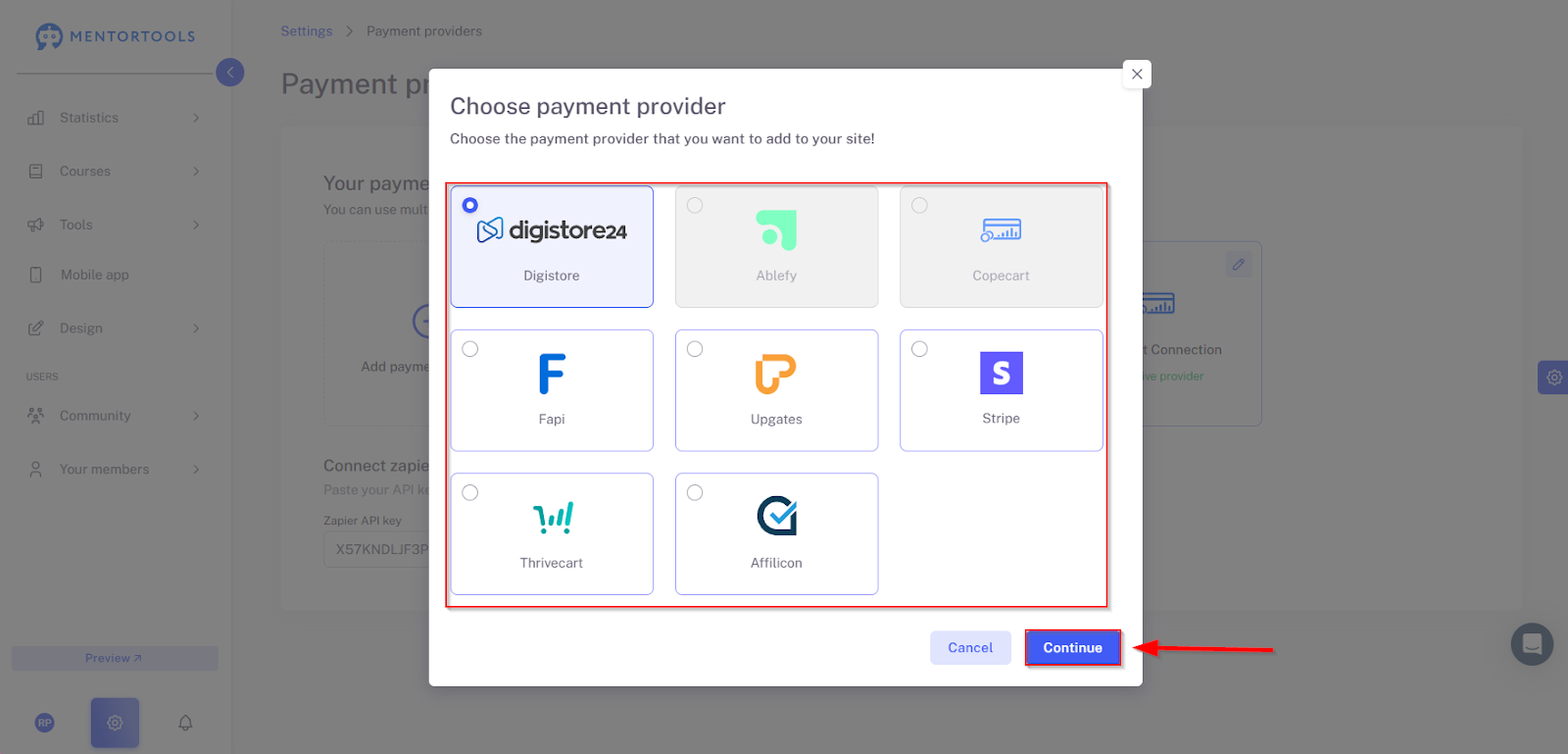
4. Select Payment Provider
From the overview, choose the desired provider from the list and then click “Continue” in the bottom right.
5. Enter Provider Information
Now, enter the name of the provider (you can give your payment provider any name) and the other necessary information for that payment provider.

This information may vary depending on which payment provider you want to use. That's why we've created a guide for each offered payment provider so you can easily connect your payment provider to Mentortools.
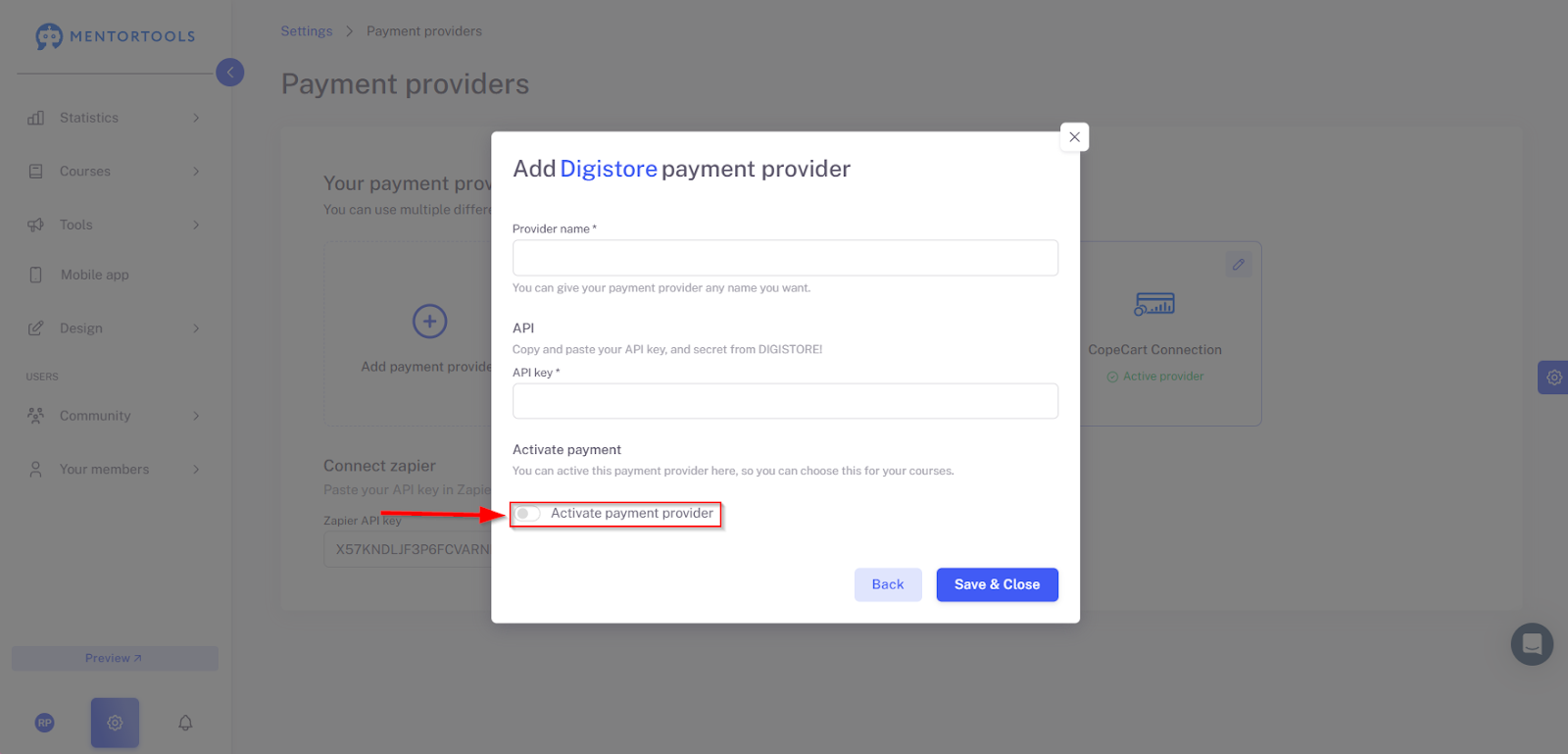
6. Activate Payment Provider
If you want to use the payment provider for your courses, you must activate it first.
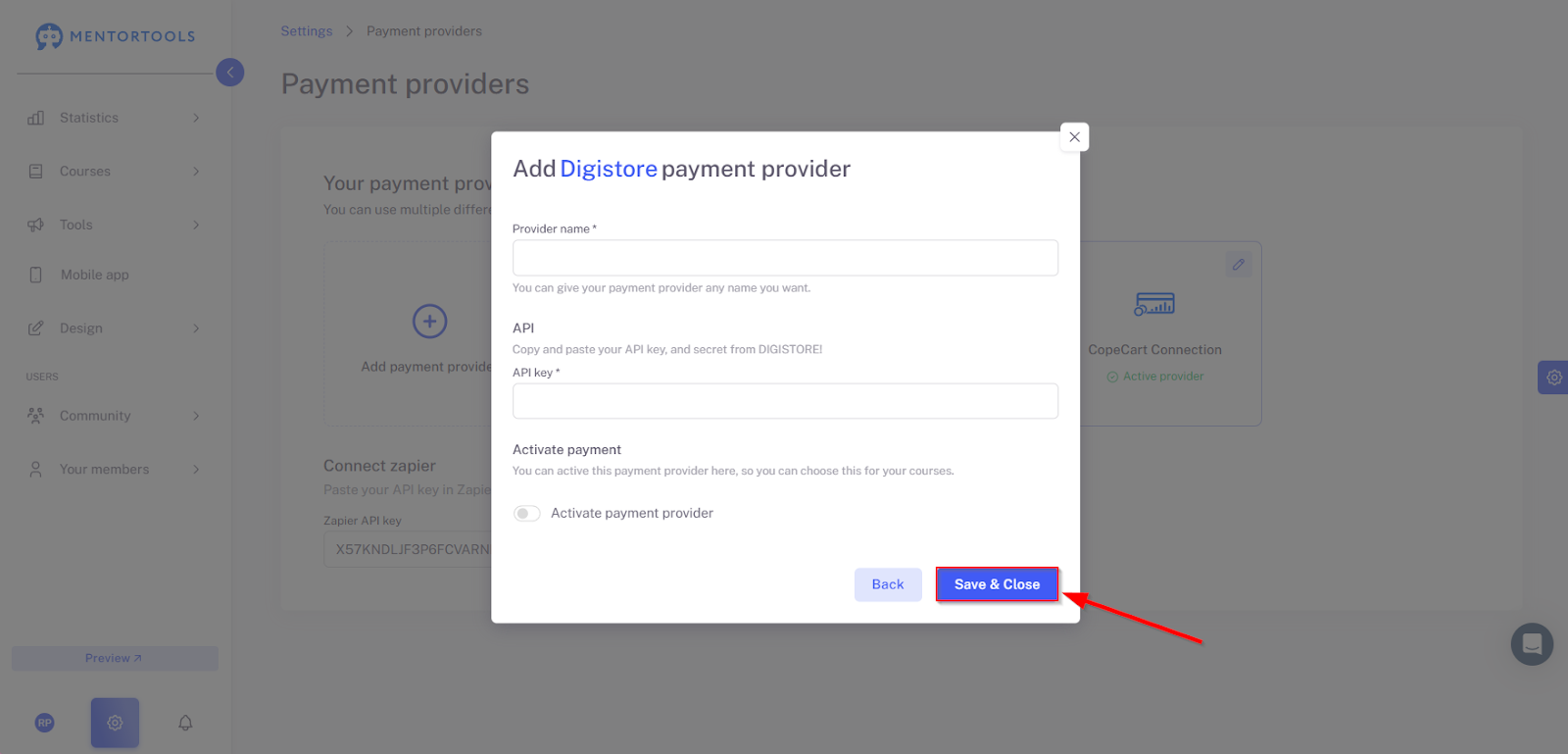
7. Save and Finish
Click on “Save and close” to successfully complete the connection.
Guides for Specific Payment Providers
Summary
This guide walks you through the simple process of integrating a payment provider into Mentortools. You'll learn how to log in, find the right settings, and add your preferred provider. With just a few clicks, you can enter all the necessary information and activate the connection to enable payments for your courses. For specific providers like DigiStore24, Copecart, etc., there are separate, detailed guides that make the process even easier for you.