Manually Add Members
Last updated 11 months ago
There are three ways to manually add members to your member area:
1. Add a Manual Order
This creates an order for a course. You can decide whether the customer receives an email, just like they would for a course purchase, or not. The process is explained in detail here.
You can use a manual order:
to sell a course via invoice and then manually unlock it for your customer.
to give access to a course to an acquaintance or tester.
to grant an existing customer one-time access to a course as a bonus.
generally, when you want an existing customer or a new customer to gain access to a course.
2. Send the Course Direct Link
What is a Direct Link?
Every course has a Direct Link. You can use this Direct Link to invite users to the course for free. You can, for example, send this link to testers or promote it publicly on Facebook to generate users for a free course.
Where do I find the Direct Link?
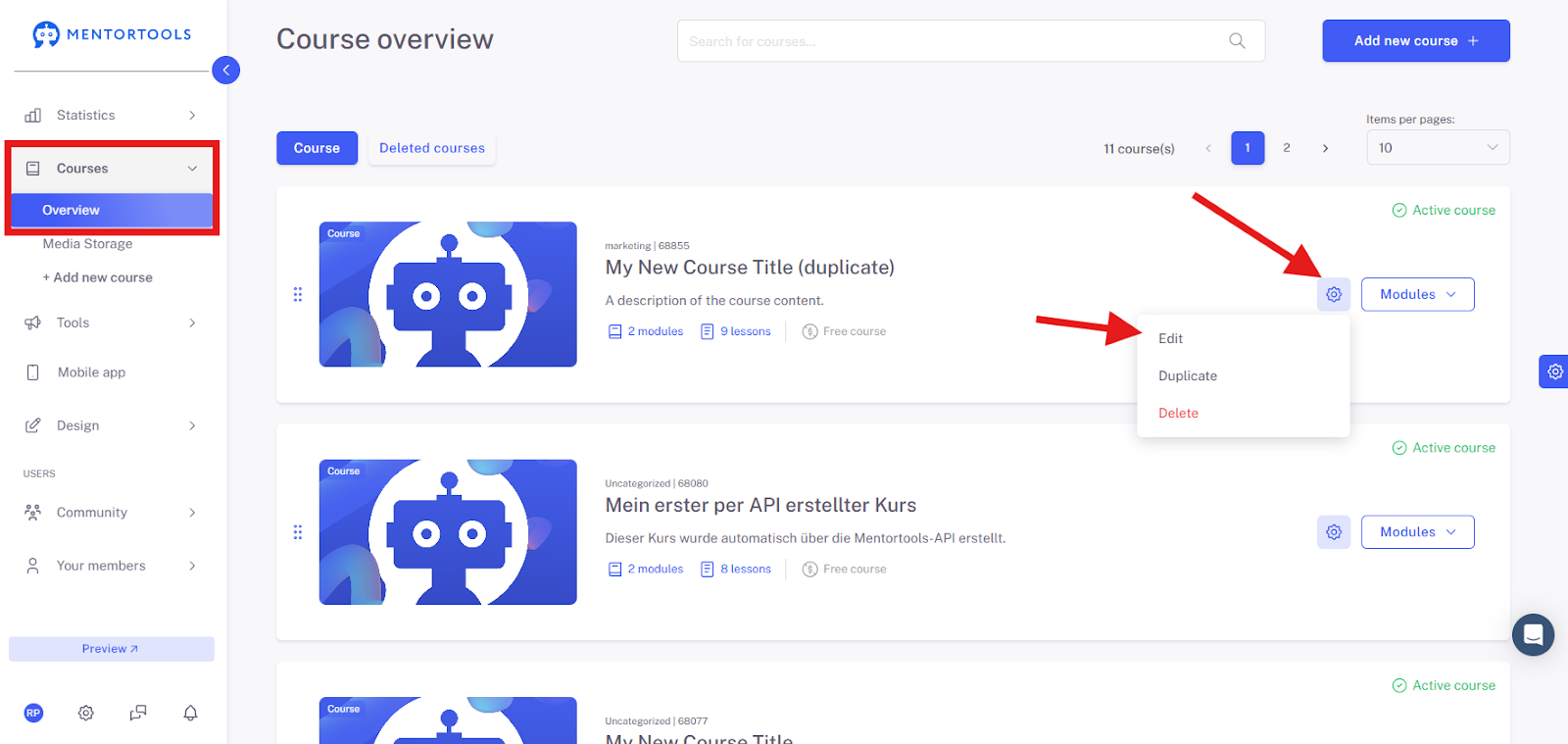
Navigate to the desired course that you want to share with your target audience. Then click "Edit".
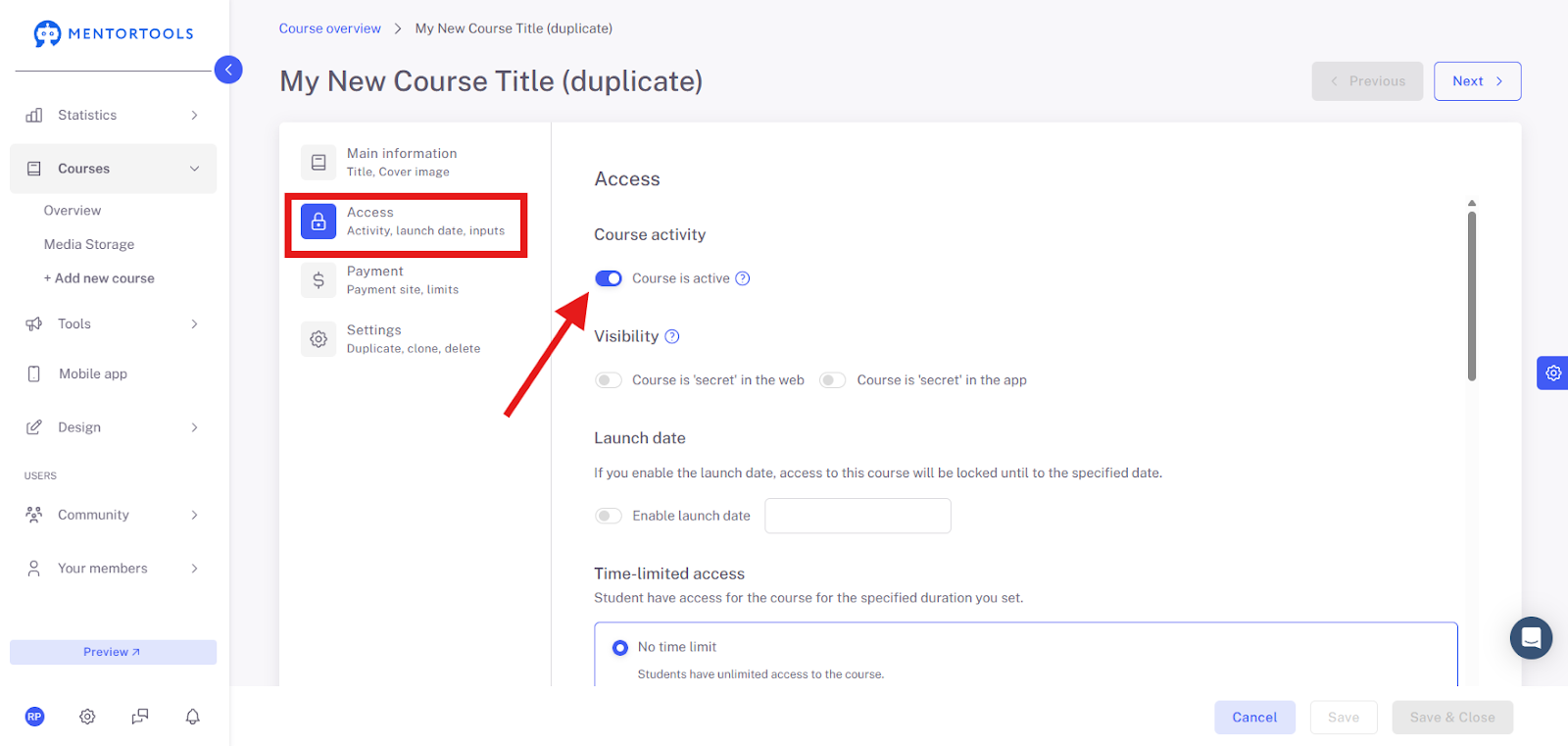
Then navigate to "Access". Make sure the course is active.
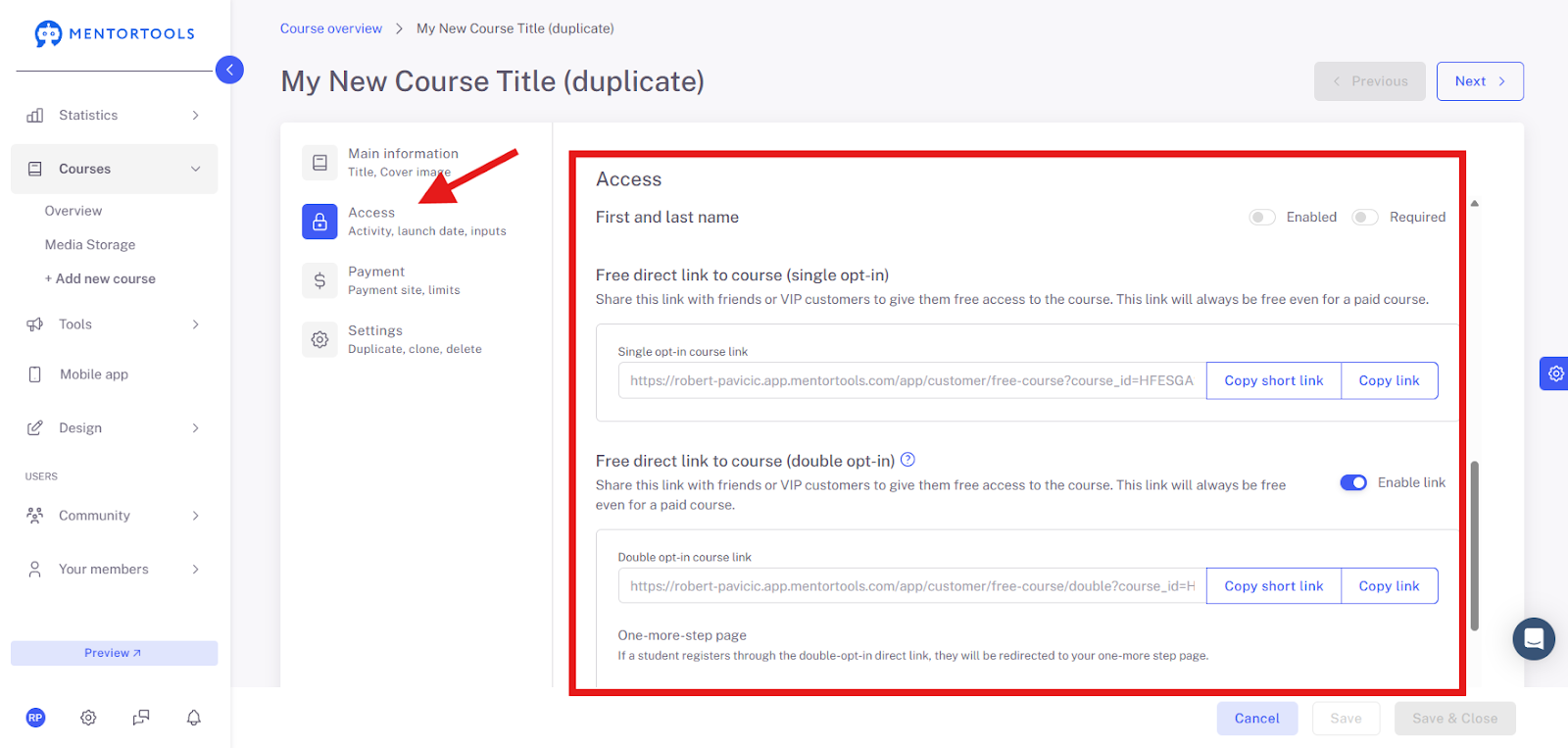
Then scroll down to the point "First and Last Name".
You can now copy the Direct Link as either a Single Opt-in or a Double Opt-in. You can also define whether the first and last name should be requested during registration.
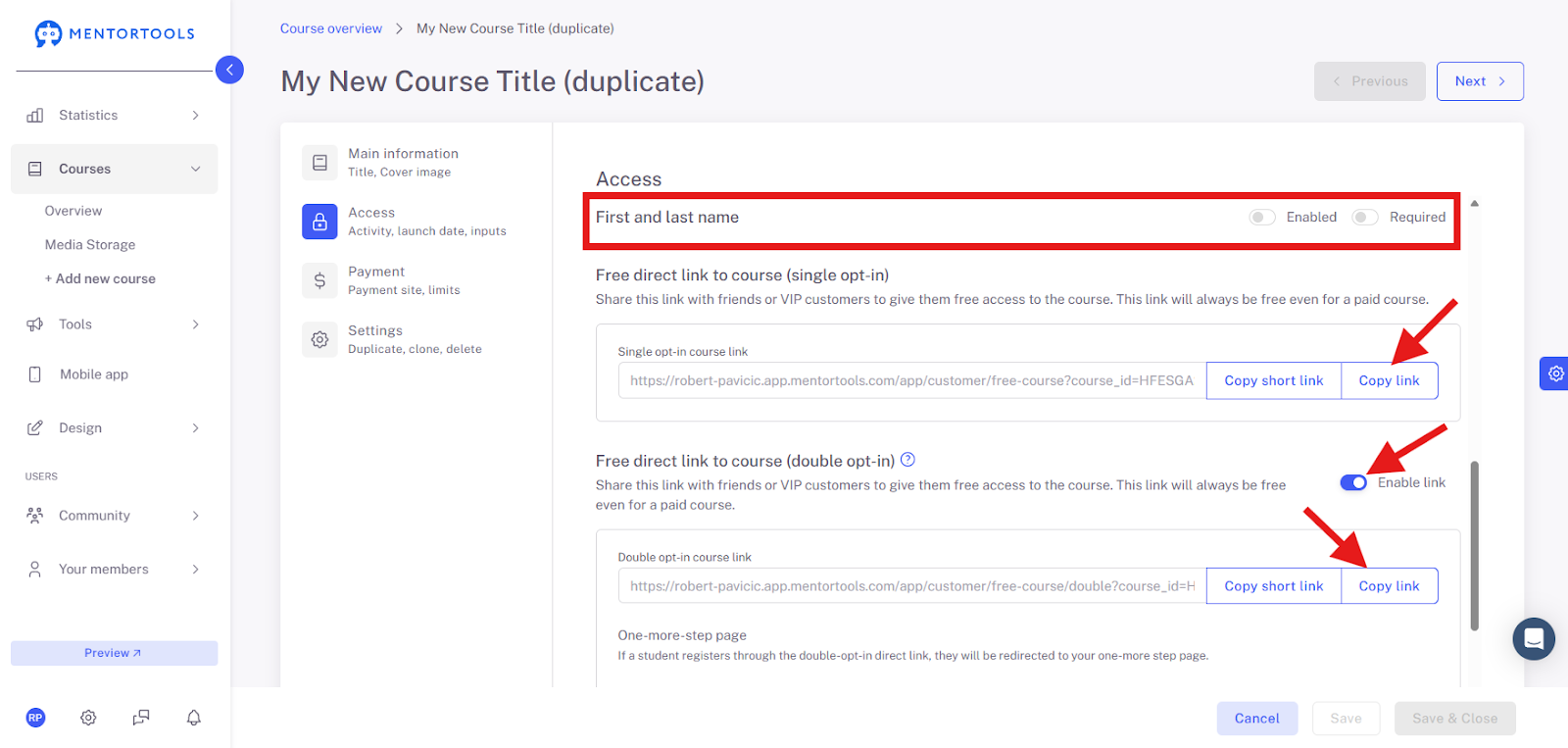
Difference: Direct Link with Double Opt-in and Single Opt-in Process
Direct Link with Single Opt-in
This link is well suited if you already have customers who are in your member area or existing contacts who have already been saved as Double Opt-in; this way, users who register via this link do not have to perform the Double Opt-in again.
Important: Ideally, users who register via this link and already exist in your account should sign up with the same email address they have already used. If users provide a different email address, a new account will be created.
Direct Link with Double Opt-in Process
This Direct Link is very well suited if you want to bring new members into your member area or generally collect new contacts. Users will go through a Double Opt-in process via this link and thus confirm their email address. This gives you the right, according to GDPR, to send advertising emails to these contacts in the future.
To use the Direct Link with the Double Opt-in process, you would need to set up a "Nearly Finished Page" (also called a "One More Step Page") so that users are correctly redirected through the confirmation process.
All information on this can be found here, in our guide!
3. Direct Registration in the Member Area
The two options above for adding a member to the member area are both in combination with a specific course. Users sign up for a course and then receive it.
Option number 3 here is not tied to a course. You can, of course, also allow your users to simply register for free in your member area.
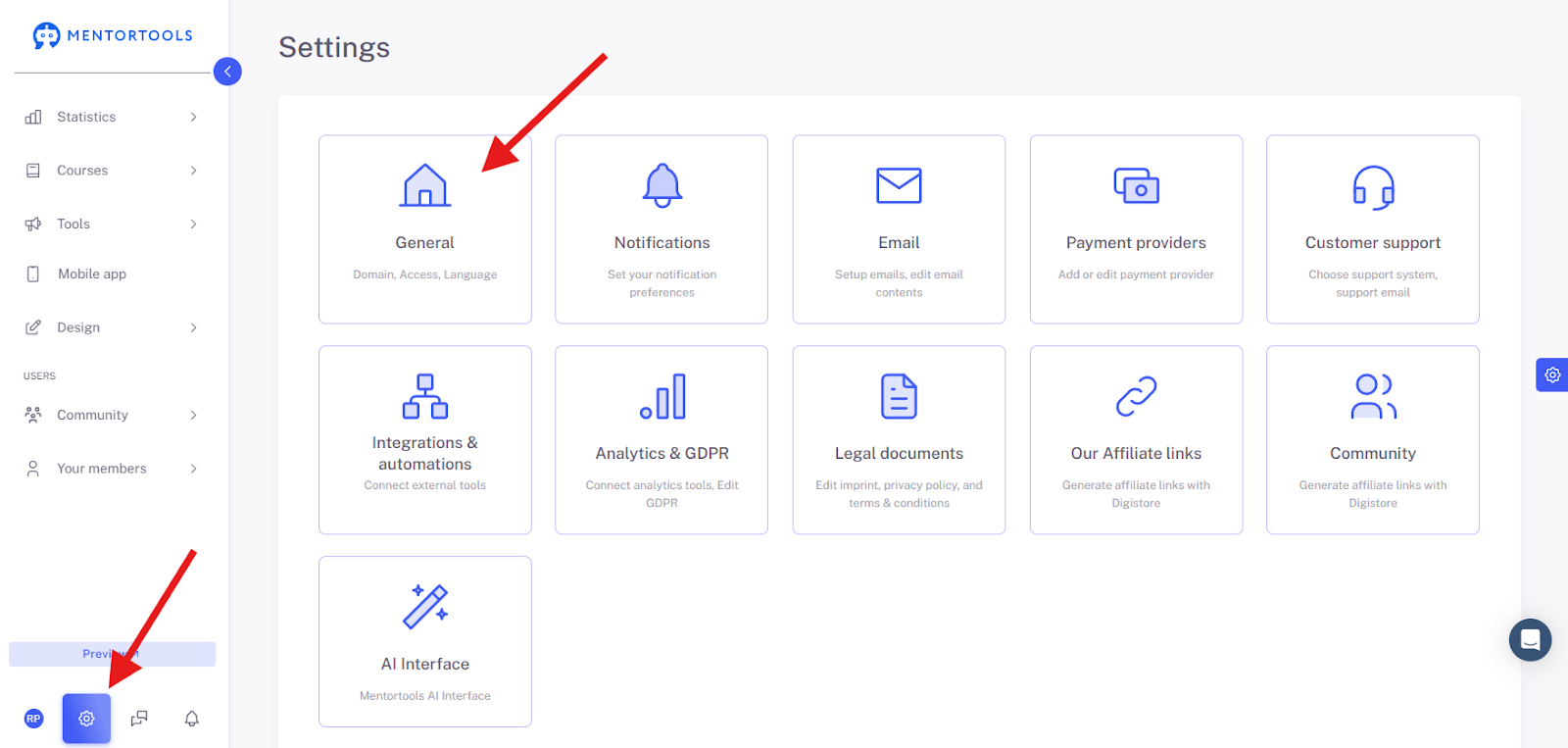
To access the general settings, click on Settings on the "gear icon" at the very bottom left of the menu. Then click on "General".
Access Settings Overview
Click on "Access Settings" to view and change your access settings.

In this section, we look at the access settings. Here you define how people can access your course or platform.
1. Access Links
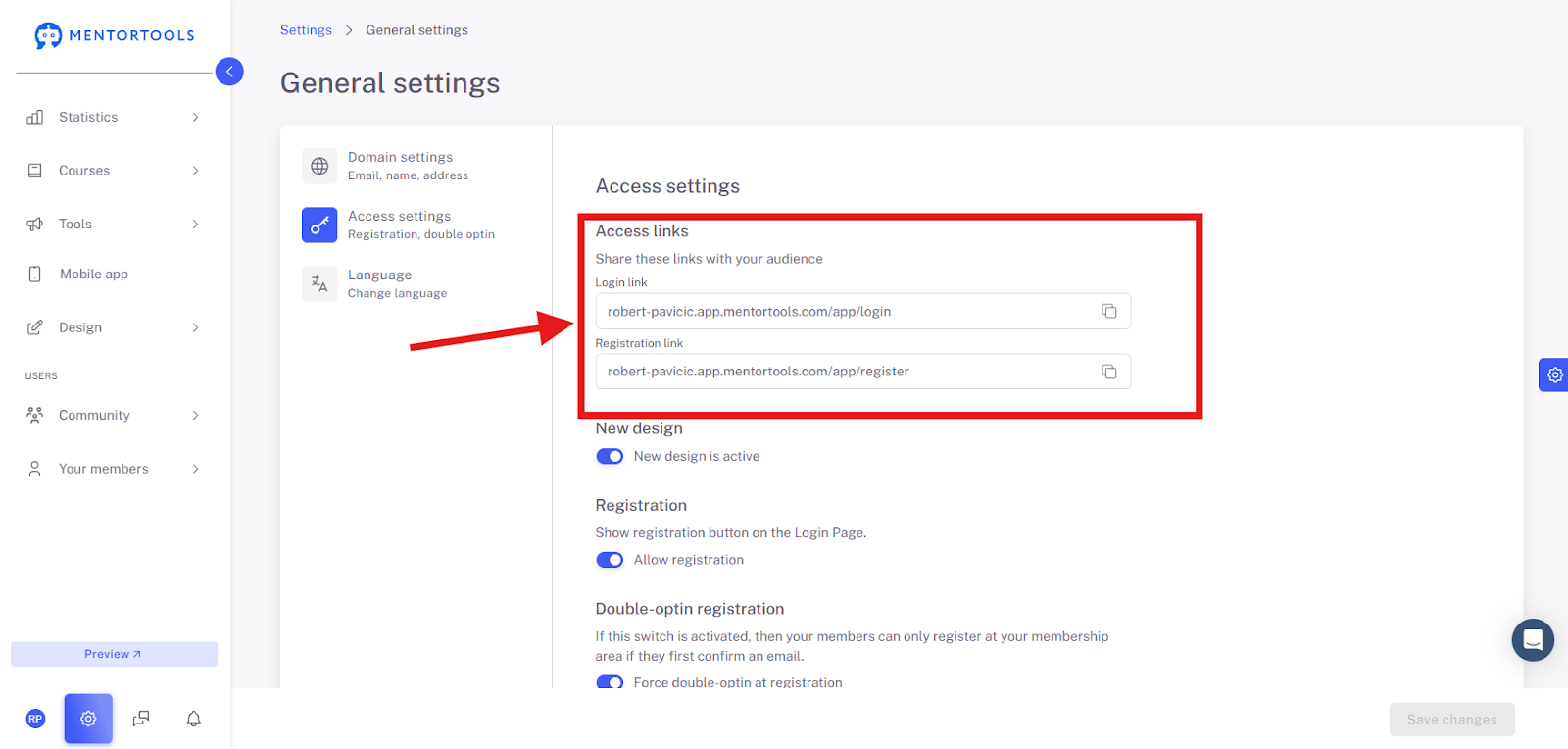
These are the most important links that you share with your target audience.
Login Link: You send this link to everyone who has already registered and now just needs to log in.
Registration Link: You share this link with everyone who should sign up with you for the first time.
2. Registration
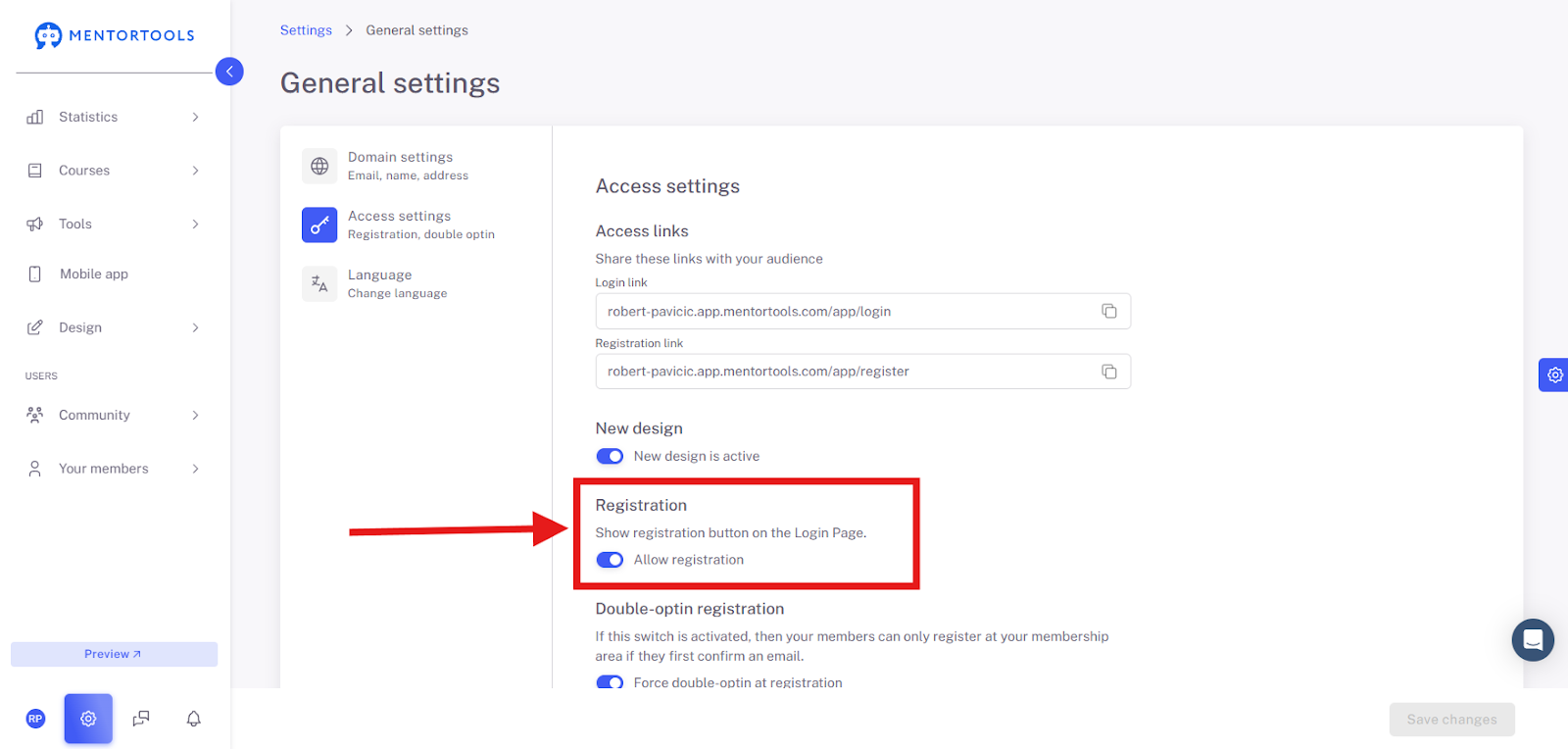
Here you control how the registration process works.
Show registration button on the login page: If this switch is on, users who land on the login page will also see a button that allows them to register directly. This prevents them from having to first look for the special registration link.
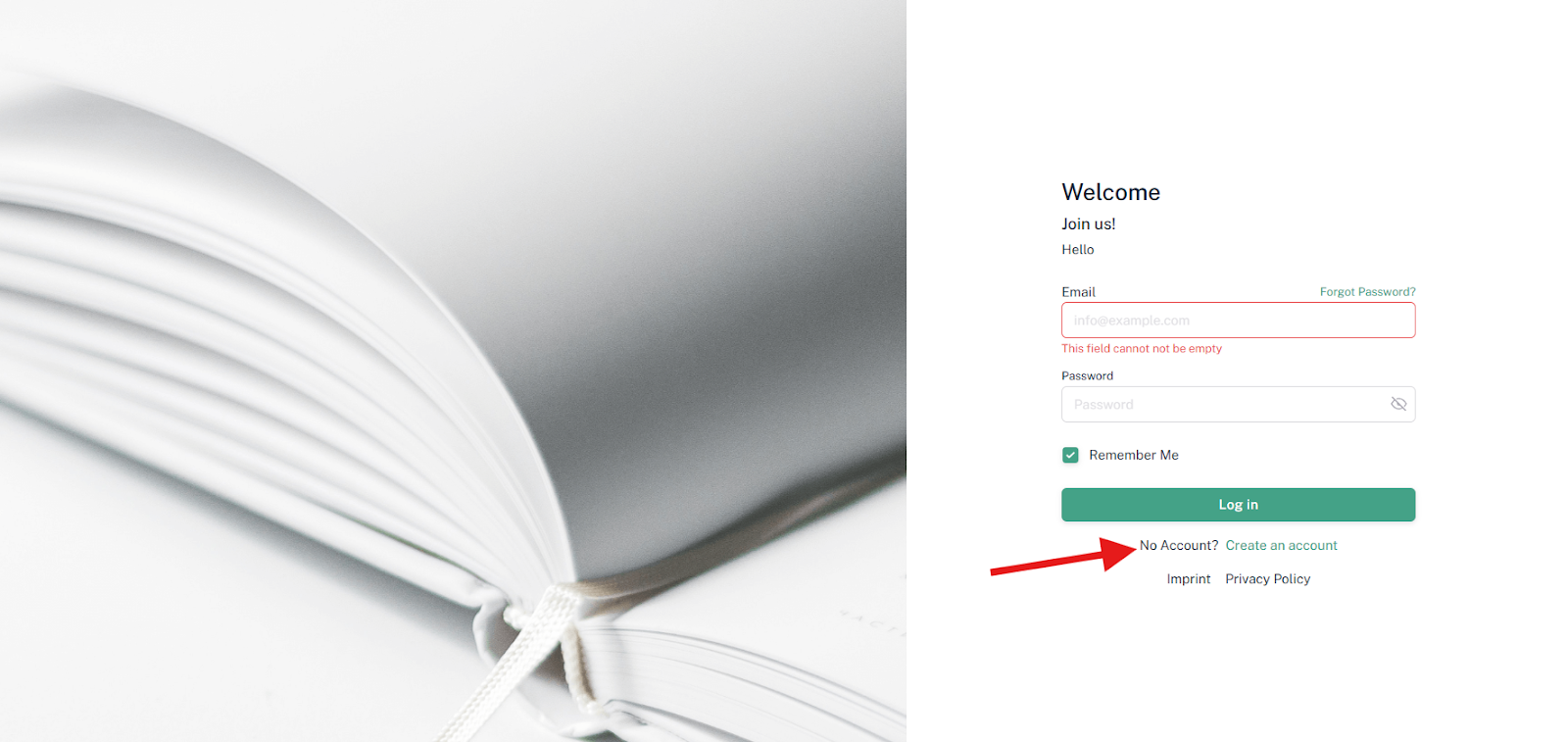
Allow registration: With this option, you generally allow new users to register. If you turn this off, no new registration is possible, and the platform is only accessible to already registered members.
3. Only allow registration with accepted T&Cs

Only allow registration with T&Cs: If you activate this, new users must click a checkbox during registration confirming that they accept your General Terms and Conditions (T&Cs). This is often legally necessary.
4. Show Availability
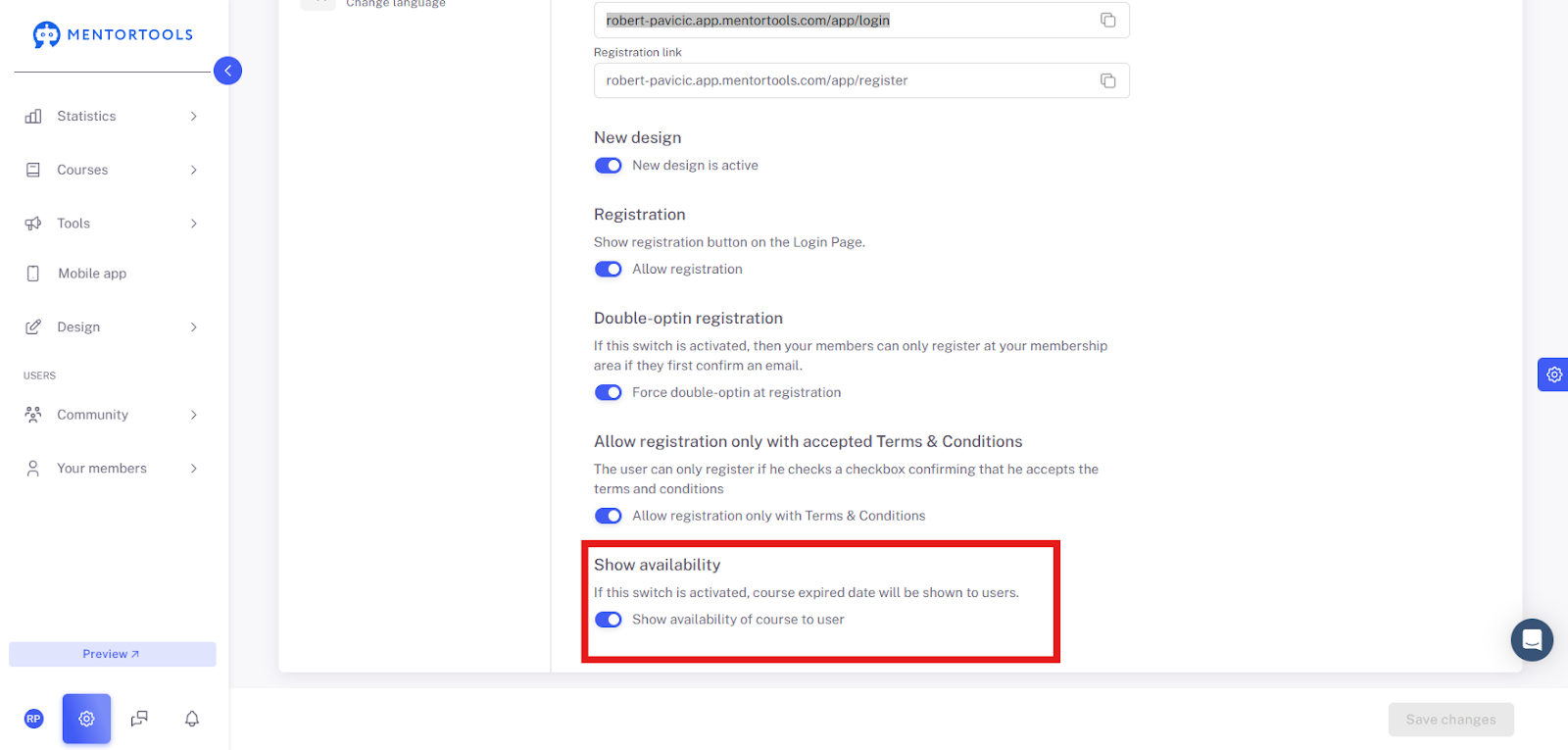
Show course availability to the user: If you turn this switch on, your users will see until when the course is available (e.g., an expiration date). This can be useful for creating a sense of urgency or clearly communicating how long access lasts.
With these settings, you have complete control over who can access your content, when, and how.
5. Save Changes
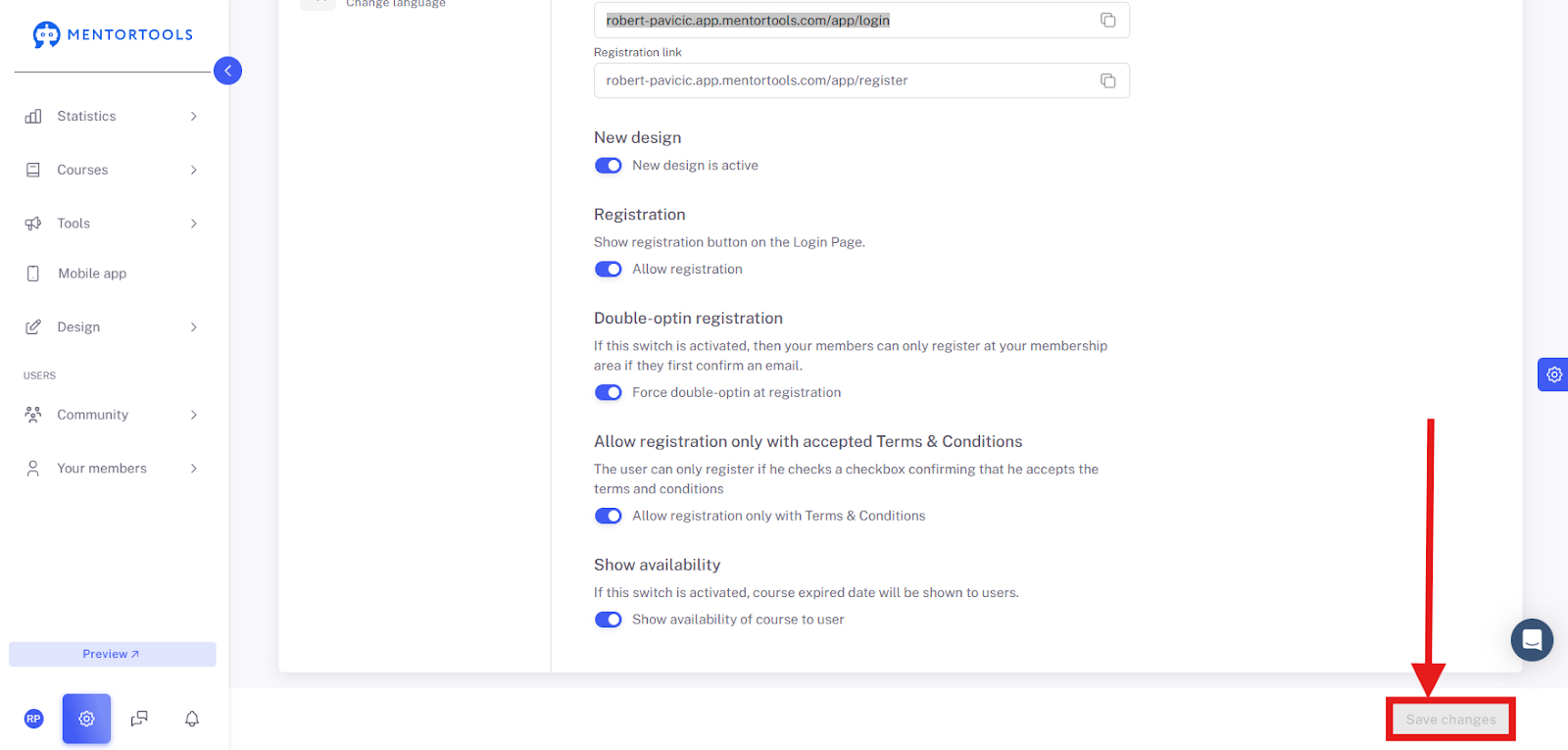
If you are satisfied with your settings, click "Save Changes" at the bottom left to apply them. Further information on this can be found here in our guide to the Access Settings.
These are the three ways you can add a user to your member area!