Change the Video Thumbnail – Cover Image
In this article, you’ll learn how to change a video’s thumbnail (cover image). This lets you define an image that is shown before the video starts playing.
Last updated 11 months ago
Hover your mouse over the menu item “Courses,” then click the sub-item “Media Storage.”
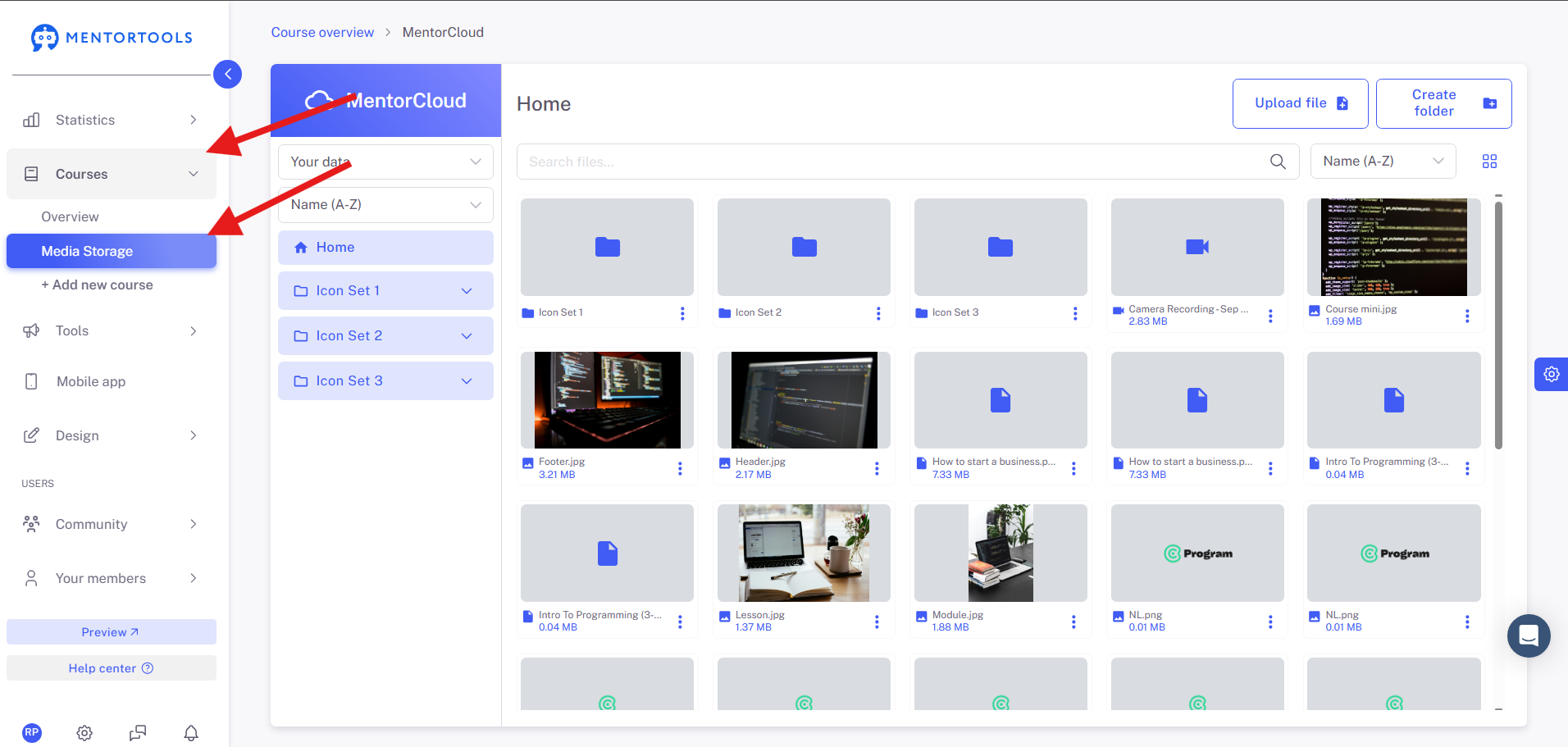
Next, for the desired video where you want to set a cover image, click the three dots (single left-click).

Now select “Upload cover image.”
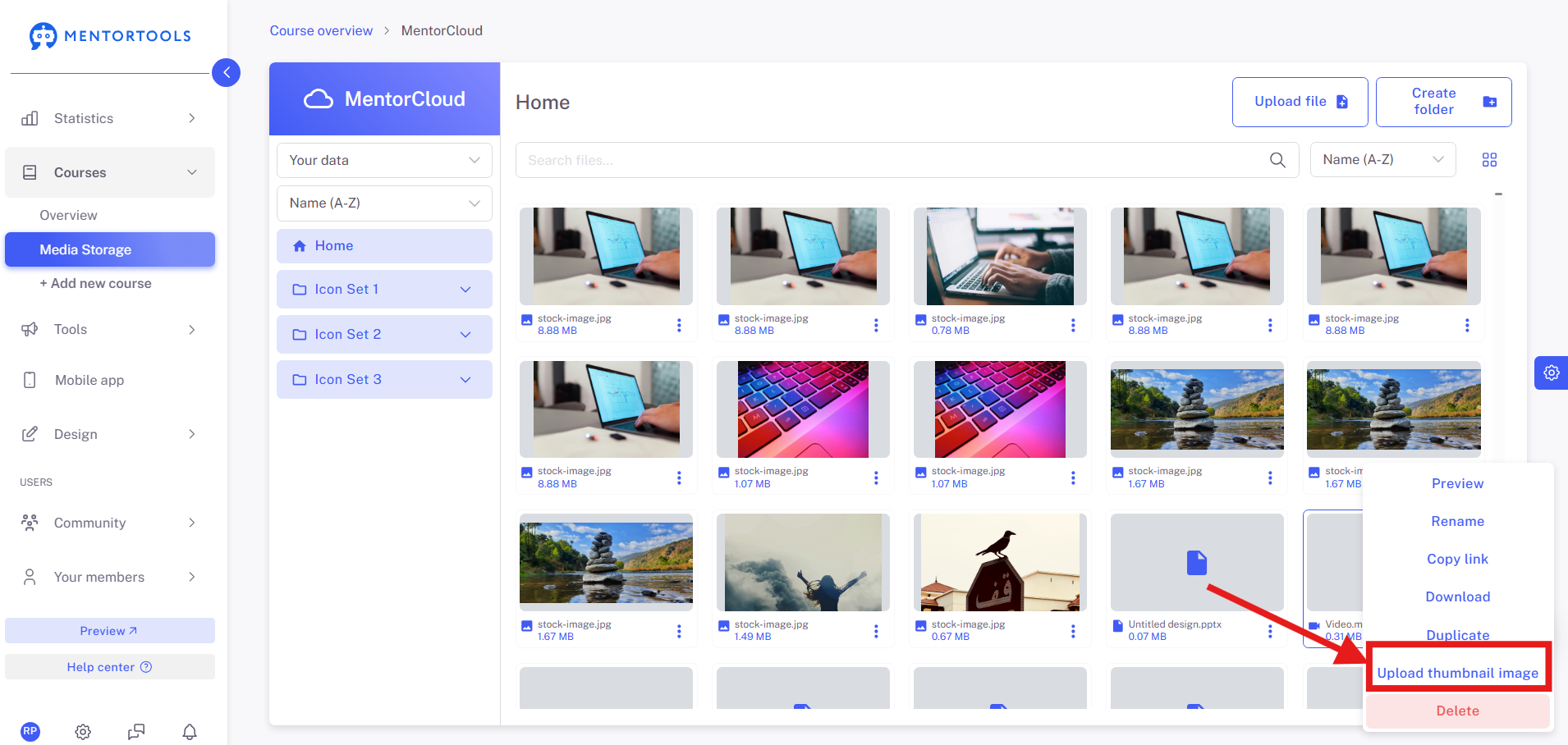
You can now upload an image from your computer. As soon as the image is uploaded, it will be used as the thumbnail for this video.
Wishing you lots of success and fun,
The Mentortools Team