Course Overview
The course overview shows you all the courses in your membership area.
Last updated 11 months ago
1. Course Overview
Log in to your membership area and go to "Courses" and then "Overview" in the side menu.
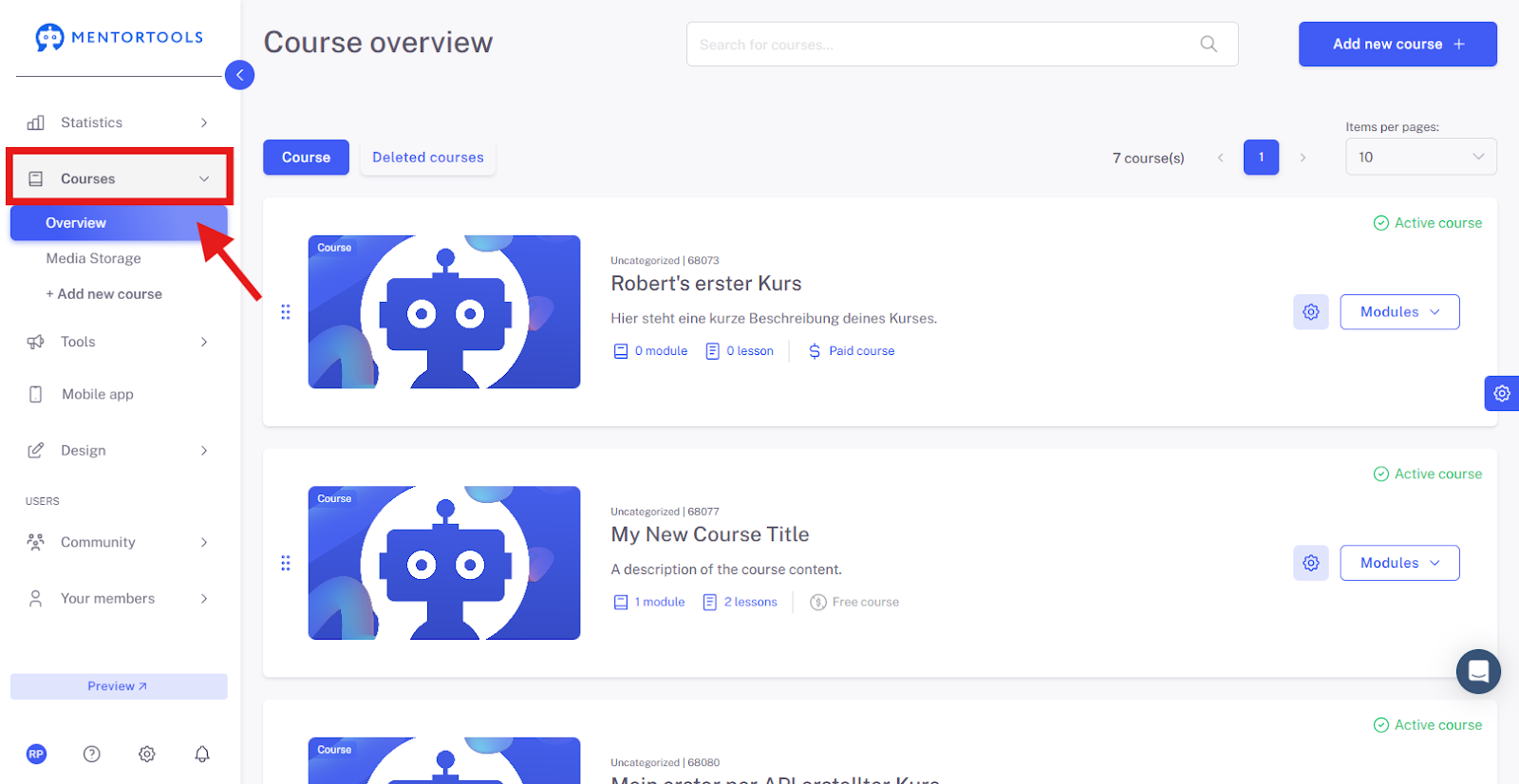
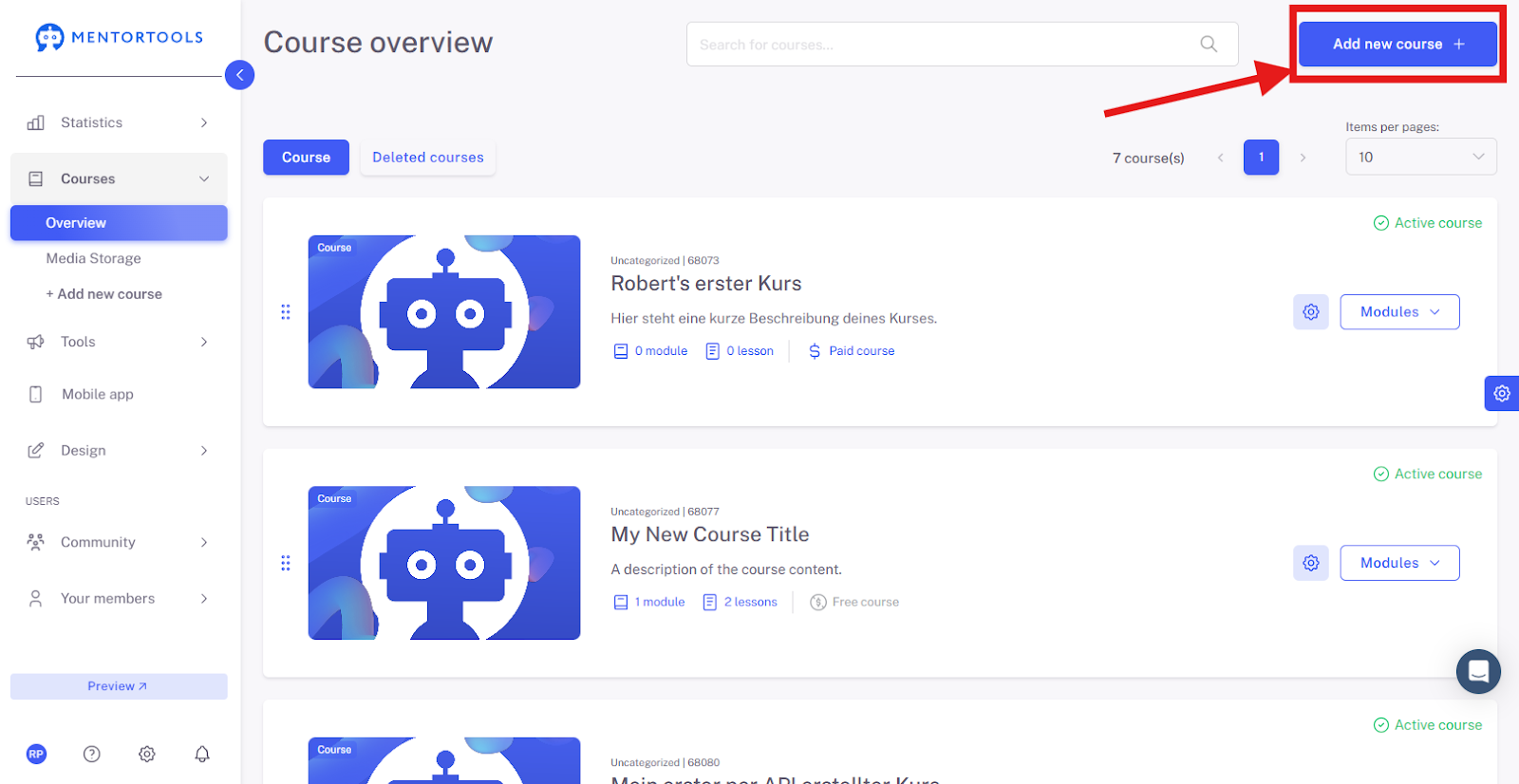
The course overview shows you all the courses in your membership area. When you click on the course overview, you can create a new course using the button in the top right ("Add Course +").
If you have already created some courses, they will be displayed here—in the course list.
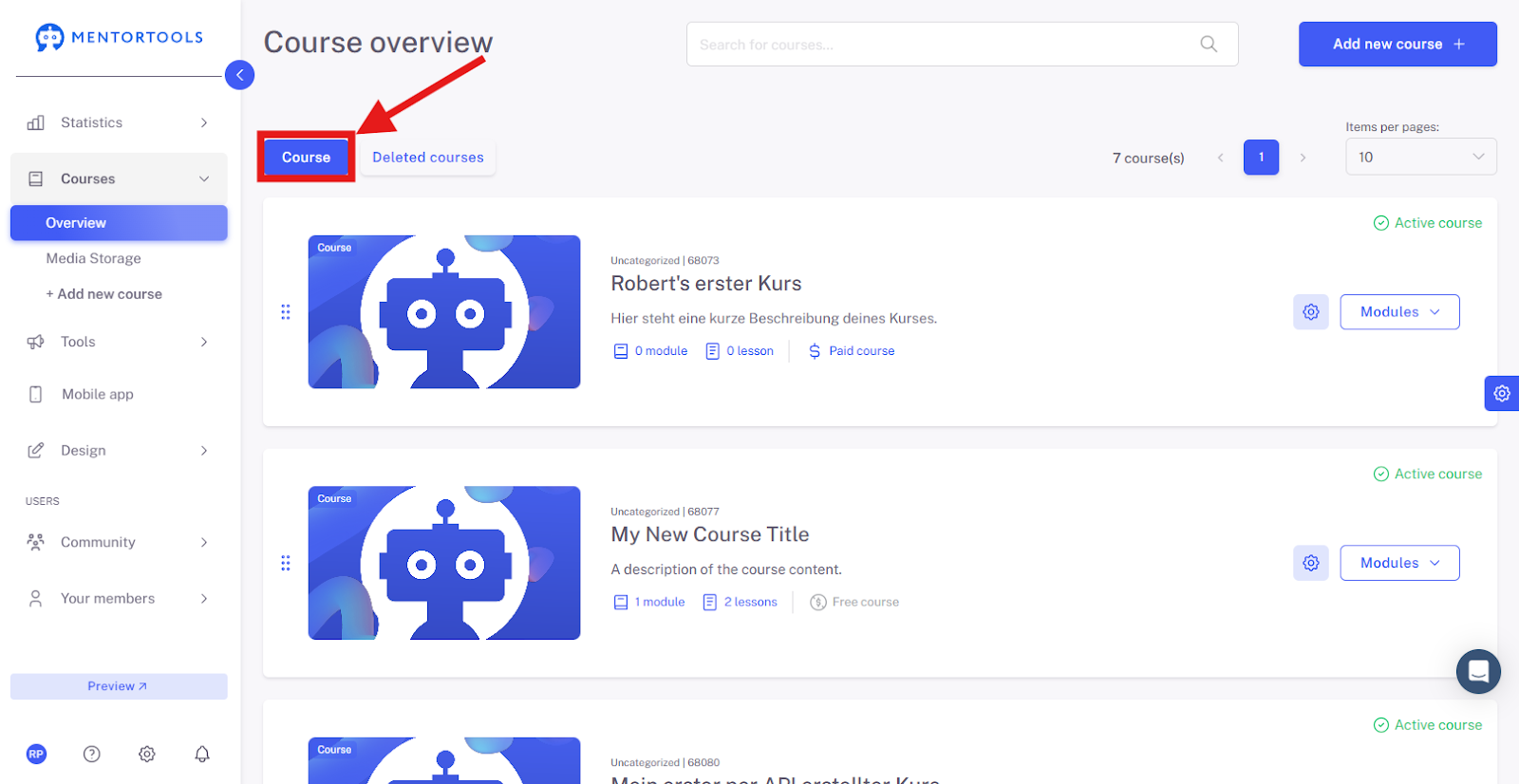
Here you will find a list of all your courses with information such as:
Course name
Number of modules and lessons
Activity (course is active/inactive)
Visibility (course is public/secret)
Course type (free/paid course)
Options: edit, duplicate, delete
Changing the Course Order in the List
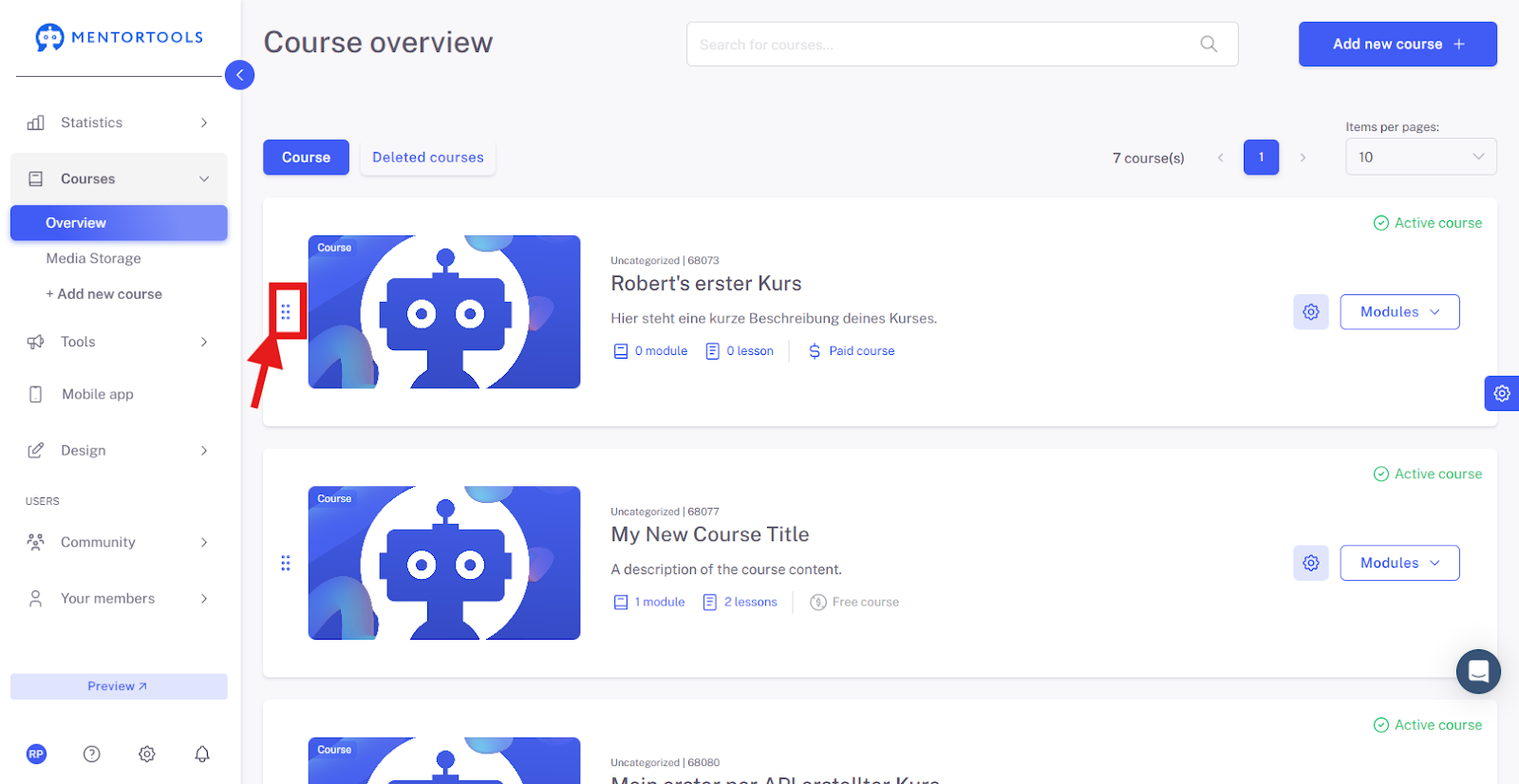
With the "drag & drop" function, you can change the order of your courses in the course list at any time.
You can move individual courses up or down in the list. Simply click on the course on the far left (by the three dots), drag it to the desired position, and release. This way, you can flexibly arrange your online courses in the list at any time.
2. Deleted Courses
You will also find the "Deleted Courses" folder here—it contains all the online courses you have deleted.
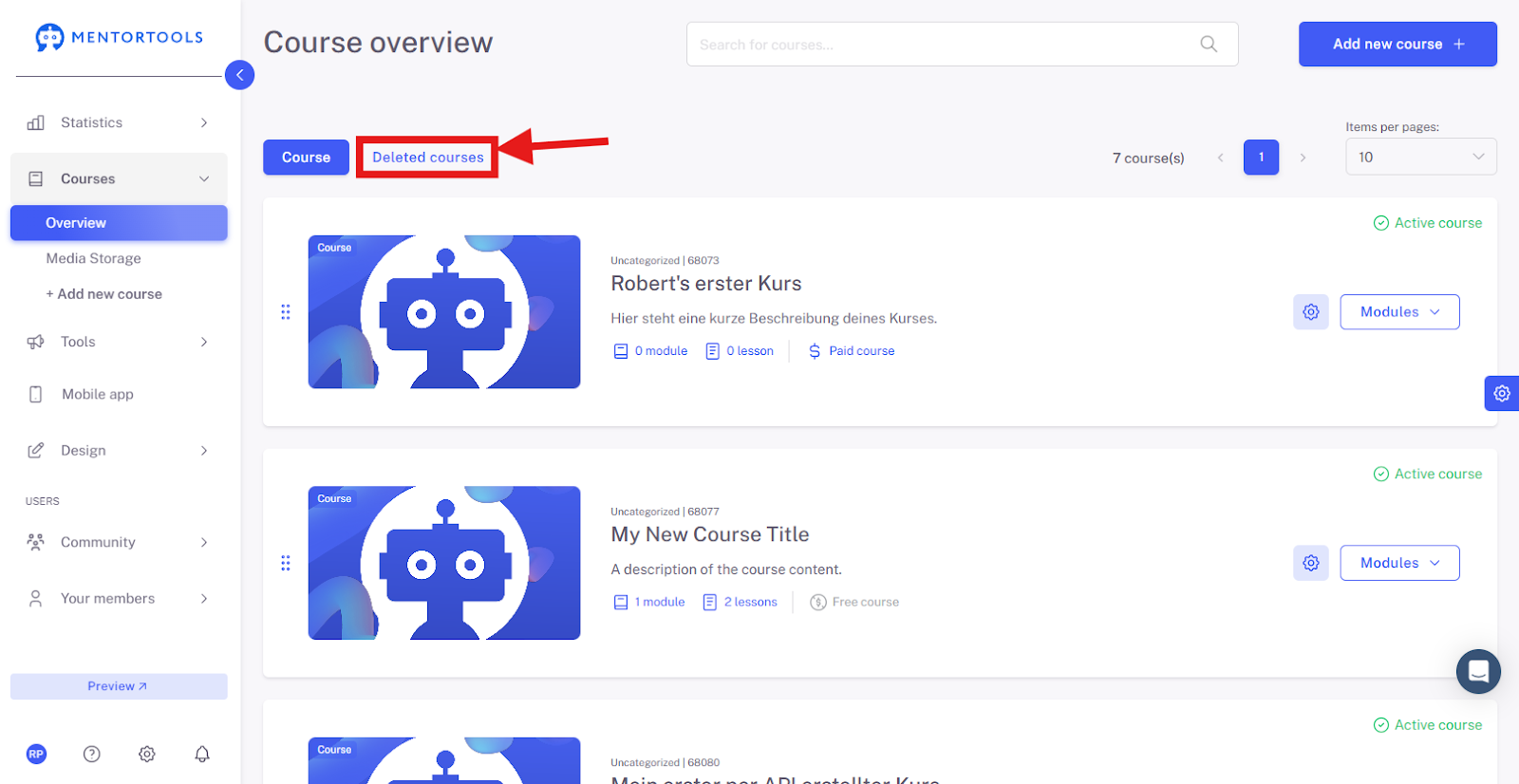
For each course in the folder, you have two options to choose from:
Restore - you can choose to restore your deleted course. The course will then be moved back to the course list.
Delete permanently - you can also permanently delete your course, which removes it completely from your online academy, and it can no longer be restored.
3. Course Settings
To view the course settings, click on the name of the respective course (or click on the gear icon and select "Edit").
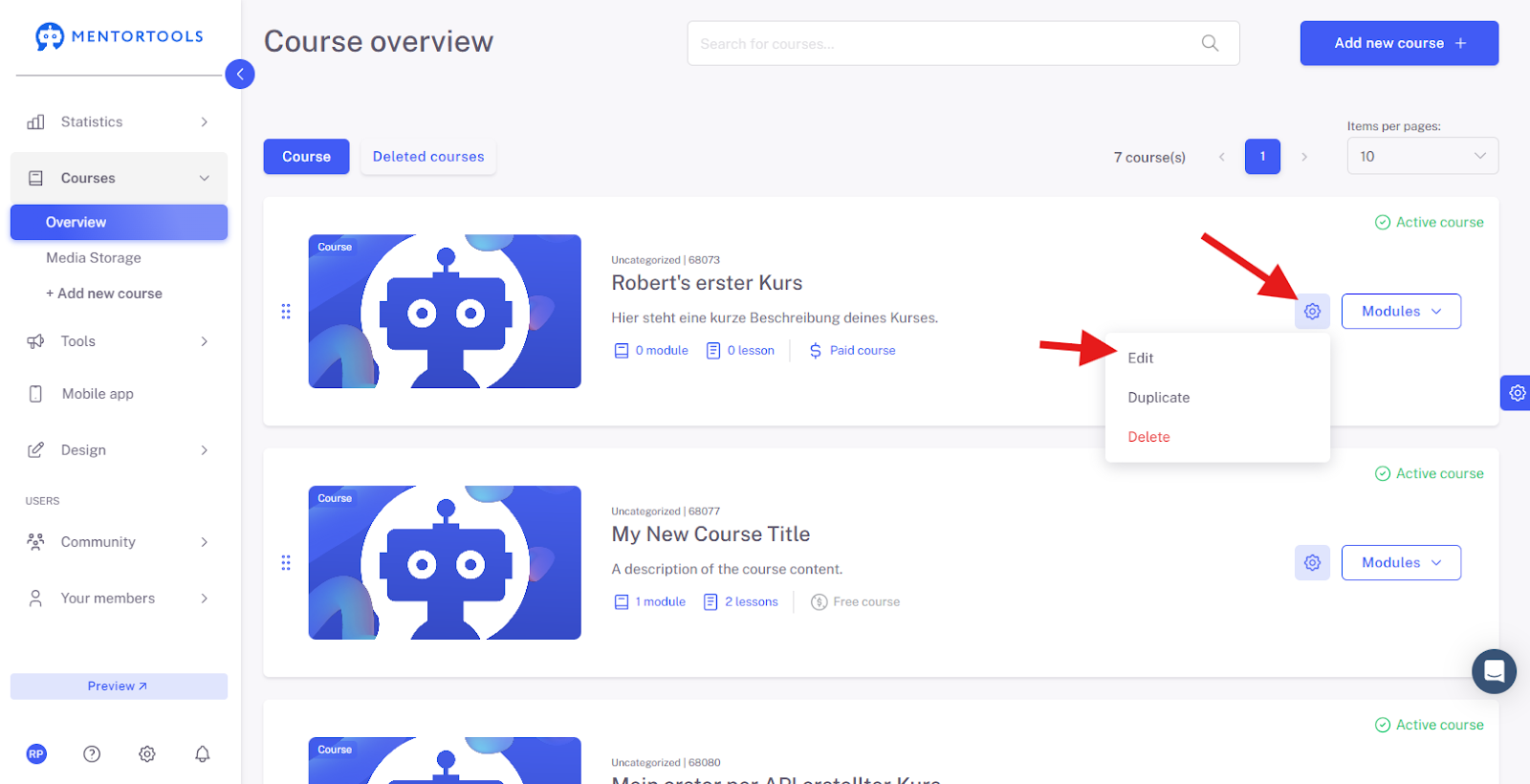
When you click on the course title (or the gear icon), all course settings are displayed in 4 categories:
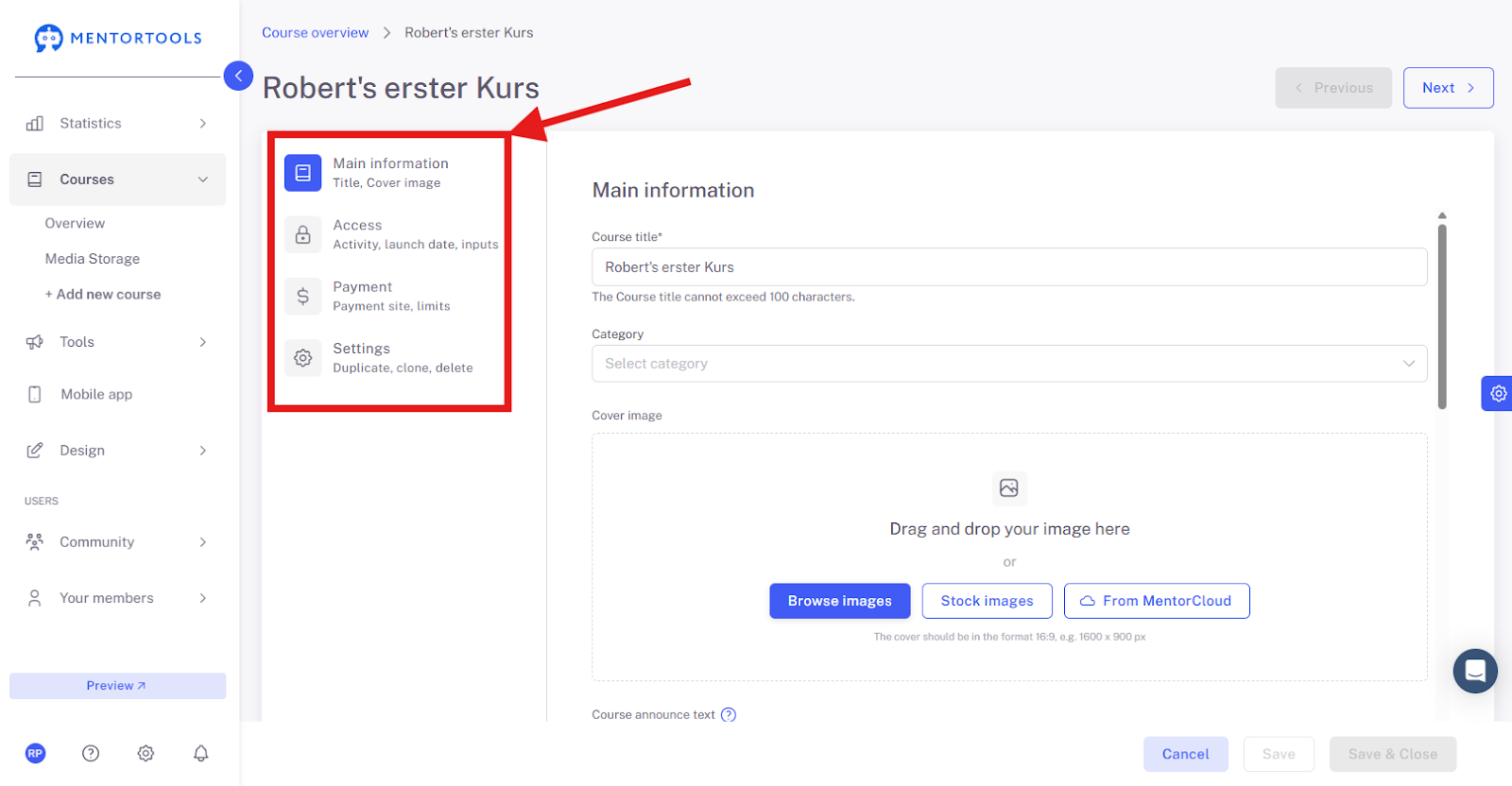
Main Info
In this area, you can set the following information:
Course title
Category
Cover image
Course announcement text
Module layout
Course description
Course introduction video
Access
In the "Access" section, you can set the following:
Whether your course is active or inactive.
Whether your course is secret or public.
The course start date.
For how long the course is accessible to your customers:
Unlimited access
Access limited to a specific number of days
Subscription
Here you will also find direct links to the respective course.
Payments
In the "Payments - General Settings" section, you can determine whether your course should be free or paid.
For a paid course, you must set up a sales page (order form) for the course and establish the connection to a payment provider.
Settings
In this area, you can duplicate or delete your online course.
This is only an overview of the settings—you can find more detailed information on the individual settings in the other tutorials here.