Create a Download Link
If you want to provide your users with a free PDF or ZIP, PDF, or audio file via a download link, you've come to the right place. In this guide, you will learn how to upload ZIP, PDF, audio, or PDF files and link them so that a download occurs when clicked.
Last updated 12 months ago
First, navigate to the Media Storage, where you can upload a PDF, for example, from your computer.
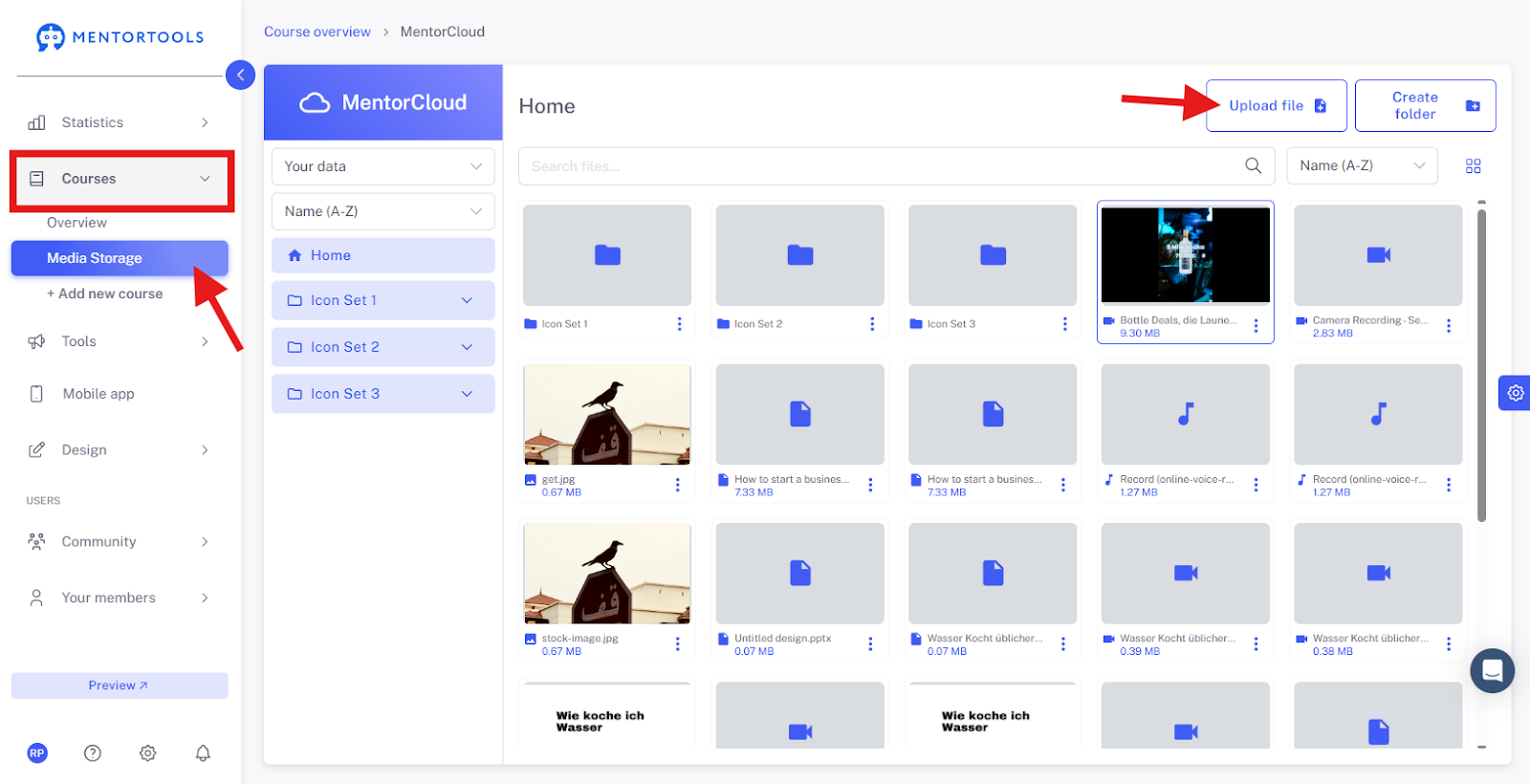
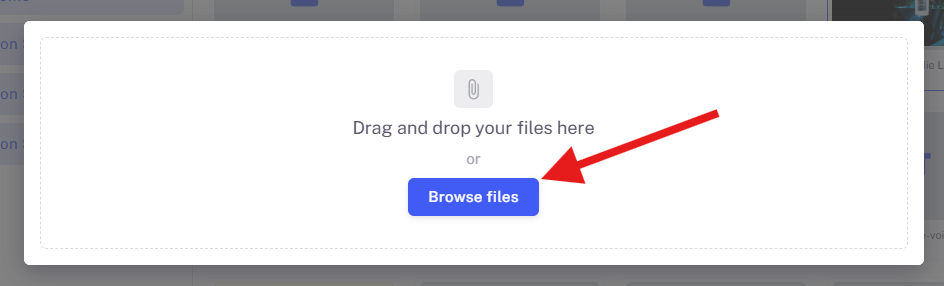
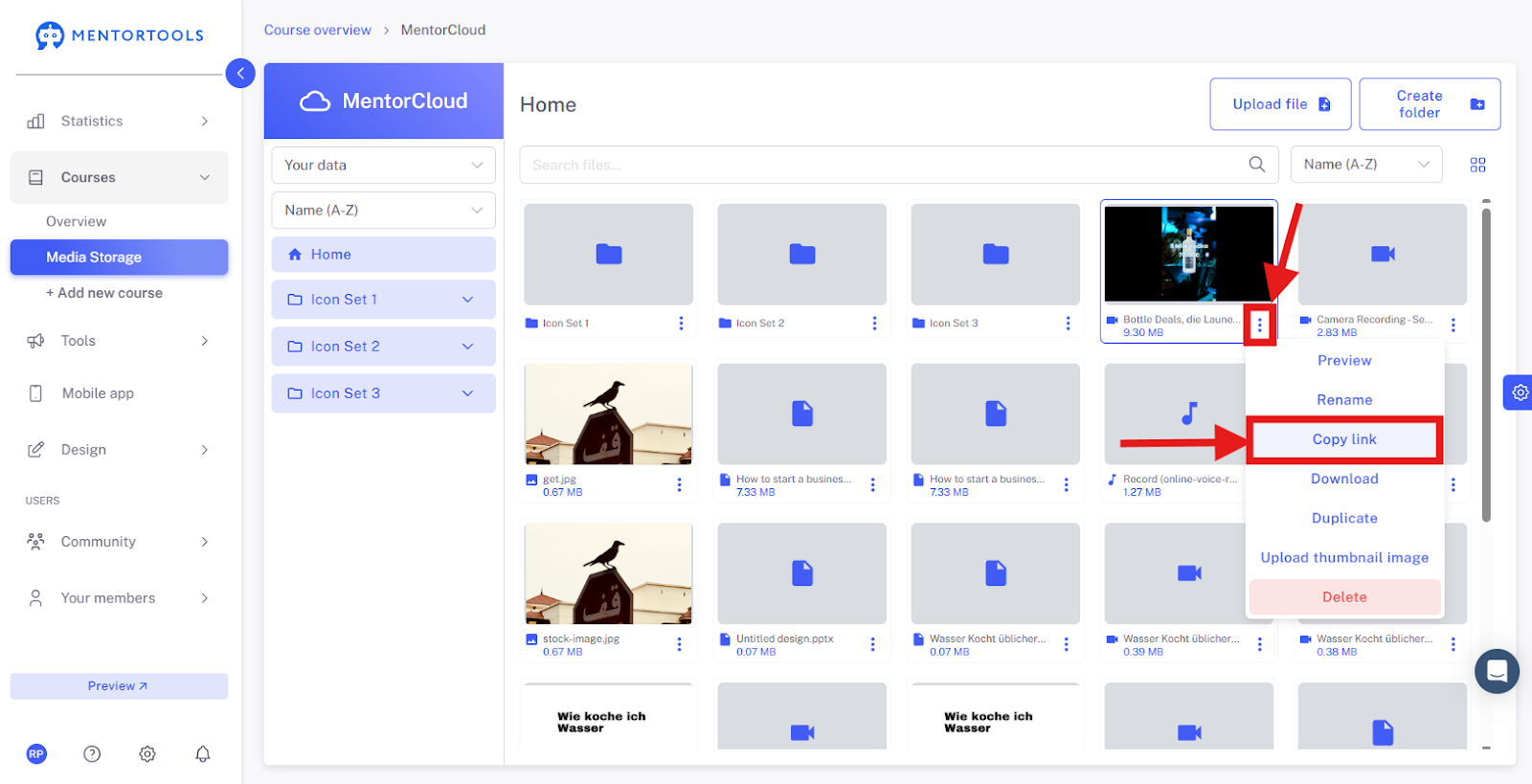
If you have already uploaded a PDF or another file type, click on the three dots at the bottom right of the file. You will now see different options—click on "Copy link".
Insert Download Link into the Landing Page
You are now able to insert the download link into one of your landing pages. You can also insert the download link anywhere else where linking is possible.
Most of the time, the download link is inserted into the thank-you page after a registration process. If you already have a thank-you page, you can add an extra "Download Button" to it and link the download link there.
To do this, navigate to "Tools", then the sub-item "Landing Pages", and open the respective page where you want to insert the download link.
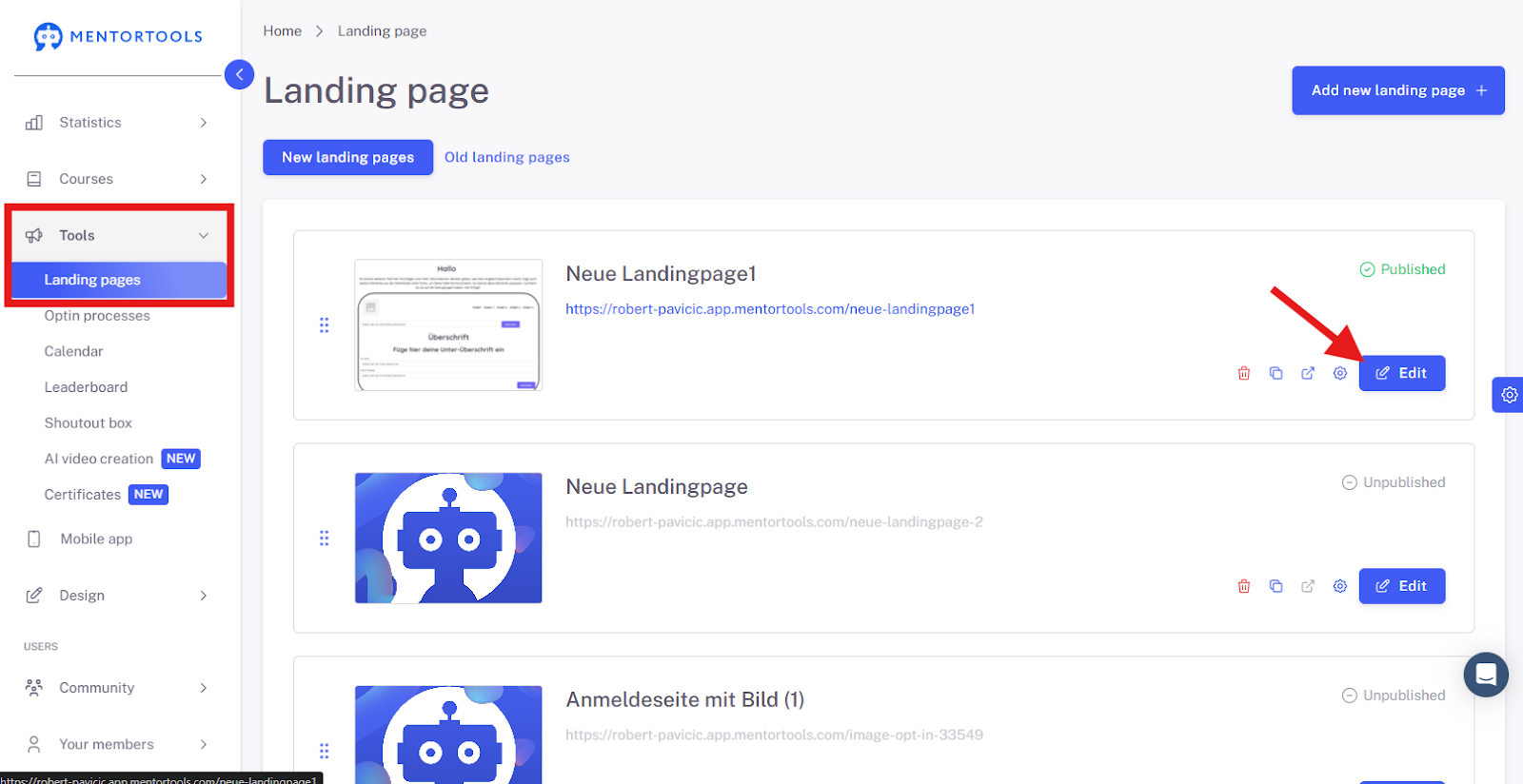
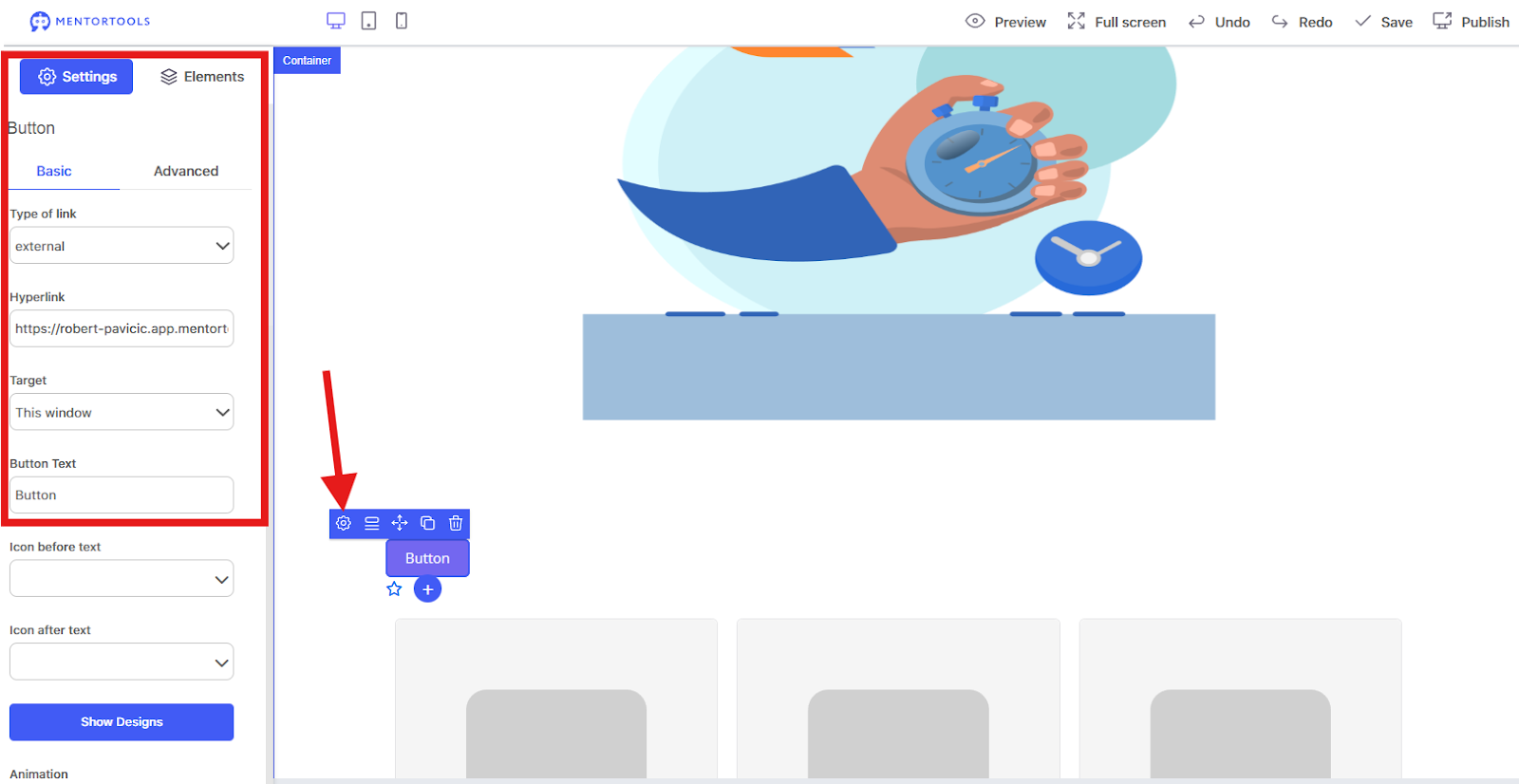
By clicking on the button settings, you can customize the button individually and save the link in the settings in the left-hand menu.
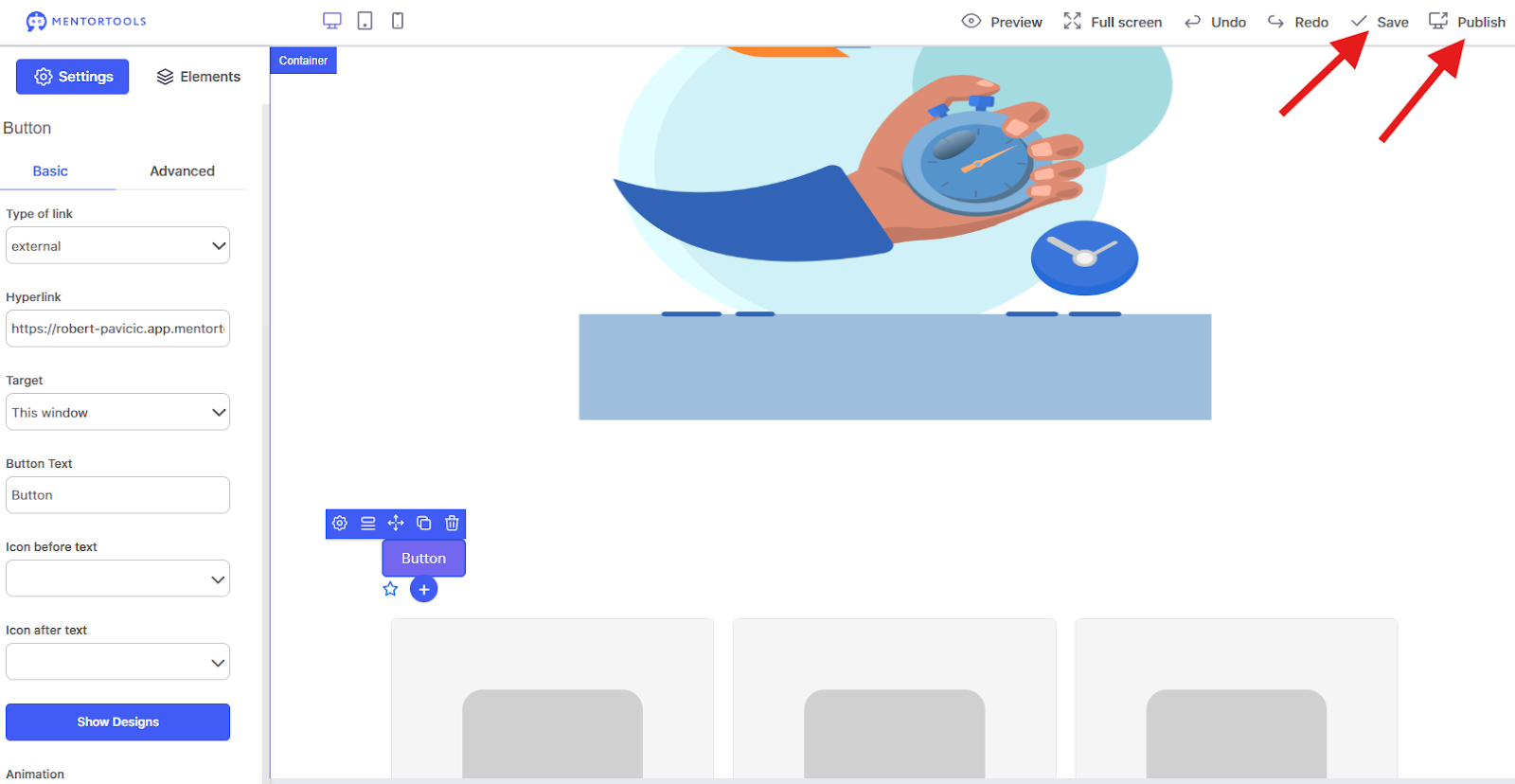
Then click on "Save" & "Publish".
Good luck!