Media library (MentorCloud)
The MentorCloud is your integrated media library in Mentortools, with which you can clearly manage all your multimedia files in one central location and use them efficiently. Upload videos, audio, PDFs, and images just once and easily use them in all your courses, coaching sessions, and membership areas.
Last updated 12 months ago
In this article, you will learn how to use the media library (also known as "MentorCloud") in Mentortools to upload, organize, and directly integrate videos, PDFs, and other files into your courses and lessons.
What Does the MentorCloud Offer You?
Central File Management
Upload once, use everywhere: Organize your media in a central location and use it flexibly for various courses and lessons.
Clear management: Create folders and categories for an optimal overview of your files.
Easy Upload and Quick Integration
Drag-and-drop upload: Simply drag and drop files into the media library to upload them.
Direct integration into courses: Integrate media content directly into your courses and lessons with just a few clicks.
Support for Diverse Media Formats
Videos, audio & PDFs: Conveniently upload your course materials as videos, podcasts, audio courses, or PDF documents.
Images and graphics: Store images and graphics to visually enhance your courses and landing pages.
Performance and Speed
Optimized playback: Fast streaming of your media for participants—no waiting times, no interruptions.
High availability: Reliable access to media, regardless of your users' location.
Using the Media Library Step-by-Step
Navigate to the Media Library
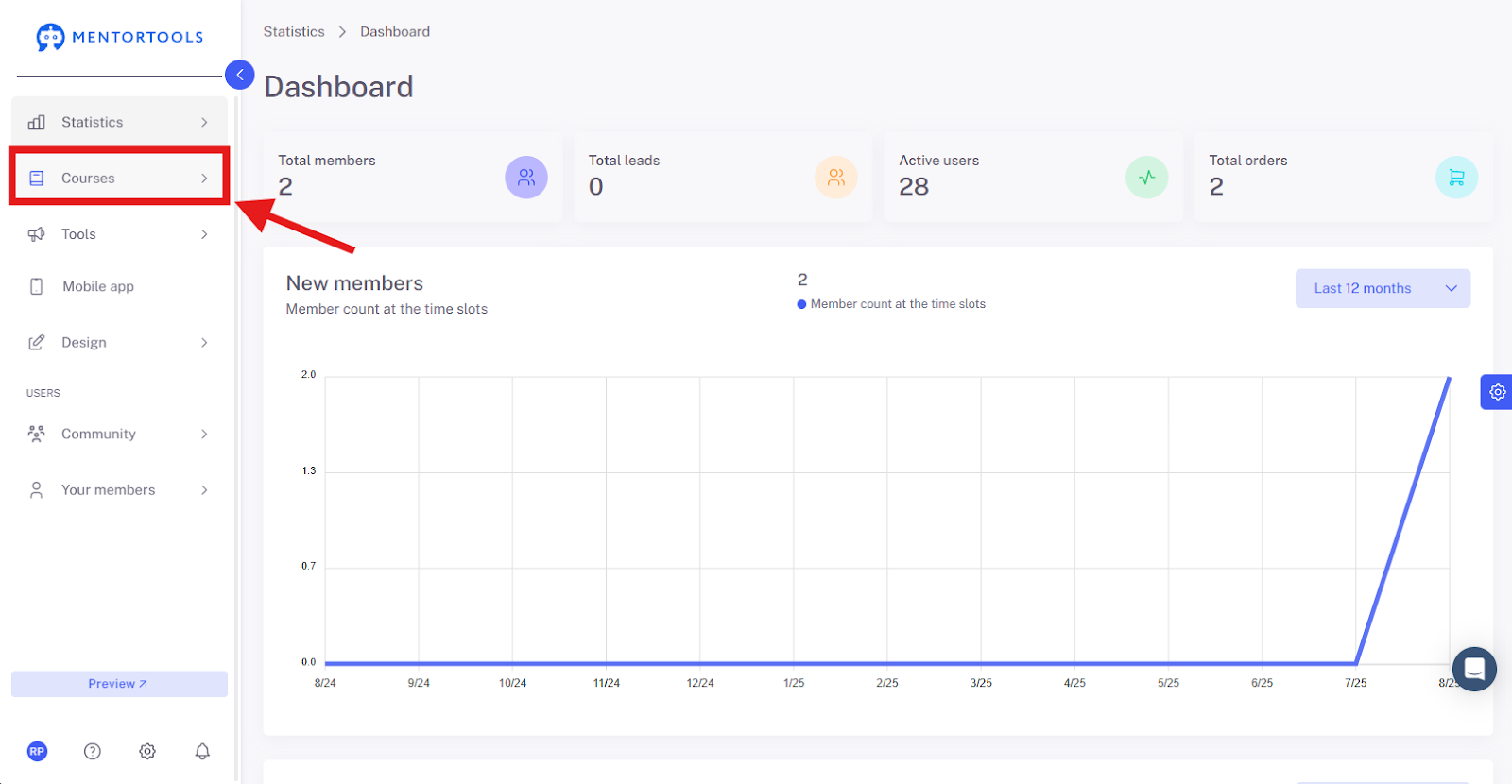
Log in to your membership area and click on "Courses" in the side menu.
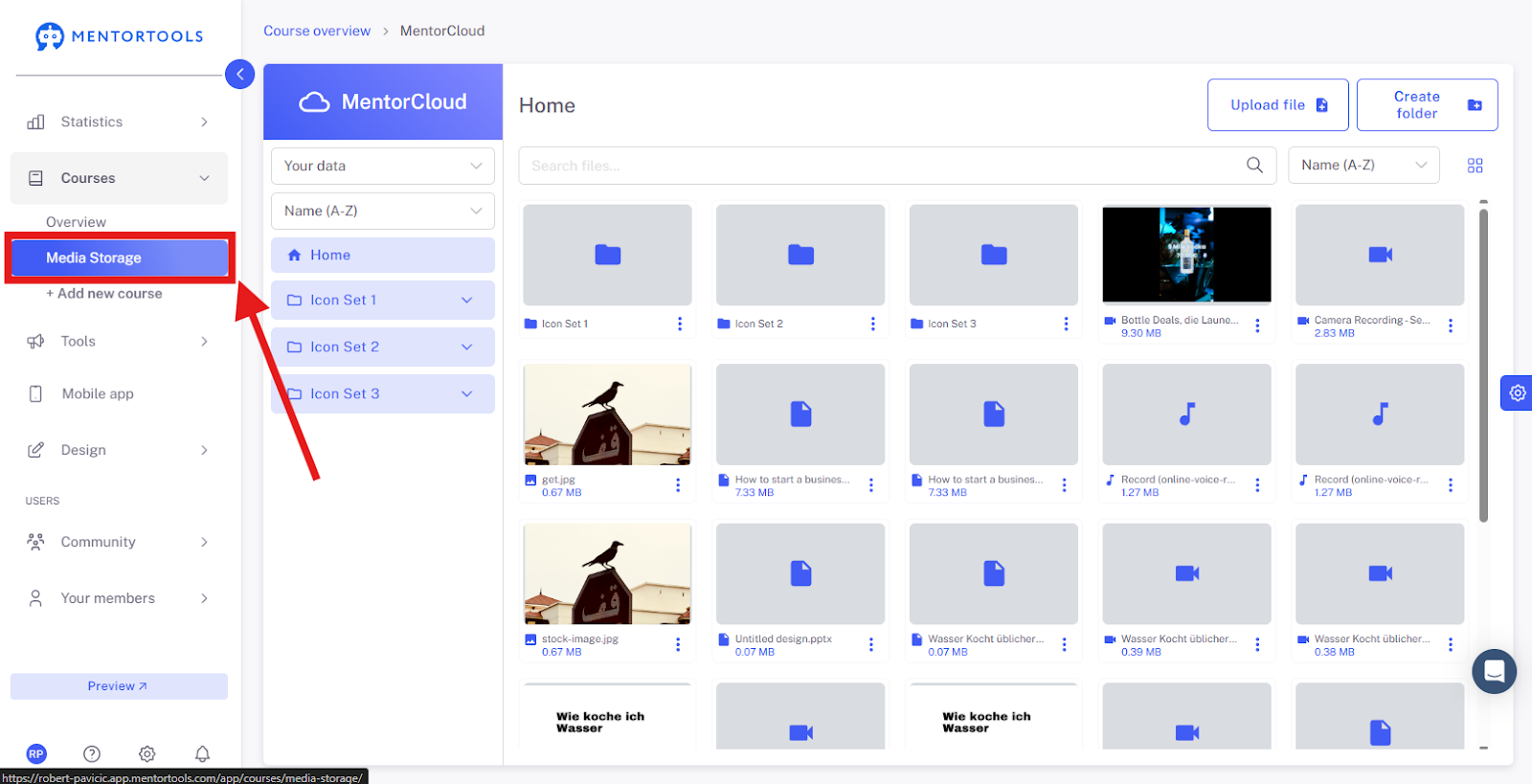
Then, go to "Media Storage".
Upload Files
To upload new files to the media library, click on "Upload file".

Choose "Browse files" to manually select files.
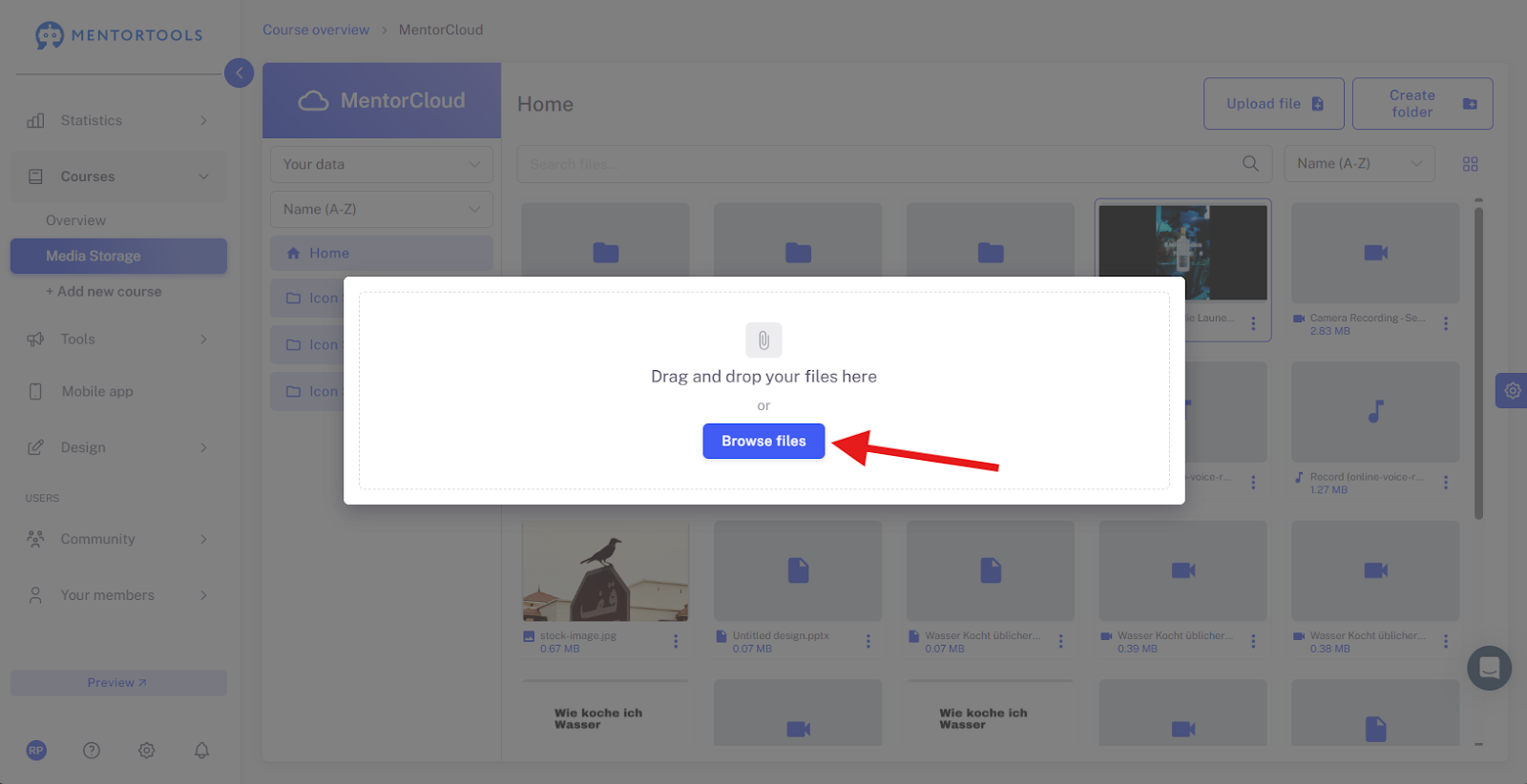
Drag and drop your file or select it.
Create Folders and Organize Files
By clicking on "Add folder", you create a new folder in the media library.
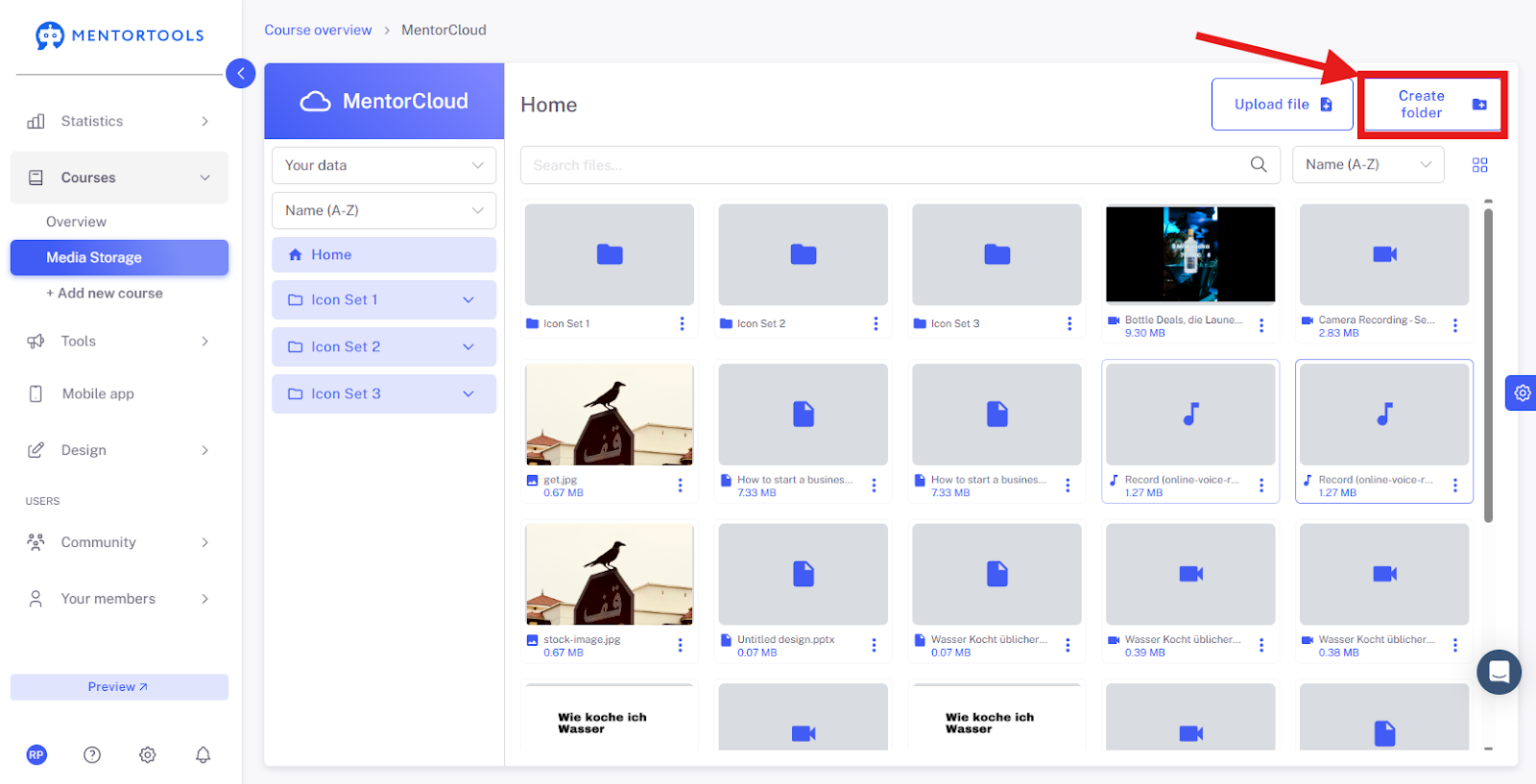
Enter the name of the folder and save it.
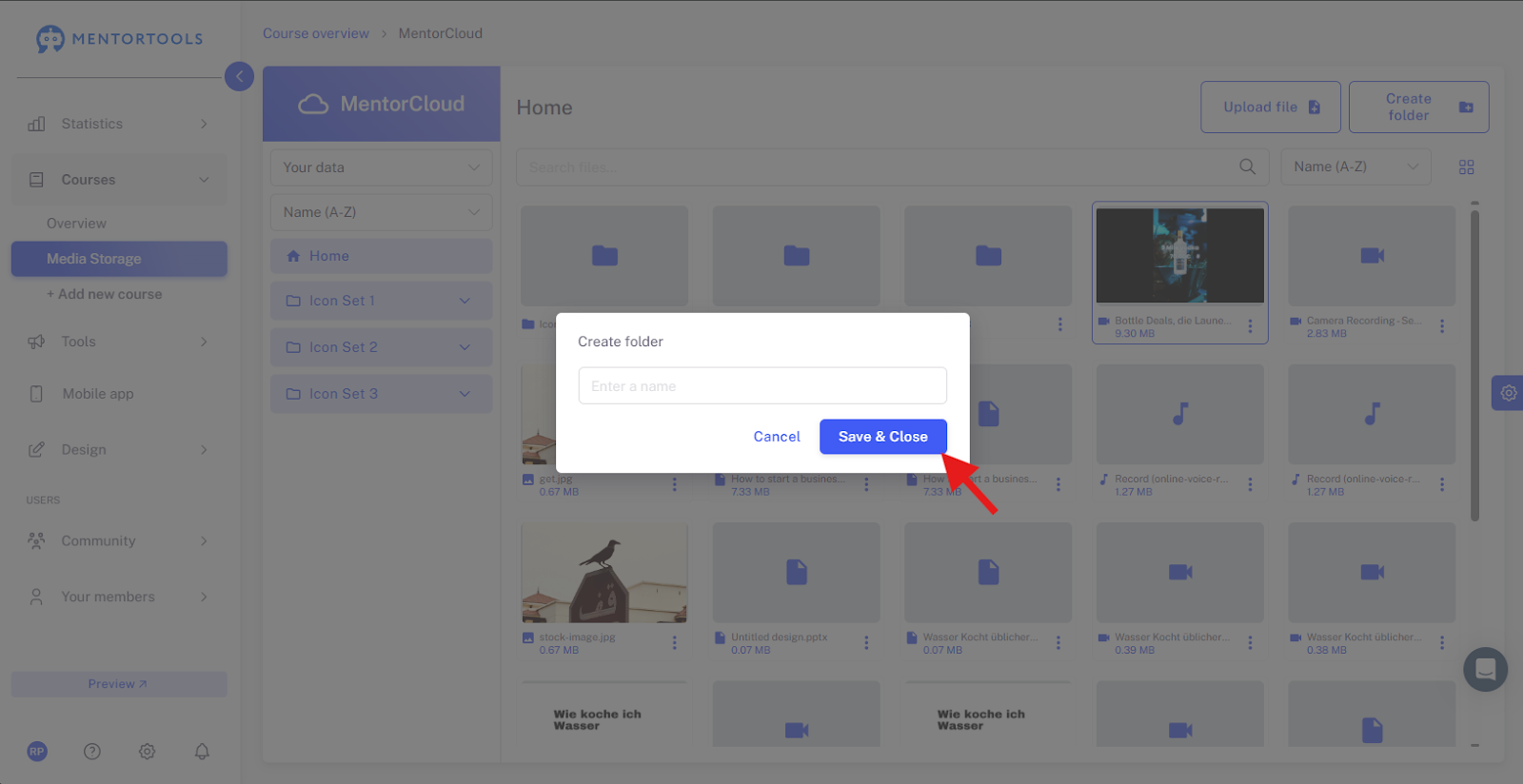
By clicking again, you can create more folders.
You can manage your content in the left panel, where a list of all folders is displayed.

The editing options for a folder appear when you click on the three dots in the bottom right corner of the respective folder.
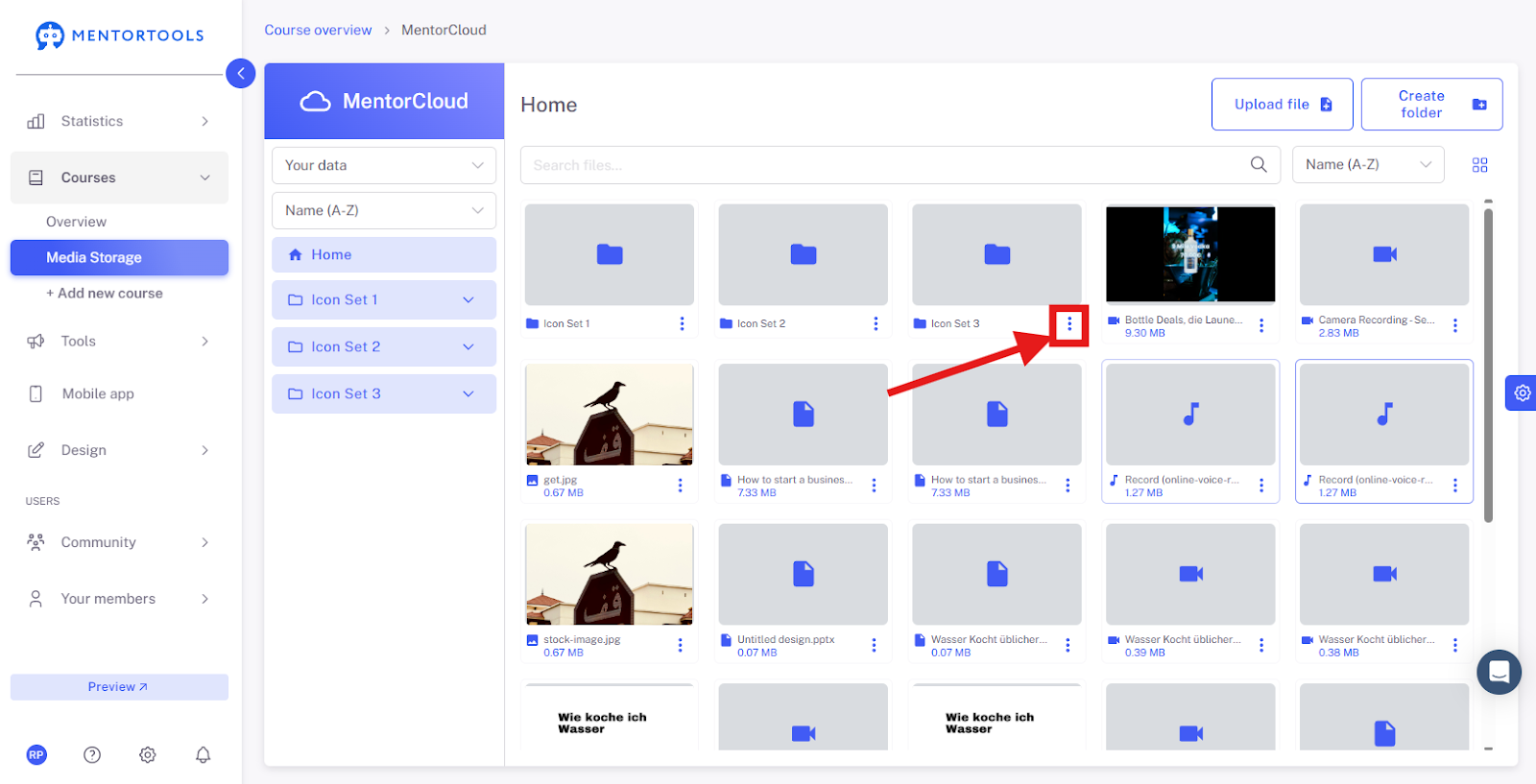
You can either rename or delete the folder.

File Options - Individual Actions
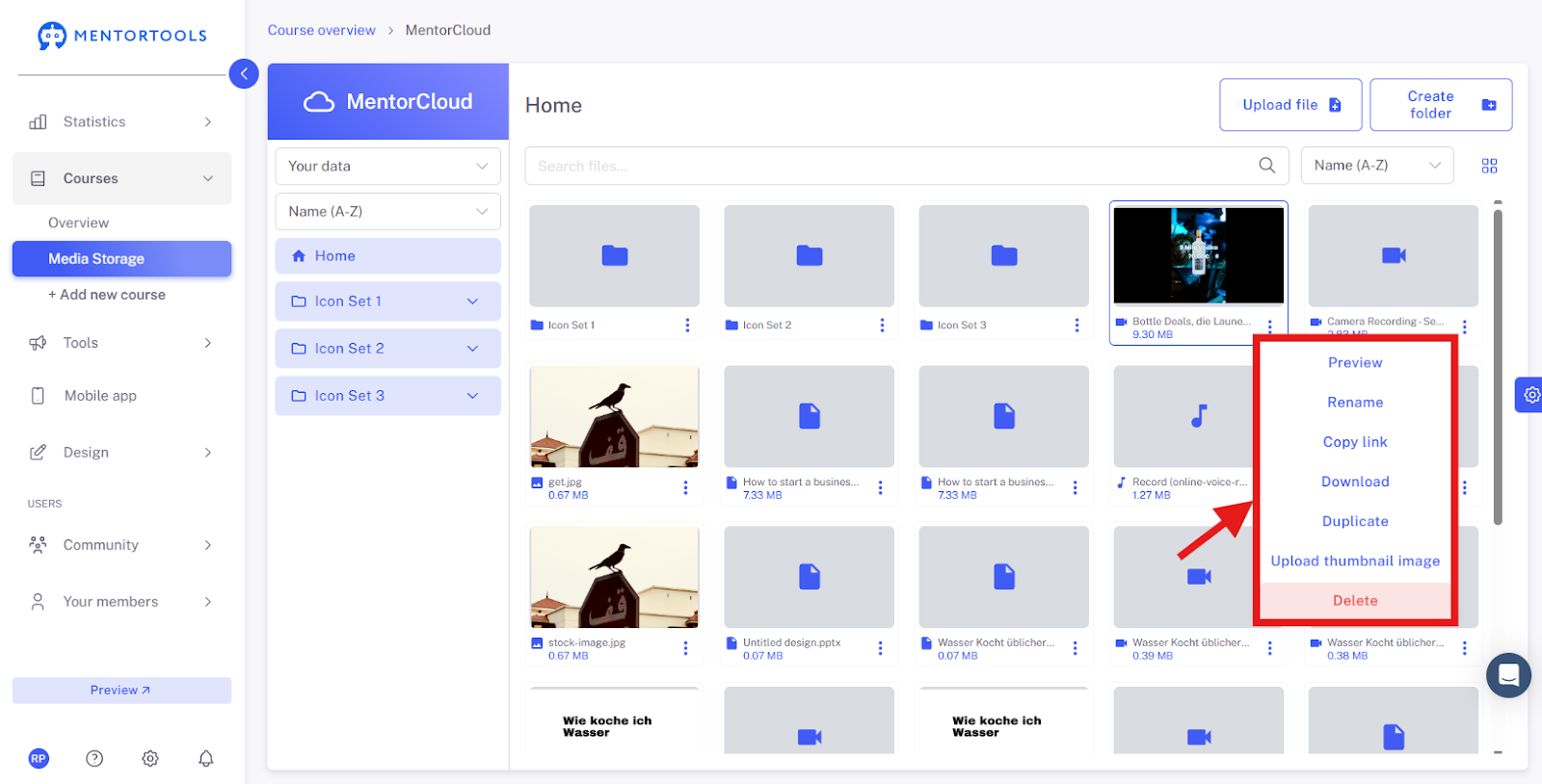
The editing options for a file appear when you click on the three dots in the bottom right corner of the respective file.
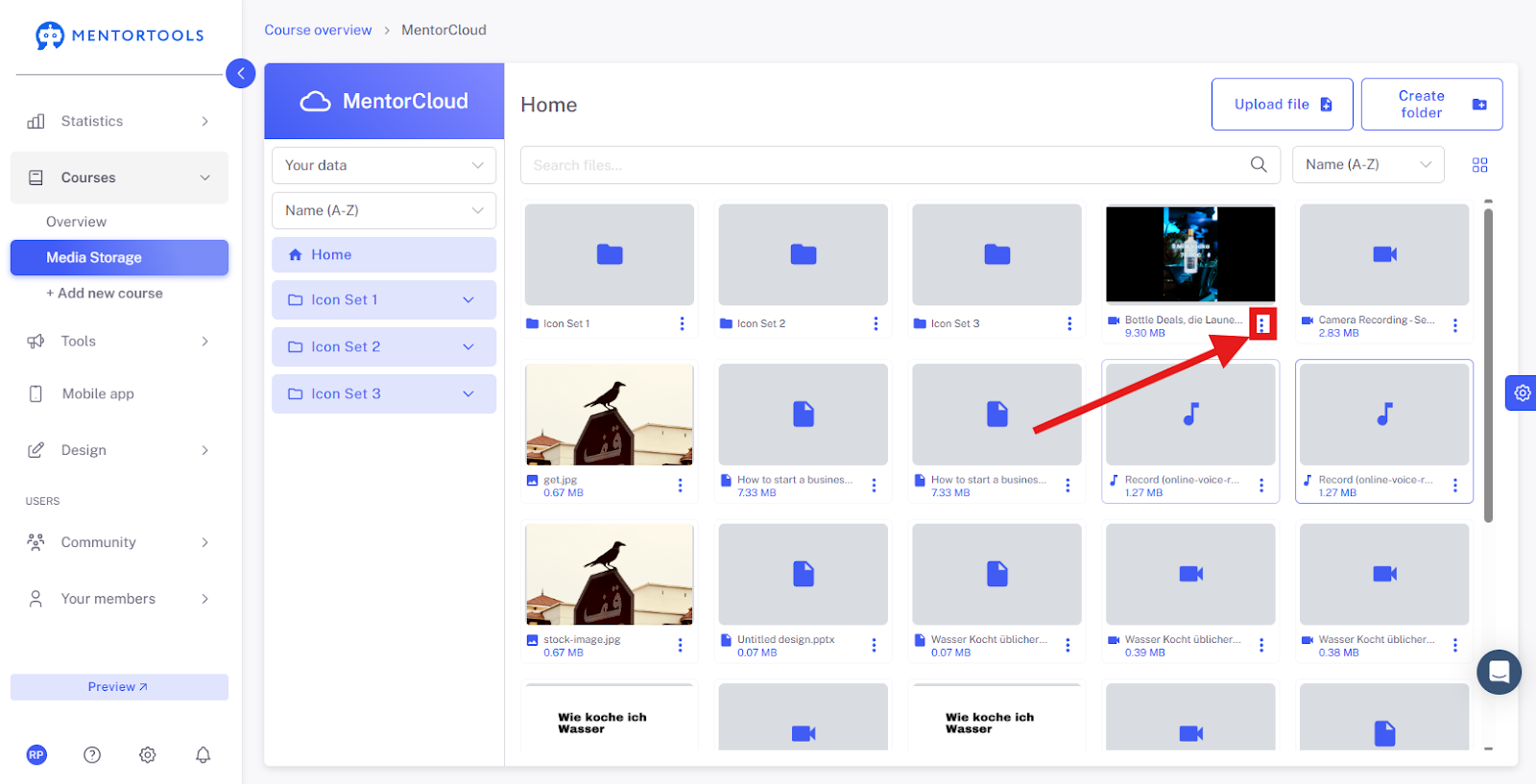
You can:
rename it.
copy the link to the file.
download it.
duplicate it.
or delete it.
Displaying Files and Folders in the Media Library
You have several options for how to display files and folders in the media library:
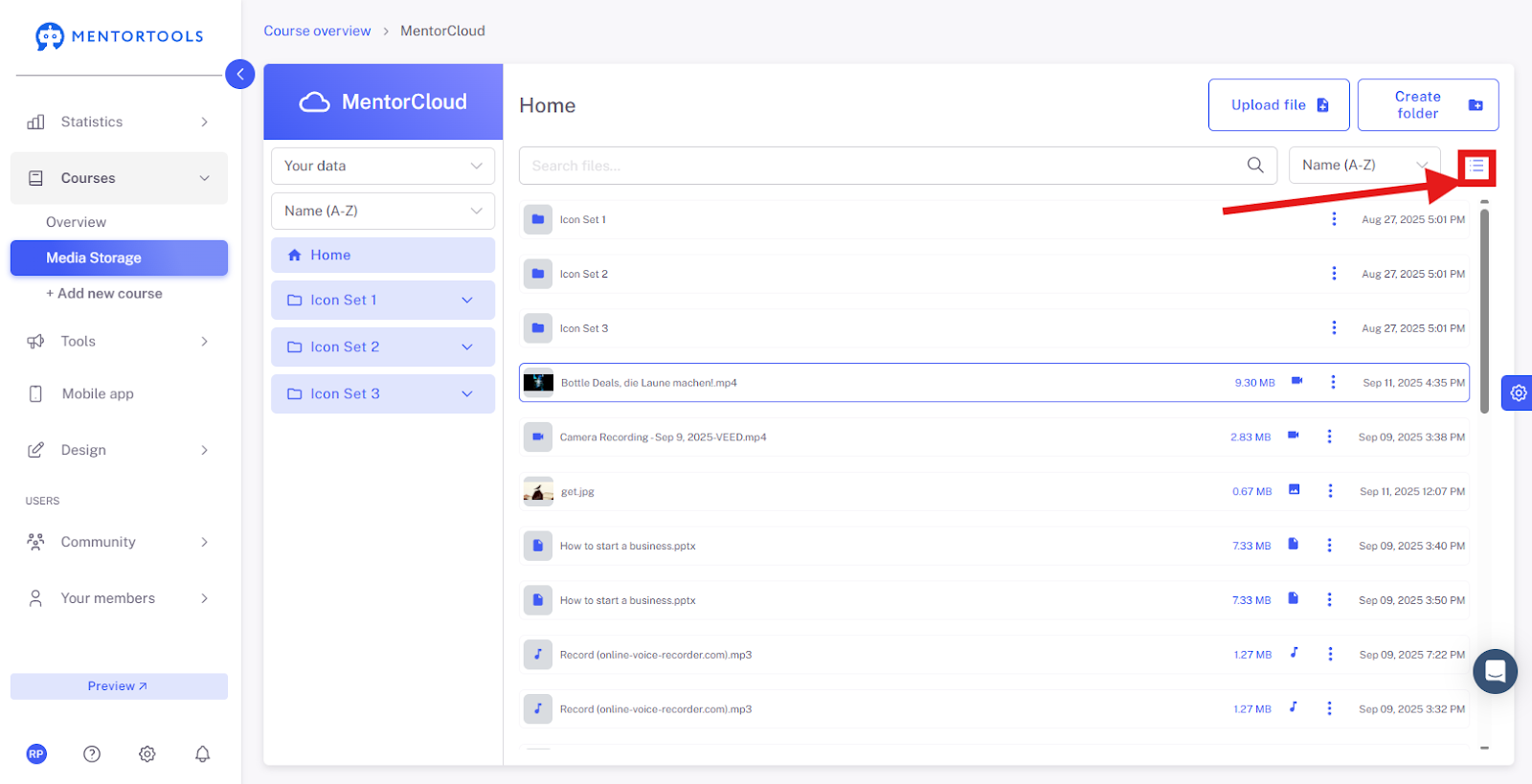
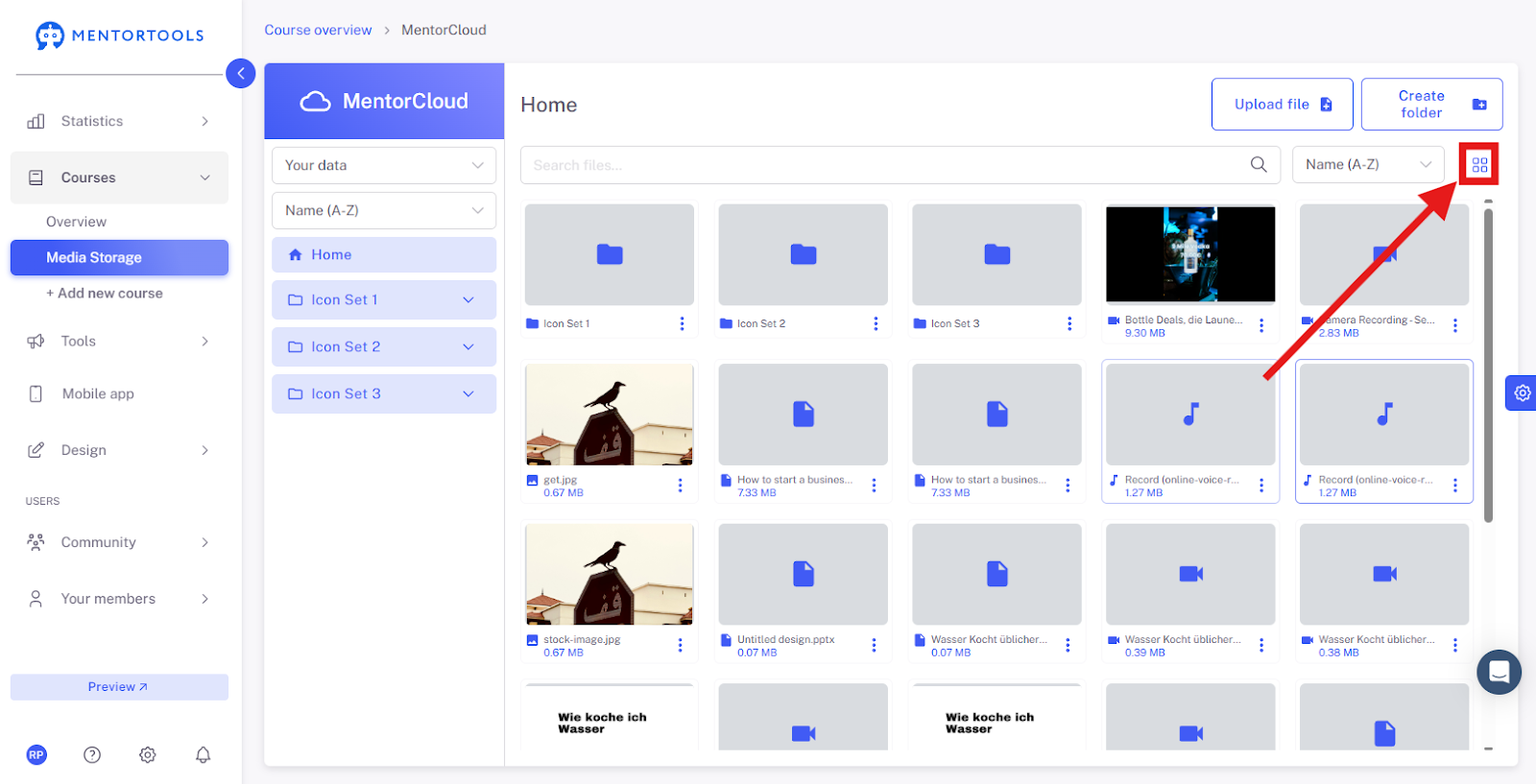
Layout - When you click on the layout icon, you can choose between List view (files/folders are displayed as a list one below the other) or Grid view (files/folders are displayed side by side in a grid).
List view:
Grid view:
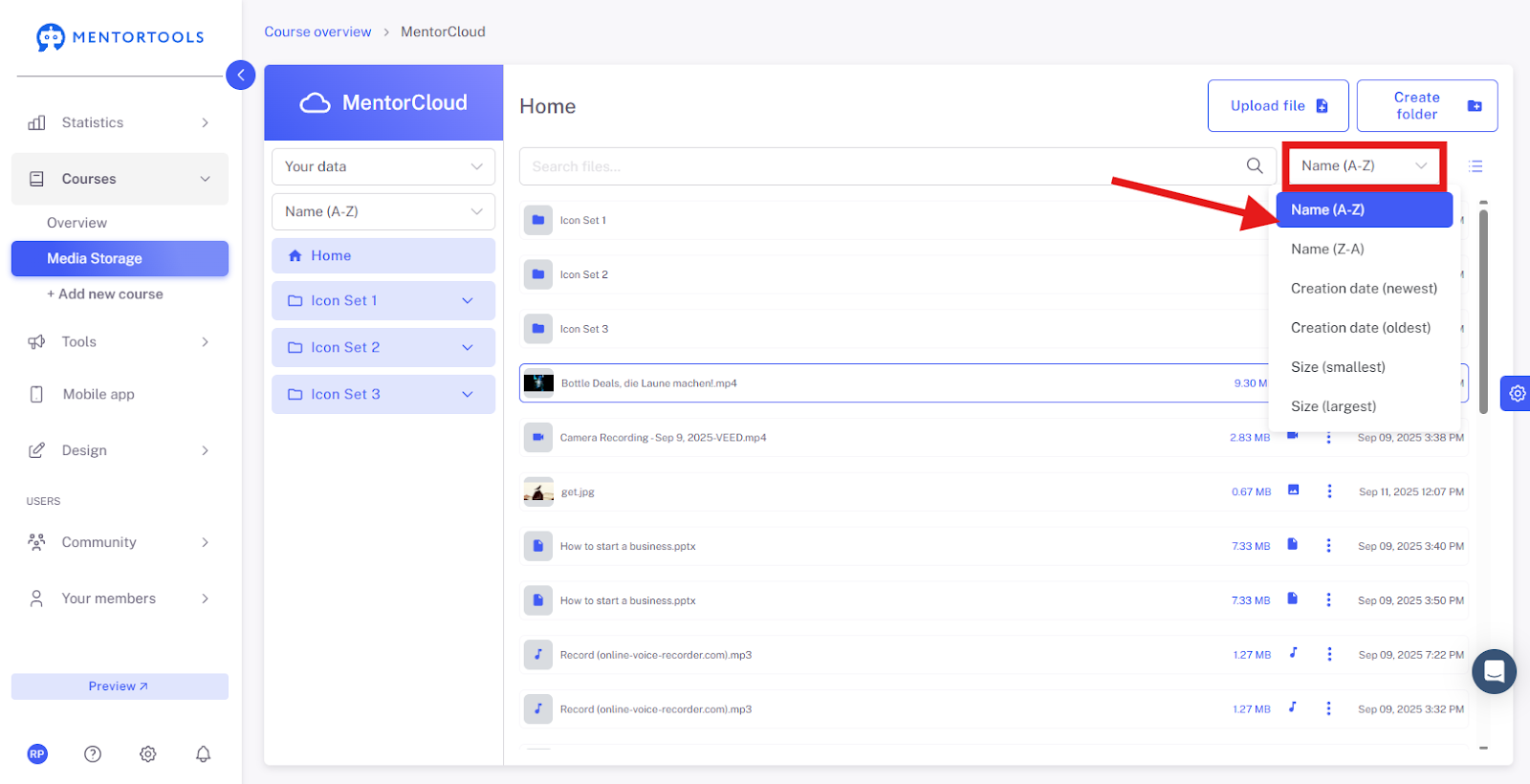
Sorting - You can sort files and folders in the media library according to various criteria:
By name (A-Z)
By name (Z-A)
By creation date (newest first)
By creation date (oldest first)
By size (smallest first)
By size (largest first)
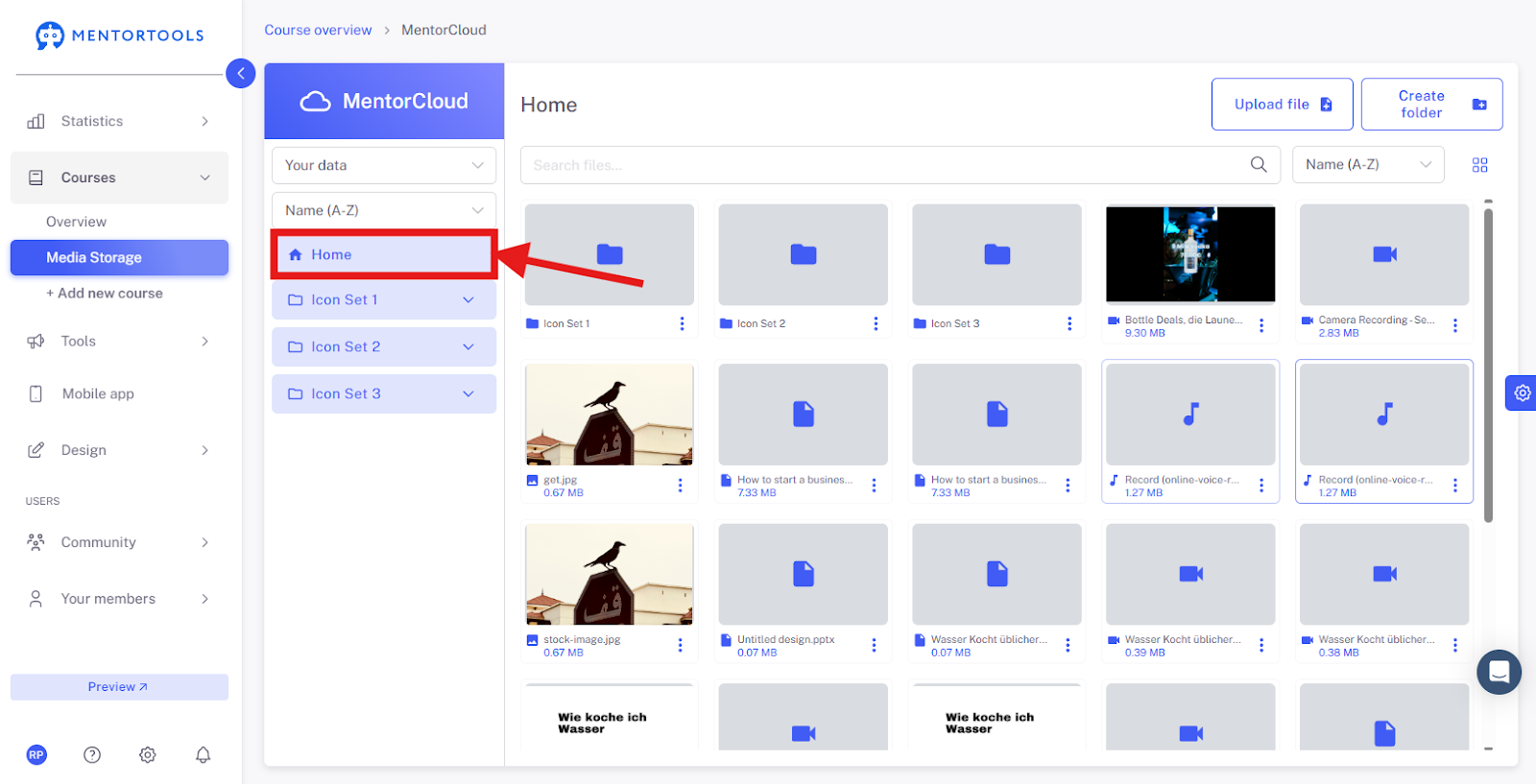
Return to the Home Page
Click on "Home" in the top left to return to the home view.
Summary
Using MentorCloud optimally—it's that simple:
Upload media: Go to the media library and upload files via drag-and-drop or select them from your file system.
Organize content: Create custom folders to sort your files clearly.
Insert media: Easily insert media content into your courses, lessons, or landing pages.