Members and Contacts – A Member's Personal Data
In this tutorial, we will show you how to easily manage your members' personal data in Mentortools. Whether you need to change an email address, reset a password, or simply check contact details, manually maintaining member data is really easy. With just a few clicks, you have everything under control.
Last updated 12 months ago
1. Click on "Members" in the left menu.
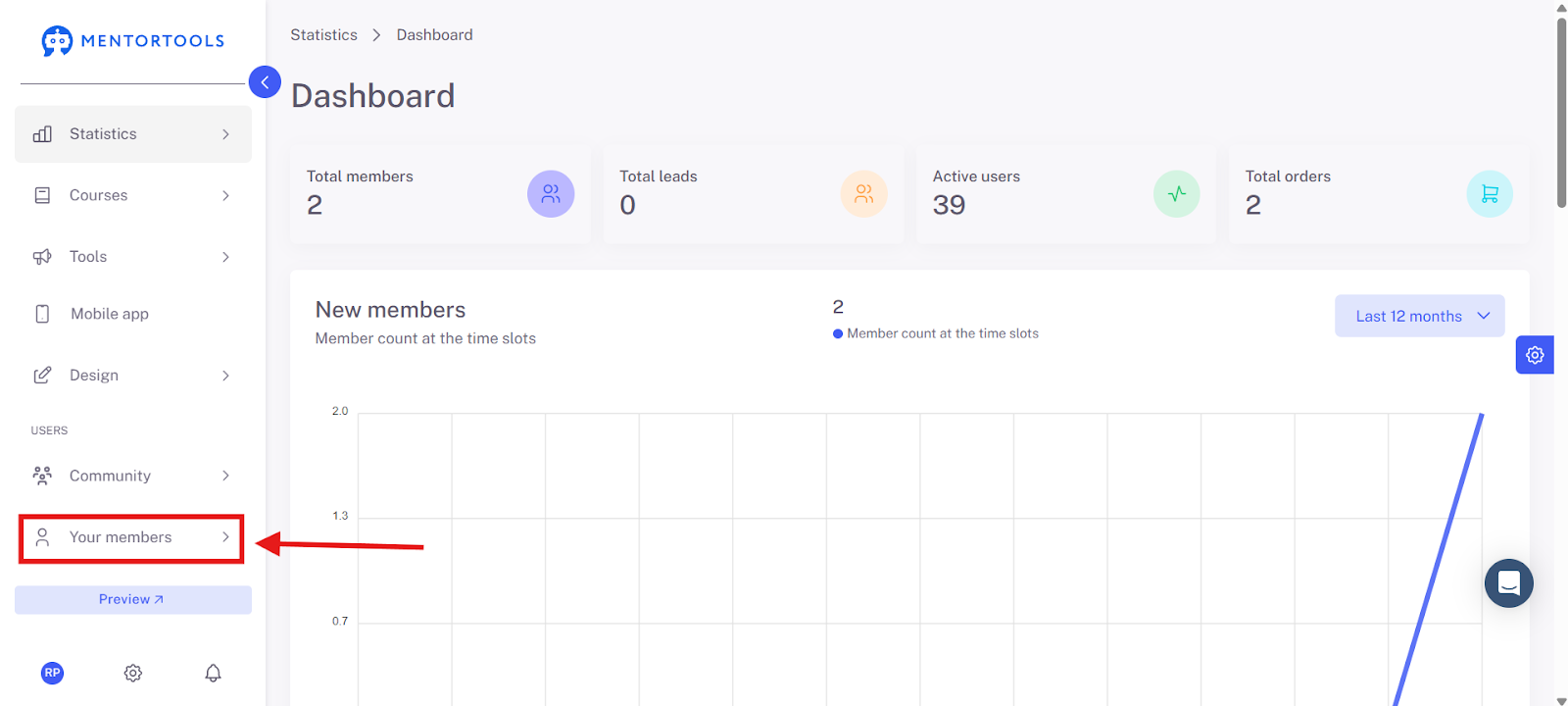
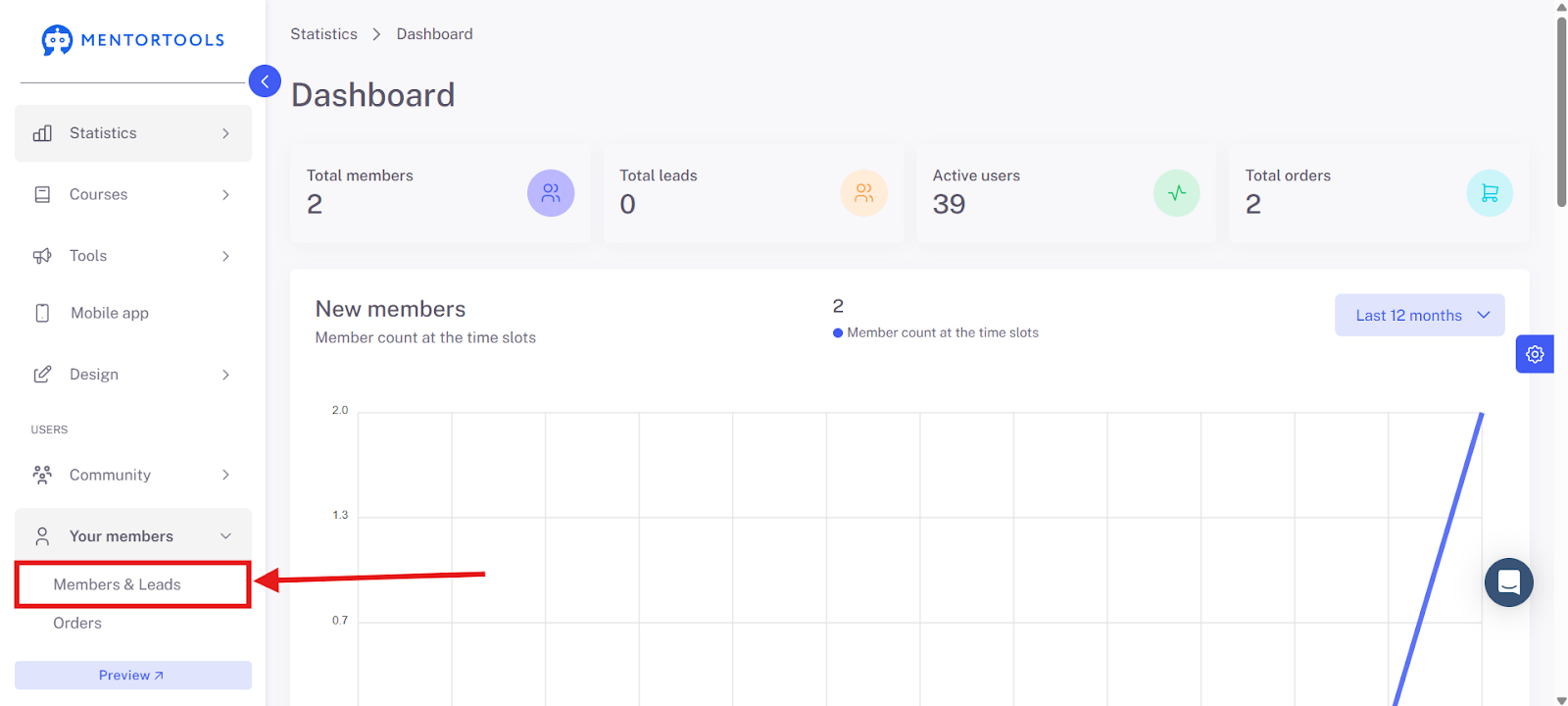
2. Select "Members and Leads."
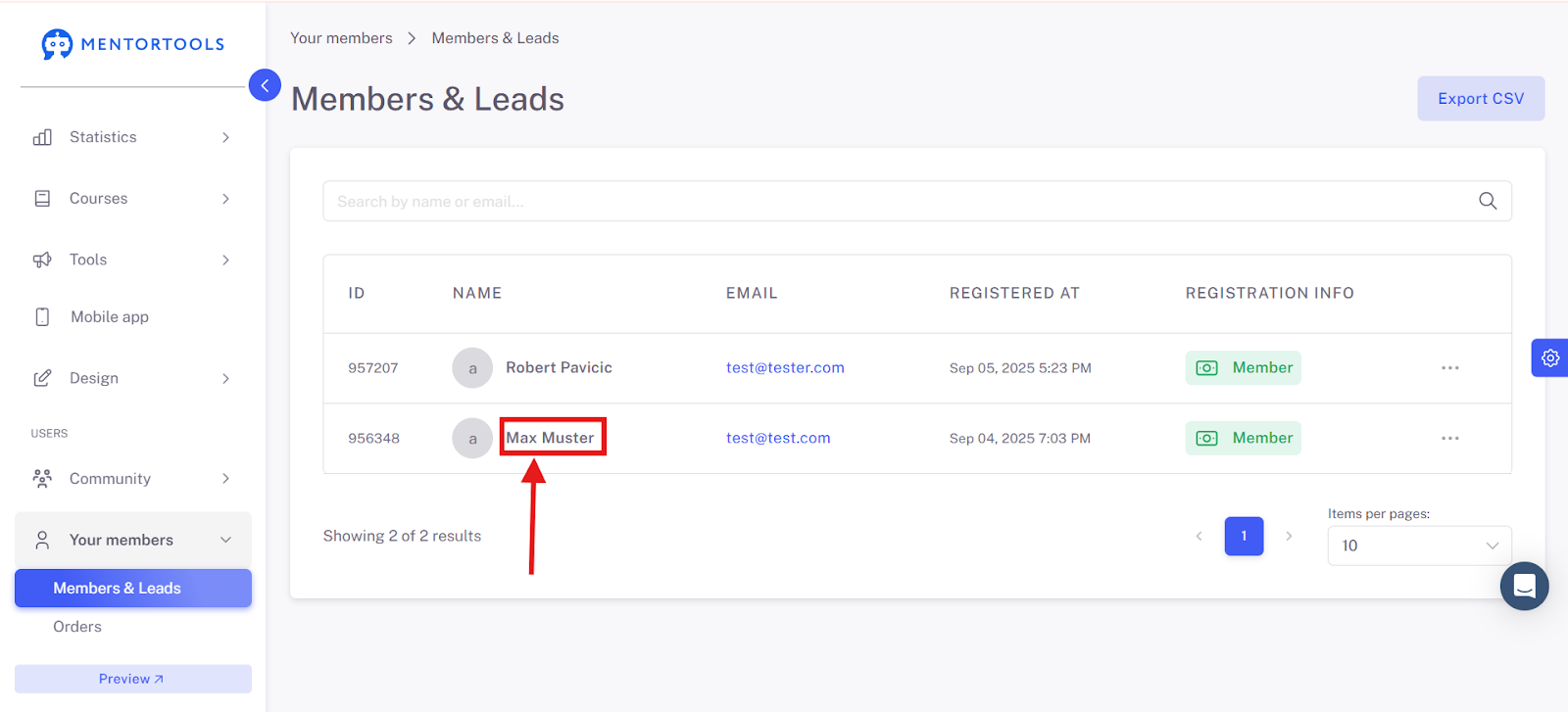
Here you get a complete overview of all users.
3. Click on the desired member (e.g., "Max Muster").
Personal Data of a Member Overview
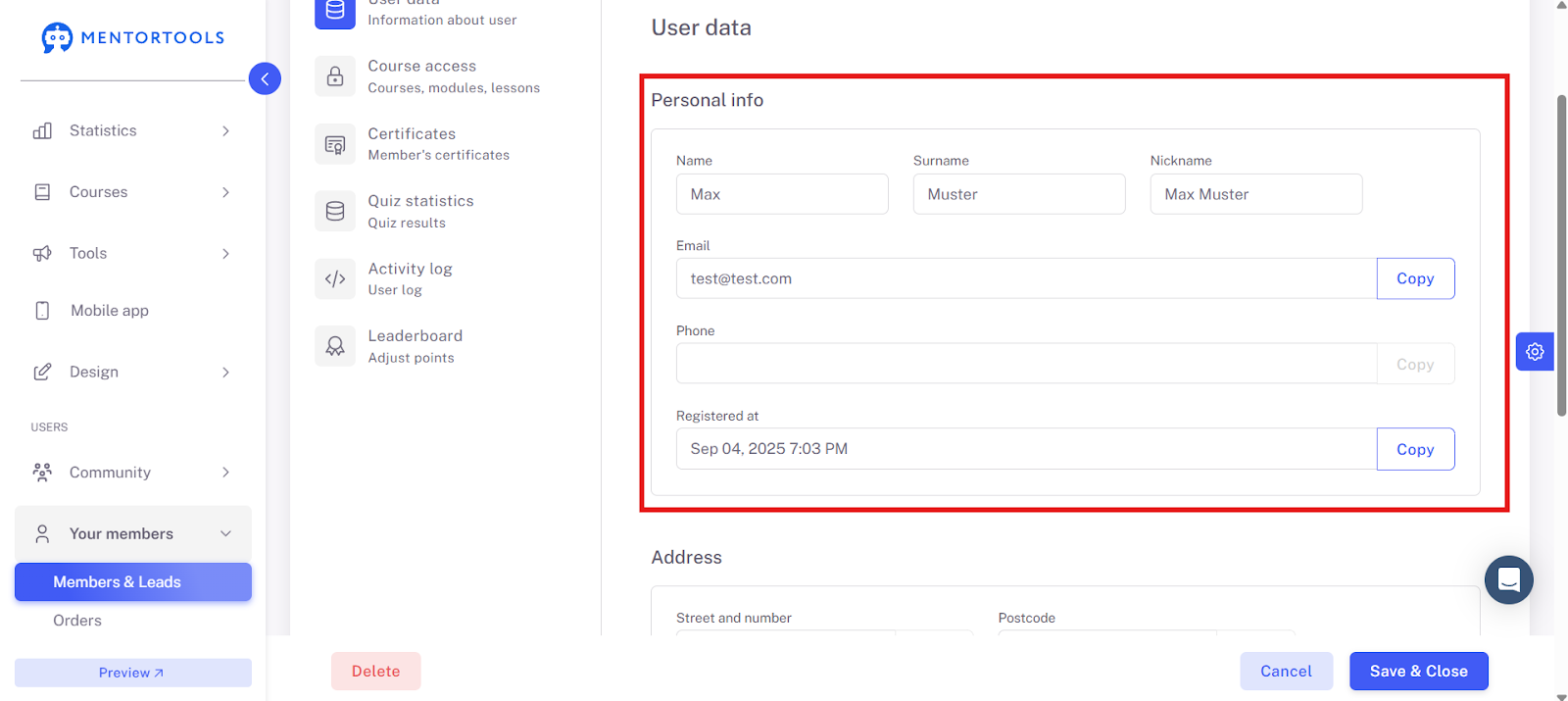
Now we are on the user data page, which consists of three main sections: Personal Data, Address, and Password. Here you can view and manage your members' information.
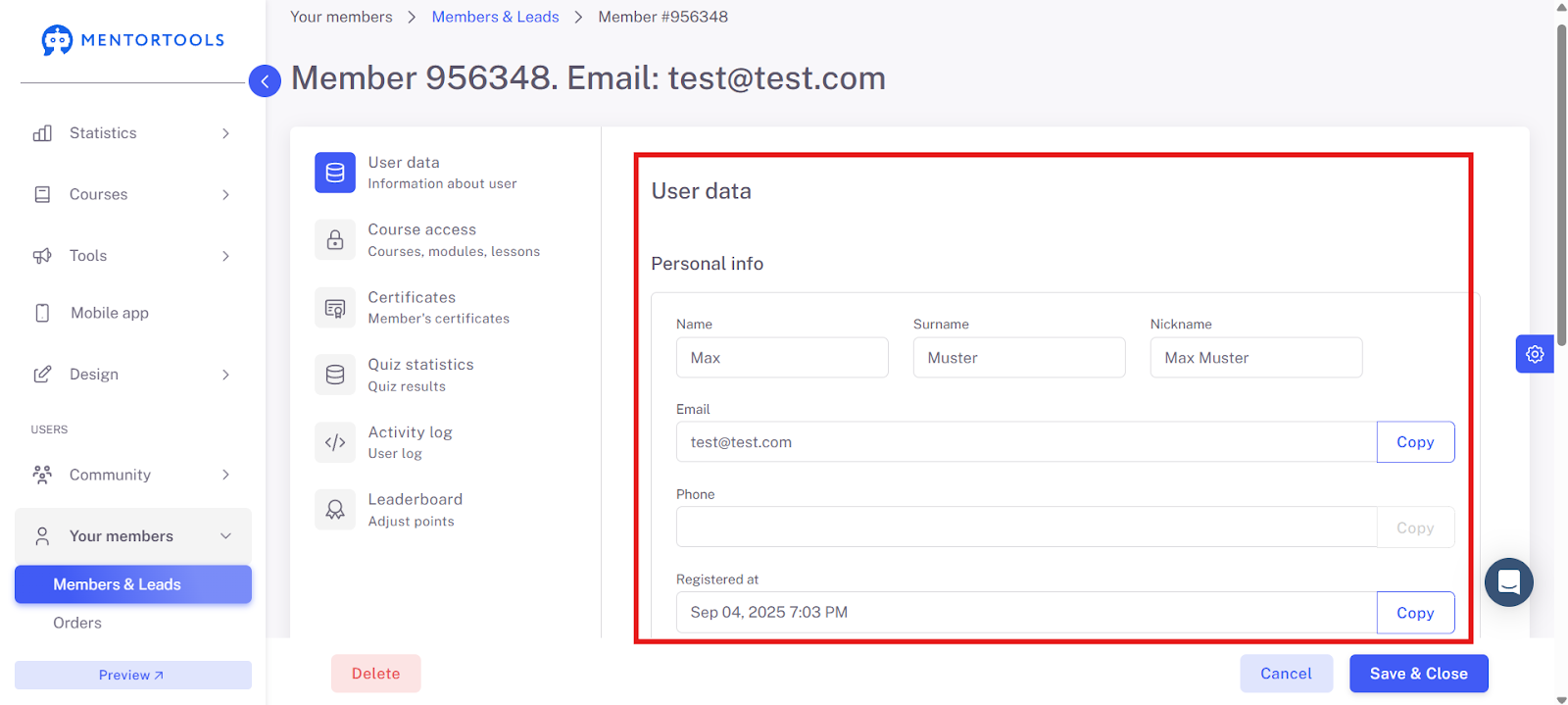
Personal Data & Address
In the upper area, you see Personal Data. There are fields for the first and last name as well as the nickname. Below that, you'll find the email address and phone number. Next to each is a button to copy the respective information, which is very practical. It also shows when the user registered, in this case on Sep 4, 2025. This date can also be easily copied.
You can change the name and email address yourself, and you can regenerate the password if needed.
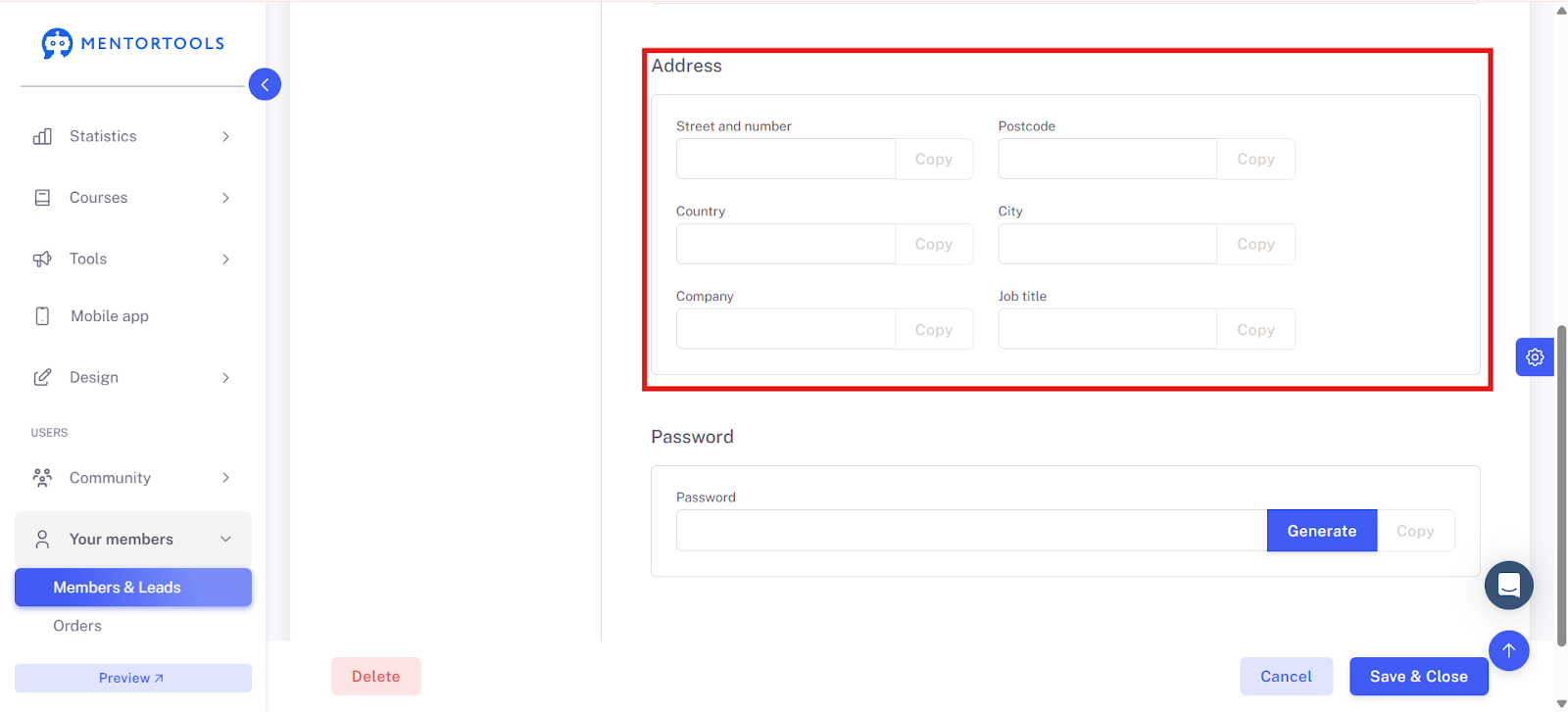
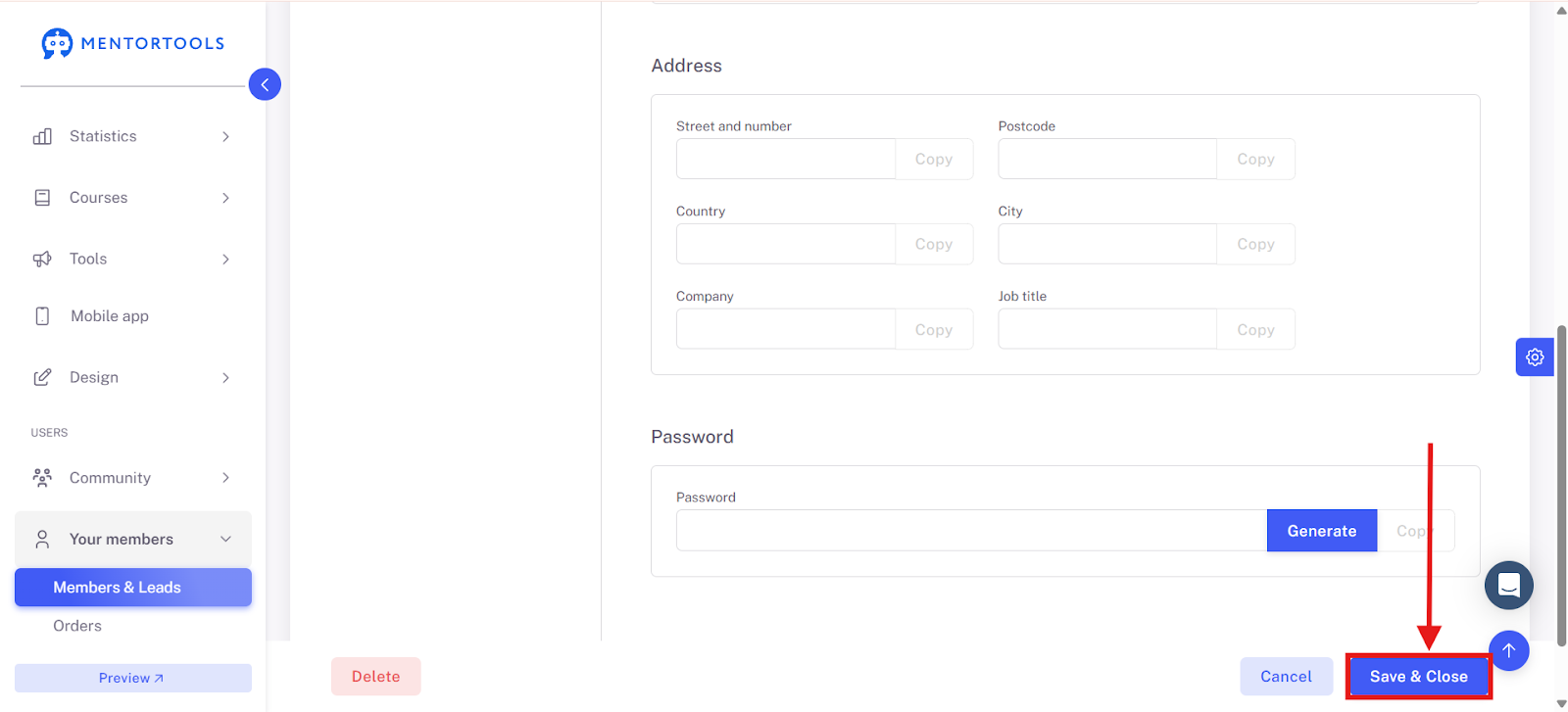
Directly below the personal data, you'll find the Address section. Here you can view their street and house number, zip code, country, and city. Additionally, there are fields for the company and job title. Here, too, there is a "Copy" button for each, in case you want to quickly paste information somewhere else.
Password
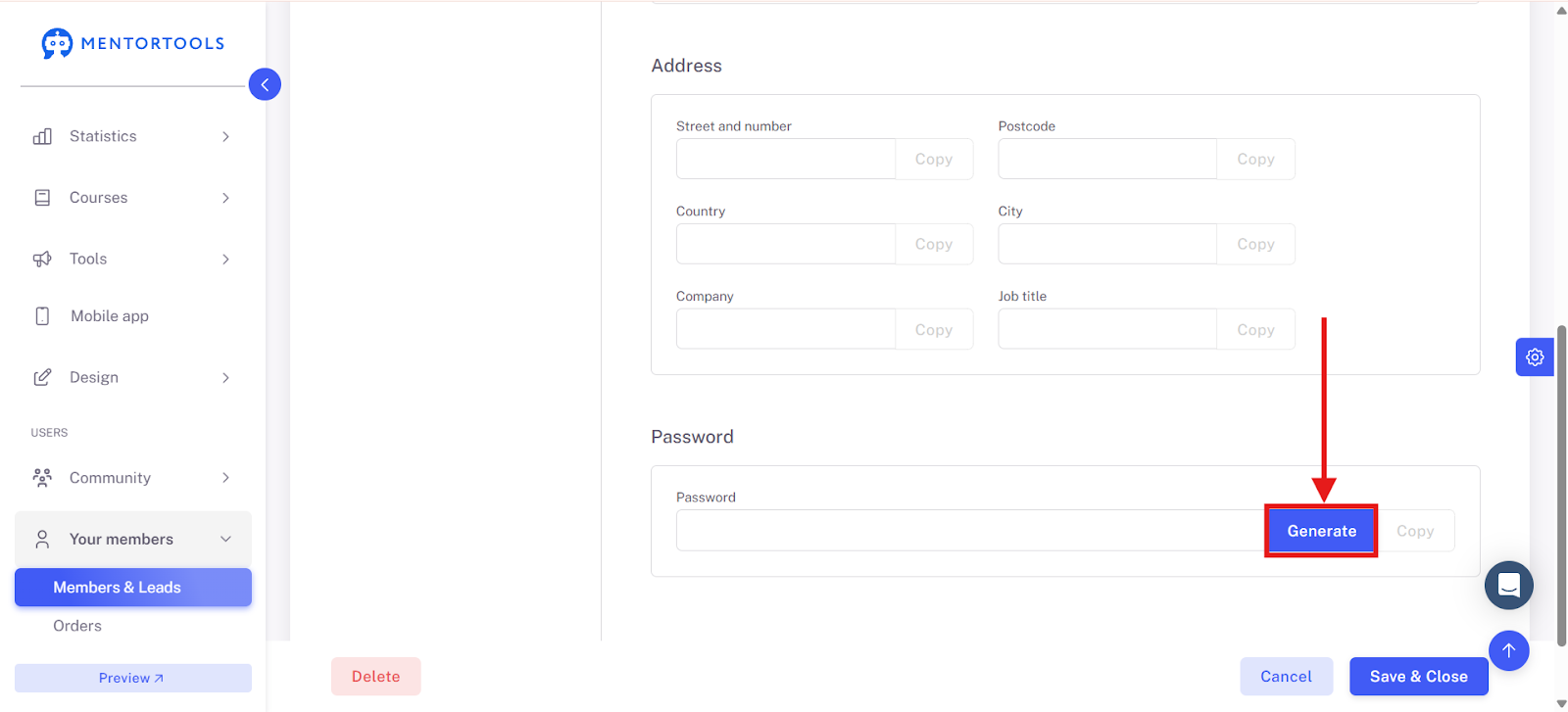
The bottom section is about the password. If a member has forgotten their password or you want to create a new one, you can do so directly in the profile.
There are two options:
Generate: With this button, you can have a secure, random, and safe password generated.
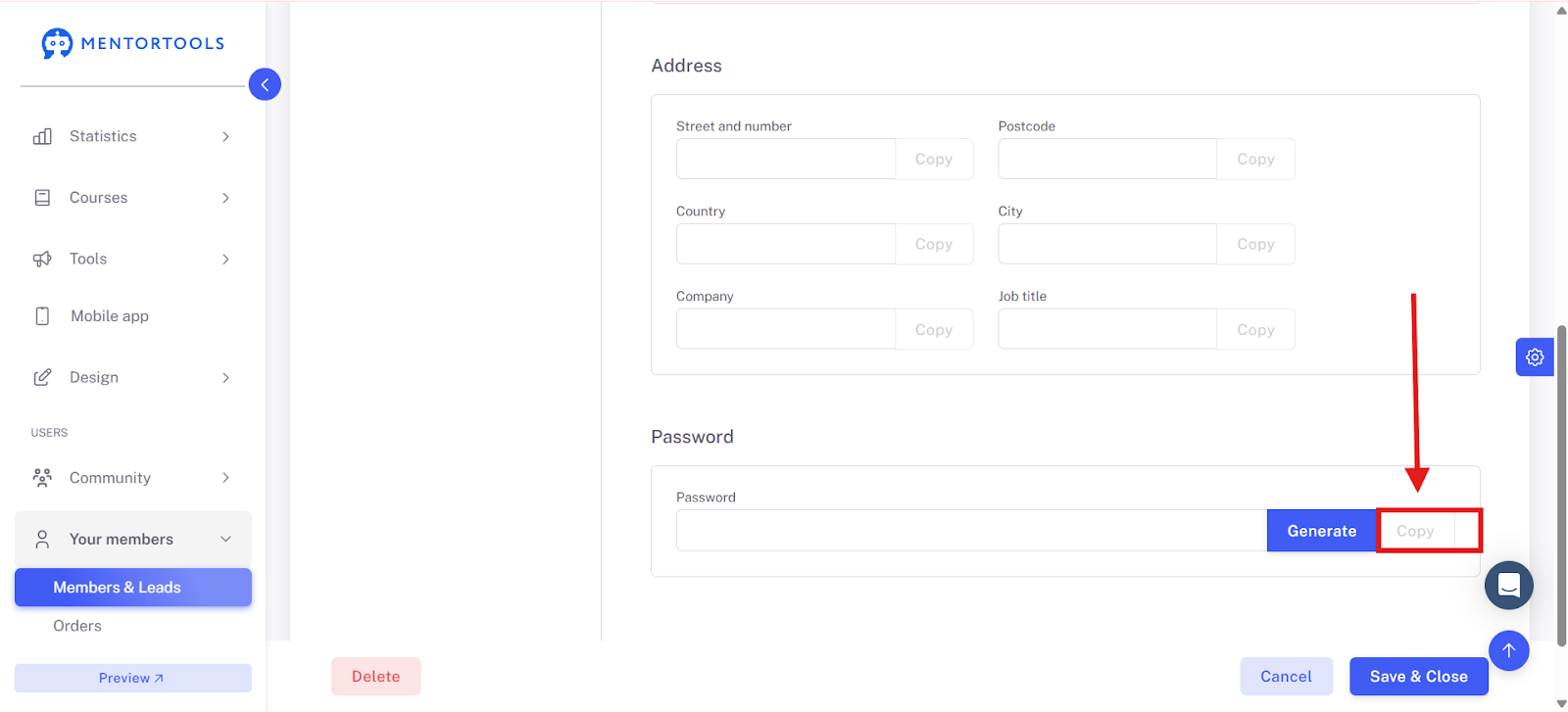
Copy: This button copies the generated or newly entered password to the clipboard.
Typical Use Cases
Save Changes
Save all changes so they are applied.
Summary
In summary, managing member data in Mentortools is very intuitive. You have a central overview of all important information such as name, email address, address, and phone number. The system offers practical functions such as quickly copying data and easily editing profile information. If needed, you can also easily generate new passwords. These functions make member management and support much more efficient.