Members and Contacts – Course Access
In Mentortools, you can grant specific members access to courses, either automatically through an order or manually directly from the member's profile. This guide will show you, step by step, how to check, edit, and add new course access.
Last updated 12 months ago
How to Check a Member's Course Access
1. Click on "Members" in the left menu.
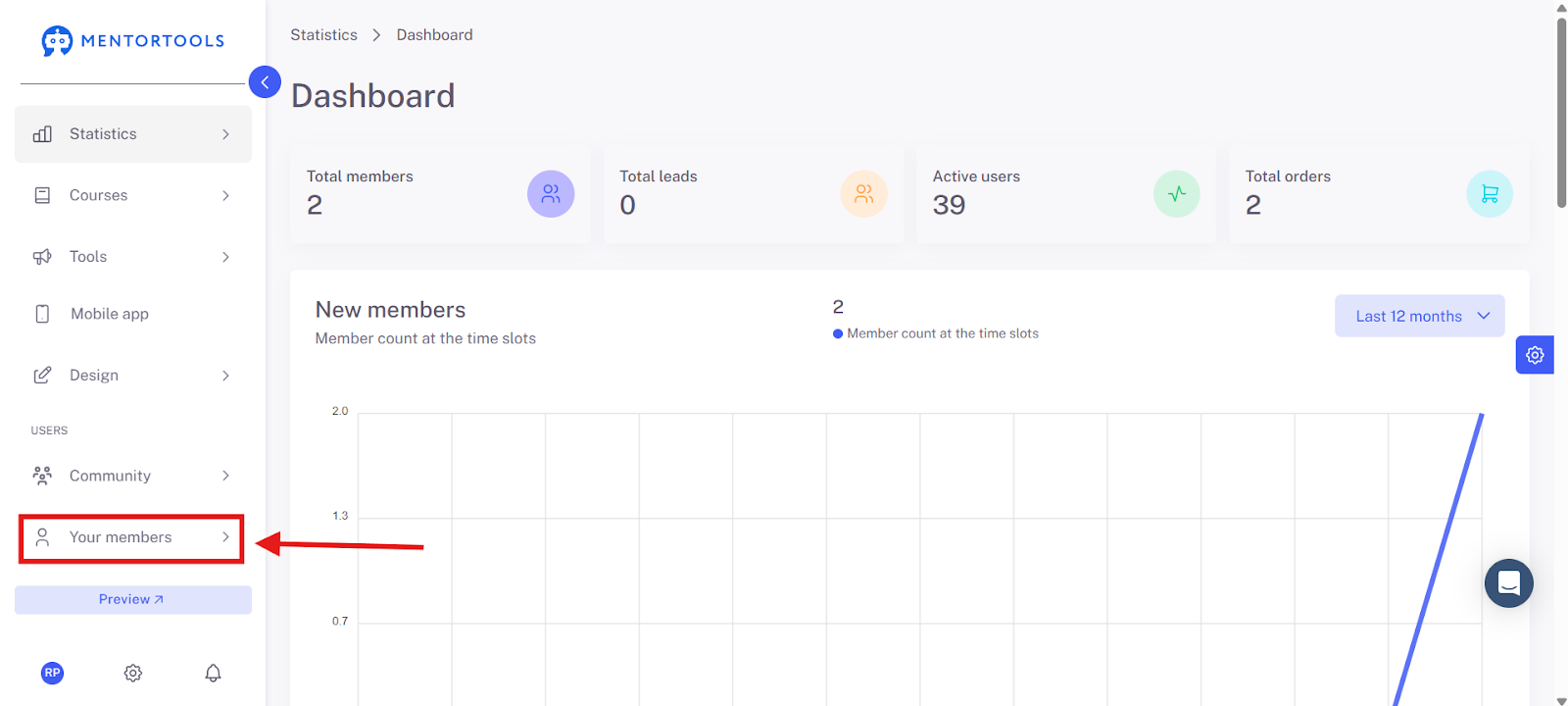
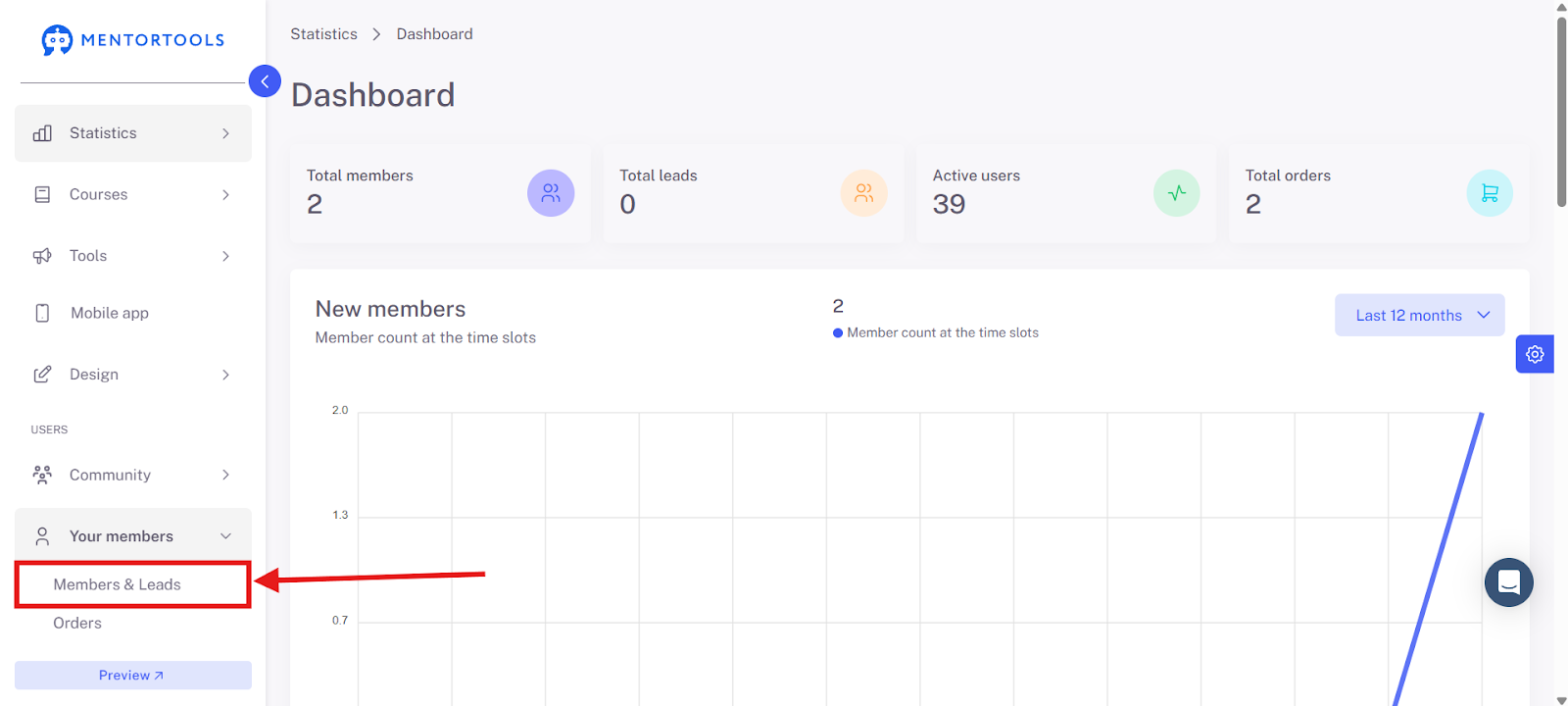
2. Select "Members and Leads."
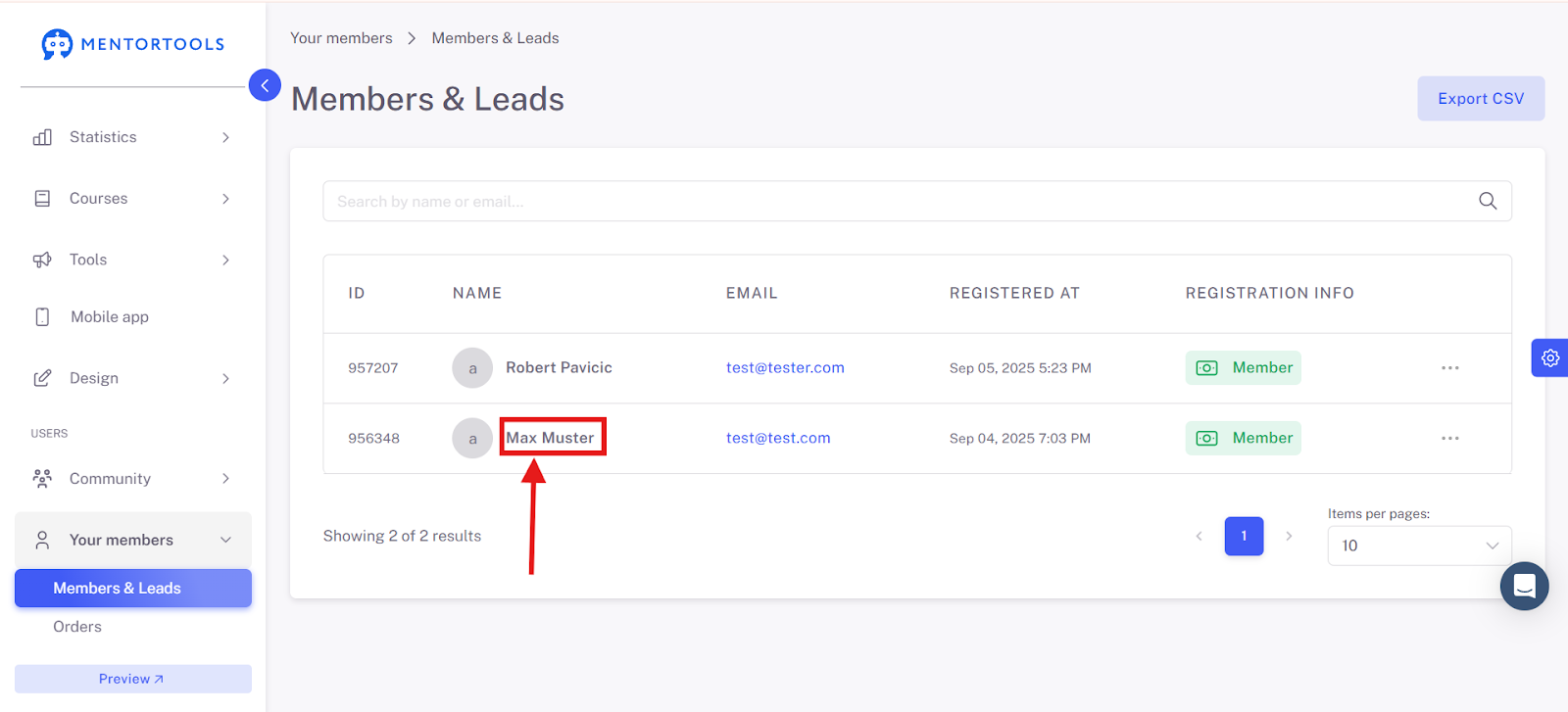
3. Click on the desired member (e.g., "Max Muster").
4. Click on "Course Access."
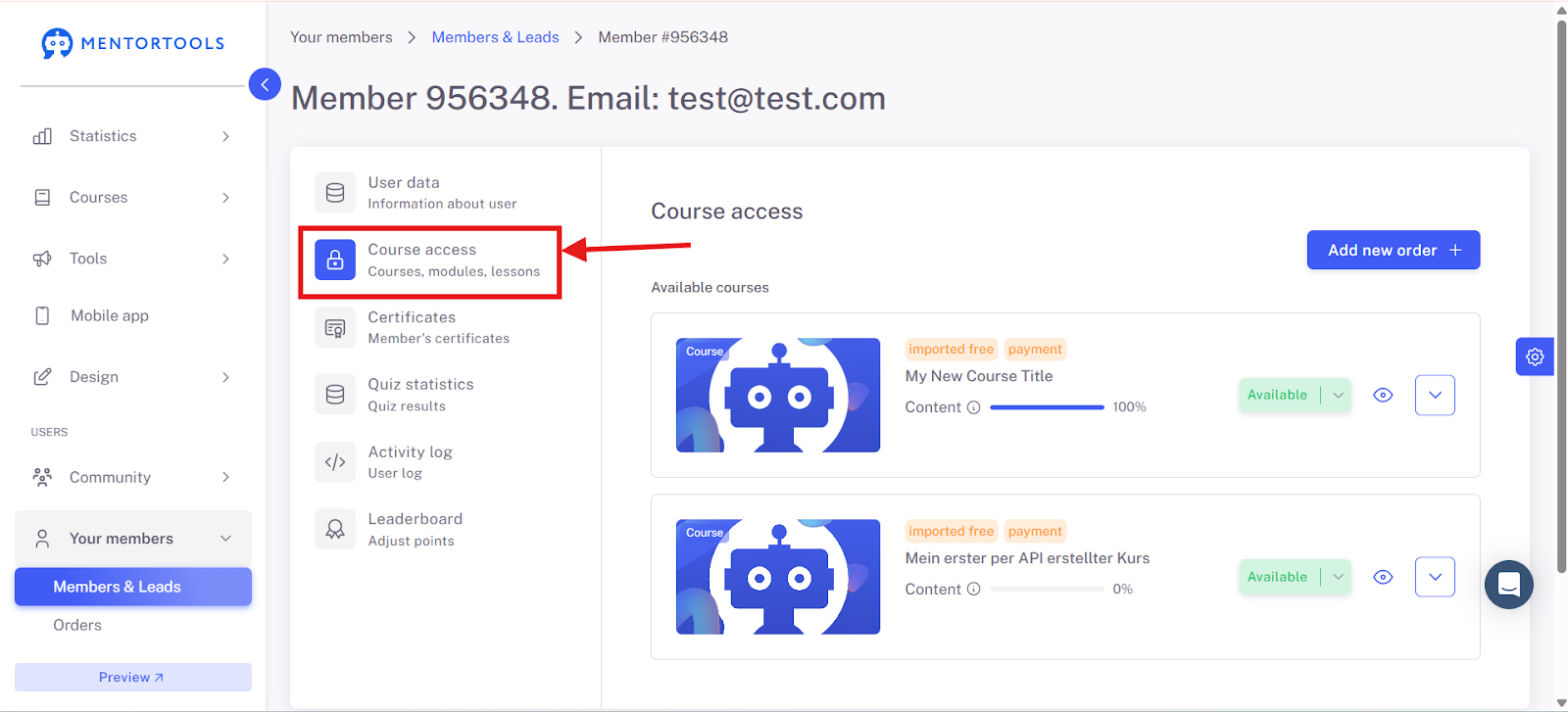
5. View Course Details
Here you will see all the courses the member has access to, including progress, availability, and content.
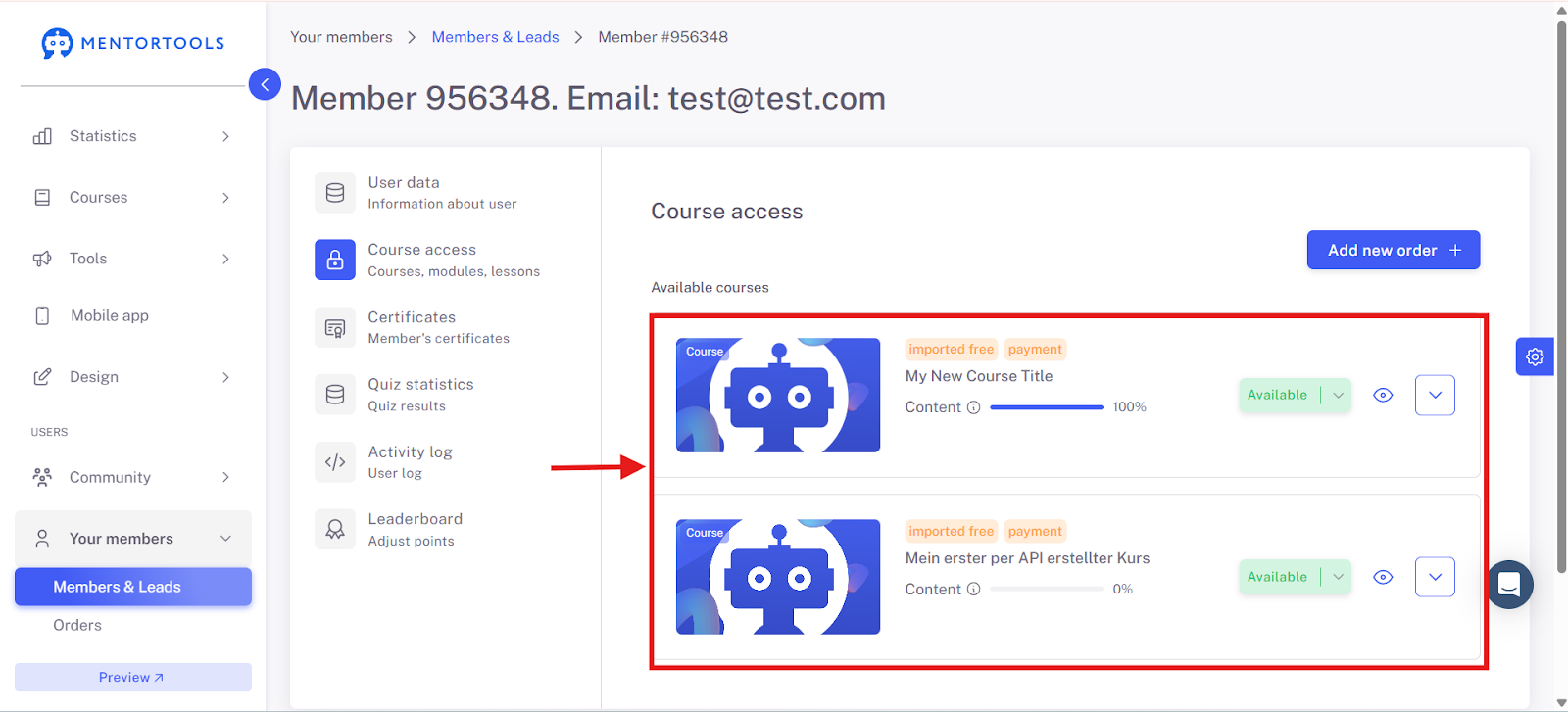
6. Progress in Individual Modules
In the member's course overview, tap the downward-pointing arrow to view the available modules.
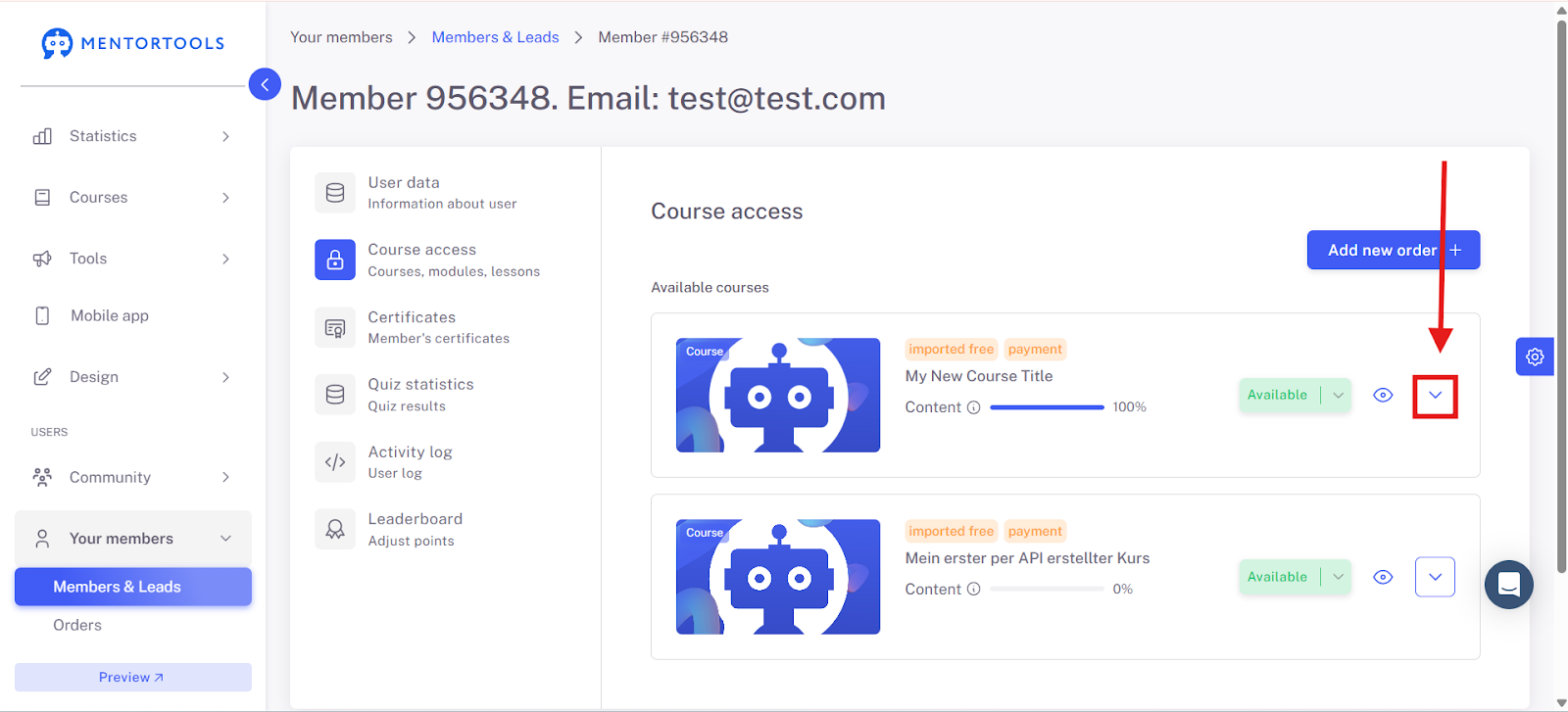
7. Progress in Individual Lessons
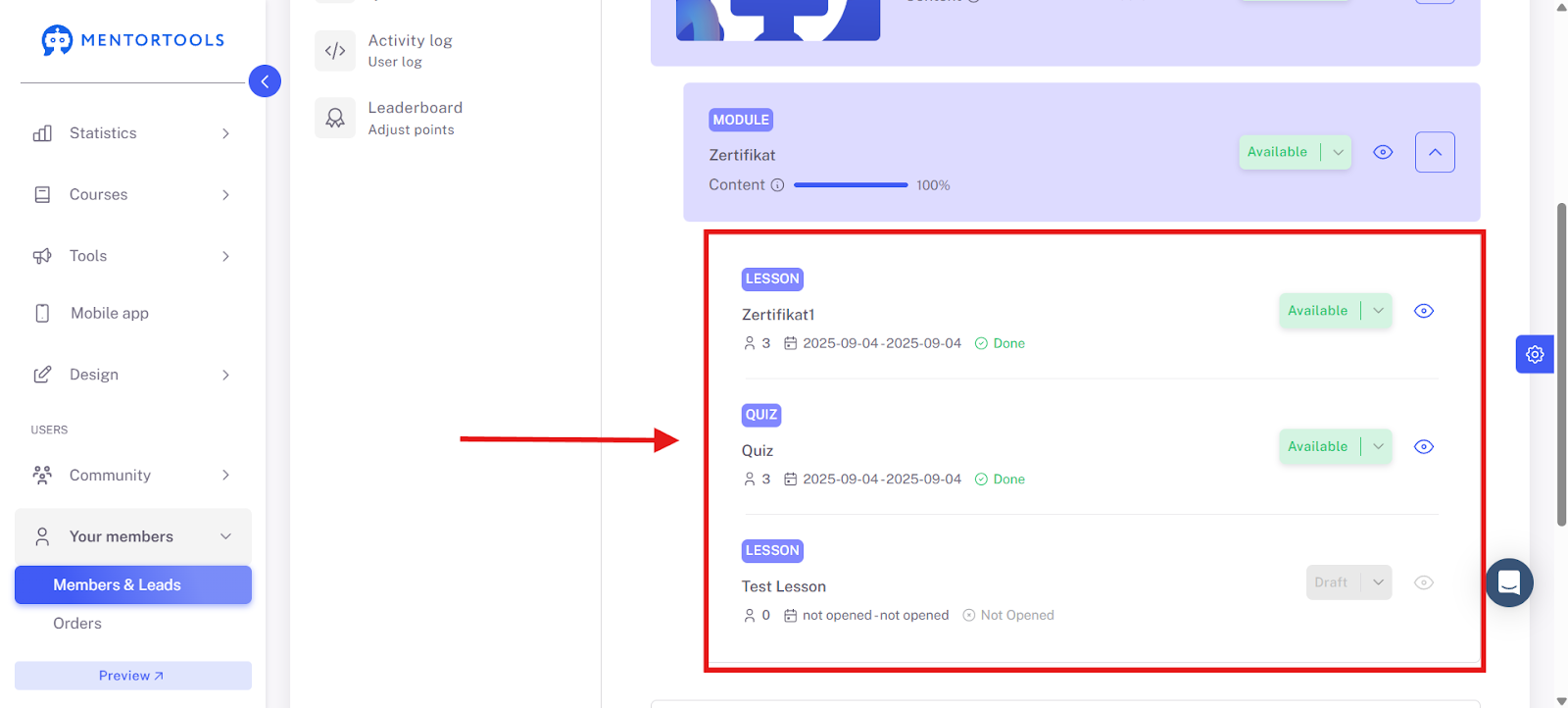
In the overview of the course's modules, tap the downward-pointing arrow to view the available lessons.

The available lessons and quizzes for this module will now be displayed.
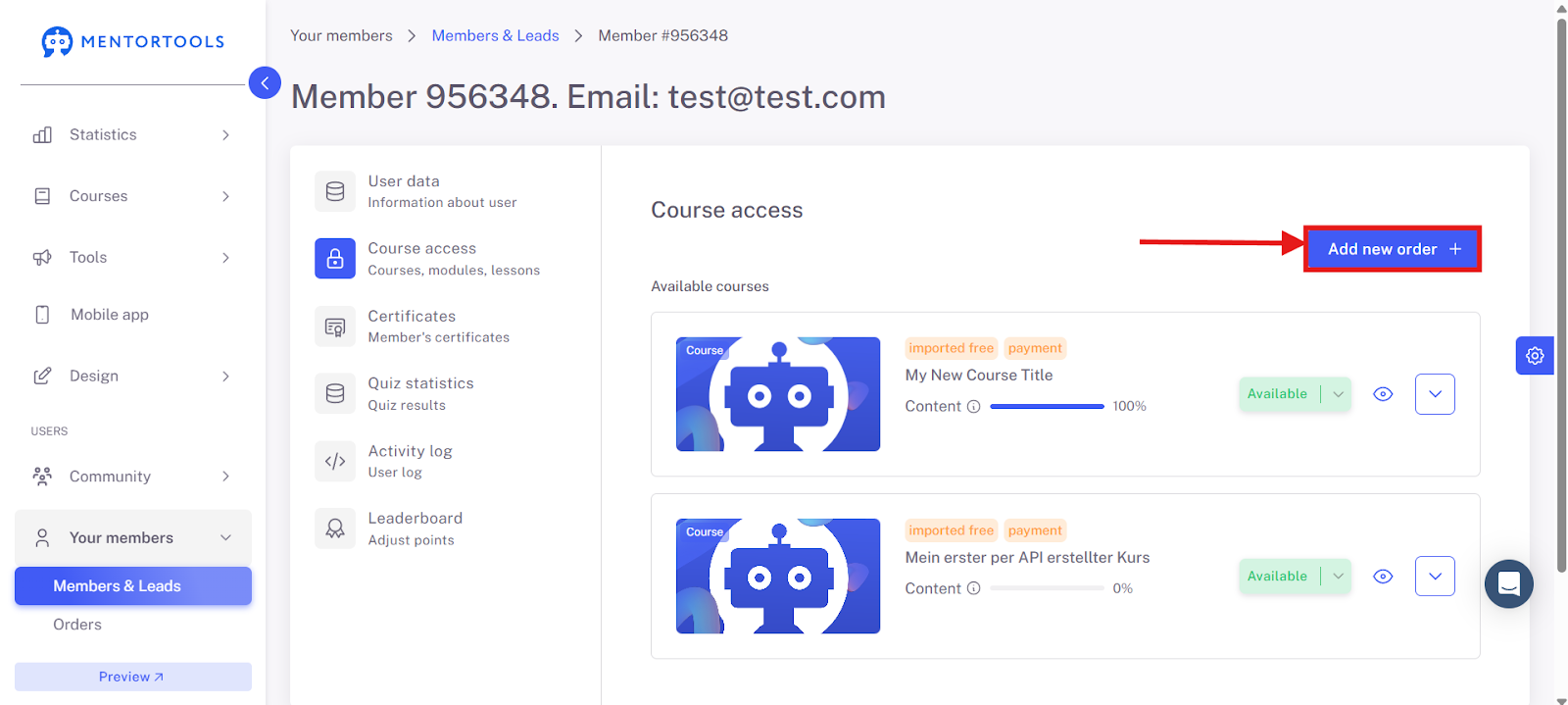
How to Manually Grant Access to a Course
8. Click on "Add New Order."
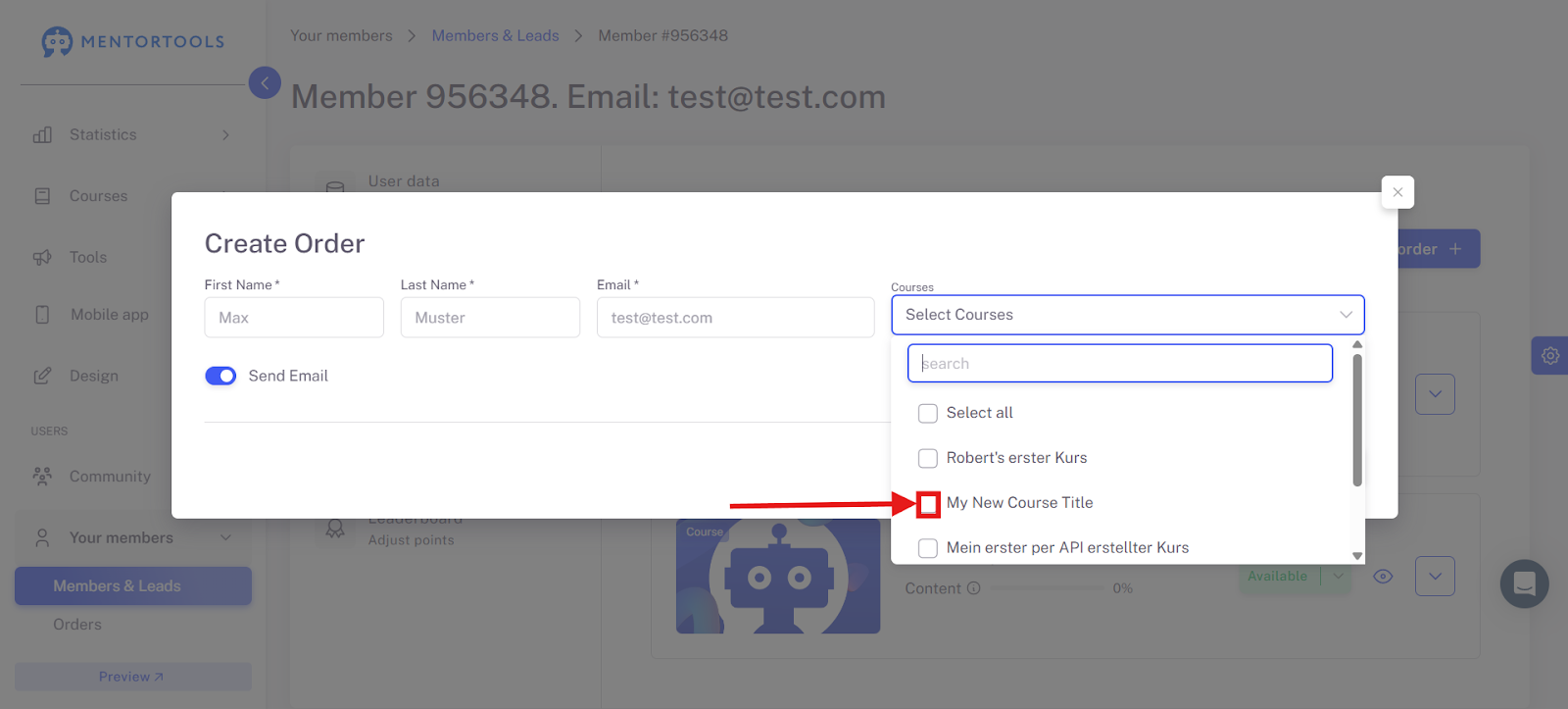
9. Select "Select Courses" and check the desired course.
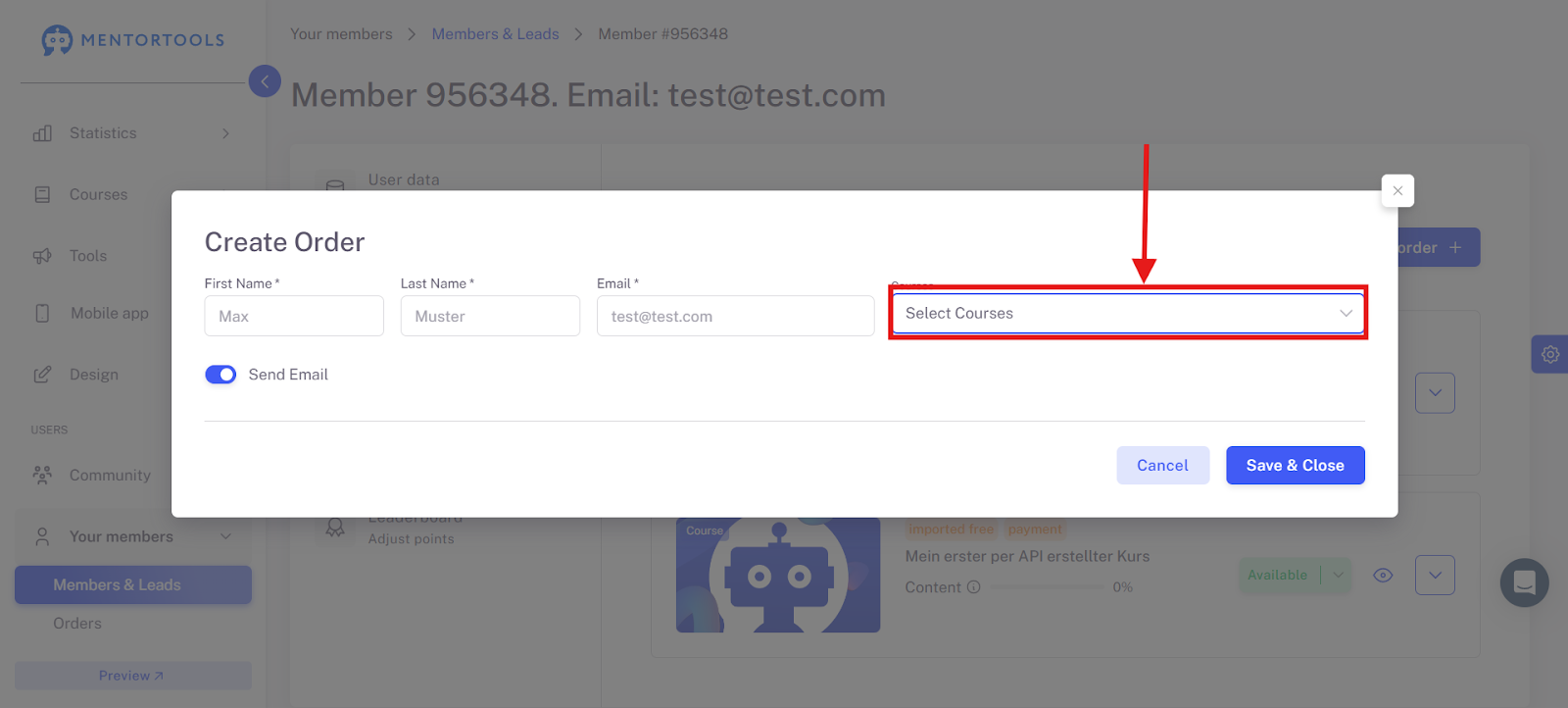
A menu will open where you can select your courses.
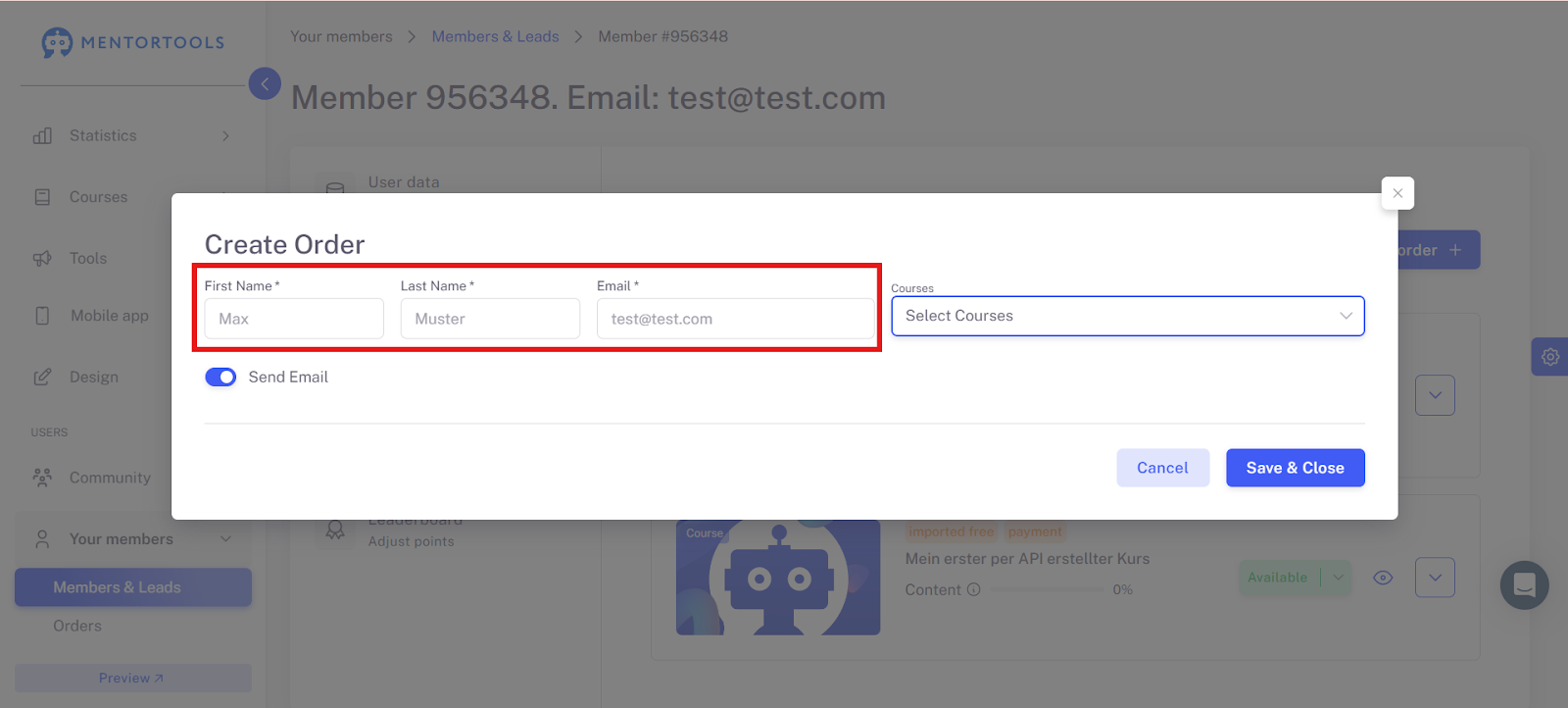
Enter the first name, last name, and email address of the recipient.
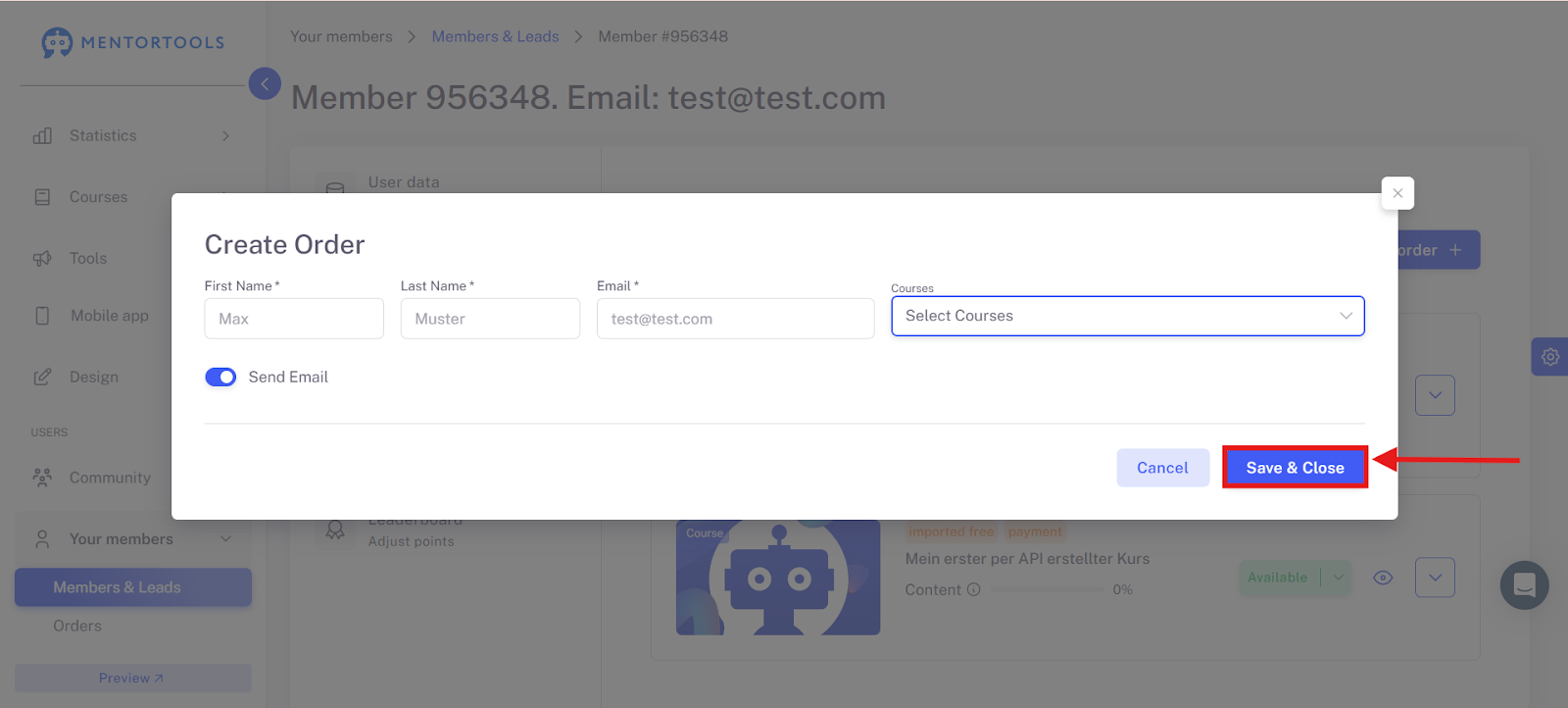
10. Click on "Save and Close" to complete the order.
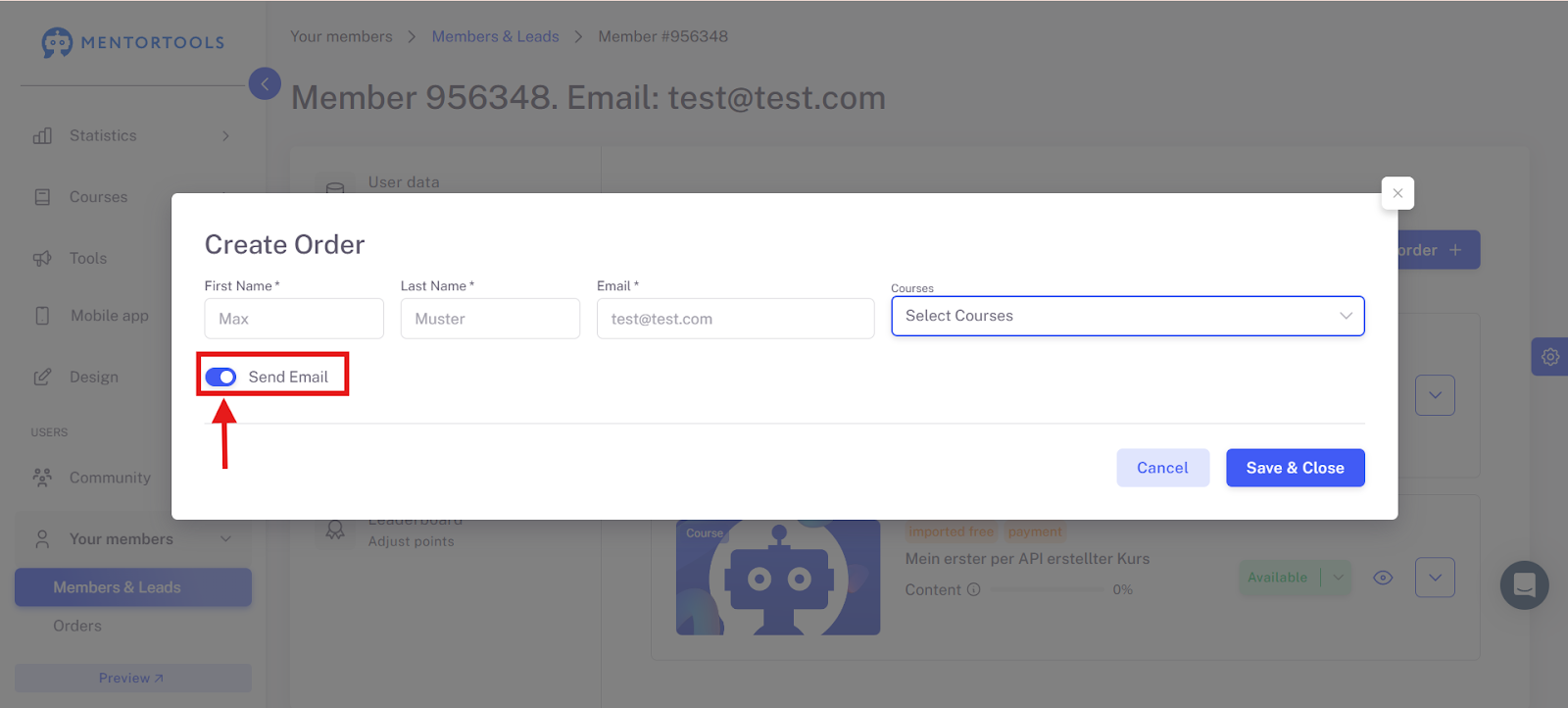
You have the option to send the member an email about the course access. You can set this by toggling the switch.
Typical Use Cases
With this function, you can quickly control individual access without detours via external systems.