Events – Calendar overview
With the Events feature in Mentortools, you can show your participants live dates like webinars, workshops, coaching sessions, or Q&A sessions directly in the members' area.
Last updated 12 months ago
The calendar overview displays all planned events in a clear chronological list—this helps you as a provider, but also your participants. This way, they won't miss any important live events, and you can communicate dates super easily.
Events – Calendar Overview in Mentortools
The calendar overview is a chronological representation of all planned events in your Mentortools system. You can use it to manage regularly scheduled webinars, live calls, or group coaching sessions. Participants see:
Date & time
Event title
Description (if provided)
Participation link (Zoom, Google Meet, etc.)
Status: upcoming, active, or completed
In the backend, you also see:
Whether the event is public or private
Which product or course the event is linked to
Whether a repetition has been activated (e.g., weekly)
1. Where can I find the calendar overview?
Log in to your Mentortools account and proceed as follows:
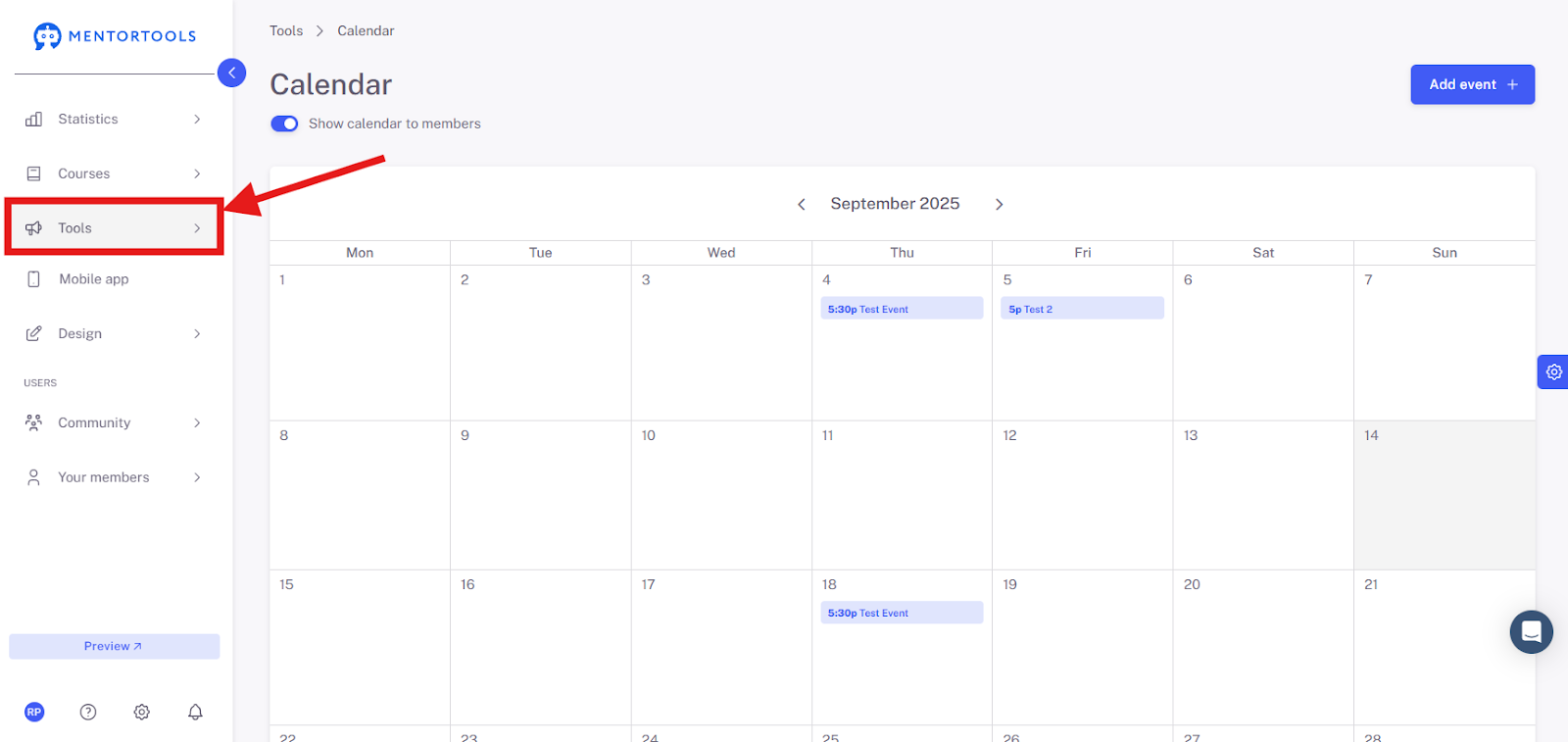
1.1 Click on "Tools" in the main menu
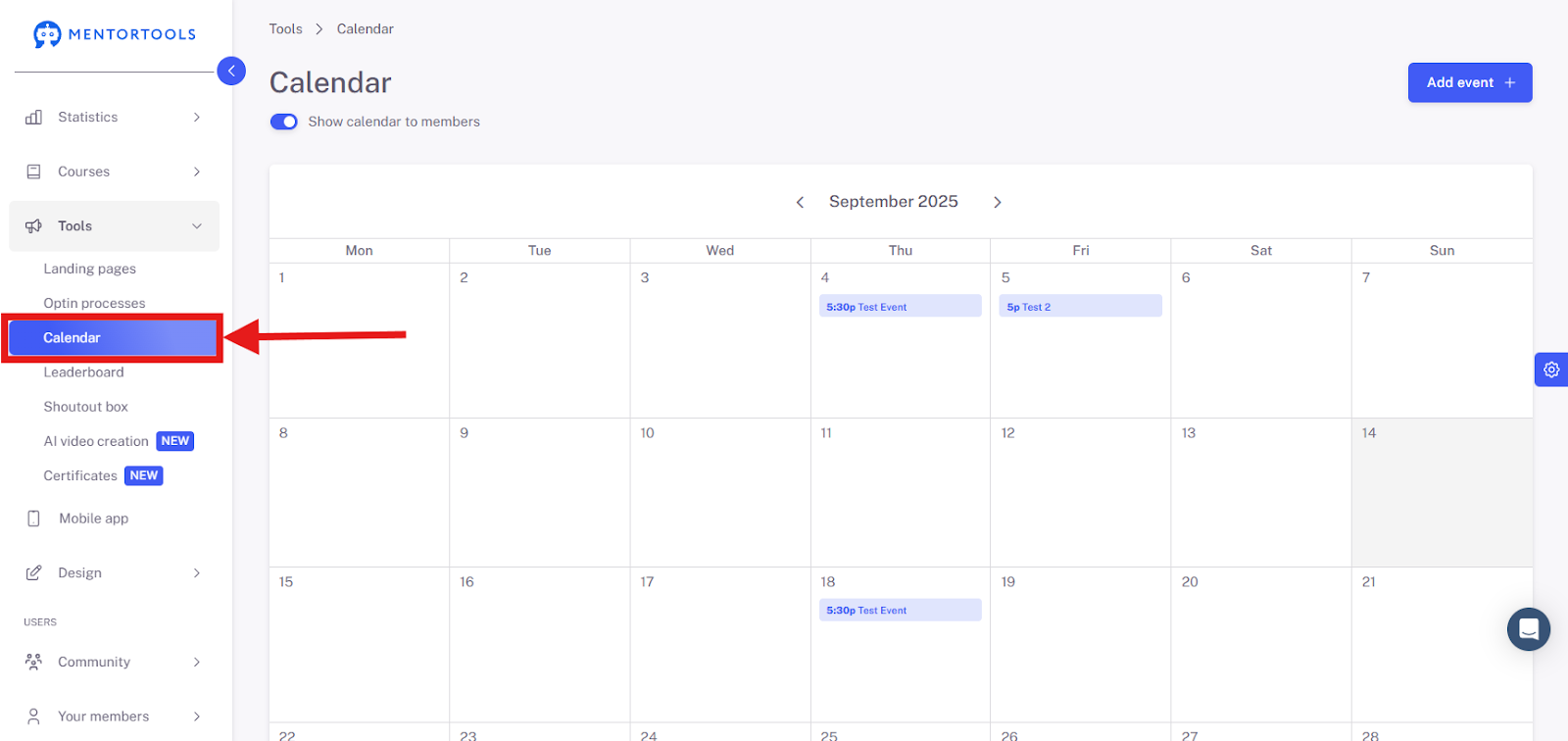
1.2 Select "Calendar"
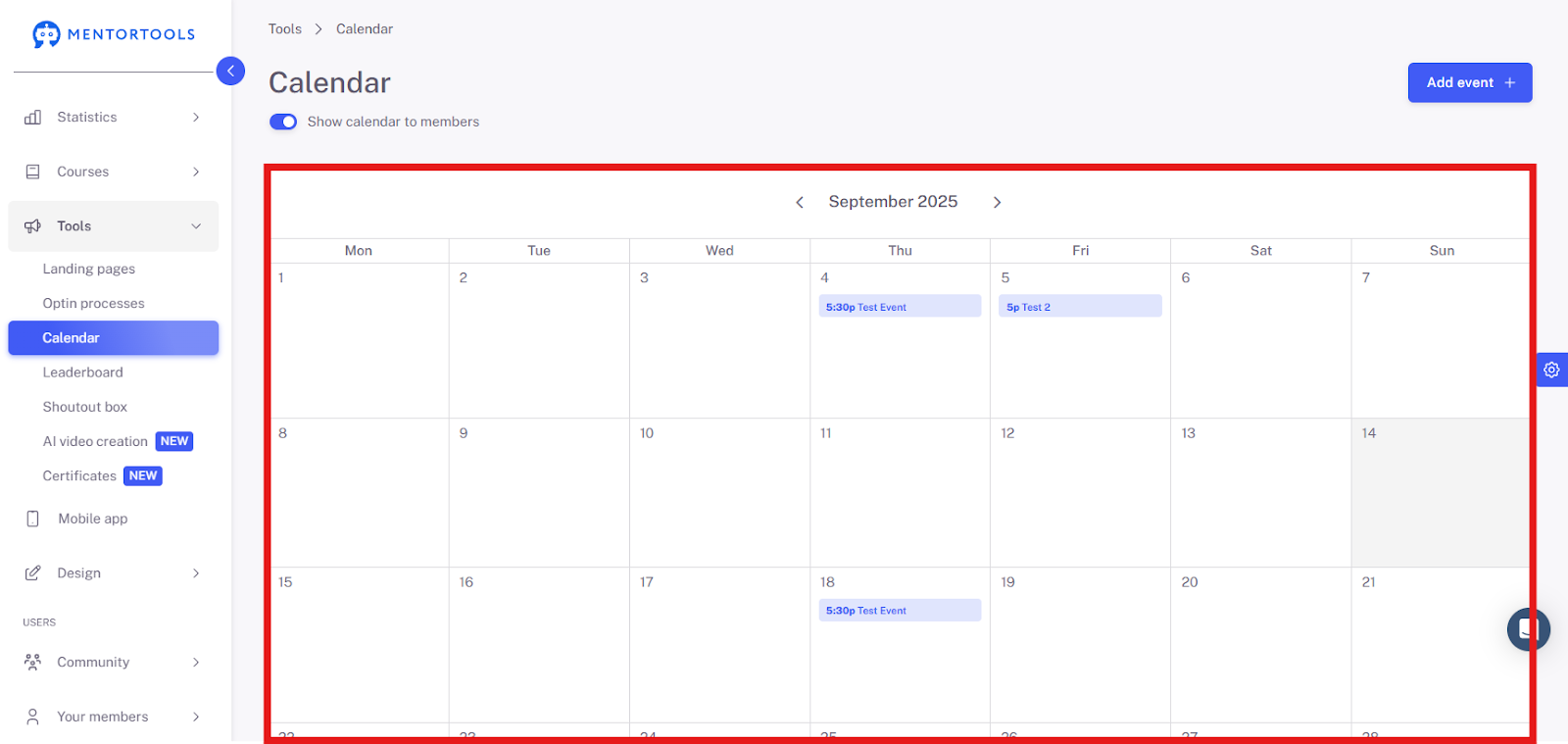
1.3 You will now see the calendar overview with all planned dates
2. What does the calendar overview show?
When you select an event in the calendar, you will see the following overview:
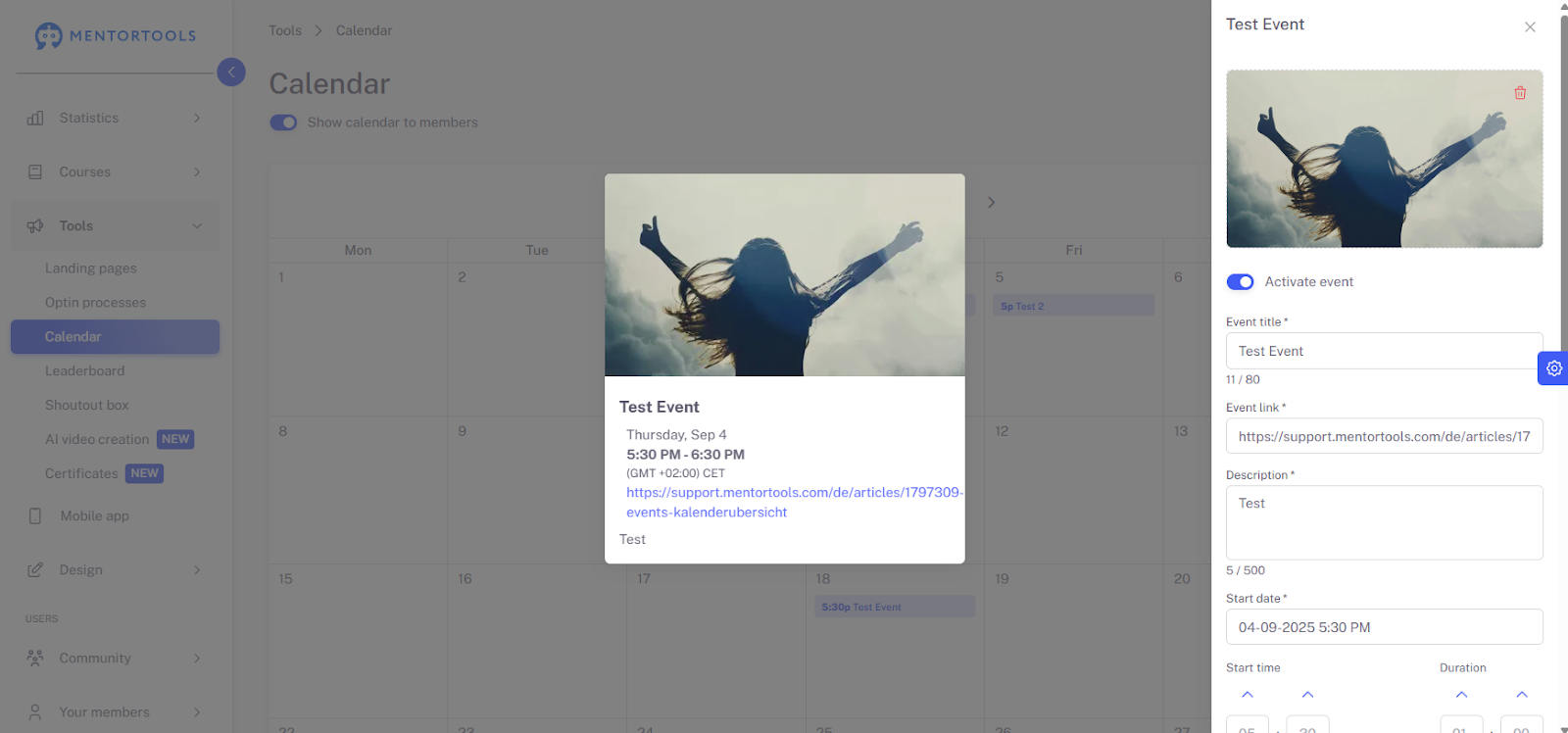
The calendar overview shows the planned events.
In the pop-up in the middle of the screen, you see an example of such an event. It contains the following information:
Title: "Test Event"
Date & time: "Thursday, Sep 4, 2025 from 5:30 PM to 6:30 PM"
Link: A link through which participants can access the live session.
Description: A short description of the event ("Test").
On the right, you can see the settings for this event, such as the event title, the event URL, the date, and the time. You can also set whether the event should be a one-time or recurring event and which courses it is assigned to. There you can edit the event, save the changes, or delete the event.
3. Display calendar for members
To display the calendar for members, please toggle this switch:
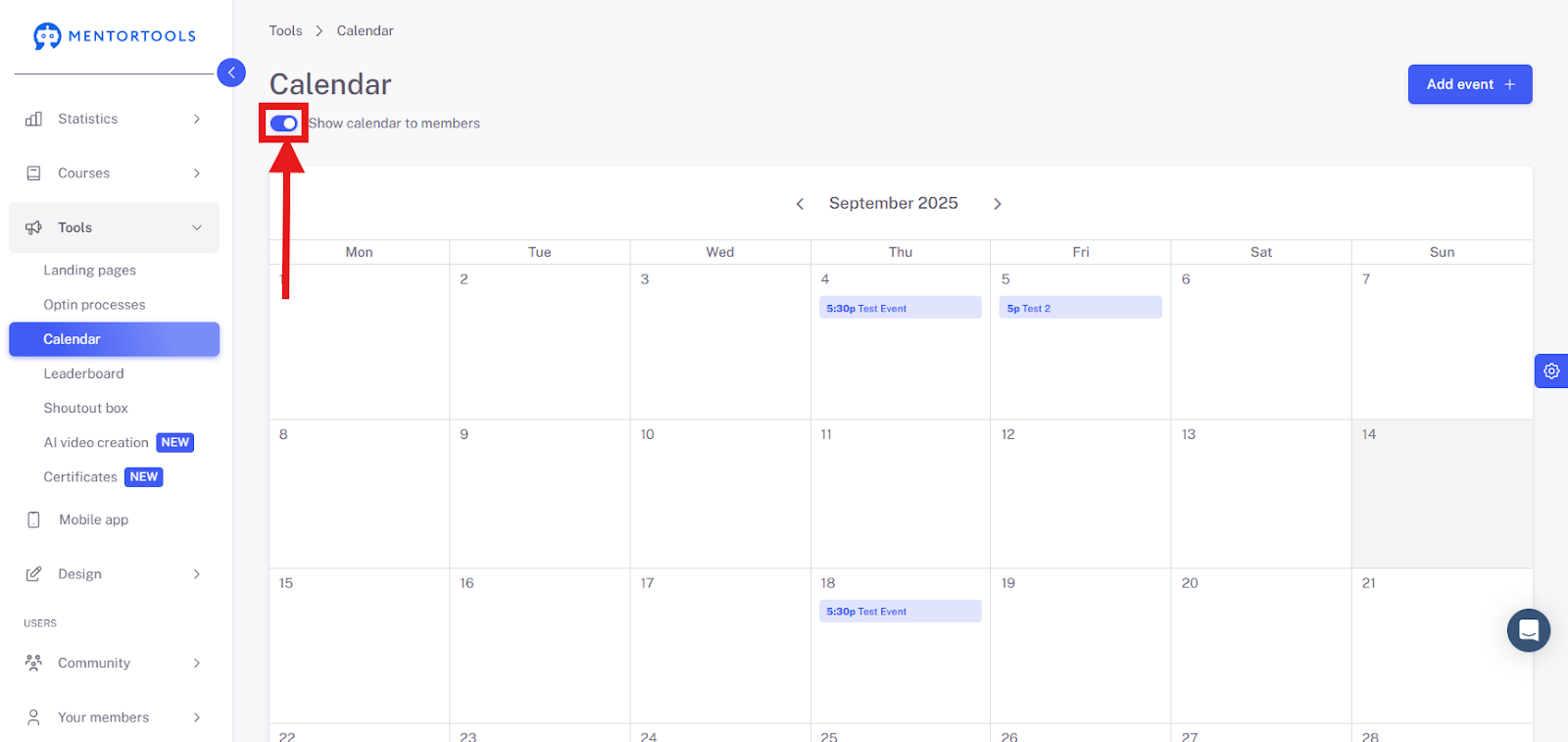
4. Calendar view for members
You can check how the calendar is displayed to your members by clicking on "Preview."
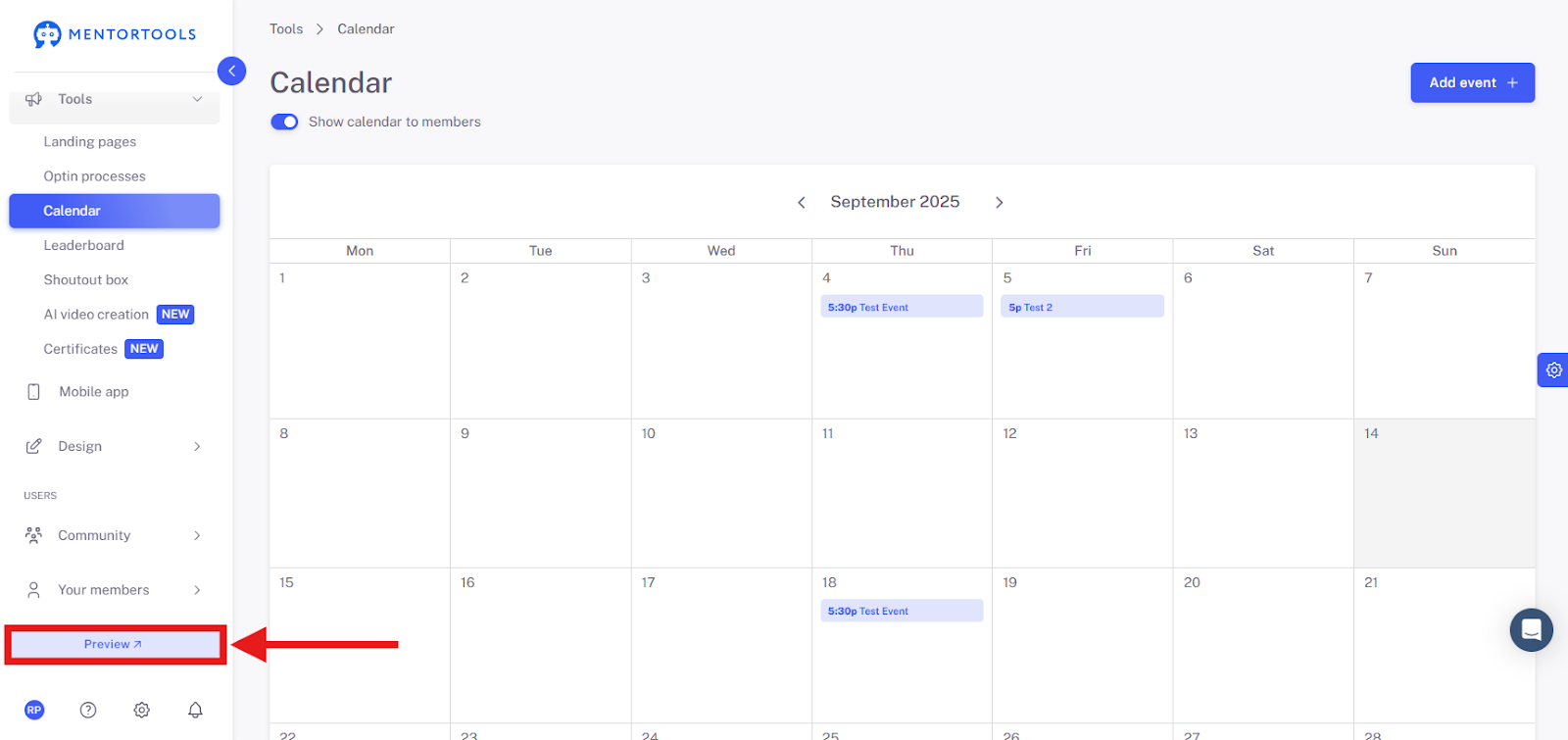
Your customers or members will see all the dates entered in the calendar in the "Calendar" menu item:
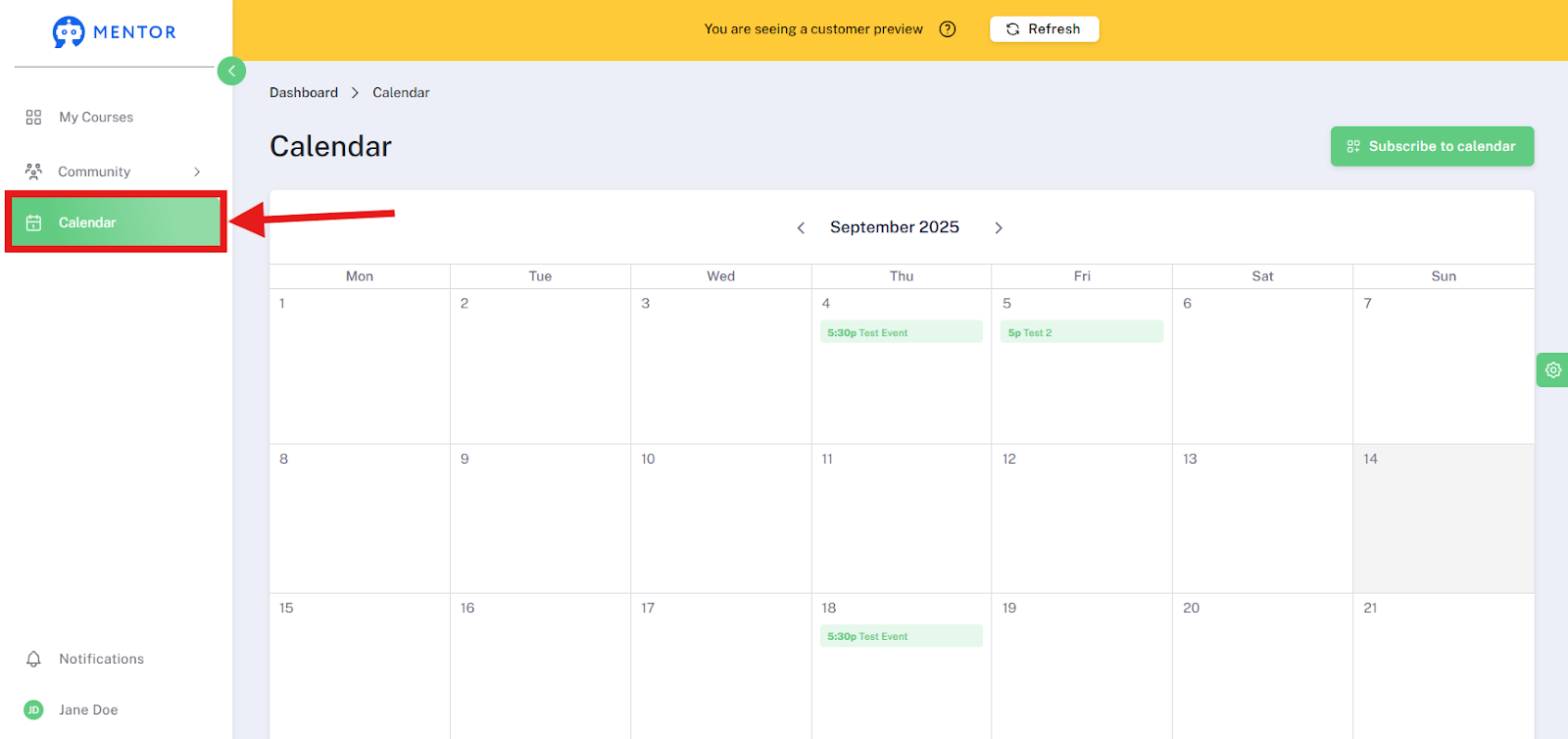
Note: You can only see an event in the preview if you have previously started the course to which an event belongs (if it belongs to a course). For it to be displayed to you and your members, it is therefore necessary to start the associated course if it is not a public event.
When you click on one of the events in the calendar, you will see more detailed information that is displayed to your members.
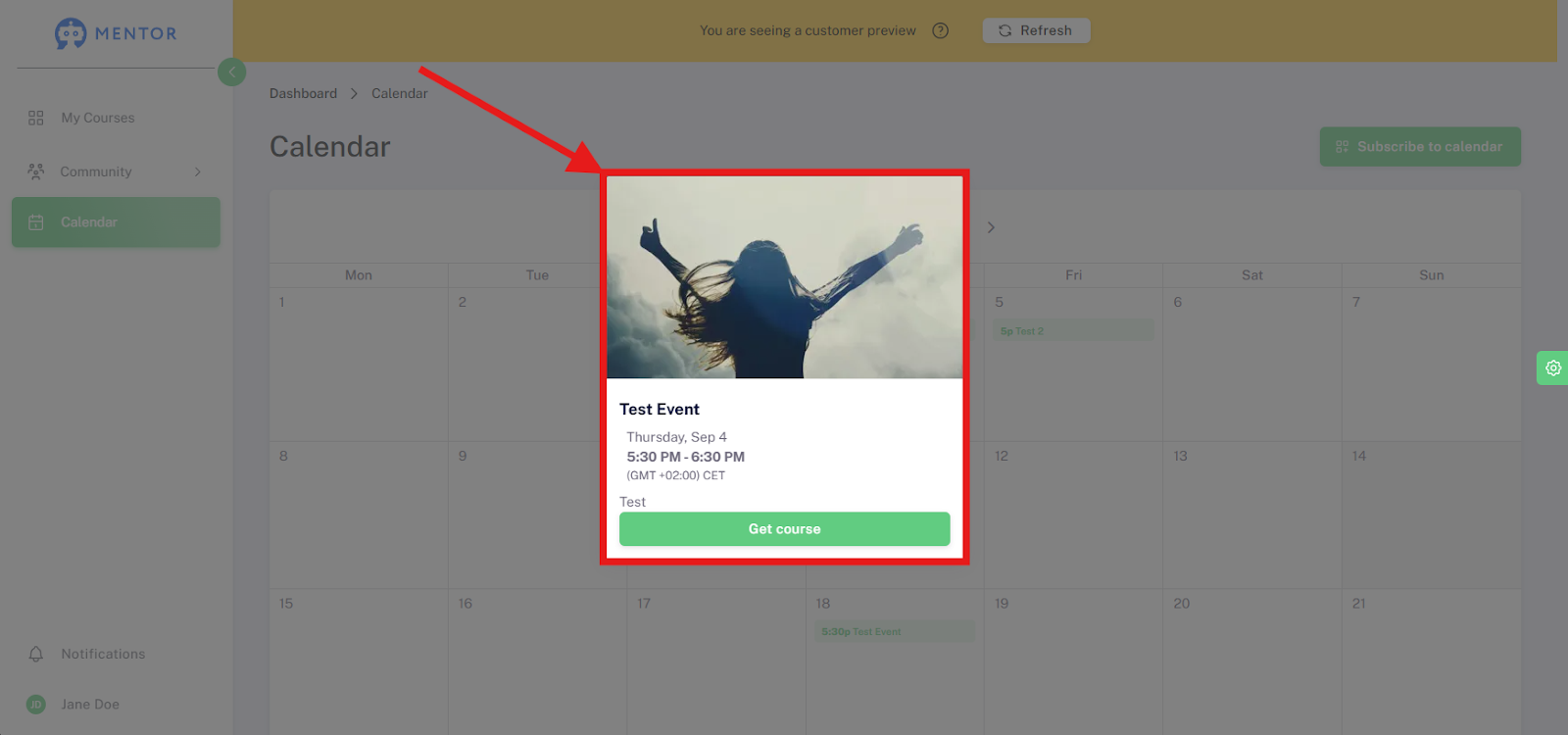
Title: "Test Event"
Date & time: "Thursday, Sep 4, 2025 from 5:30 PM to 6:30 PM"
Link: A link through which participants can access the live session.
Description: A short description of the event ("Test").
5. Tips for organizing live dates
Plan your events in advance for several weeks.
Use the repetition function (e.g., "every Tuesday at 7:00 PM").
Use clear titles like "Live Q&A – Week 2."
Supplement the description with "What to expect," "Duration," "Technical notes."
Use a permanent Zoom link for regular calls.
Summary
With the calendar overview in Mentortools, you can keep track of all your live events and ensure that your participants are always up to date. You can find the overview under "Tools" > "Calendar" and manage all dates there, such as webinars or Q&A sessions. The calendar view shows you important details like the date, title, description, and links.
You can easily make the calendar visible to your participants by activating the "Show calendar for members" switch. The preview function shows you exactly what the calendar looks like for your members. A small tip: If an event is linked to a course, your participants must have started that course to see the event.
To organize your events optimally, it is best to plan them in advance, use the repetition function for regular dates, use clear titles, and add important information to the description. This way, everything runs smoothly!