Events – Editing an Existing Event
With Mentortools, you can adjust your events at any time, whether the Zoom link changes, the date is moved, or you just want to add some extra information. This editing feature is super practical if something changes during your program or if you simply want to use an event multiple times, for example, for regular live calls.
Last updated 12 months ago
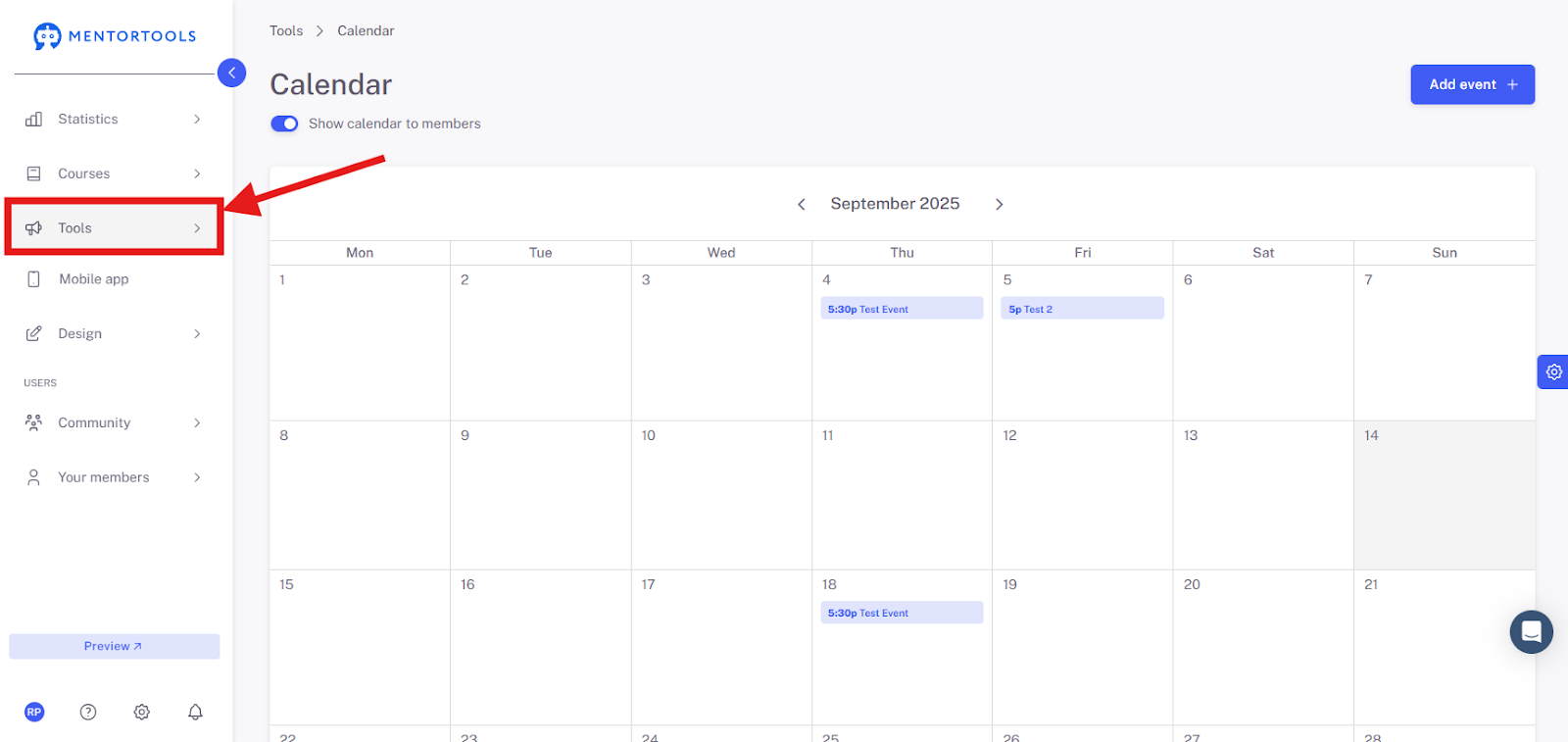
1. Navigate to "Tools"
Go to "Tools" in your Mentortools dashboard.
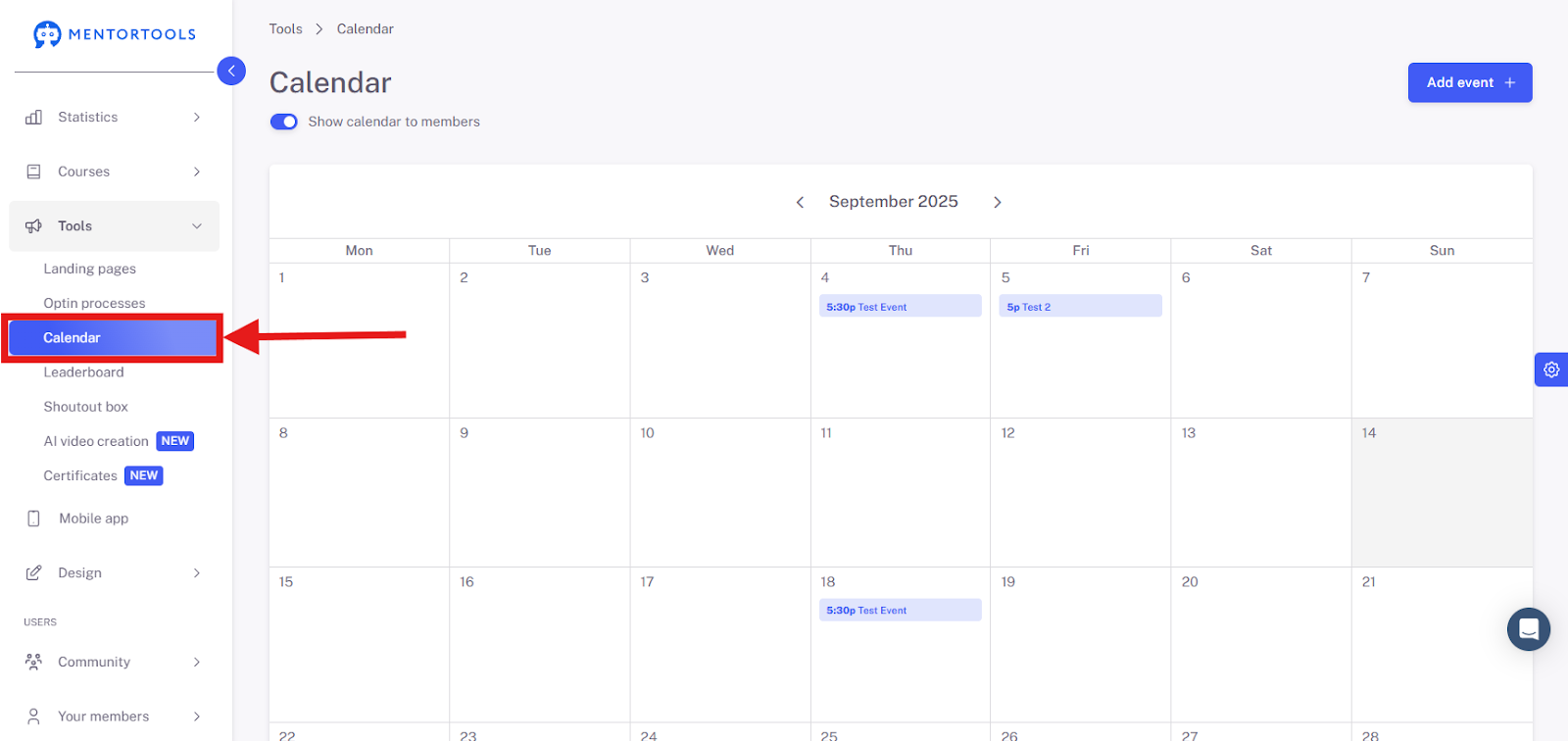
2. Click on "Calendar"
Select the "Calendar" menu item.
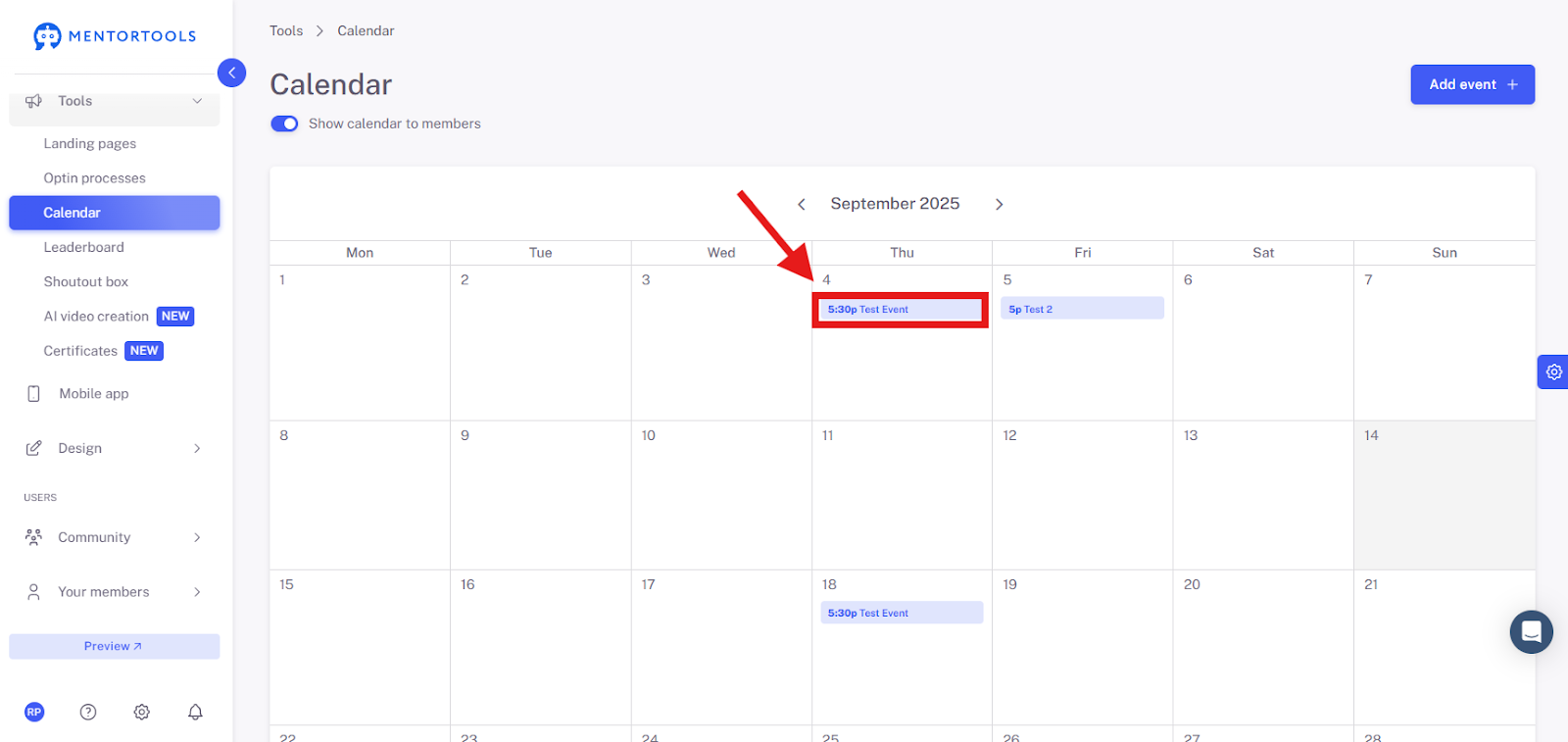
3. Click on the desired event
In the overview, click on the title of the event you want to edit (e.g., "test event").
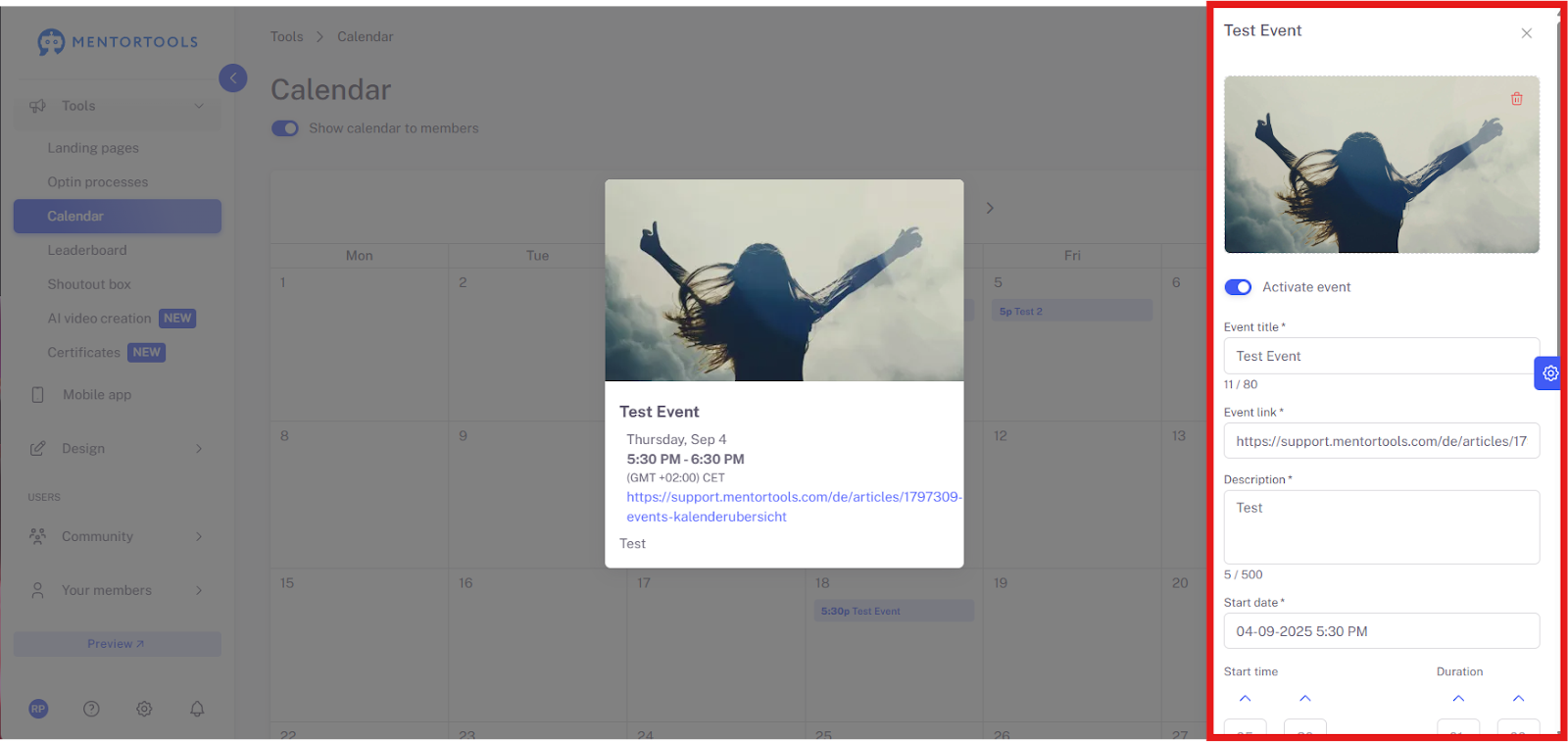
4. Adjust the event details
The window shows you all the options to create or edit an event. Here are the most important fields and their purposes:
Event image
Purpose: Here you can upload an image for your event. It helps to make the event visually appealing and easier to recognize. You can simply drag and drop it, or select it from your MentorCloud or royalty-free images. The recommended size is 1600 x 900 pixels.
Activate event
Purpose: Use this switch to activate the event. When it is activated, it will be visible to your participants. If you deactivate it, it remains hidden.
Event title
Purpose: This is the name of your event. It should be short and meaningful. In the example, it says "Test Event."
Direct link to event
Purpose: Here you insert the link to the live event, for example, a Zoom or Google Meet link. When participants click on the event, they will be redirected to the live session via this link.
Description
Purpose: Here you can write a brief description of the event. This helps participants understand what the event is about.
Start date and start time
Purpose: Here you set when the event begins. You select the exact date and time.
Duration
Purpose: Here you specify how long the event will last, in hours and minutes.
Time zone
Purpose: Here you set the correct time zone so everyone sees the right time.
Event repetition
Purpose: This is where you specify whether the event is a one-time event or repeats, for example, daily, weekly, or monthly.
Who can access the event?
Purpose: Here you choose who can see the event. The "Only with course access" option is usually selected. This means that only participants who have access to a specific course can see the event.
Course selection: Below, you will see the courses you have created (e.g., "My New Course Title"). By activating the switch, you link the event to this course. Only the participants of this course can then access the event.
Save
Purpose: Use this button to save all your changes.
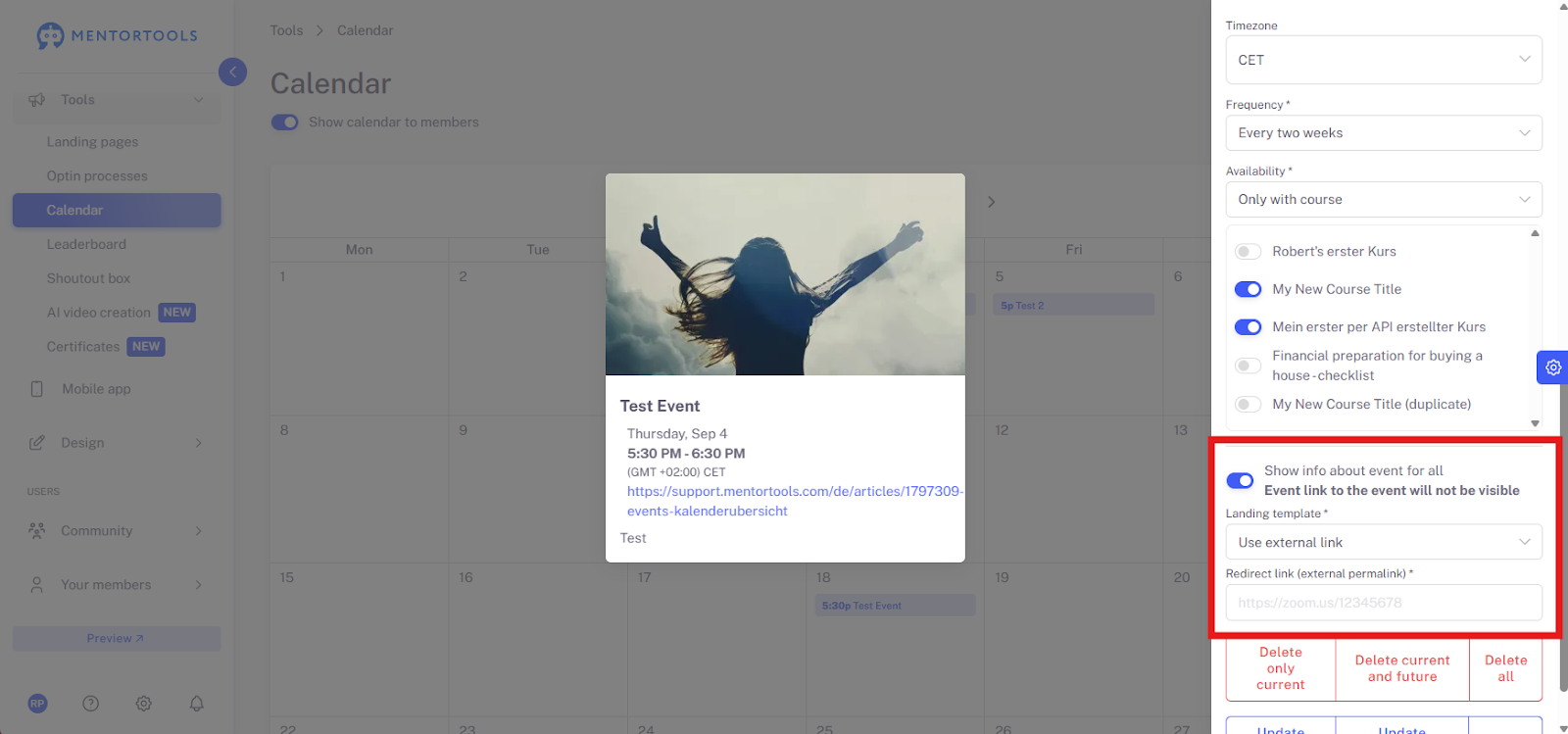
Show event info to everyone
Purpose: When this switch is activated, even people who don't have access to the course can see the event information. However, the direct link is not visible then. This is useful for drawing attention to an event without making it accessible. If you activate this option, you have the option to insert an external link or to link the event to a landing page created in Mentortools. If "Use external link" is selected, you can enter your link below.
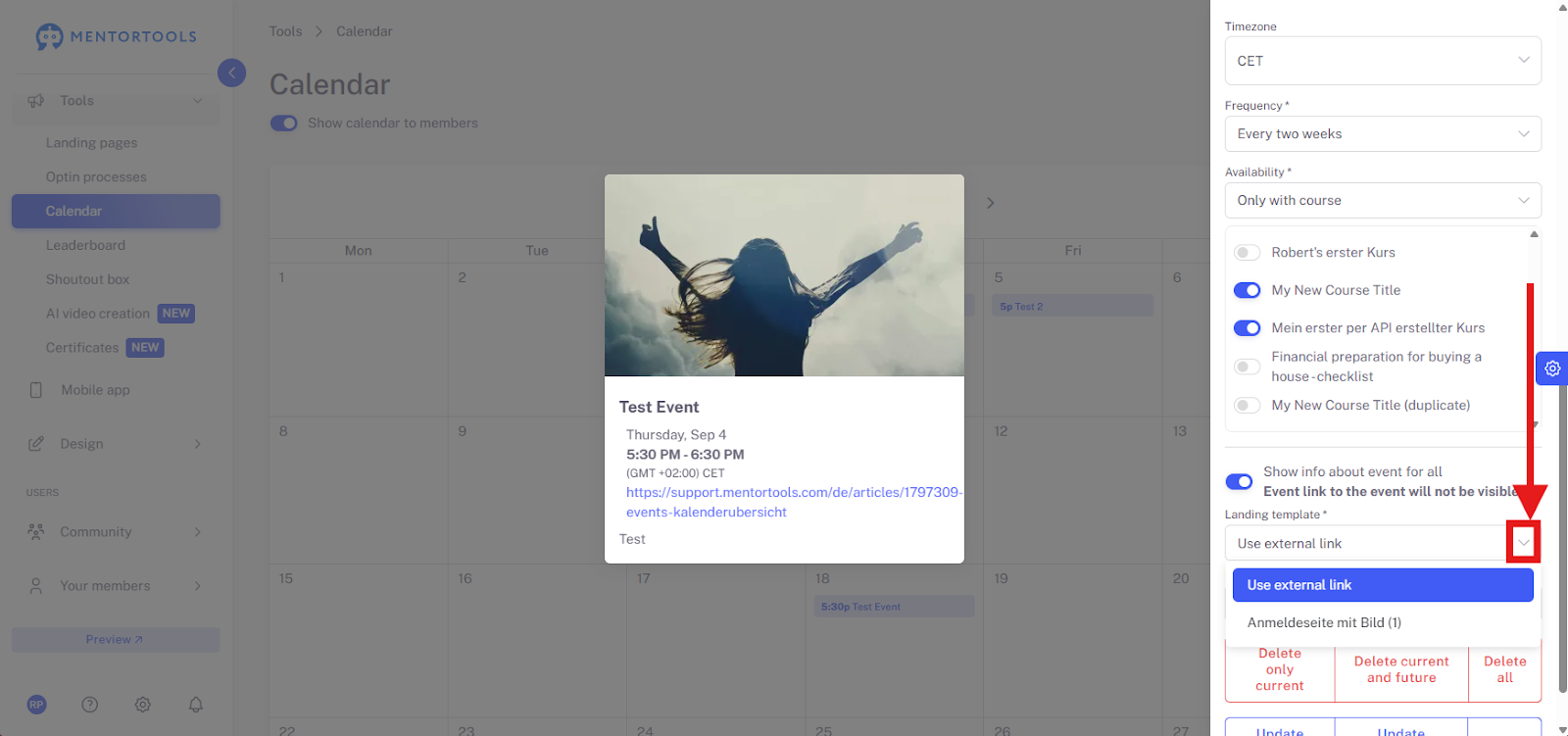
By clicking on the arrow next to "Use external link," a dropdown menu opens from which you can choose one of your landing pages.
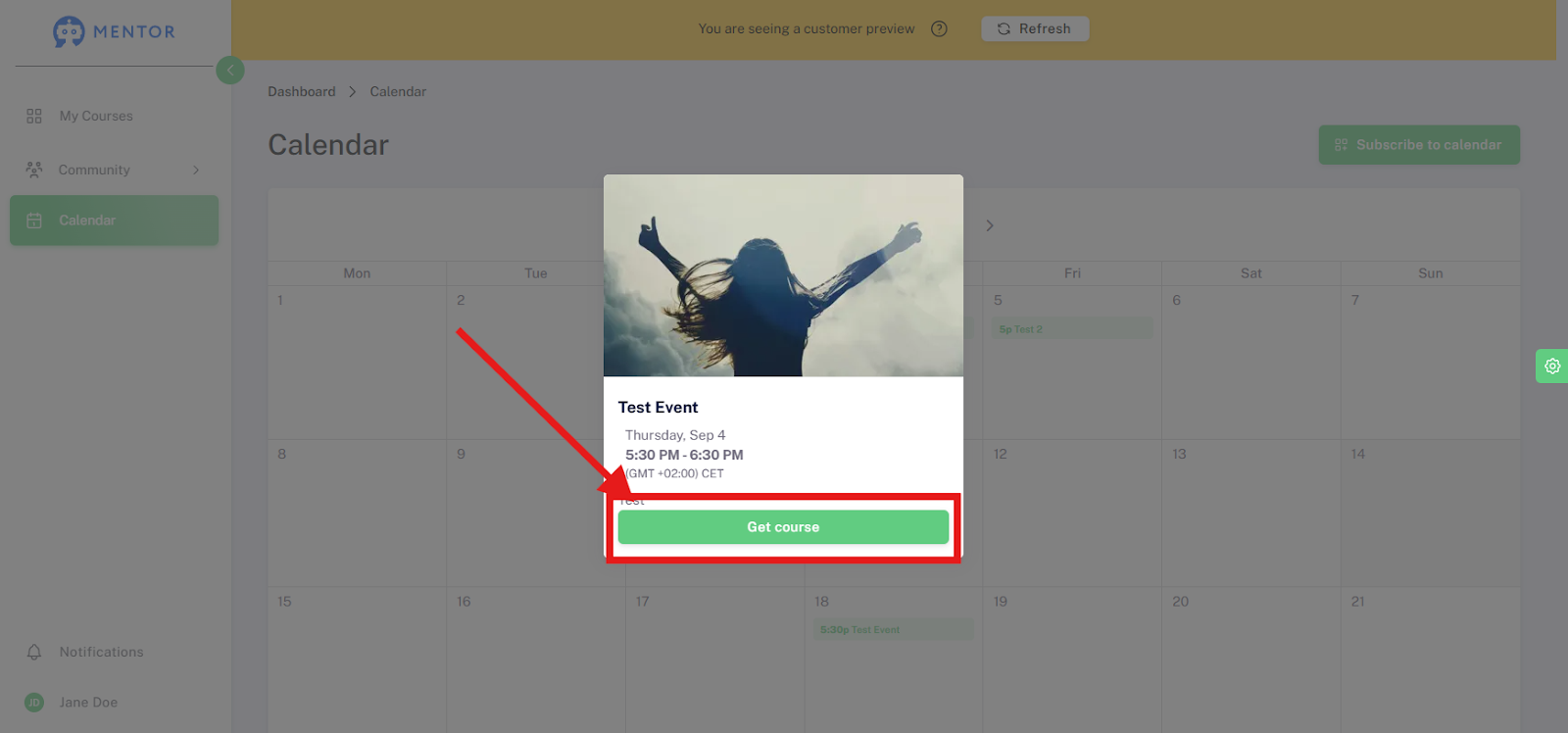
Your members who do not have access to the course associated with the event will see this event as shown in the screenshot. By clicking "Get course," they will be redirected to the link or landing page you have set up.
You can check how the calendar is displayed to your members by clicking on "Preview."

Your customers or members will see all the dates entered in the calendar in the "Calendar" menu item:
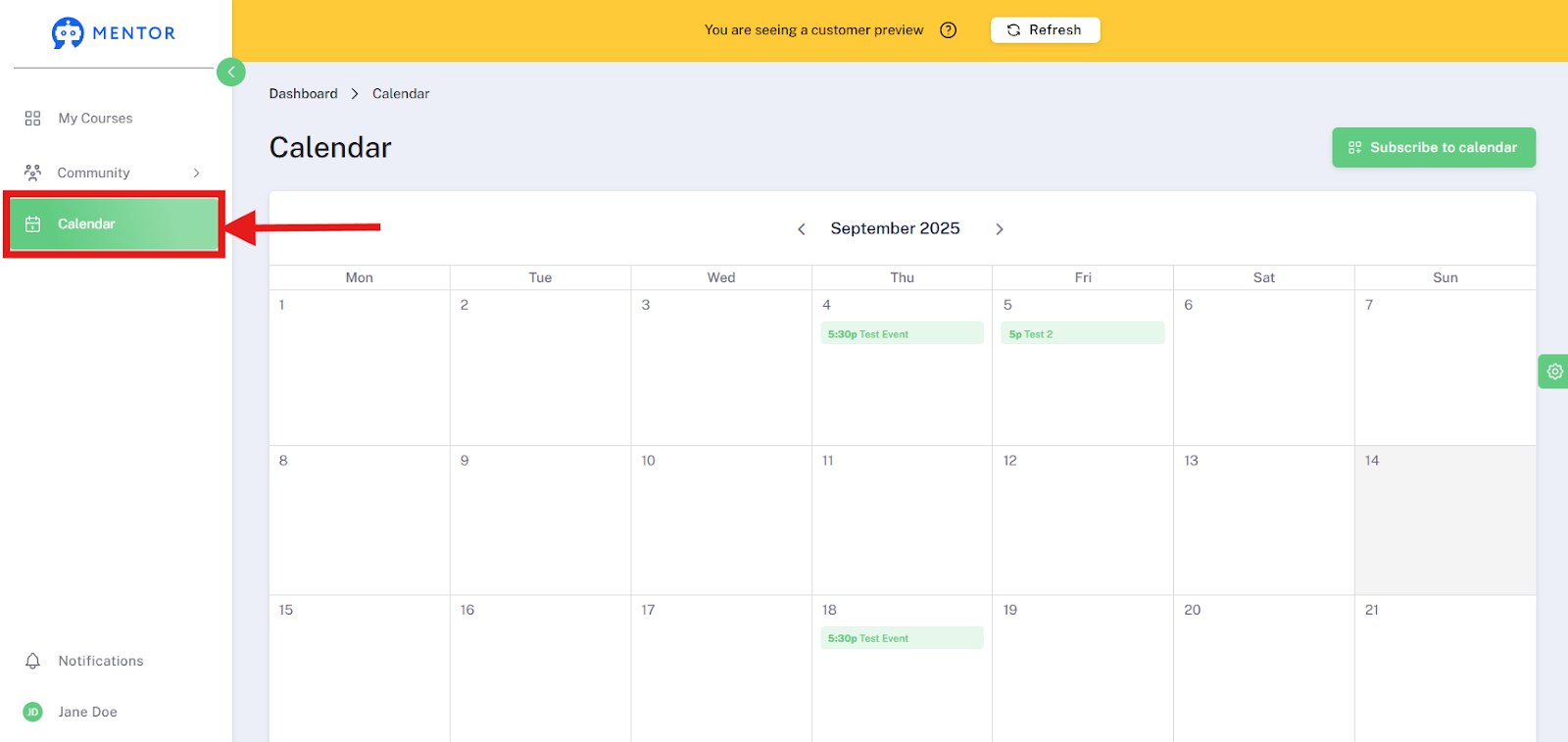
Note: You can only see an event in the preview if you have previously started the course to which an event belongs (if it belongs to a course). For it to be displayed to you and your members, it is therefore necessary to start the associated course if it is not a public event.
When you click on one of the events in the calendar, you will see more detailed information that is displayed to your members.

Summary
In this guide, you have learned how to find, edit, and save existing events in Mentortools. This allows you to flexibly adjust dates—e.g., for time changes, new links, or updates in the description.