Opt-in Processes for Lead Generation
In this article, you will learn how to create and properly link an opt-in process for lead generation.
Last updated 12 months ago
There are two different types of opt-in processes:
Double opt-in process
Single opt-in process
First, navigate to the Opt-in Processes section.
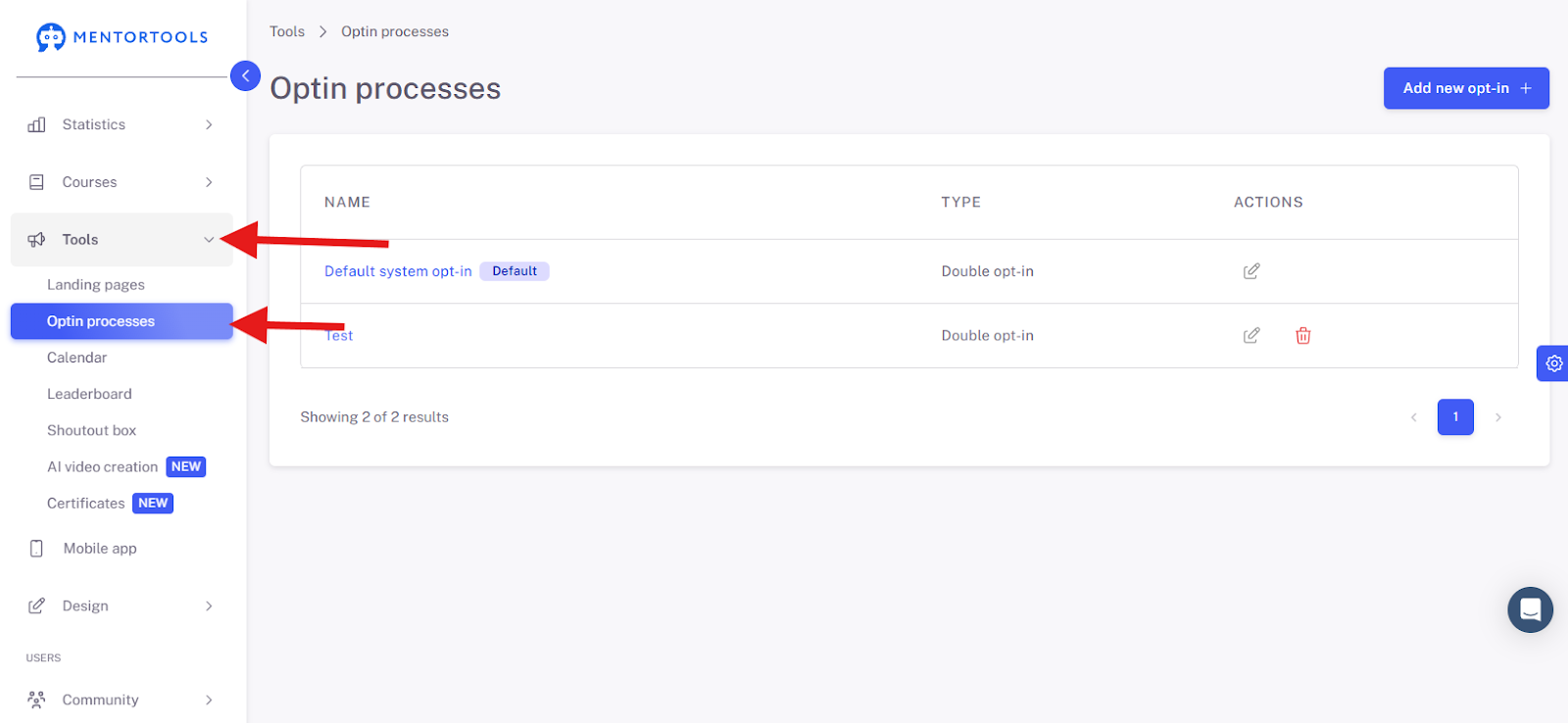
Double Opt-in Process
For the double opt-in process, you need the following landing pages in advance:
Sign-up page (also called the "opt-in page")
Almost-finished page (also called the "one more step page")
Thank you page
In a double opt-in process, the user receives an email and must confirm it. Only then is the contact "double opt-in confirmed," and you are allowed to send marketing emails to this person.
In most cases, you will use a double opt-in process, as only this is GDPR (General Data Protection Regulation) compliant. The process for the user is as follows:
The user signs up on an opt-in landing page (sign-up page).
The user is then redirected directly to an almost-finished page.
After that, the user goes to their email inbox, opens the confirmation email they just received, and clicks on the link there.
This redirects the user to another page, and the contact is saved as double opt-in confirmed. This page is usually a thank you page or a sales page if you want to offer a product immediately.
Now, create a new opt-in process:
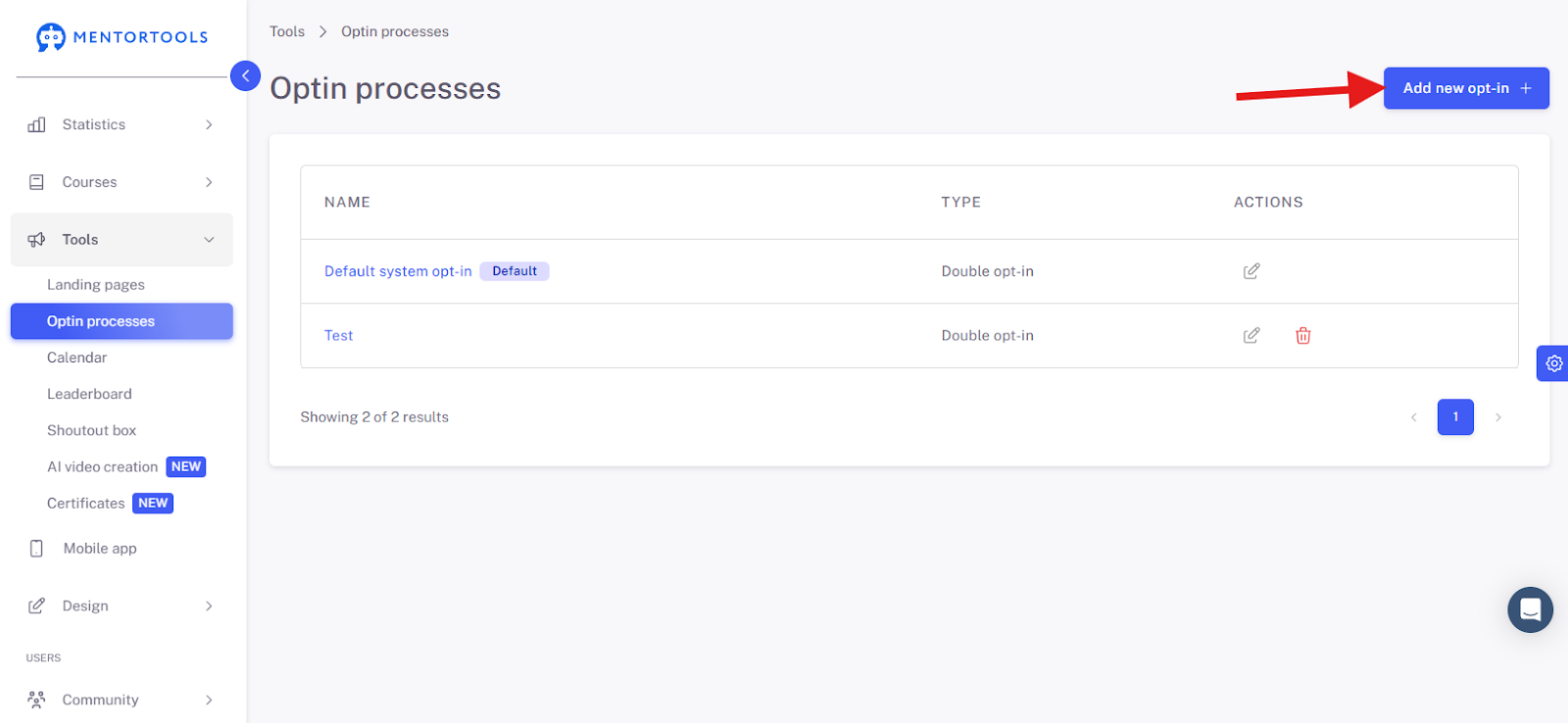
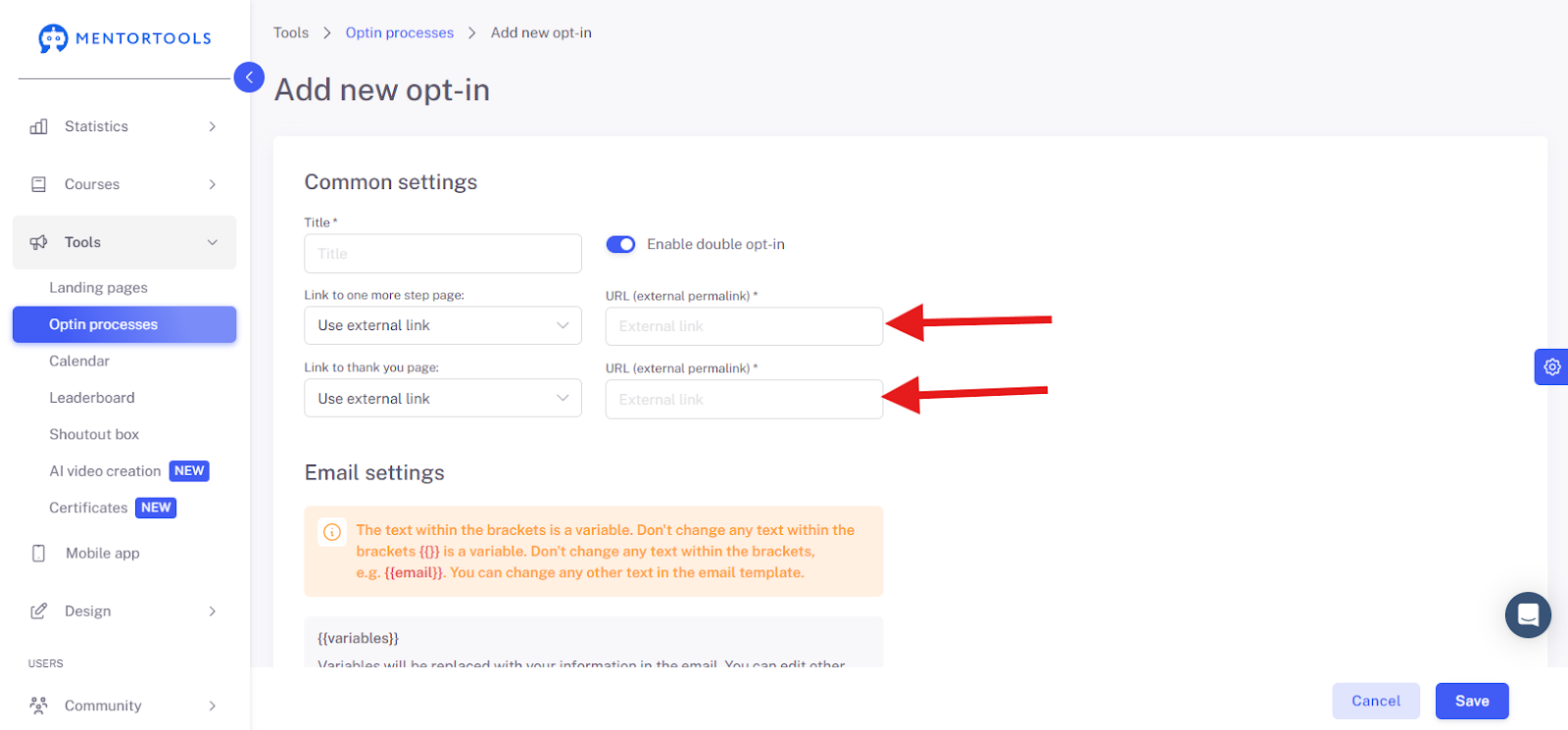
Name the opt-in process and select whether it should be a double opt-in process:
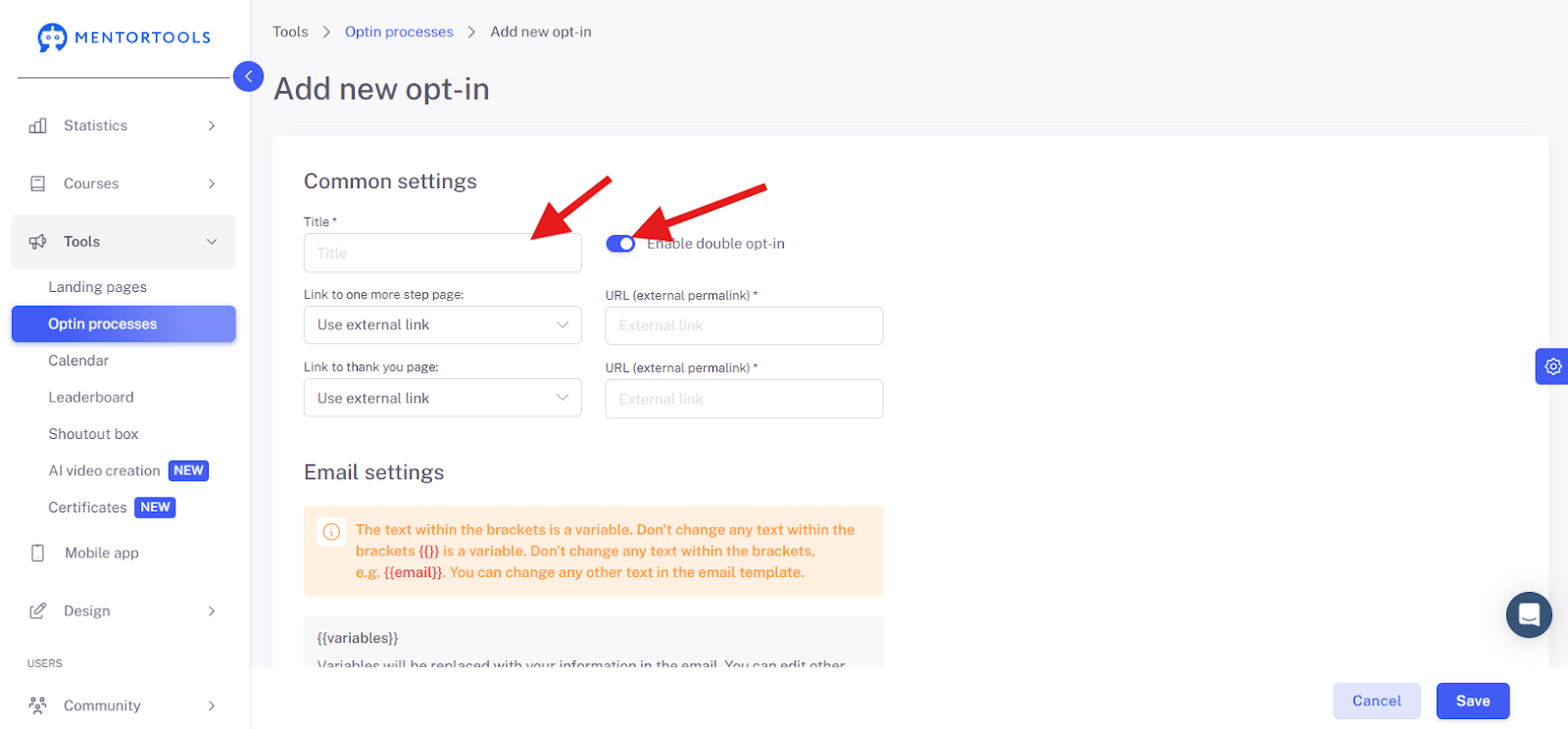
In the settings, you first have the option to define these pages. You can use internal Mentortools pages or external pages if you have created your landing pages yourself.
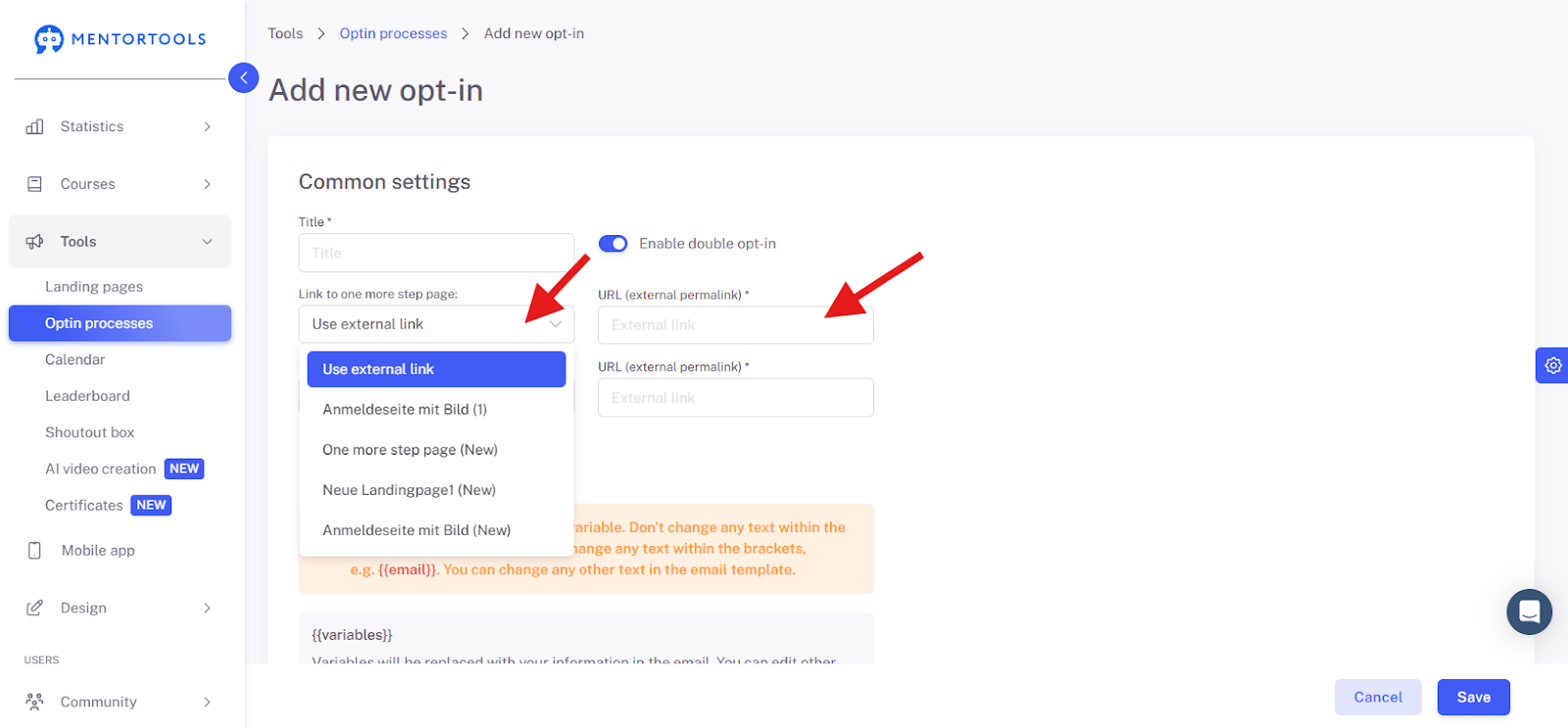
The first link is the page the user goes to immediately after entering their email. The second page is where they go after clicking the link in the confirmation email. It is important that this page is called the "Thank you page," but it doesn't have to be a thank you page; it can also be a sales page (if you want to offer a product immediately).
You can also select an external link here. Another input field will then appear where you can enter this link.
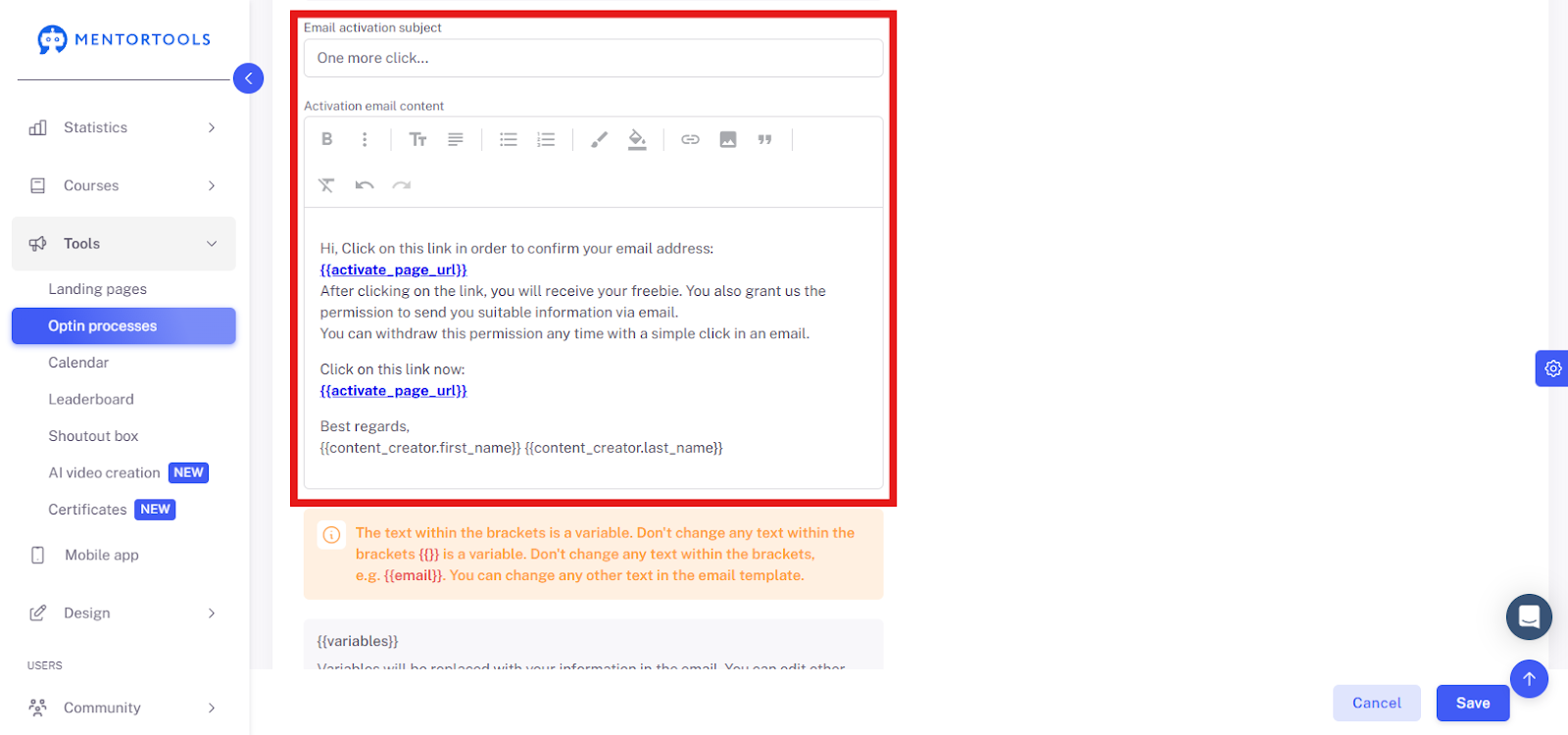
Below that, you will see two emails on the page. The first is the confirmation email, and the second is the thank you email. In most cases, you don't need to change anything in the confirmation email. You can still customize the text in the thank you email.

Single Opt-in Process
If you have selected single opt-in, you will only see one email. The confirmation email is omitted, and the thank you email remains.
For the single opt-in process, you need the following landing pages in advance:
Sign-up page
Thank you page
The process for the user is as follows:
The user signs up on an opt-in landing page (sign-up page).
The user is then redirected directly to the thank you page.
Further Steps
Directly above the emails, you will see a list of variables that you can expand. This allows you to use data the user has entered, for example, to address them personally.
However, you should only use variables here that the user is guaranteed to have entered on the opt-in page beforehand.
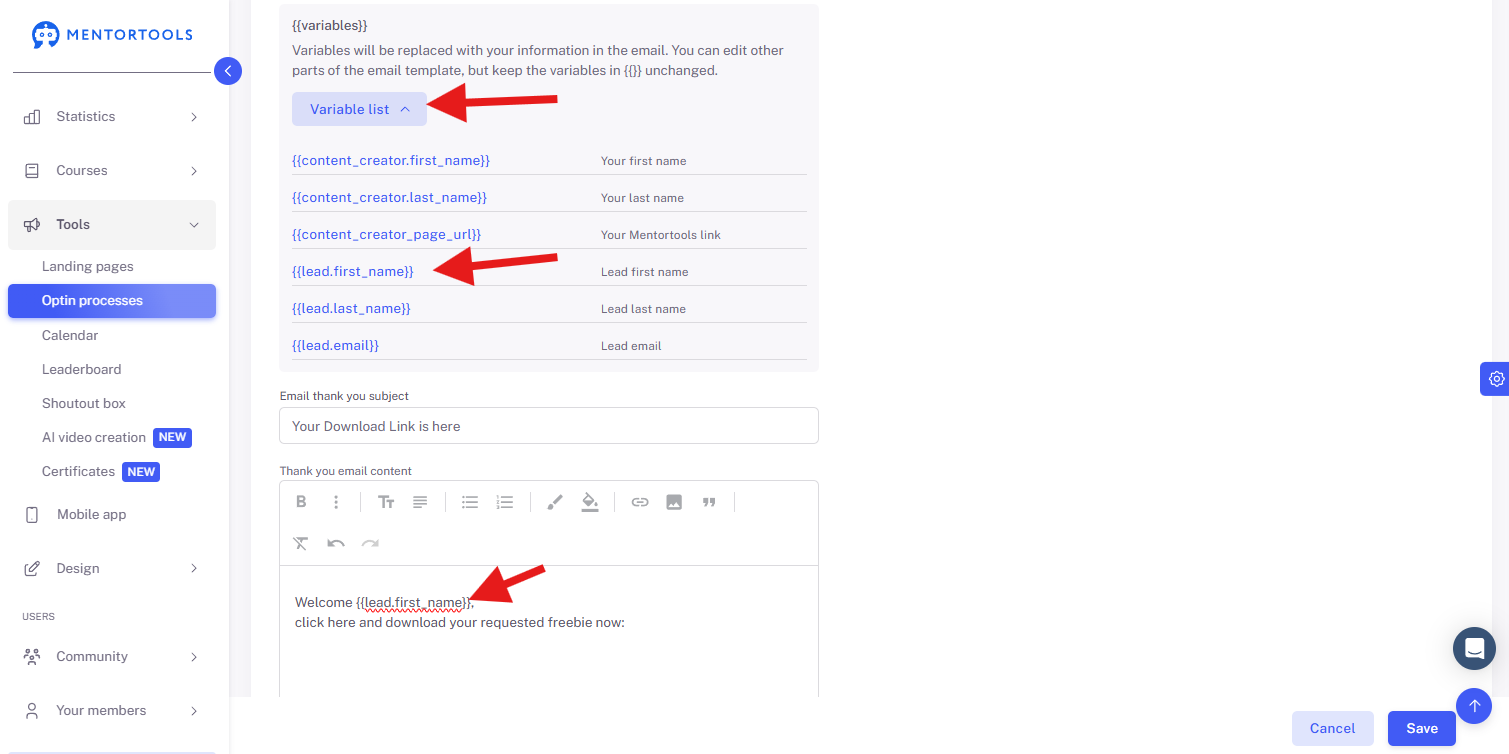
You can leave the confirmation email unchanged in most cases. You should customize the thank you email so that the user receives what they originally signed up for.
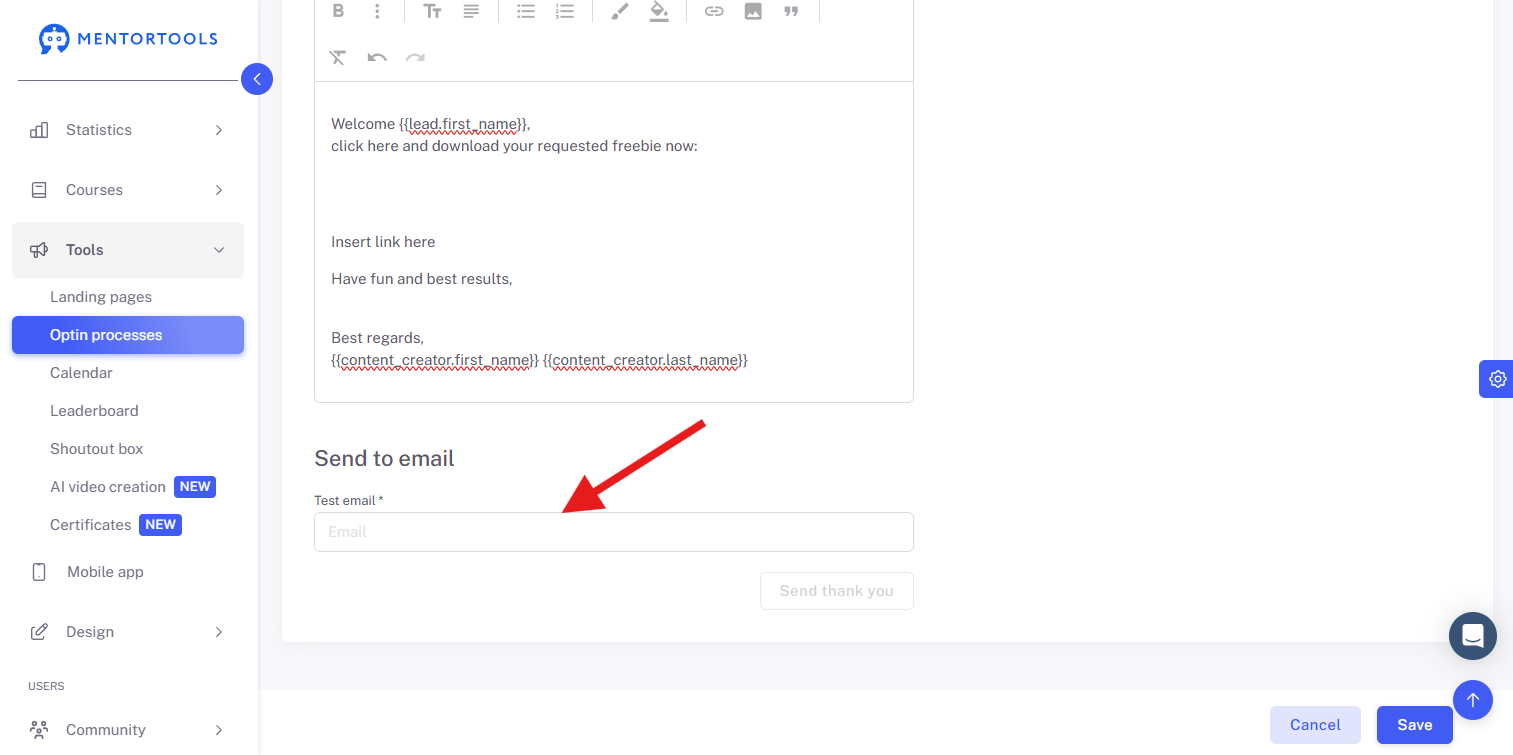
At the bottom of the page, you can enter your email address to test the opt-in process and see what the emails you receive look like.
Last Steps
When you have set up the complete opt-in process, save it. The last step is now to select the opt-in process on an opt-in landing page.
To do this, navigate to the Landing Pages and open the opt-in landing page (sign-up page).
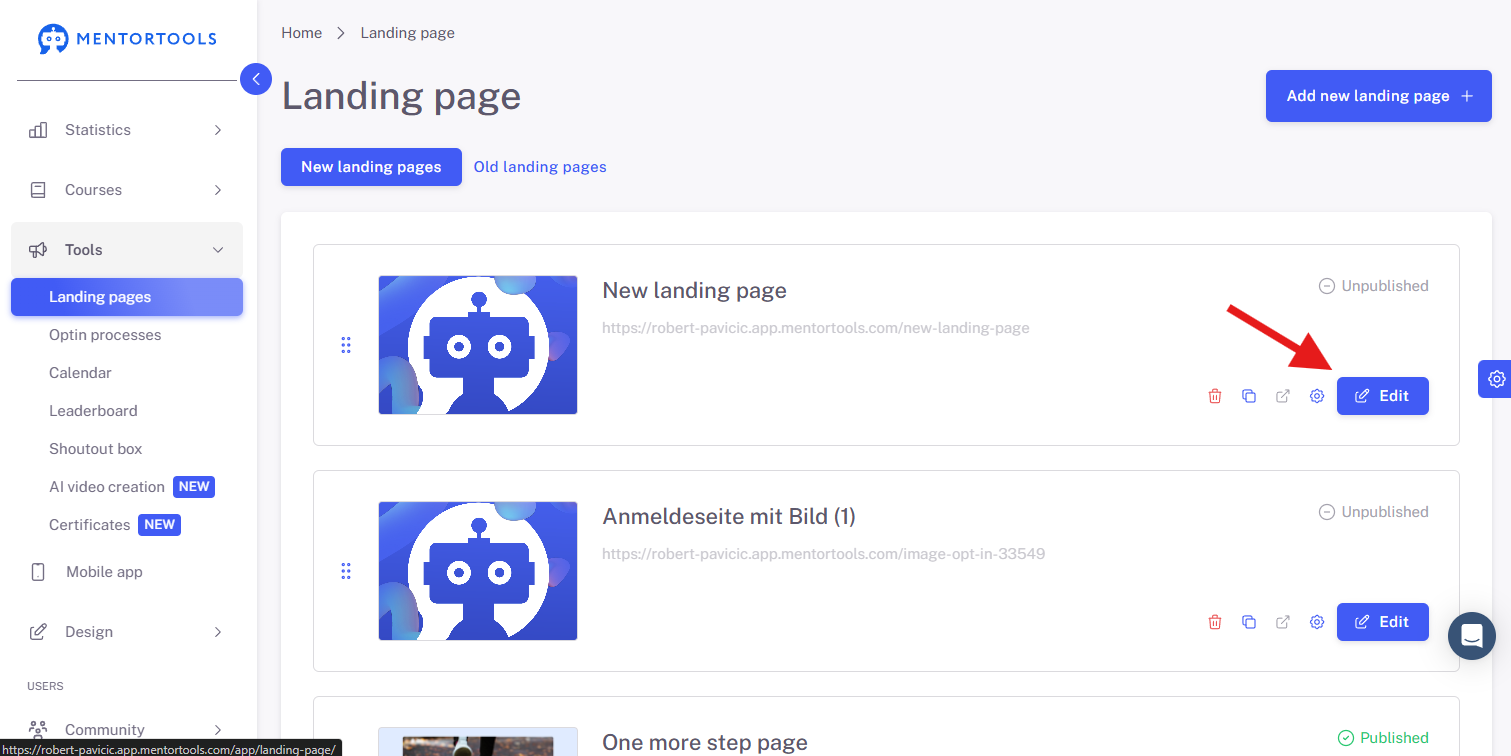
Then navigate to the sign-up form and click "Edit." Next, select the opt-in process you just created:
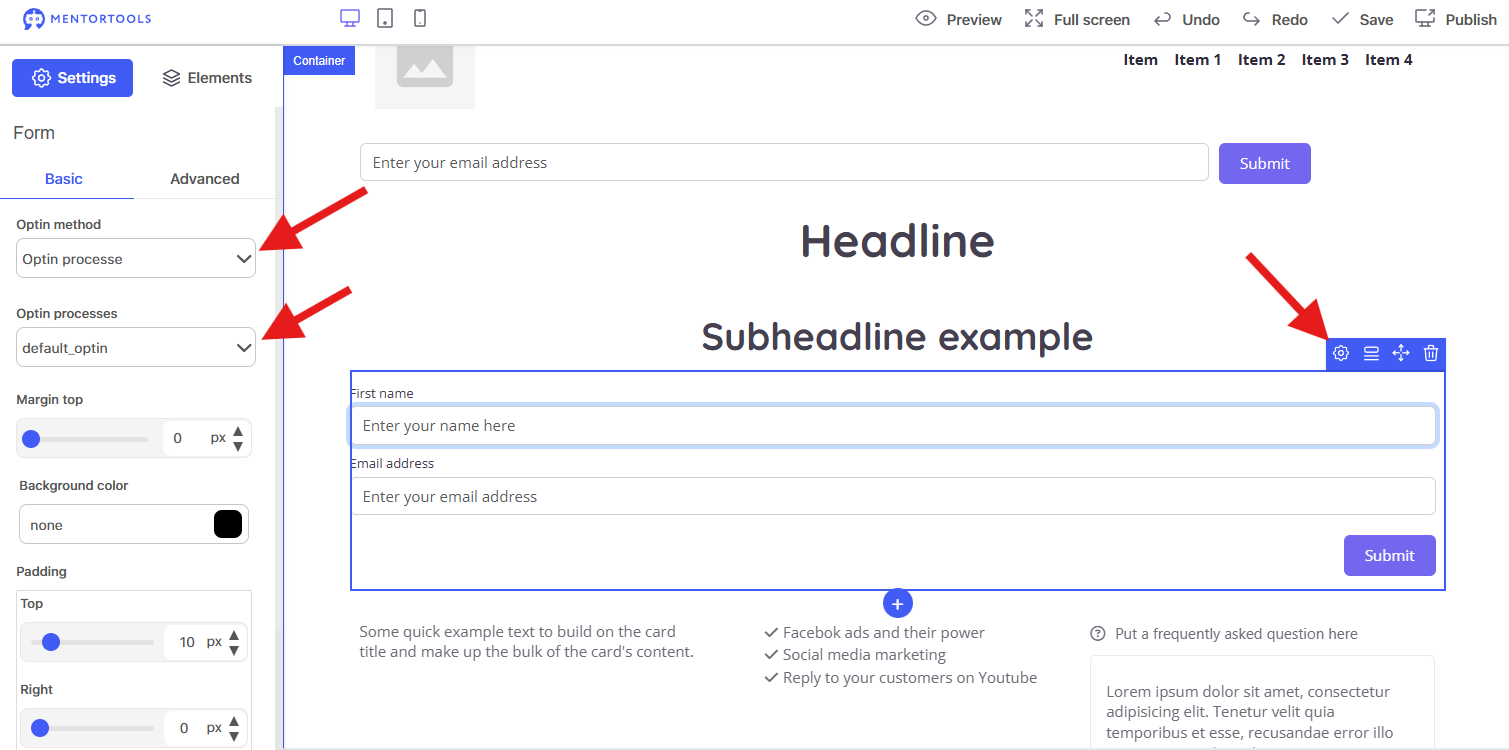
Then click "Save" in the top right, followed by "Publish."
This completes the entire opt-in process for email lead generation. You can now sign up on the landing page to test the entire process.
To do this, navigate to "Landing Page" and copy the sign-up page (opt-in page)—then it's best to open this page in a private window and sign up with a test email address.
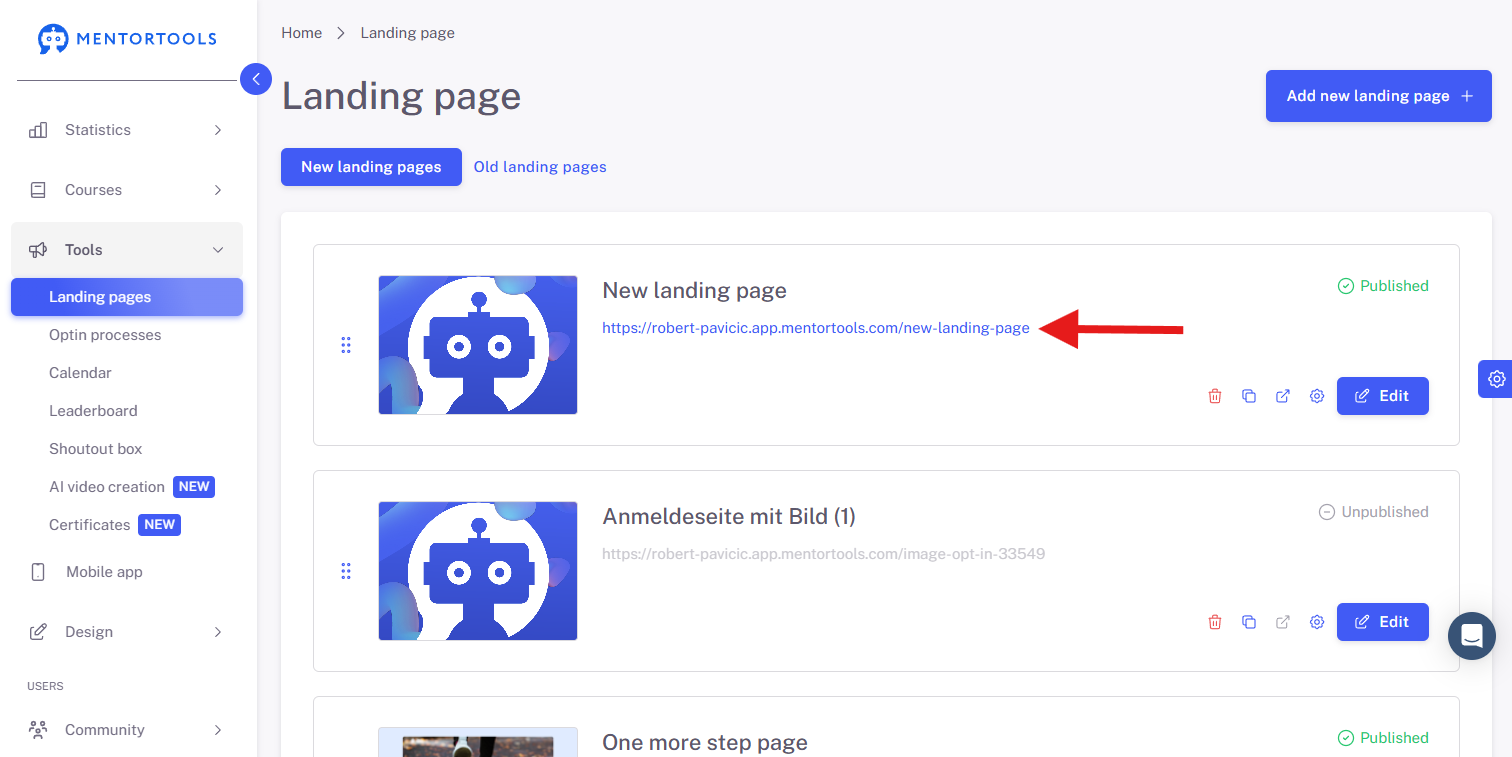
IMPORTANT: Make sure you use an email address that you have not previously used in your account for testing. If an email address has already been set up as double opt-in, the opt-in process will be simplified and displayed as a single opt-in.
Good luck!