Events – Deleting an Event
Sometimes you have to delete a planned event in Mentortools—for example, because the date is canceled, you made a typo, or the event was accidentally created twice. With just a few clicks, you can permanently remove an existing event. After that, it will no longer be displayed in the backend or the members' area.
Last updated 12 months ago
When Should You Delete an Event?
An event can be deleted if it was:
a test or a duplicate.
canceled or no longer taking place.
created by mistake.
no longer relevant and you want to tidy up the calendar overview.
Note: Deleted events cannot be restored. If you are unsure, it is better to use the deactivation function in the event settings.
How to Delete an Existing Event?
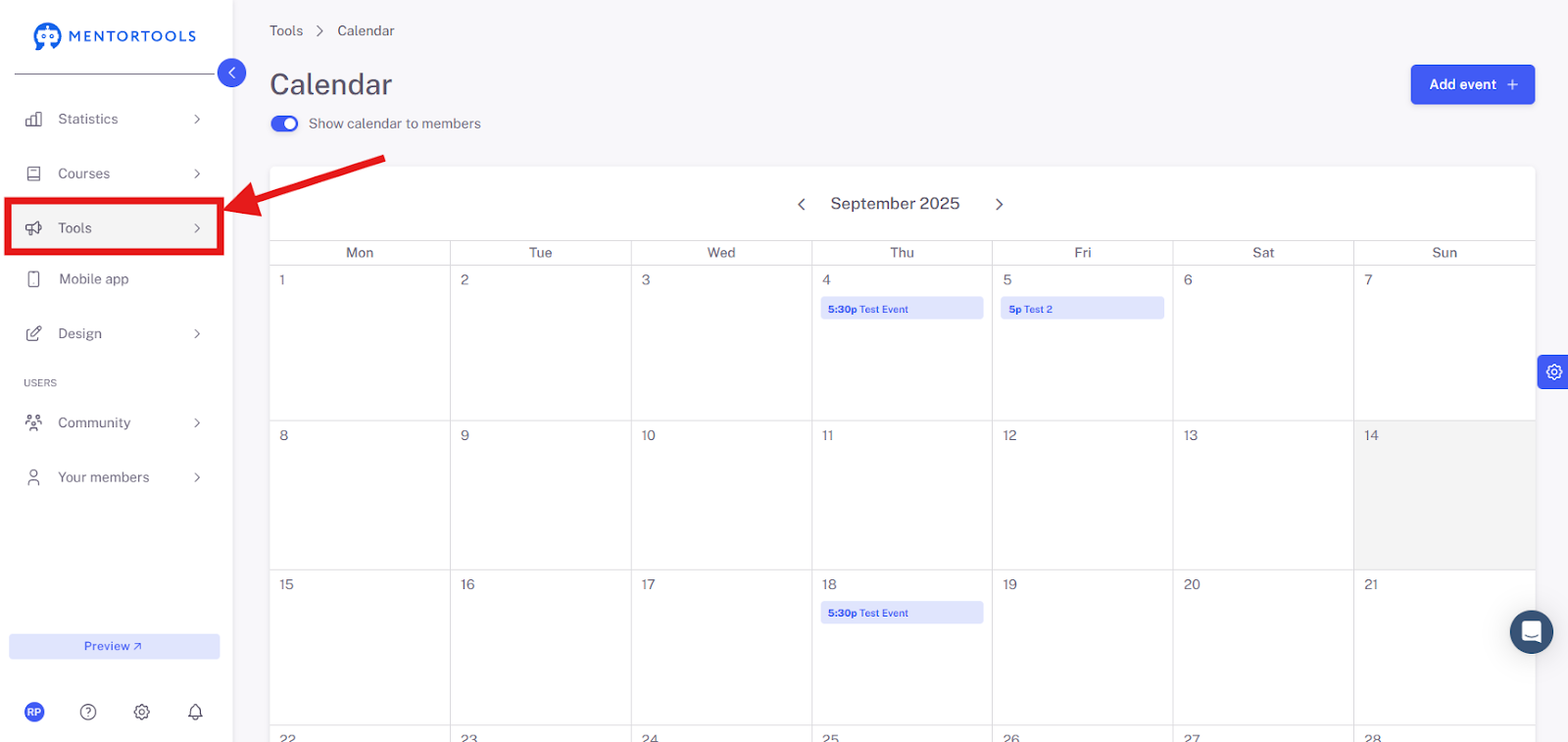
Click on "Tools" in the main menu.
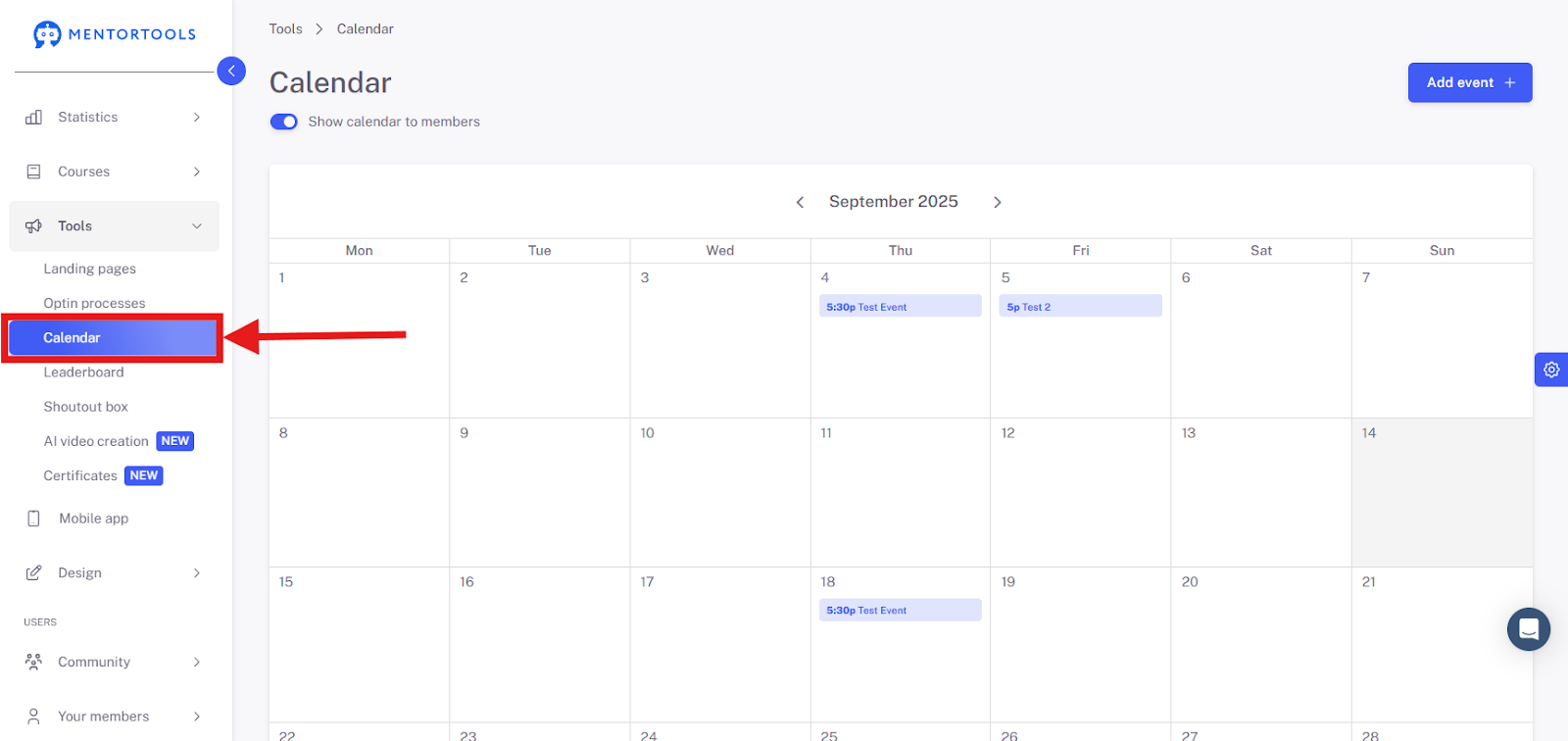
Select "Calendar."
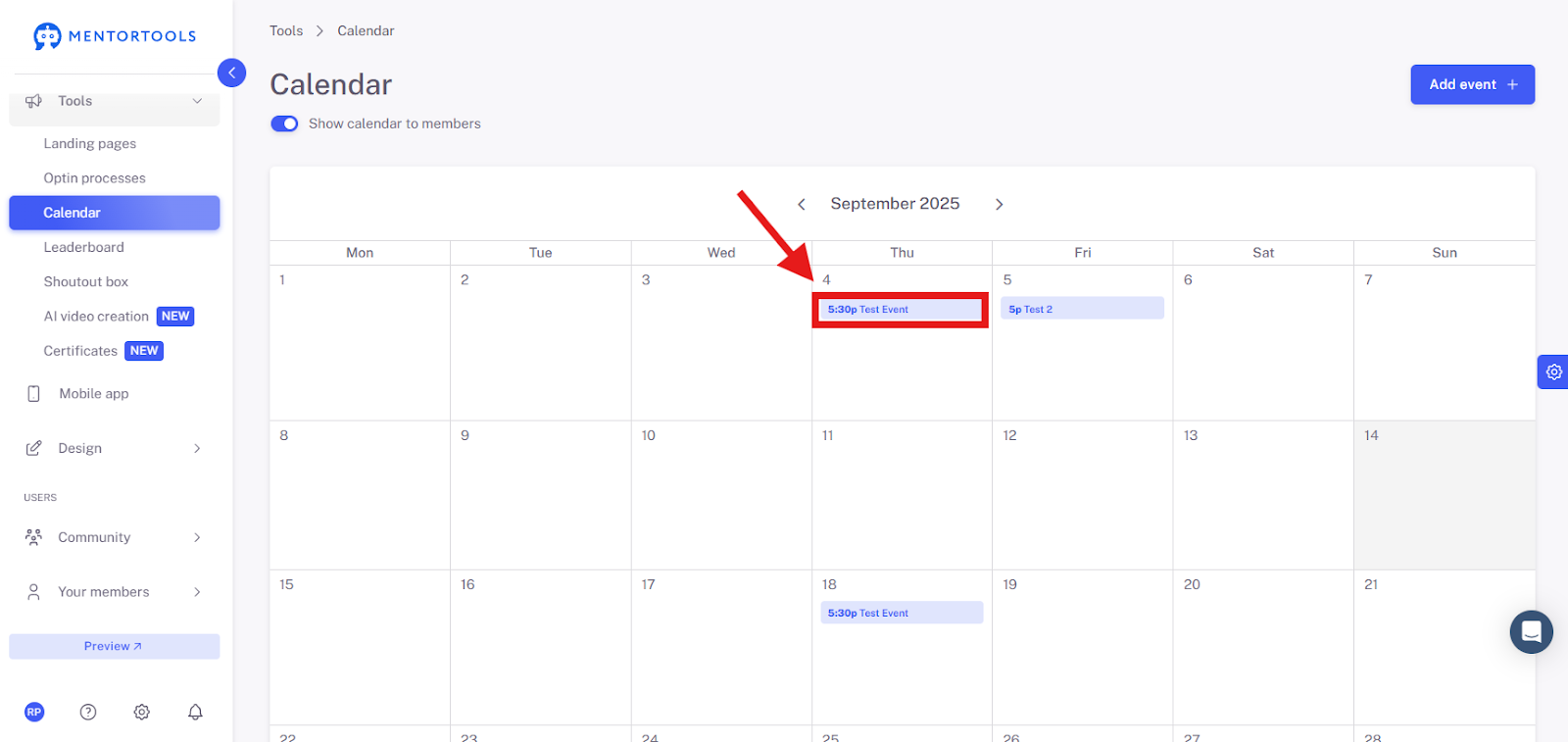
Find the event you want to delete.
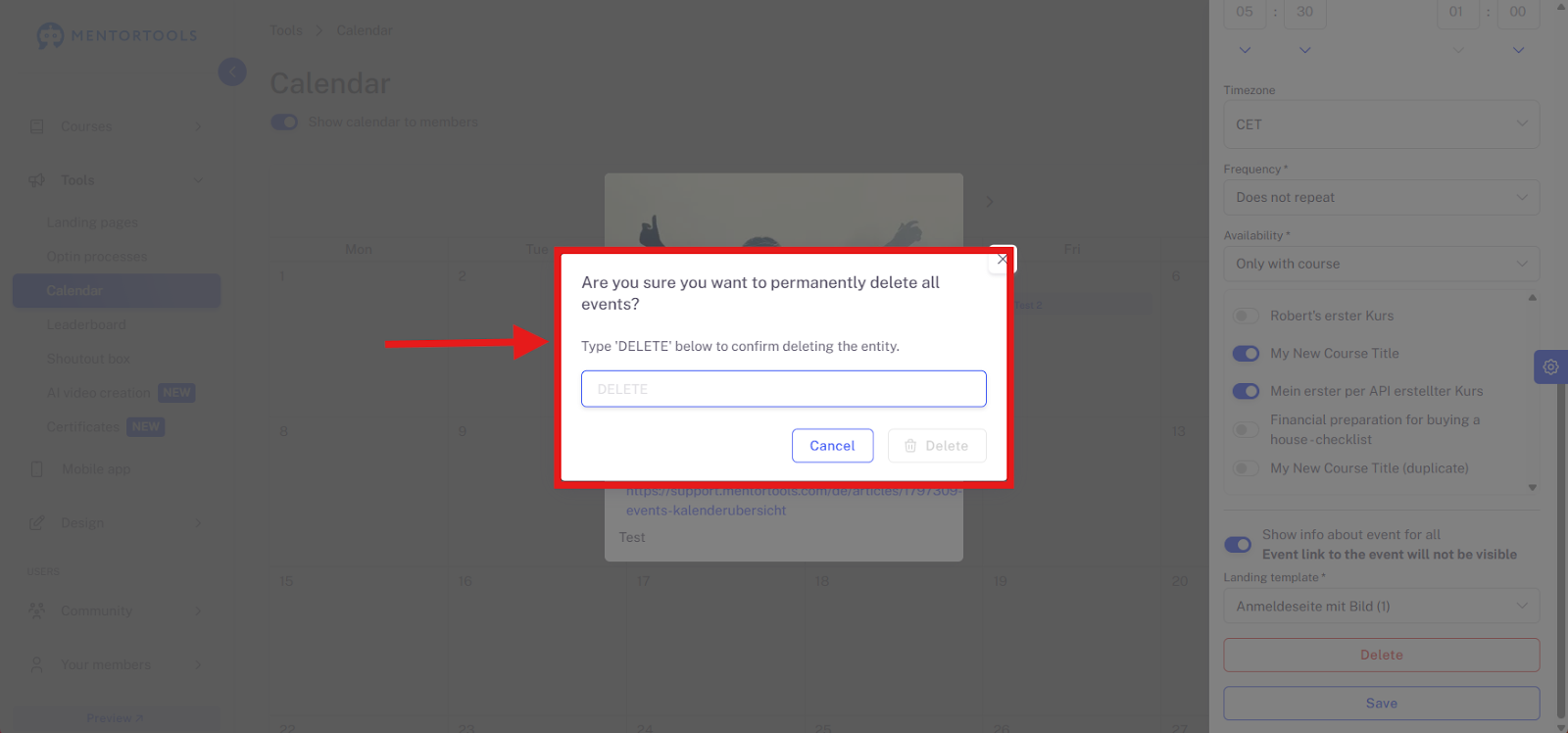
Click on "Delete."

Confirm the security dialog. The event will now be permanently deleted.
How to delete a Recurring Event?
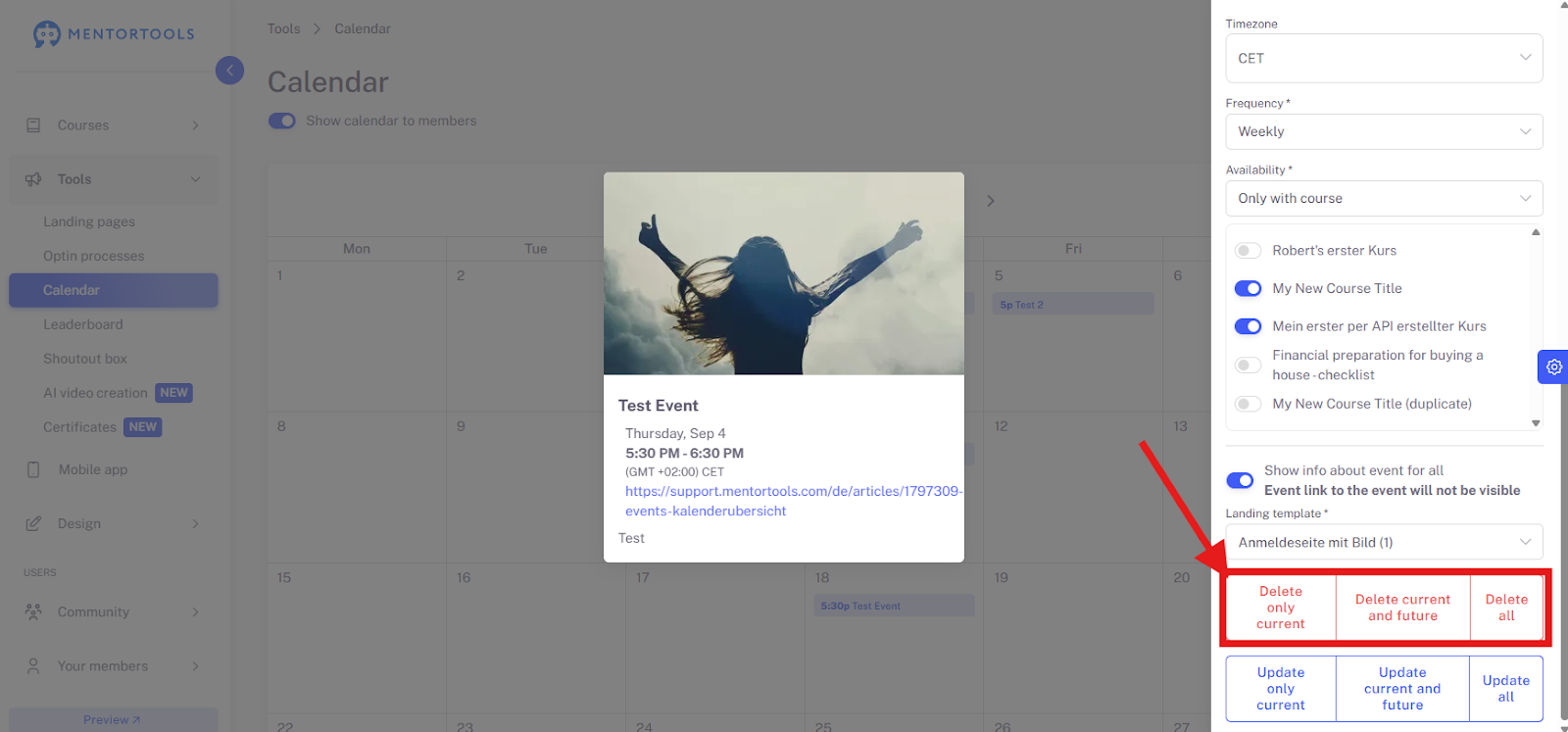
When you delete a recurring event, you can decide how you want to proceed:
Delete only the current one: Deletes only the specific event you have currently selected.
Delete current and future ones: Deletes the current event and all subsequent events in this series.
Delete all: Deletes all events in this series, including past ones.
Alternatives to Deleting
If you do not want to delete an event, the following options are available to you:
Deactivate visibility: The event remains in the backend but is invisible to participants.
Move or edit the event: You can, for example, move the event to a new date or change the target group.
Tip for Tidiness in the Event Area
Regularly delete outdated or test events to keep your calendar overview clean.
Use the repetition function to manage events with a fixed rhythm more efficiently.
If necessary, upload recordings later and add them to the description—this keeps the process clear for participants.