How Does the Zapier (Webhook) Integration Work?
Last updated 11 months ago
Mentortools gives you the option to connect email providers directly. If you work with Tags, for example, you can assign specific tags that you've integrated into your email tool to your member area. This allows your email program's funnel to know exactly when to trigger a specific sequence.
To establish a connection, follow these steps:
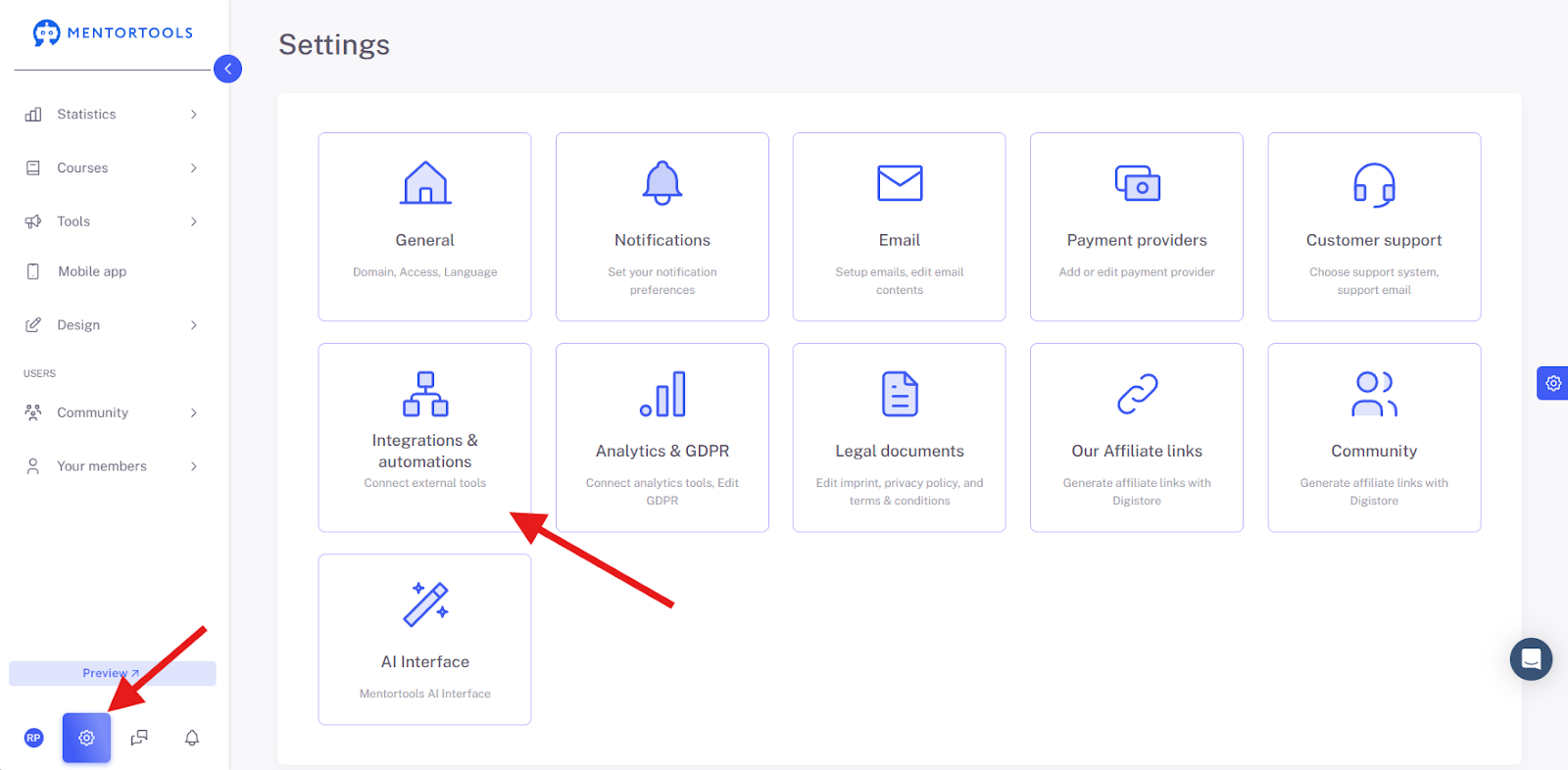
Click on “Settings” and then on “Integrations & Automations.”
Integration Services
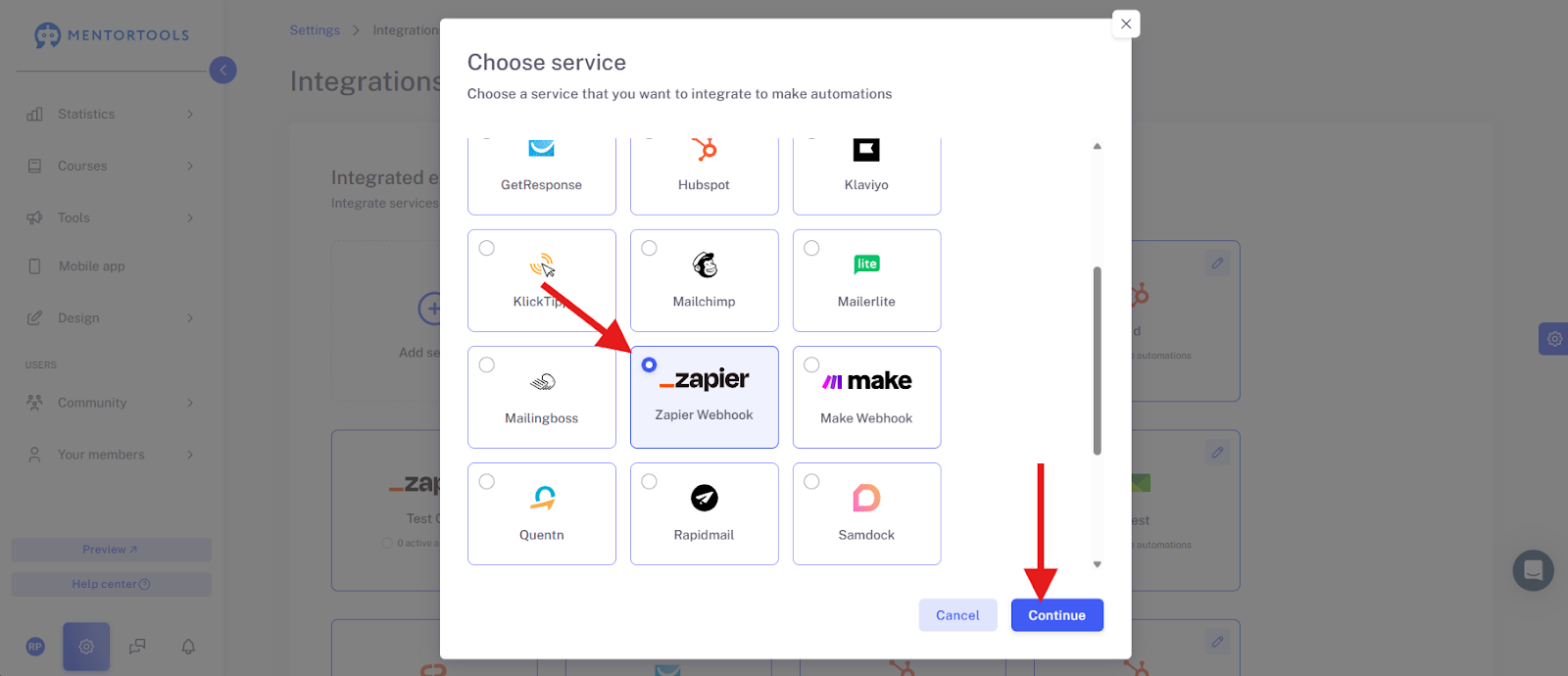
First, establish a connection to your email provider. Click on “Add service.”

Now select “Zapier” and then click “Continue.”
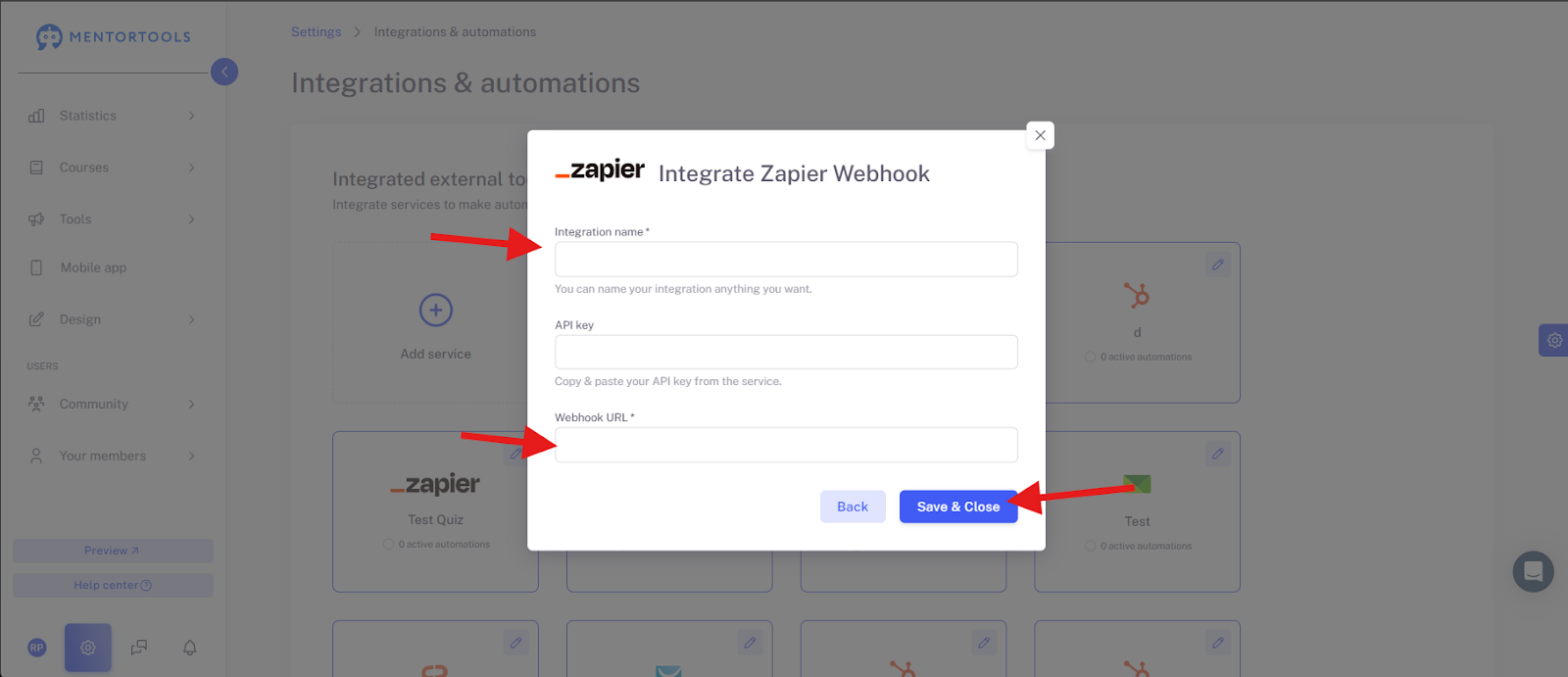
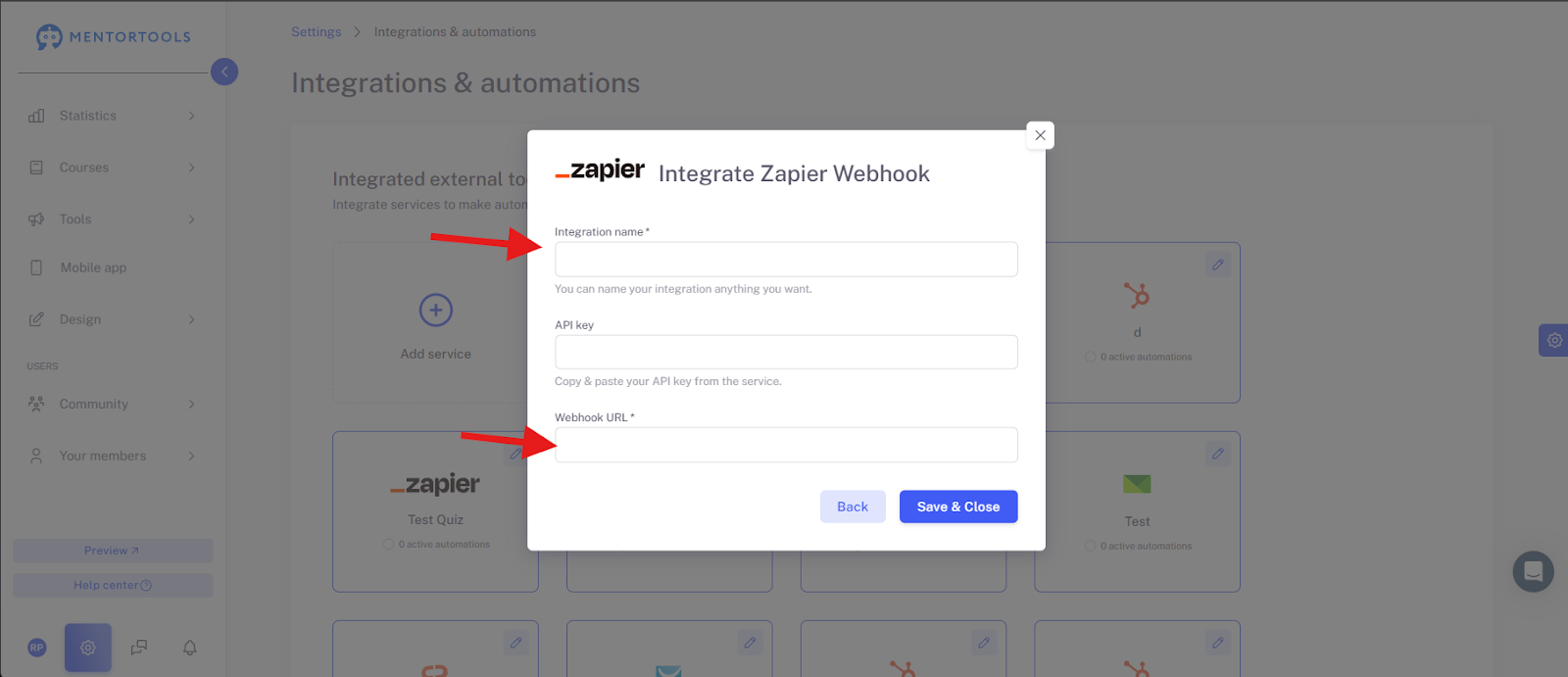
Now enter the Integration Name (freely chosen) and the Webhook URL. The API Key is not necessary here.
Getting the Webhook URL
To get a Webhook URL, you need to create a new Zap.
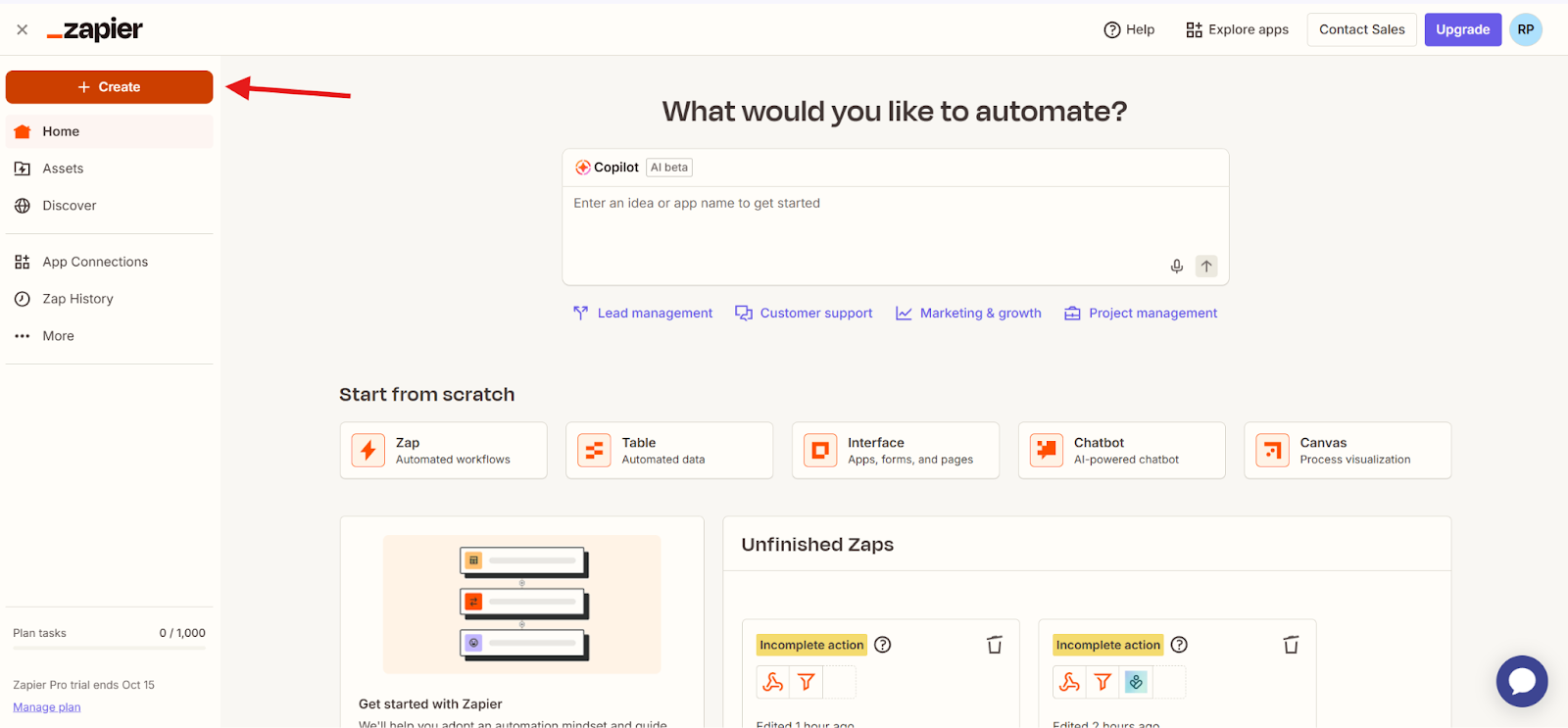
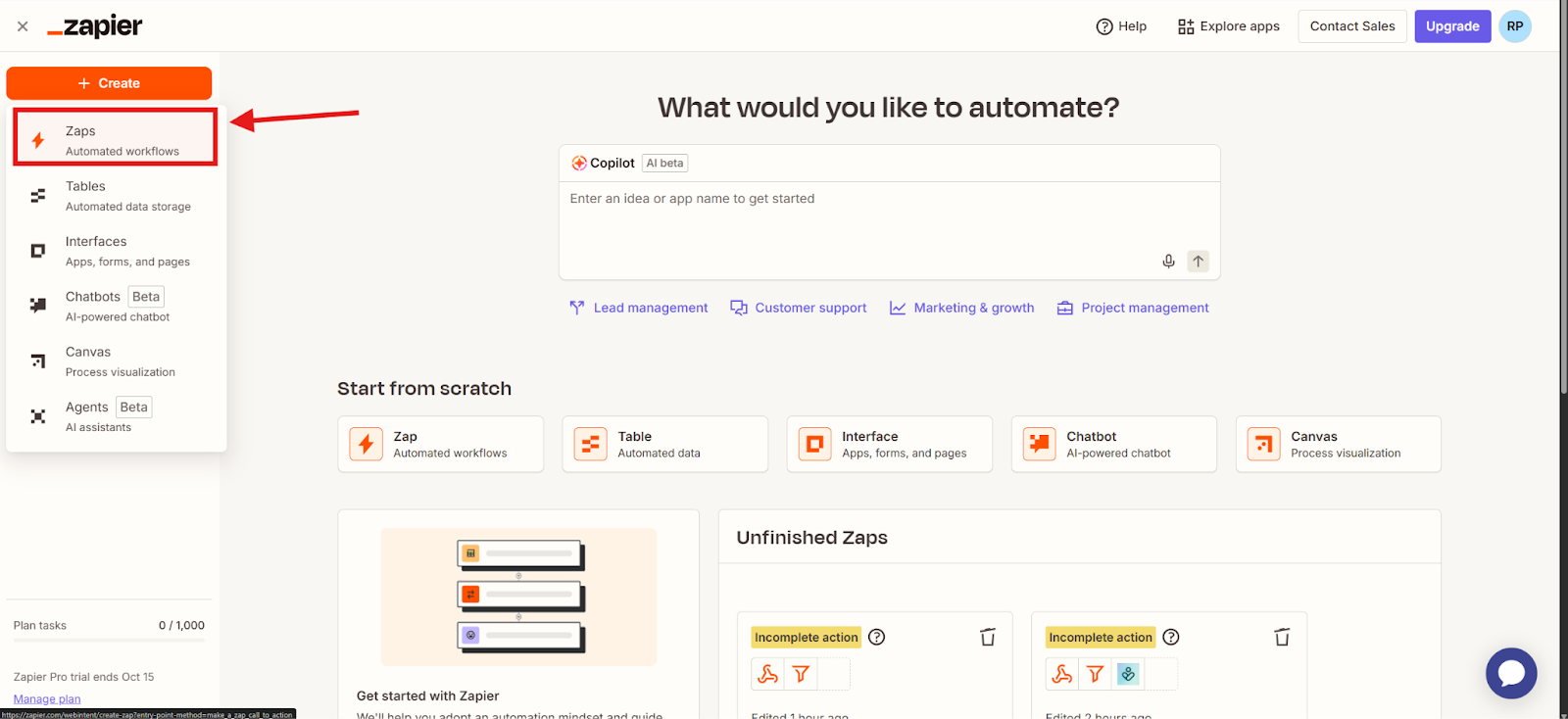
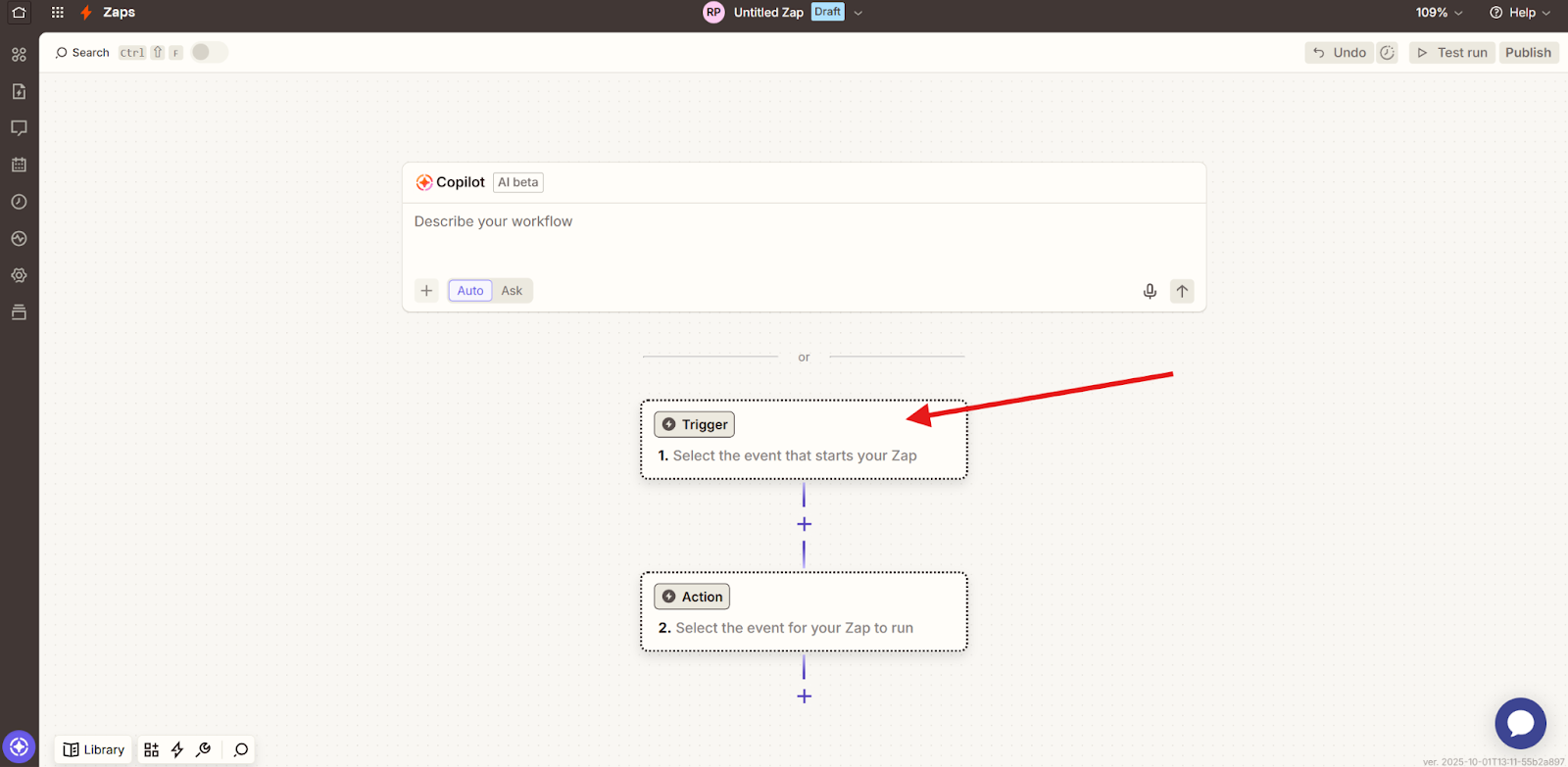
Now click on “Trigger”:
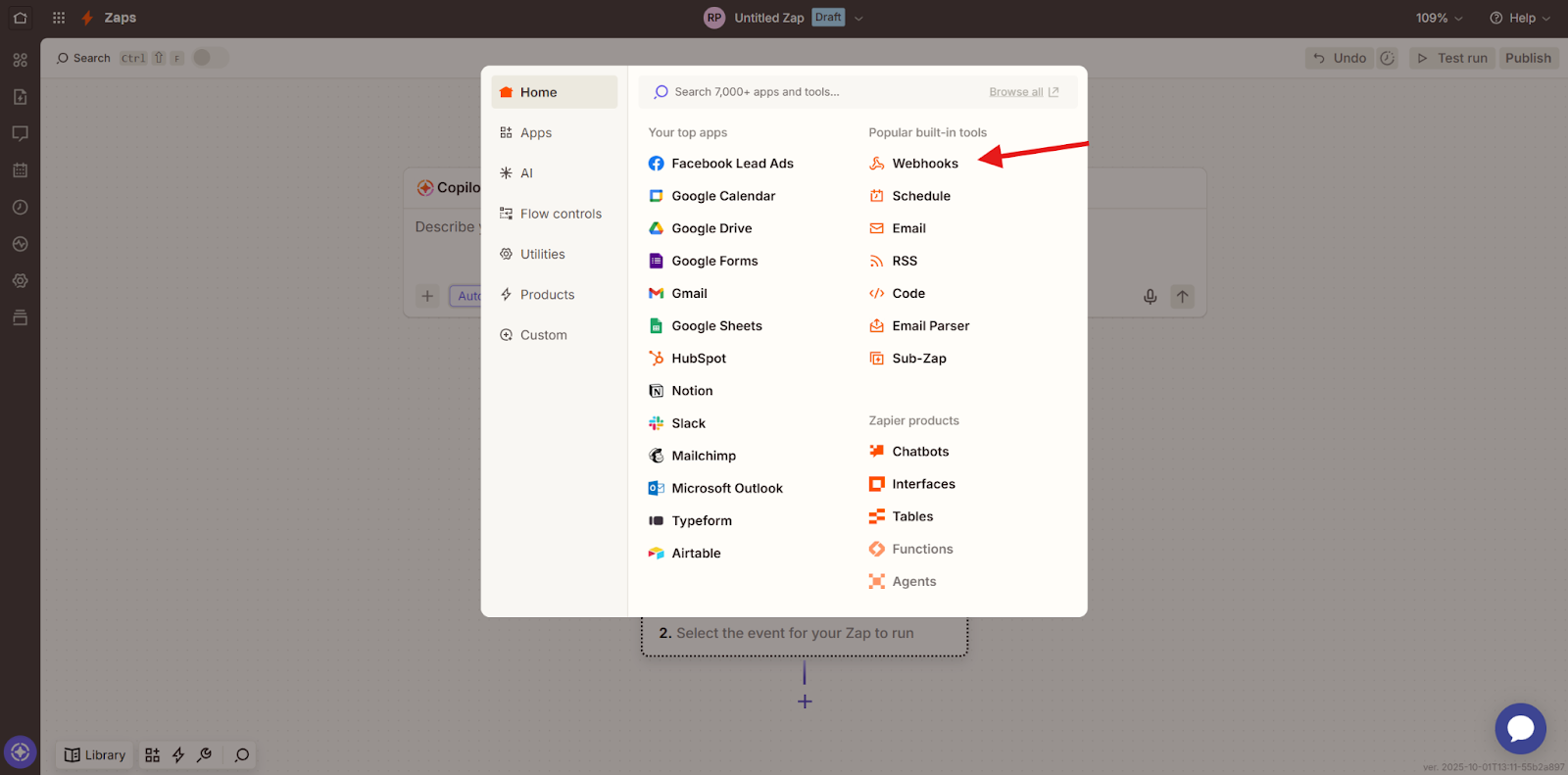
And select “Webhooks”.
Under “Choose an Event,” select “Catch Hook” or “Catch Raw Hook.”
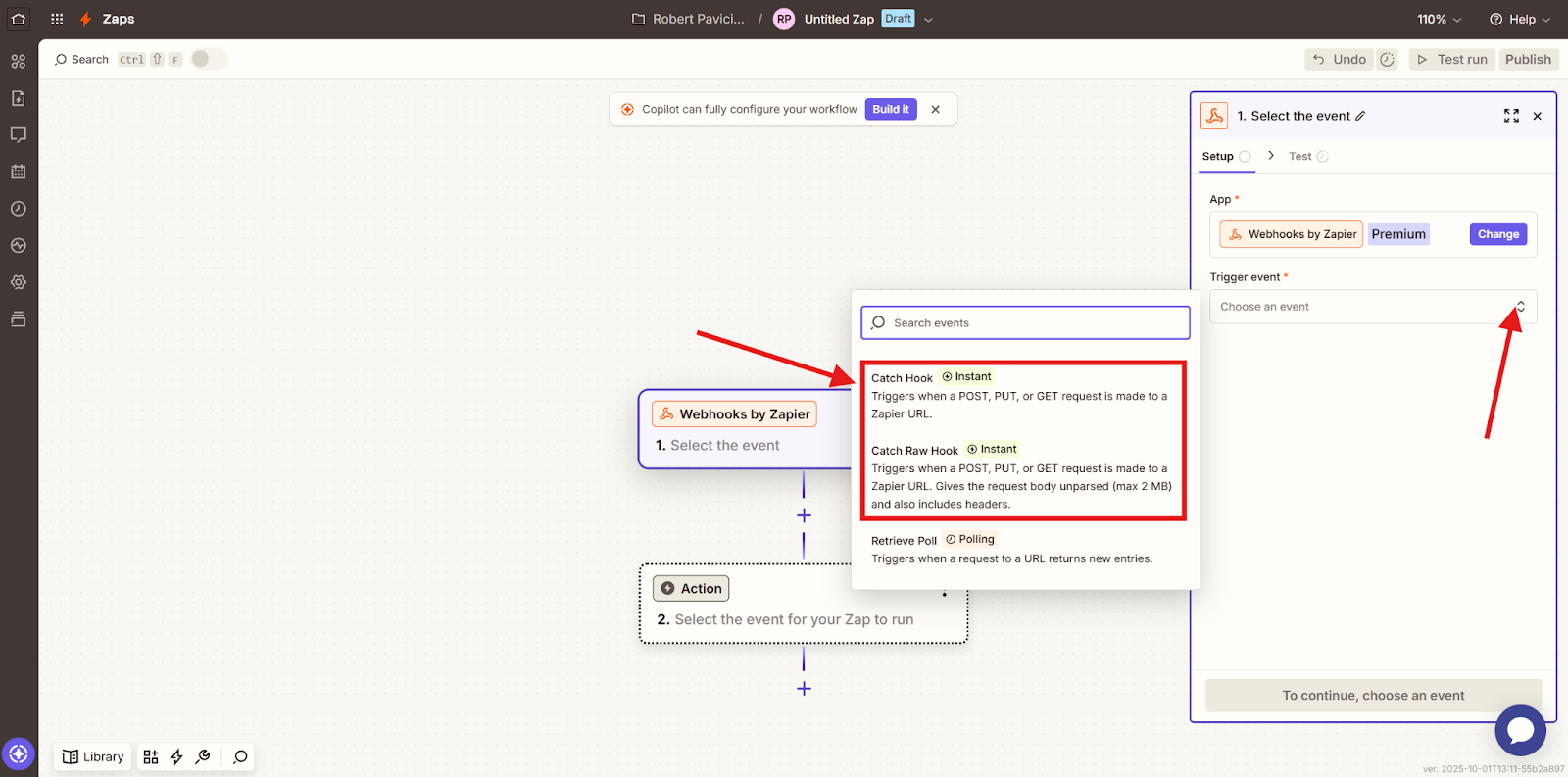
Now click on “Continue.”

What does "Child Key" mean in Zapier?
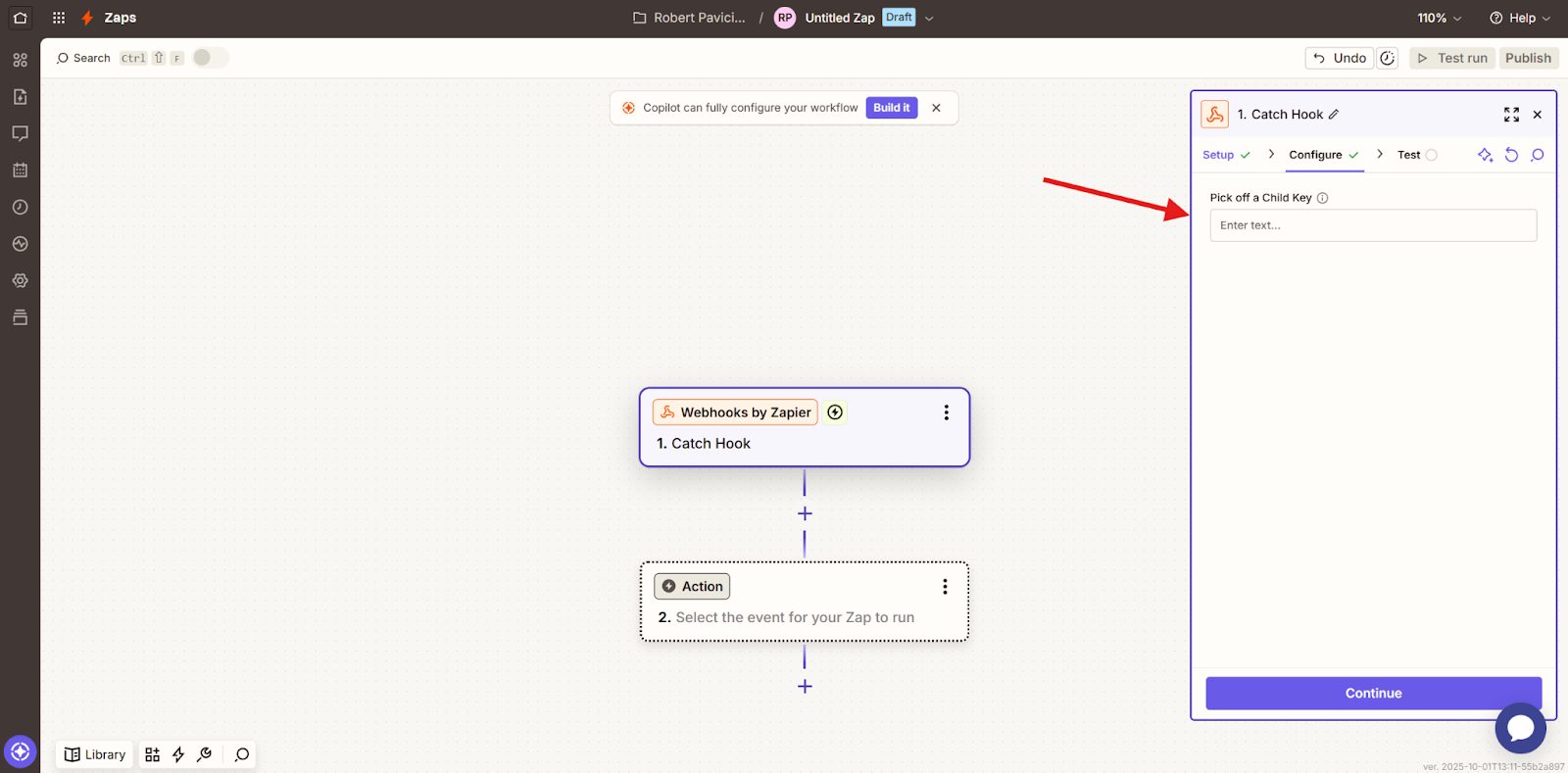
Normally, an application (like Mentortools) sends all data in one large package (Payload) to the Zapier Webhook. Sometimes, however, this data is unnecessarily deeply nested.
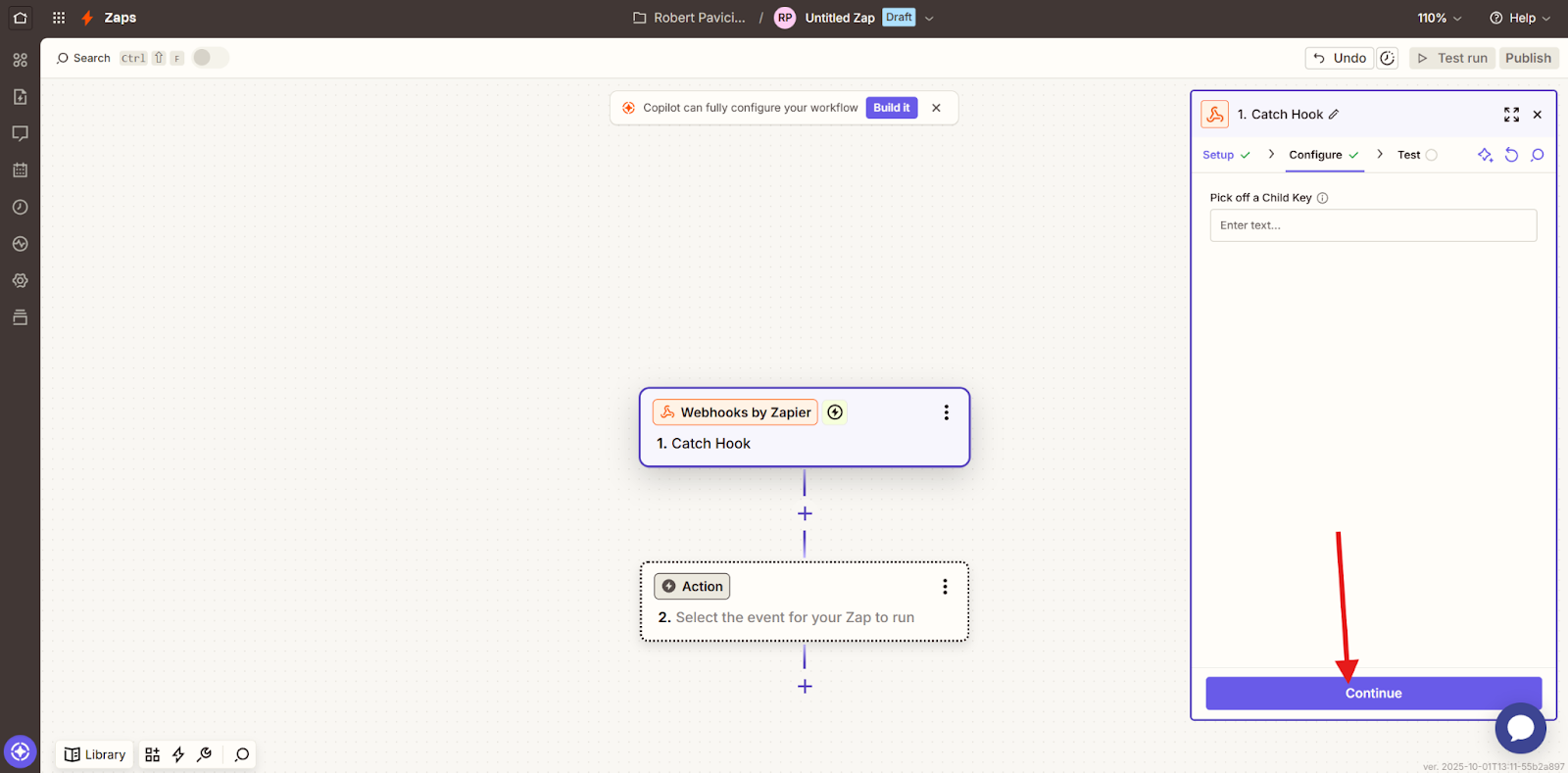
The "Child Key" setting allows you to instruct Zapier to only use a specific part of this data package and ignore the rest. In this case, you can leave this blank so that all data is transferred. Click “Continue.”
Zapier has now generated a Webhook URL for this Zap:
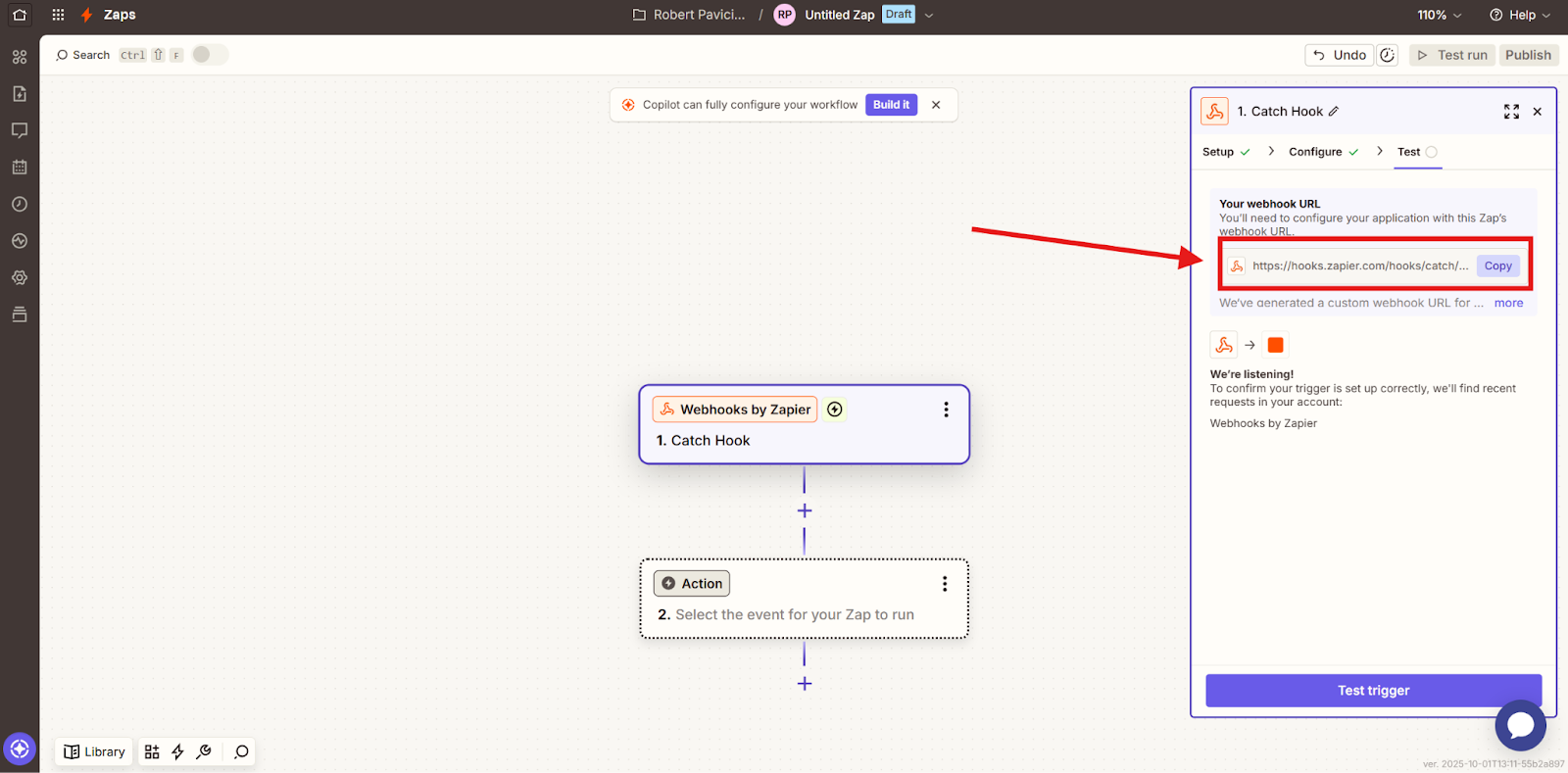
Copy this and enter it into Mentortools under “Webhook-URL,” then click “Save and close” to complete the integration.