Zoom Integration in Mentortools: Automatically Embed Recordings into Courses
With the new Zoom integration, you can automatically embed your Zoom meeting recordings into Mentortools courses and lessons. This saves you time and ensures your content is always up to date.
Last updated 11 months ago
Prerequisites:
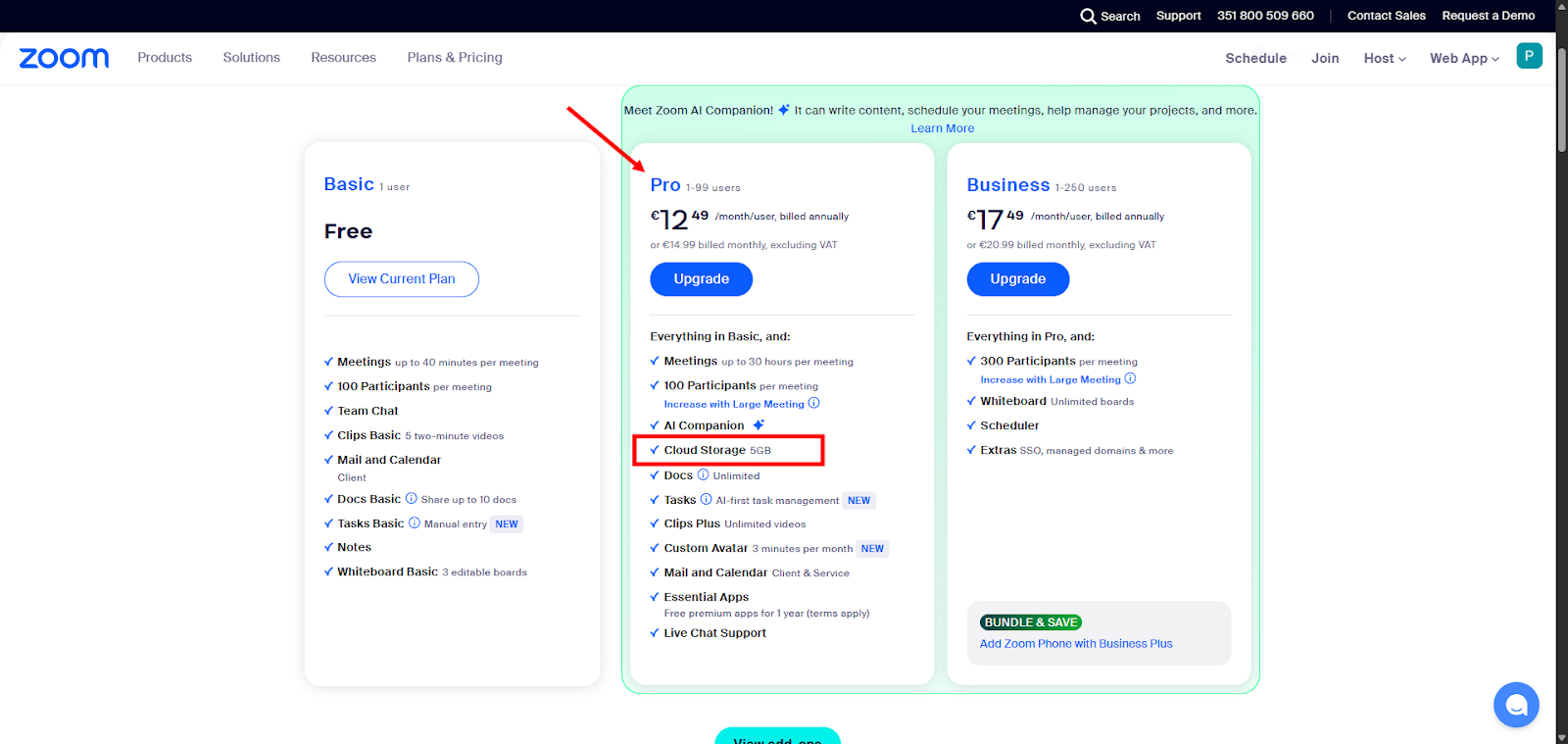
Note: To use the Zoom integration, you need a paid Zoom plan that supports cloud recordings. A free Zoom account (Basic plan) does not allow cloud storage for recordings; only local recordings are available. For features like the automatic embedding of Zoom recordings into Mentortools courses, an upgrade to a Pro, Business, or Enterprise plan is required.
An active Zoom account with cloud recording functionality (e.g., Zoom Pro or higher)
A Mentortools account with admin access
Adjust Zoom Settings
Make sure that automatic cloud recording is enabled in your Zoom account:
Log in to the Zoom web portal.
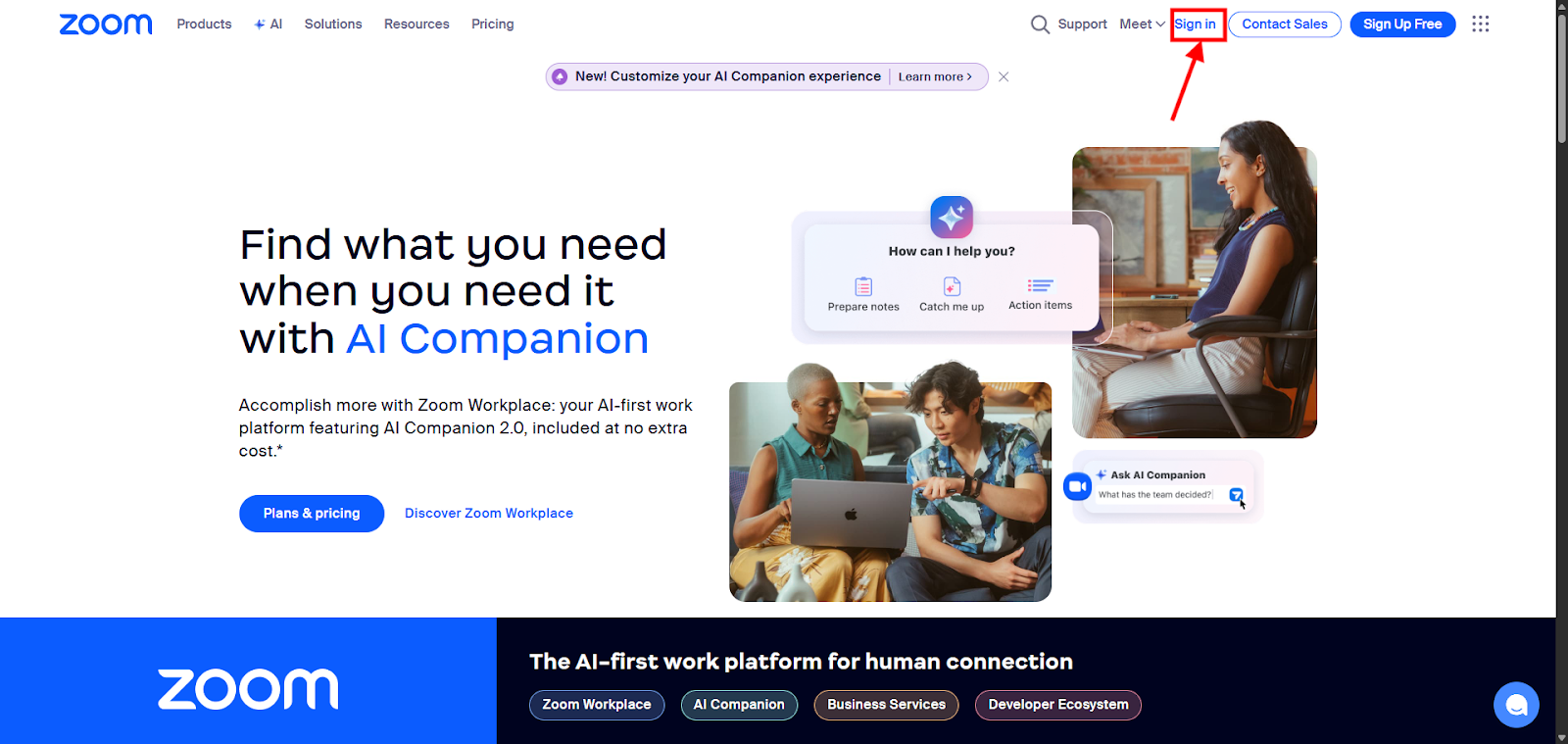
Click Develop → Build App.

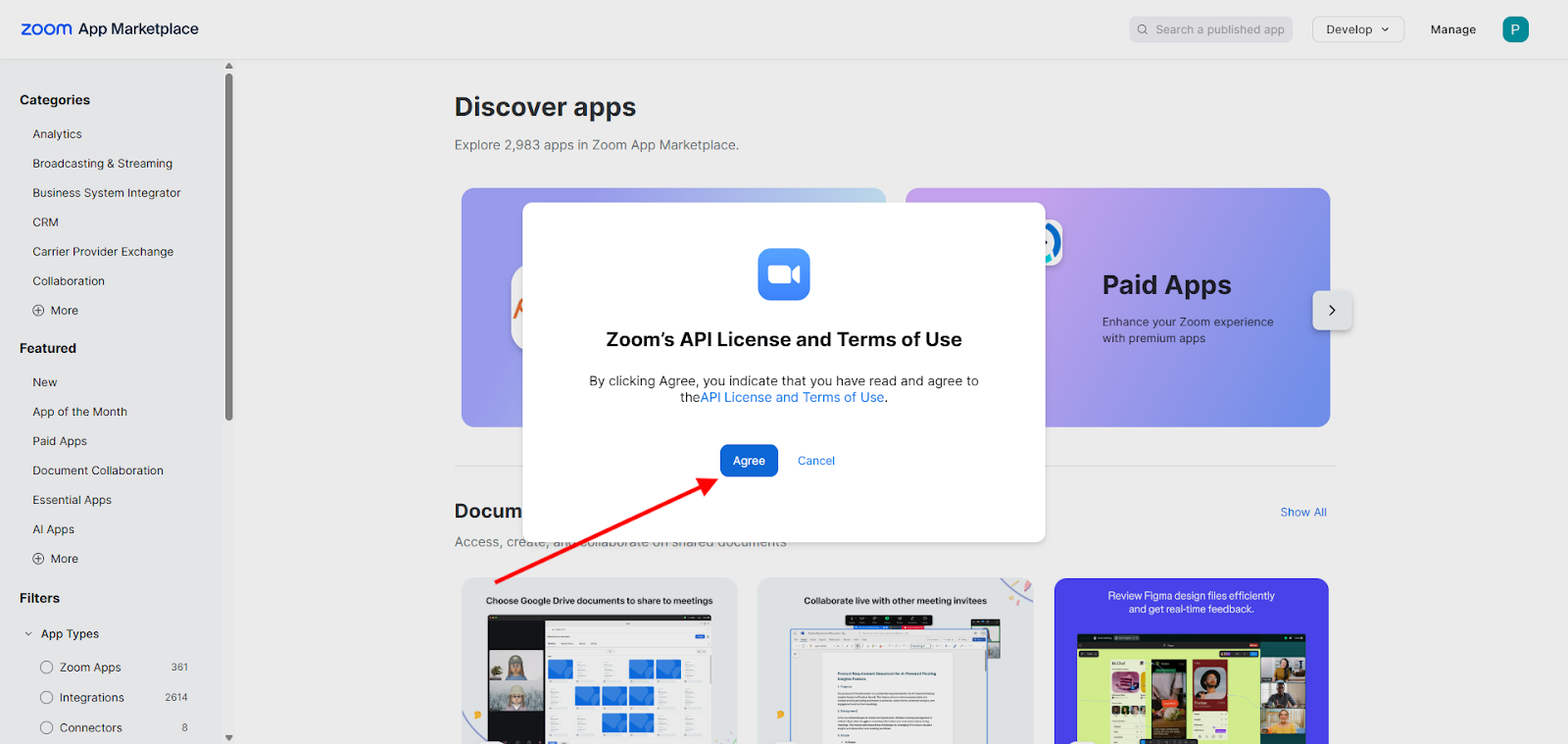
Confirm the Zoom API license.
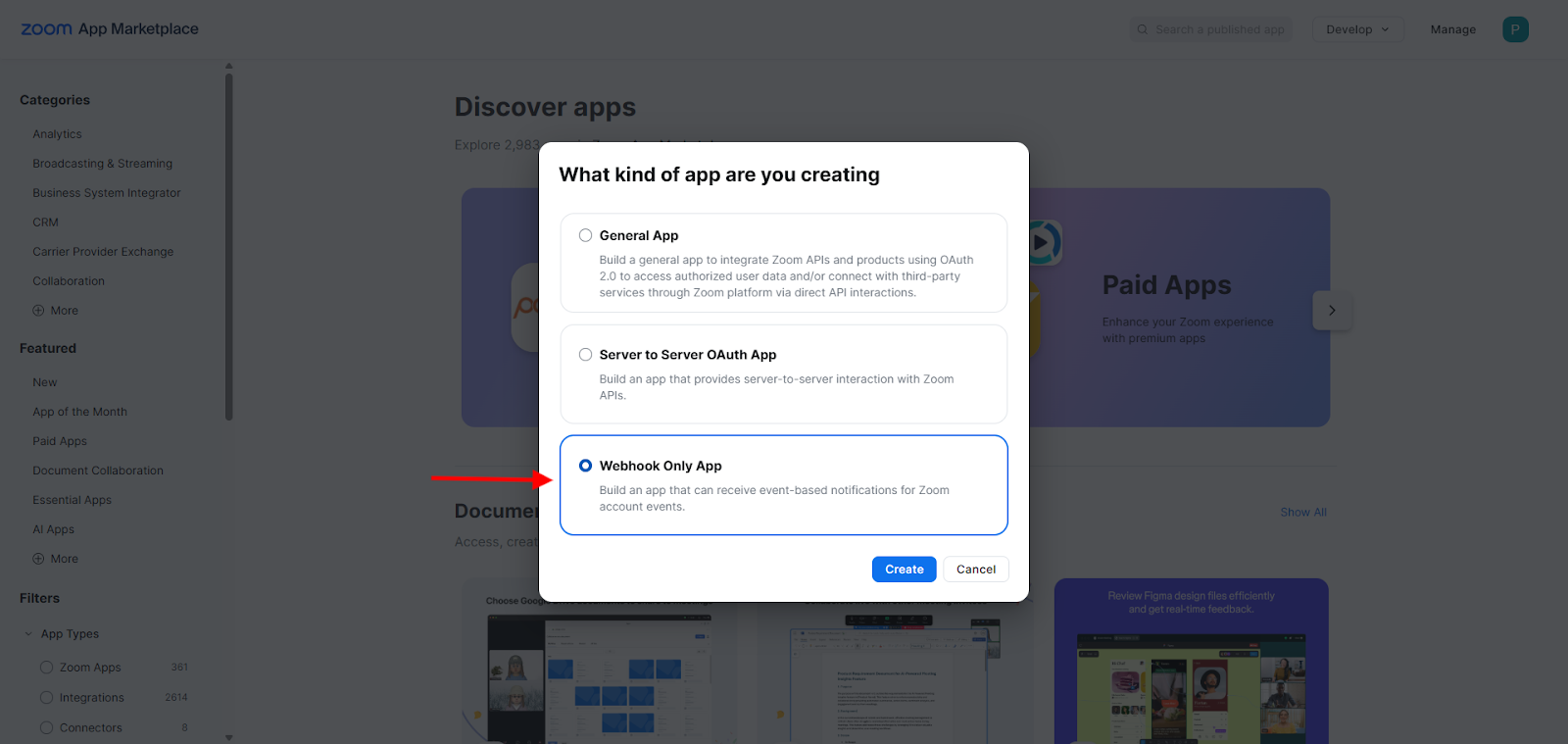
Select "Webhook Only App" as the App type.
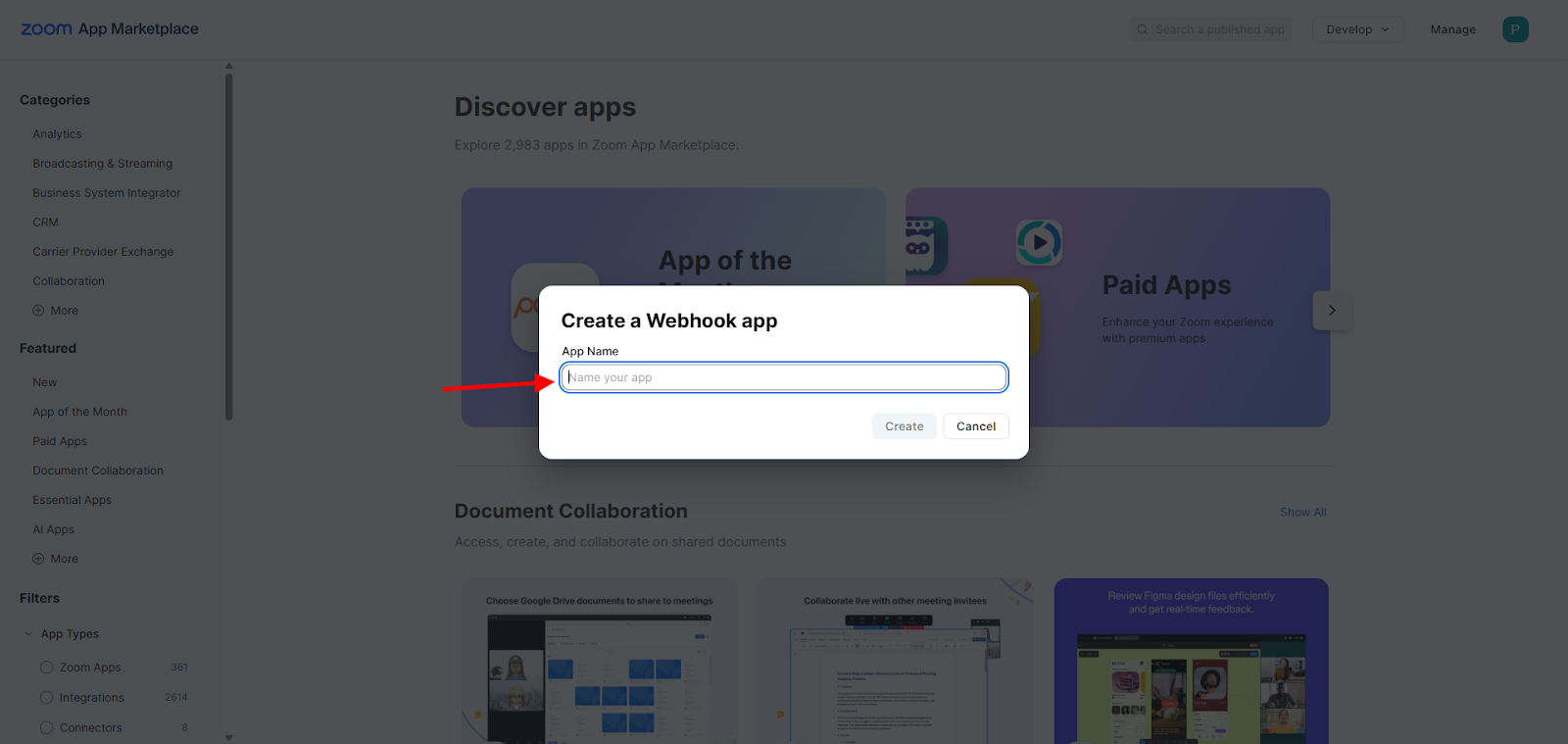
Give the app a name of your choice to make it easier to identify and then click 'Create'. On the next page, fill in the required fields with your information and click 'Continue'.
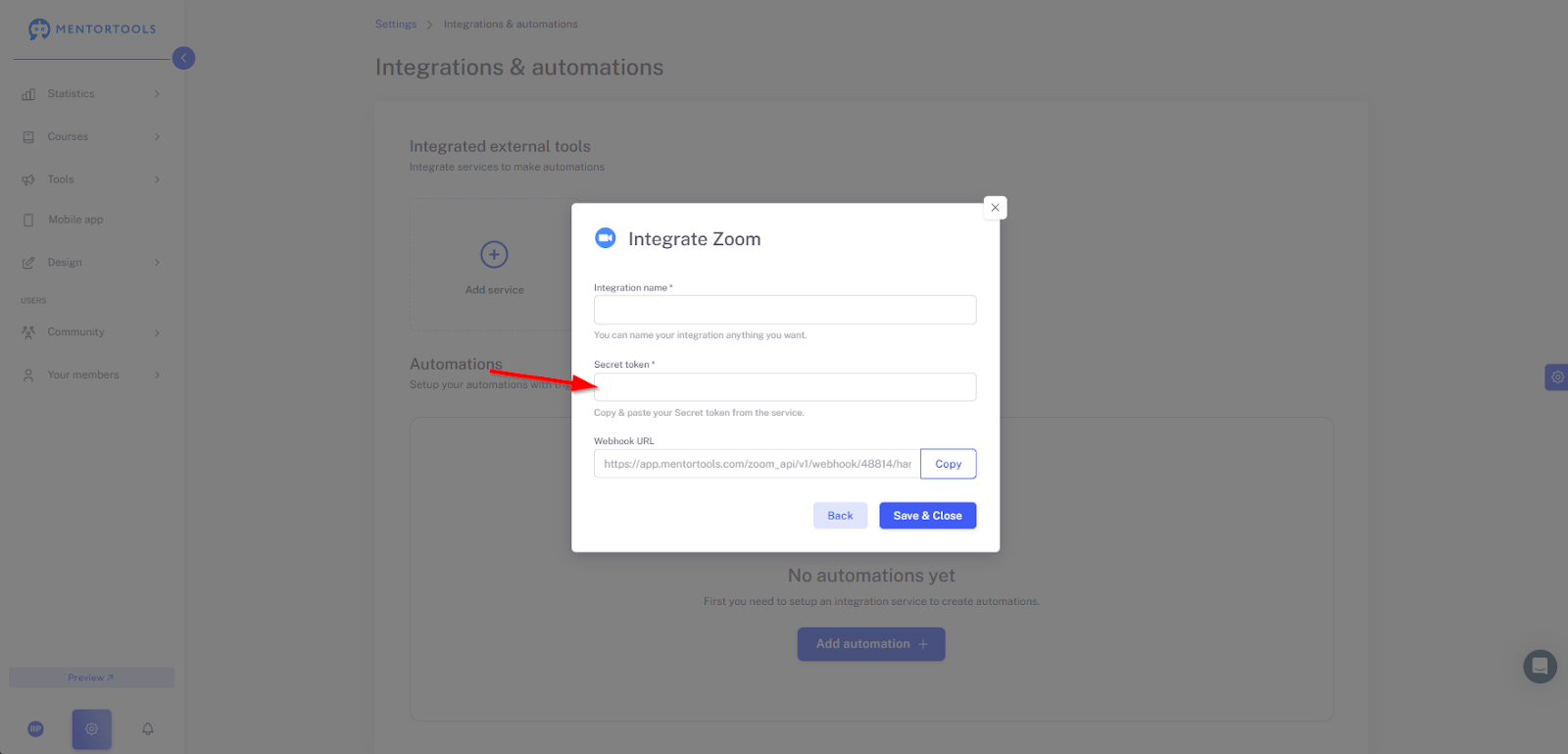
Copy the Secret Token from Zoom and paste it into the Secret Token field in the Mentortools Zoom integration, then click the blue Save button.
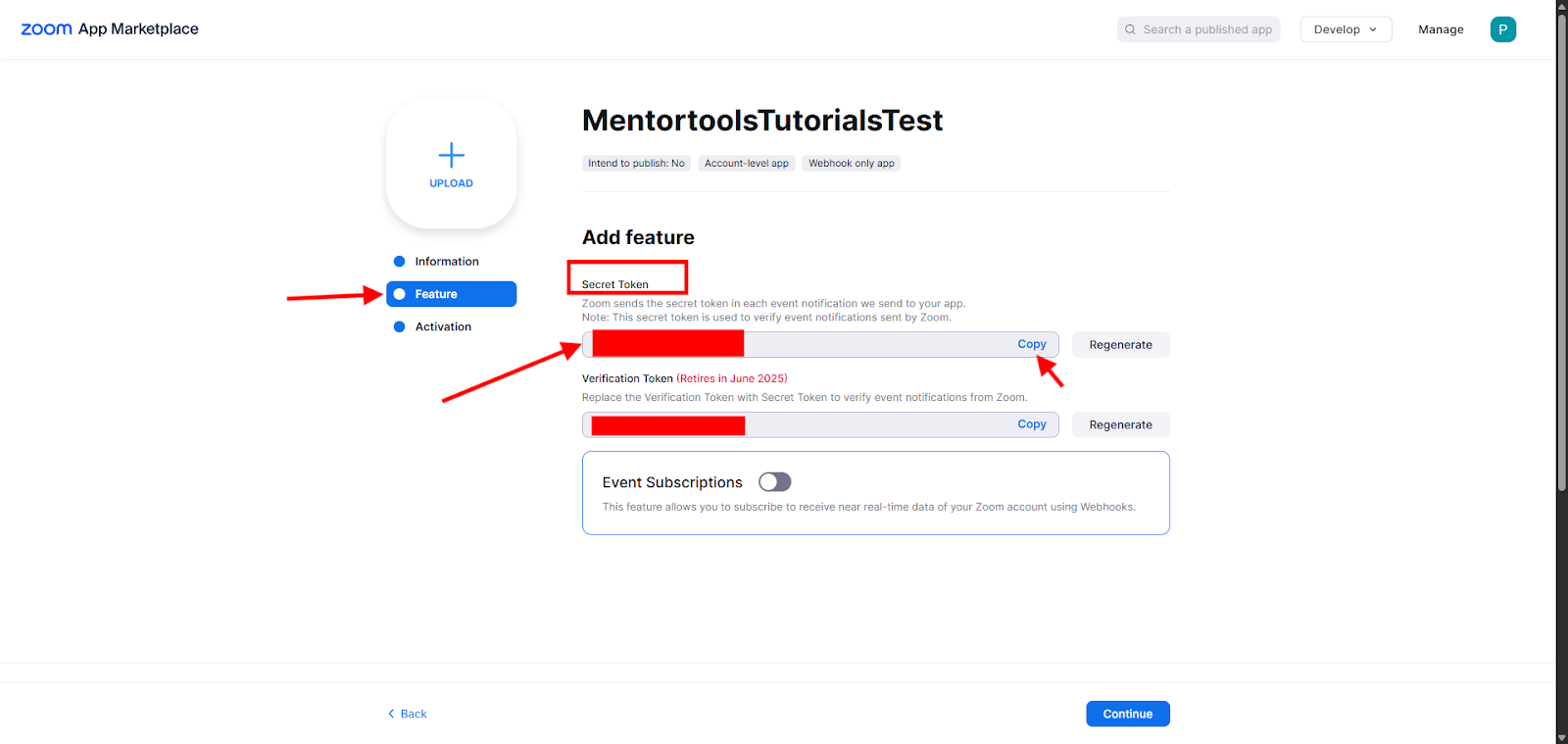
Next, activate the "Event Subscription" toggle button.
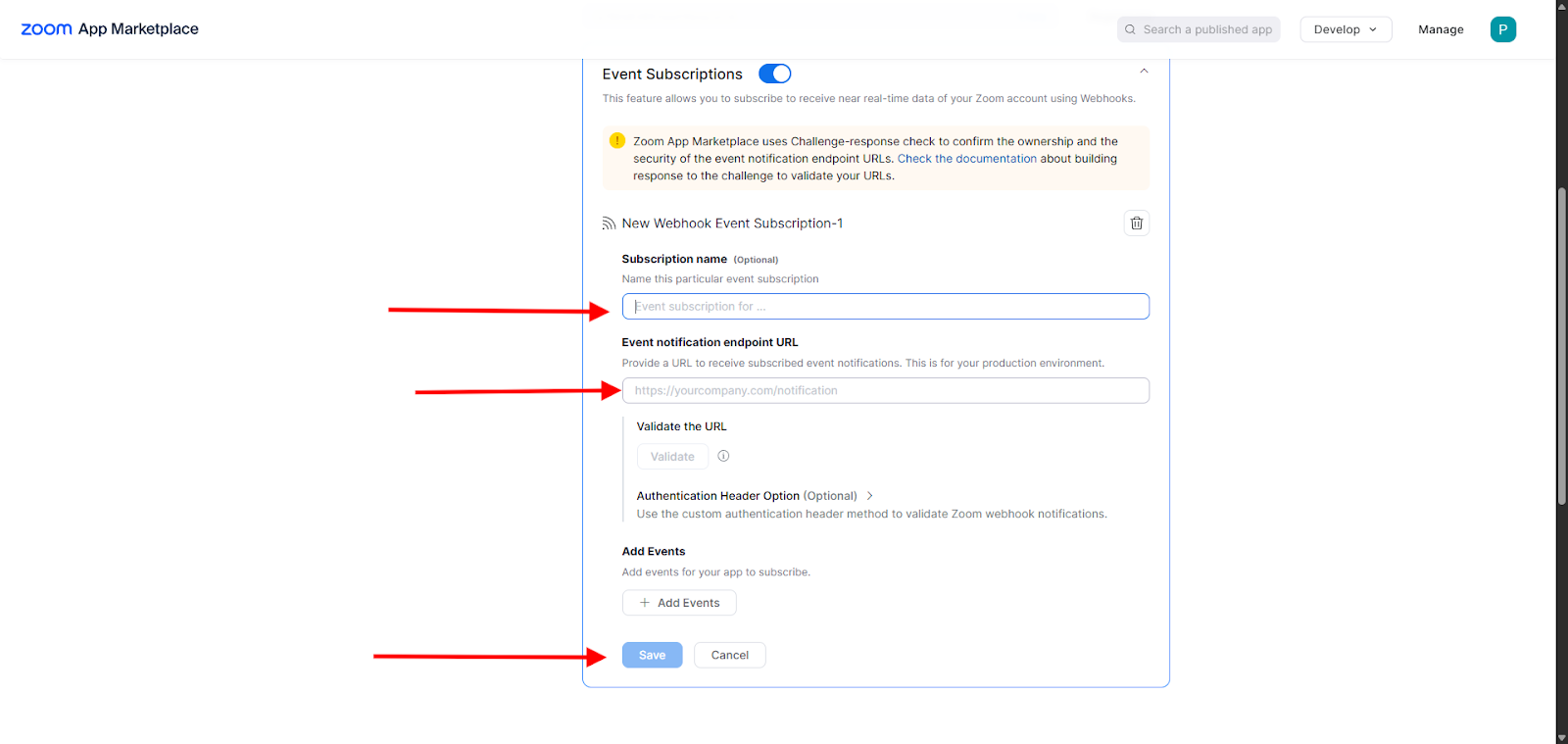
Click on Add Event Subscription and paste the notification URL from Mentortools into the Event notification endpoint URL field on Zoom. Click Validate to test the connection.
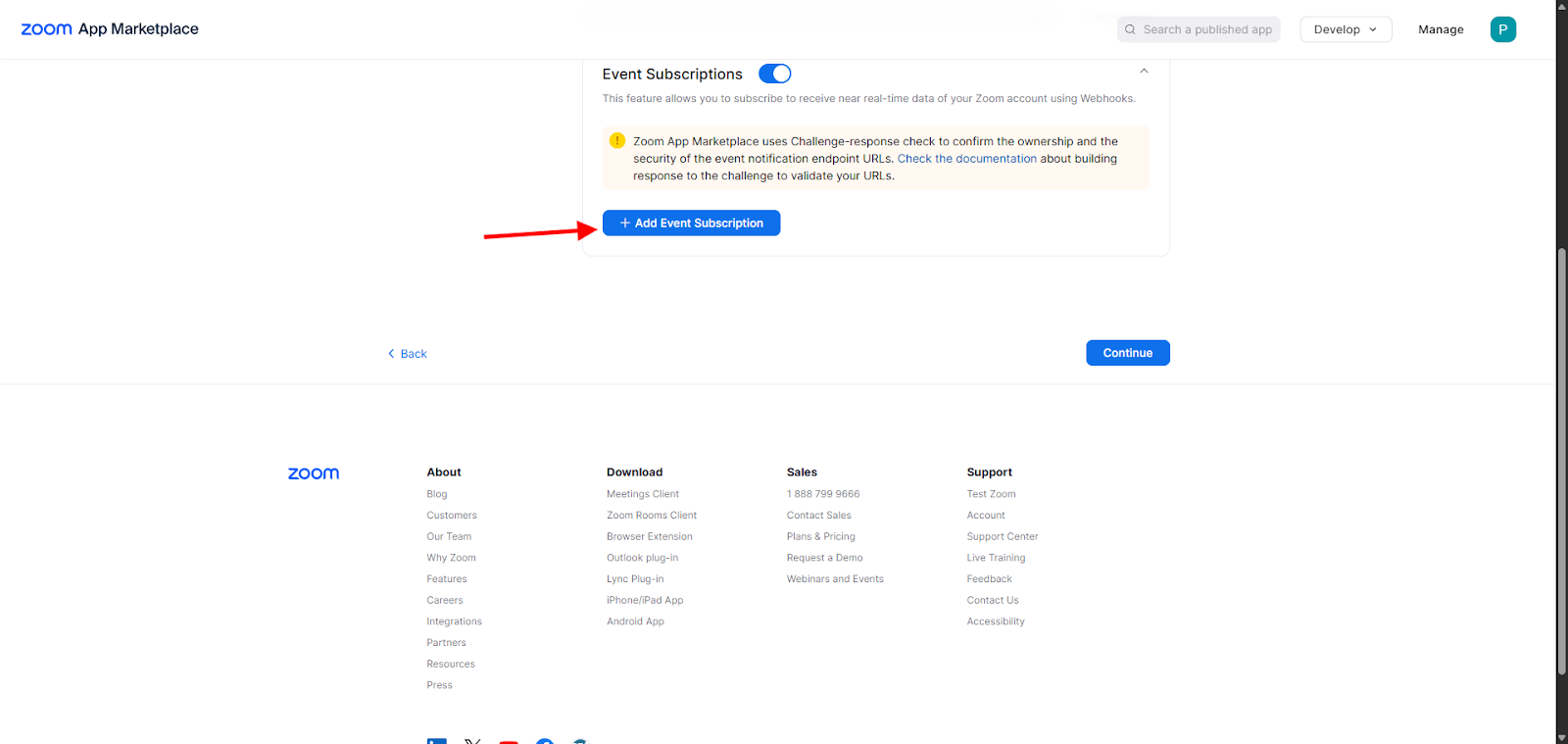
Then, you can select when the recordings are uploaded under Add Events. We recommend the event "All Recordings have completed". Click Done.

Finally, complete the setup by clicking Save and then Continue.
The app is now created, and the following message appears: “Your app is activated on the account.” This completes the setup in the browser.
Note: This feature is only available in paid Zoom plans.
Selecting Meetings
Open the Zoom desktop app.
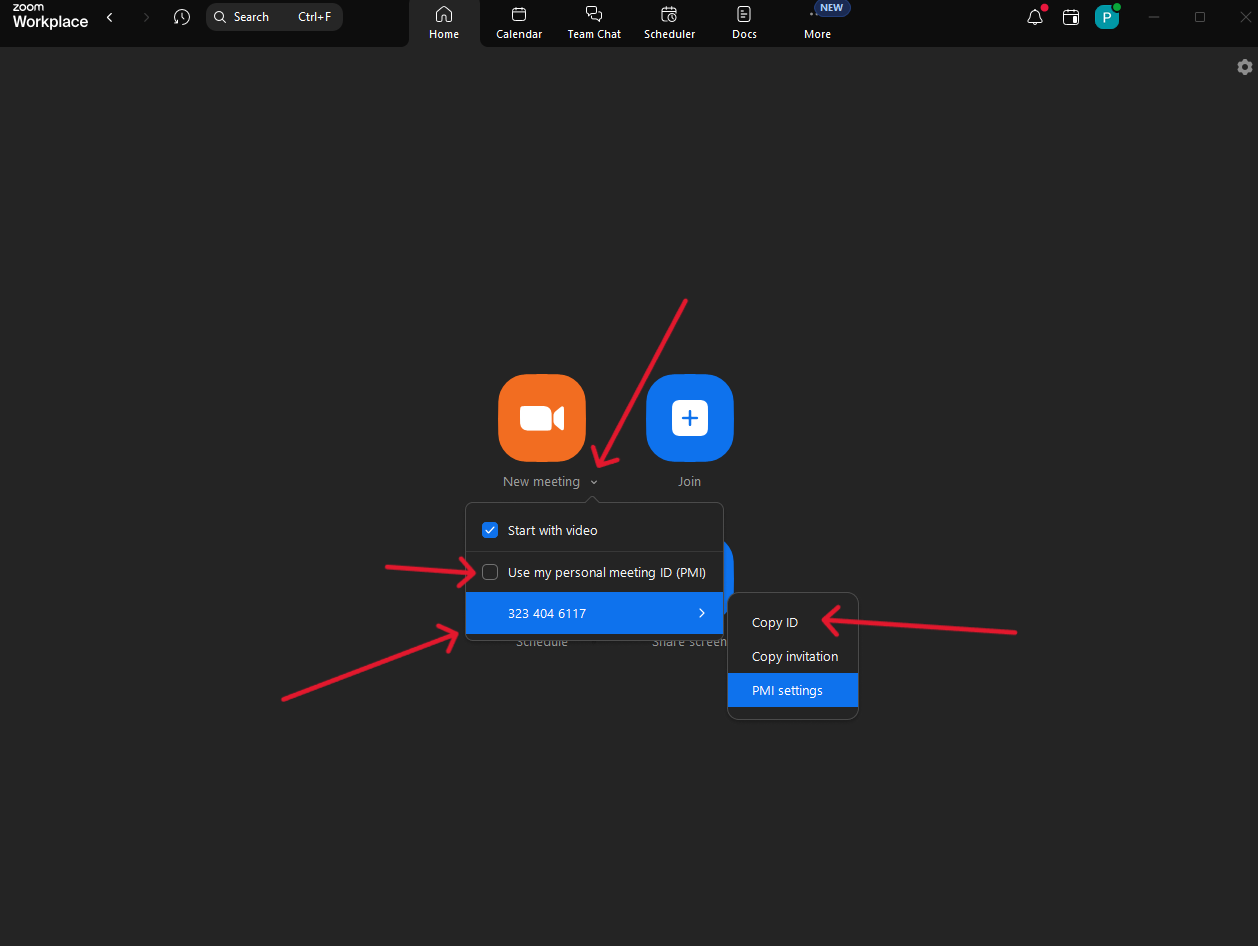
Log in to Zoom and go to the Personal Meeting ID Settings, or PMI Settings. This setting is somewhat hidden under the small arrow next to "New Meeting."

Under “PMI Settings,” you'll find "Advanced Options." Here, select "In the Cloud."
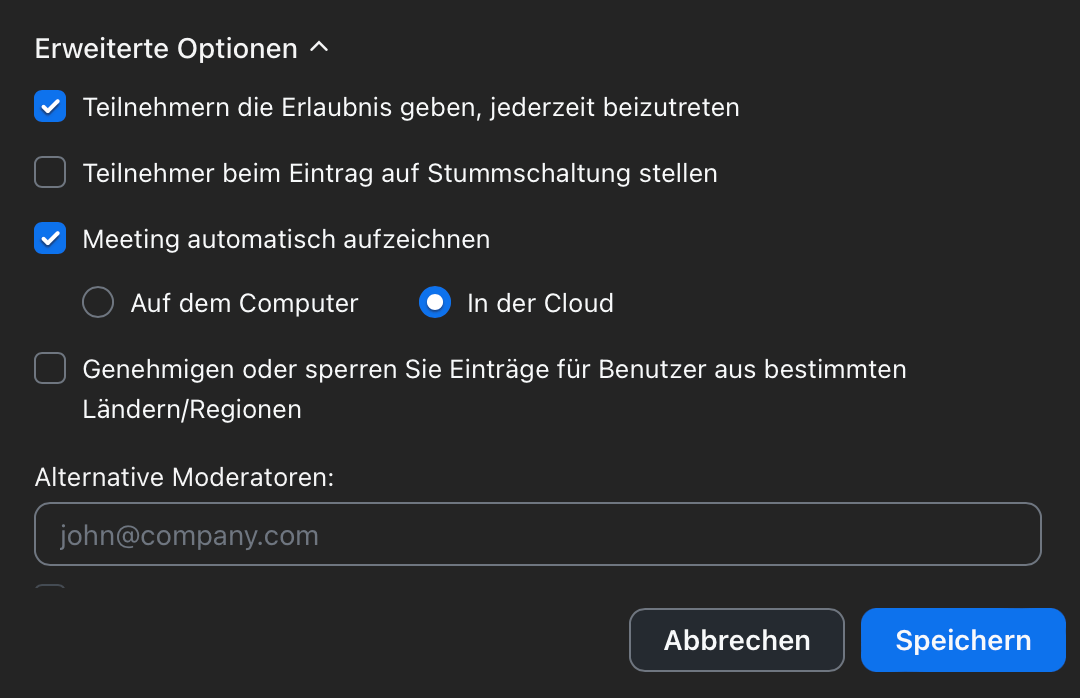
Note: If you do not have this option, you have a Zoom Basic license, which will not work with this integration.
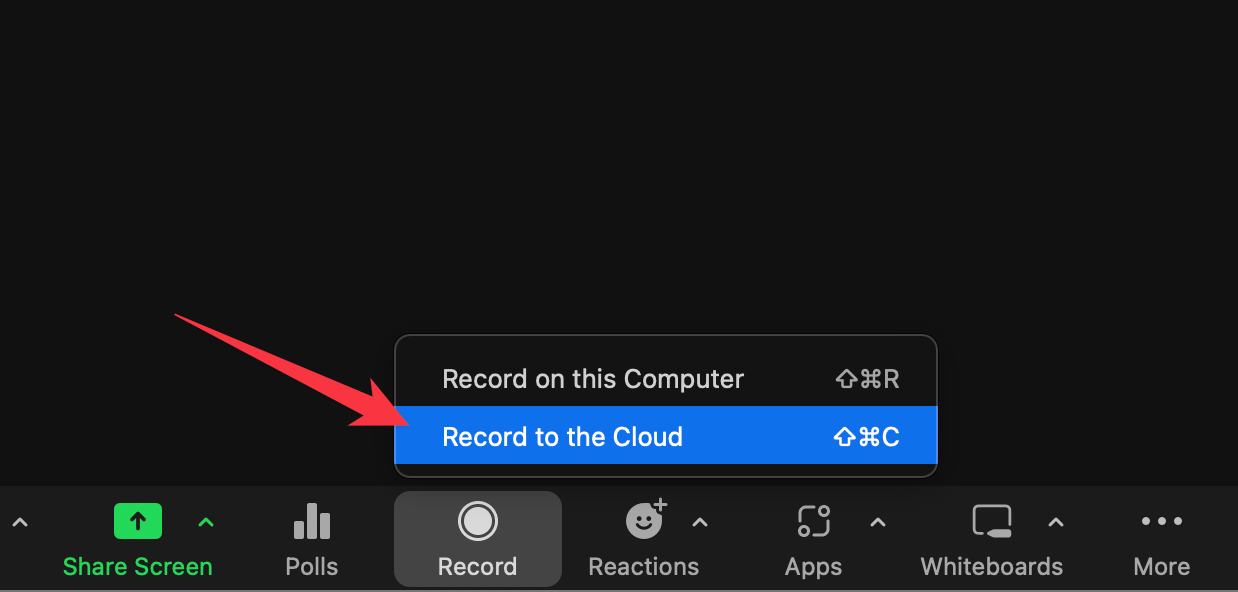
If you are in a meeting and click on Record to Cloud, the Zoom integration will also work. If the recording is made locally using "Record on this Computer," no automatic upload to Mentortools will occur.
You can get the Zoom Meeting ID here:
Step-by-Step Guide for Mentortools Settings:
Log in to Mentortools
Log in to your Mentortools account: app.mentortools.com
Navigate to Integrations
In the dashboard, click on Settings. Then, select Integrations & Automations.

Add a New Integration
Click on "Add Service."
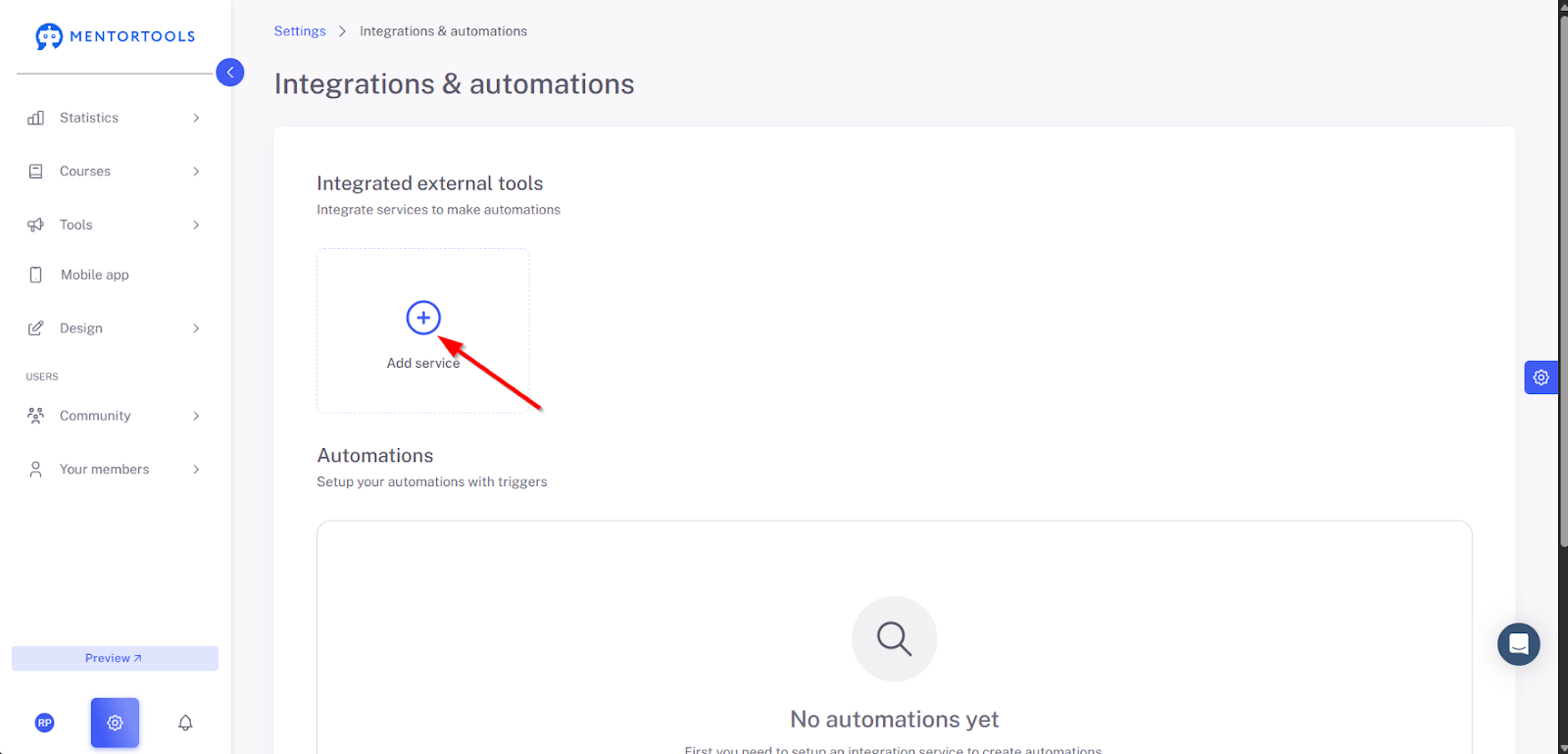
Select Zoom from the list of available services.
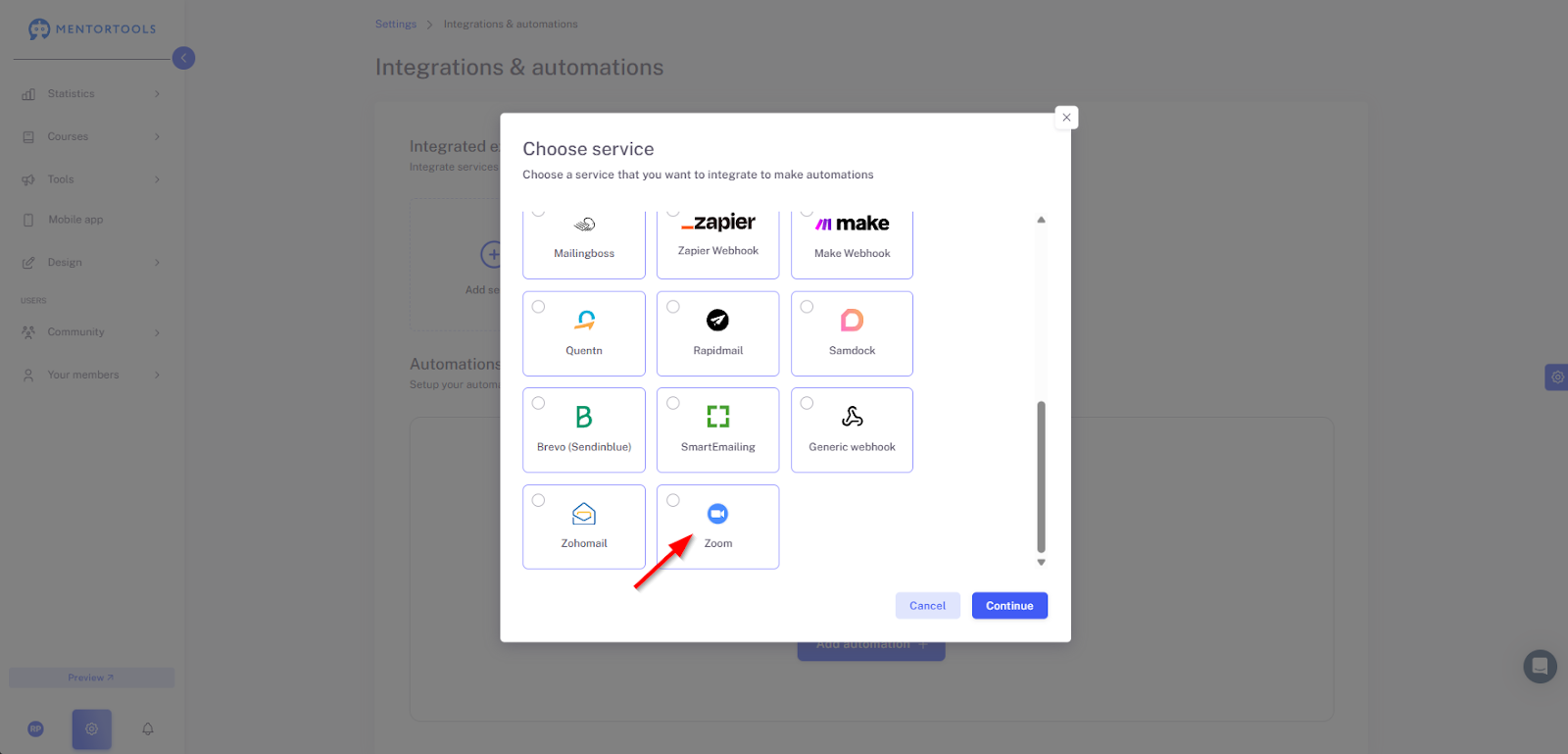
Configure the Integration
Enter an integration name (e.g., "Zoom Automation").
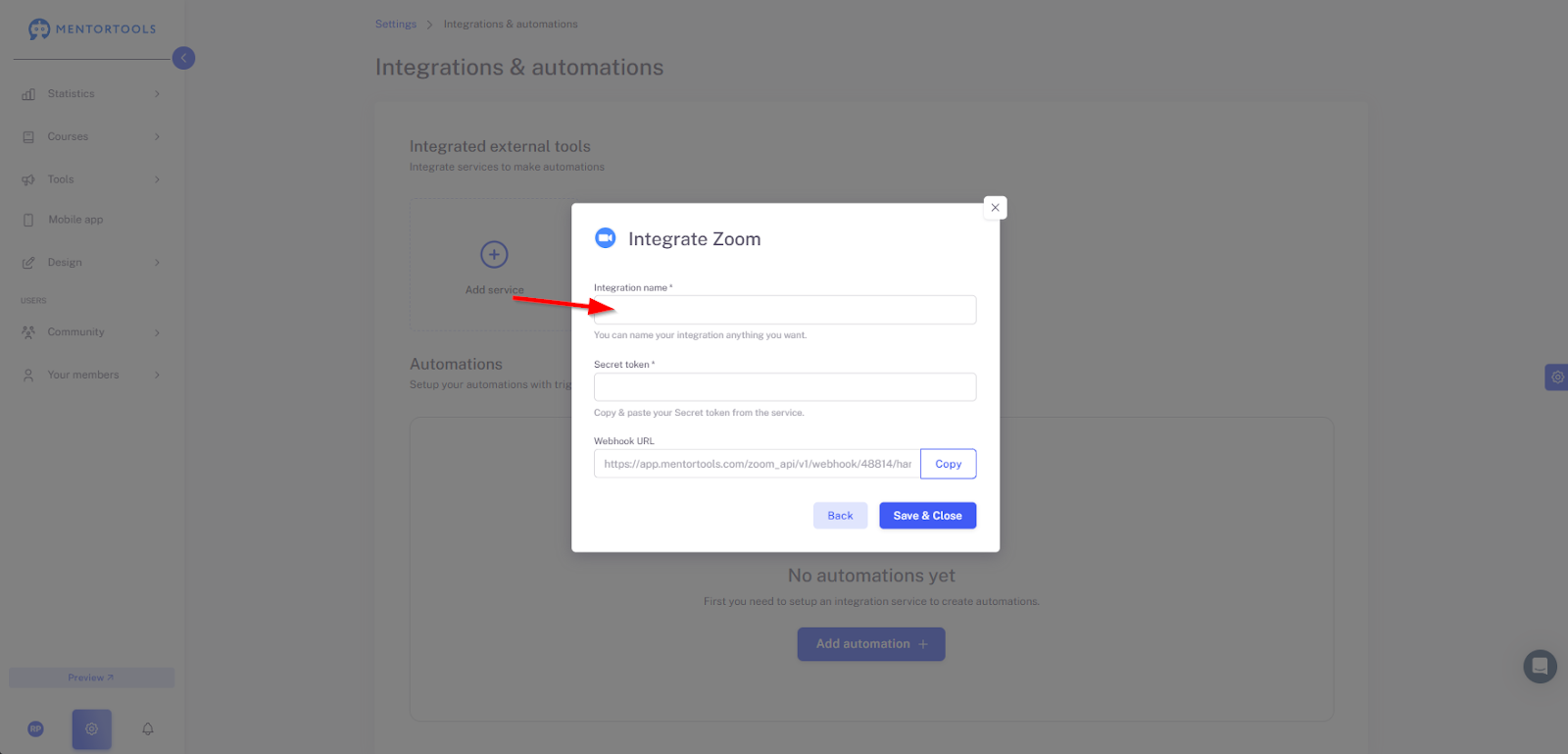
Enter the Secret Token you received from your Zoom account.
Click Save and close to finalize the integration.
Creating a New Automation
Navigate to Integrations
In the dashboard, click on Settings. Then, select Integrations & Automations.
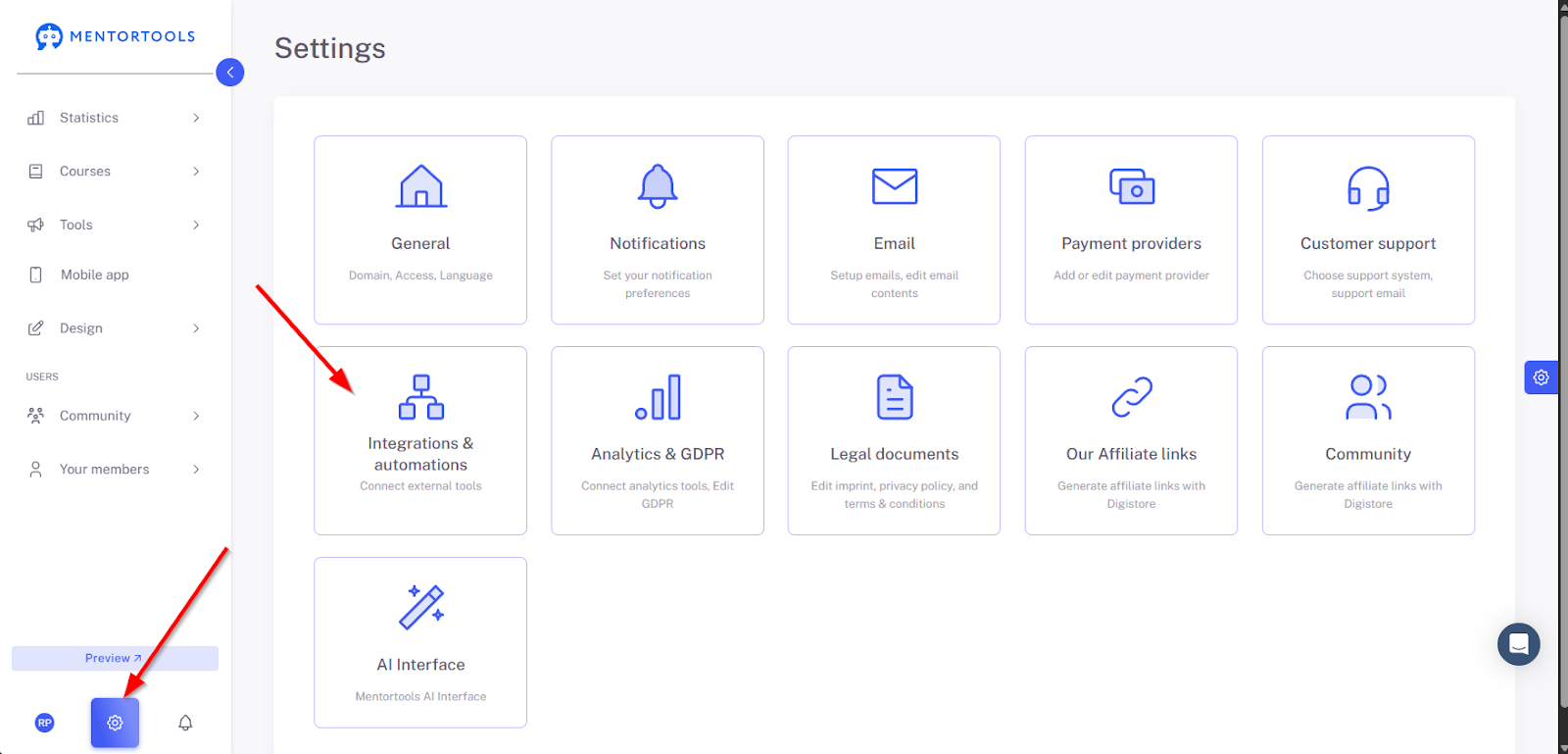
Add a New Automation
Now, we'll add the Zoom automation by clicking on the plus symbol.
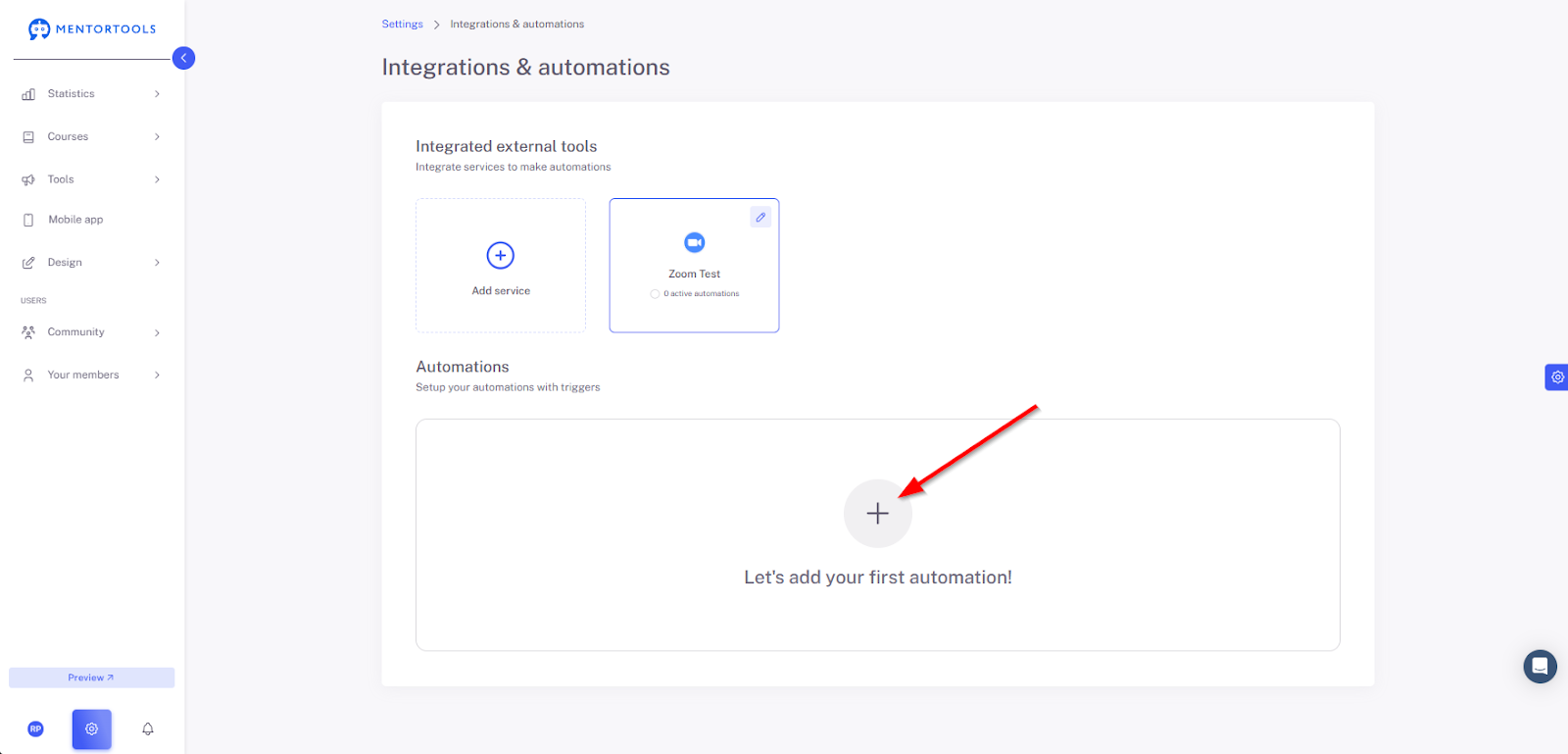
Afterward, select “External” (outside your member area).
Trigger Type: “Zoom recording available.”
Choose between All or Specific Meetings.
Note: For specific meetings, we need the “Zoom Meeting ID.”

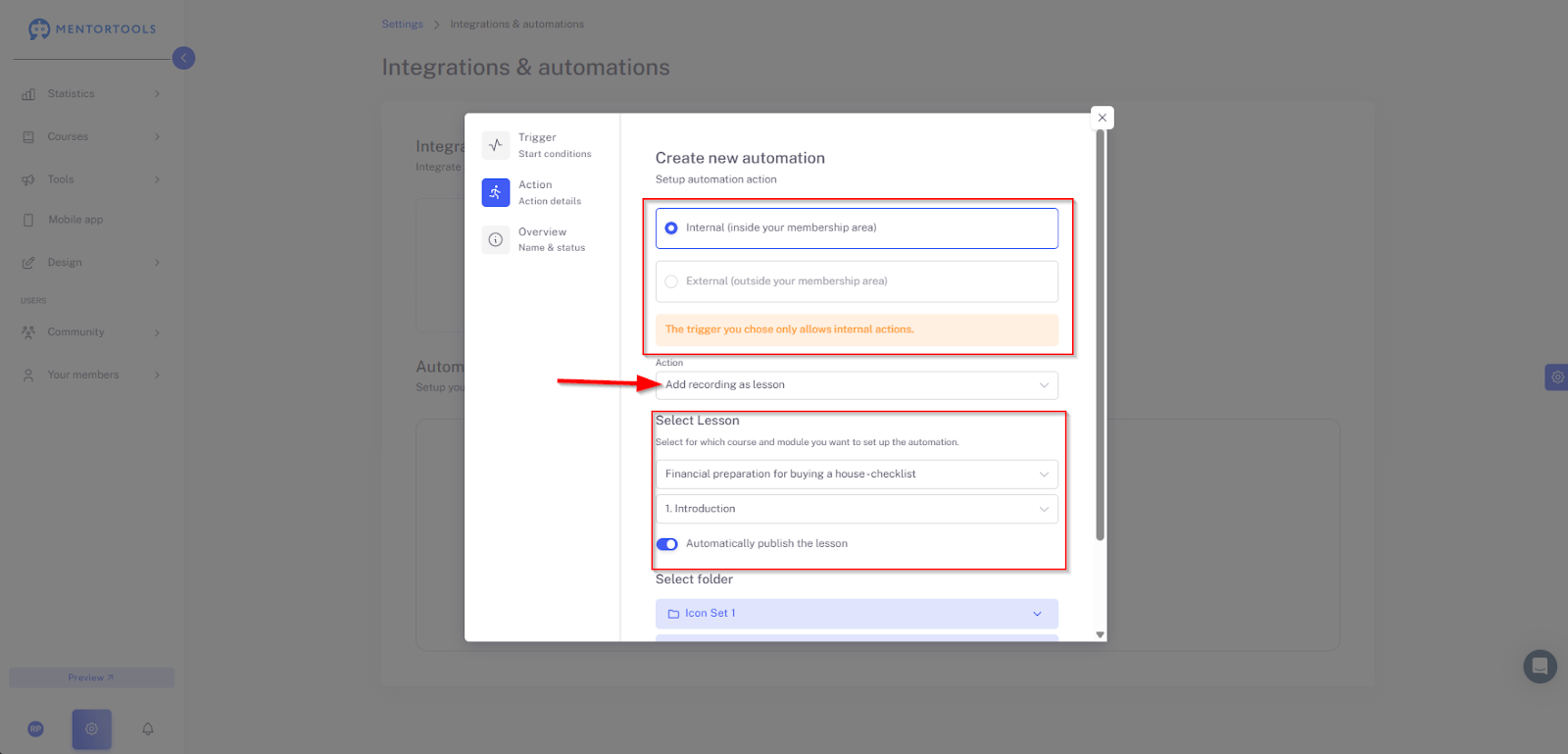
Now, keep the automation action as “Internal” (no other setting is possible).
Action → “Add recording as lesson” (no other setting is possible).
Now, select for which course and which module.
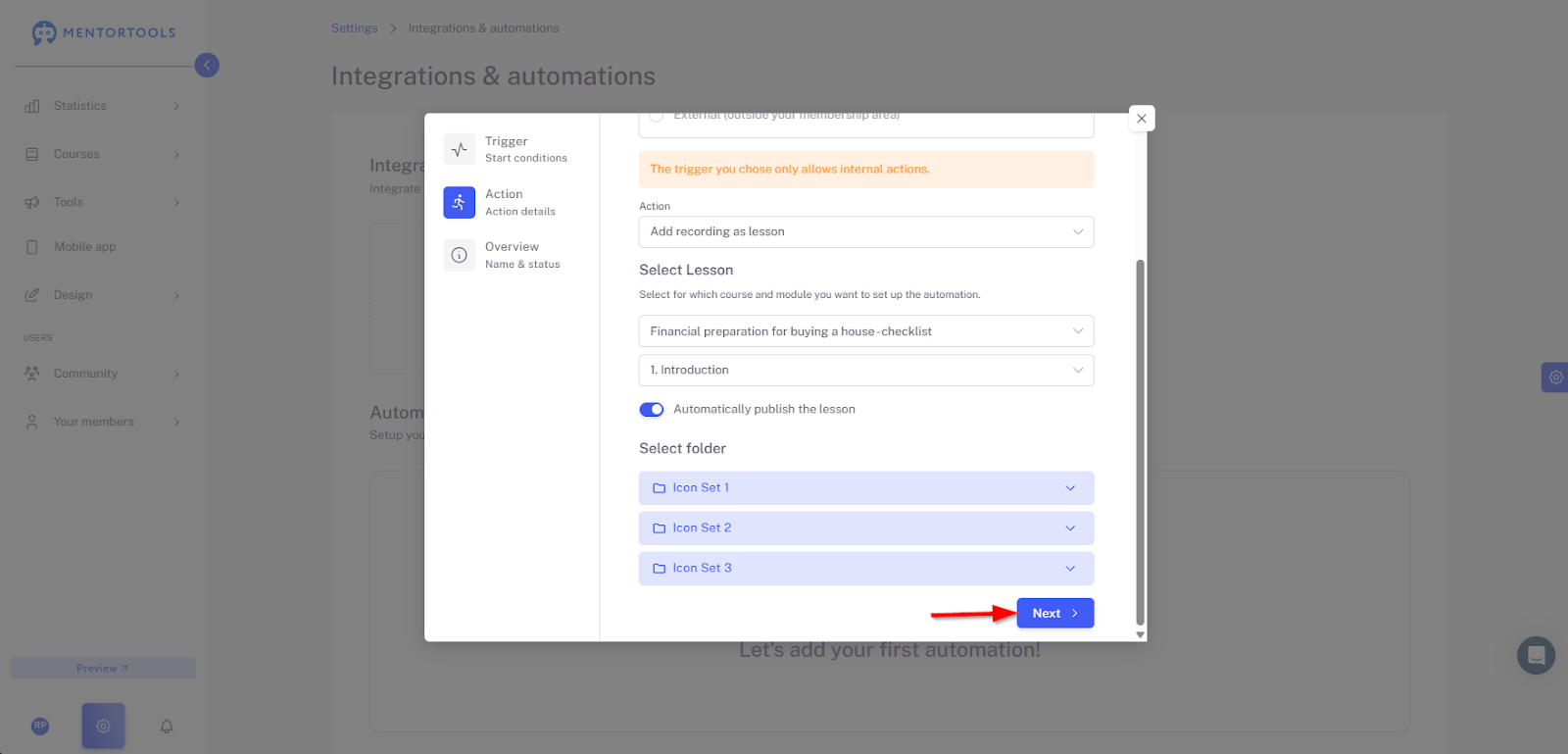
Finally, all you have to do is enter a name for the automation.
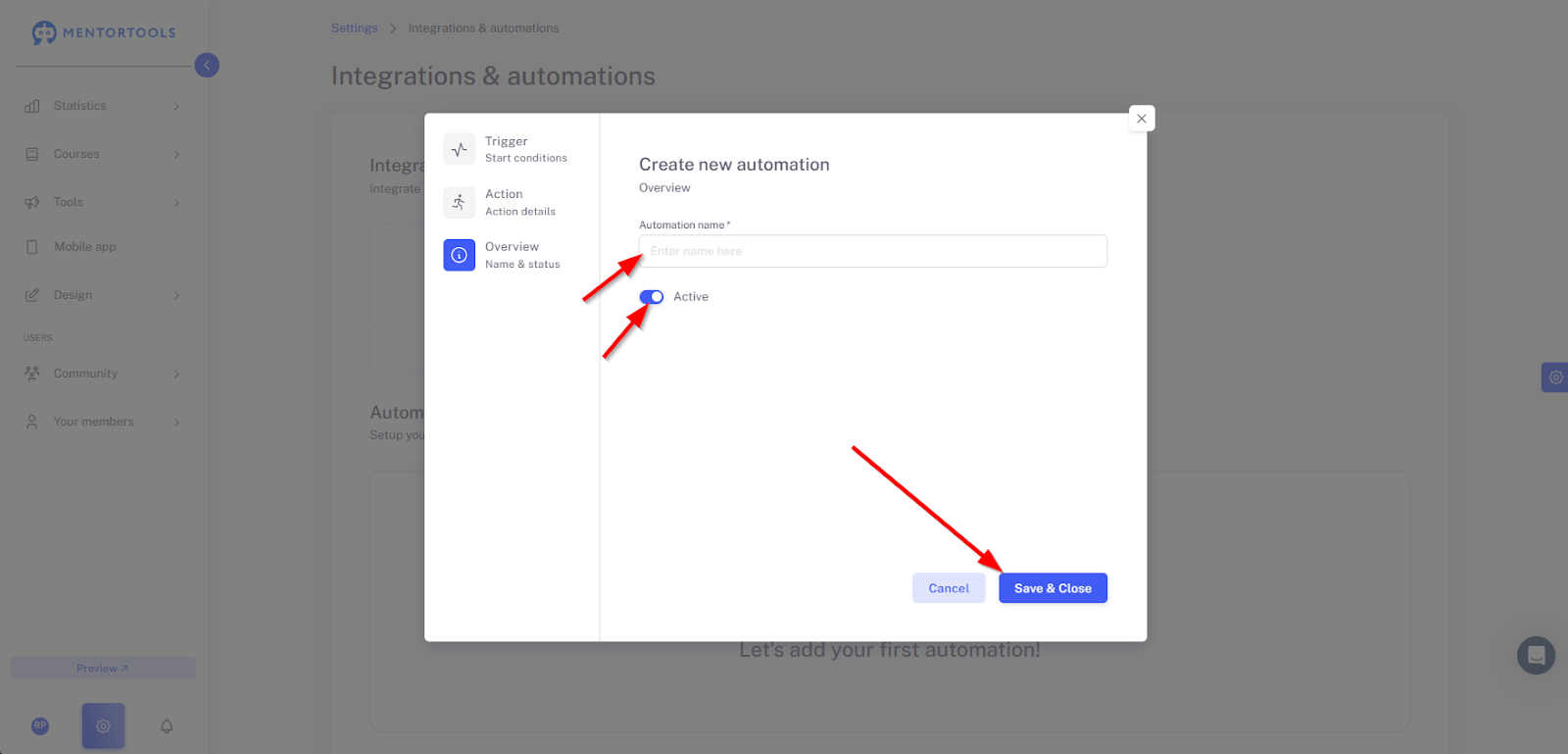
Your automation has now been successfully created!
Automatic Embedding in Mentortools Courses
After successful integration and the corresponding Zoom configuration, new Zoom meeting recordings will be automatically added as lessons in the assigned Mentortools courses. The lesson title will match the name of the Zoom recording.