Academy Design – Welcome Block
In this article, you will learn how to set up the Academy Design for your member area.
Last updated 12 months ago
This refers to the Dashboard, which is essentially the main or homepage. This is the page your members land on after they have logged in with their credentials.
The motto here is: The first impression counts. This means this page should be as clear and inviting as possible and should suit you, your members, and your topic.
To do this, please go to Design and then Academy Design in the menu bar.
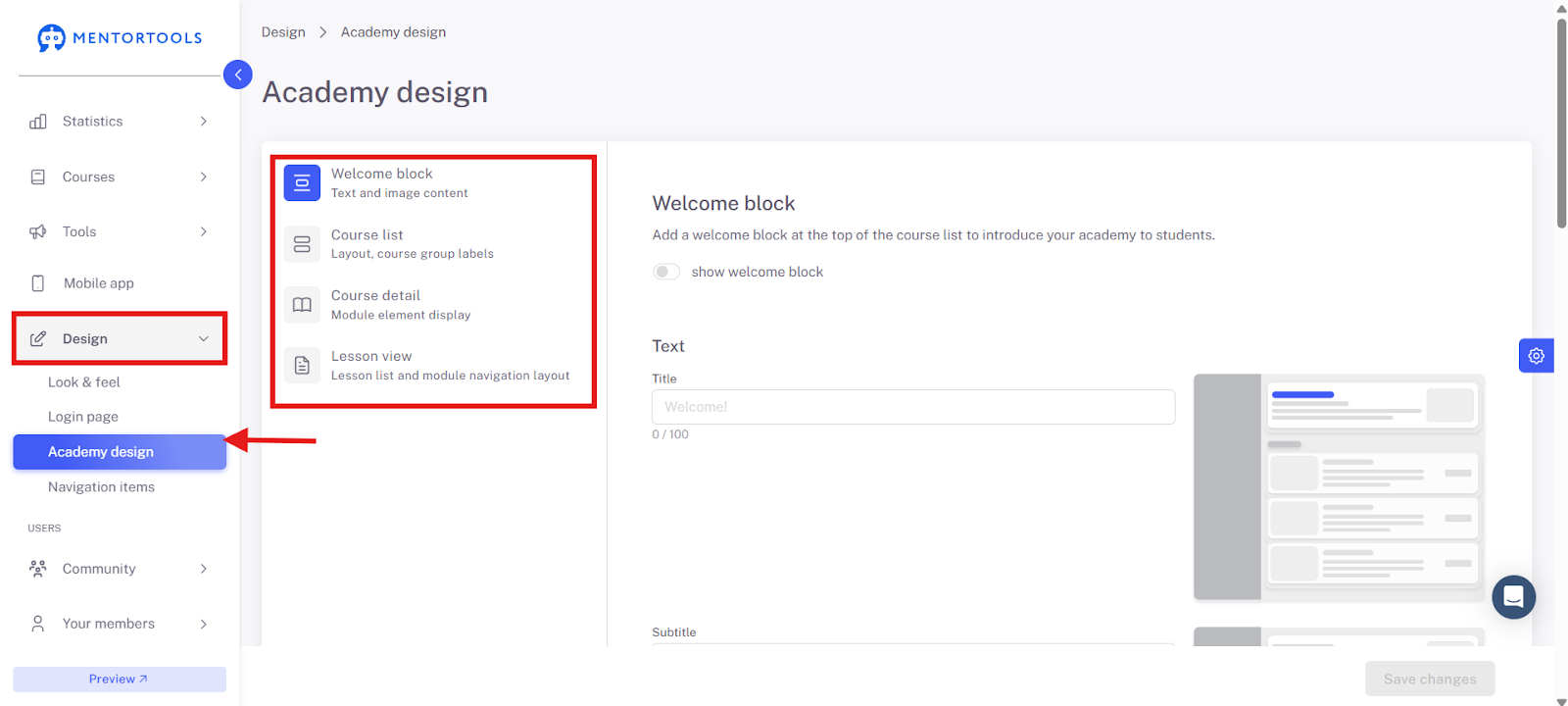
Under Academy Design, you will find 4 sections:
Welcome Block
Course List
Course Details
Lesson View
We will go through these one by one.
Welcome Block
In the Welcome Block, you set the texts and images for your Dashboard page.
Feel free to use the preview function here. You'll find it in the bottom left corner. This way, you can see what everything will look like for your users. After making a change, click "Update" in the preview to always see the latest version.
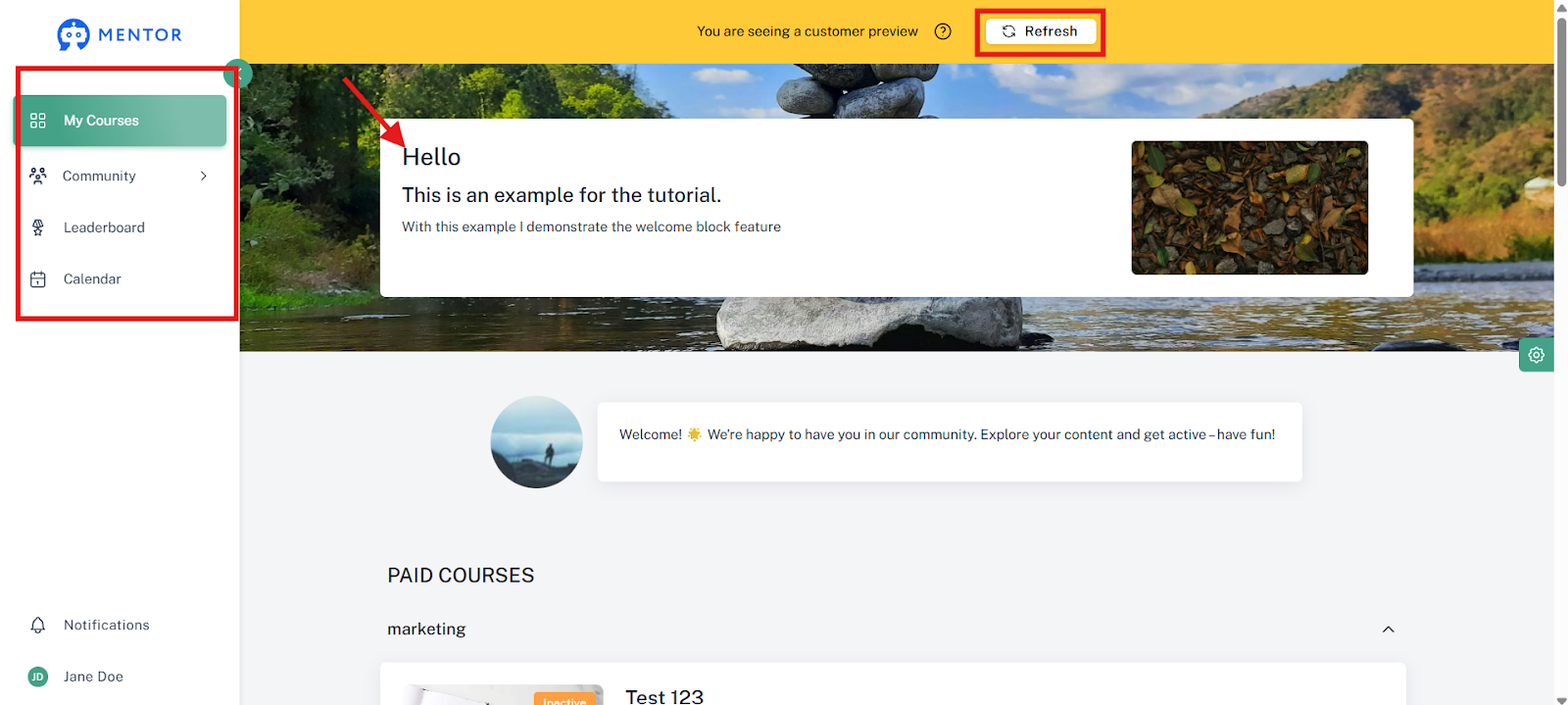
Your member will then see the navigation bar with the menu items at a glance and can read the welcome text. The courses will be listed below.
Text Settings
Here you can set the texts for your dashboard. These texts are important as they provide context to the user and show what to expect in the member area. It makes sense to write here what you stand for and what the user can expect in the member area.

Below the text field, you will also find information about the character limit.
After you have filled in the text fields and uploaded your images in the Welcome Block section, you can also select a background color for this block—either with a color code or the color scale.
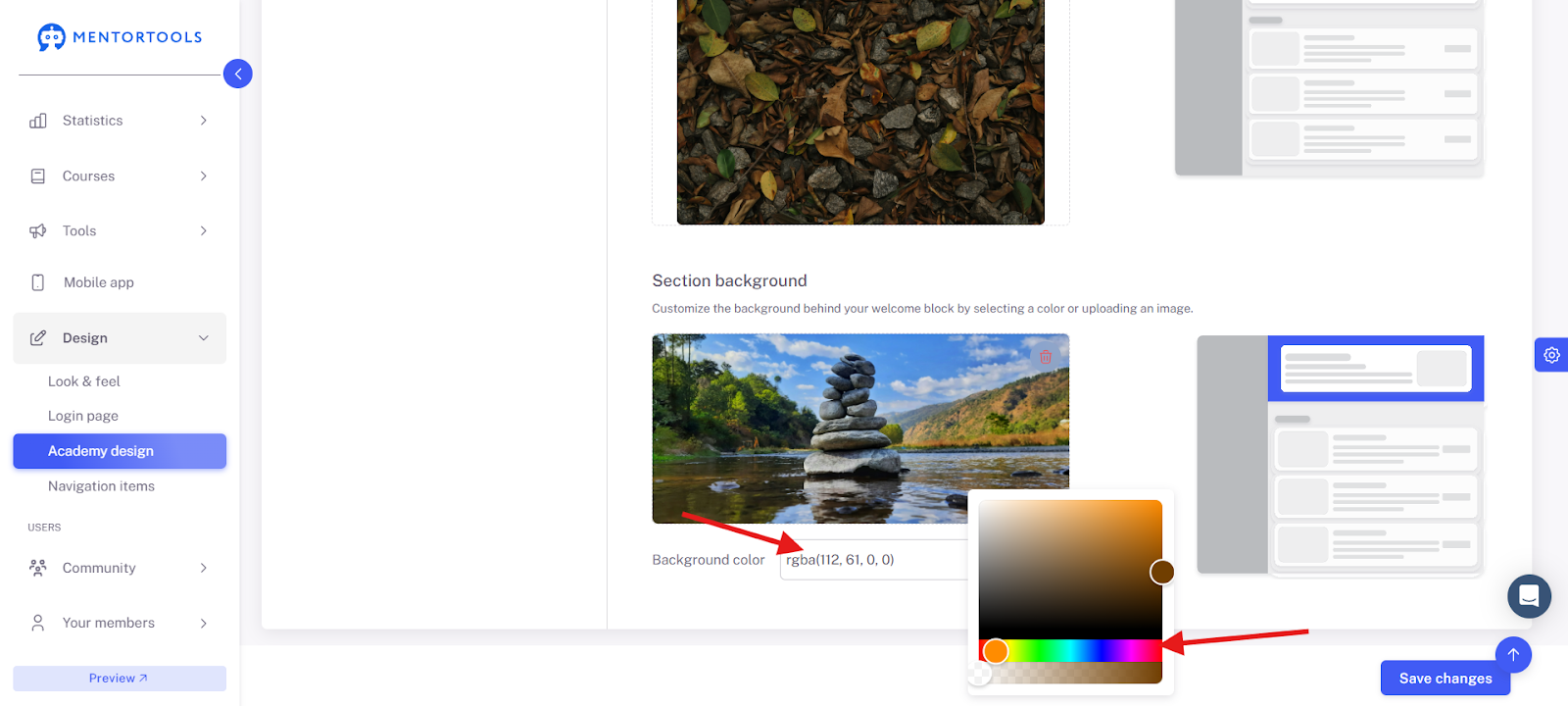

As an example, we have chosen a darker brown here, which then looks like this in the preview.

If you like, you can upload a background image here—from your own files, the media library, or from our license-free images.
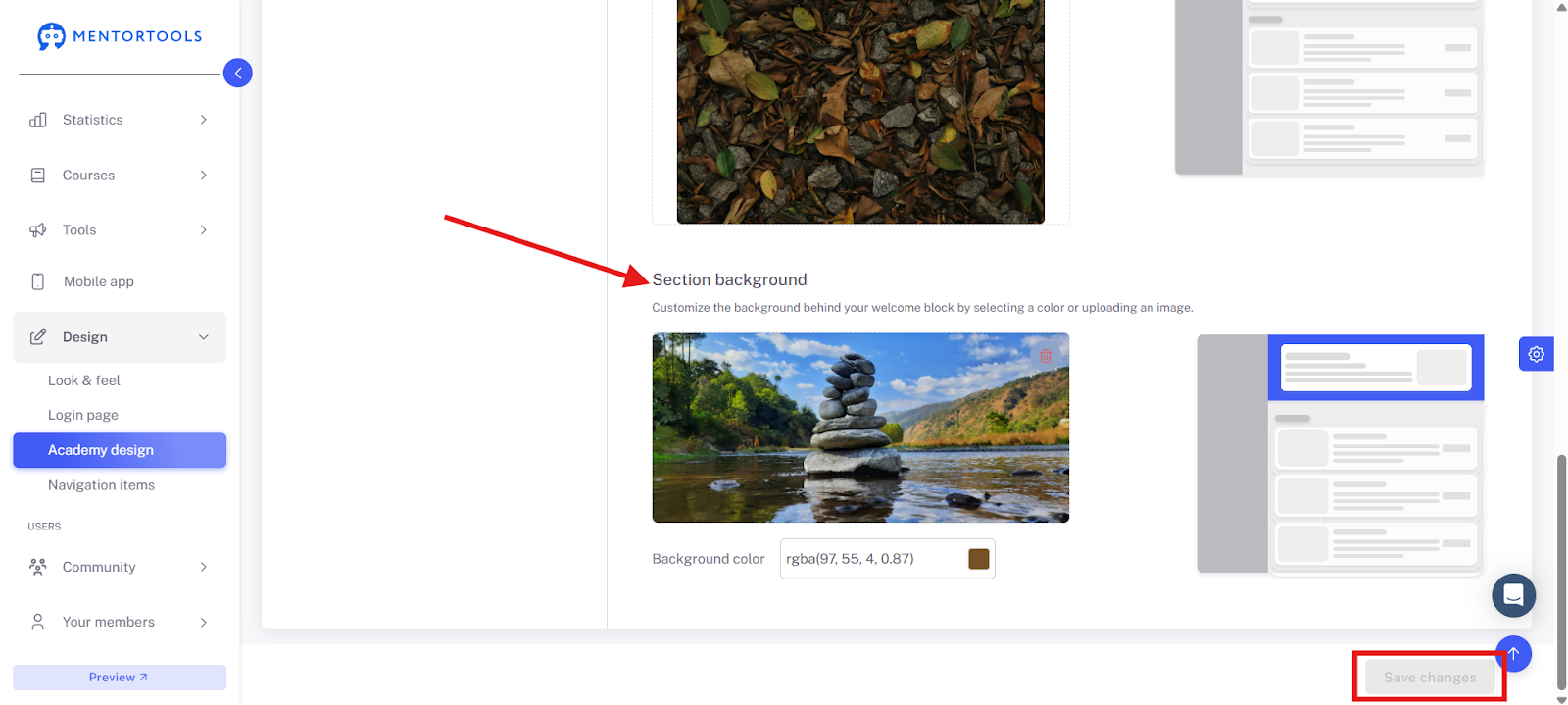
Important: As always, remember to save changes!
Have fun and continued success!