Module – Settings
The module settings in Mentortools allow you to specify exactly when the module is released to your customers—whether it's immediately or after a certain time. You will also learn how to duplicate or delete a module from your course.
Last updated 12 months ago
Where Can I Find the Basic Module Settings?
Log in to your Mentortools account.
Go to "Courses" → "Overview" and select the desired course.
In the course, go to "Modules".
Find the specific module you want to edit.
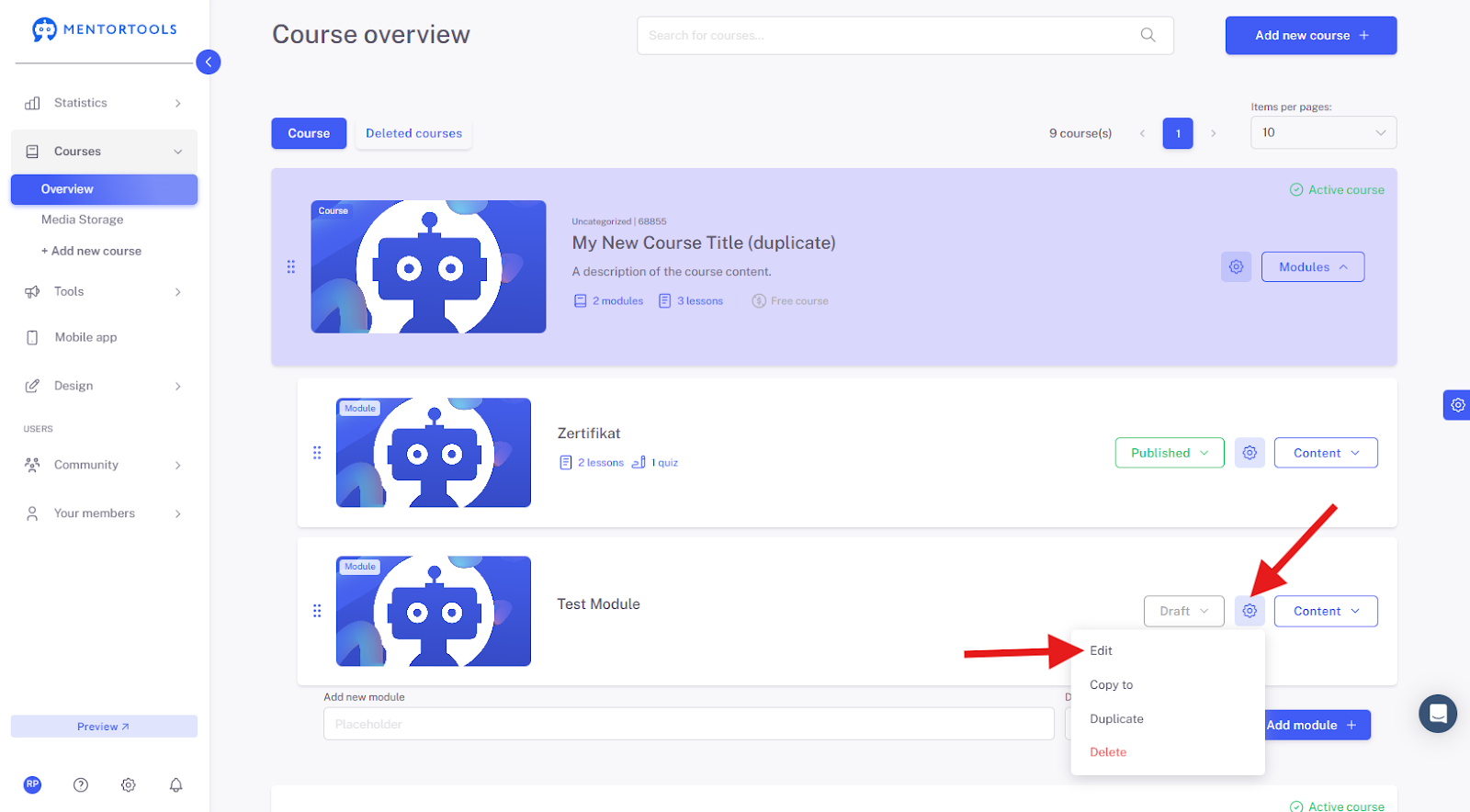
Click on the gear icon to the right of the module name (⚙️) and then on "Edit", or simply click on the module name. The module's settings will then be displayed.
1. Go to "Courses"
Log in to your membership area and go to "Courses" in the side menu.
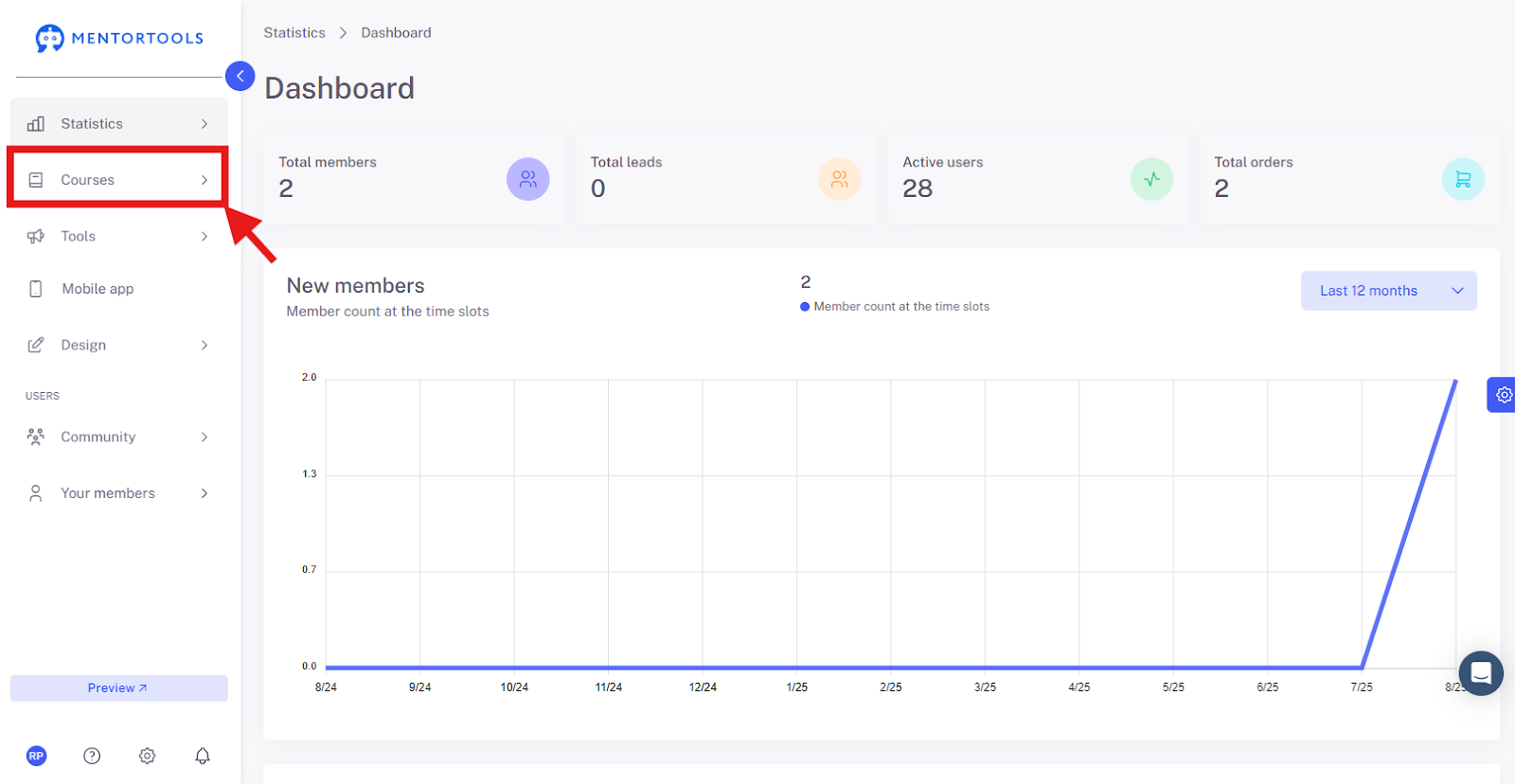
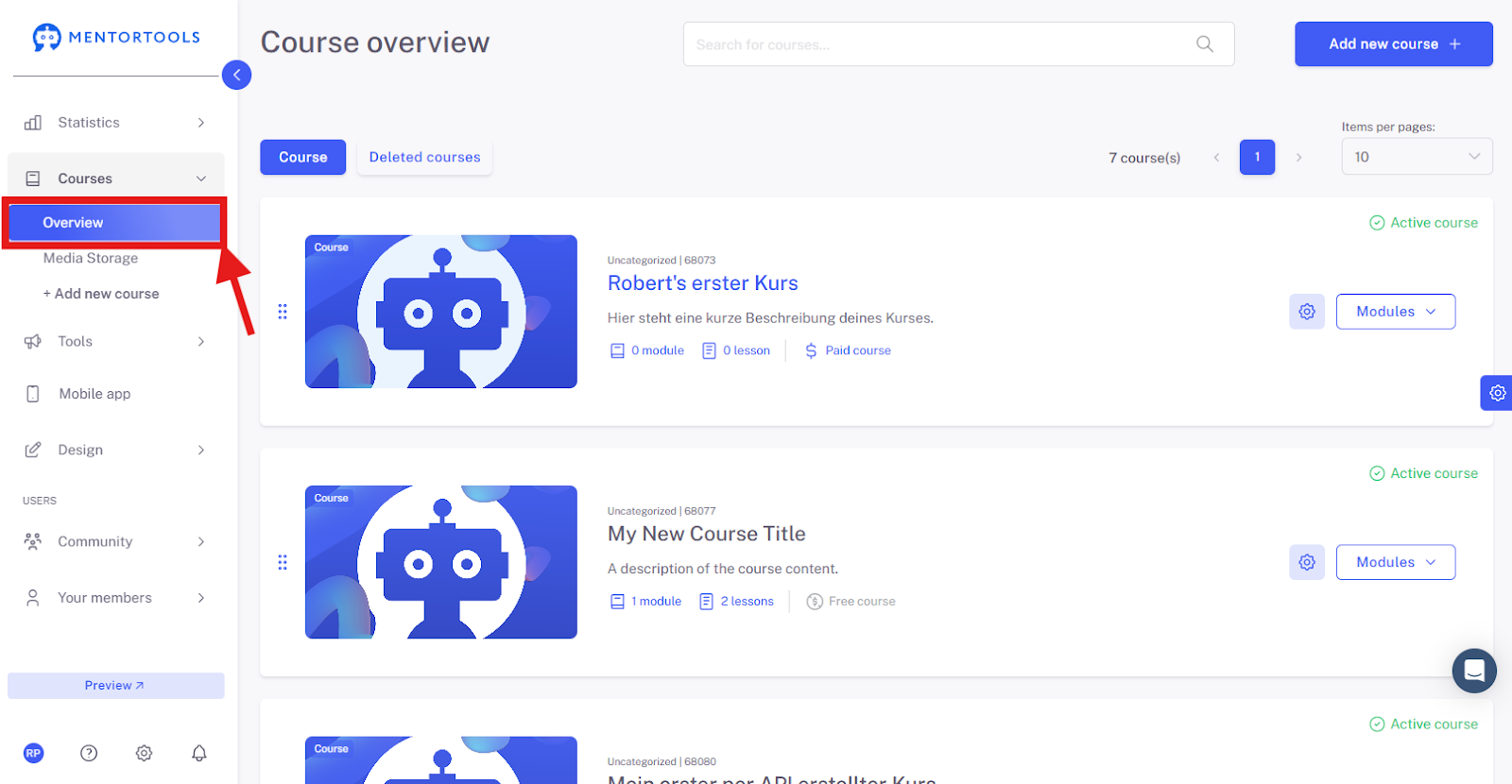
2. Go to "Overview"
Then click on "Overview" to display the list of all your courses.
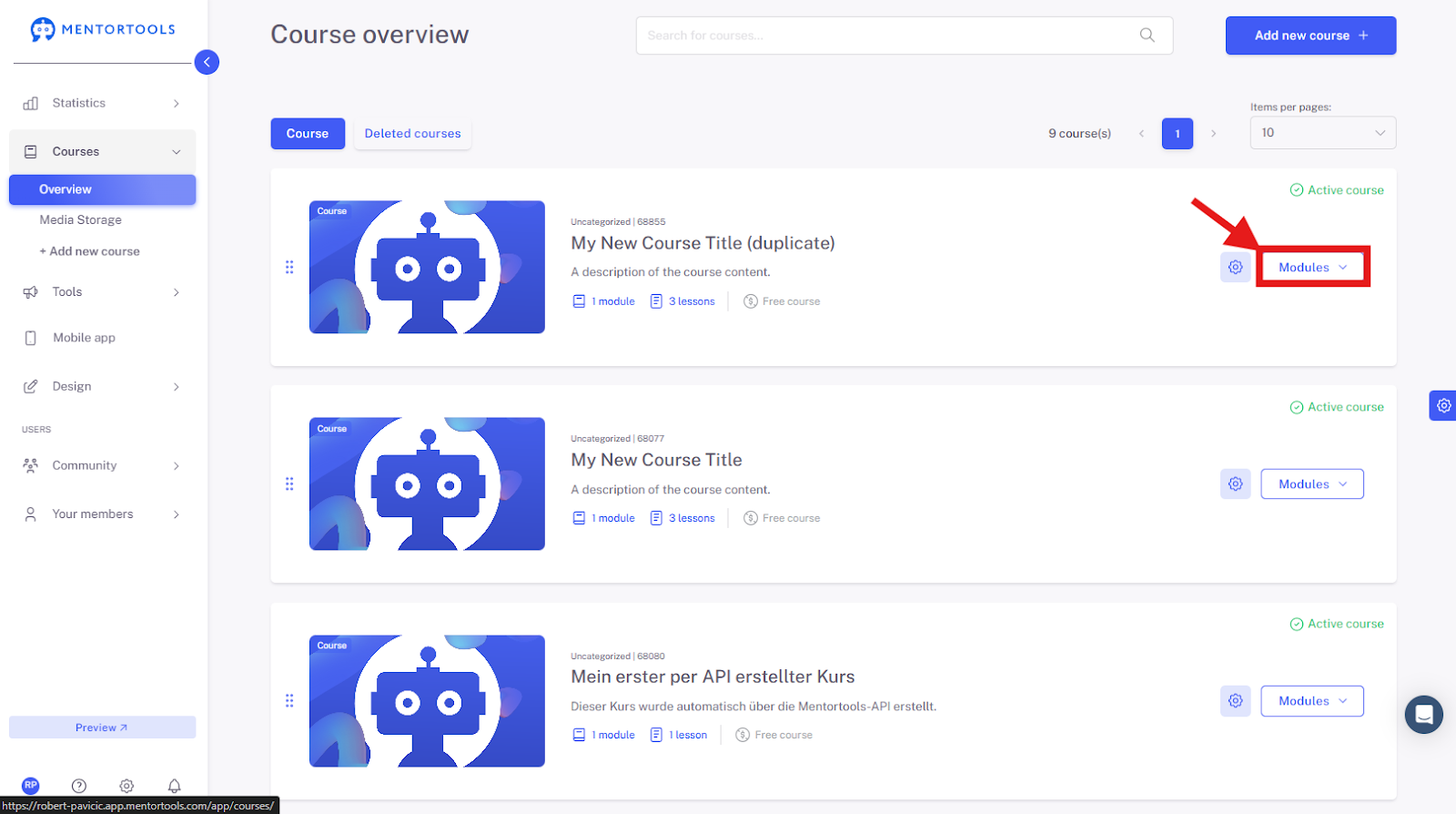
3. Select a Specific Course
Select a specific course in which you want to create a new module. By clicking on "Modules", all existing modules in this specific course will be displayed.
4. Select a Specific Module
Choose the specific module for which you want to adjust the settings.

5. Edit Settings
To edit the module settings, click on the module name or the gear icon next to the module name and then select the "Edit" option.
Overview of Available Settings – Settings
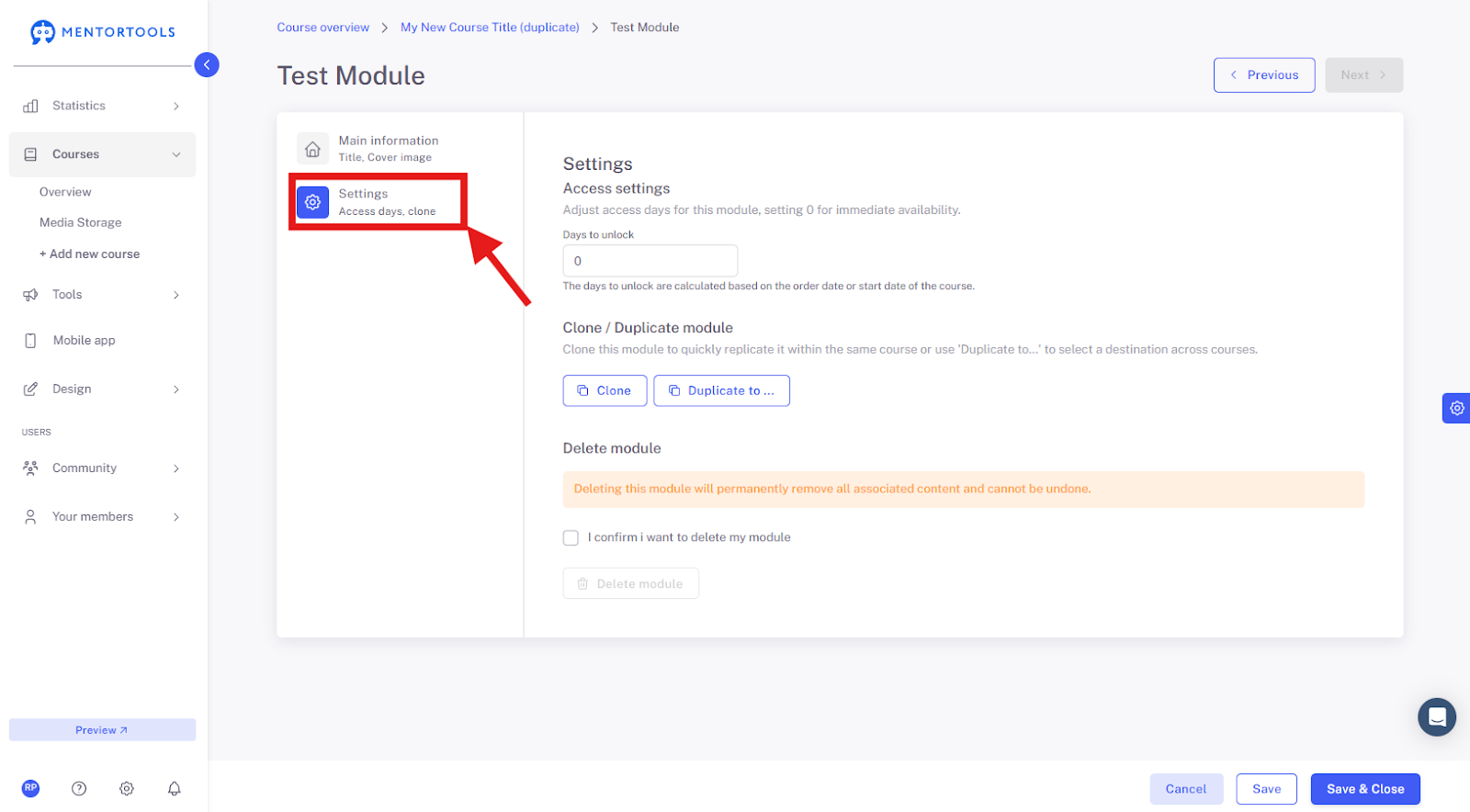
Access Setting – Days Until Release
In each module, you can set the number of days until the module is released. This means how many days after gaining access to the course the module will be available to your customers. For example, if you set 10 days until the module is released, this module will be accessible to your customer 10 days after the course starts, the course is purchased, or they register in the membership area. If you leave a "0" here, the module will be released immediately.
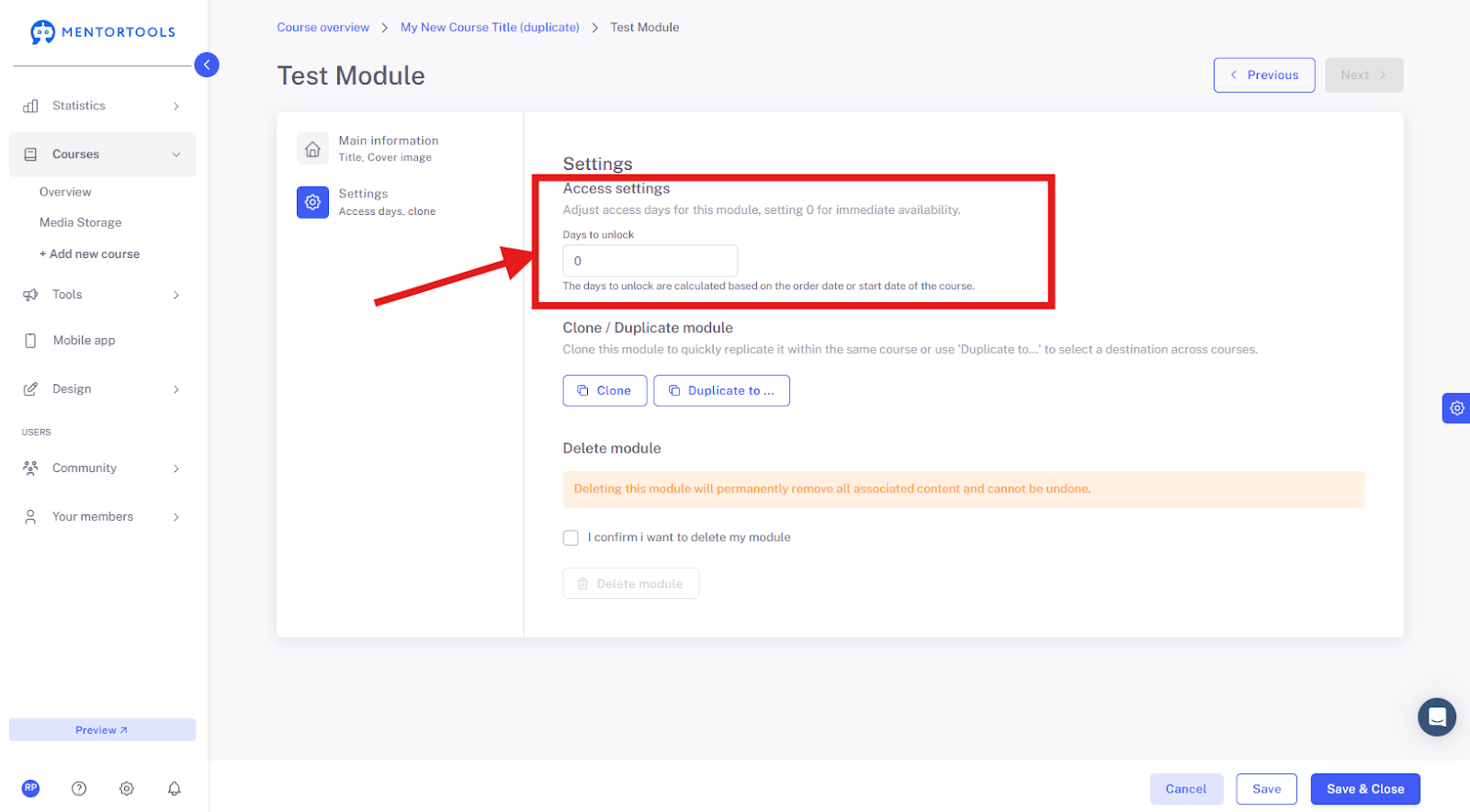
Duplicate Module
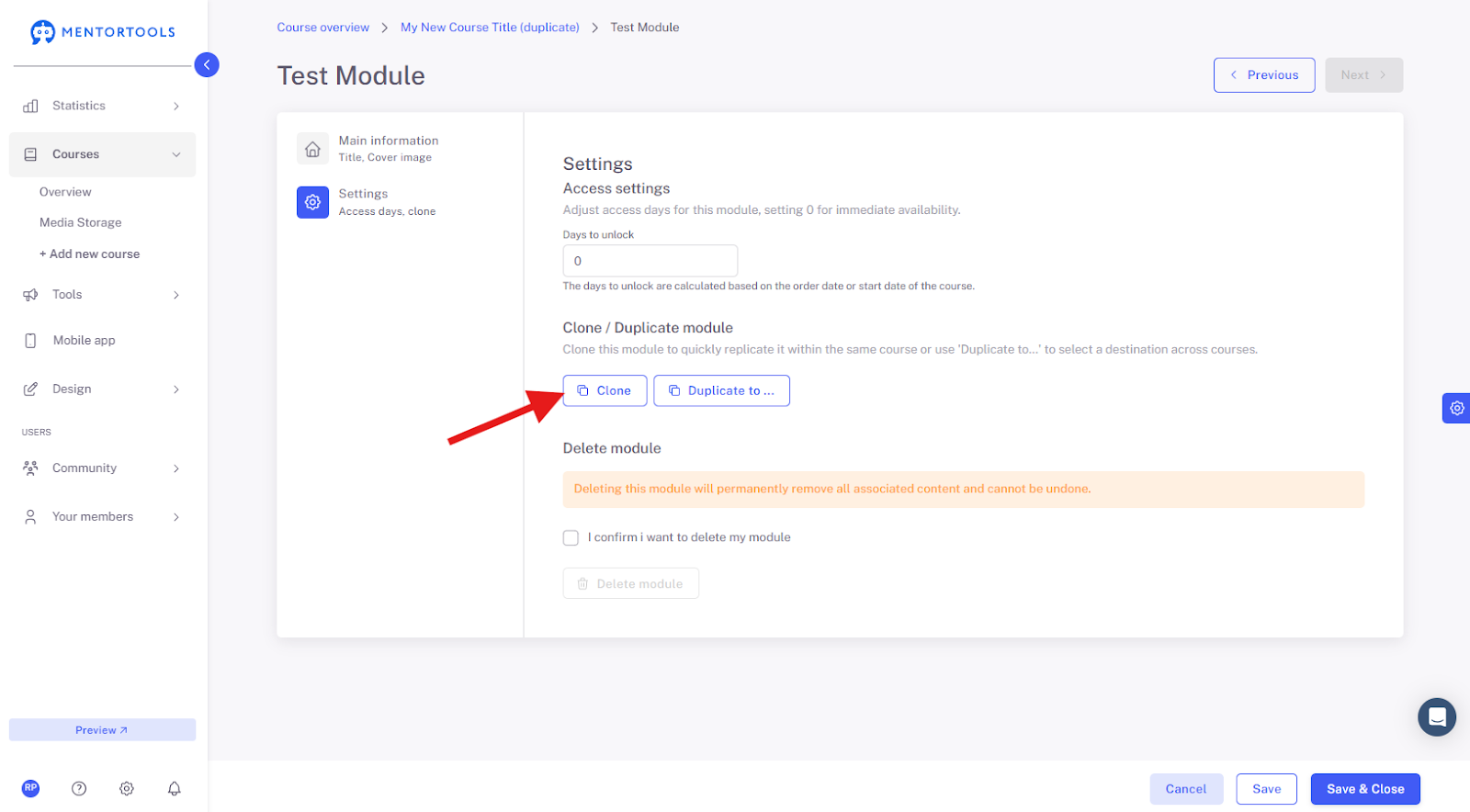
With the "Clone" function, you can duplicate an existing module within the same course. With the "Duplicate to..." function, you can copy the module to another course within your membership area.
Clone– If you select this option, a copy of the module is created within the same course.
Duplicate to – If you select this option, you can copy the module to another course.
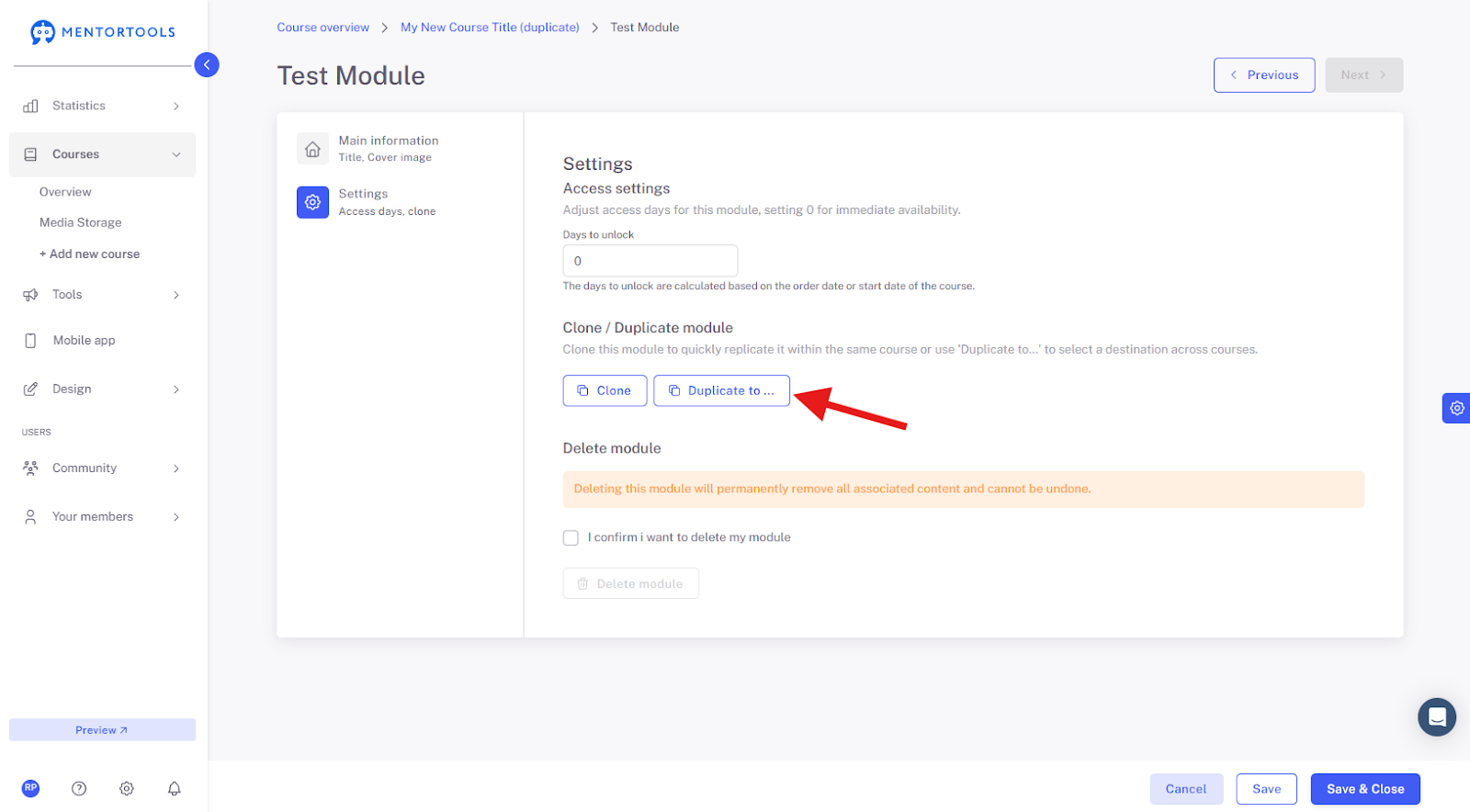
In this case, a list of the courses will be displayed from which you can select the course(s) you want to copy the module to.
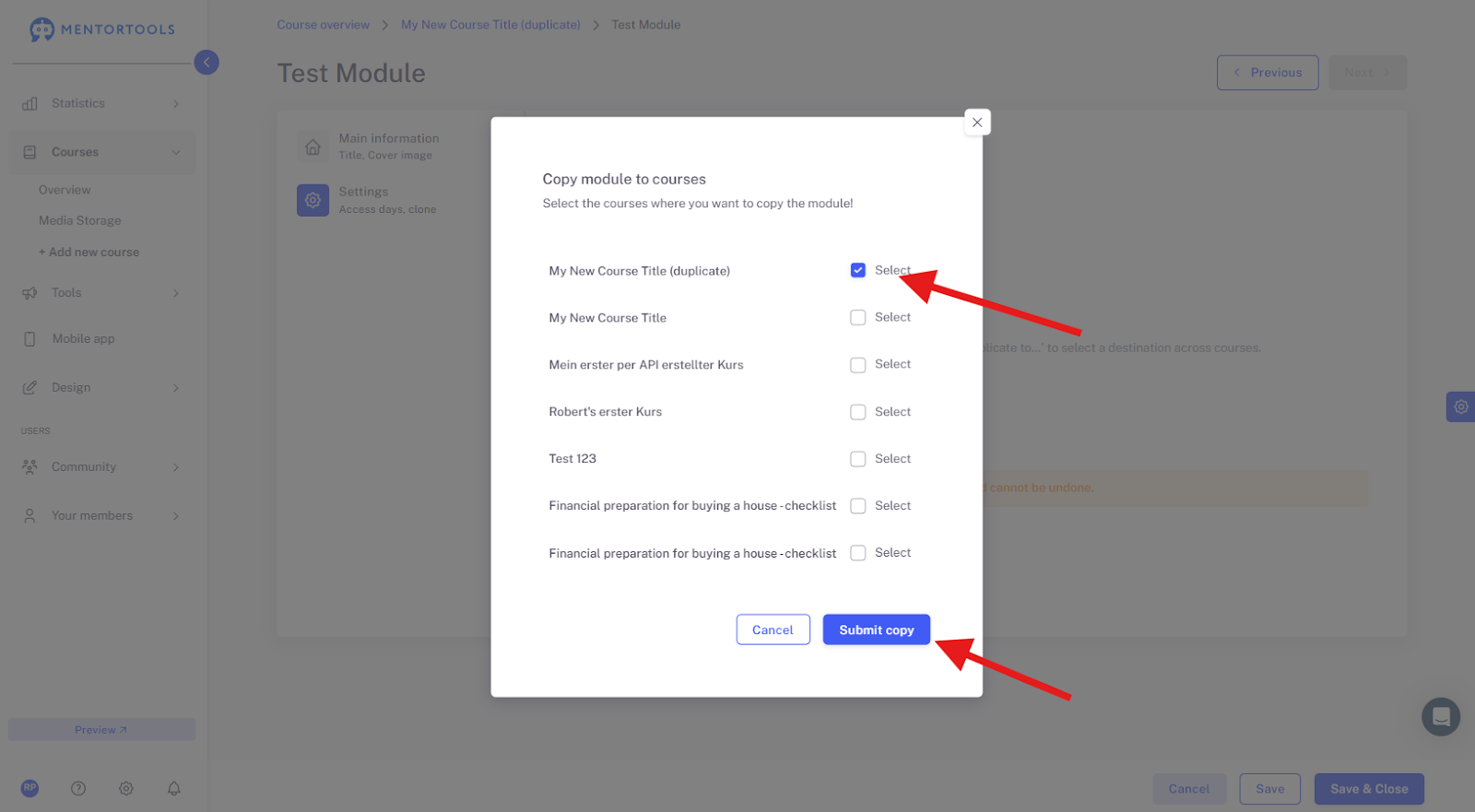
Select the desired course(s) and then click on "Submit copy".
Delete Module
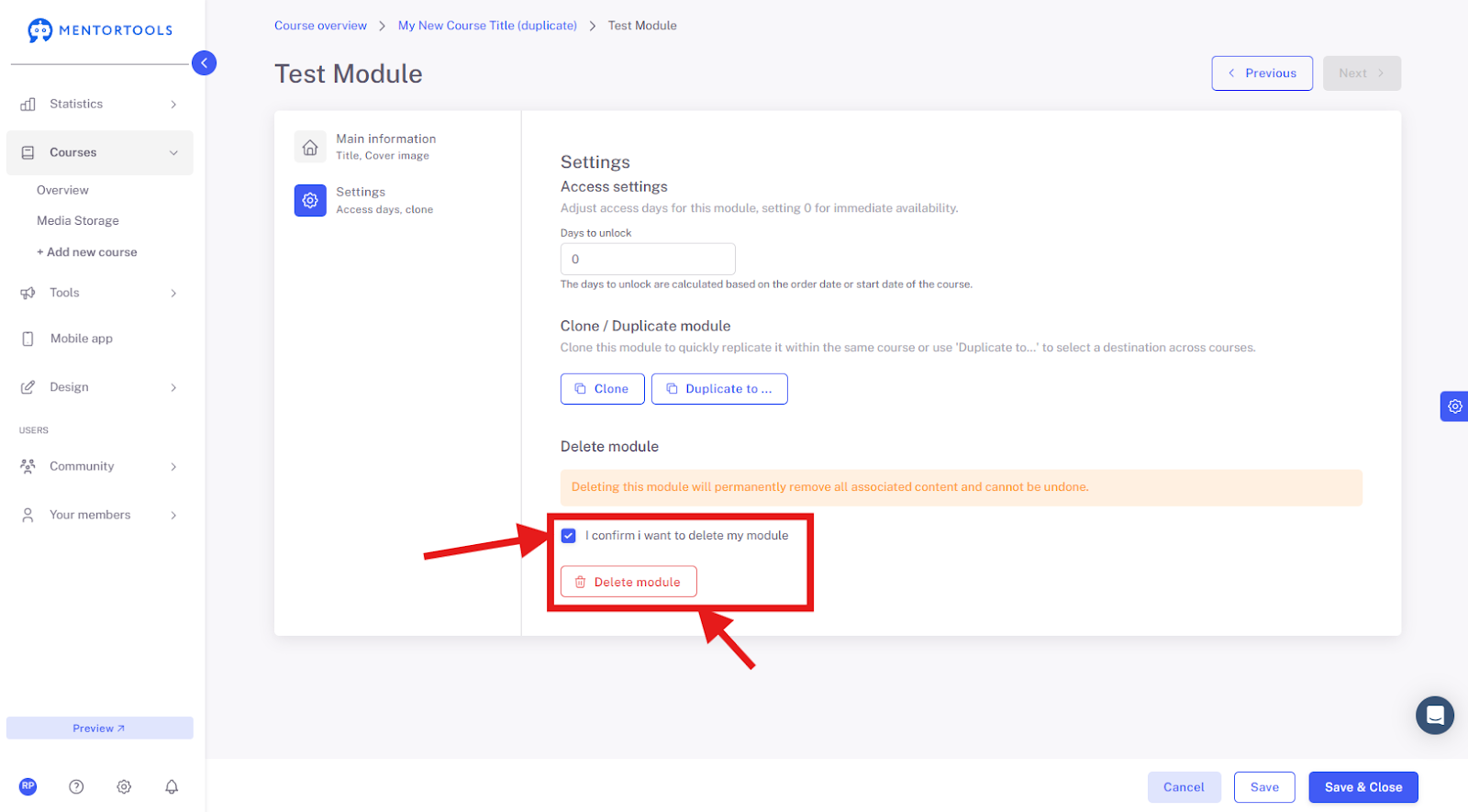
Click on "I confirm that I want to delete my module" and then on "Delete module" to remove the module from your course.
6. Save Settings
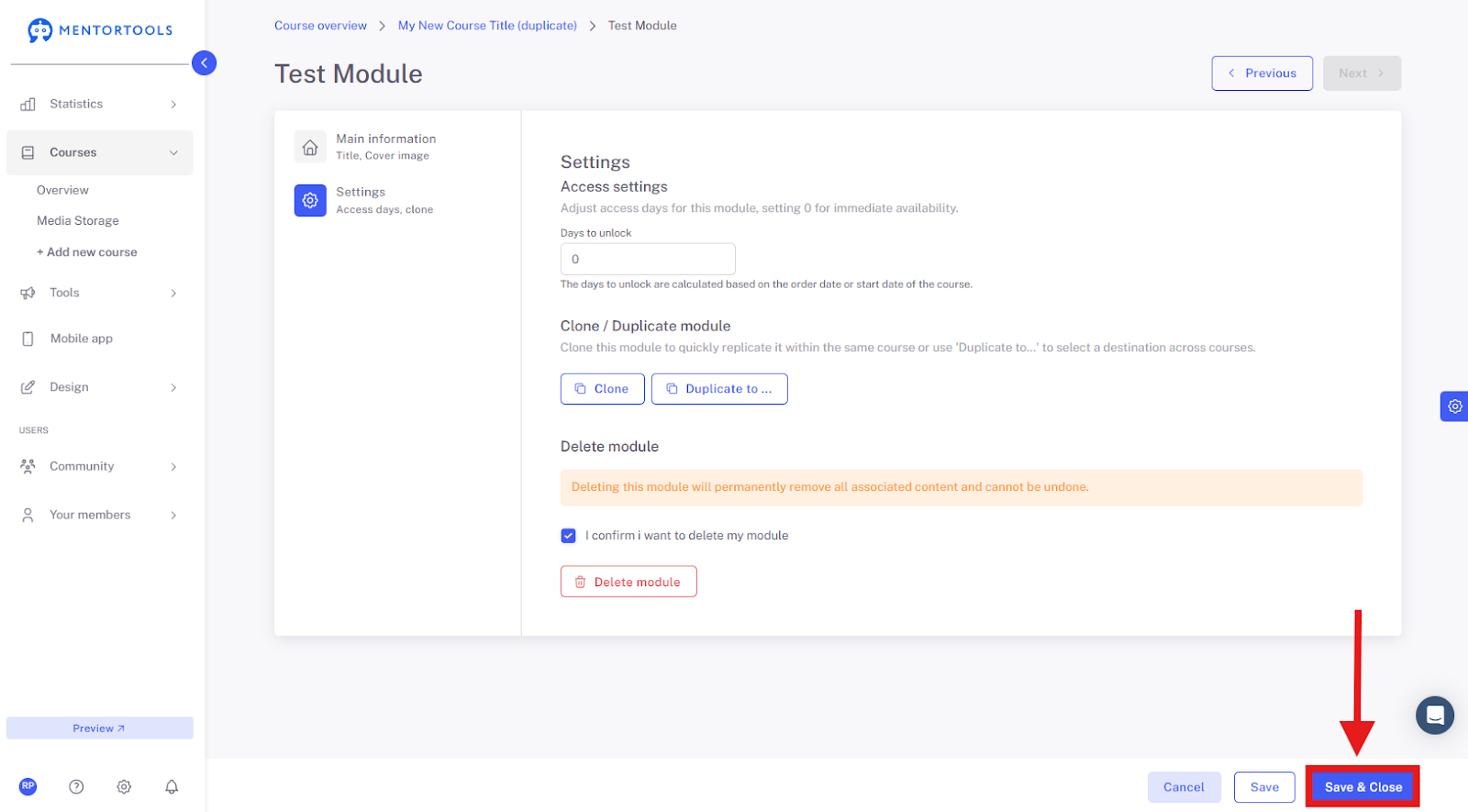
Save the changes you have made by clicking on the "Save" or "Save and close" button at the bottom.
Tip for the Structure of Your Course
Use the gradual release of modules in your online course to create both temporal and content-related momentum. For example, you can release new modules every week and simultaneously make exclusive content available. The clearer and better structured your modules are, the more pleasant and motivating the course will be for your participants.