Module – Create module
A module in Mentortools is a logical grouping of several lessons within a course. It helps you to structure your course content clearly—for example, into thematic blocks, weekly sections, or levels of difficulty. With modules, you create a clear navigation for your participants and significantly improve their learning experience.
Last updated 12 months ago
Modules in Mentortools
A module is like a folder for lessons that are thematically connected. You can create as many modules as you want within a course and add an unlimited number of lessons to each module. You also decide for yourself whether the individual modules are immediately visible or are released with a delay (time-limited access).
Example for the structure of an online course module:
Module 1: Introduction to the Online Course
Module 2: Tools & Strategies
Module 3: Implementation & Practice
To create a new module in your online course, proceed as follows:
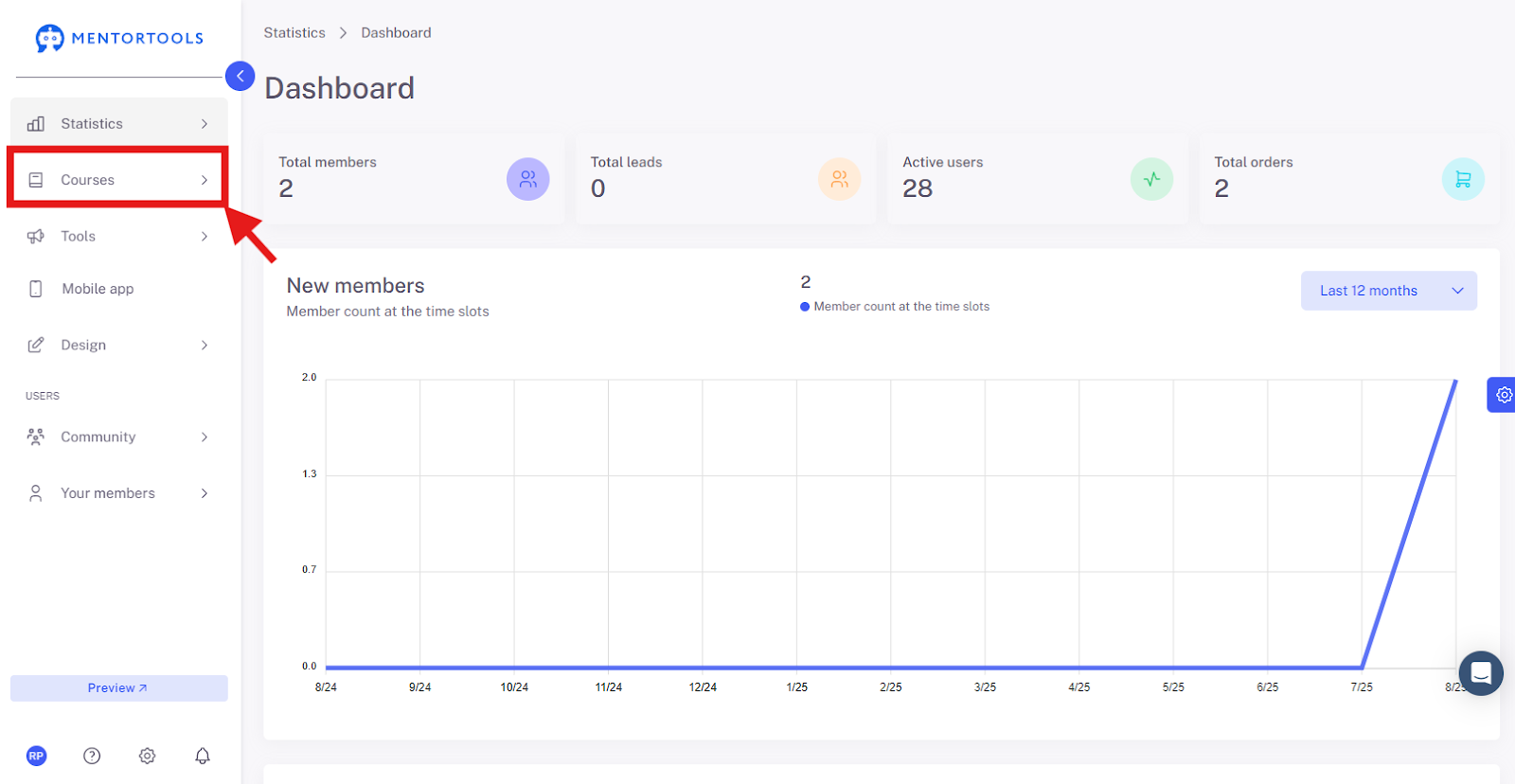
Go to "Courses"
In your online academy, go to "Courses" in the side menu.
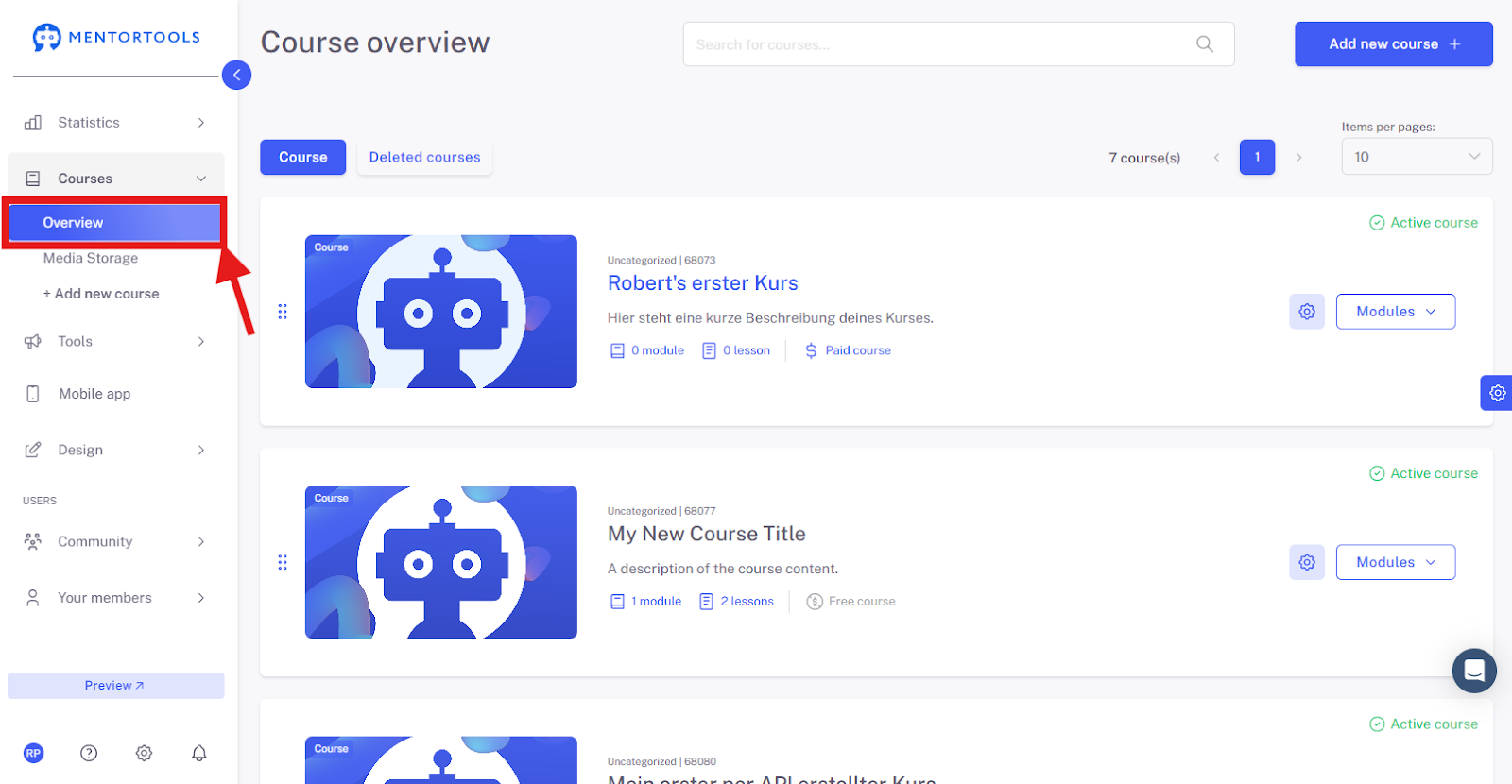
Go to "Overview"
To display the list of all your courses, then go to "Overview".
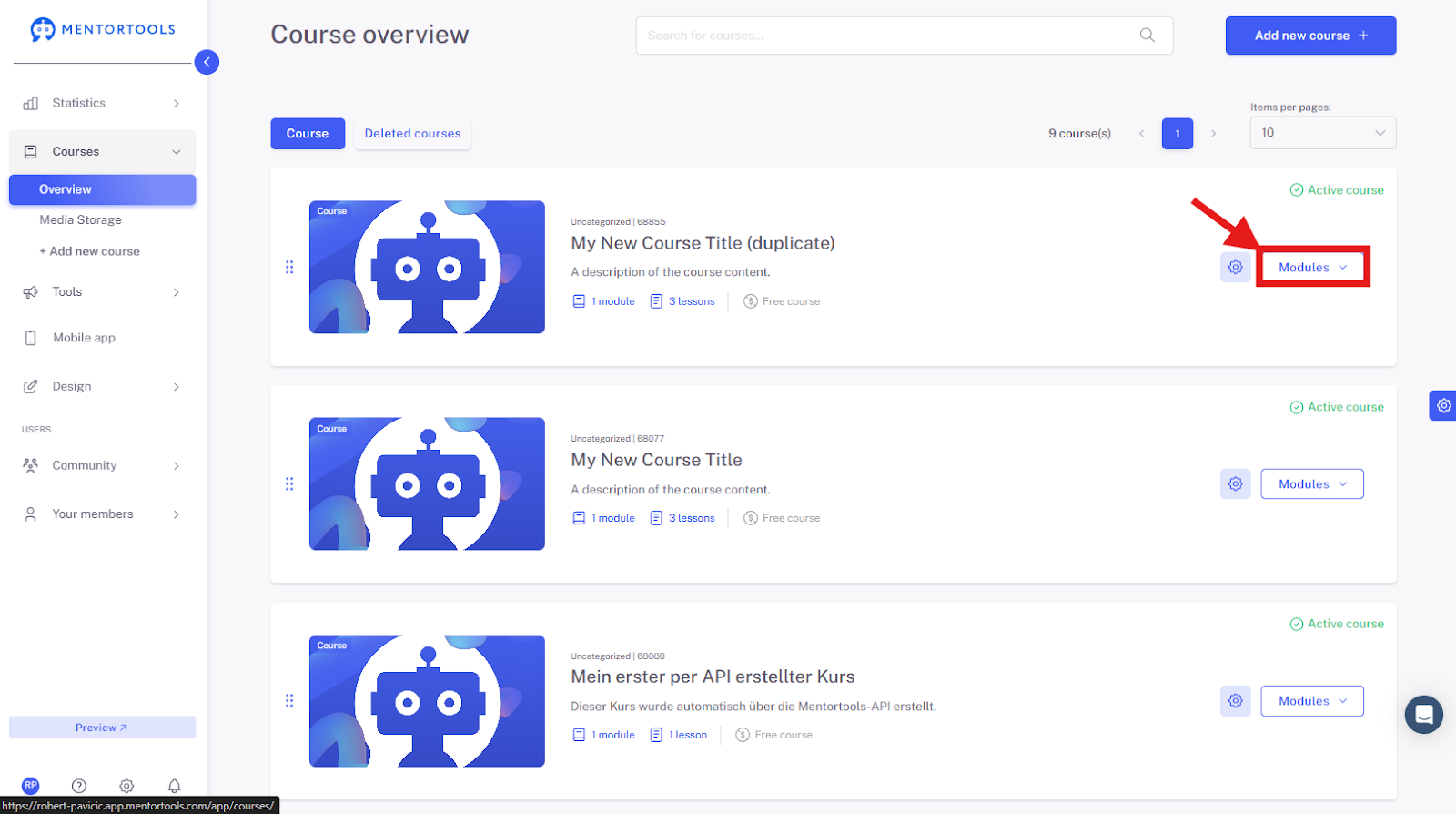
Select a Specific Course
Select a specific course in which you want to create a new module. By clicking on "Modules", all existing modules in this specific course will be displayed.
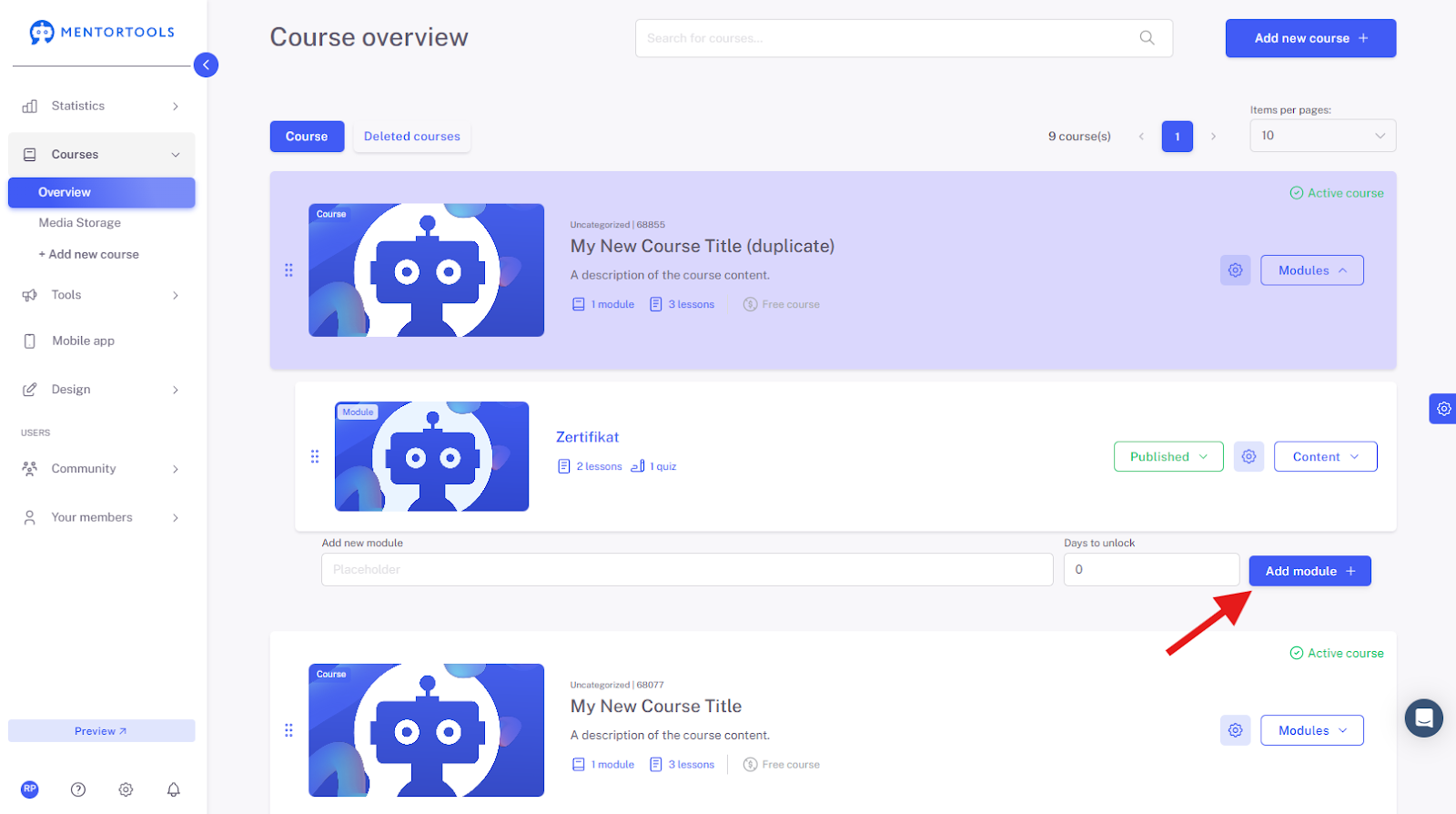
Add a New Module
At the end of the module list, you will find the "Add module +" option.
Steps to Create a New Module
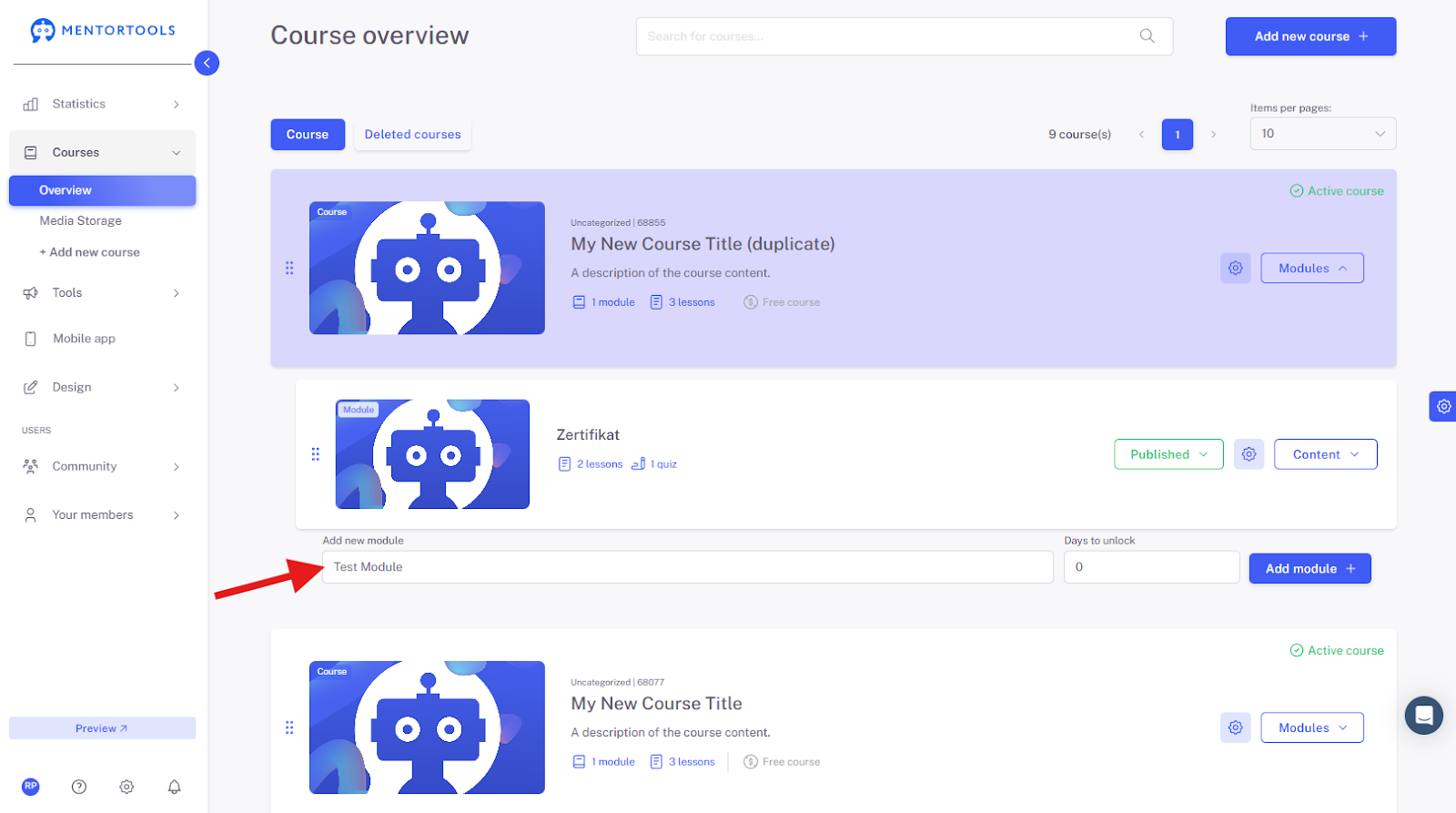
Module Name First, you need to enter the name of your new module.
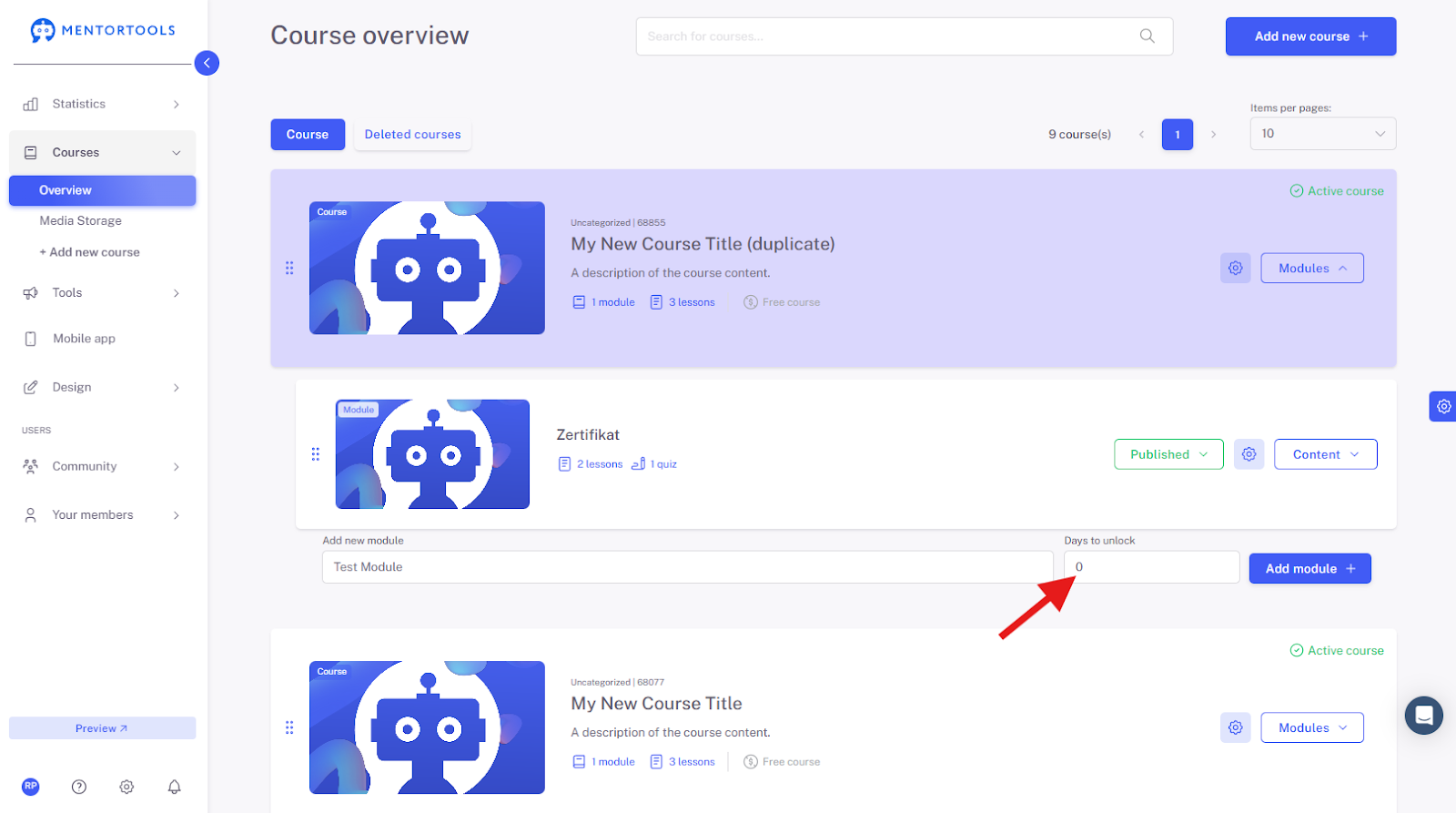
Days Until Release In each module, you can set the days until the module is released. This means how many days after gaining access to the course the module will be available to your customers. For example, if you set 10 days until the module is released, this module will be available to your customer 10 days after the course starts / they purchase the course / register in your membership area. If you leave a "0" here, the module will be immediately accessible.
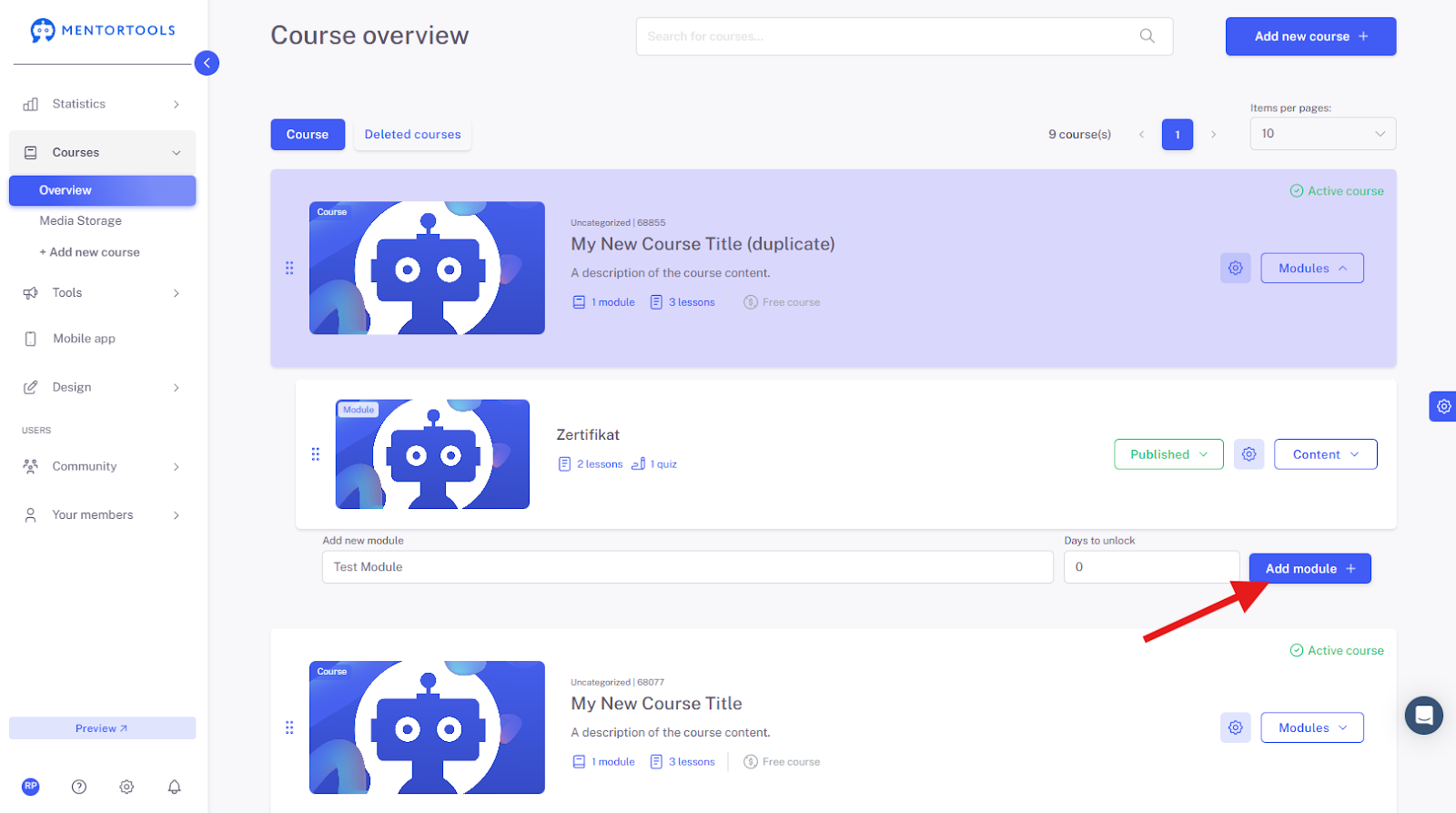
Creating the Module After you have entered the module name and set the days until release, you can create the new module by clicking on "Add module +".
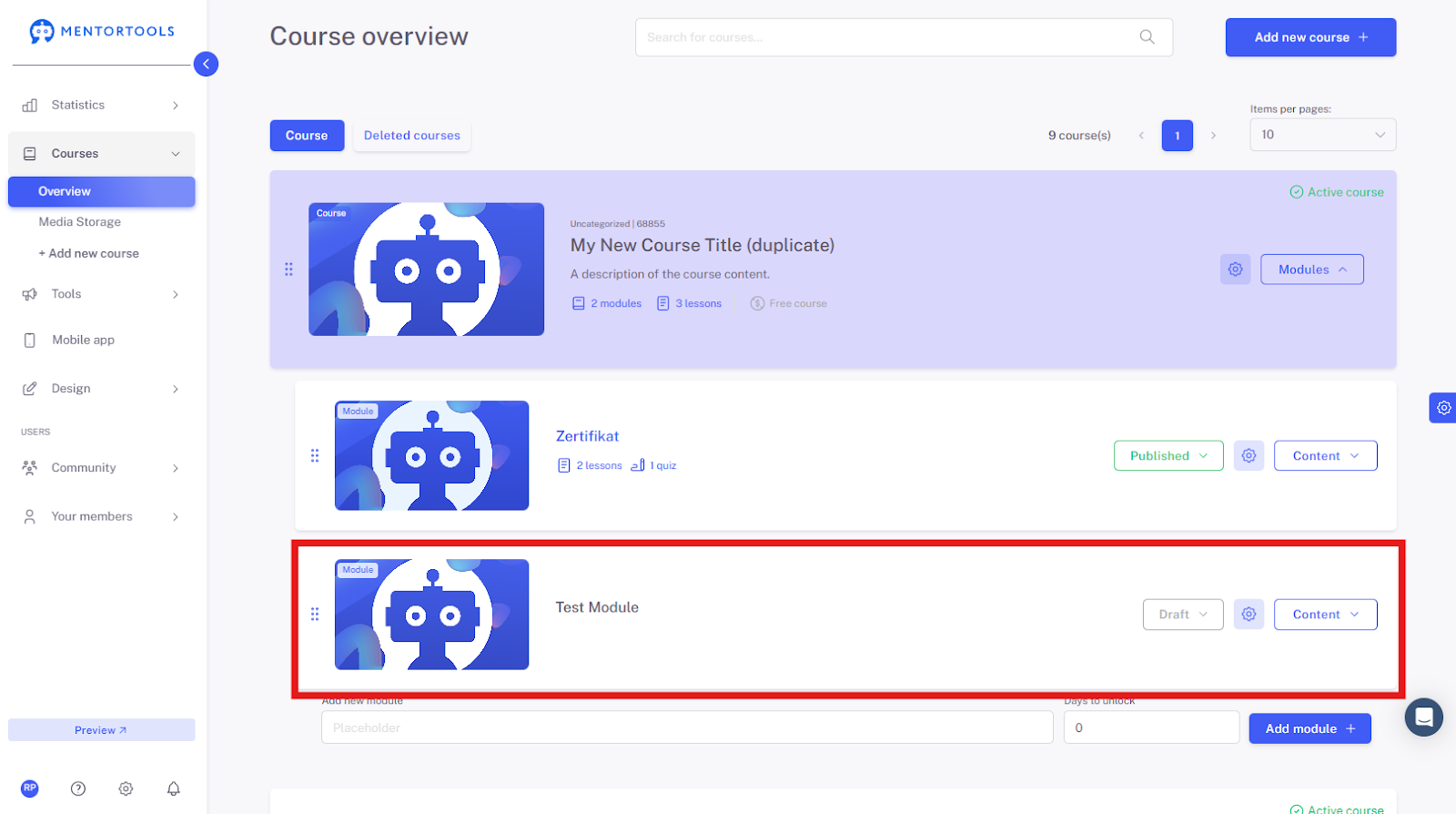
The new module will then be added to the end of the module list in that course.
Setting Module Visibility
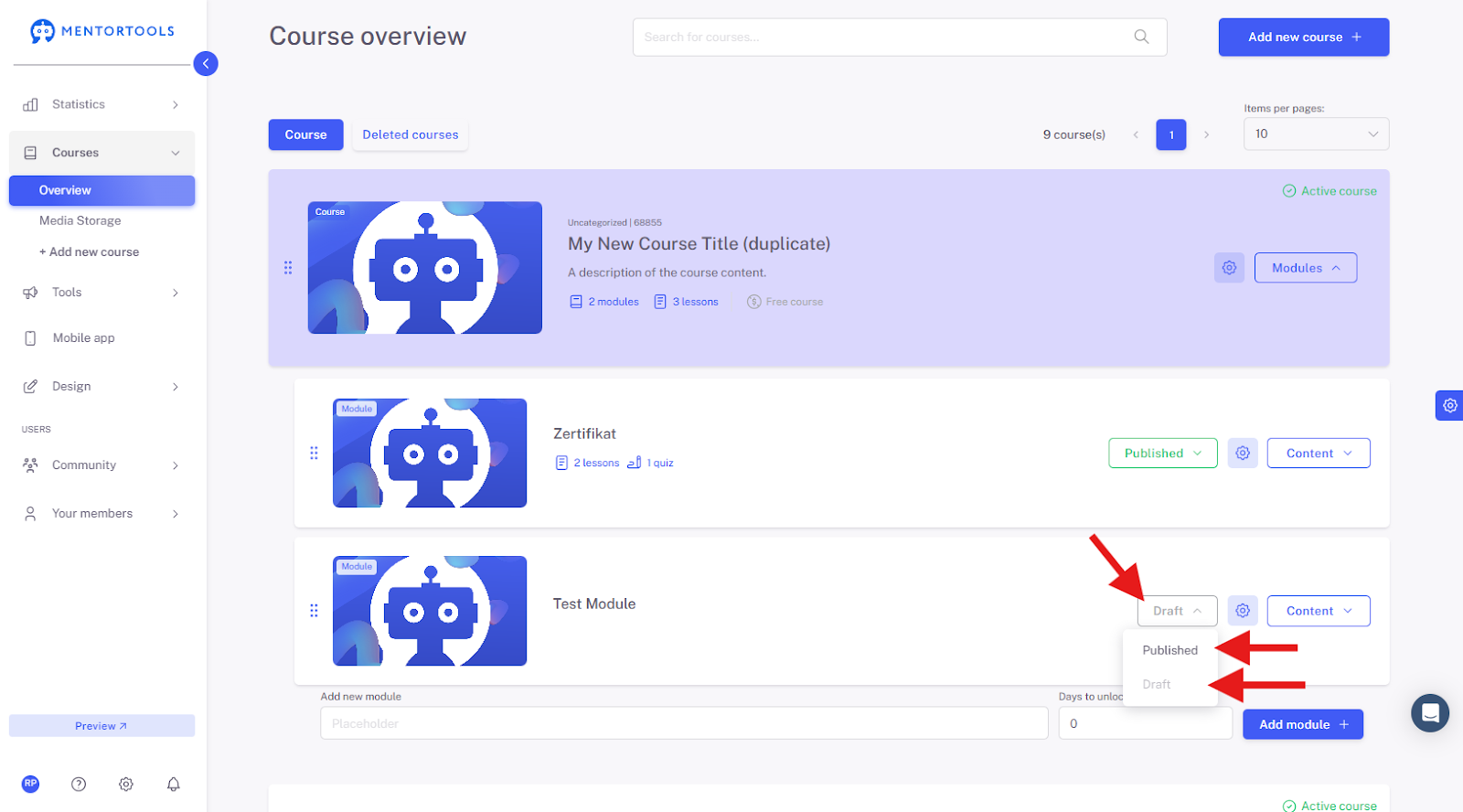
After you have created a new module, set its visibility for your customers. If you leave the module as "Draft" (the default option), the module will not be displayed in your online course. You can set the module as a draft if, for example, you are still working on this module and do not want it to be visible to your customers for now. If you want the module to be visible to your customers in the respective course, set it as "Published".
Adding Lessons to the Module
After you have created a module, you can create as many lessons as you want within that module. Simply click on "Content" within the respective module.
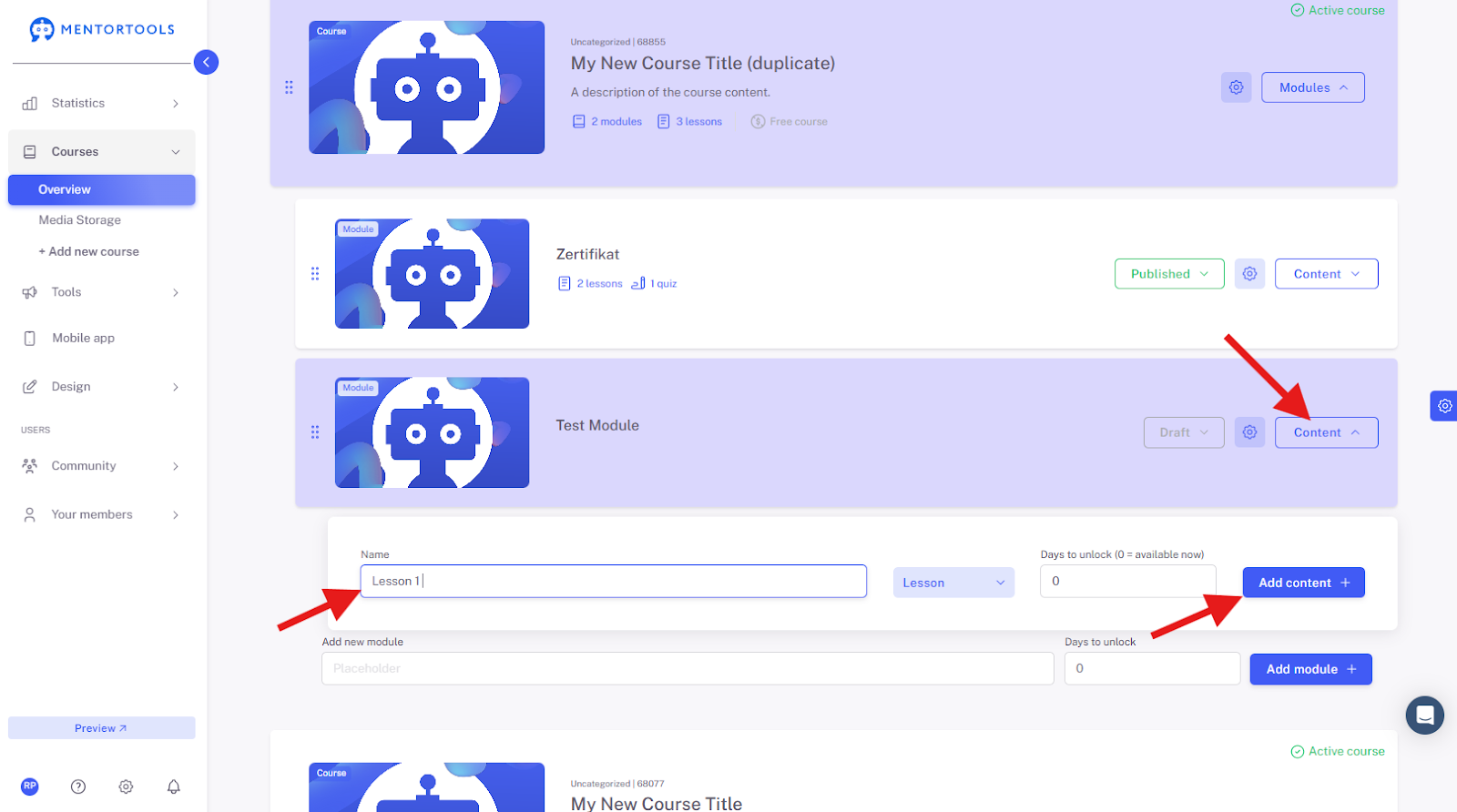
Then, enter the title of the lesson and click on the "Add content +" button.
Changing the Module Order
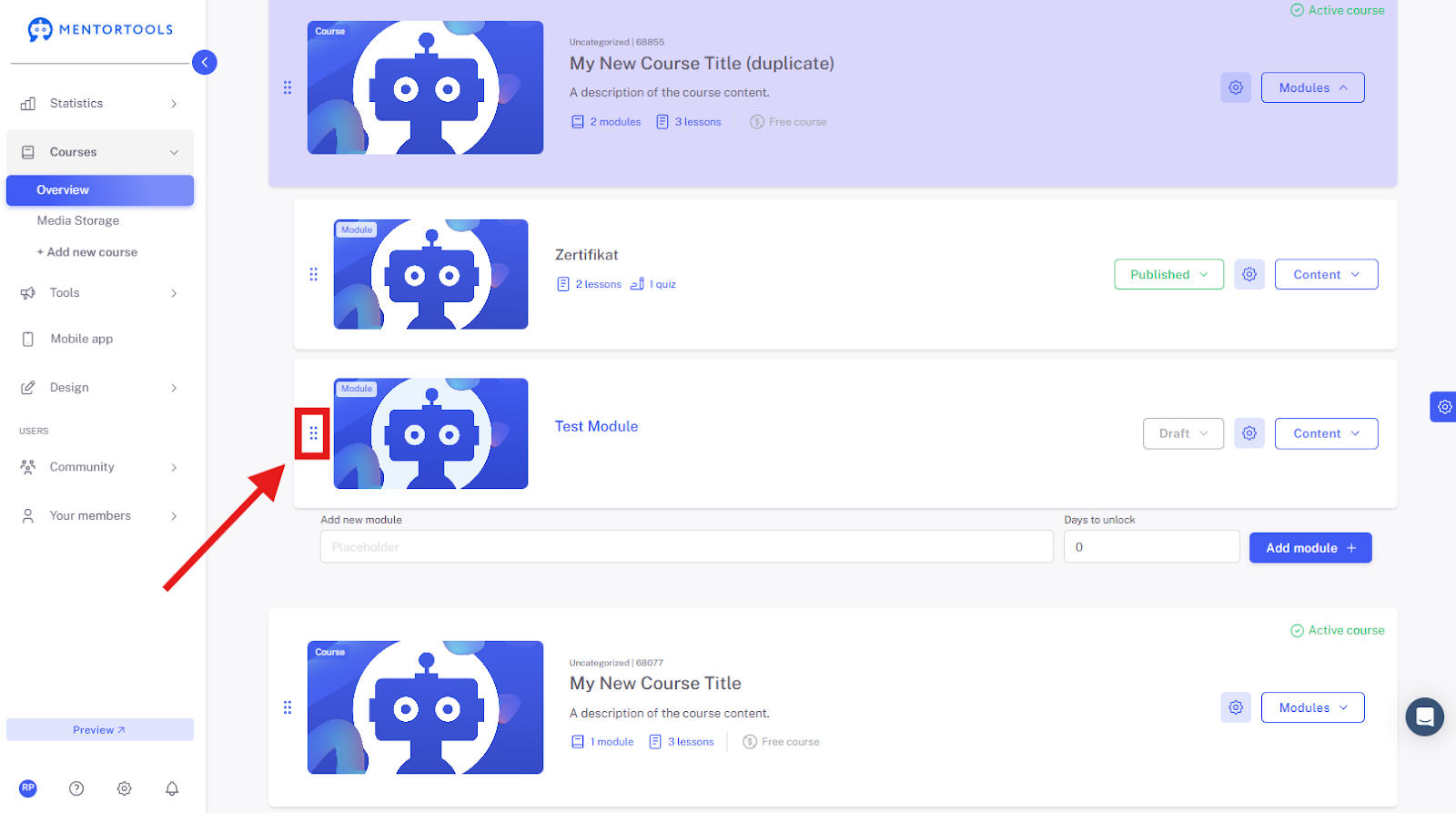
With the "Drag & Drop" function, you can change the order of the modules in your online course at any time.
If you want to change the order of the modules, simply drag the module on the left side (three dots) and drop it in the desired place. This way, you can adjust the order of the modules.
Editing Module Settings
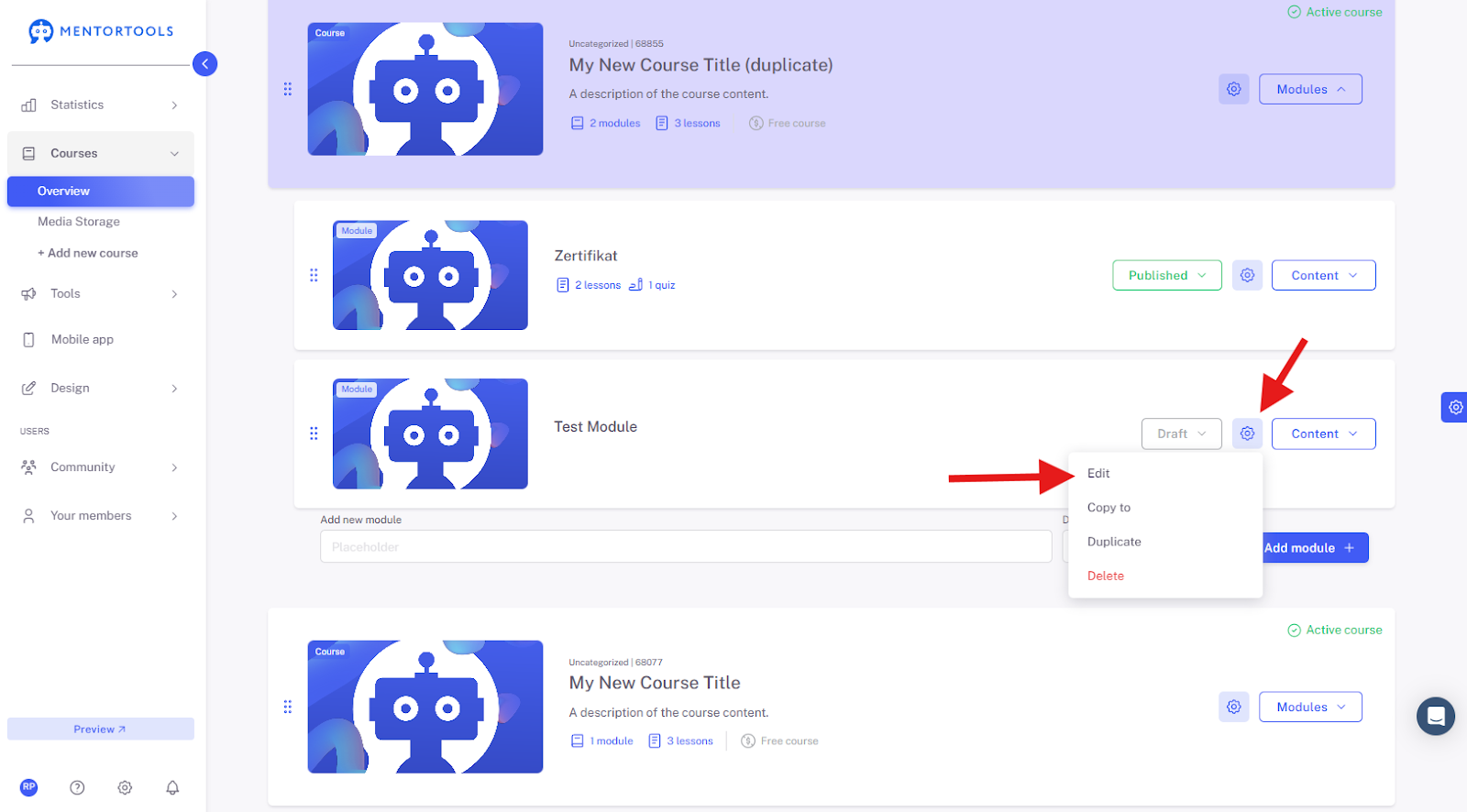
If you want to edit the settings of a module, simply click on the module name or the gear icon next to the module name and select the "Edit" option. The different settings of the module will then be displayed.
Duplicate Module
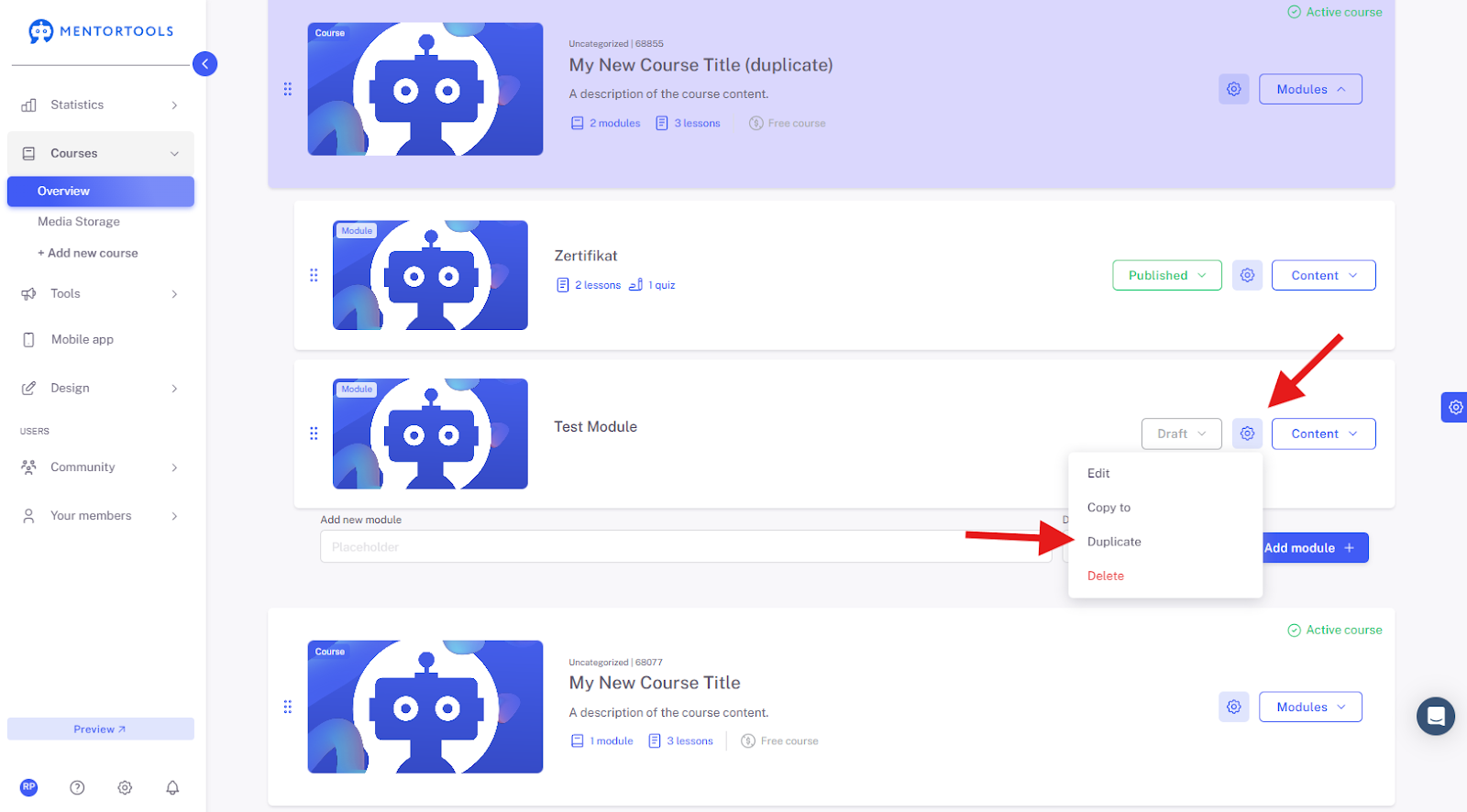
If you want to duplicate your module (create an exact copy), click on the gear icon next to the module name. Two options will then appear:
Duplicate – If you select this option, a copy of the module will be created in the same course.
Copy –
If you select this option, you can copy the module to another course.
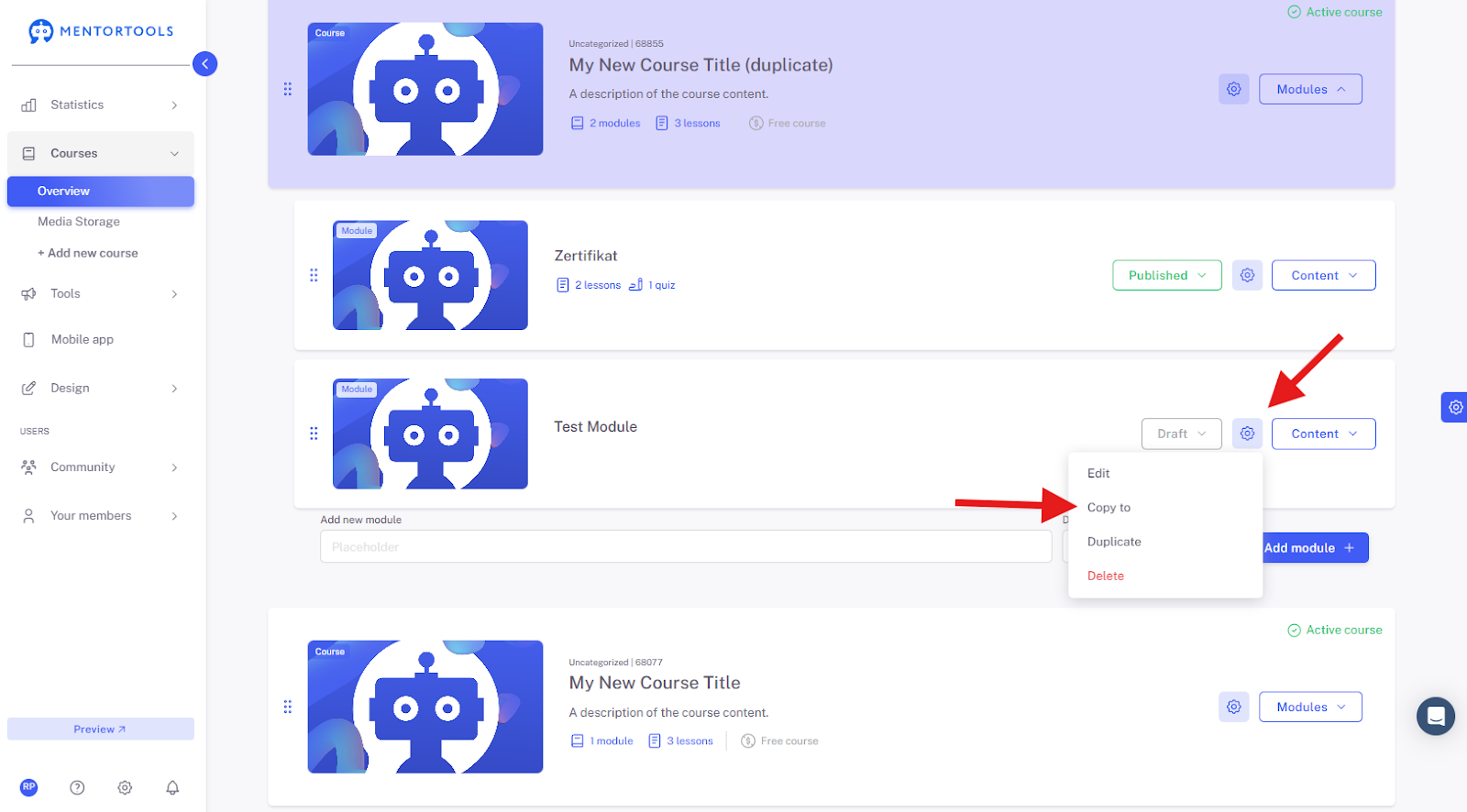
In this case, a list of the courses will be displayed from which you can choose which course(s) you want to copy the module to.
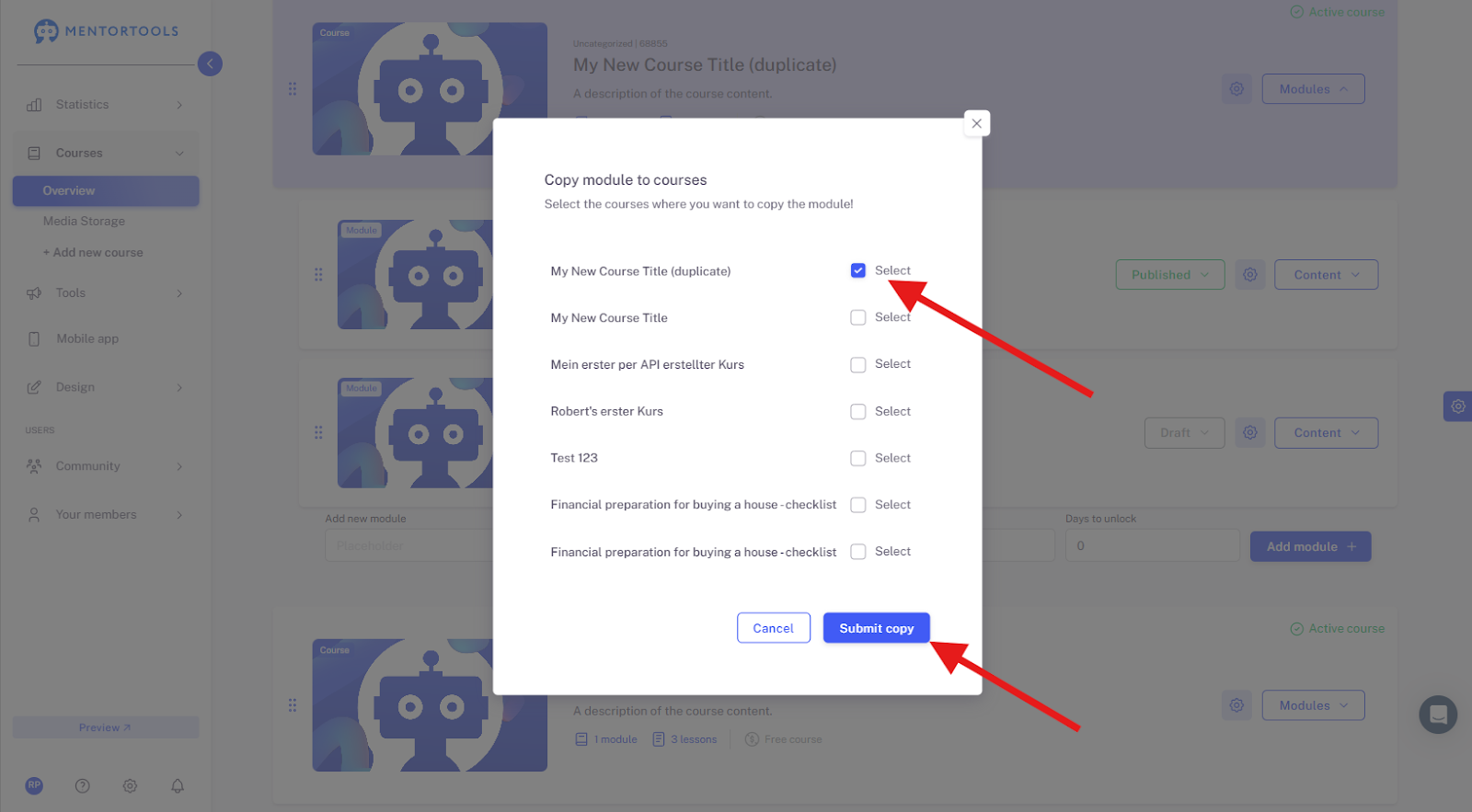
Select the corresponding course(s) and then click on "Submit copy".
Delete Module
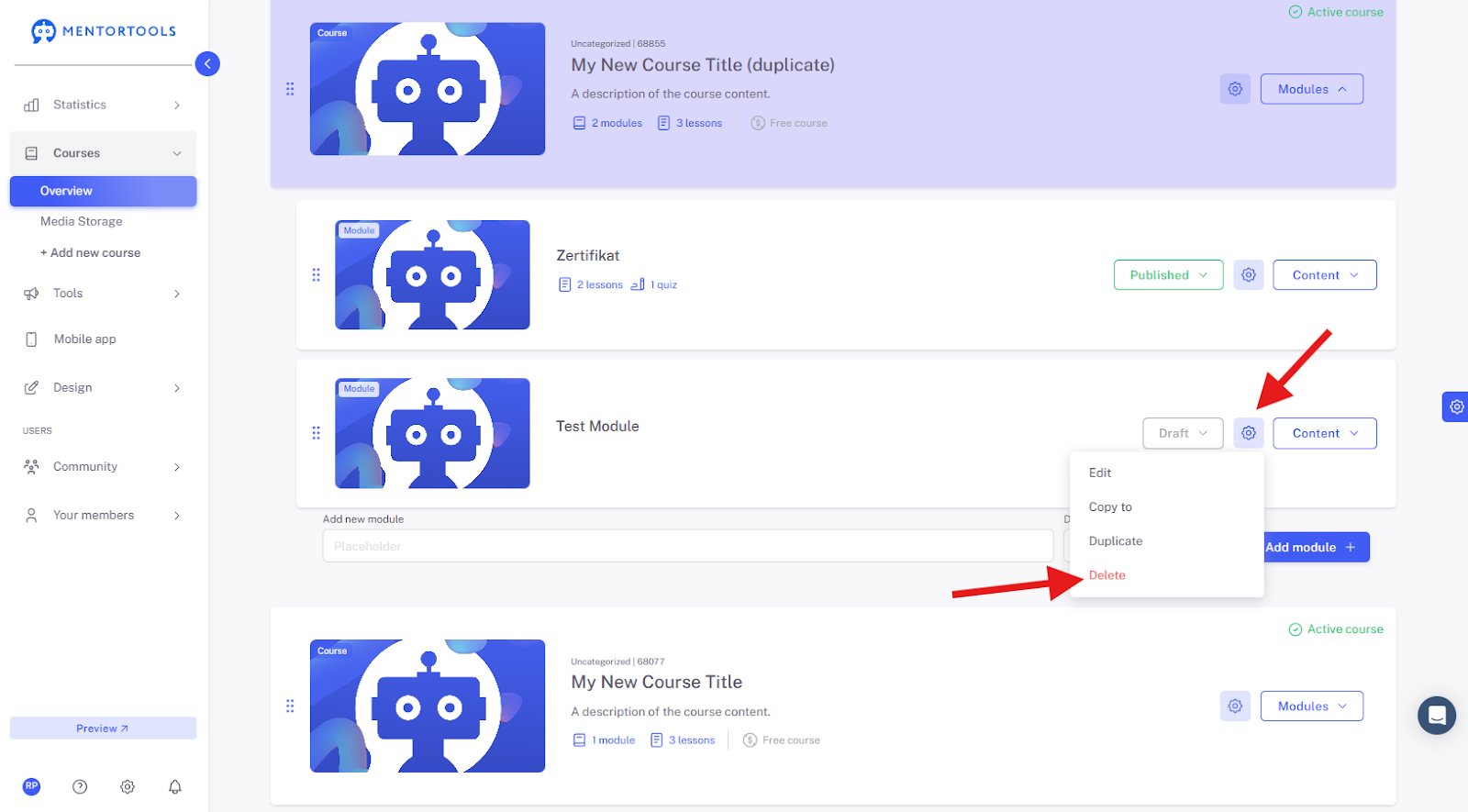
If you want to delete your module, click on the gear icon next to the module name. Then select the "Delete" option. Confirm your selection in the next step, and the module will be removed.
Best Practices for Modules
Tip for Your Course Structure
Before you start creating in Mentortools:
Plan your course in advance on paper or a whiteboard.
Define a learning objective for each module.
Assign suitable lessons to this objective.
A good module structure not only helps your participants—it also makes course production more efficient and clearer for you.