Lesson – Create lesson
In Mentortools, every course consists of multiple lessons that represent individual "chapters." A lesson can contain a video, text, downloadable files, and other content. You can add new lessons with just a few clicks, easily upload content, and customize them according to your needs—all without any prior technical knowledge.
Last updated 12 months ago
To create a new lesson, follow the next steps:
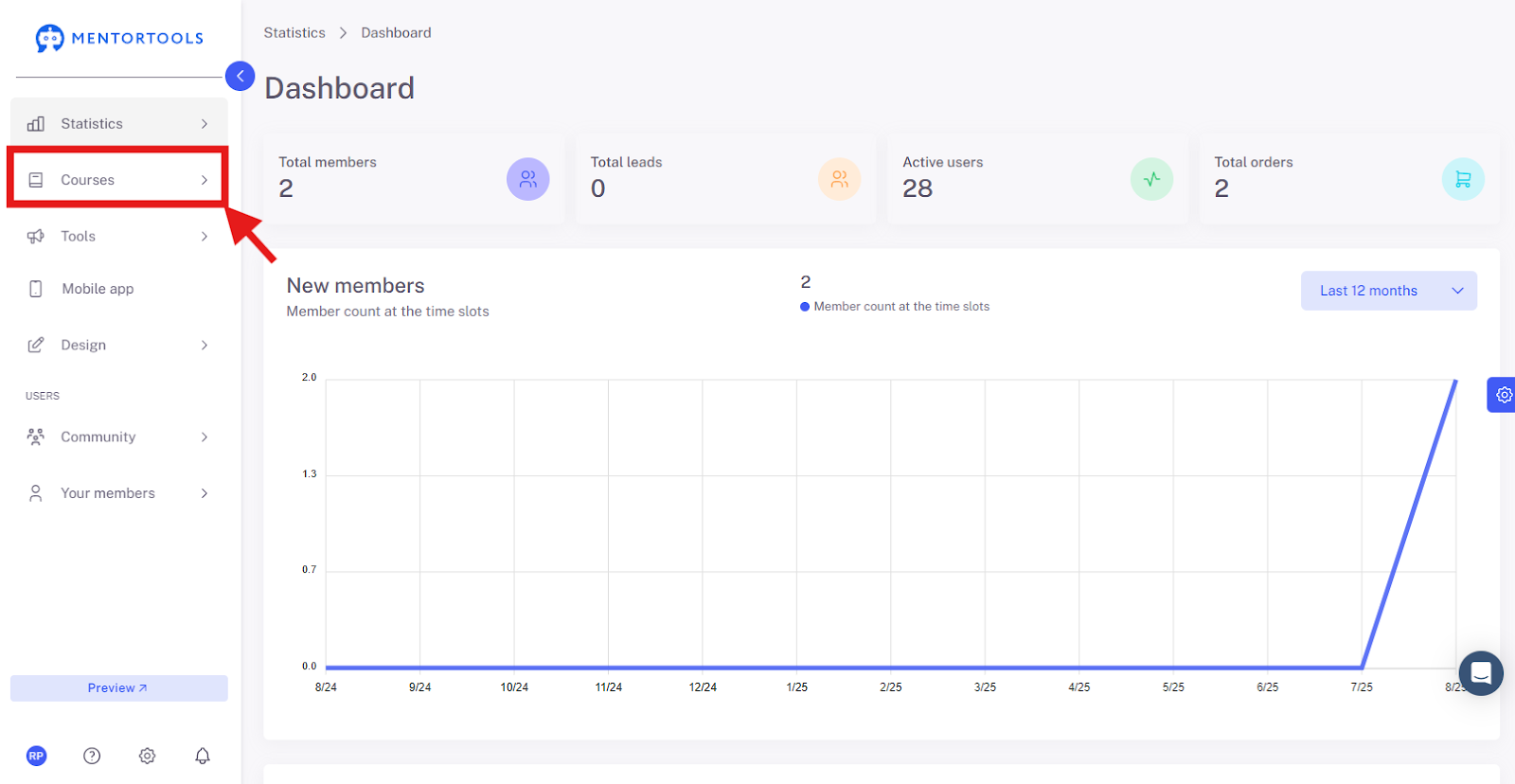
Go to "Courses"
In your online academy, go to "Courses" in the side menu.
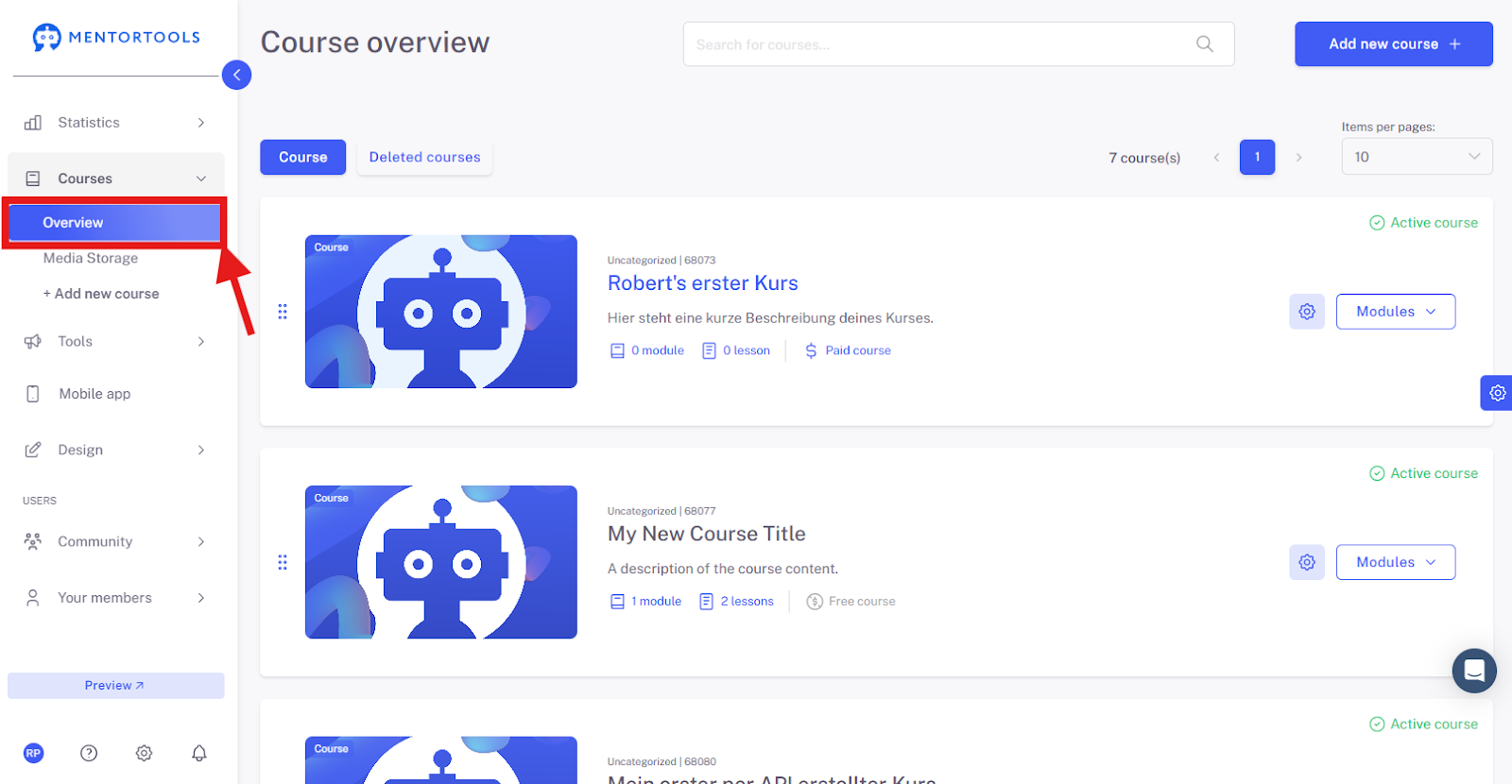
Go to "Overview"
To display the list of all your courses, then go to "Overview".
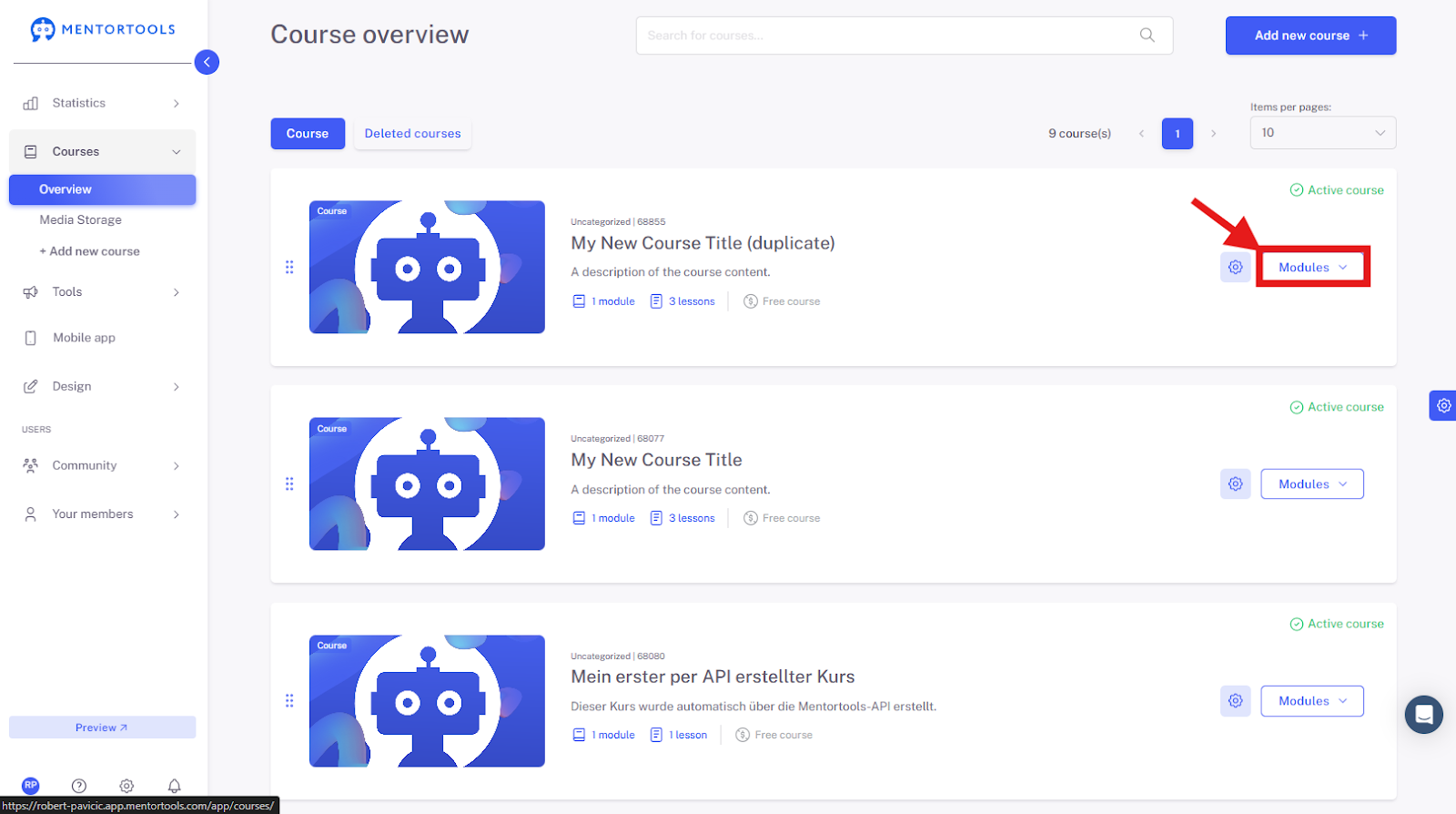
Select a specific course
Choose a specific course and module in which you want to create a new lesson. When you click on "Modules," all existing modules in this course will be displayed.
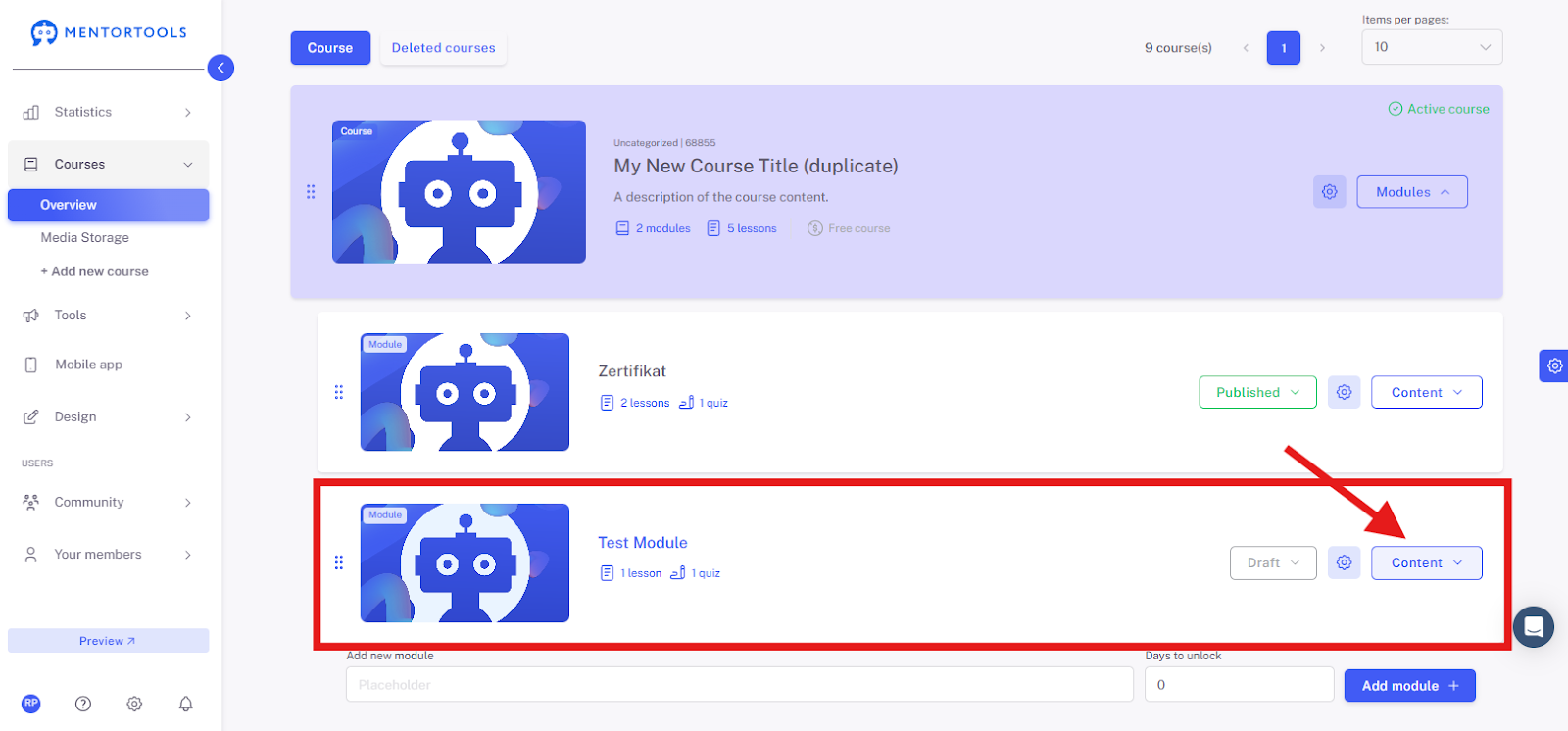
Display the content of the respective module
By clicking on "Contents," all existing lessons in this module will be displayed.
Add a new element
At the end of the lesson list, you'll find the option to add a new element to the module. Click on the dropdown menu, and you'll see the elements that can be added to the module: submodule, quiz, lesson. To add a lesson, select the "Lesson" option from the dropdown menu.
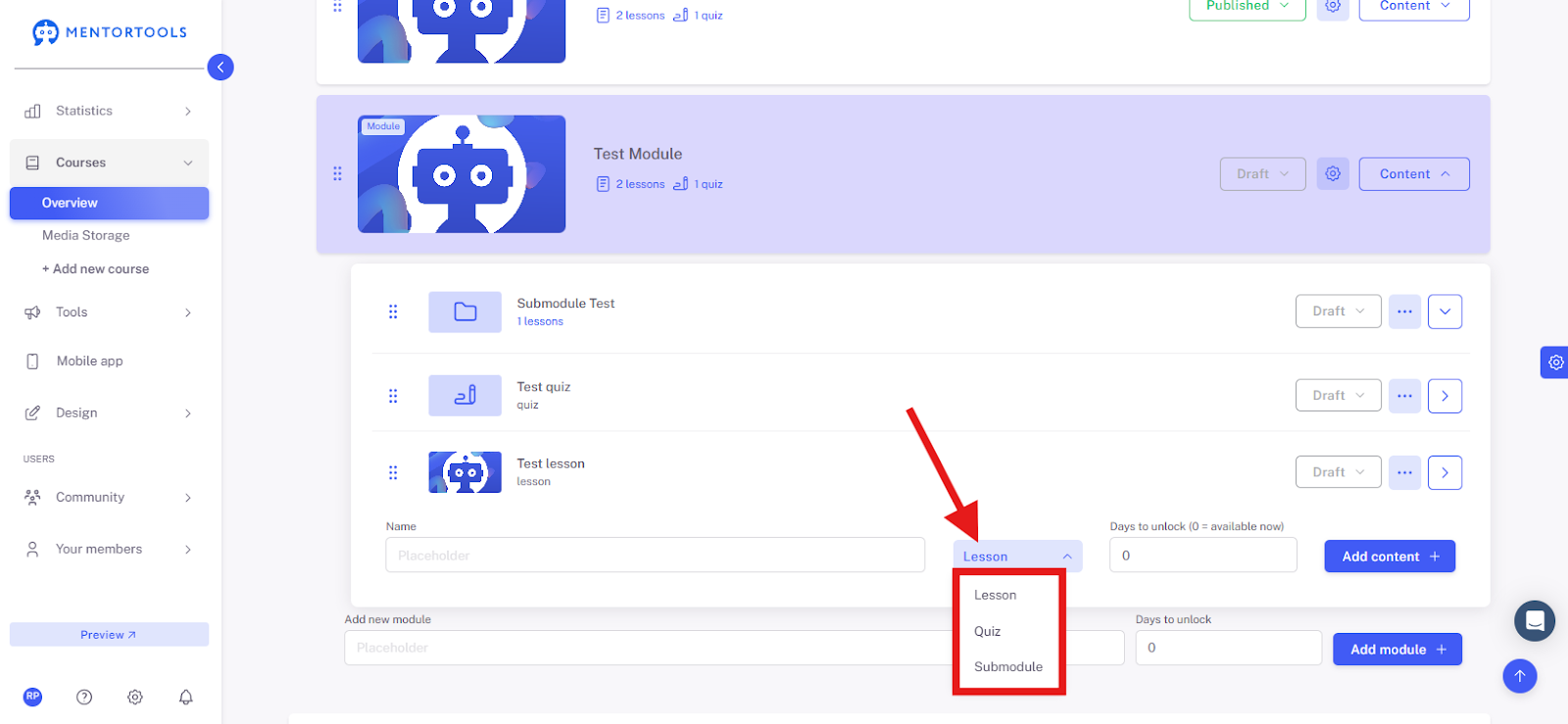
Create a new lesson
First, you need to enter the title of your new lesson.
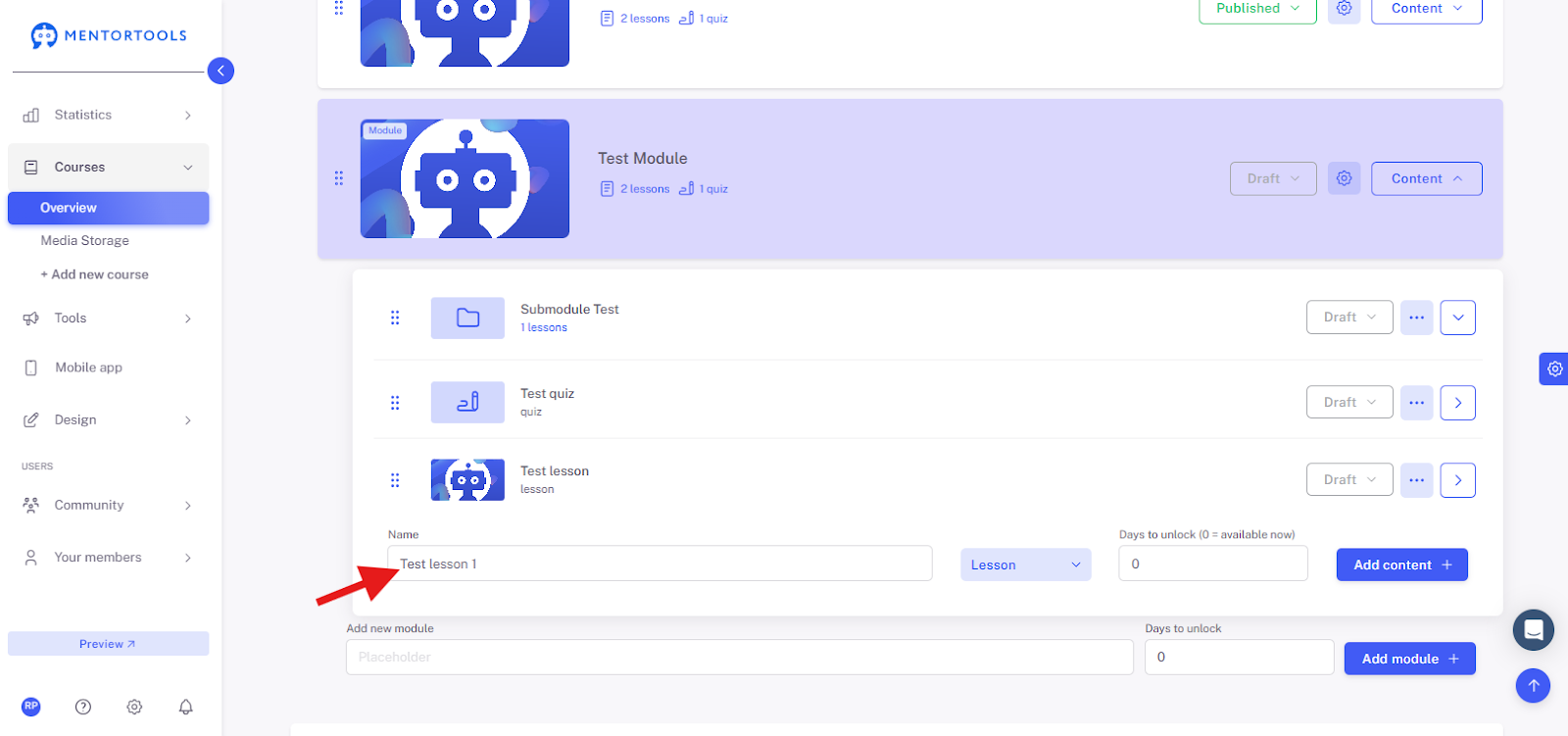
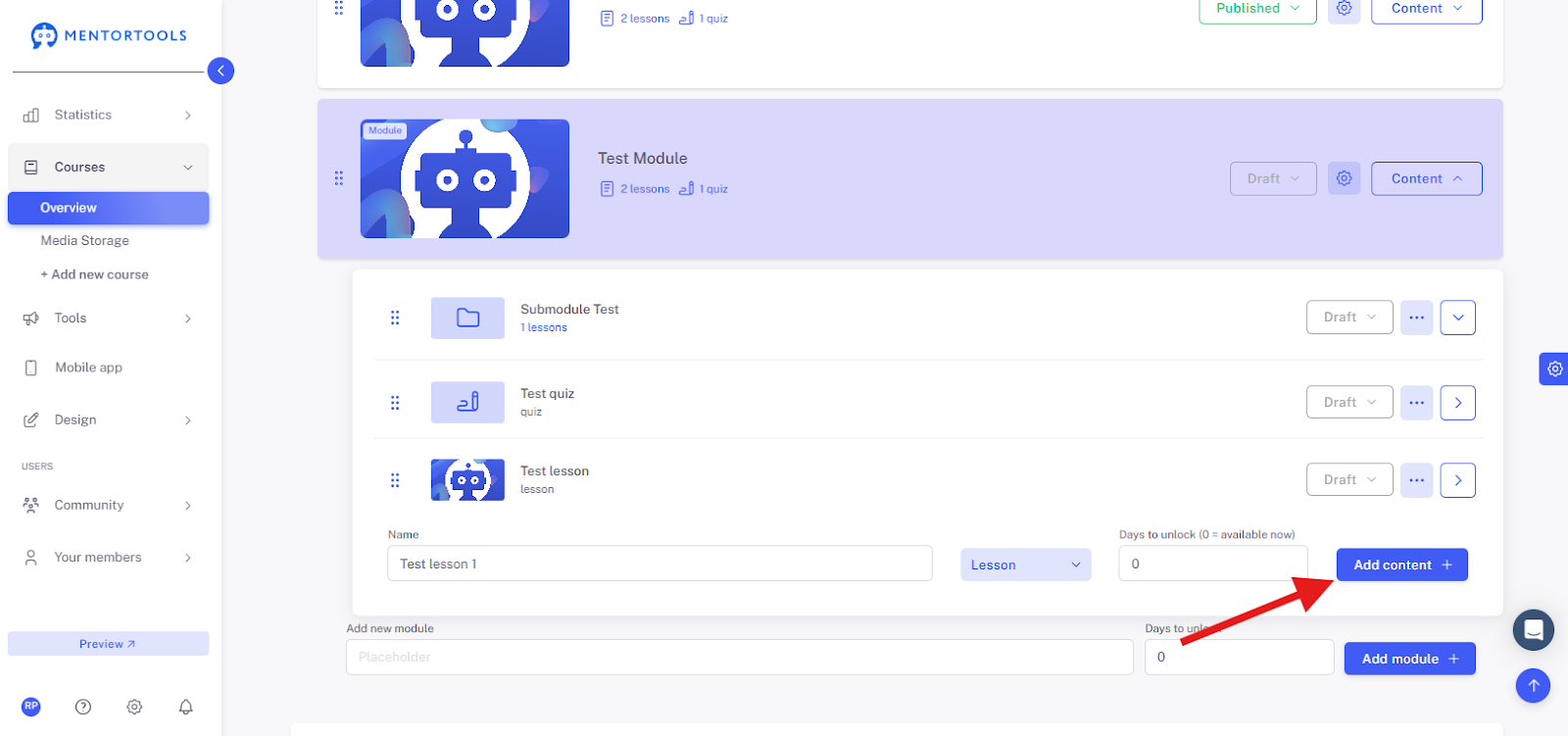
Then, click on "Add content +" to create the new lesson in the respective module.
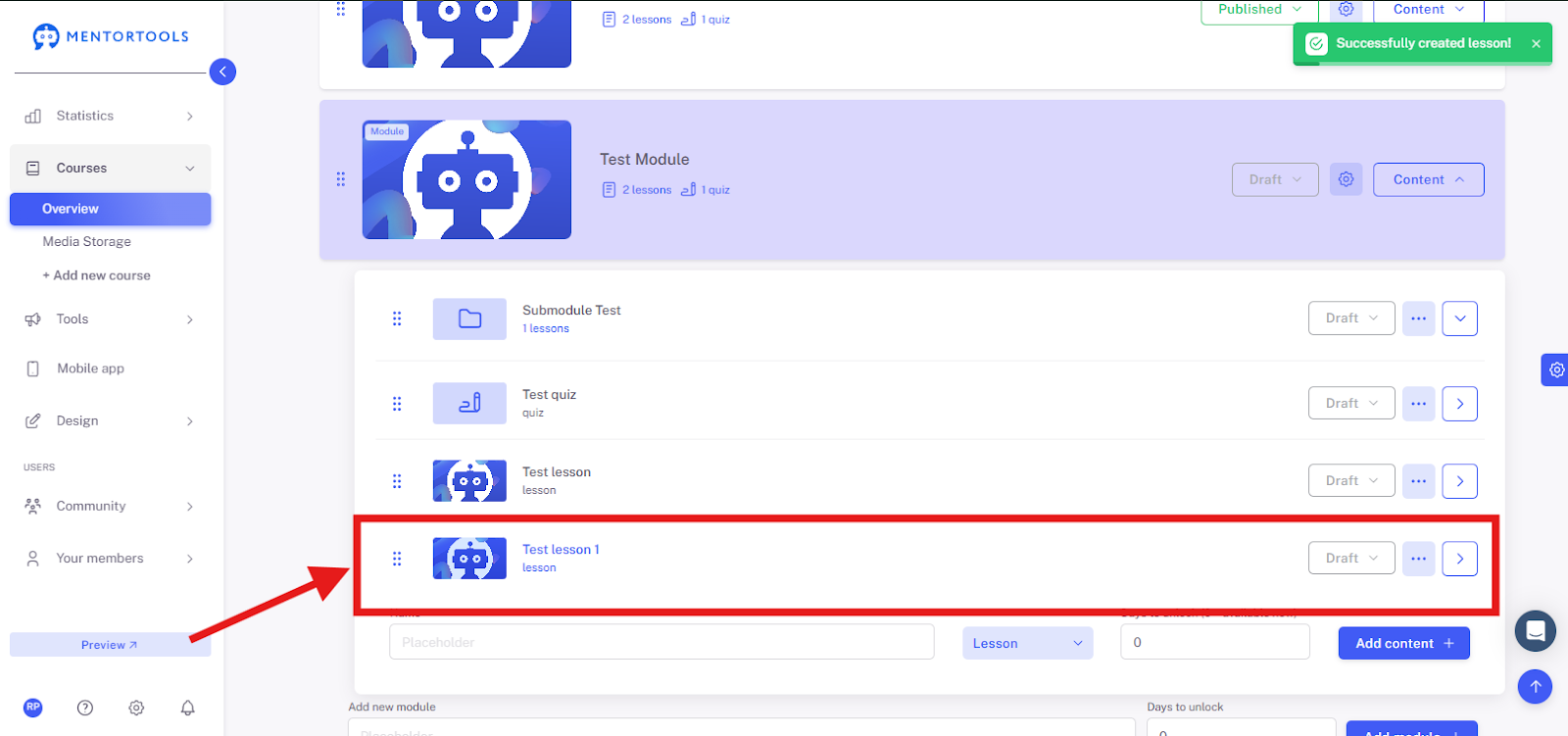
The new lesson is created immediately and added to the end of the lesson list in the respective module.
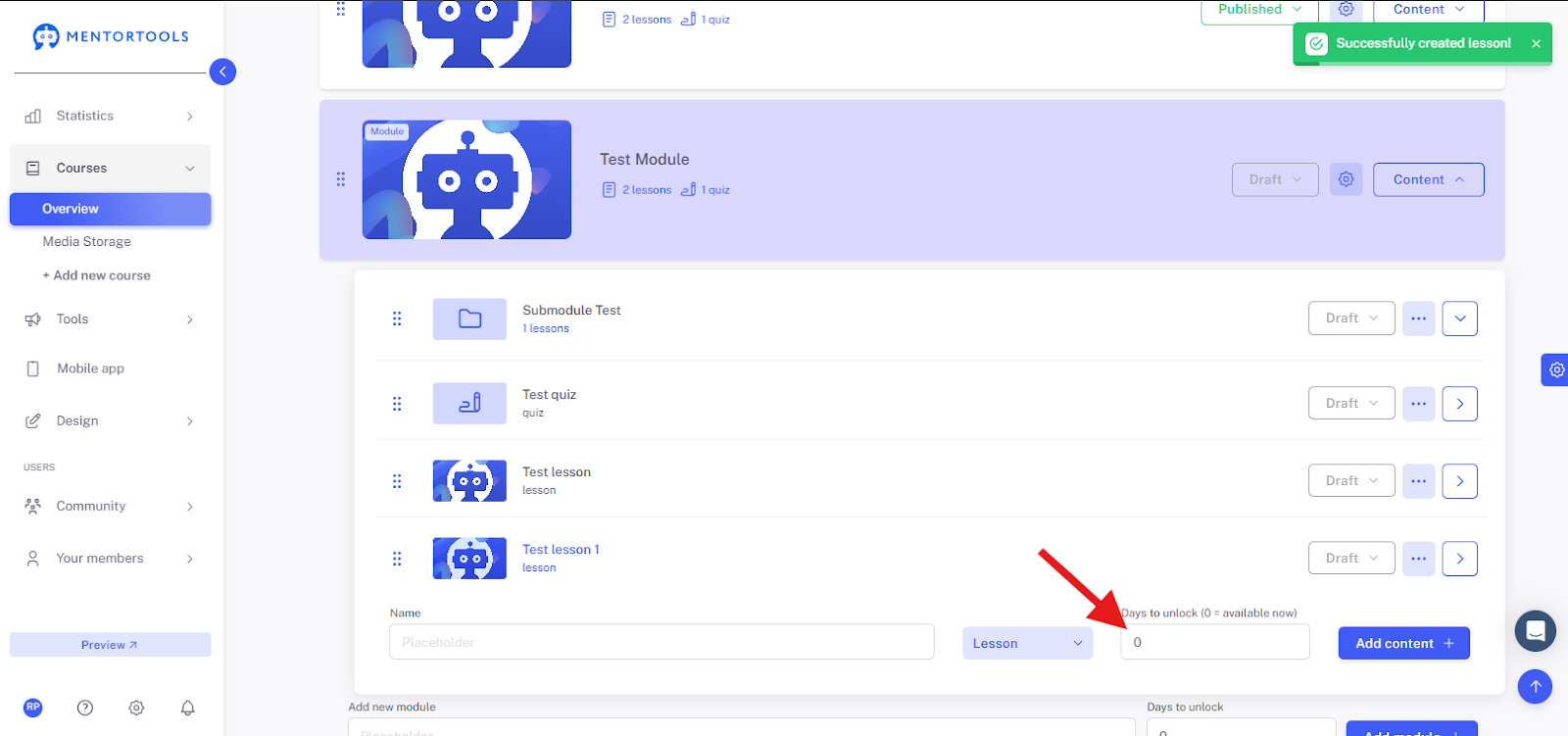
Days until release
In each lesson, you can set the number of days until the lesson is released to your customers, after they have gained access to the course. For example, if you set 10 days until release, the lesson will be available to your customer 10 days after the course starts / the course is purchased / they register in your membership area. If you enter a zero ("0") here, the lesson is immediately accessible.
Set lesson visibility
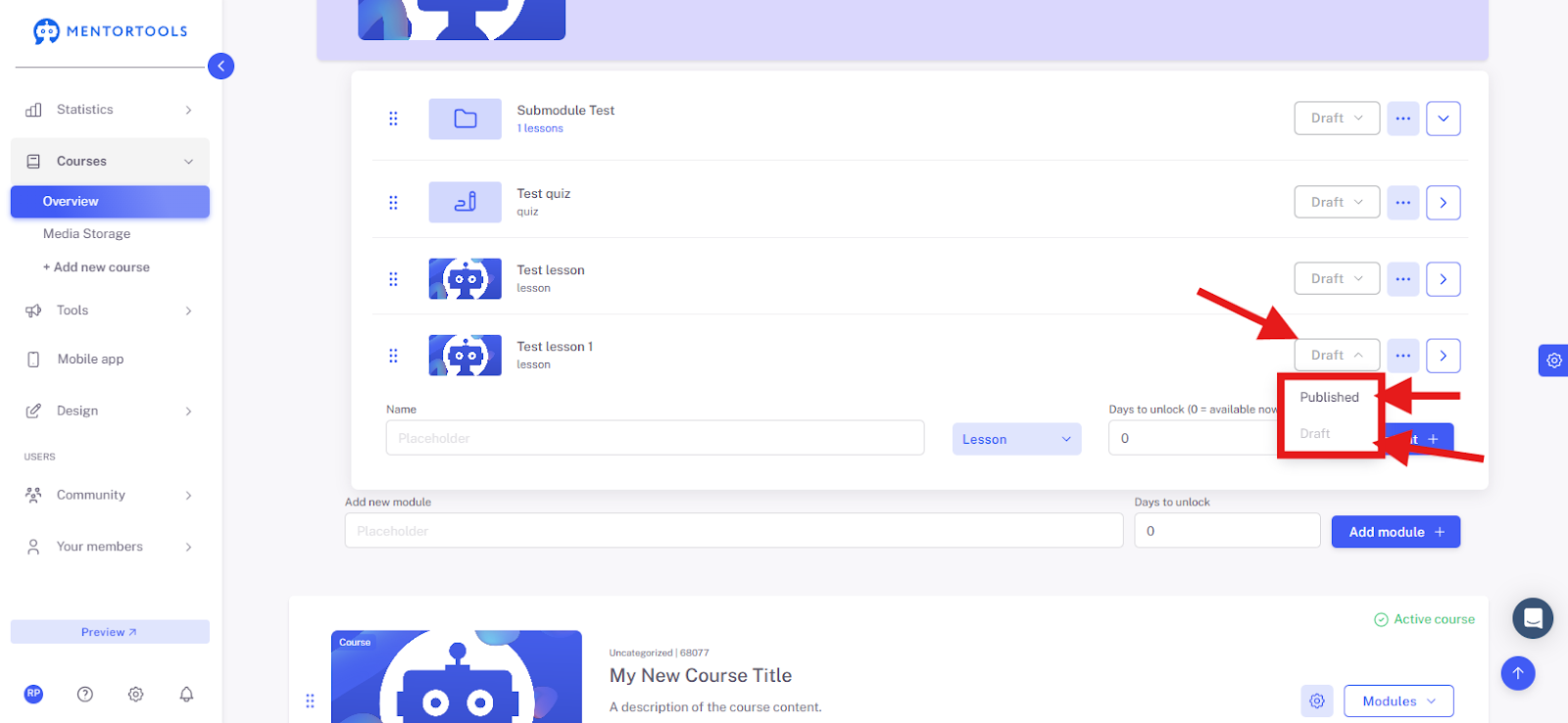
After you have created a new lesson, you can set its visibility for your customers. If you leave the lesson as "Draft" (the default option), the lesson will not be displayed in your online course. You can leave it as a draft if, for example, you are still working on the lesson and don't want it to be visible to your customers for now. If you want the lesson to be visible to your customers in the course, set the lesson to "Published."
Change the order of lessons
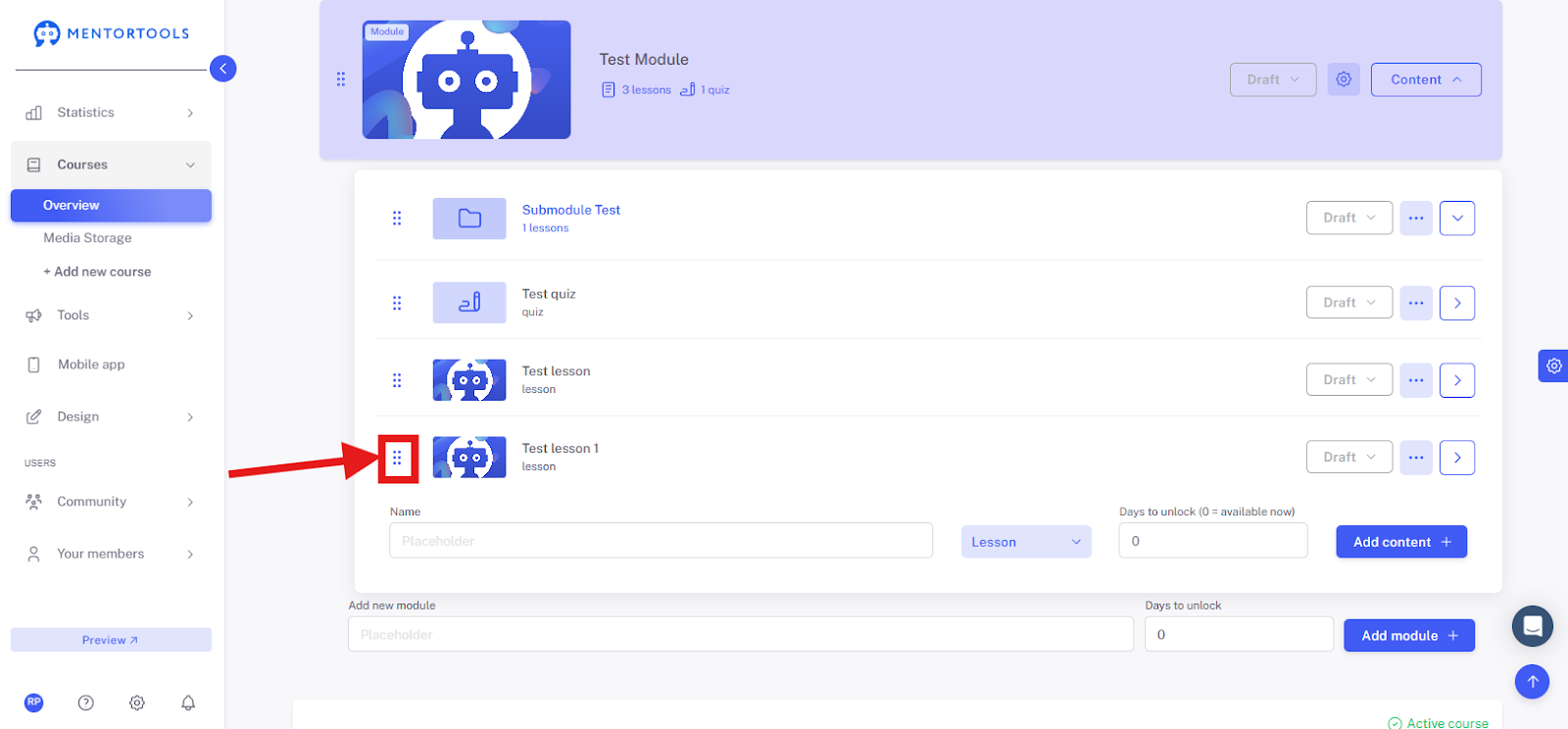
With the "drag & drop" function, you can change the order of the lessons within a module at any time. To change the order of the lessons, you simply need to grab the lesson on the far left (on the three dots), drag it, and drop it. This way, you can adjust the order of the lessons in the module.
Edit lesson settings
If you want to edit the settings of a lesson, simply click on the title of the lesson.
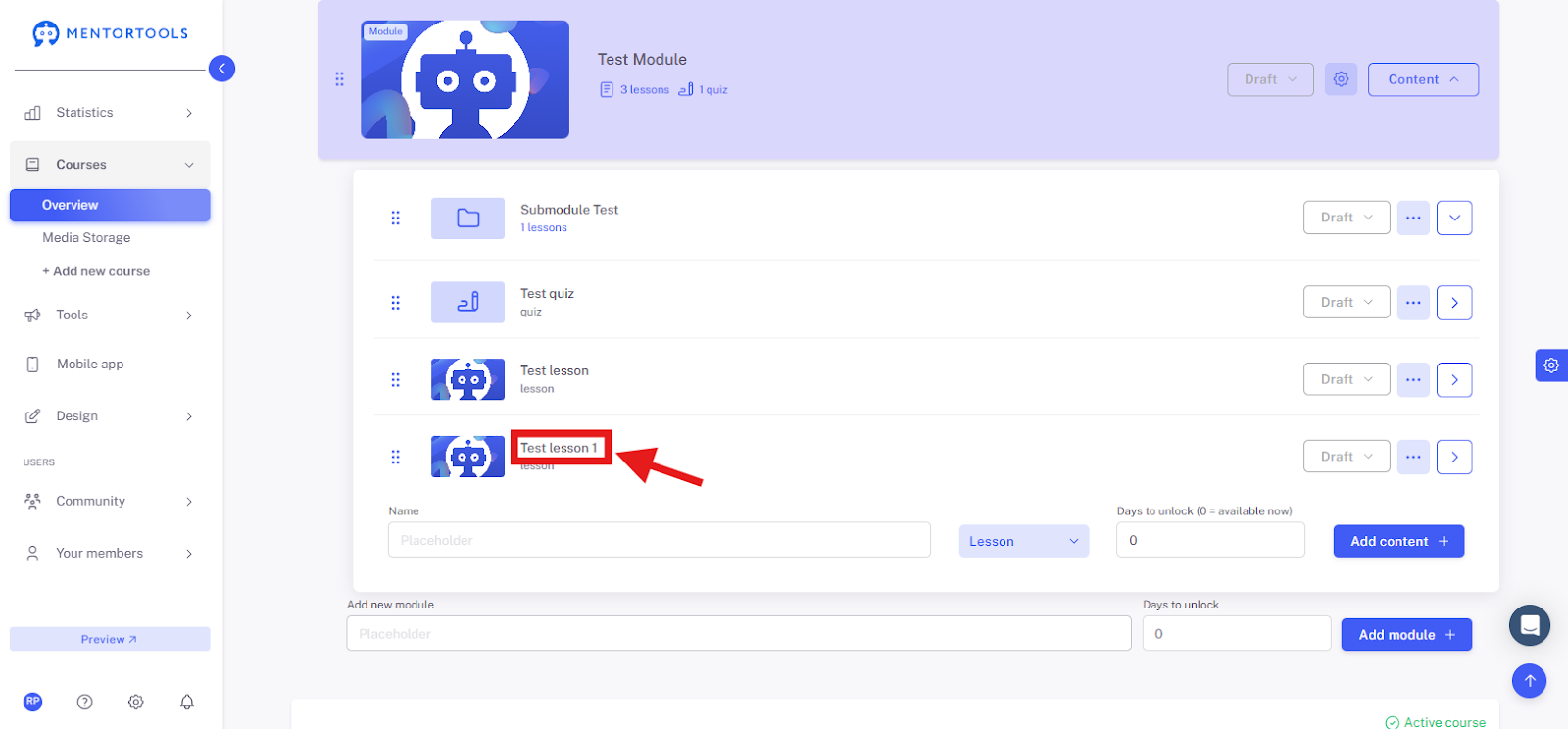
The individual settings of the lesson will then be displayed.
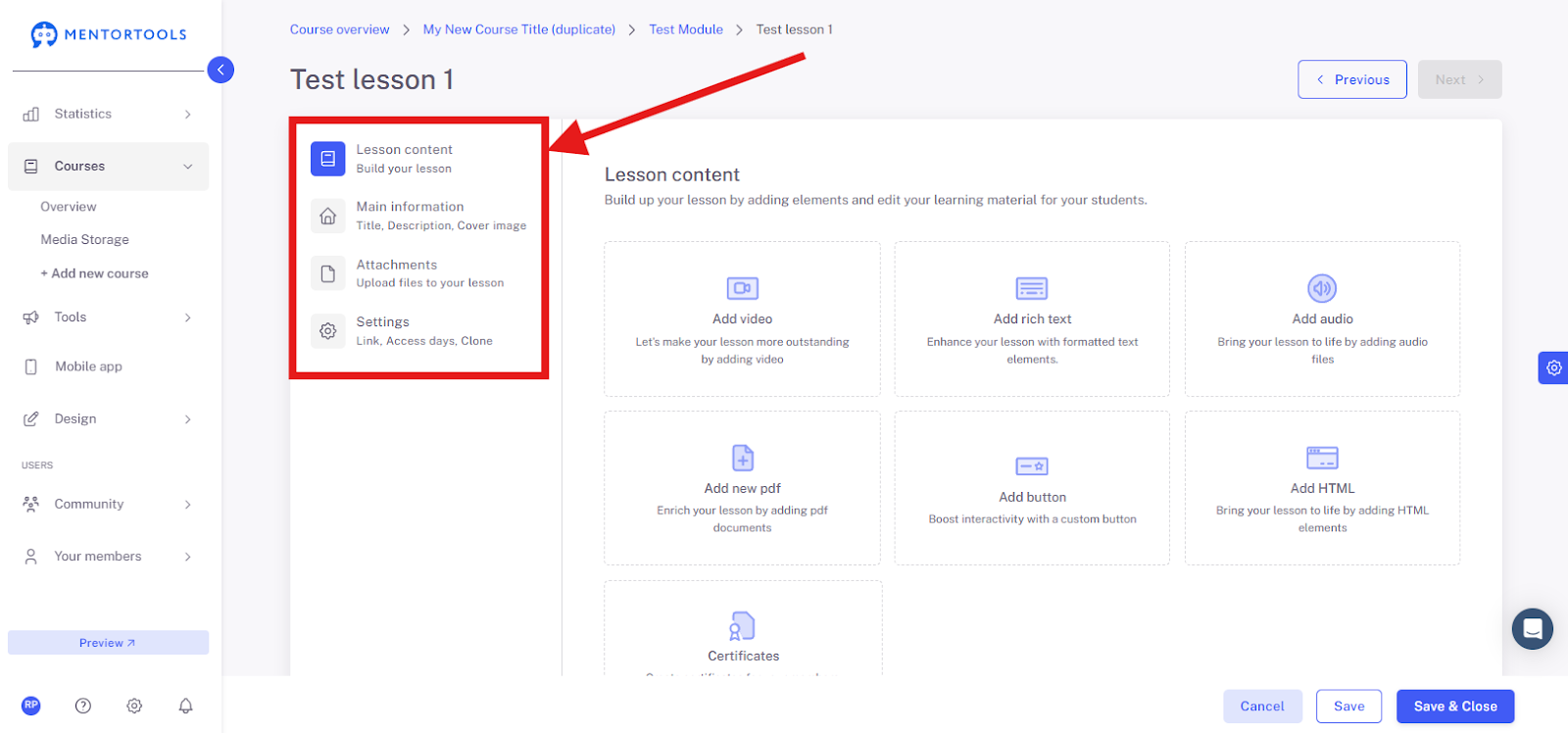
You can find the individual settings of the lesson in the other guides.
Duplicate lesson
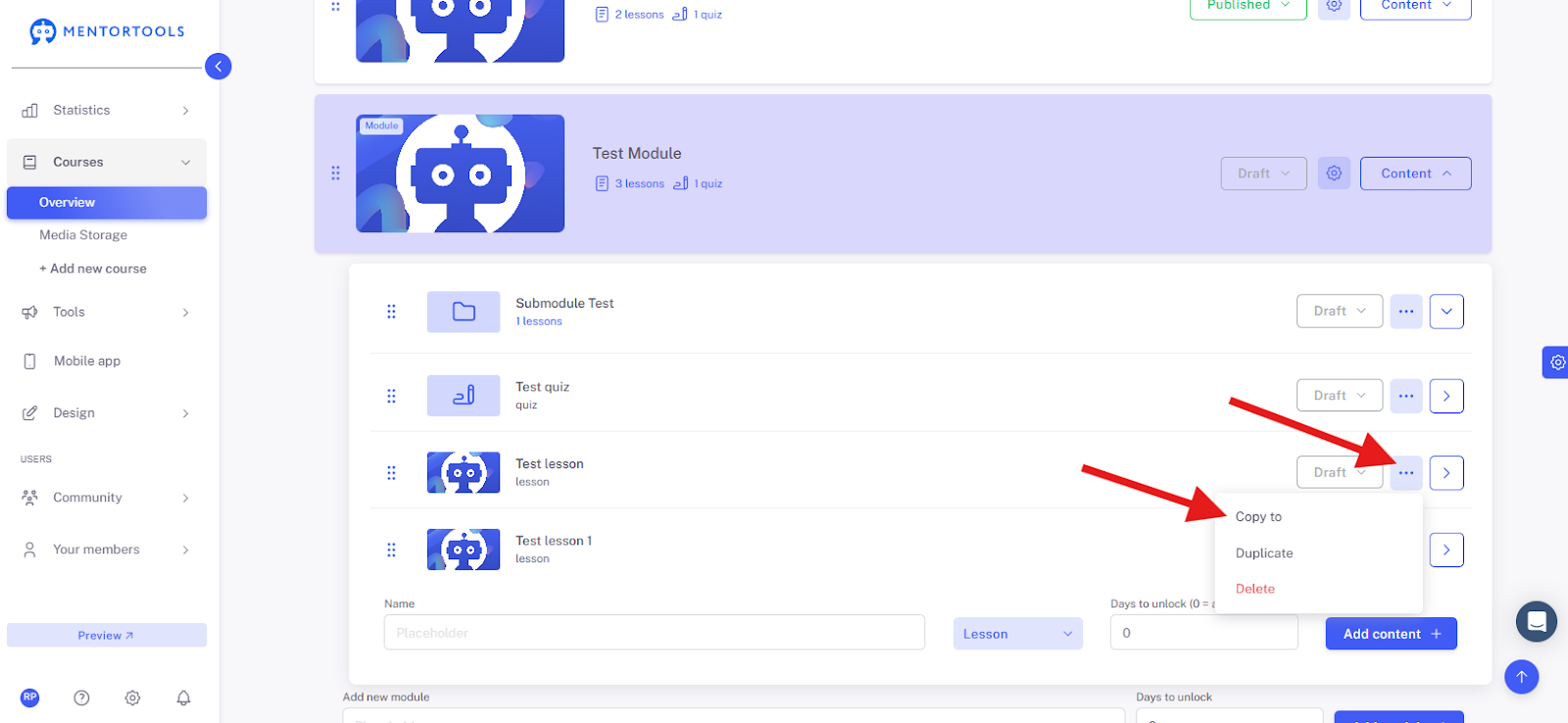
If you want to duplicate your lesson (i.e., create an exact copy), click on the three dots next to the title of the lesson. Two options will then appear:
Duplicate – If you select this option, a copy of the lesson is created in the same module.
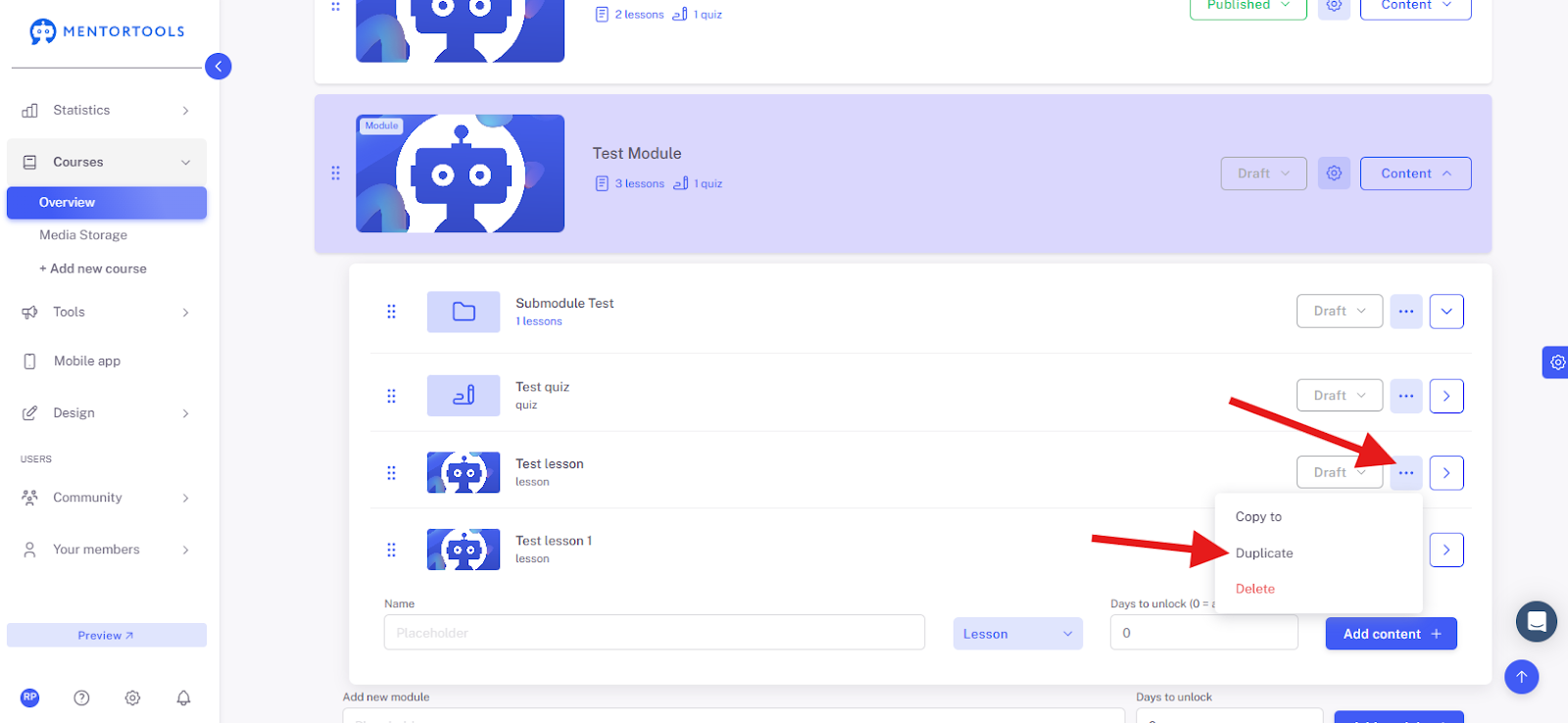
Copy – If you select this option, you can copy the lesson to another module within the same course or to a completely different course.
In this case, a list of the courses and modules will then be displayed, from which you can choose which course(s) and module(s) you want to copy the lesson to.
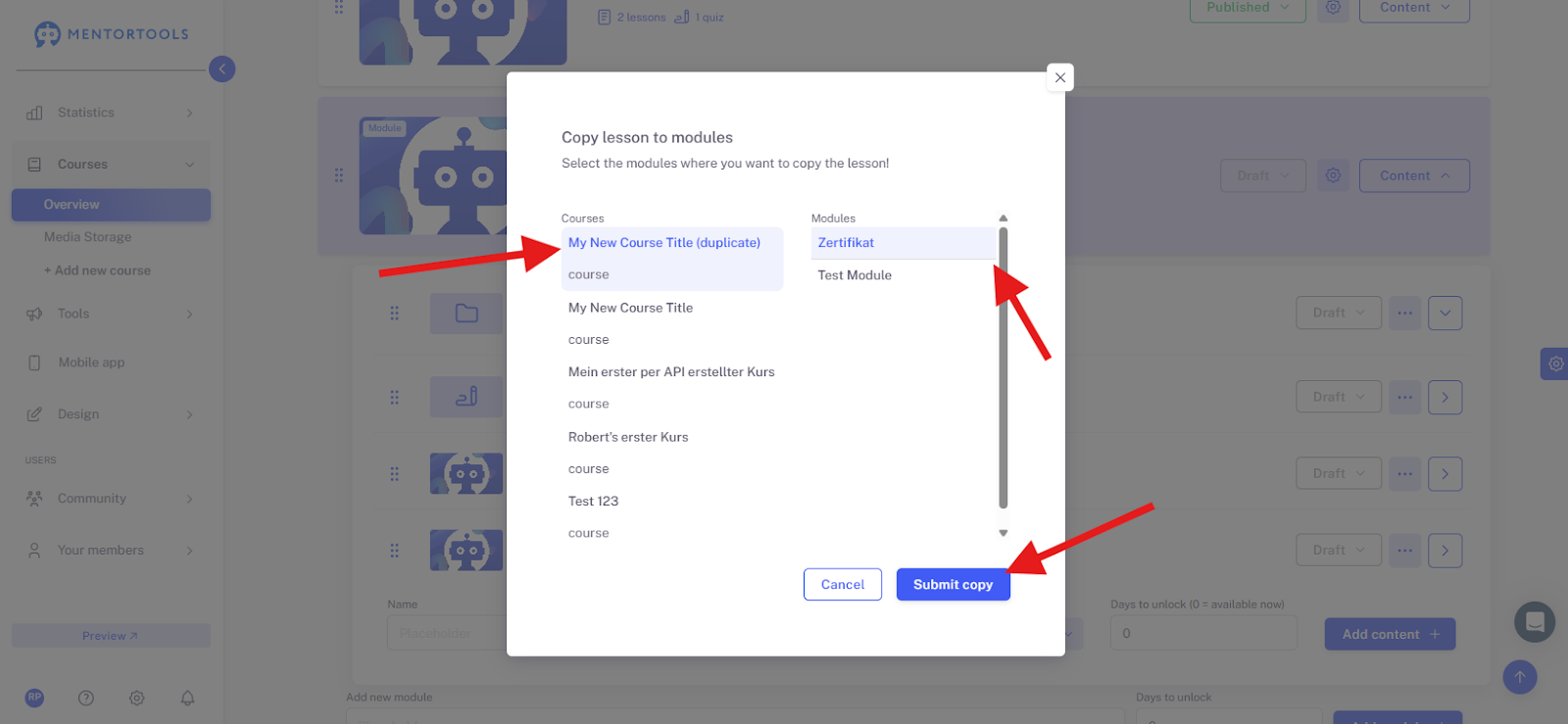
After you have selected the desired course and module, click on the blue "Submit copy" button. The lesson will then be copied to the selected course and module.
Delete lesson
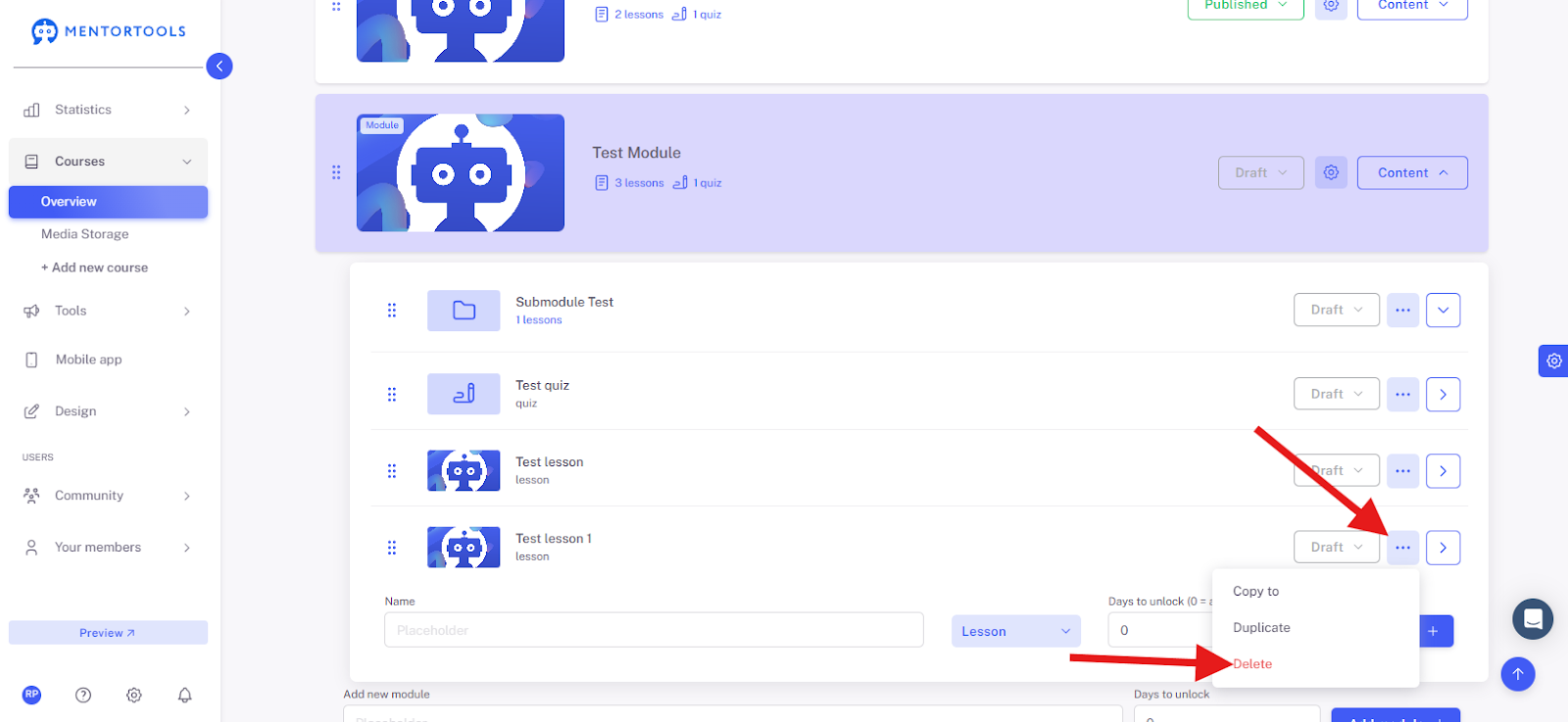
If you want to remove the lesson, click on the three dots next to the title of the lesson. Then select the "Delete" option. In the next step, you will be asked to confirm your selection, and the lesson will then be deleted.
Congratulations! You have just successfully added a new lesson to your course. In the next guide, you will learn how to insert specific materials (texts, videos, images, PDF files, etc.) directly into your lessons.