Lesson - Main information
In this guide, you will learn how to adjust the Main information of a lesson in Mentortools—specifically, the title, description, and cover image.
Last updated 12 months ago
Where to Find a Lesson's Main information?
Go to "Courses"
In your online academy, go to "Courses" in the side menu.

Go to "Overview"
To display the list of all your courses, then go to "Overview".

Select a specific course
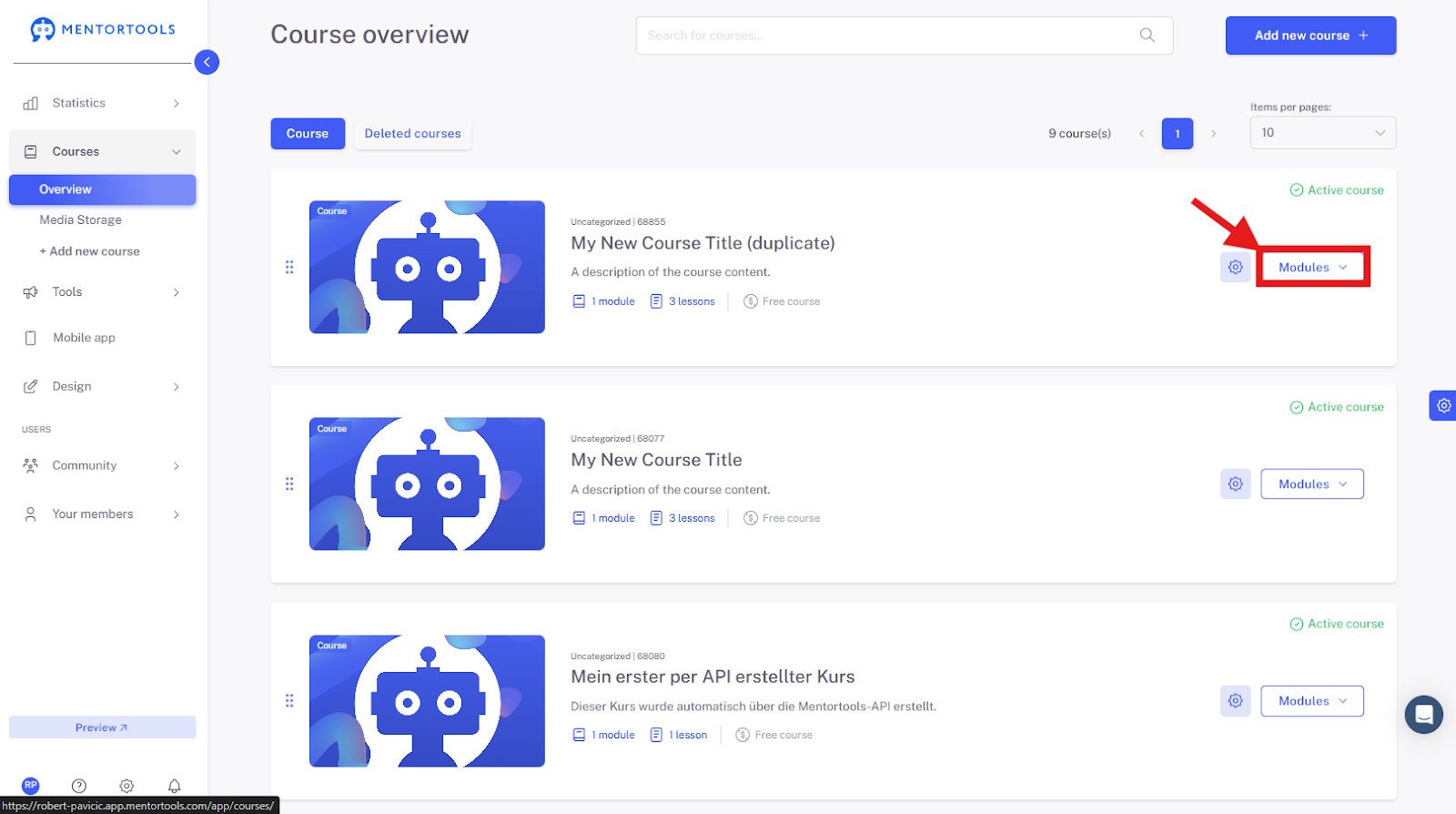
Choose a specific course and module where you want to edit the Main information of the lesson. When you click on "Modules," all existing modules in this course will be displayed.
Show the content of the respective module
By clicking on "Content," all existing lessons in this module will be displayed.

Select the lesson
To edit the Main information of the lesson, click on the title of the respective lesson. After clicking, all the settings will be displayed.

Edit the Main information
To edit the lesson's Main information, go to the "Main information" section.

Overview of Available Settings - Main information
Lesson Title
Here, you can change the title of your lesson. The title is directly visible to course participants.

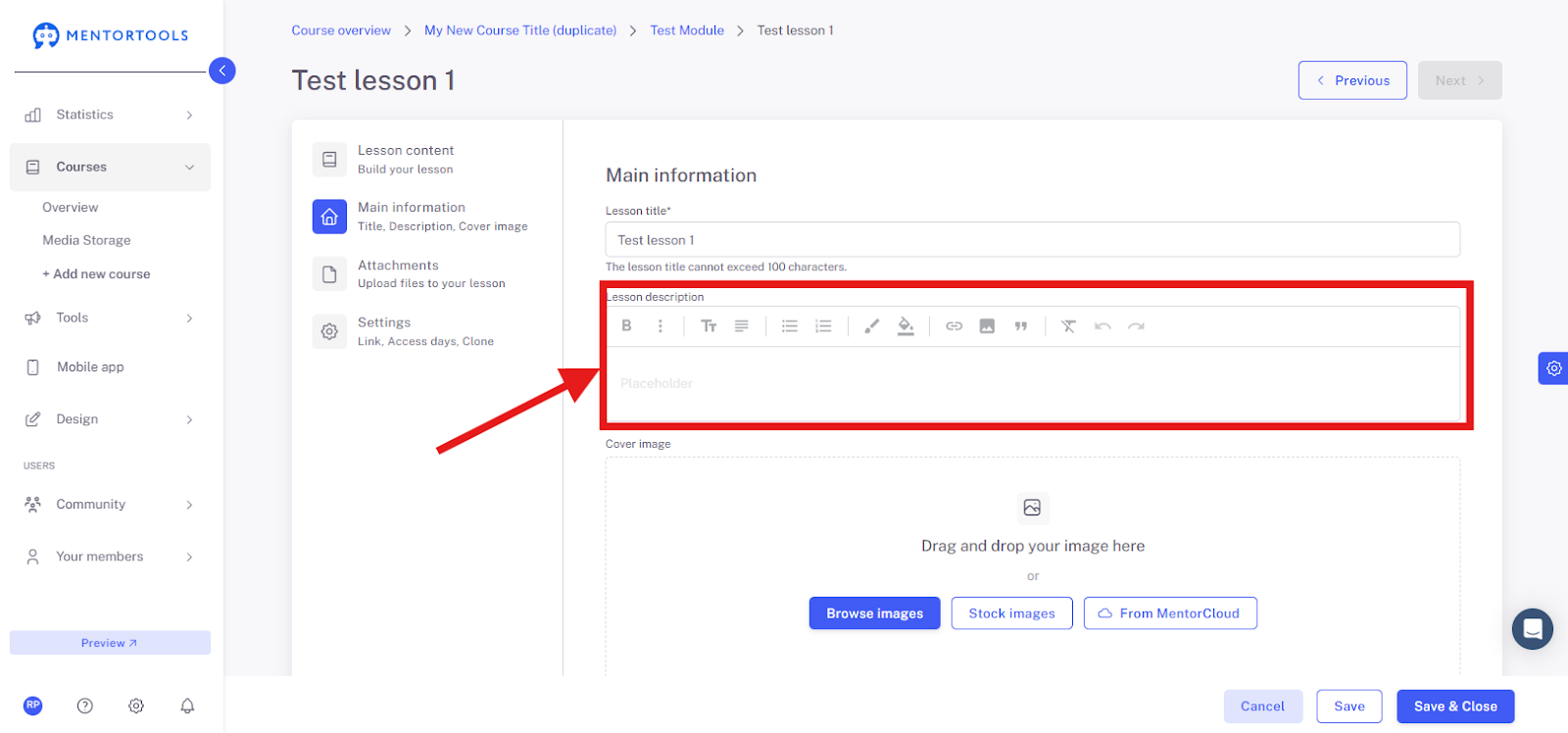
Lesson Description
In this area, you can add a short description of the lesson that explains to participants what the lesson is about and what they will learn.
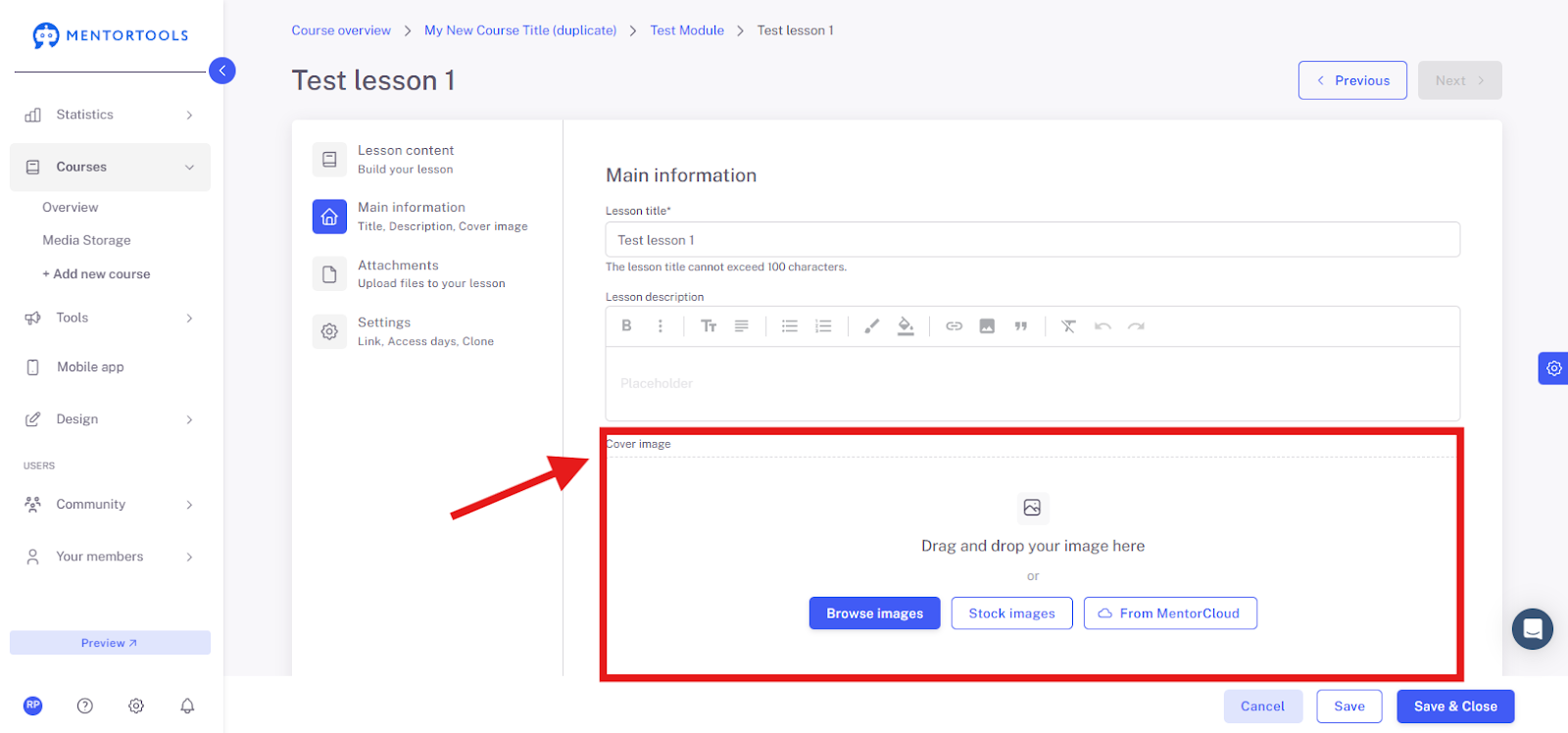
Cover Image
Upload a new image from your computer, use image templates (royalty-free images), or select an image from MentorCloud.
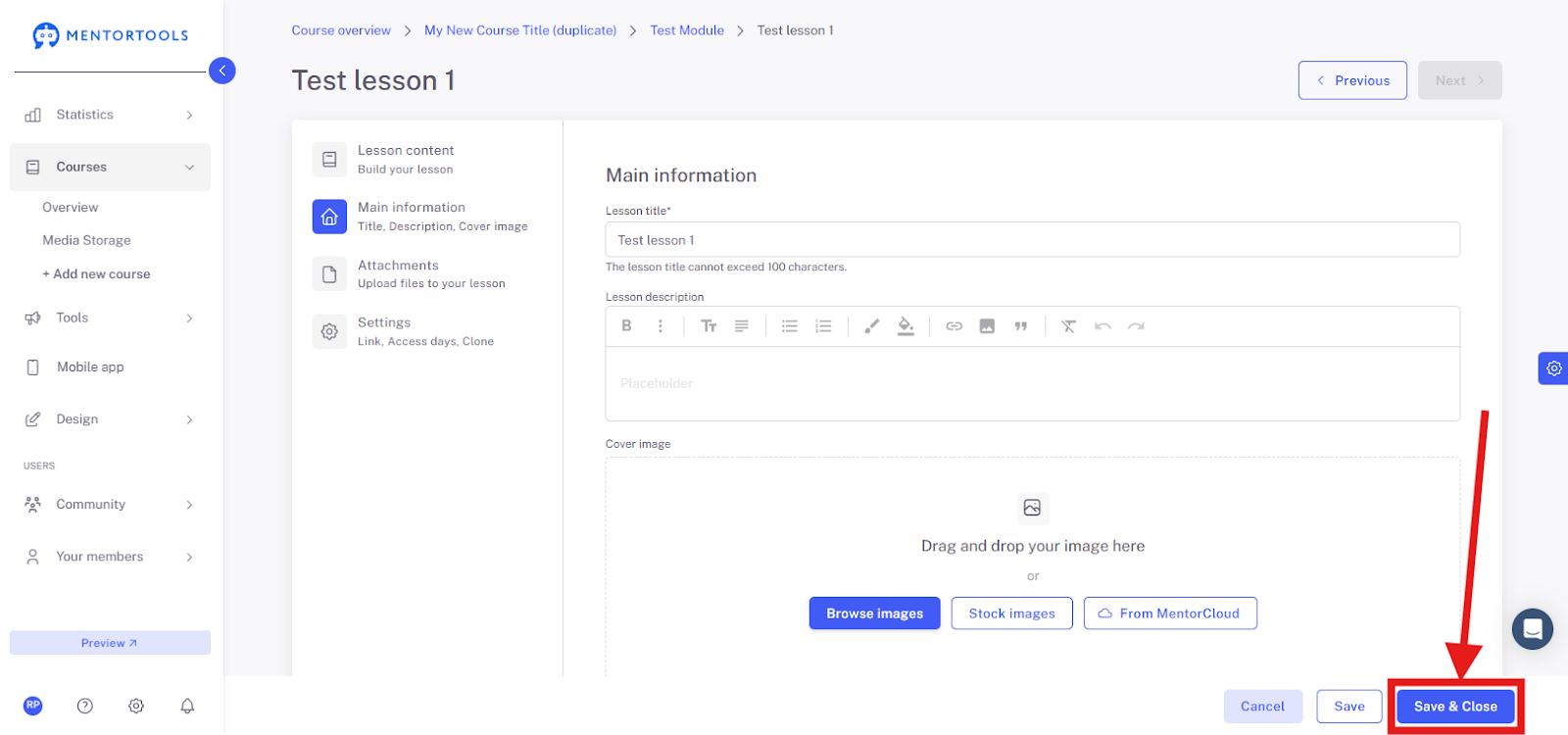
Saving the Settings
Save the changes you have made by clicking on the "Save" or "Save and close" button at the bottom.