General Settings – Language
Mentortools supports multiple languages, including German, English, Slovak (Slovenský), Hungarian (Magyar), Macedonian (Македонски), and Czech (Čeština). In the general settings, you can define the default language for your academy and dashboard—for both you and your members.
Last updated 12 months ago
To get to the general settings, click on Settings on the "gear icon" at the very bottom left of the menu. Then click on "General."

Language
Select "Language" to access the language settings.
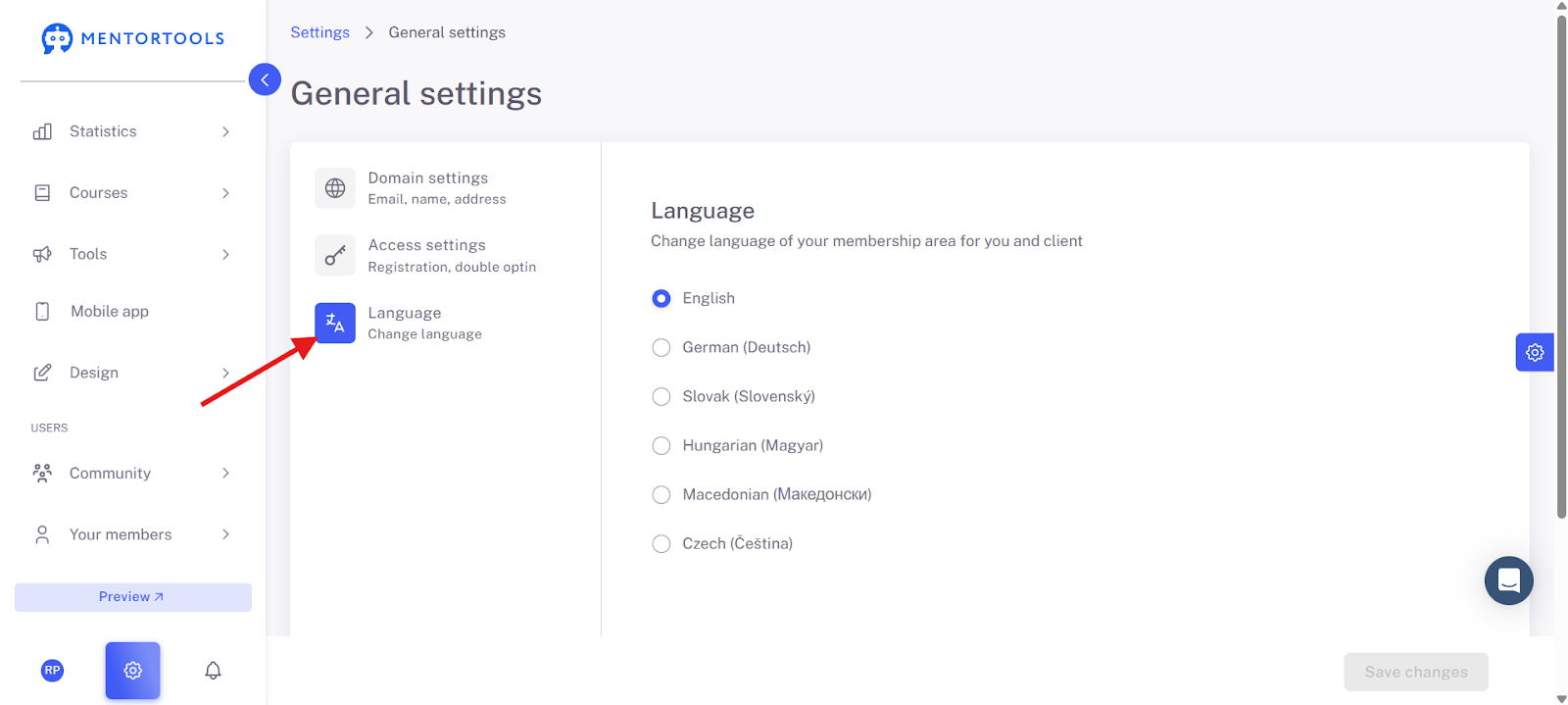
On the screen, you will see the language settings. Here you can set the language in which you and your customers will see the user interface.
The Radio Buttons
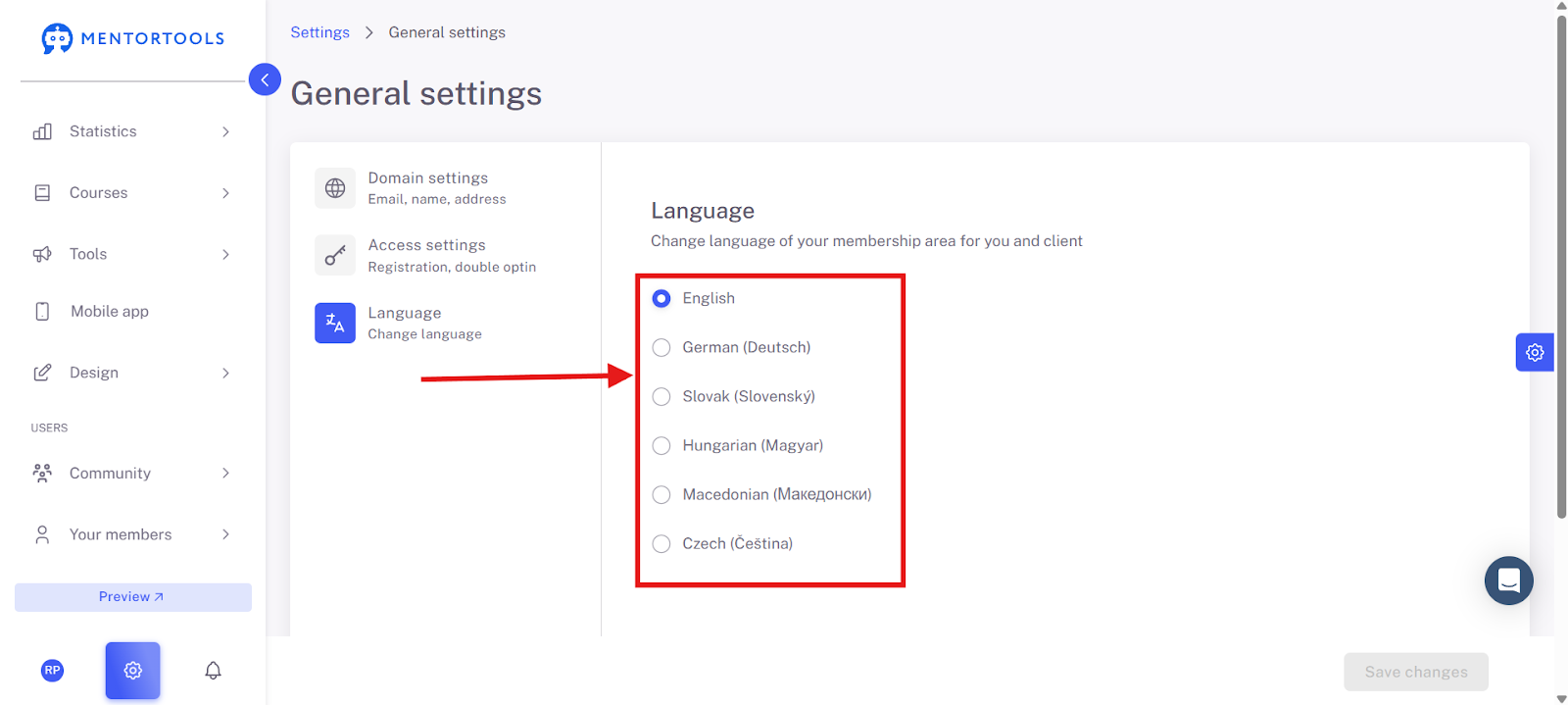
Below you see a list of languages. The dots in front are called radio buttons. You can only select one of these options at a time. The selected language has a blue dot.
The options are:
English
German
Slovak (Slovenský) - Here you can see that Slovak is selected.
Hungarian (Magyar)
Macedonian (Македонски)
Czech (Čeština)
What does this setting do?
When you select a language here, the language of the entire user interface changes for both you and your customers. This means that all standard texts and buttons, such as "Login," "Account," "Courses," and also the "Save Changes" button at the bottom, are translated into the language you have chosen.
Important to know:
This setting does not affect the content of your courses. Since the course content is created by you, it will remain in the language you wrote it in. This setting only changes the fixed elements of the platform.
How to change the language:
Simply click on the circle next to the language you want.
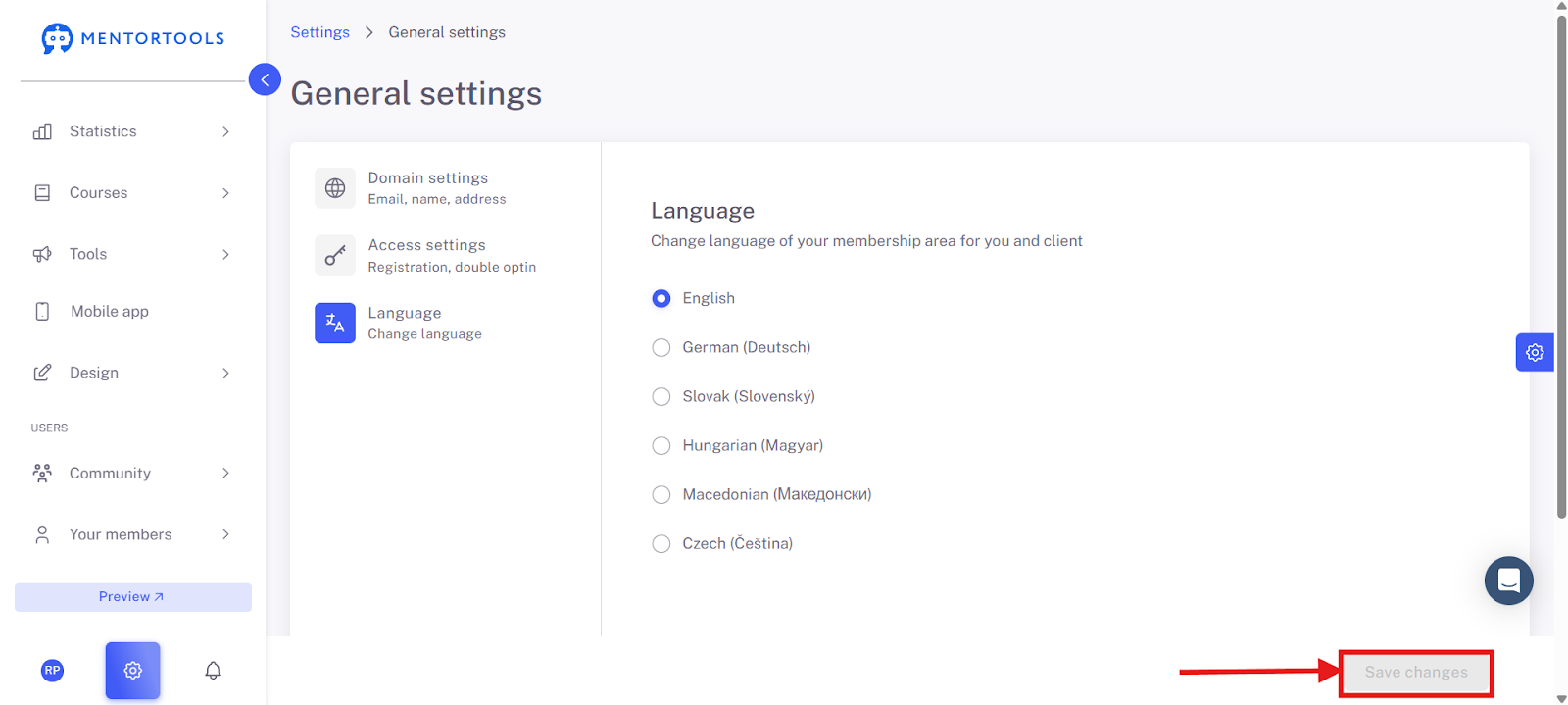
Once you have made your choice, click the blue "Save Changes" button in the bottom right to apply your setting.
Summary
You can find the language settings in the menu on the bottom left under Settings > General. There you can choose from various languages such as German, English, and others.
This setting changes the language of all buttons and standard texts on the platform but not the content of your courses. Simply select the desired language and click "Save Changes" to apply the setting. This ensures a consistent and professional user experience.