Look & Feel – General Appearance
Under Look & Feel, you manage central design elements like colors, fonts, and logos so your entire academy has a consistent look. Here you can incorporate your own corporate identity.
Last updated 12 months ago
General Appearance
Design the appearance of your member area. You have several options here. You can choose a predefined color scheme or customize it completely.
To do this, please go to Design and then Look & Feel in the menu bar.
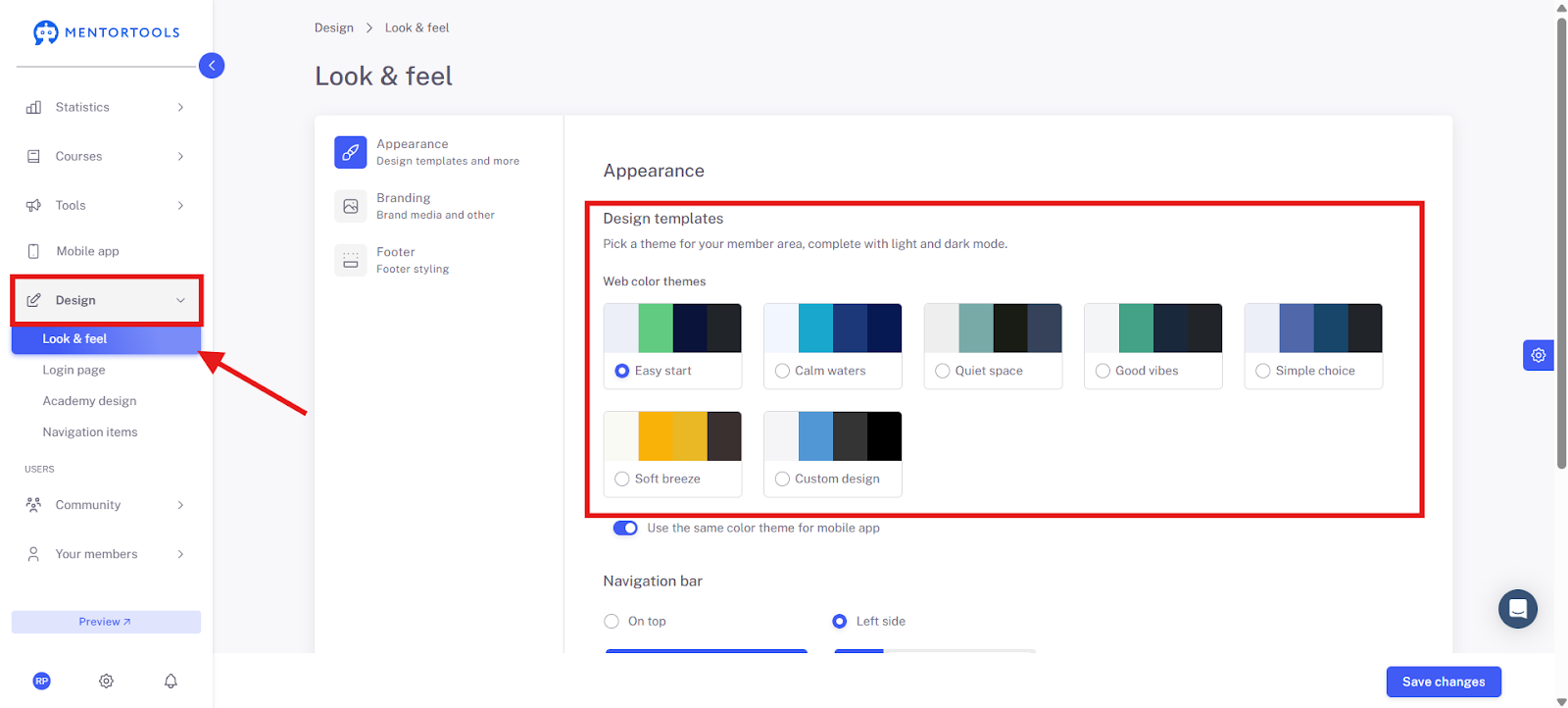
Here you will find 6 design templates that allow you to quickly and easily create a beautiful, harmonious member area.
However, if you want to customize your member area—for example, to match your website—we recommend the "Individual Design" option. Here you can select every single color.
Please click here,
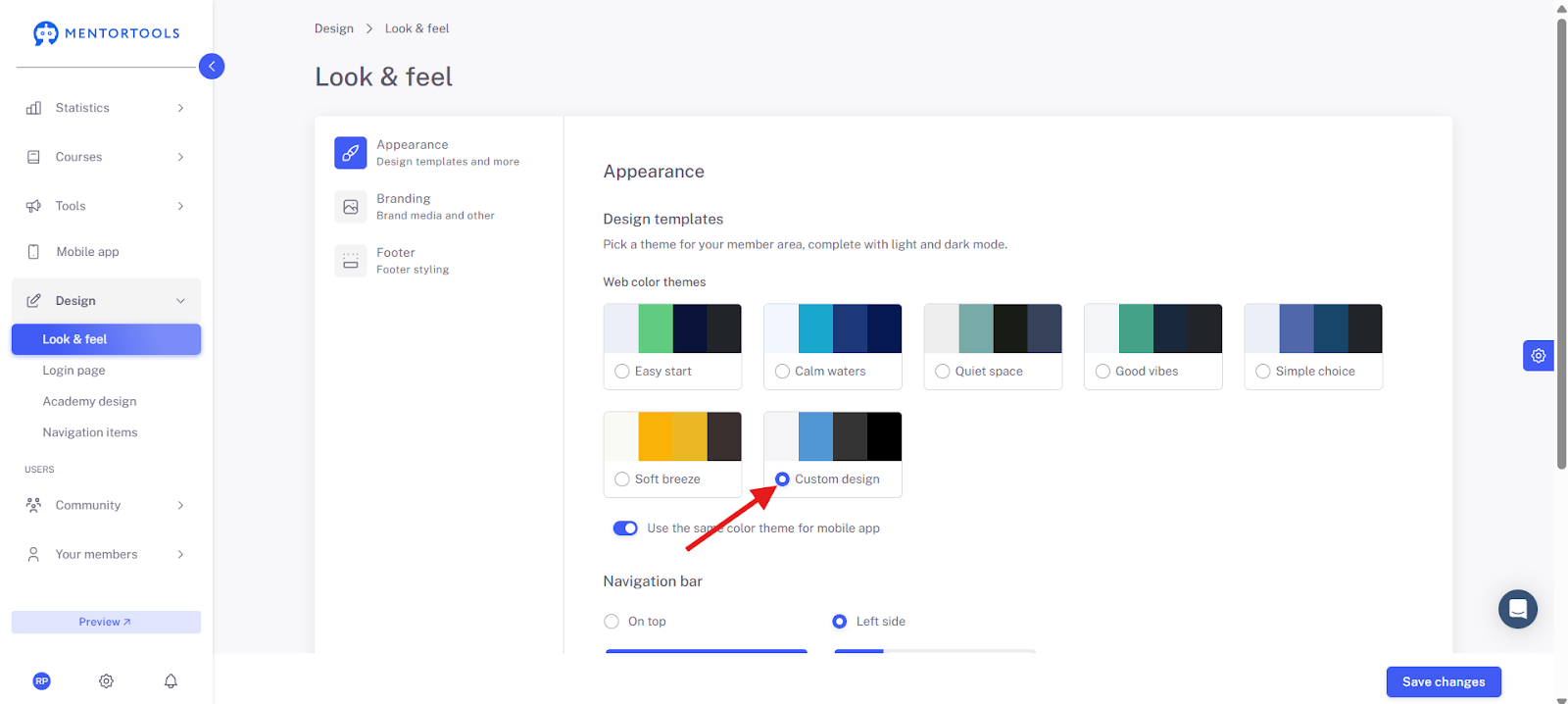
and then the design scheme will open.
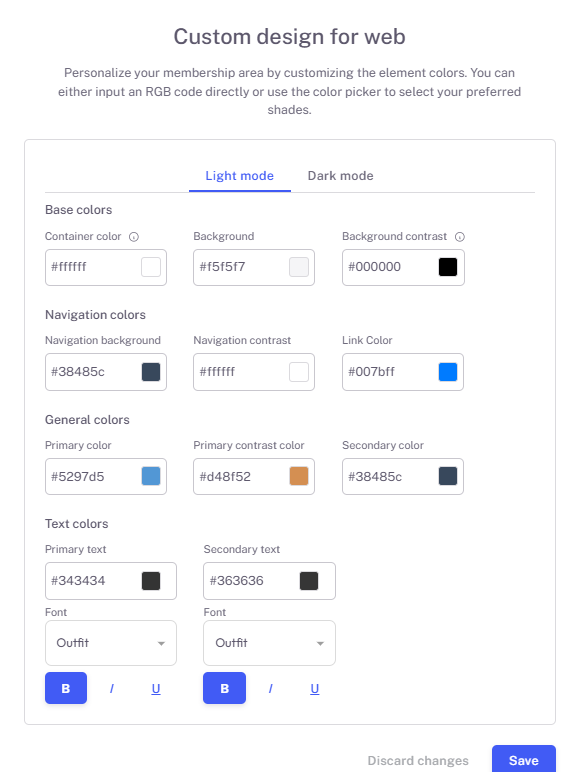
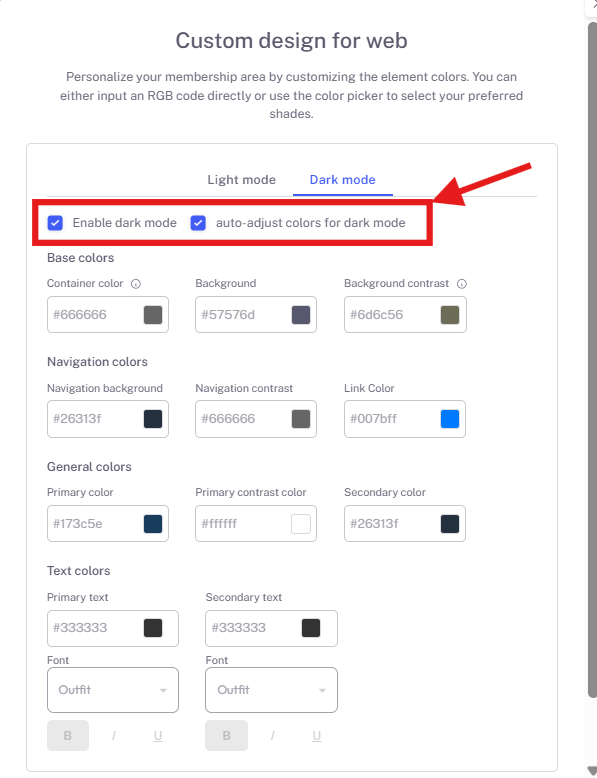
In the next step, you can decide whether you want to activate Dark Mode and whether the colors for Dark Mode should be adjusted automatically.
Here is an example of a dashboard page.
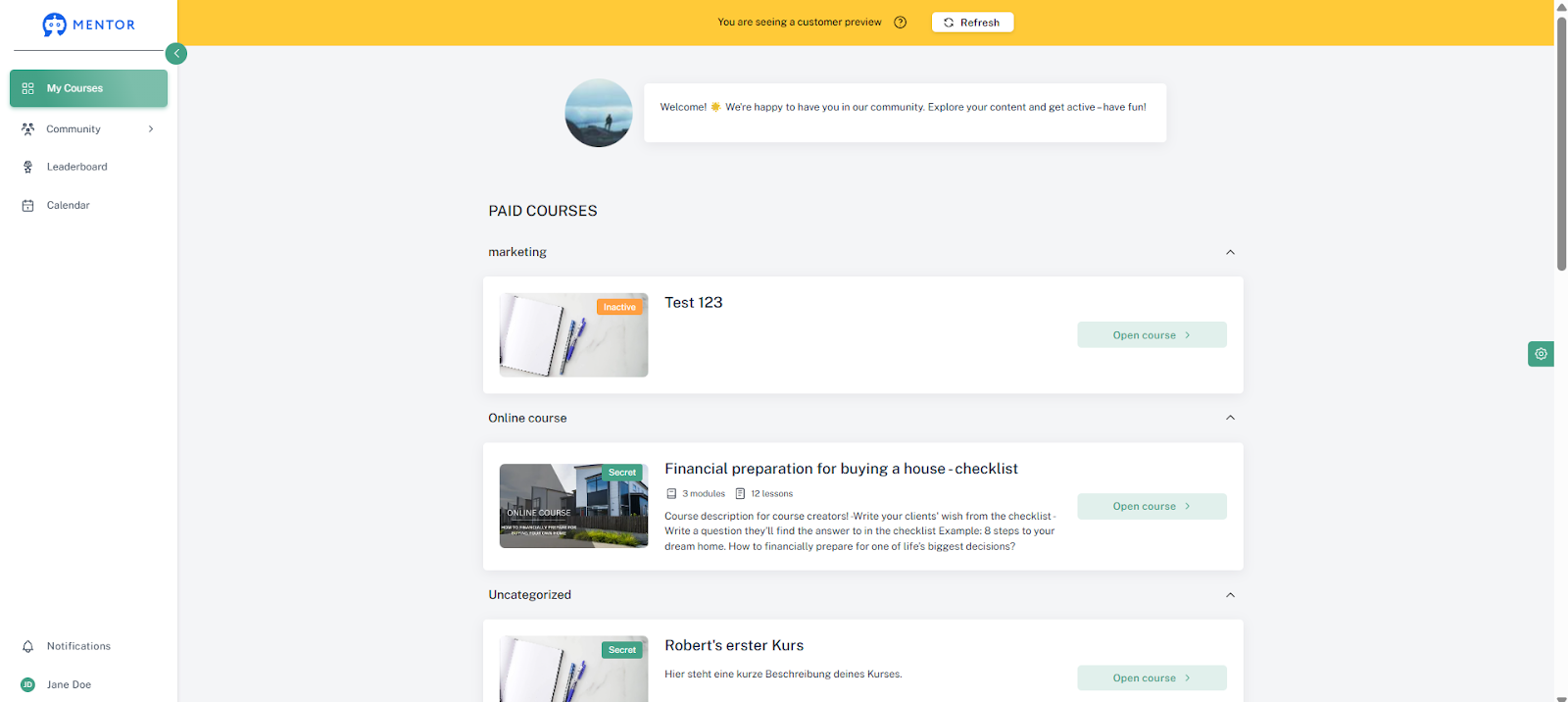
The "Individual Design" option allows you to transfer your corporate design to your member area. This means you can upload your colors, fonts, and logos, so your entire academy has a consistent look. This also increases brand recognition.
Choose the Position of Your Menu Bar
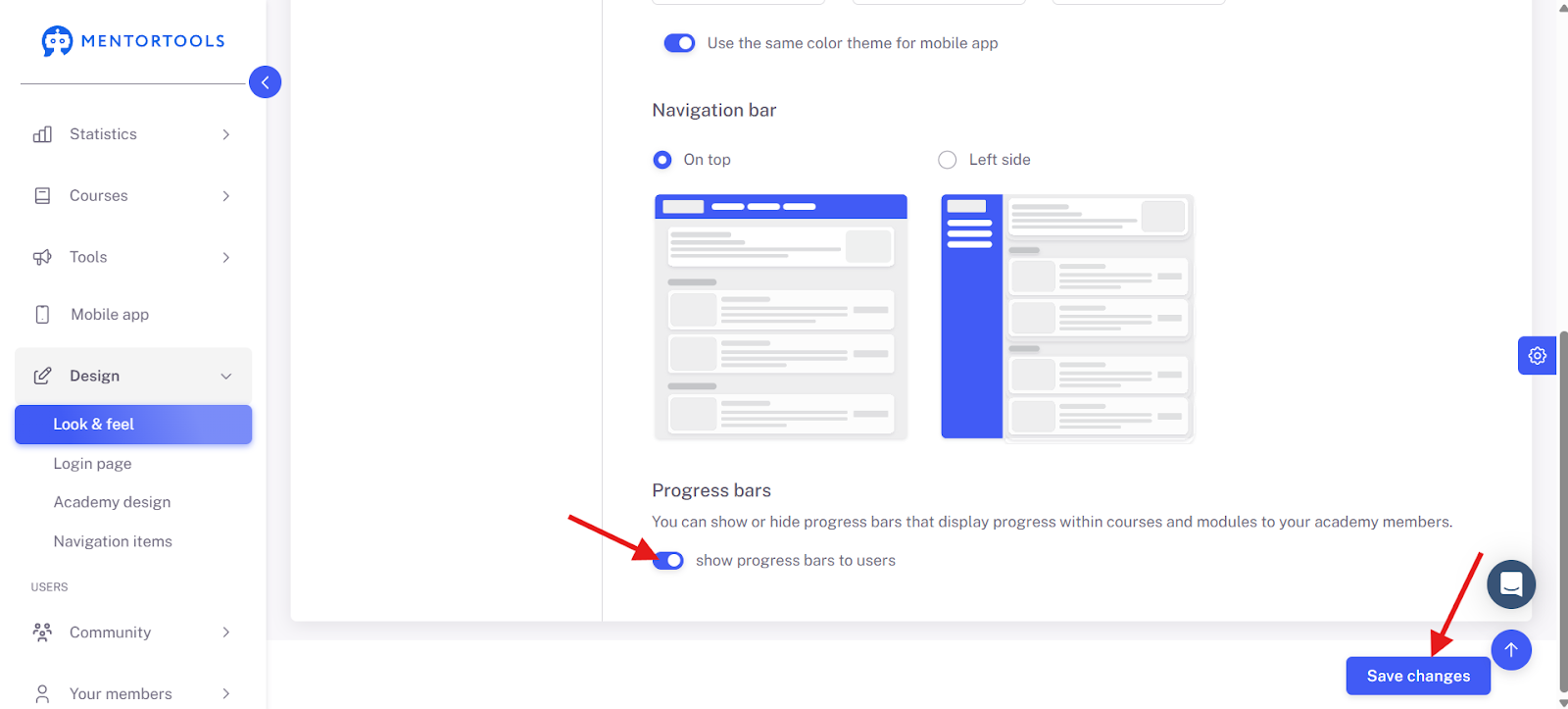
You can place the menu bar either at the very top or on the left side.
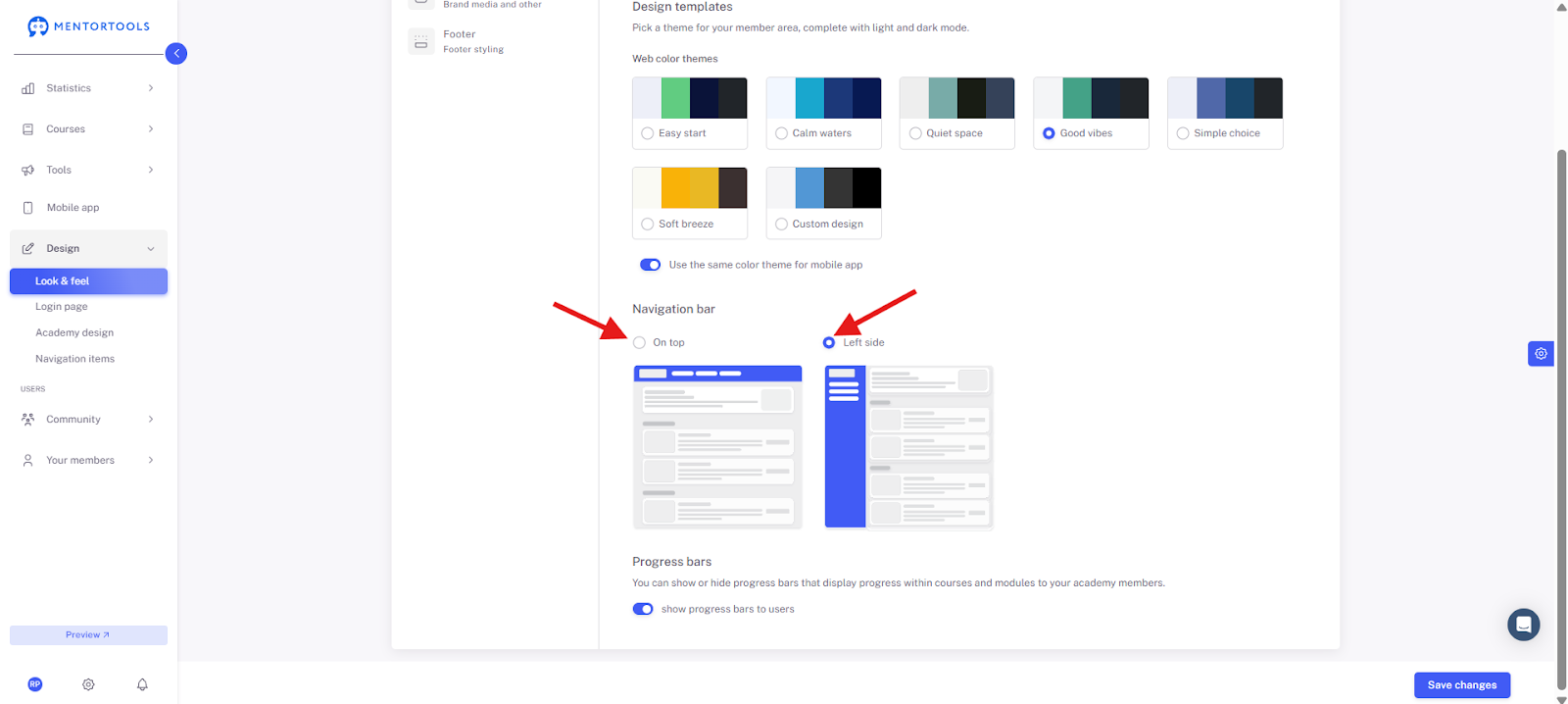
In the Mentortools Academy, we display the menu on the left.
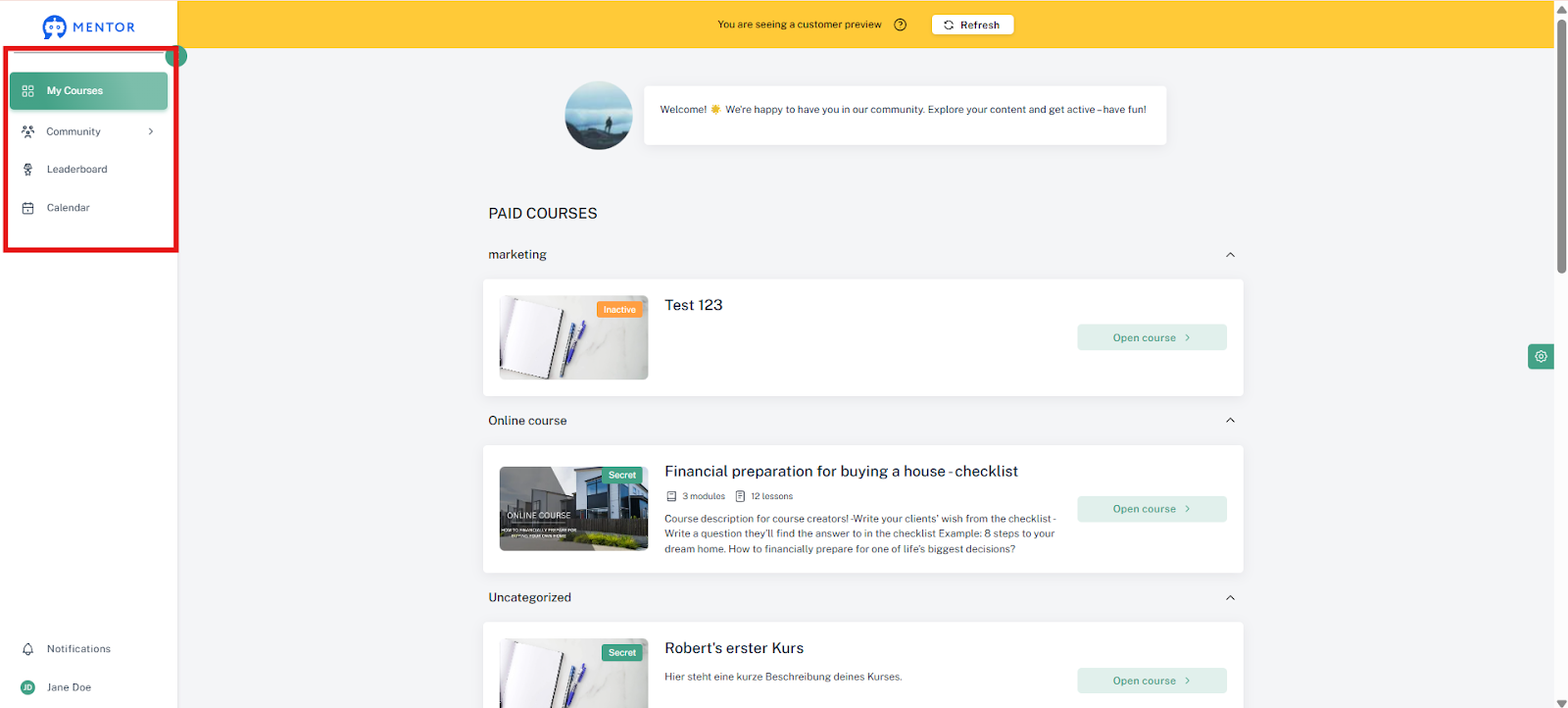
Here is an example where the menu bar is at the top.
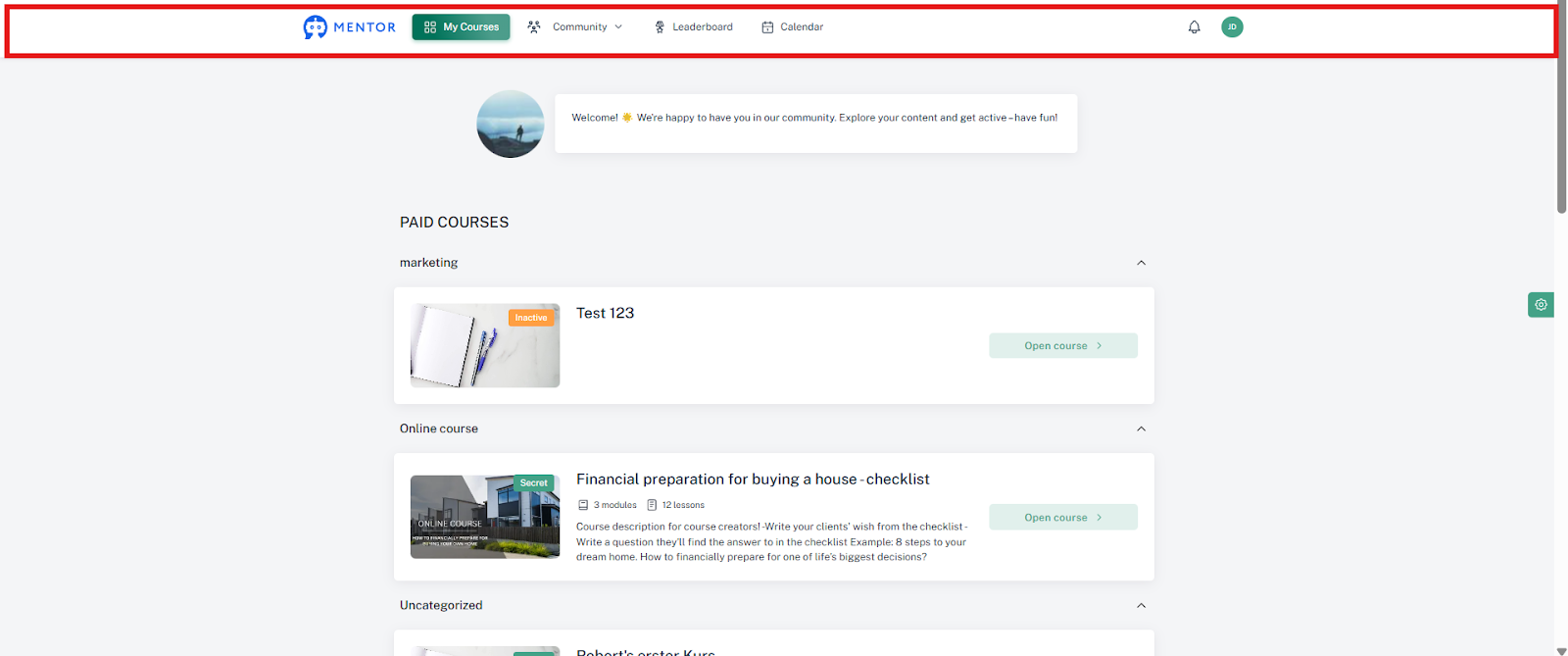
There is really no right or wrong here. It's best to try both and view them in the preview.
If you are using the mobile app, you have two options. You can either activate the tab "Use identical color scheme for the mobile app" here, or you can use one of the design templates or create your own custom design for your app.

Very important: Remember to save your changes!
Depending on whether you want your members' progress within courses and modules to be displayed, you must activate or deactivate this tab here. Afterward, please click "Save Changes."