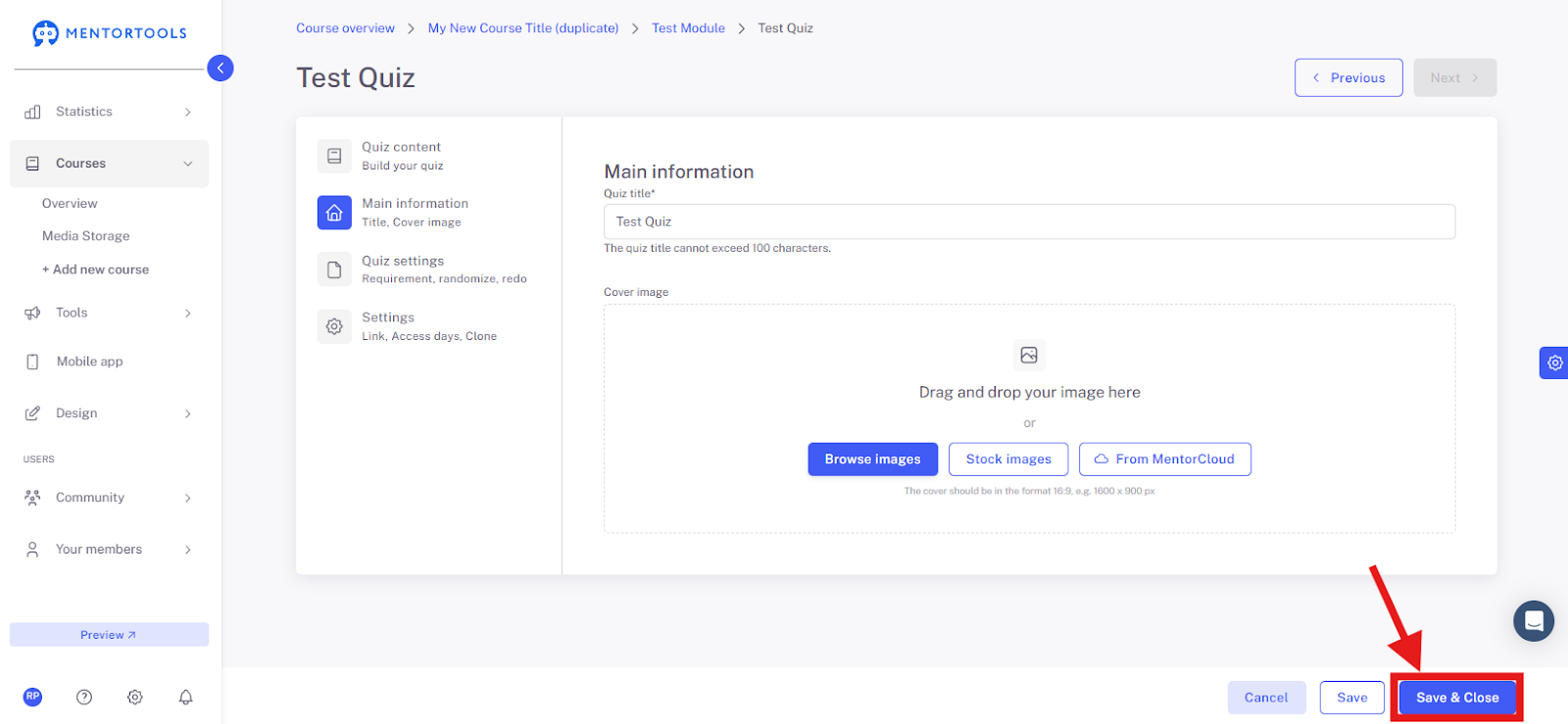
Quiz – Main Information
This guide will show you how to adjust the main information of a quiz in Mentortools—its name and the cover image.
Last updated 12 months ago
Why Use Quizzes in Mentortools?
With quizzes in Mentortools, you can:
Check participant progress: Ensure participants have truly understood what they've learned.
Identify knowledge gaps: Quizzes help you pinpoint exactly where more knowledge is needed or which topic you should focus more on during the course.
Boost participant motivation: Quizzes after each lesson or module help keep participants engaged and motivate them to continue with the course.
Set conditions for a certificate: You can specify that a certificate is only awarded after a quiz is successfully completed, ensuring participants have genuinely gone through all the necessary lessons and materials.
Where Can I Find the Settings for the Quiz's Main Information?
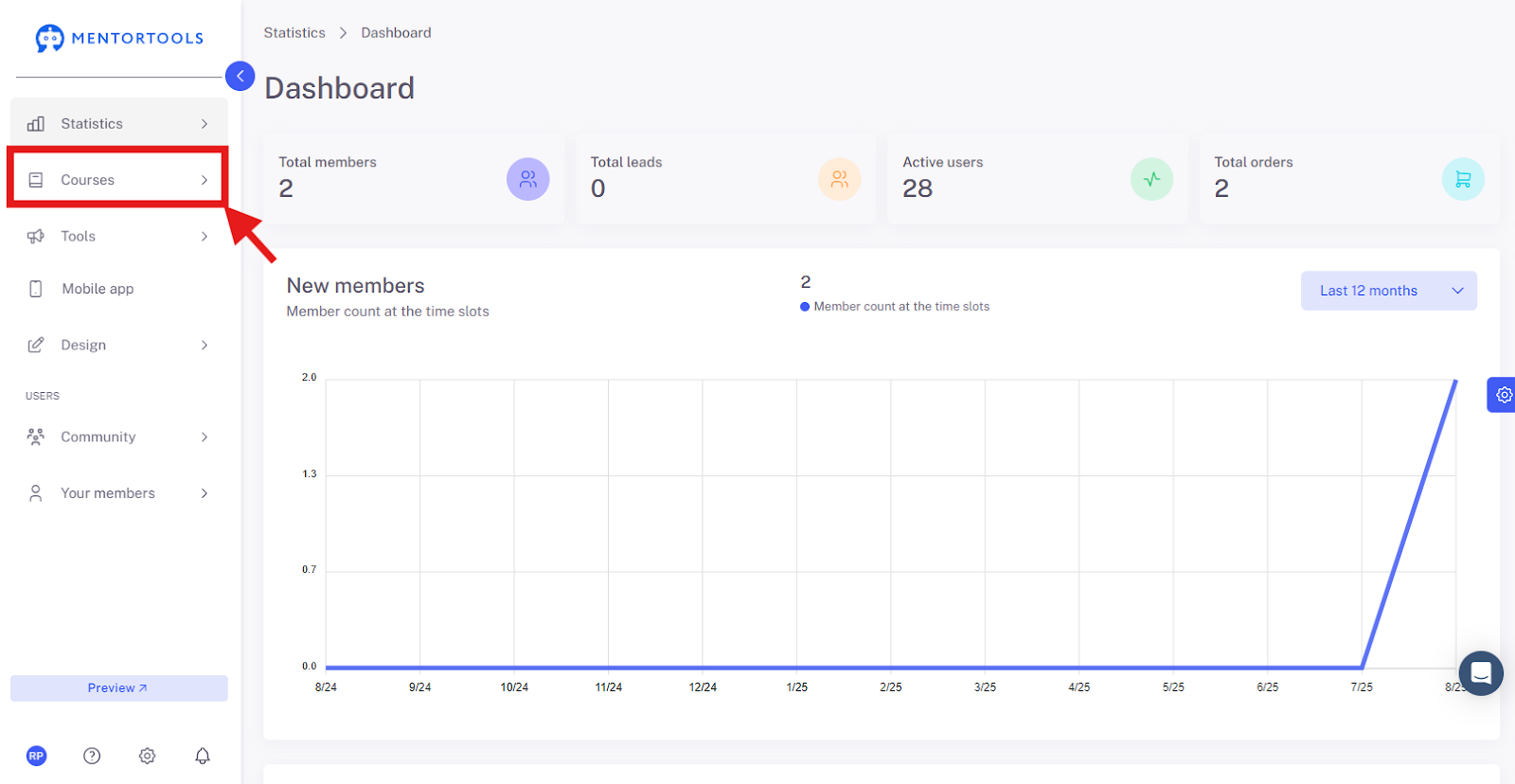
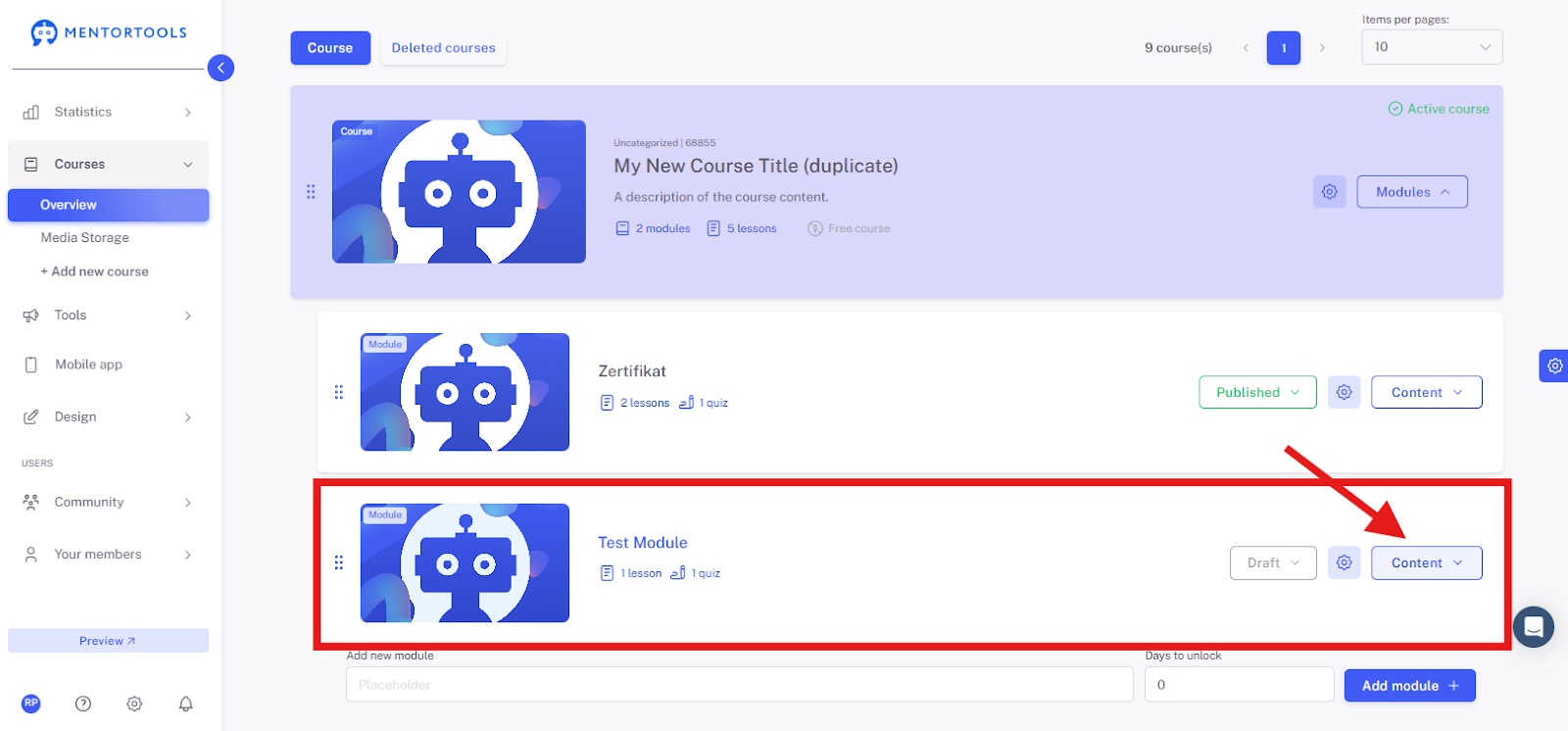
Log in to your member area and go to "Courses" in the side menu.
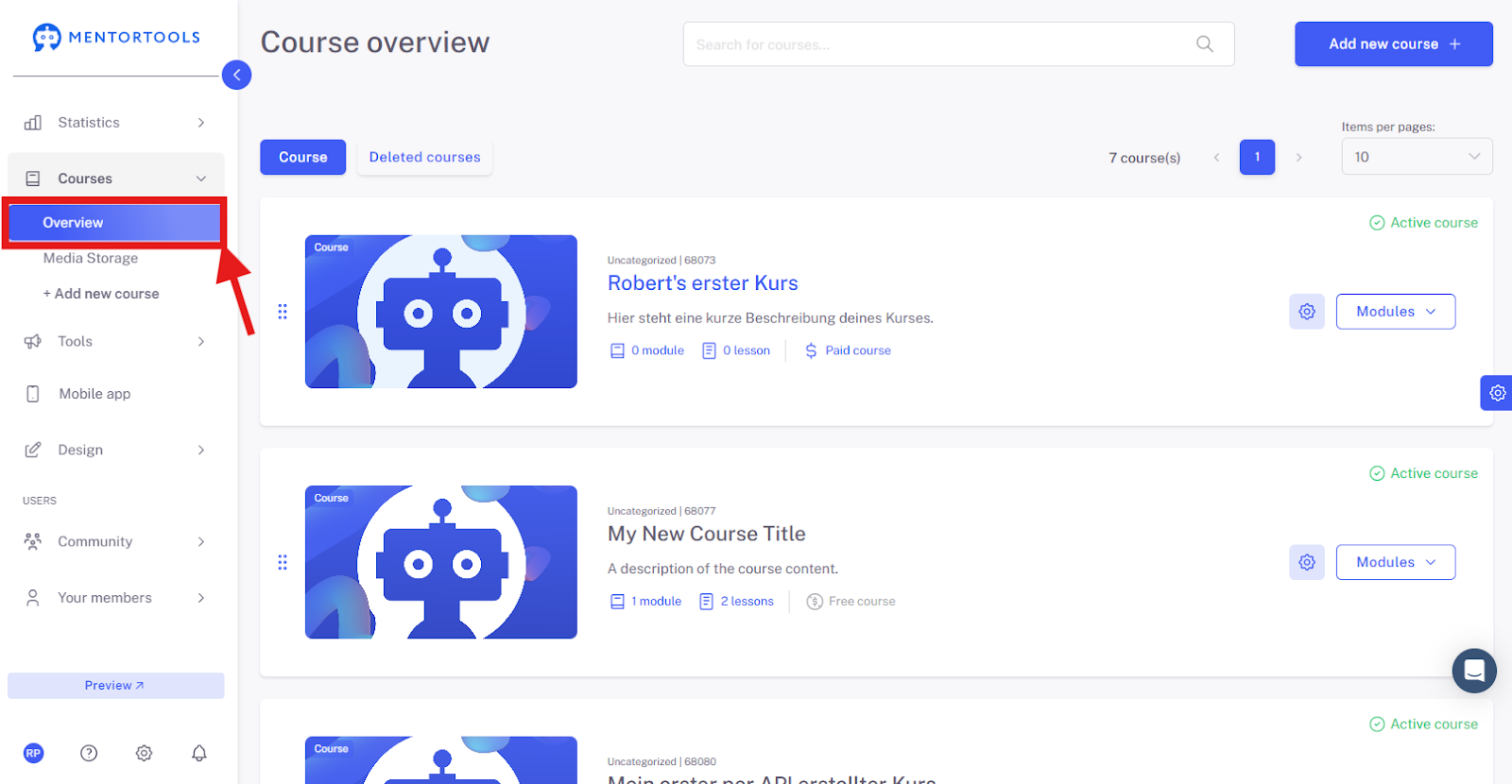
Then, click on "Overview" to see the list of all your courses.
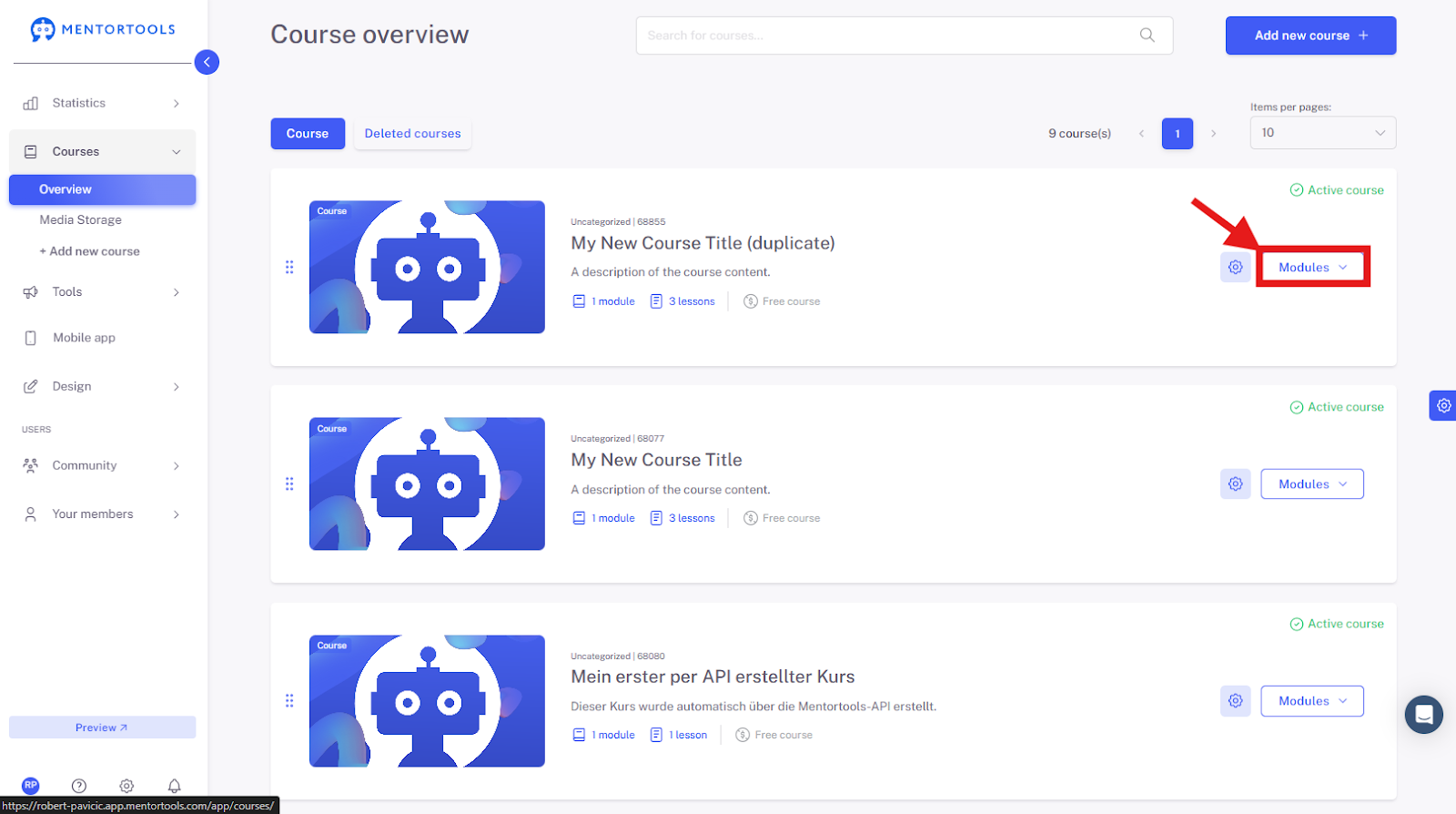
Select the course and module where you want to edit the quiz. By clicking on "Modules," all existing modules in this course will be displayed.
By clicking on "Content," you will see all existing lessons and quizzes in this module.
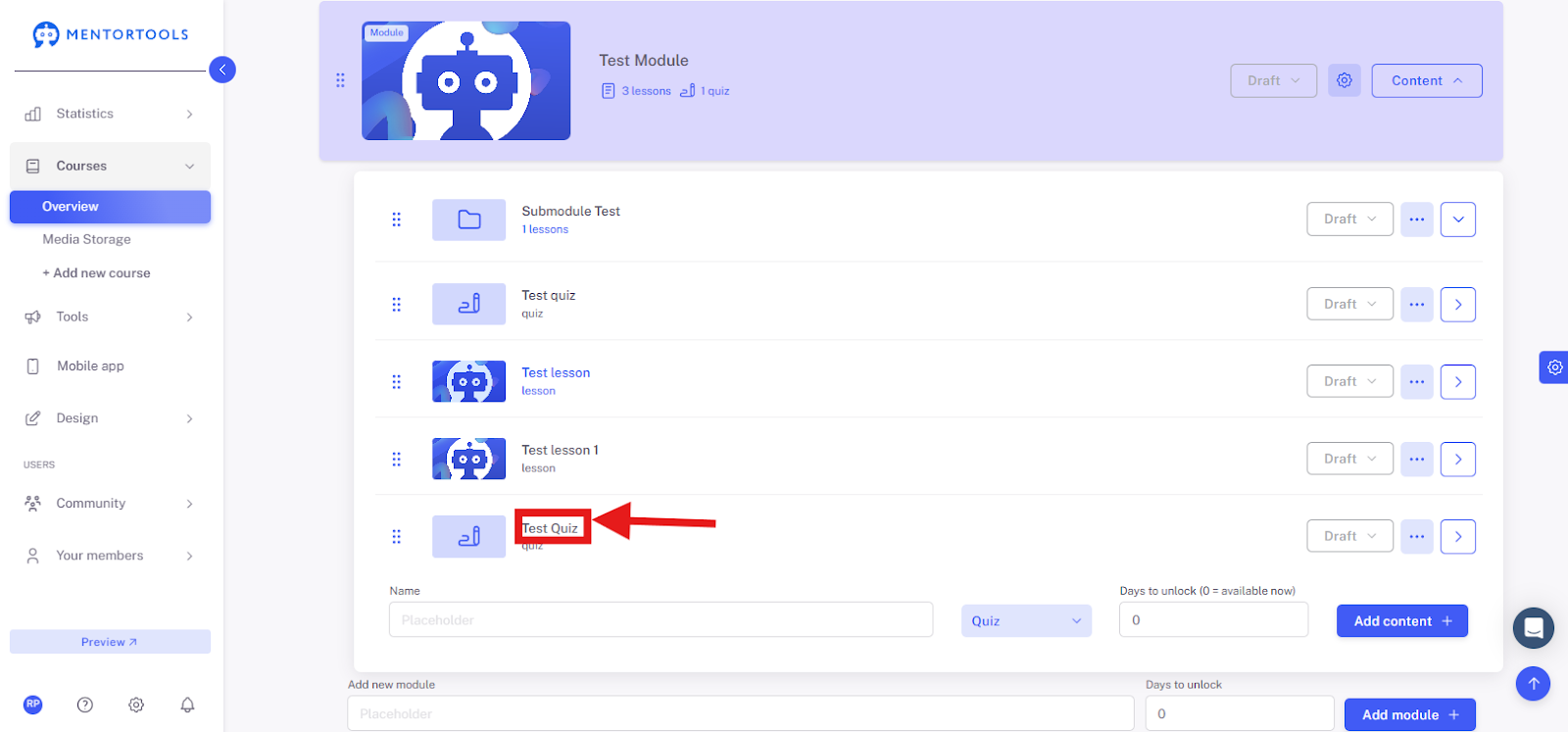
To edit the quiz, click on the title of the quiz you want to edit. After clicking the title, all settings will be displayed.
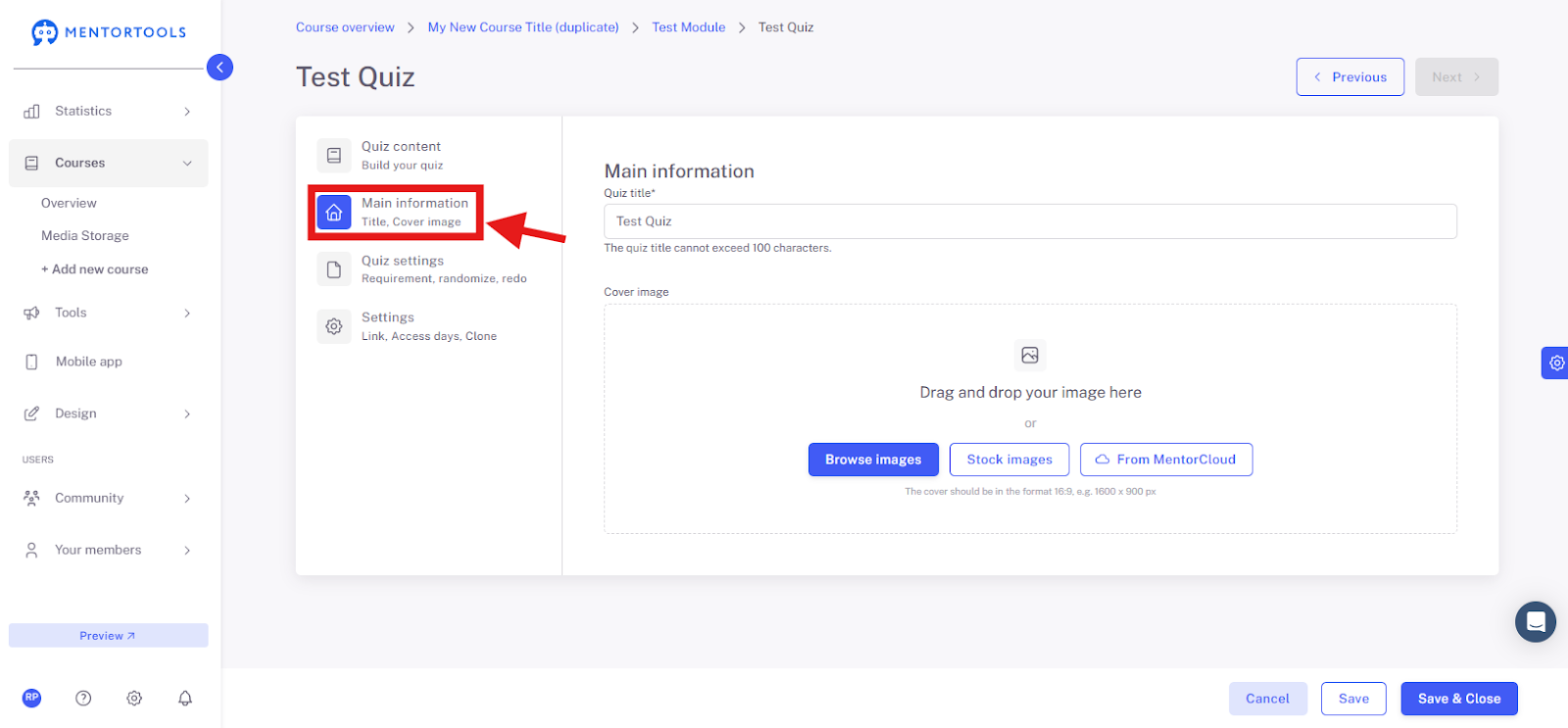
Go to the second tab here—"Main Information."
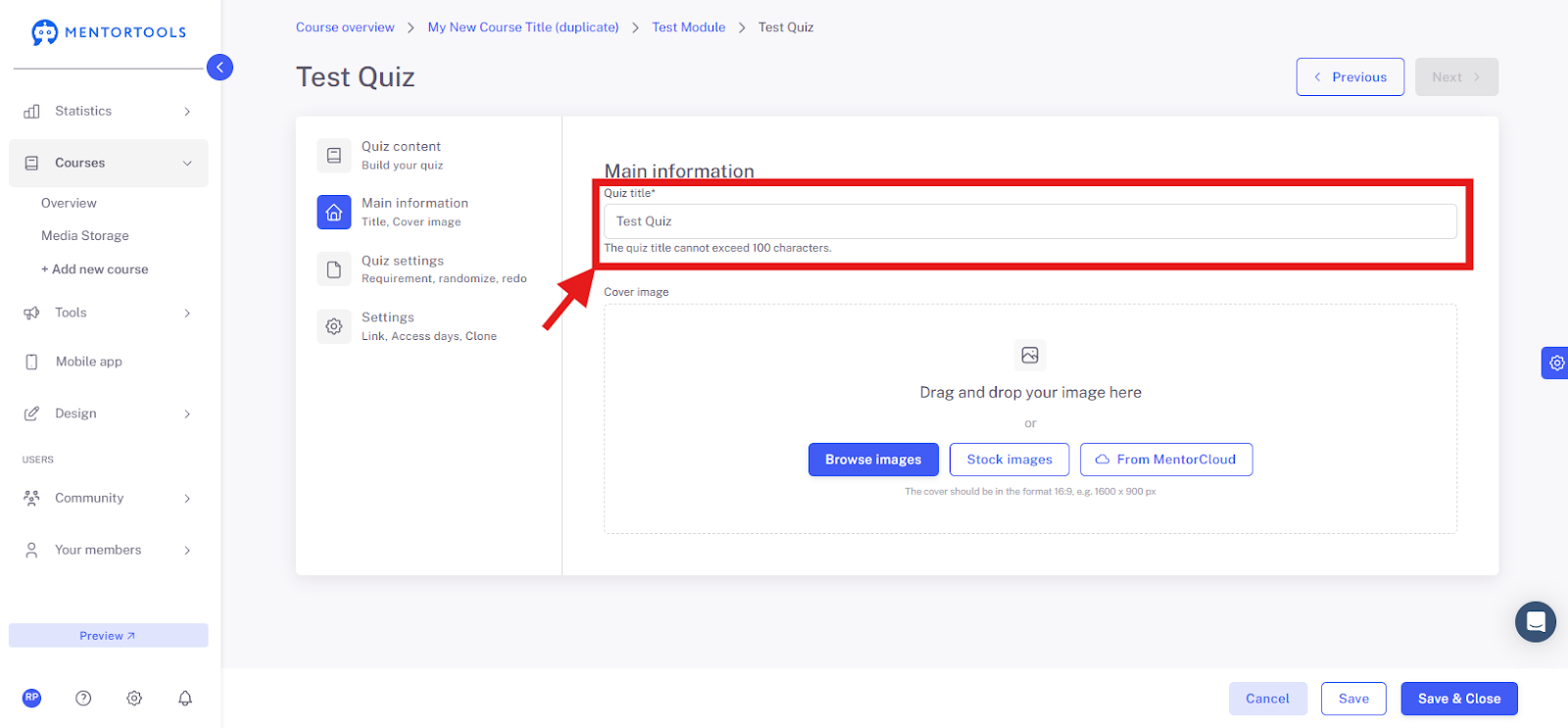
Overview of Available Settings – Main Information
Quiz Title
Here you can change the quiz title. The title is directly visible to course participants. Always give your quiz a clear title so it's immediately obvious what the quiz is about.
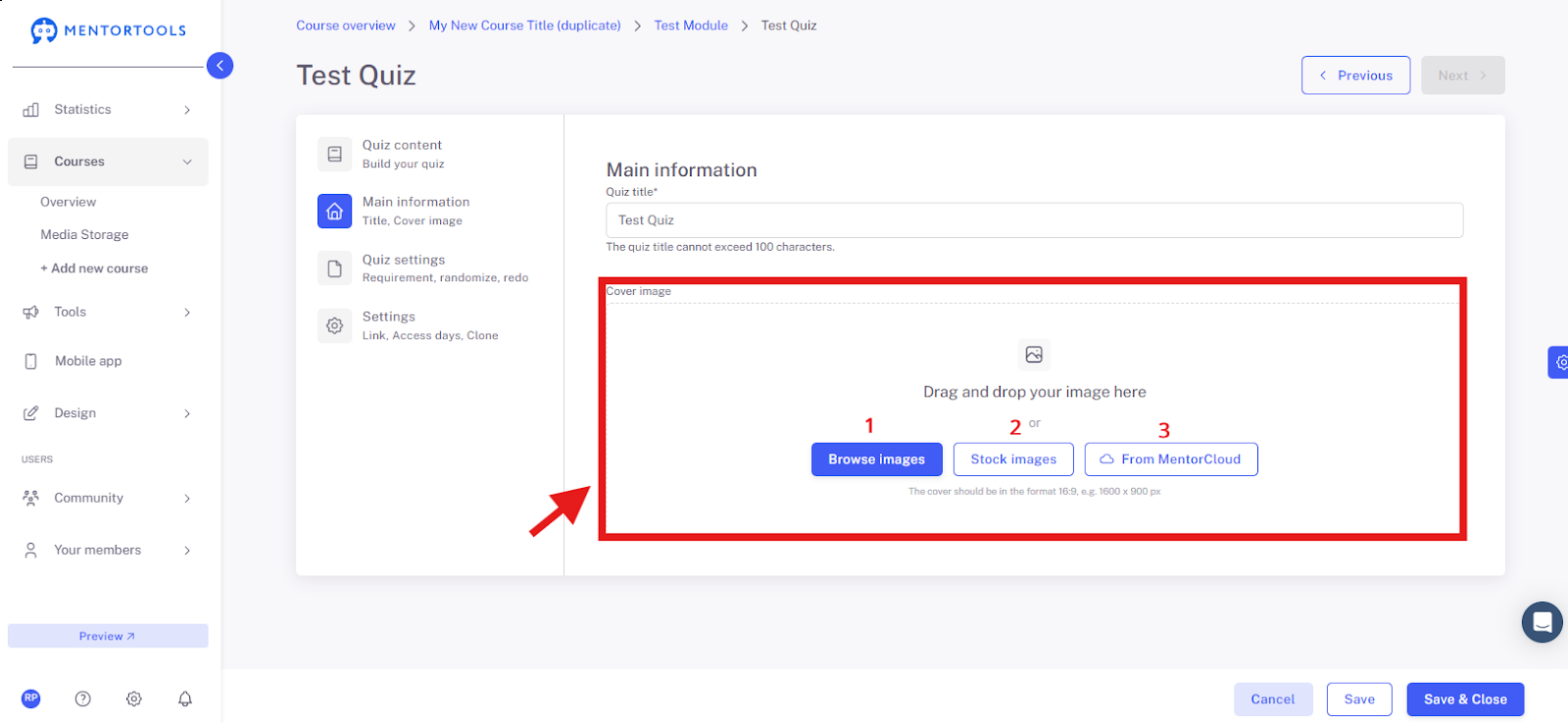
Cover Image
Upload a new image from your computer (1), use royalty-free images (2), or select an image from the media library – MentorCloud (3).
Saving the Settings
Save the changes you have made by clicking the "Save" or "Save and Close" button at the bottom.