Analytics and GDPR – Analytics
Want to better understand and optimize the performance of your Mentortools pages? In this tutorial, we show you how to easily activate the analytics functions in Mentortools. This allows you to integrate external tools like Google Analytics and the Facebook Pixel to analyze user behavior and improve your marketing strategies.
Last updated 11 months ago
1. Open the Settings
Click on the gear icon in the bottom left menu bar.

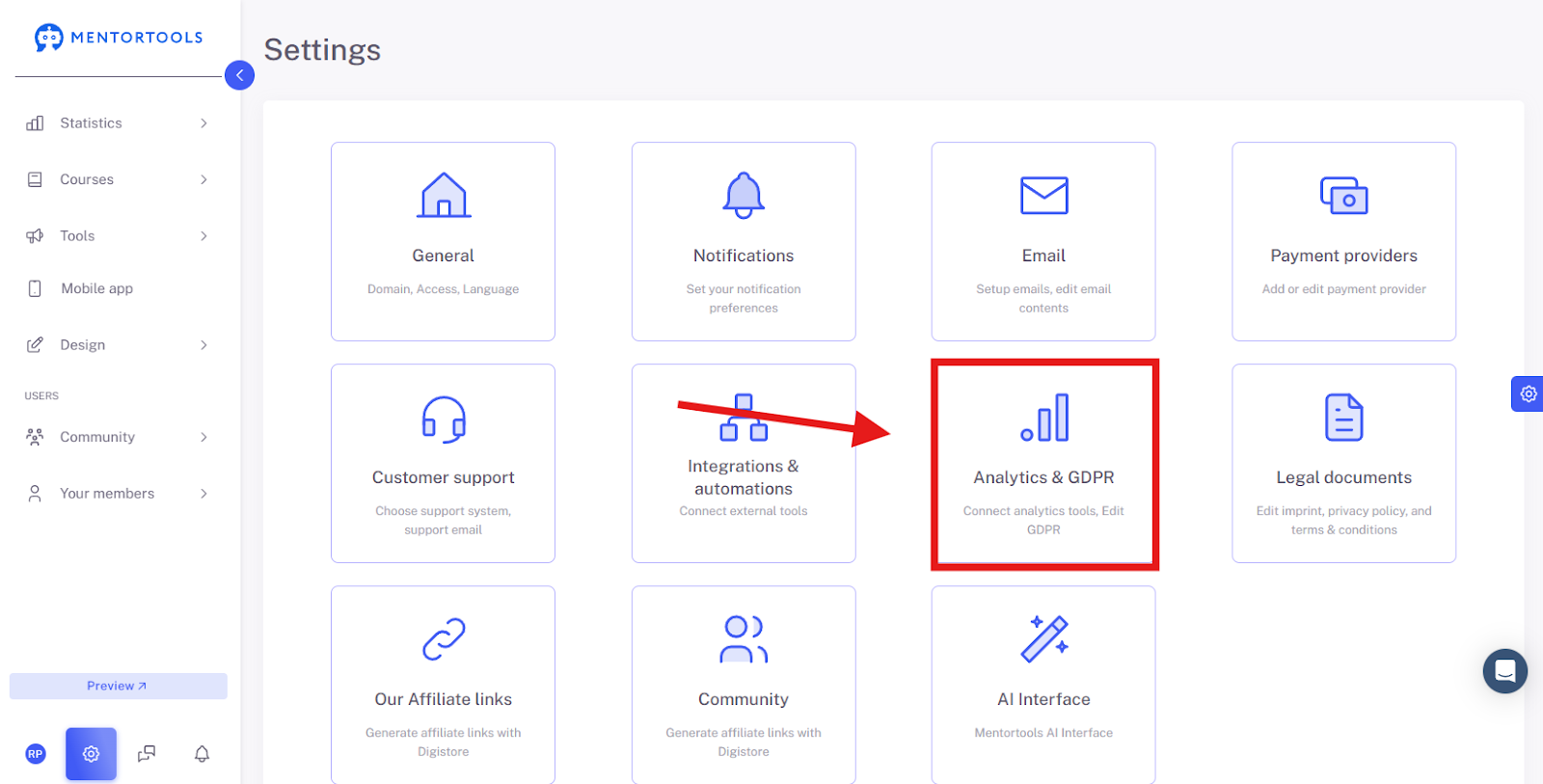
2. Navigate to "Analytics & GDPR"
Select "Analytics & GDPR" from the list of settings.
3. Select “Analytics”

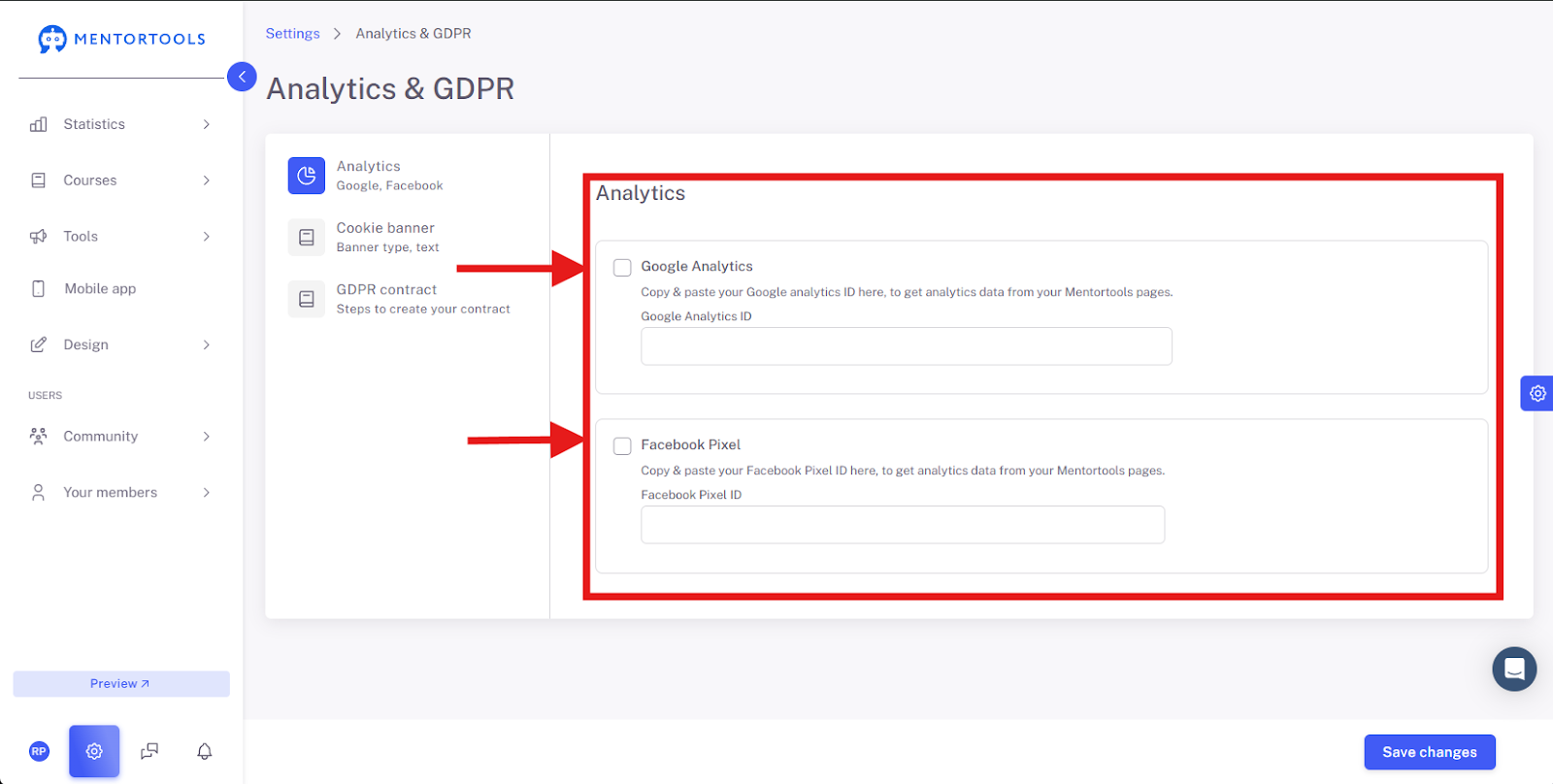
Analytics Overview
There are two main fields:
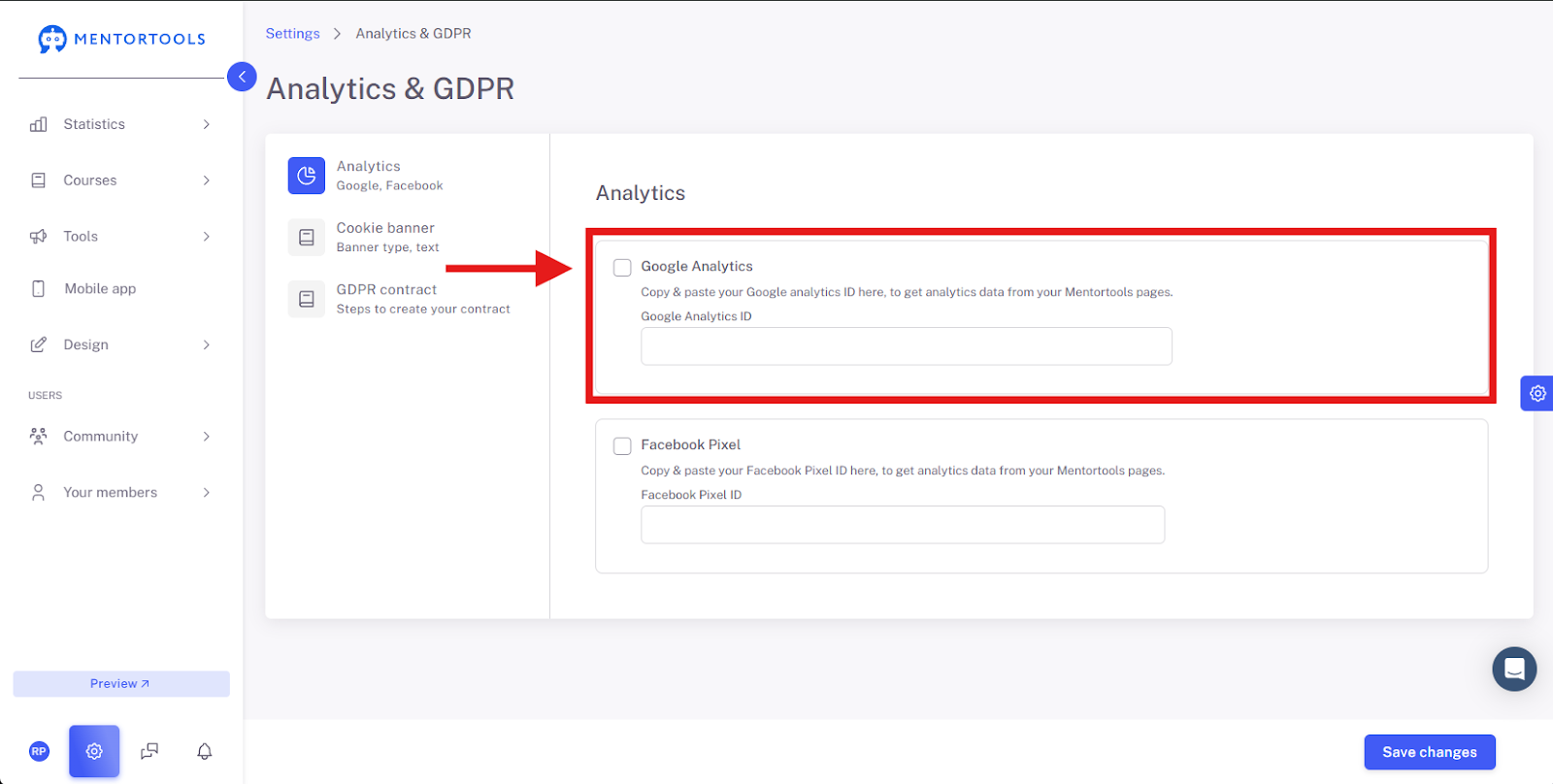
Google Analytics: This option allows you to enter your Google Analytics ID. Google Analytics is a powerful tool that gives you detailed insights into your page traffic. For example, you can see how many visitors you have, which pages they view, how long they stay, and where they come from. By inserting your Google Analytics ID here, you ensure that this data is sent from your Mentortools pages to your Google Analytics account. This helps you optimize your content and marketing strategies.
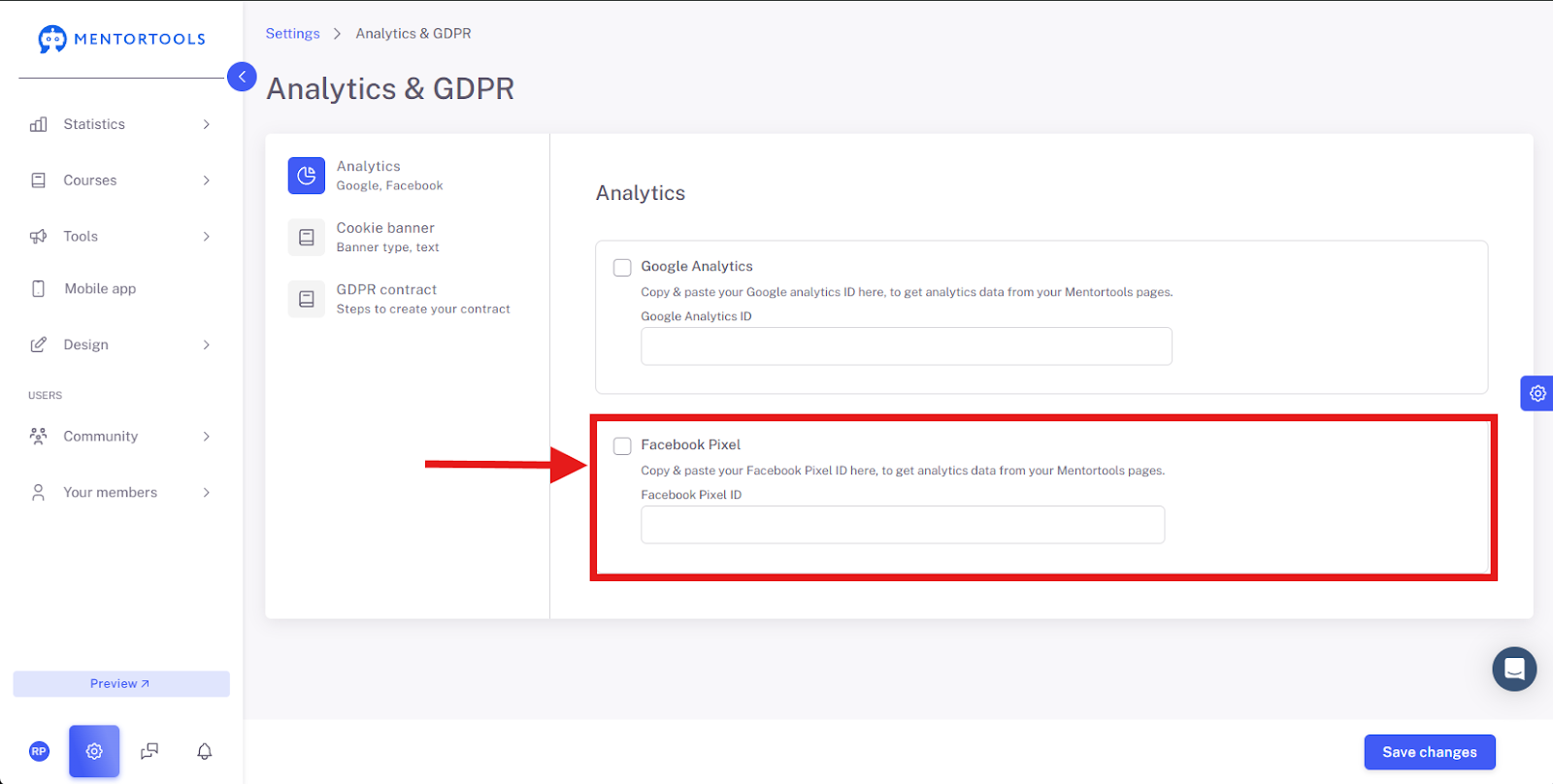
Facebook Pixel: Here you enter your Facebook Pixel ID. The Facebook Pixel is an analytics tool that measures the actions of your users on your websites. It is particularly useful for Facebook marketing, as it allows you to track conversion events like purchases or sign-ups. This enables you to measure the performance of your Facebook ads and create targeted audiences for future campaigns. Including the Pixel ID allows you to optimize your ads on Facebook and Instagram and better understand the success of your marketing activities.
Activate Analytics Functions
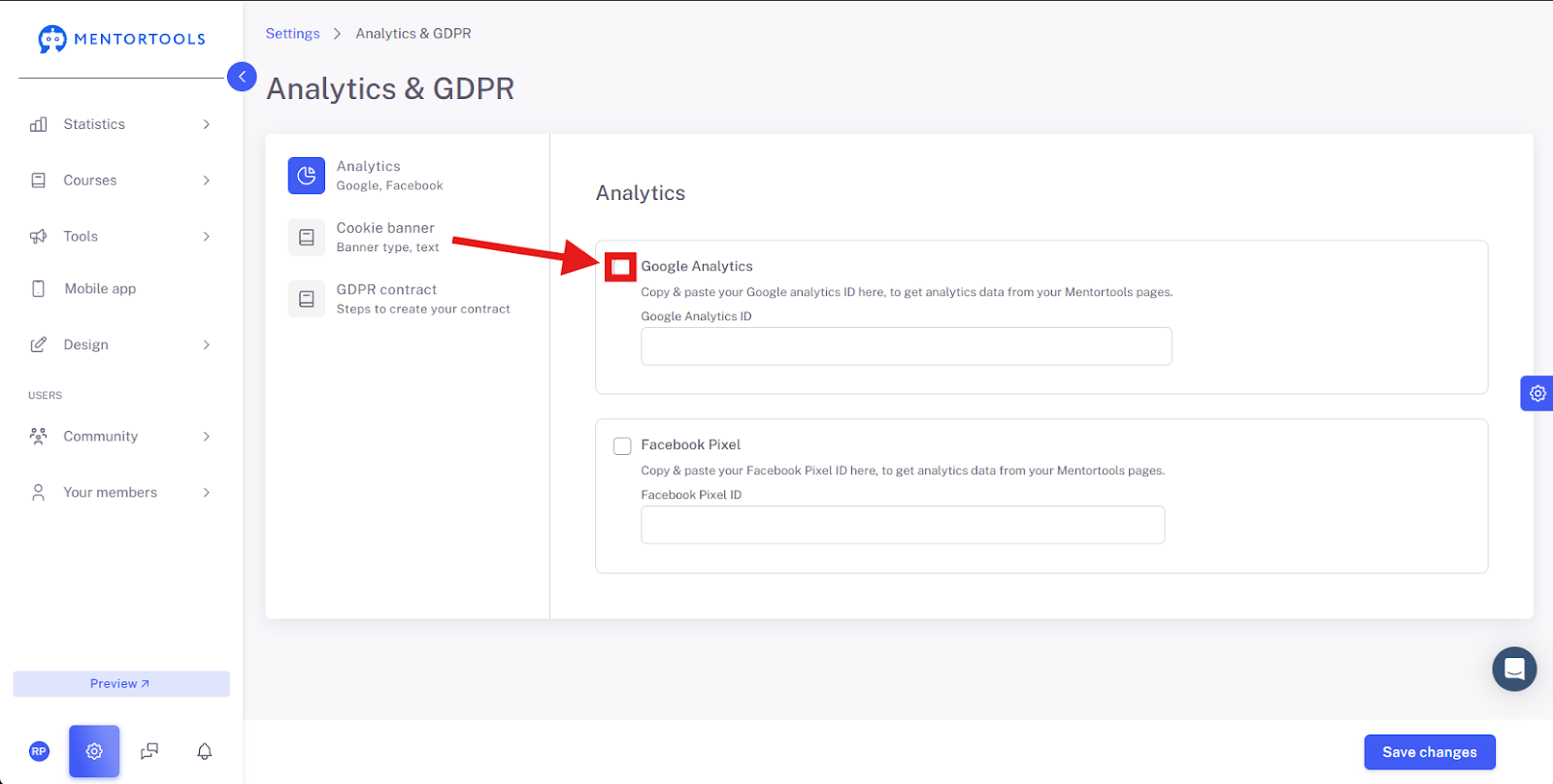
The checkboxes are essentially the switches for the respective function.
If you click the checkbox in front of Google Analytics, you activate the data transfer. When the checkmark is set, analytics data from your page will be sent to your Google account.
The same applies to the Facebook Pixel: If you set the checkmark, you activate the tracking to measure your marketing actions.
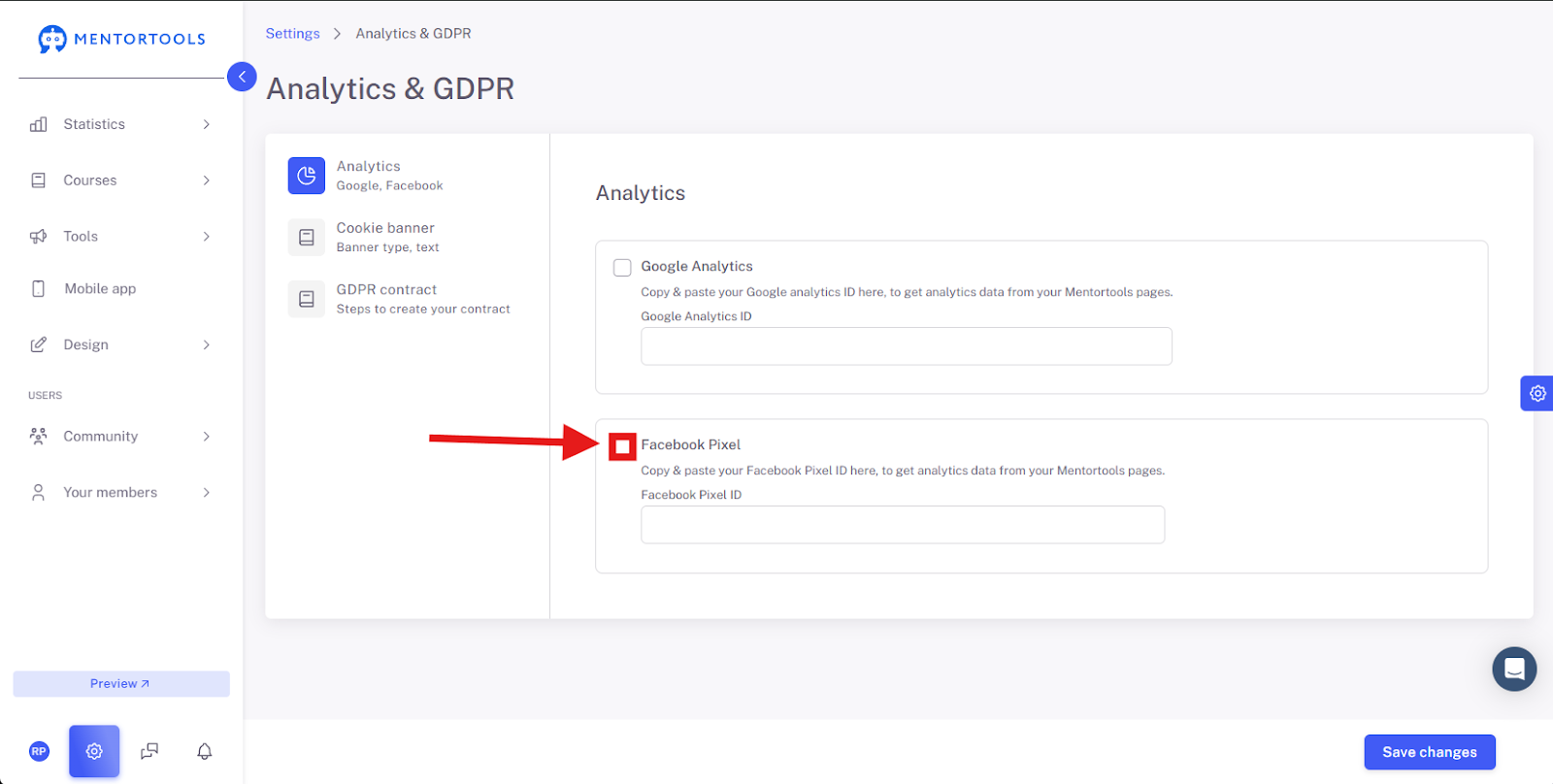
The best part is that you can activate both functions simultaneously. This way, you can use the comprehensive user analyses from Google Analytics and the targeted marketing data from the Facebook Pixel in parallel to optimize your online academy from every angle.
Save Changes
Only when you click this button will all your entries—meaning the activation of the checkboxes and the entering of the IDs—be saved and take effect. Without this step, your changes will not be applied, and the tracking tools will remain inactive.

Summary
In this guide, we looked at how to manage the Analytics and GDPR settings in Mentortools. You learned how to enter your Google Analytics ID and your Facebook Pixel ID to gather valuable data about your users. By simply setting the checkboxes, you activate the respective tracking tools. This allows you to perform comprehensive user analyses with Google Analytics while optimizing your ads on Facebook and Instagram with the Facebook Pixel. Don't forget to finally confirm your changes using the Save button so that the new settings are applied.