Landing Pages - Create and edit a new Landing Page
Welcome to your ultimate guide for creating perfect landing pages! In this tutorial, I'll show you how to easily create and edit your own landing page using the Landing Page Editor. Whether you're a complete beginner or already have some experience, we'll go through all the important functions step-by-step, from the basics to the small but effective details. Let's design your dream landing page together!
Last updated 11 months ago
Create a Landing Page
Before you can edit your landing page in the editor, you must first create one. You have two options for this: either you create a landing page with a template or you create one manually.
You can find out how to do this in our tutorials:
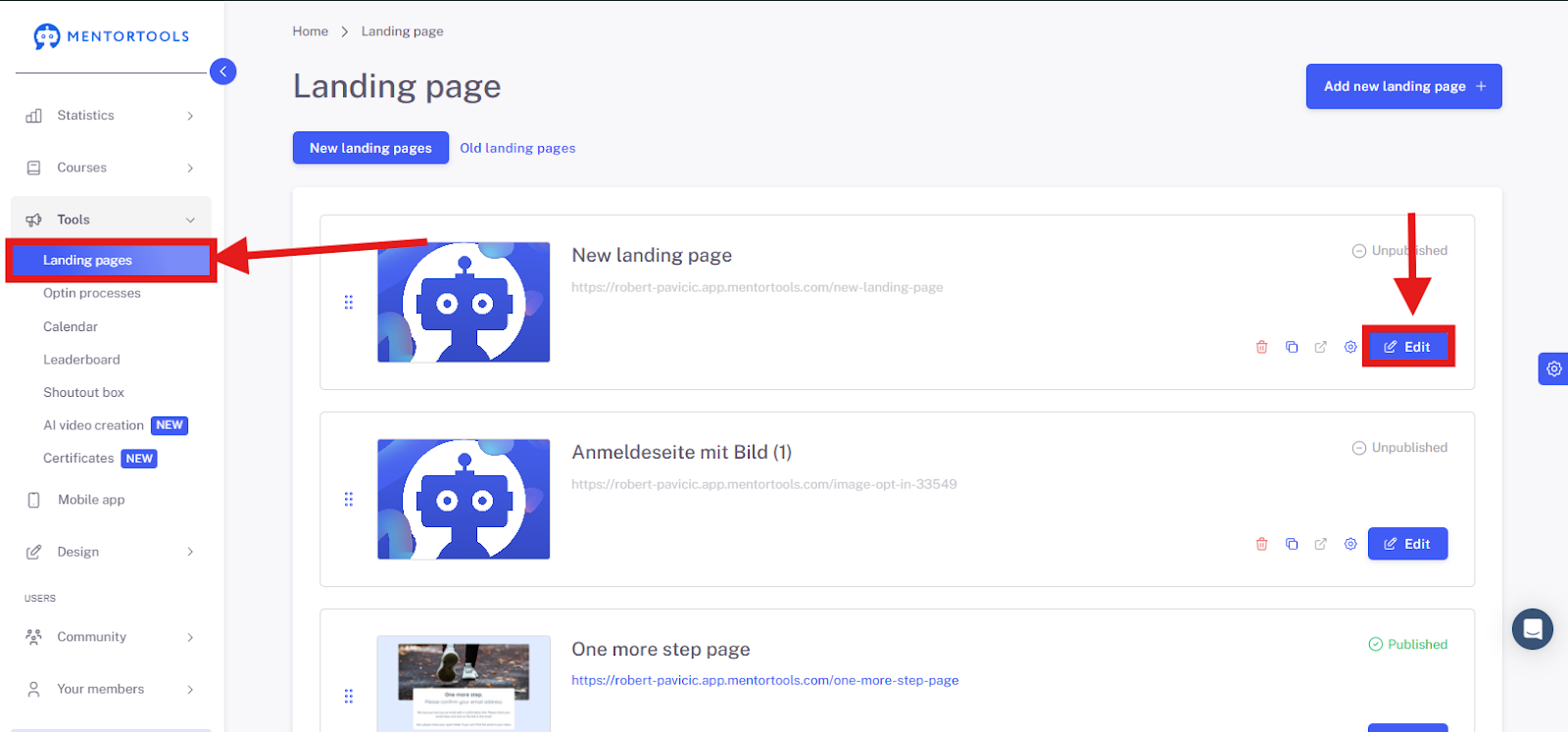
Once you have created the landing page, you can edit it by selecting it under "Landing Pages" and clicking "Edit."
Landing Page Editor
The Landing Page Editor will now open in a new browser tab. Here you can create and edit your landing page. In this example, we'll use a landing page without a template. I will go through every element and option so that you have full control over your landing page's design. With a template-based landing page, you also have full control over the design, as you can delete and edit all the content from the template. This saves a lot of time in most cases and is the better option for beginners.
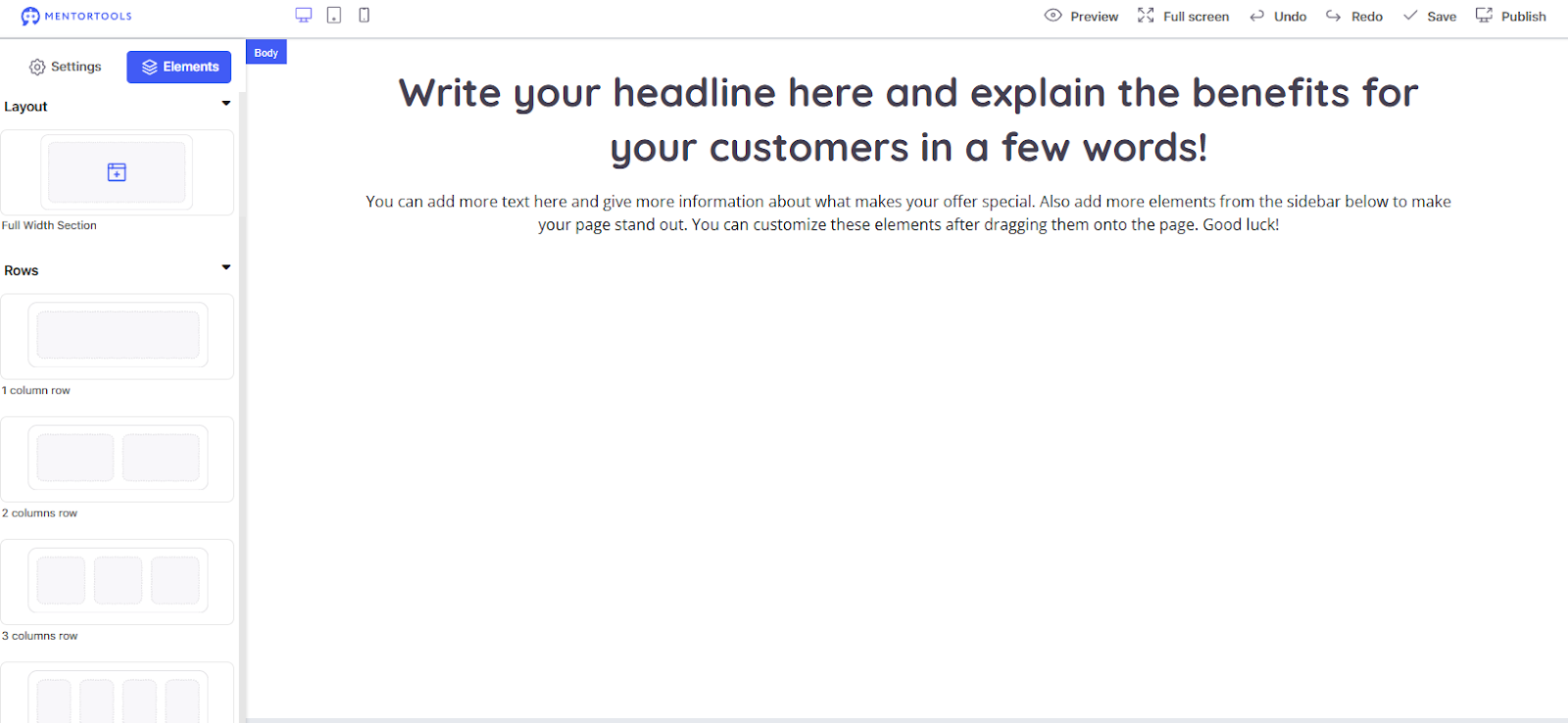
Explanation of Buttons and Options in the Header Bar
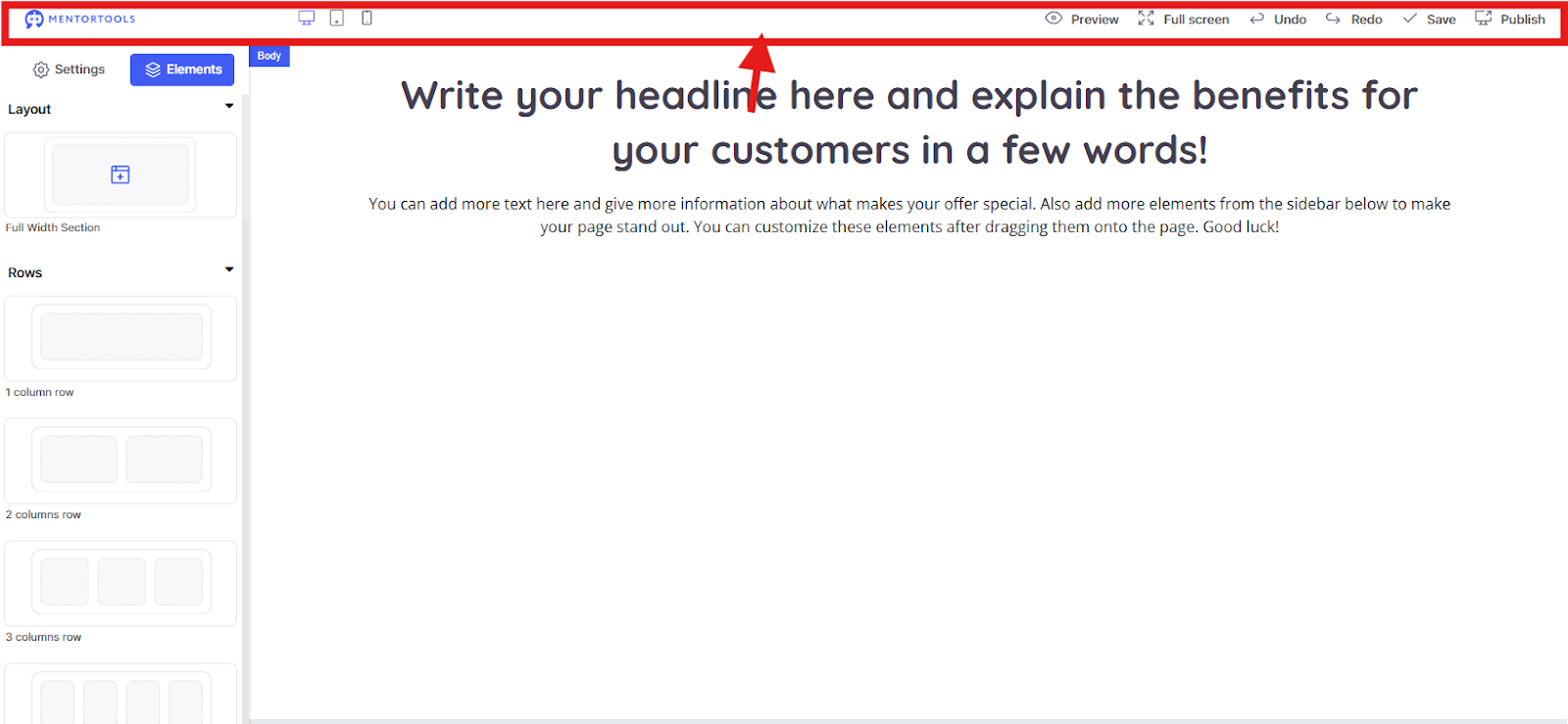
View Options
On the far left, you will see the options for how your landing page looks on different devices. This is incredibly useful for checking whether the design works well on all screen sizes.
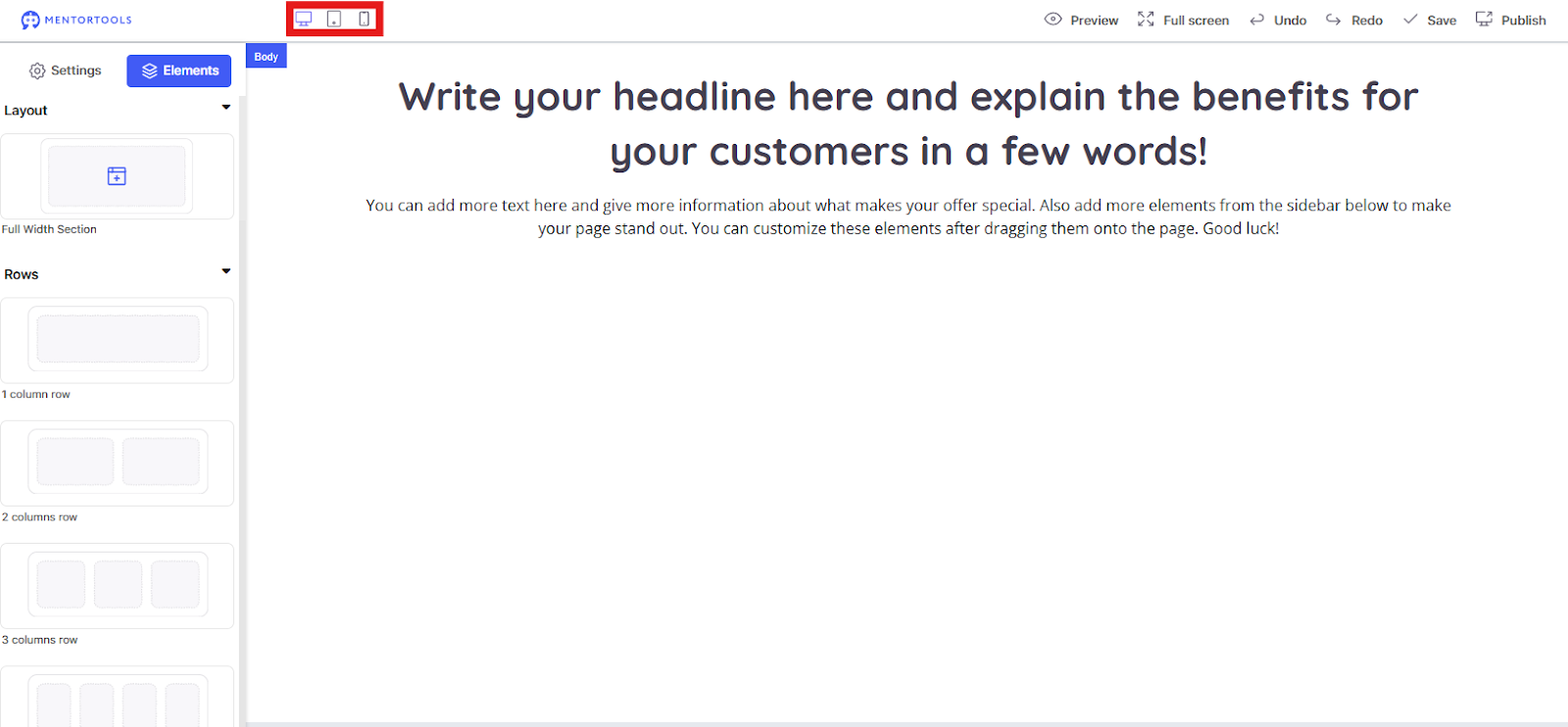
Large screen: Shows how the page looks on a desktop PC.
Tablet: Simulates the view on a tablet.
Smartphone: Shows the mobile view for phones.
Important to know: Design settings for rows and elements are not cross-device. This means that if you change the size of an image for the tablet view, it will not affect the desktop or smartphone view.
However, settings for spacing and your page's content remain the same across all views. This allows you to perfectly adapt the design for each device without changing the content or affecting the design of another view.
Editing Options
In the middle are the most important functions for editing your page.
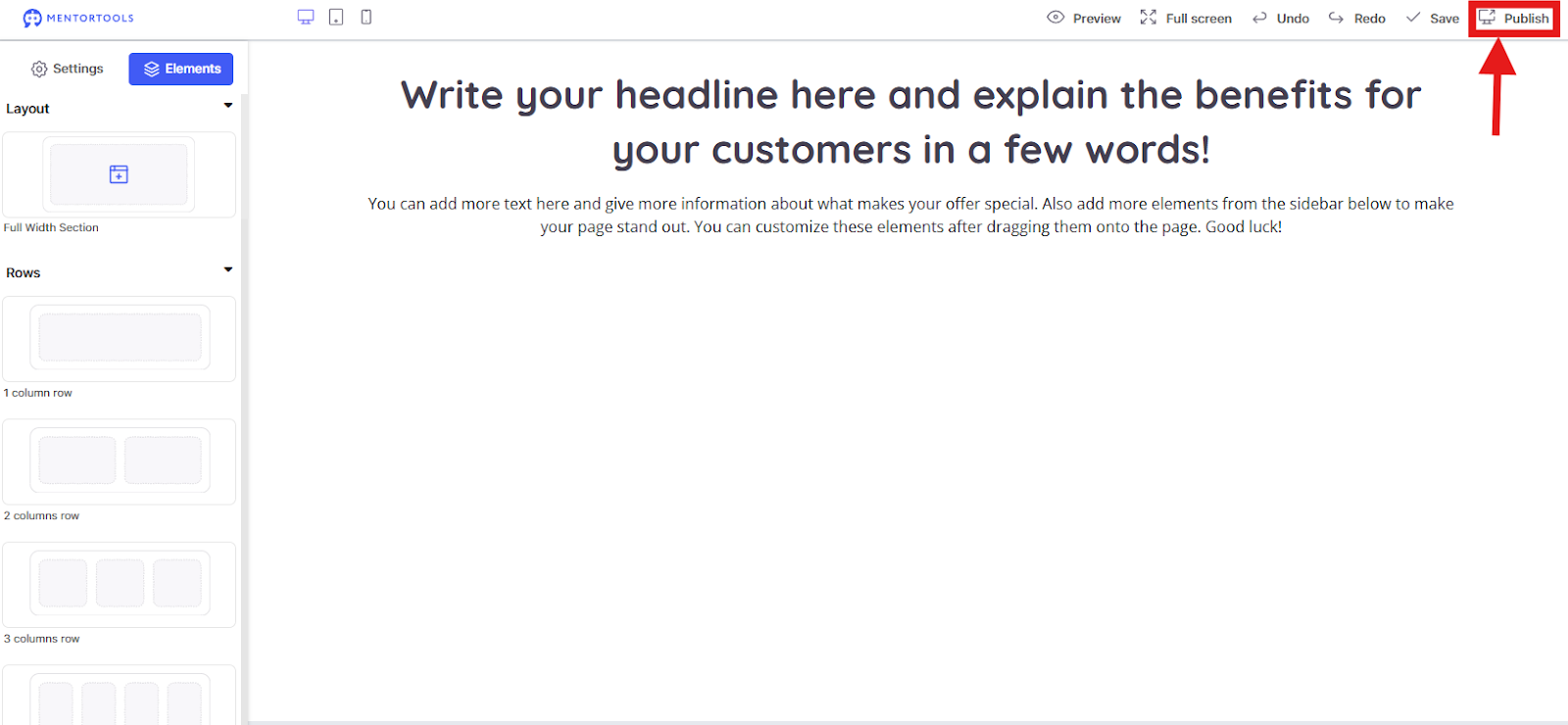
Preview: Here you can view your page as visitors will see it. Clicking this will switch you to preview mode without saving the page.
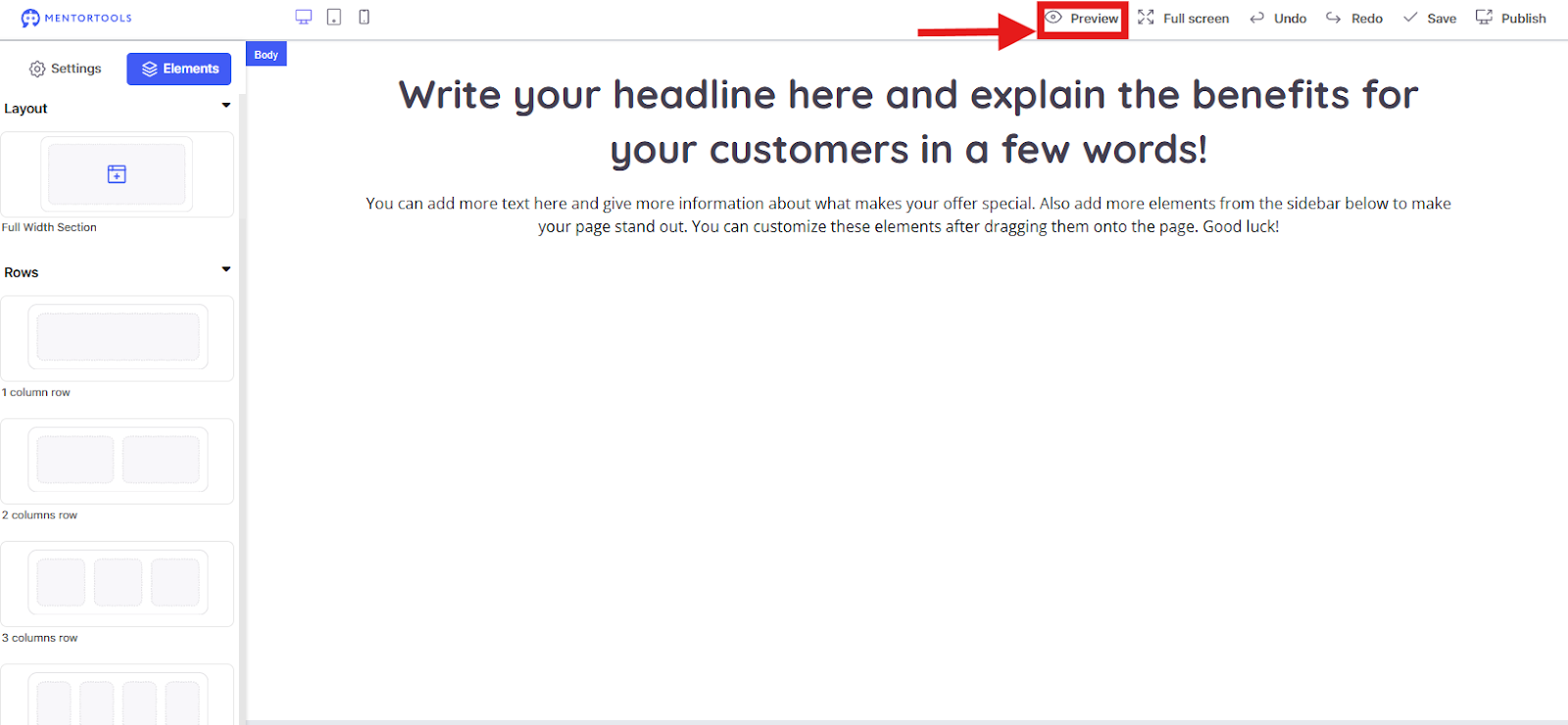
You can exit the preview by clicking the crossed-out eye icon in the top right.

Full Screen: This option hides your browser interface so you only see the landing page. You can turn off this view by clicking "Full Screen" again.

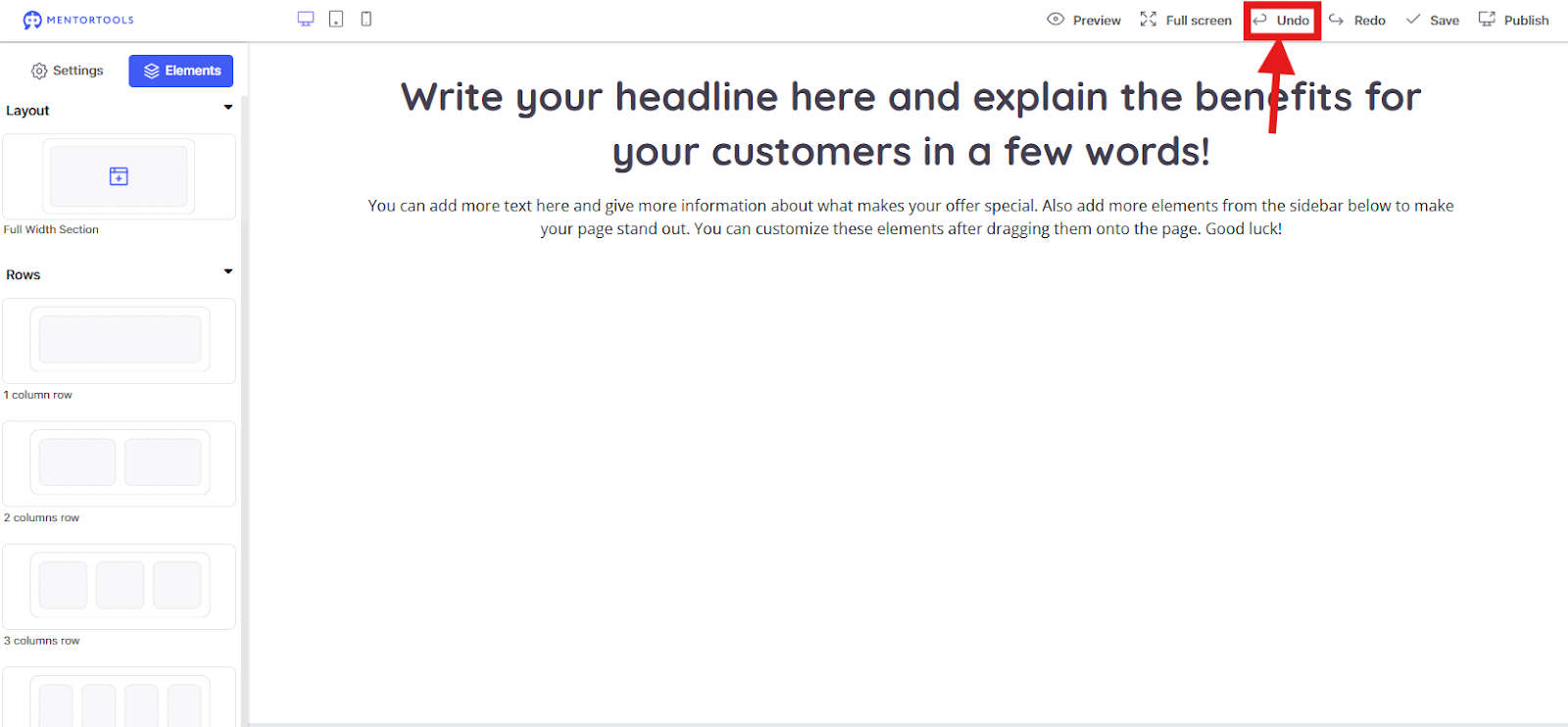
Undo: The left arrow reverses your last editing step.
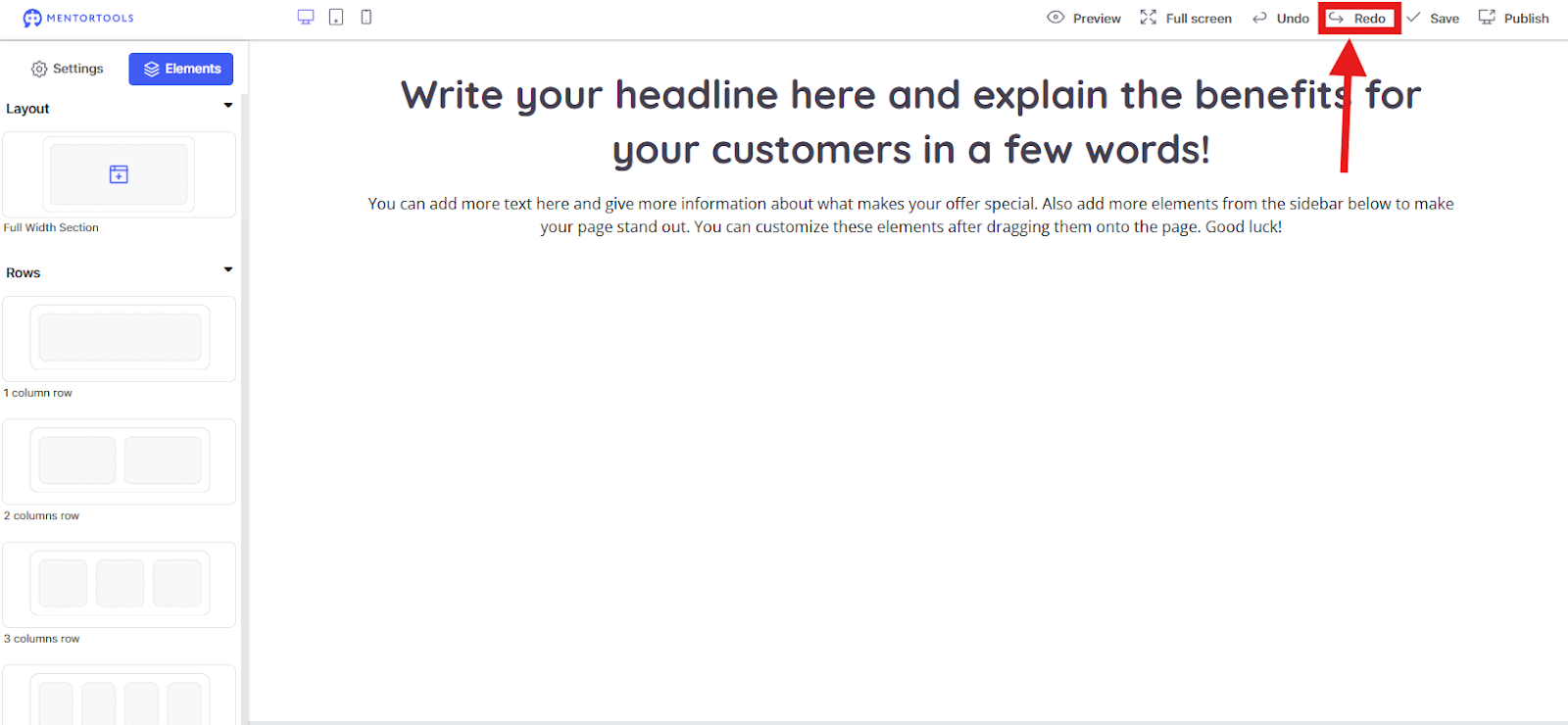
Redo: The right arrow repeats a step you just undid.
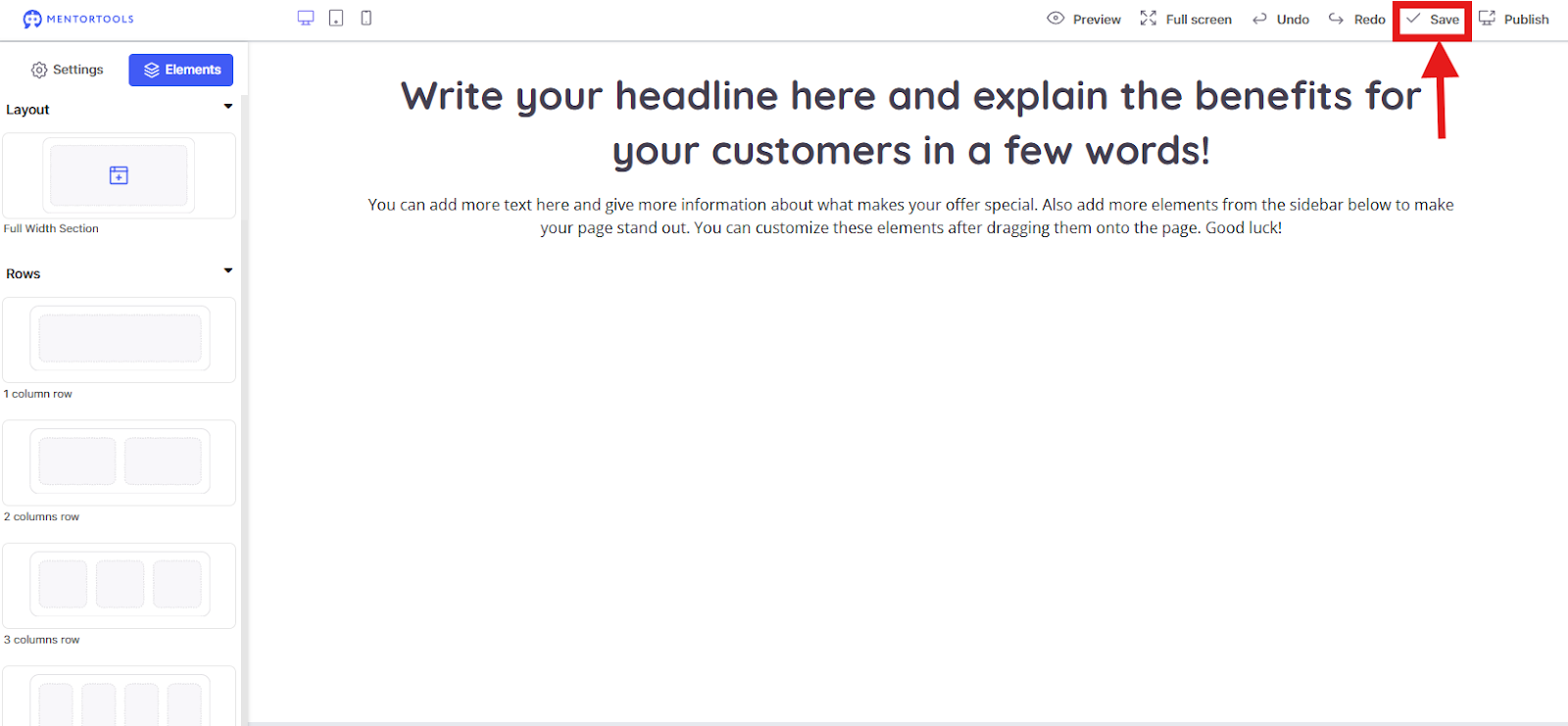
Save: Clicking this button saves your current changes. It's best to save regularly in between!
Publish: When your page is finished, press this button to take it live.
Element Editing Bar. Explanation of Icons and Functions.
When you click on one of the elements in the editor, a blue bar appears at the edge of the element, offering you various options.
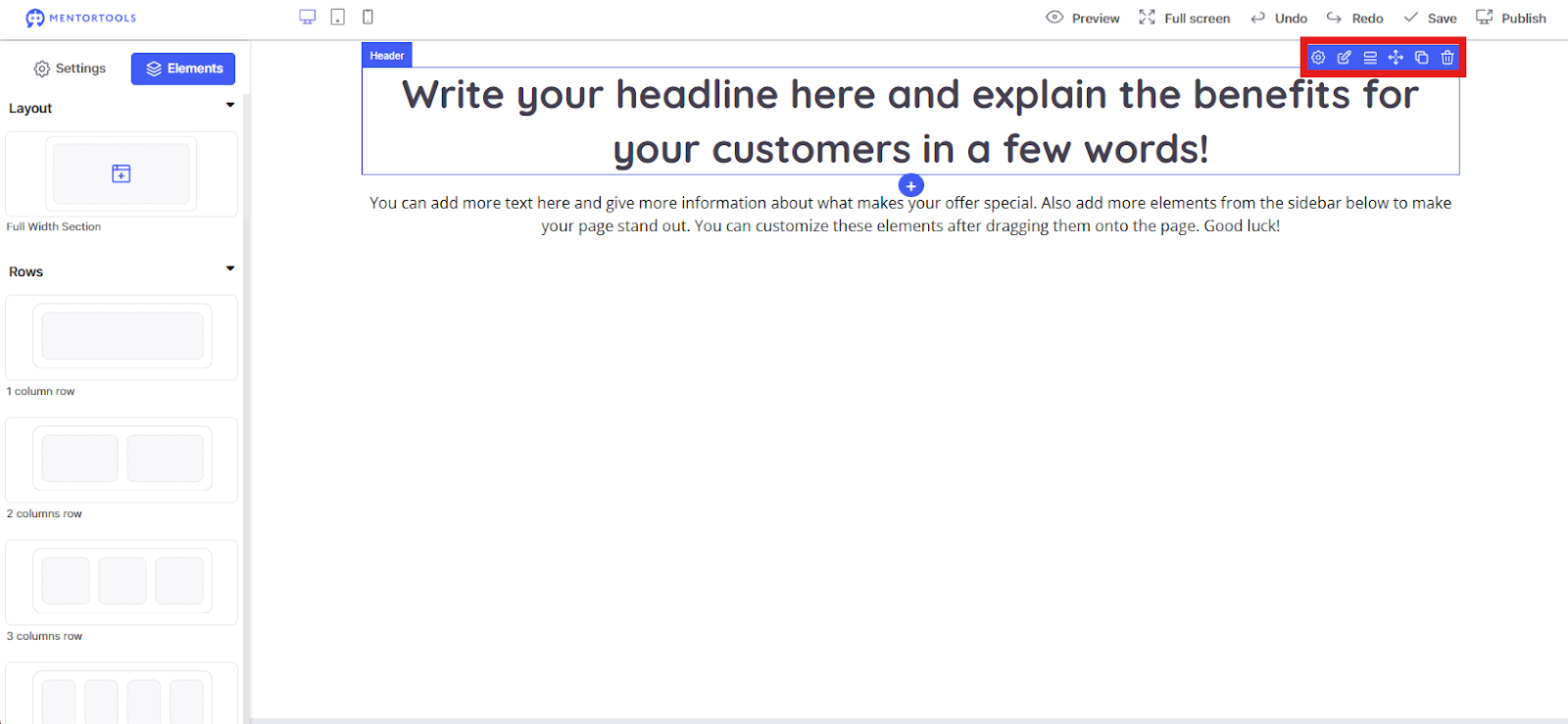
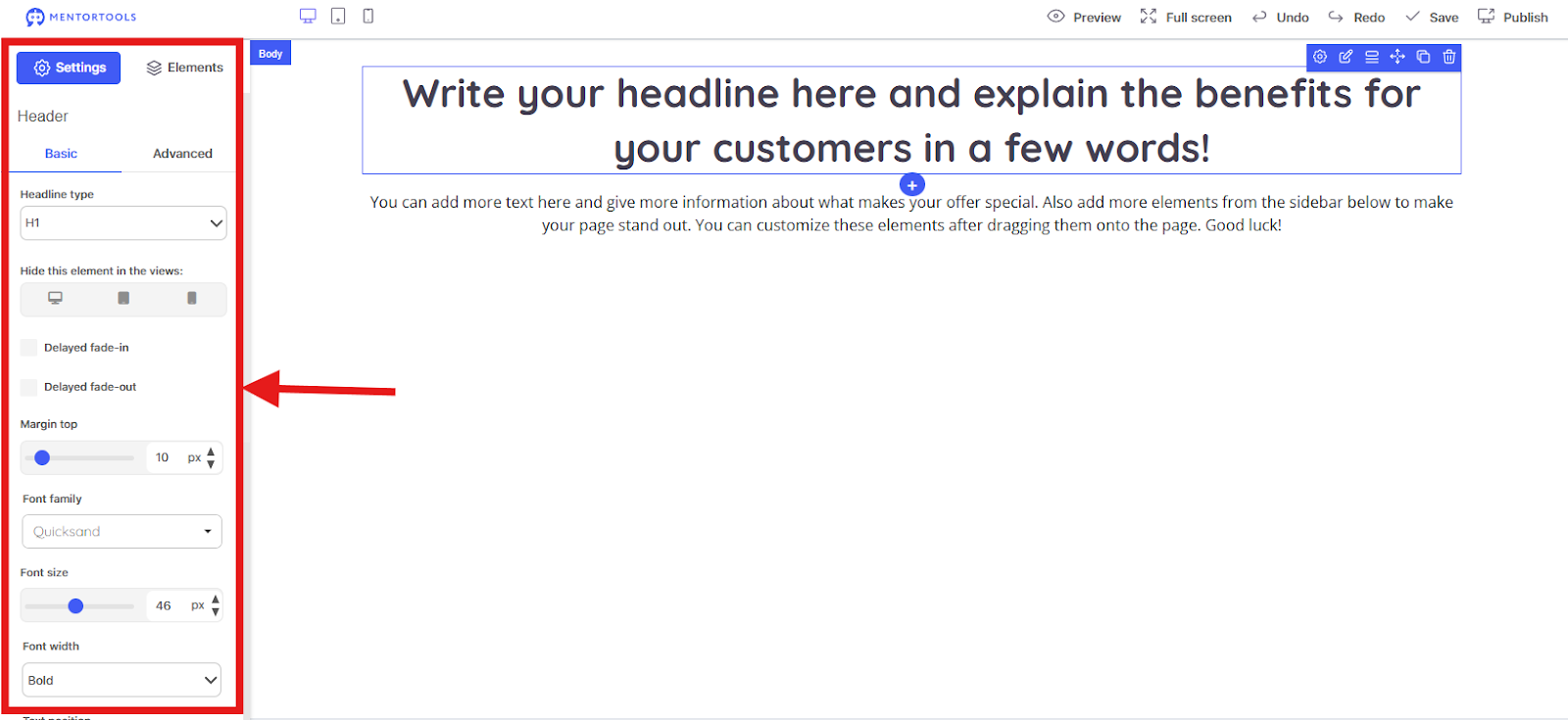
Gear Icon: The gear icon stands for Settings. Here you can make global settings for the selected element, such as the background color, spacing (Padding/Margin), and alignment. The settings open on the left side of the editor with a click on the icon.
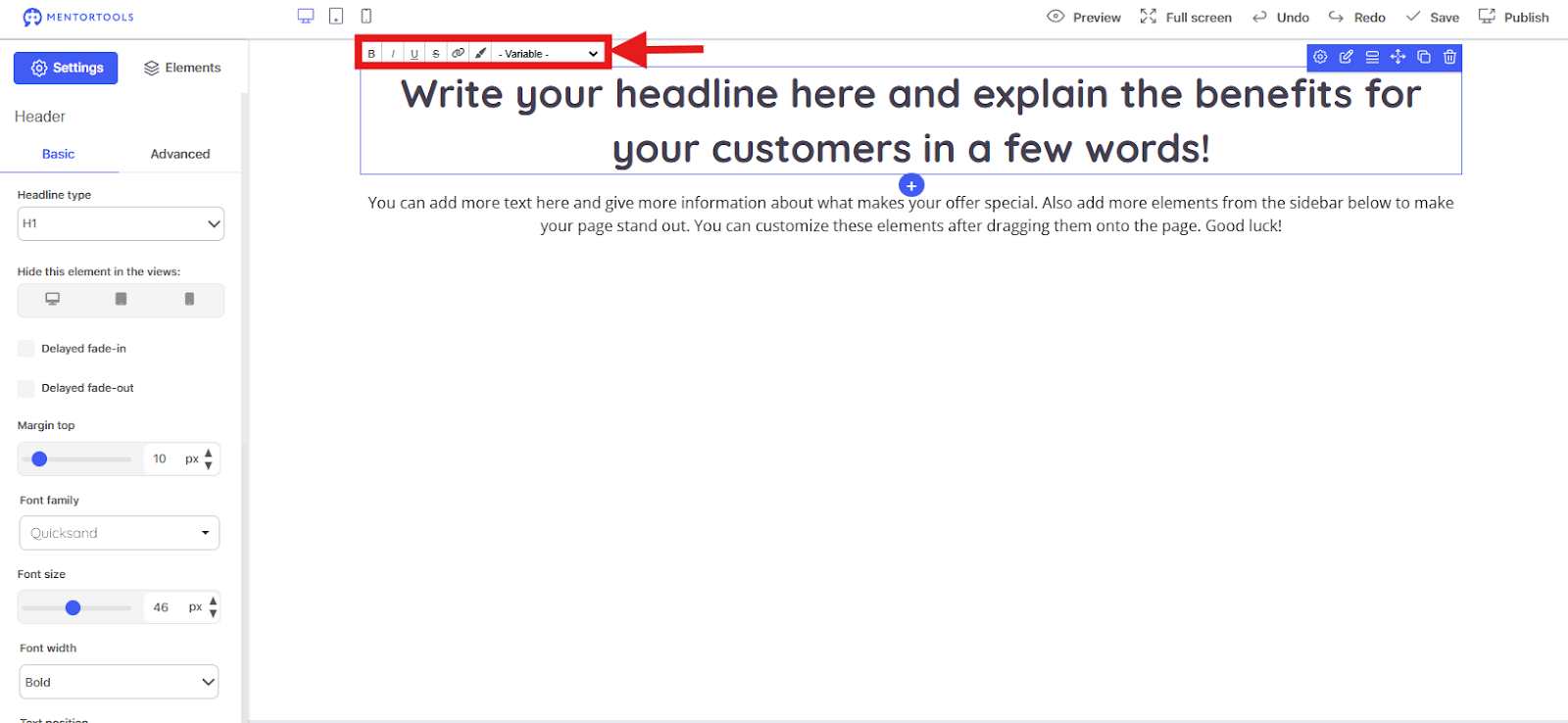
Pen Icon :
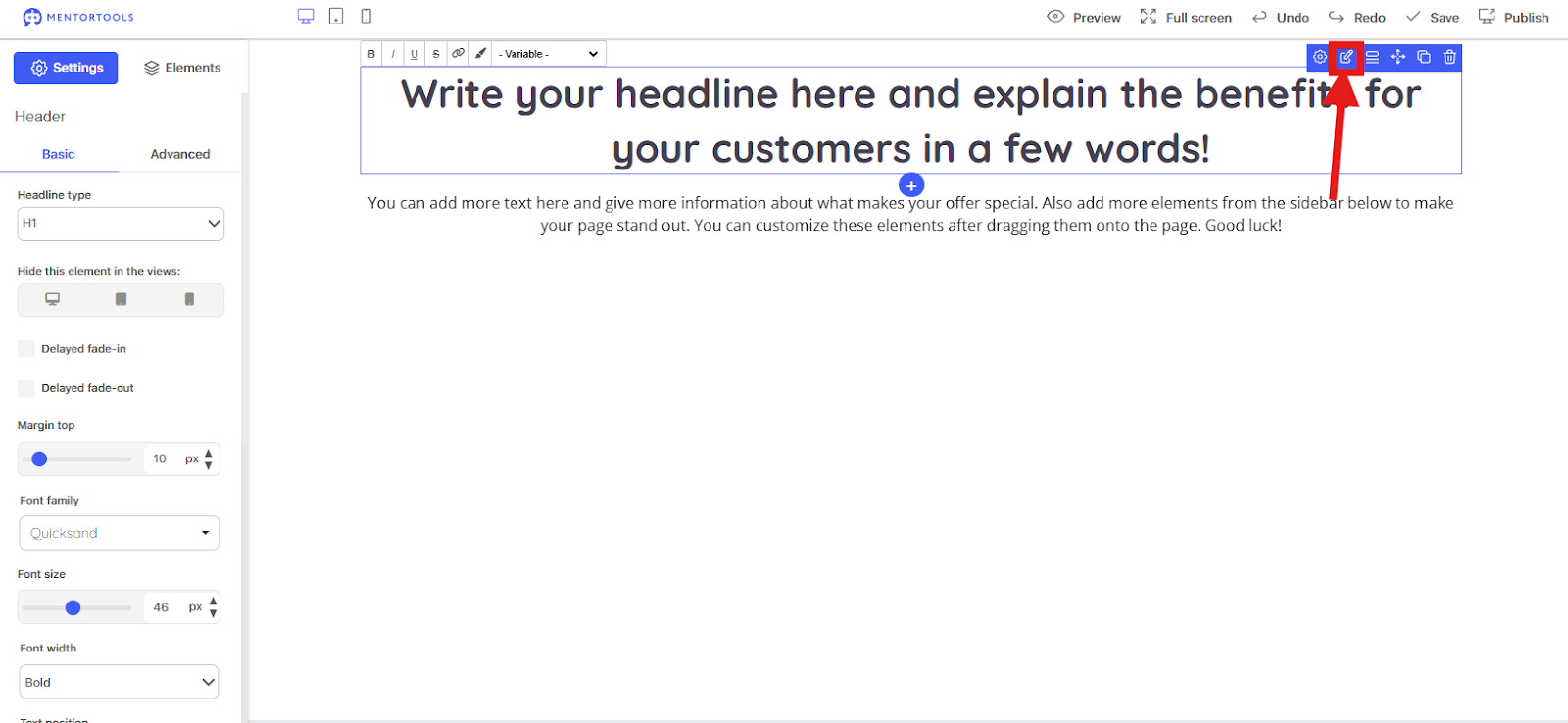
The pen icon is for editing the content. When you click this icon, you can directly change the text or other content of the element. For text blocks, it opens a text editor.
Three-Lines Icon (☰):
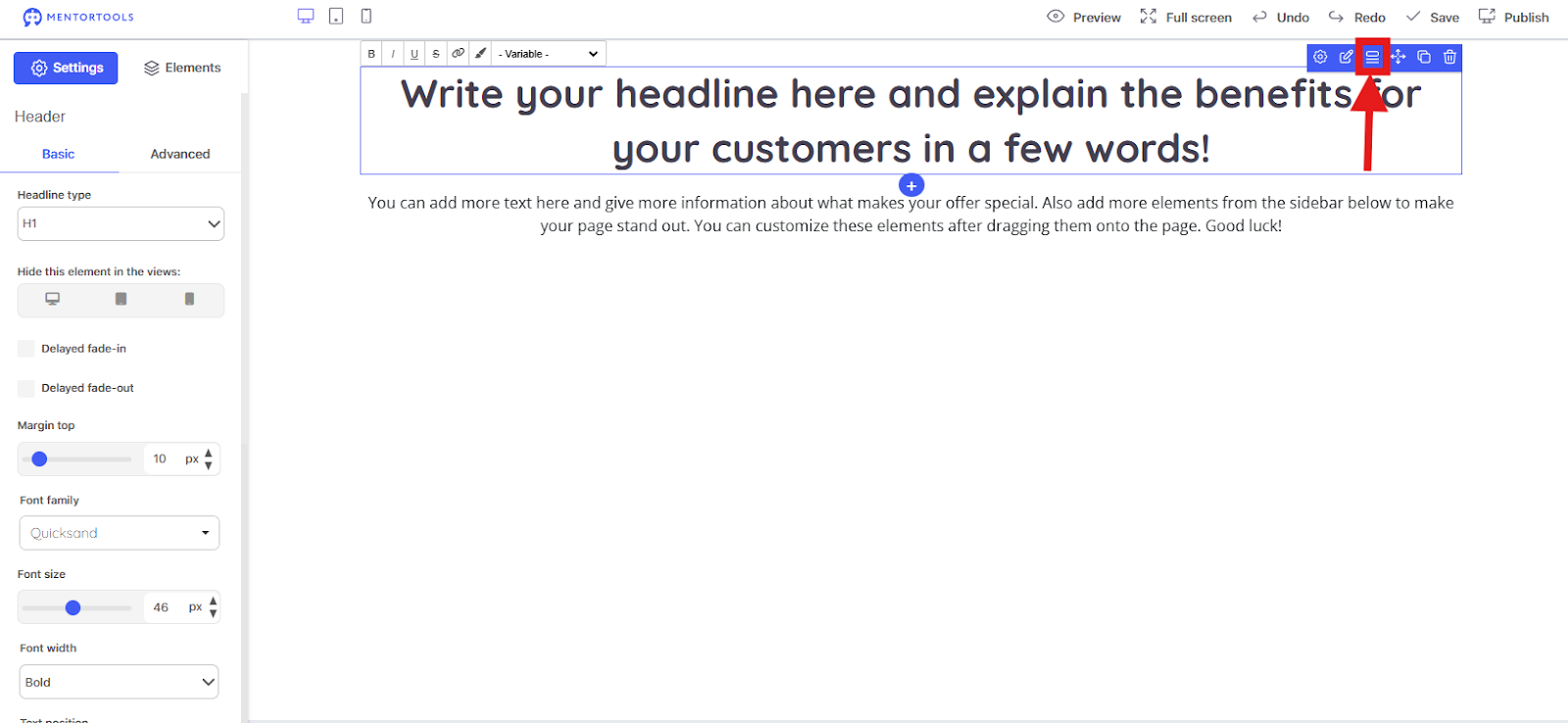
If you click this, you select the parent element. This is incredibly useful when you want to quickly adjust spacing (margins) or similar settings that are hidden in a parent element.
Every website is built on nested HTML code in the background. Each page consists of the following structure:
Page Section
Row
Column
Content (e.g., text, video, image)
So, if you are in a content element and want to edit its spacing, you can use the three-lines icon to move one level up and edit the column. If you click the icon again, you can edit the row, and so on.
Each element offers different properties, such as width, top margin, etc.
This icon is therefore very important if you want to ensure that all spacing on your website looks good in both desktop and mobile views.
Arrow Icon:
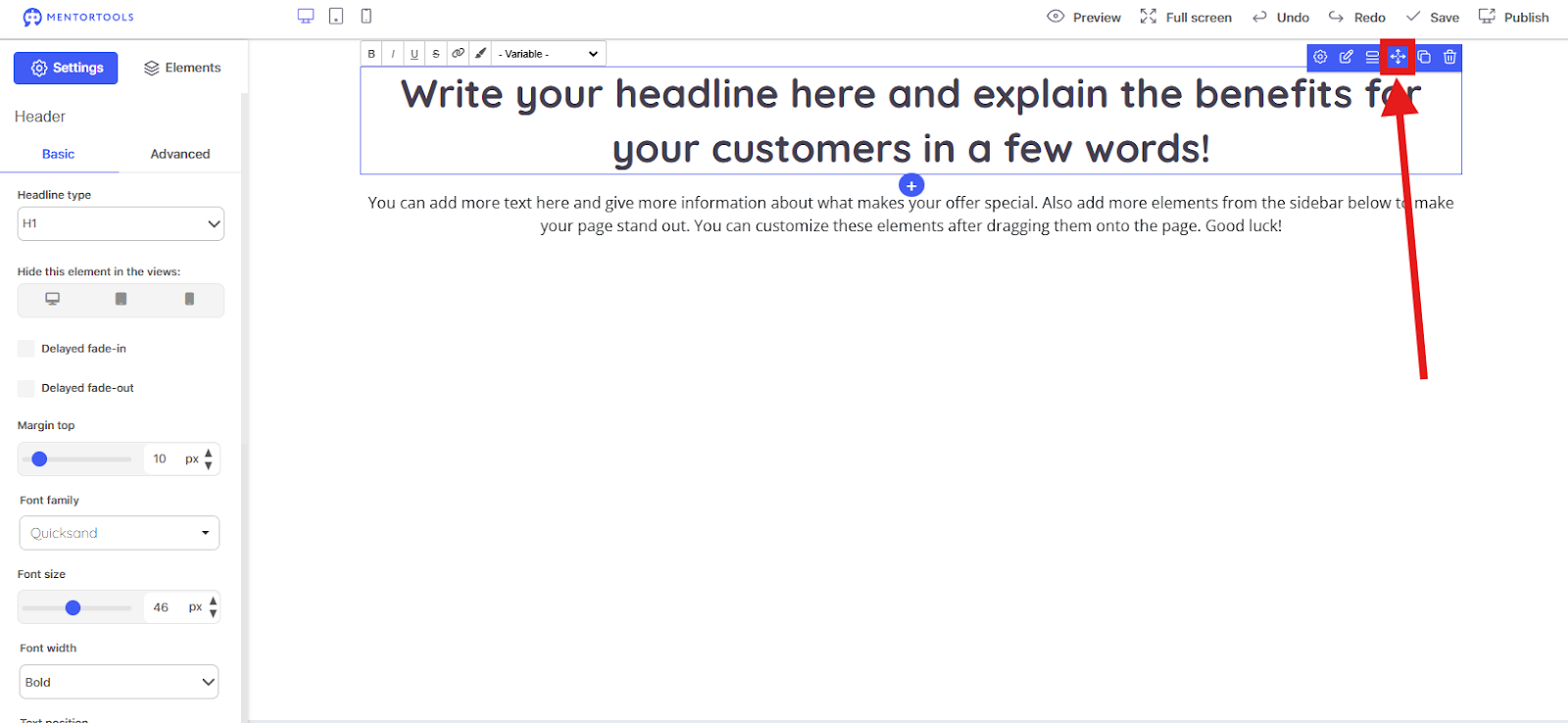
The arrow icon is responsible for positioning. It allows you to freely move the element with your mouse. It helps to drag the element to the desired location.
Two-Documents Icon:
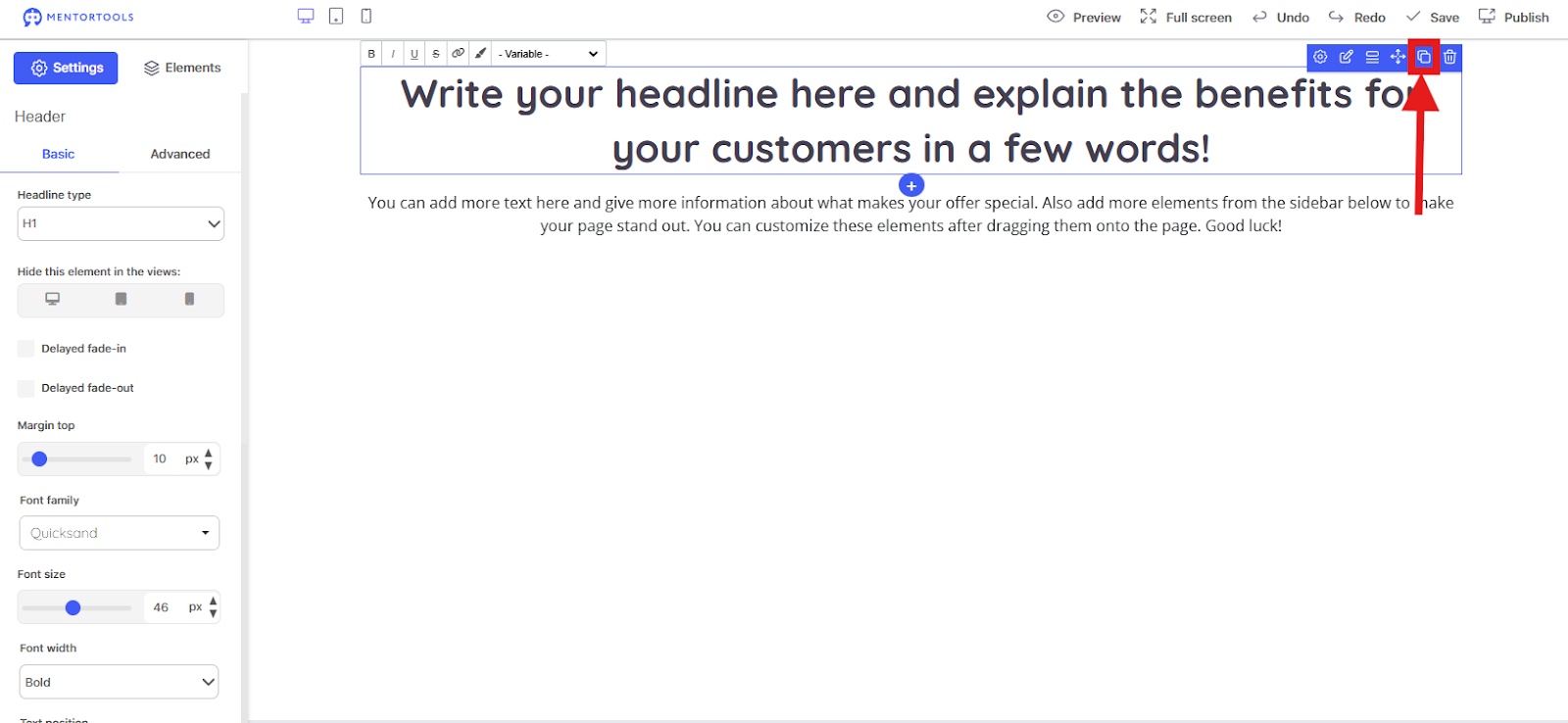
The icon with the two overlapping documents is for duplicating. When you click it, an exact copy of the selected element is created.
Trash Can Icon:
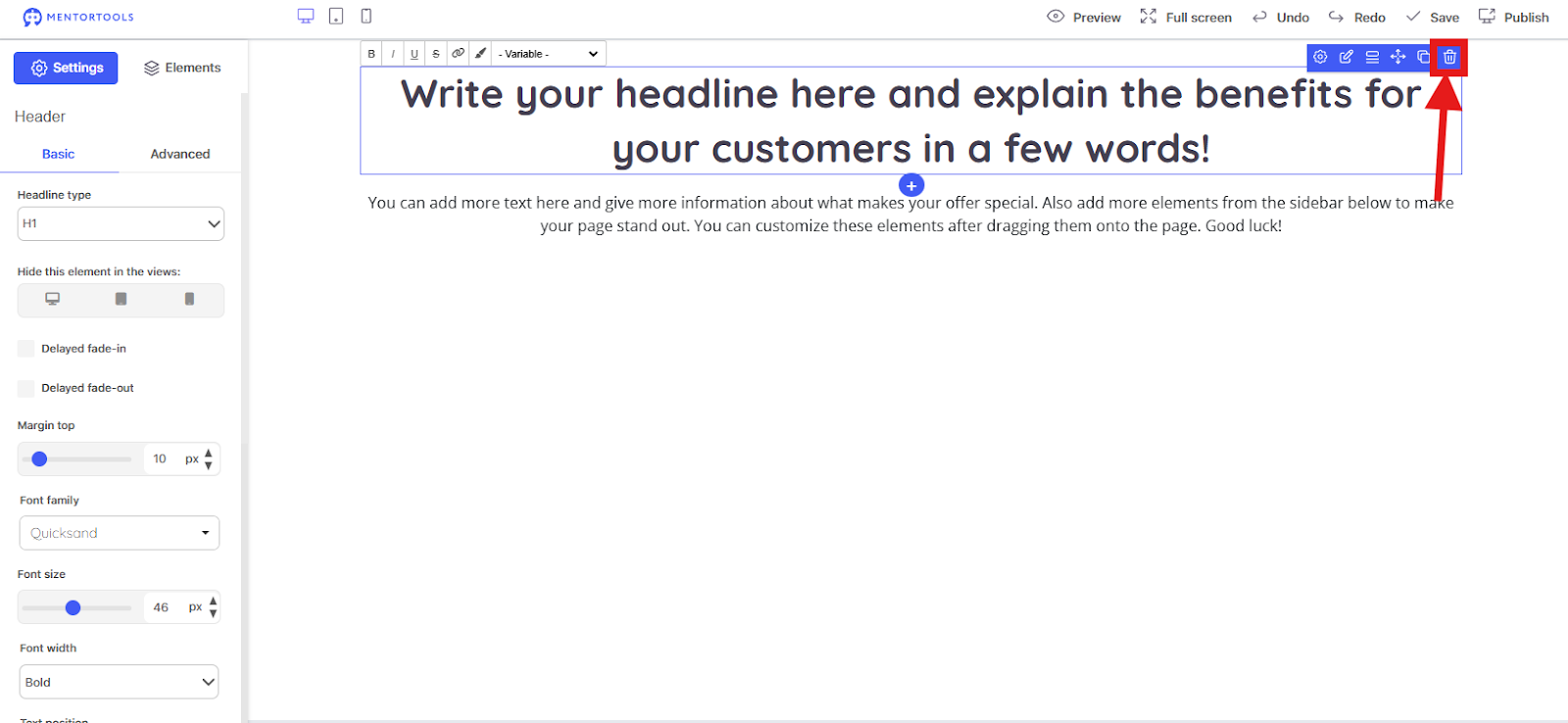
The trash can icon is for deleting. Clicking it removes the selected element.
Elements
In the top corner, you'll find the Settings and Elements buttons. Settings refers to the settings for the selected element, such as background color, font, etc. Elements is the area where you'll find all the different building blocks that you can drag and drop onto your landing page.
Rows and Columns
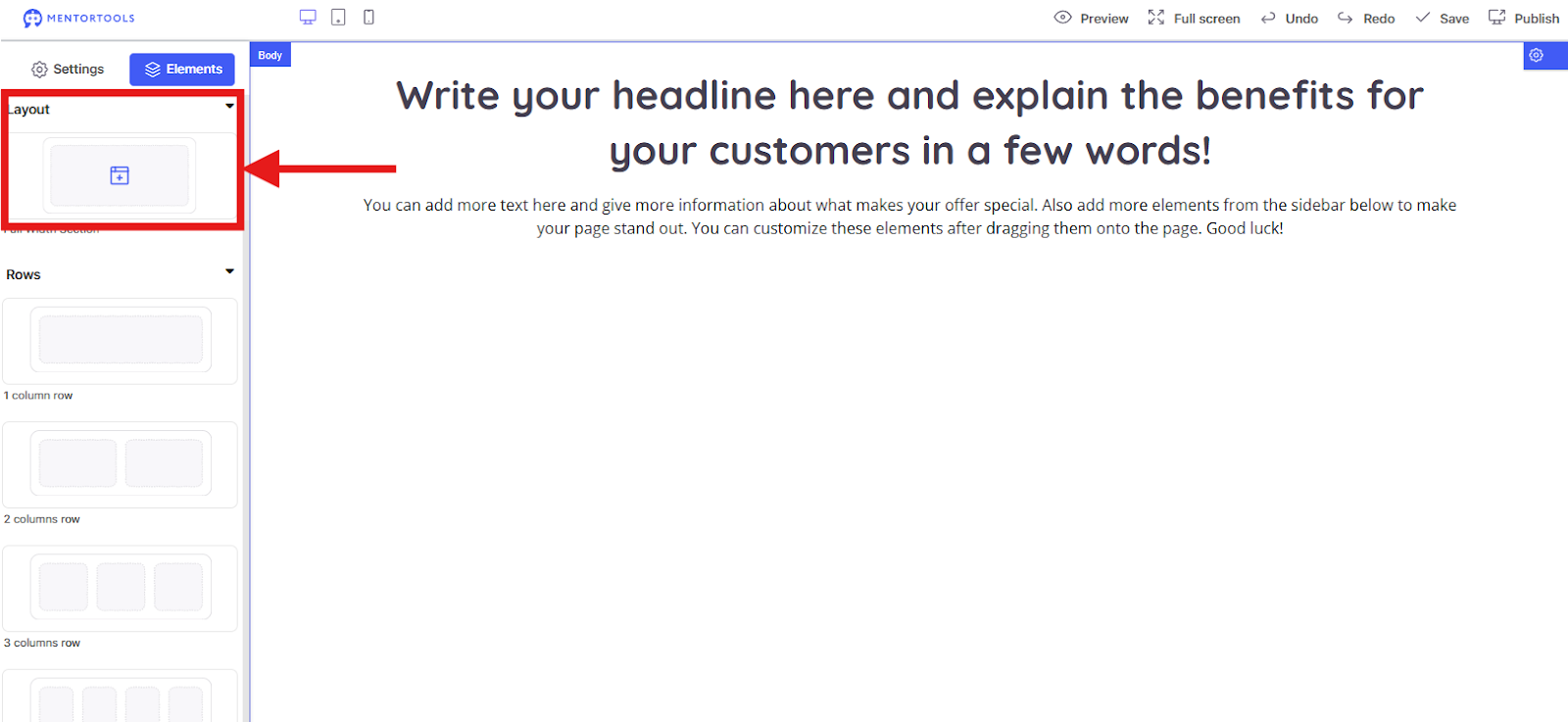
Layout: Provides you with the basic structure for your page. You must always drag the Layout onto your page first. It's like a blank canvas on which you can build everything from scratch.
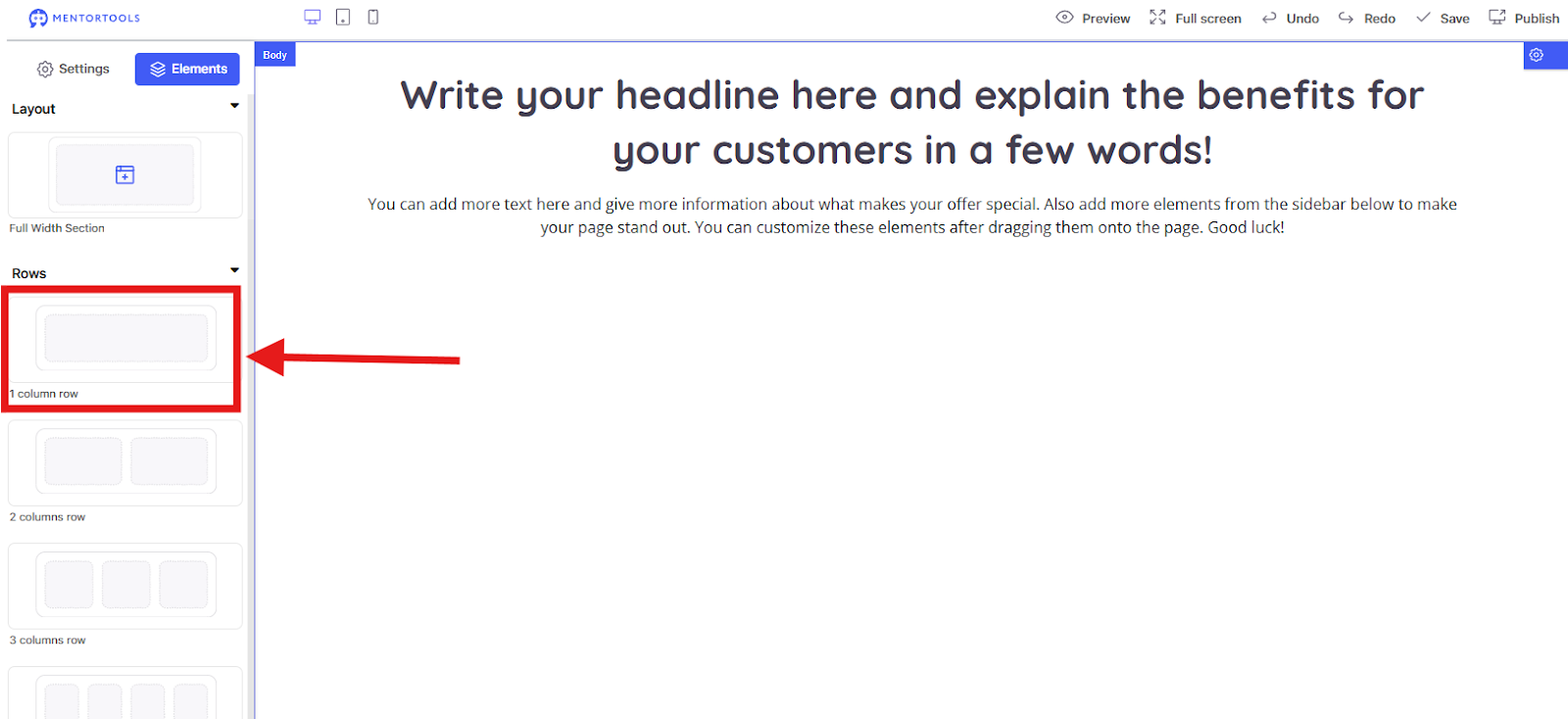
Row with 1 Column: This creates a row that takes up the entire width. Perfect for a large title or a wide image.
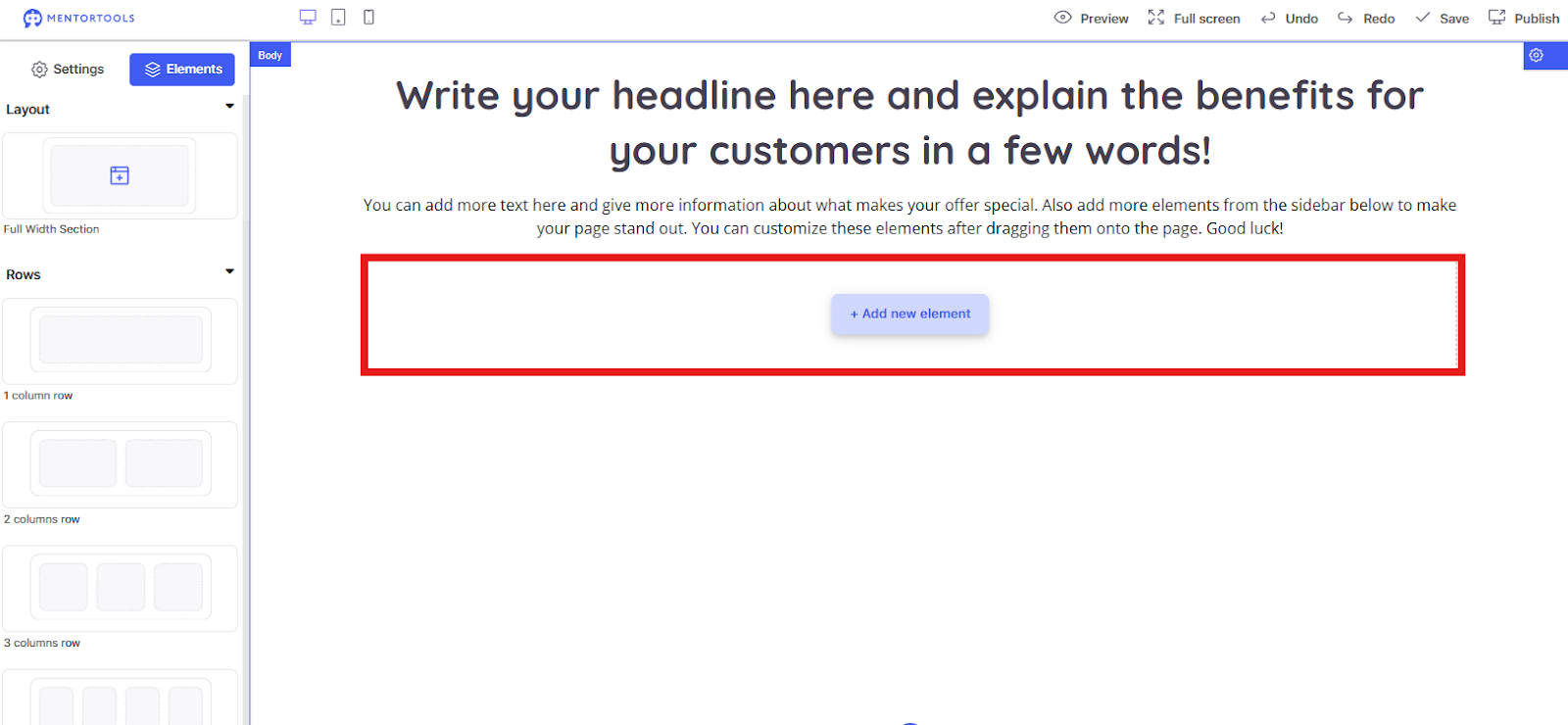
This would look like this if you drag the row under the text in the layout.
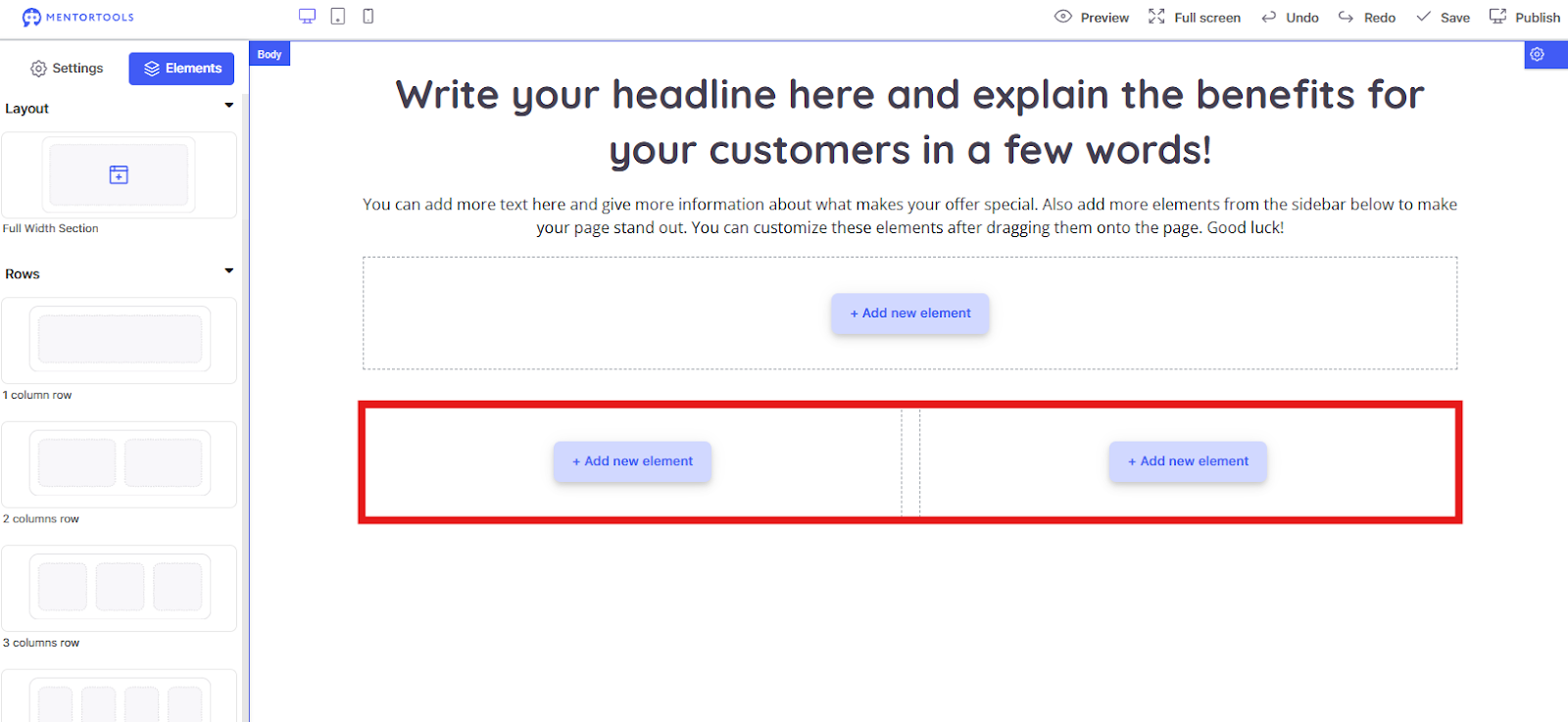
Row with 2 Columns: This allows you to arrange content side-by-side, for example, a heading and text or two images.
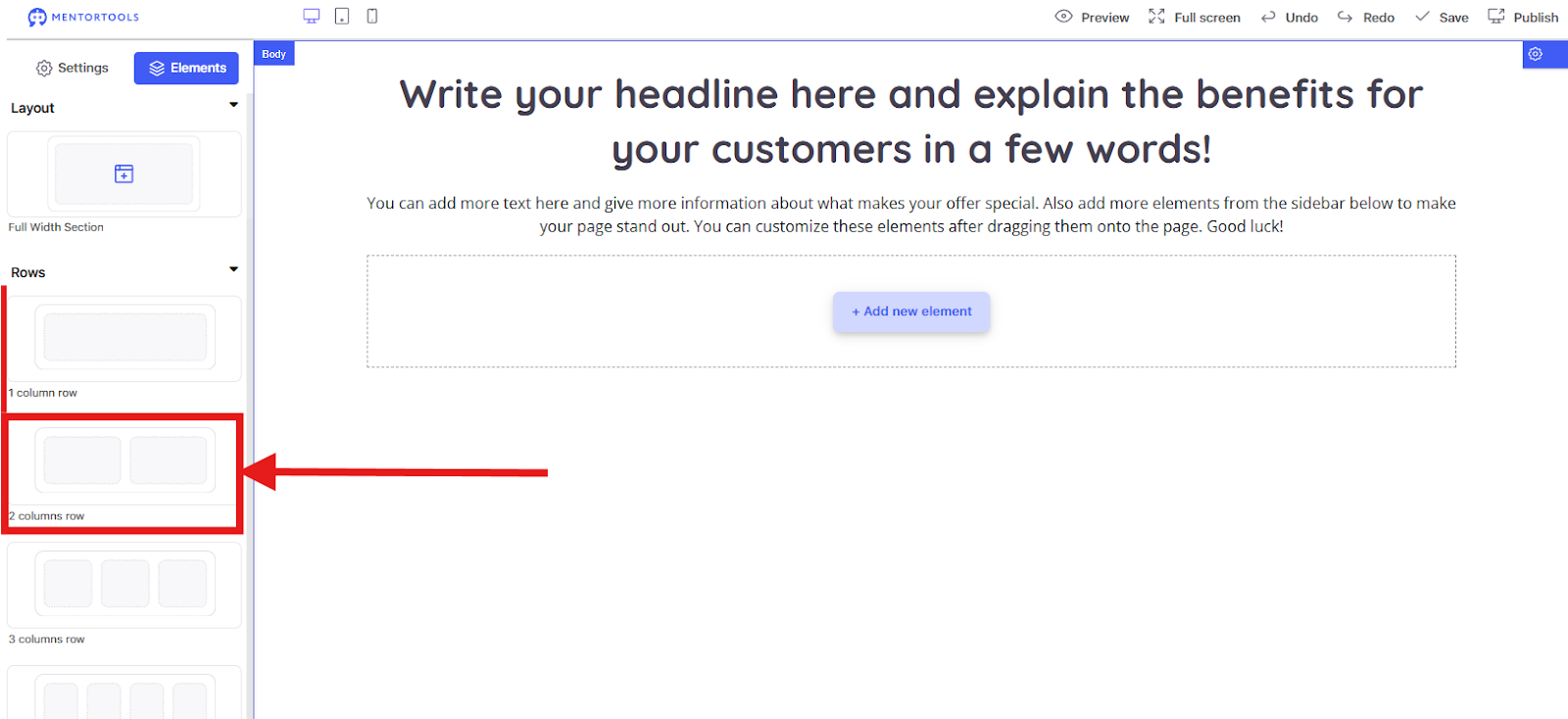
This would look like this if you drag the row under the row with one column in the layout.
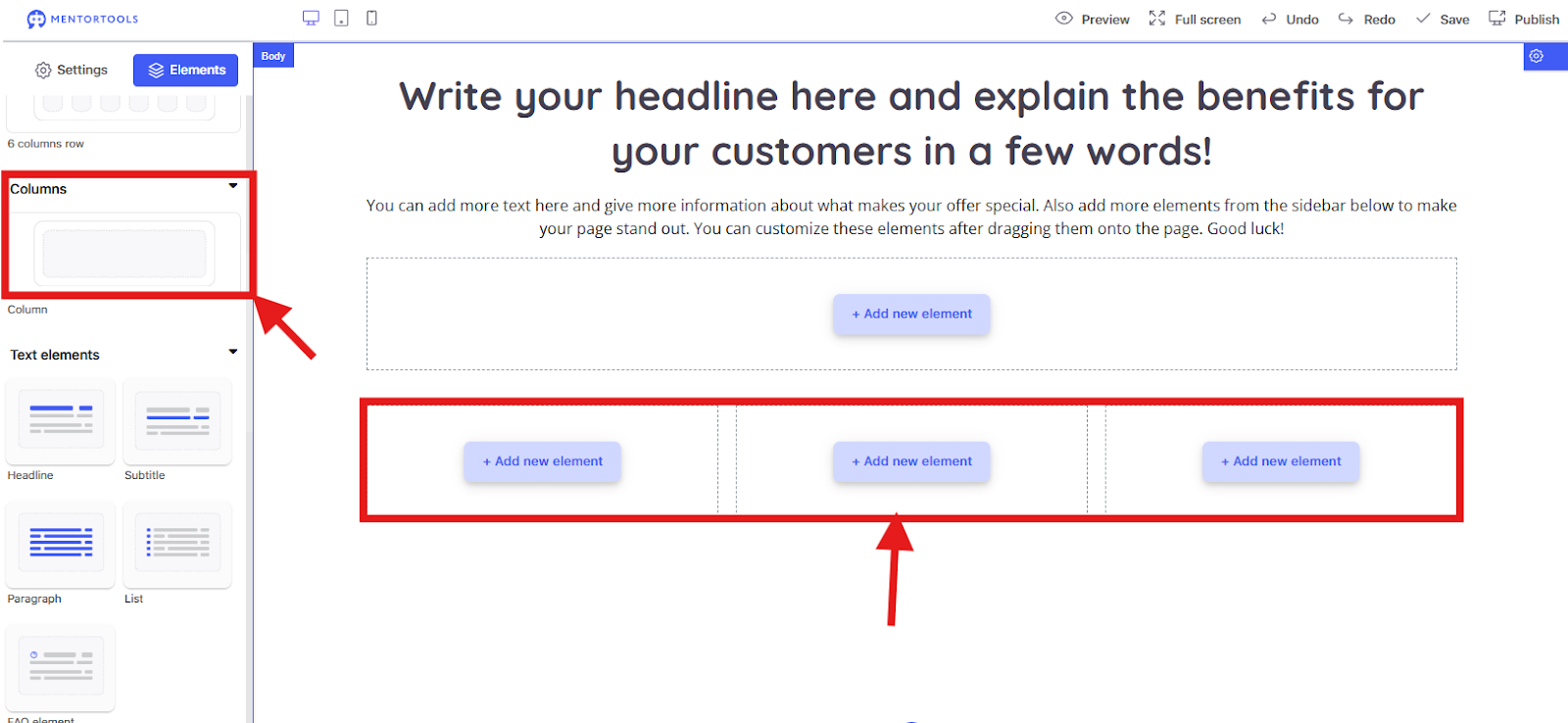
Row with 3-6 Columns: As the name suggests, this divides your row into three to six equally sized columns, which is great for product features or short descriptions.
Columns: With this option, you can drag more columns into an existing row. In the example, I have dragged a column into the middle of the row with 2 columns, thereby creating a row with 3 columns.
Row/Column Settings in the Landing Page Editor
Let's go through the settings for "Rows" in your Landing Page Editor. This is crucial for designing your page exactly as you envision it.
Basic Settings (Basic) Here are the fundamental options you'll use most often:
Hide this element on: Here you can control which devices a row should be visible on. For example, if you click the checkbox for "Mobile," this row will not be displayed on mobile phones. This is useful for creating an optimized view for different devices.
Delayed fade-in/fade-out: These checkboxes ensure that a row only appears or disappears after a certain delay. This can create a cool, dynamic effect.
Alignment: Here you set how the content in your row is aligned. You have the choice between Left, Centered, and Right.
Invisible on public page: If you activate this option, the row will still be displayed in the editor, but it will not be visible to visitors on your live page. This is perfect when you are working on something that isn't finished yet.
Columns side-by-side on mobile: Normally, columns are stacked on top of each other on mobile phones to save space. If you activate this option, they will remain side-by-side, which can quickly become cluttered.
Width: With this slider, you set how wide the row should be. You can set a relative value (in percent). 100% means the row takes up the entire available width.
Outer top margin: This is the spacing (also called margin) between the top edge of your row and the element above it. It's used to control the distance between different elements. You can specify the value in px (pixels).
Background image: Here you can upload an image to serve as the background for the entire row.
Background "font-size:11pt;font-family:Inter,sans-serif;;background-;font-weight:400;font-style:normal;font-variant:normal;text-decoration:none;vertical-align:baseline;white-space:pre;white-space:pre-wrap;"> Choose a color to serve as the background for the row. If you have a background image, the color will only be visible if the image is transparent.
Inner spacing: This is the spacing (also called padding) between the border of your row and the content within it. You can set the inner spacing for Top, Right, Bottom, and Left separately. This is super important to prevent text and images from being stuck directly to the edges and to give them "breathing room."
Advanced Row Settings This area provides you with fine-tuning options for your row's design.
Flex Alignment
Flex Alignment: These four icons control the arrangement of elements within your row when you activate the Flexbox mode. Flexbox is a modern way to create layouts that are super flexible.
Left-Right Alignment: The first two icons determine whether the content should be arranged side-by-side (horizontally) or stacked (vertically).
Top-Bottom Alignment: The last two icons determine the vertical alignment of the elements. You can align them to the top or bottom of the row.
Border
Width: Here you set how thick the border of your row should be. You can enter a value in pixels (px). A value of 0 means the row has no border.
Style: With this dropdown menu, you select the type of border. The most common styles are:
Solid: A continuous, solid border.
Dashed: A border made of dashed lines.
Dotted: A border made of dots.
And there are others, like double lines, etc.
Color: With this color picker, you determine the color of your border.
Border Radius The border radius is a super cool function for rounding the corners of your row. This gives your page a softer, more modern look. The higher the value, the rounder the corner.
Top Left: Rounds the top left corner.
Top Right: Rounds the top right corner.
Bottom Right: Rounds the bottom right corner.
Bottom Left: Rounds the bottom left corner. If you set all four values the same, all corners will have the same rounding. If you use different values, you can create creative, asymmetrical shapes.
Box Shadow
Box Shadow: With the plus symbol, you can add a shadow effect to your row. As soon as you click it, more options appear to define the shadow precisely:
Shadow Color: Choose the color of your shadow. A shade of gray is usually a good choice.
Horizontal/Vertical Offset: Determines how far the shadow is horizontally or vertically from the row.
Blur: Makes the shadow softer or sharper.
Spread: Increases or decreases the size of the shadow.
Column Settings
Columns are the containers within a row where you place your actual content (like text, images, buttons).
What is new or different?
Place element first on mobile: This is a very important and special function for columns. Normally, columns are arranged from left to right. If you activate this option, this column will be displayed first on mobile, before the other columns in the same row. This is great if, for example, you have an image on the left on desktop and text on the right, but on mobile, you would rather have the image above the text.
Width: For columns, the "Width" is especially important because it is set proportionally to the width of the row. With the slider, you can set the column's share of the total row width. If you have three columns and set each to 33%, they will fill the row evenly. If you set one column to 50% and the other two to 25%, you will have an asymmetrical layout.
What is the same? The remaining options you already know from the "Rows" settings:
Hide this element on: Same function as for rows. You can hide the column on certain devices.
Delayed fade-in/fade-out: Works exactly like for rows.
Outer top margin: Same outer margin to the column above.
Background image / background "font-size:11pt;font-family:Inter,sans-serif;;background-;font-weight:400;font-style:normal;font-variant:normal;text-decoration:none;vertical-align:baseline;white-space:pre;white-space:pre-wrap;"> You can give the column its own background image and background color.
Inner spacing: The inner spacing (padding) works the same way and provides "breathing room" around the content inside the column.
In short: Columns are basically "mini-rows" within a main row that help you arrange your content. The key differences are the "Mobile" arrangement and the proportional "Width" setting.
Text Elements
Here are the explanations for the "Text elements" in your Landing Page Editor.
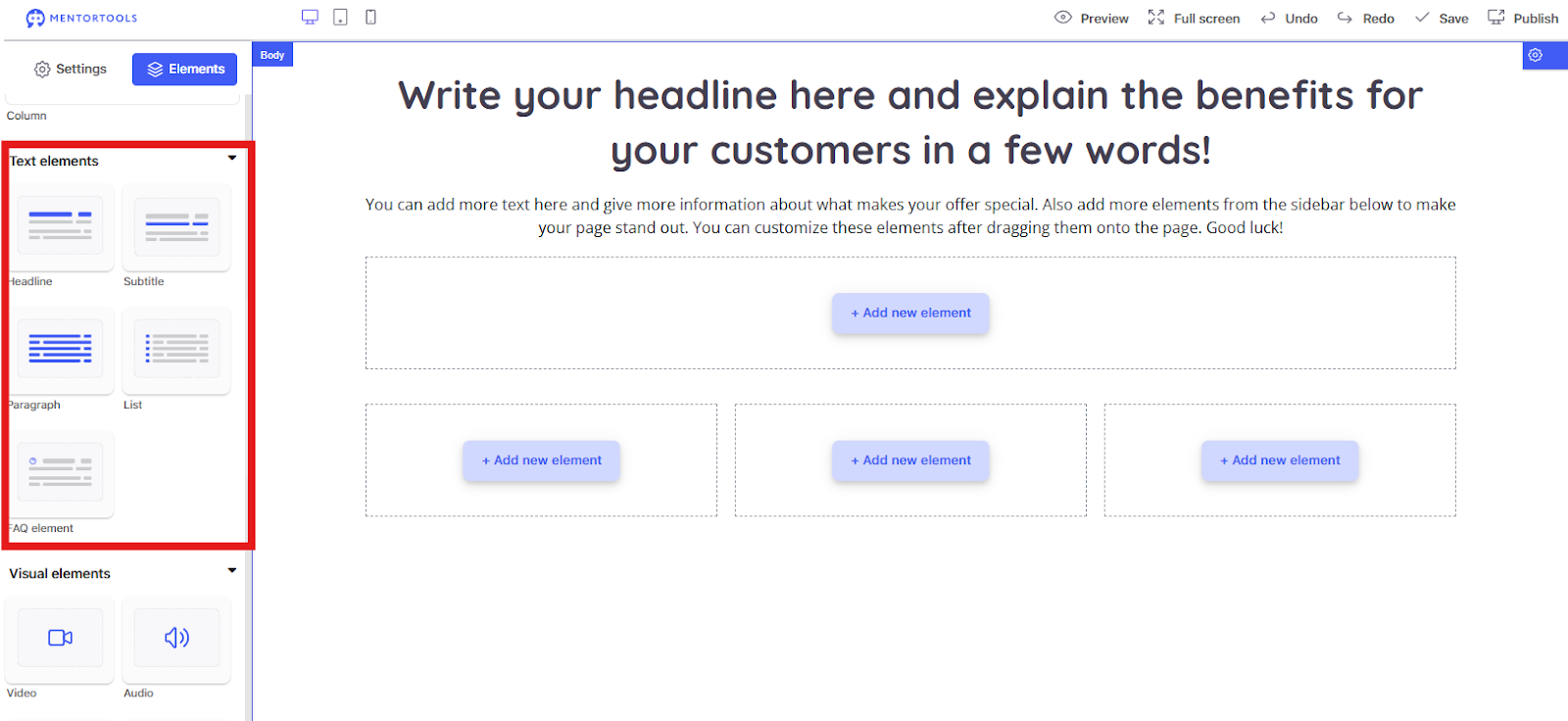
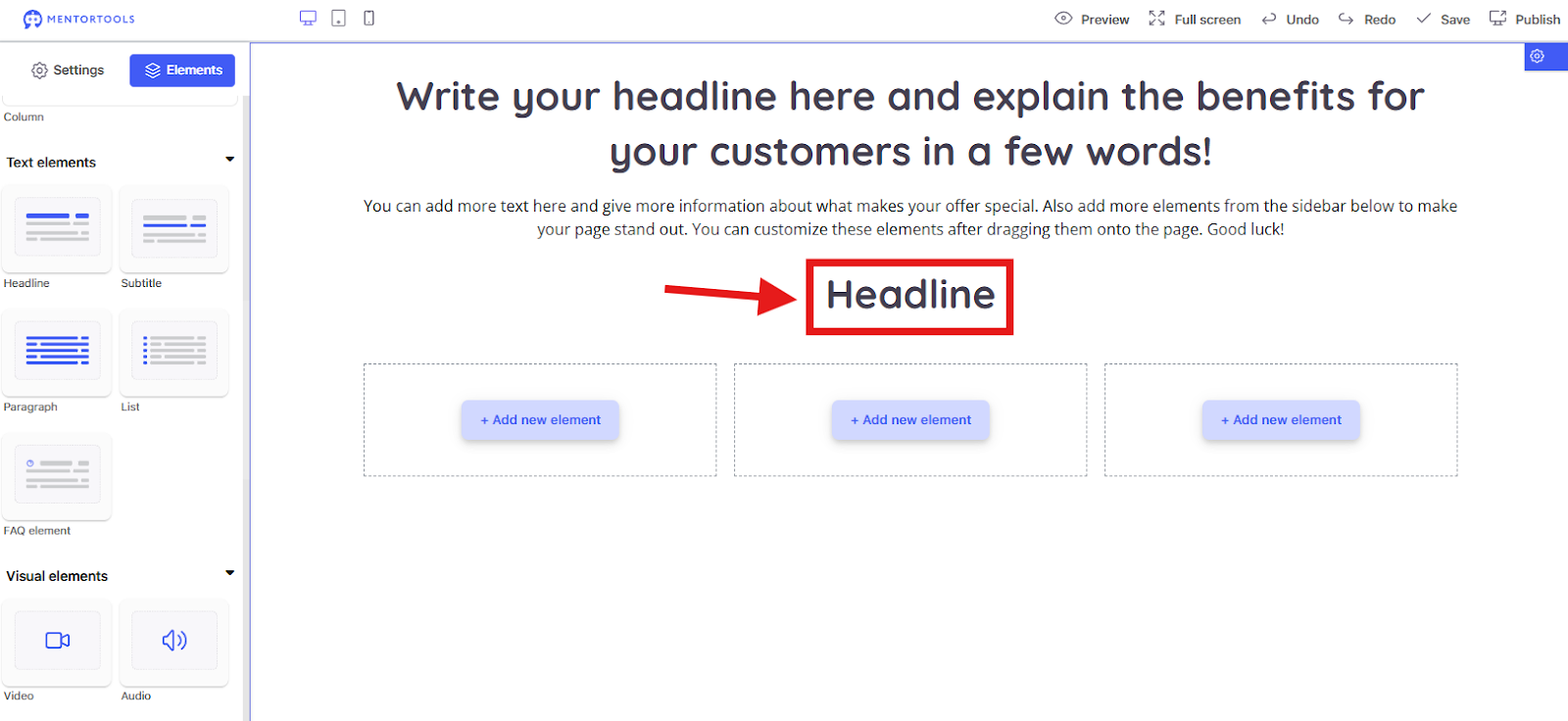
Headline The Headline element is for the main title of your page or a section. It is usually the largest and most prominent text element. You use it to grab visitors' attention and summarize the main content of a section. Think of a newspaper headline—it tells you what it's about right away. In the example,
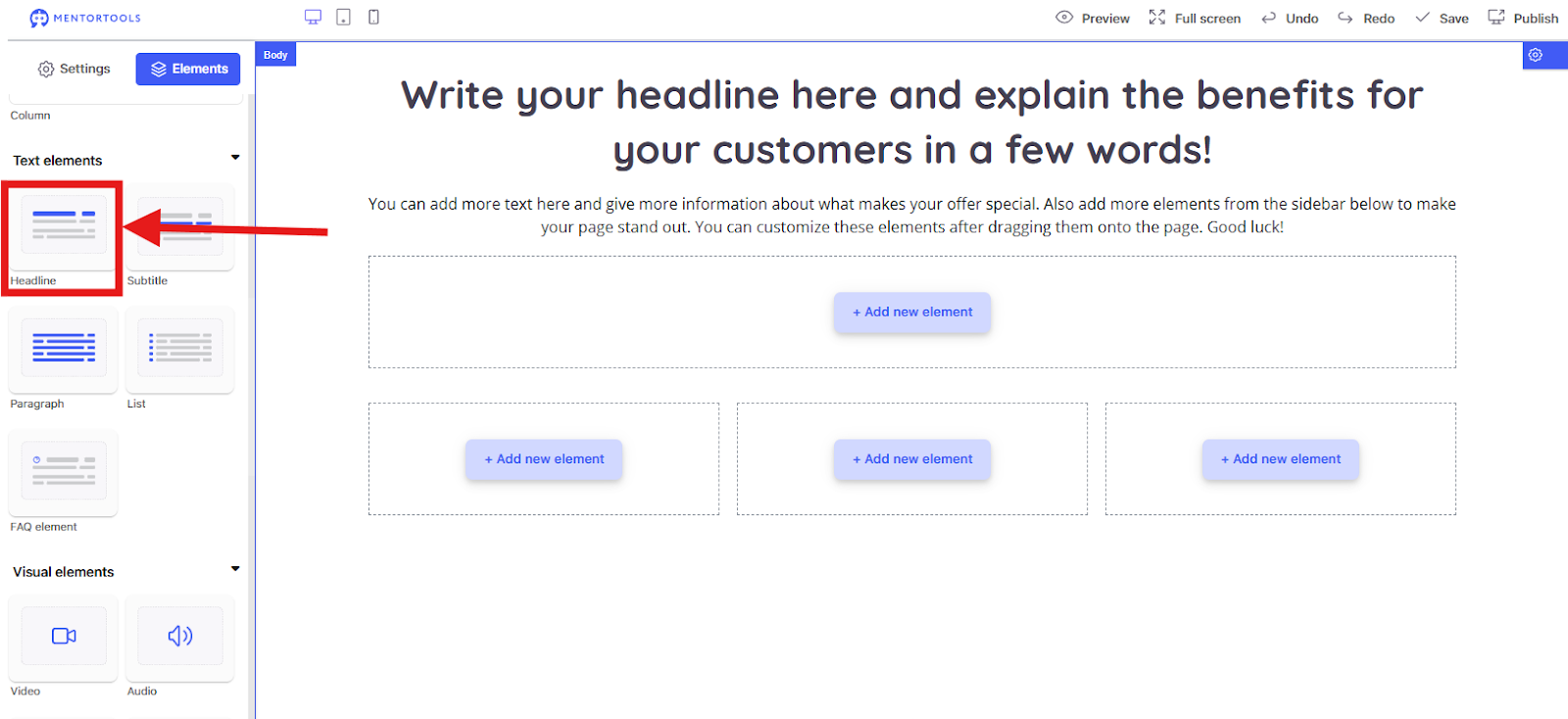
I dragged the Heading into the row with one column.
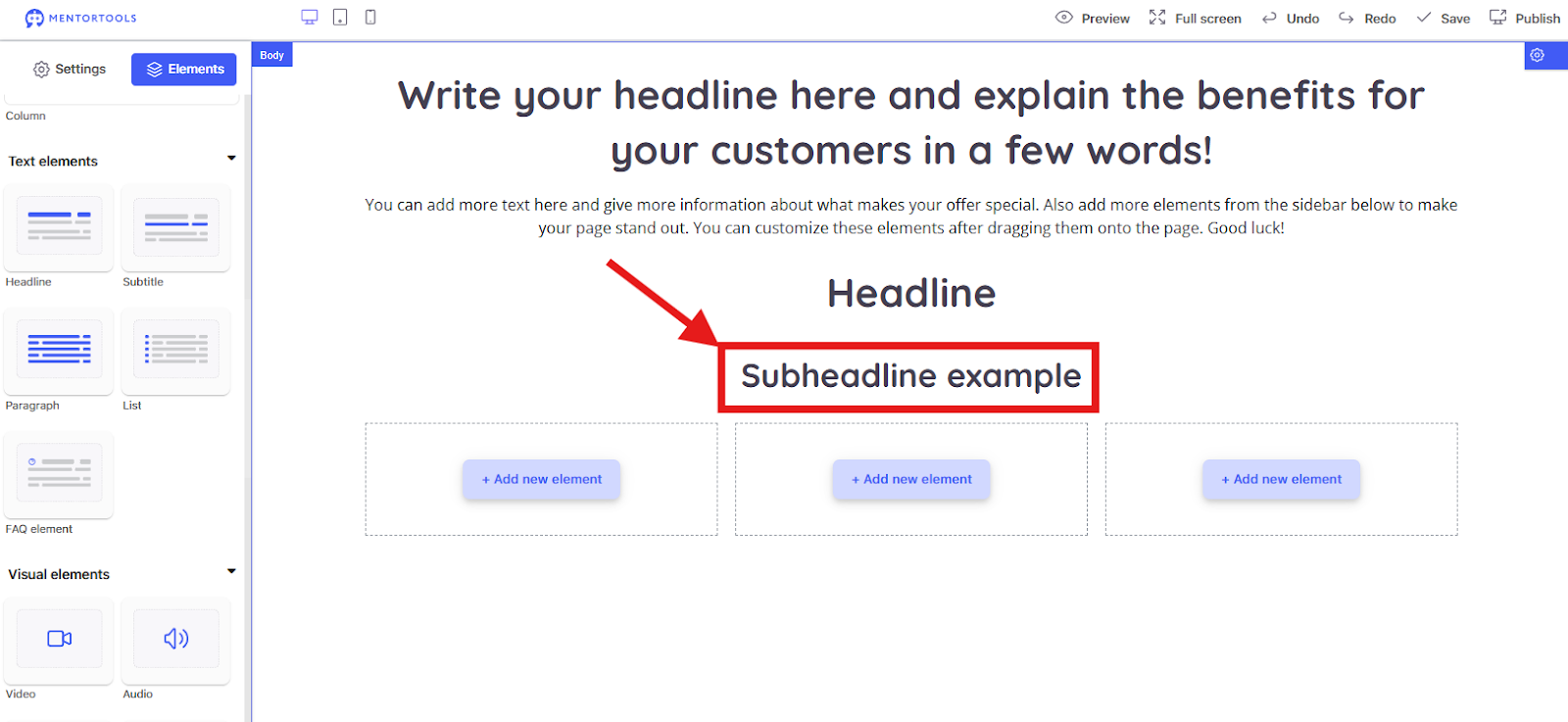
Subtitle The Subtitle element is ideal for smaller titles that are below the main heading. It serves to further subdivide the text and give the reader a clear structure without being as prominent as the main heading. It's perfect for introducing a paragraph or highlighting a specific point.
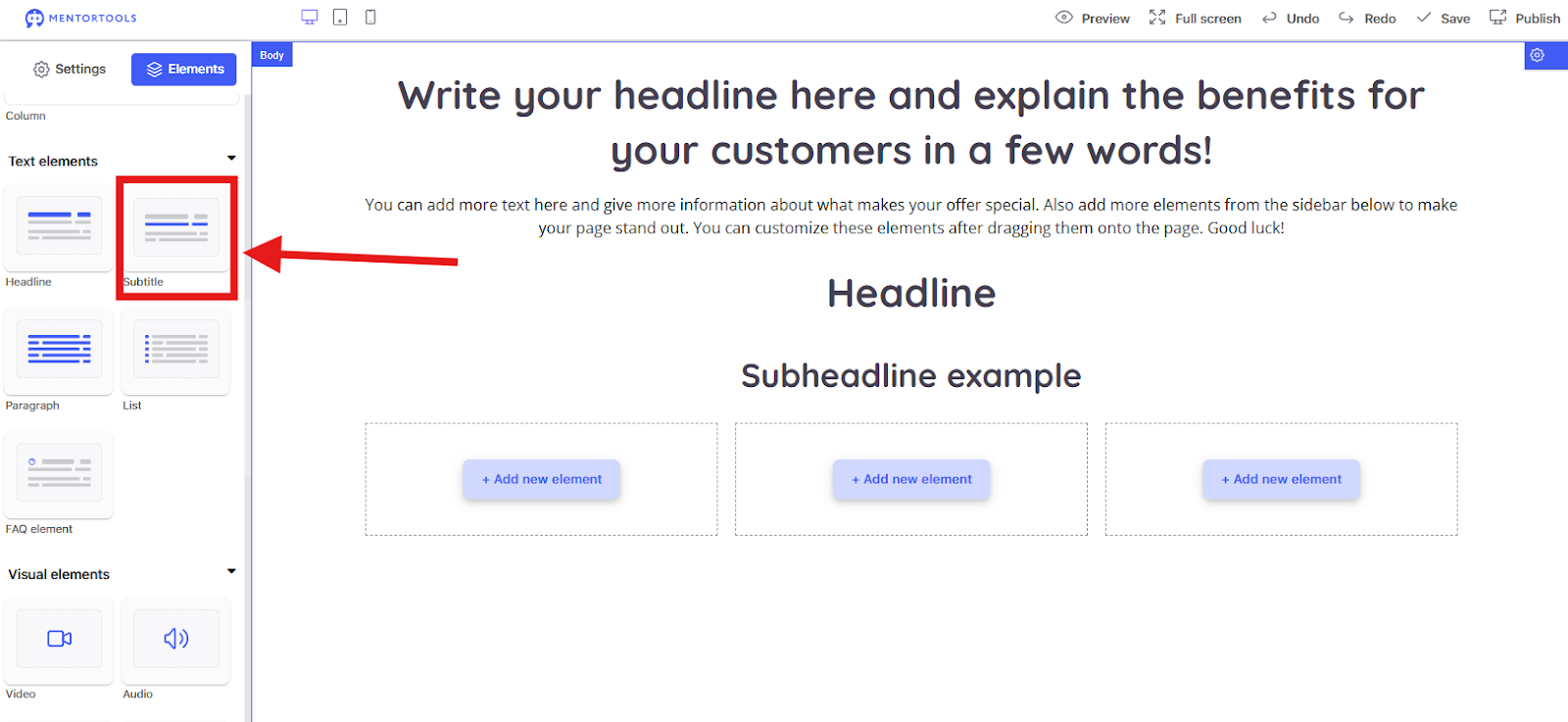
In the example, I dragged the "Subtitle" below the Heading
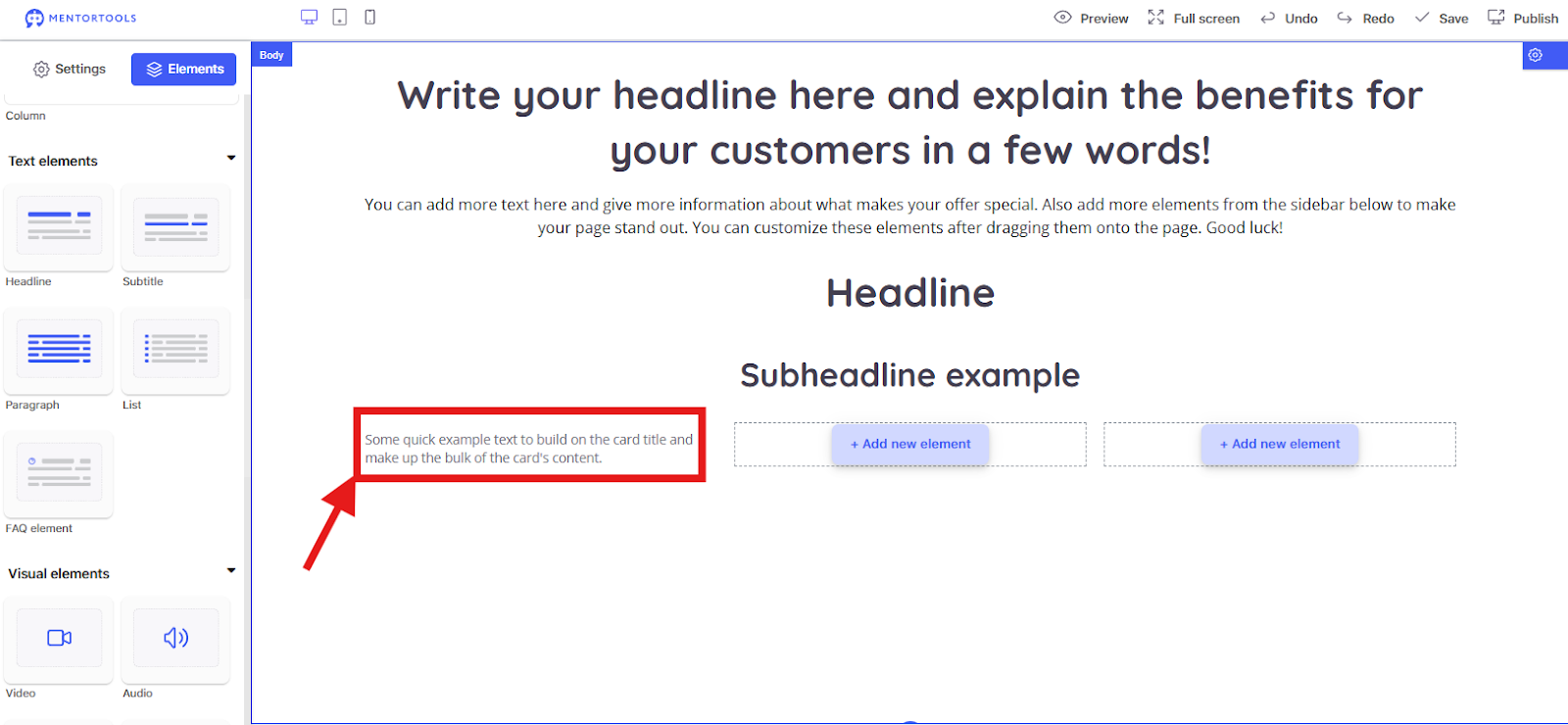
Paragraph The Paragraph element is for the normal body text of your page. This is where you write the details, explanations, and the majority of your information. It is the main part of the text that tells the story and lays out the arguments. You use it to group sentences that belong together. In the example,
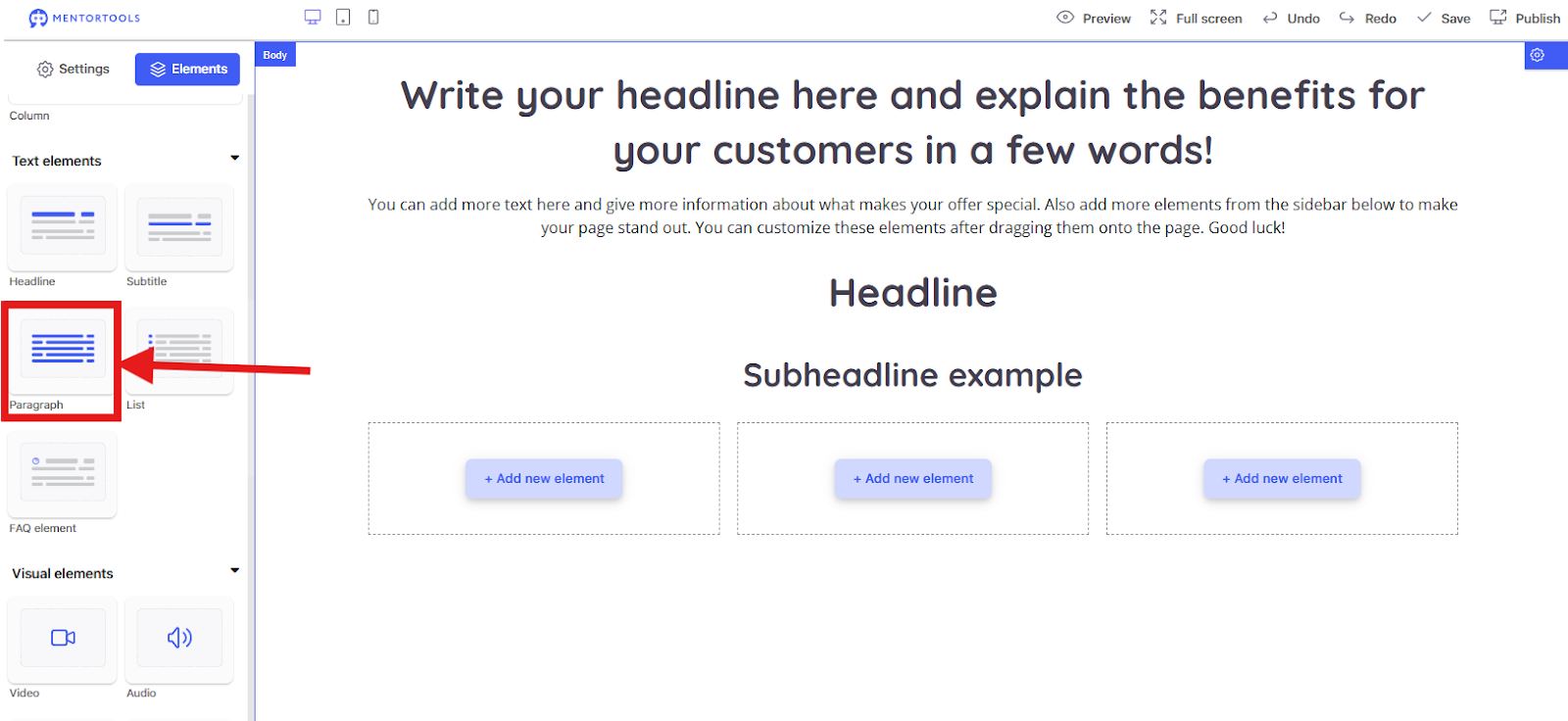
I dragged a Paragraph into the left column of the row with three columns, below the "Subheading."
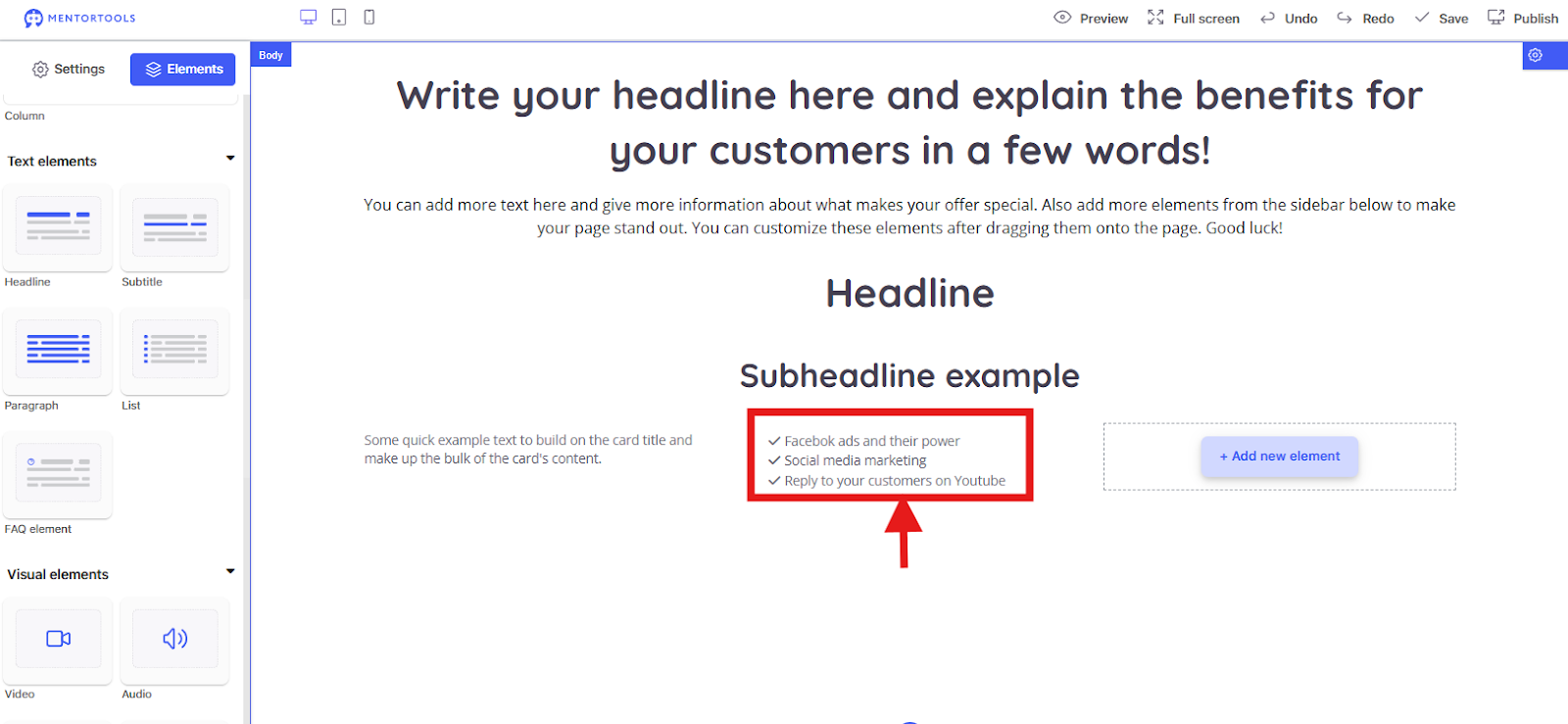
List With the List element, you can present information in a clear, bulleted or numbered format. This is great for listing benefits, features, or steps. Lists are easy to scan and help the reader quickly grasp important points.
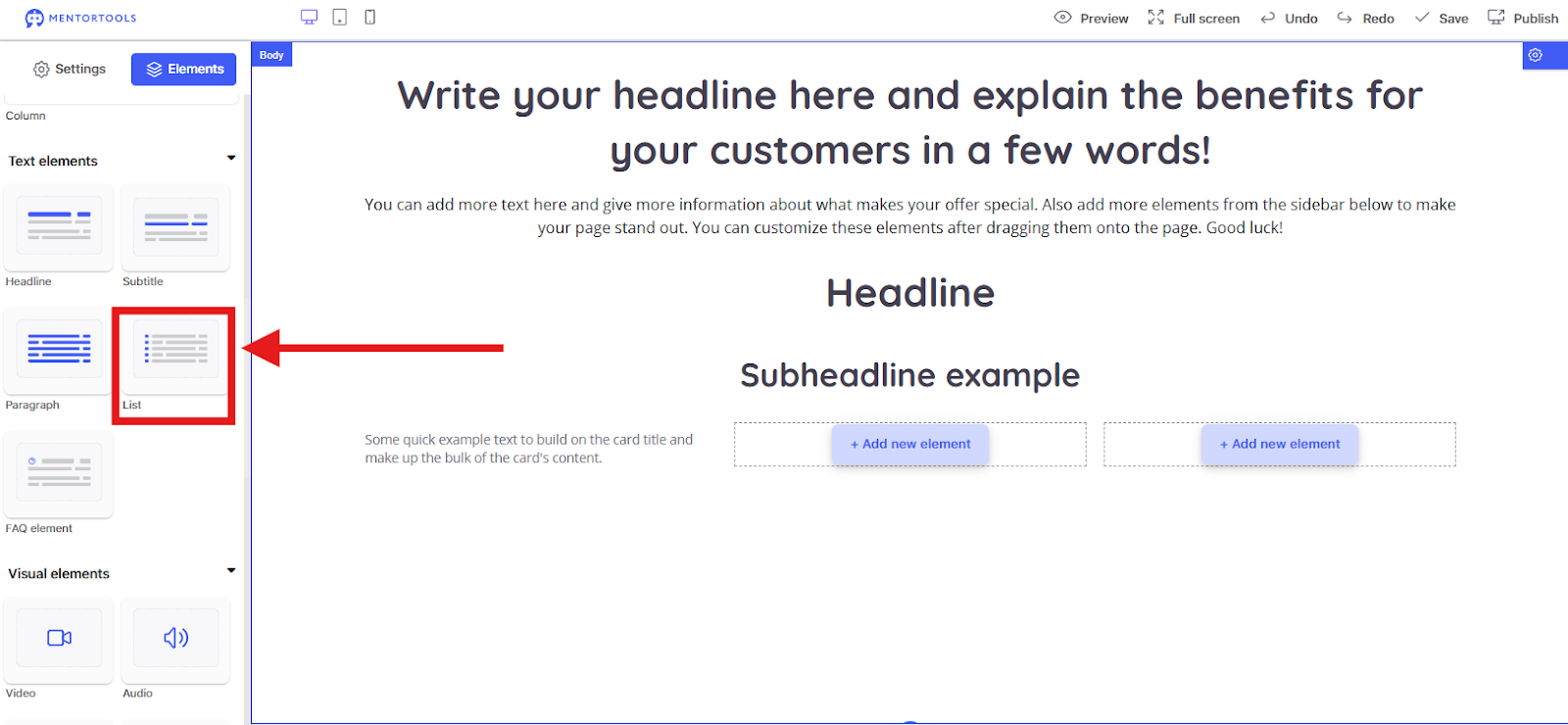
In the example, I dragged a List into the middle column.
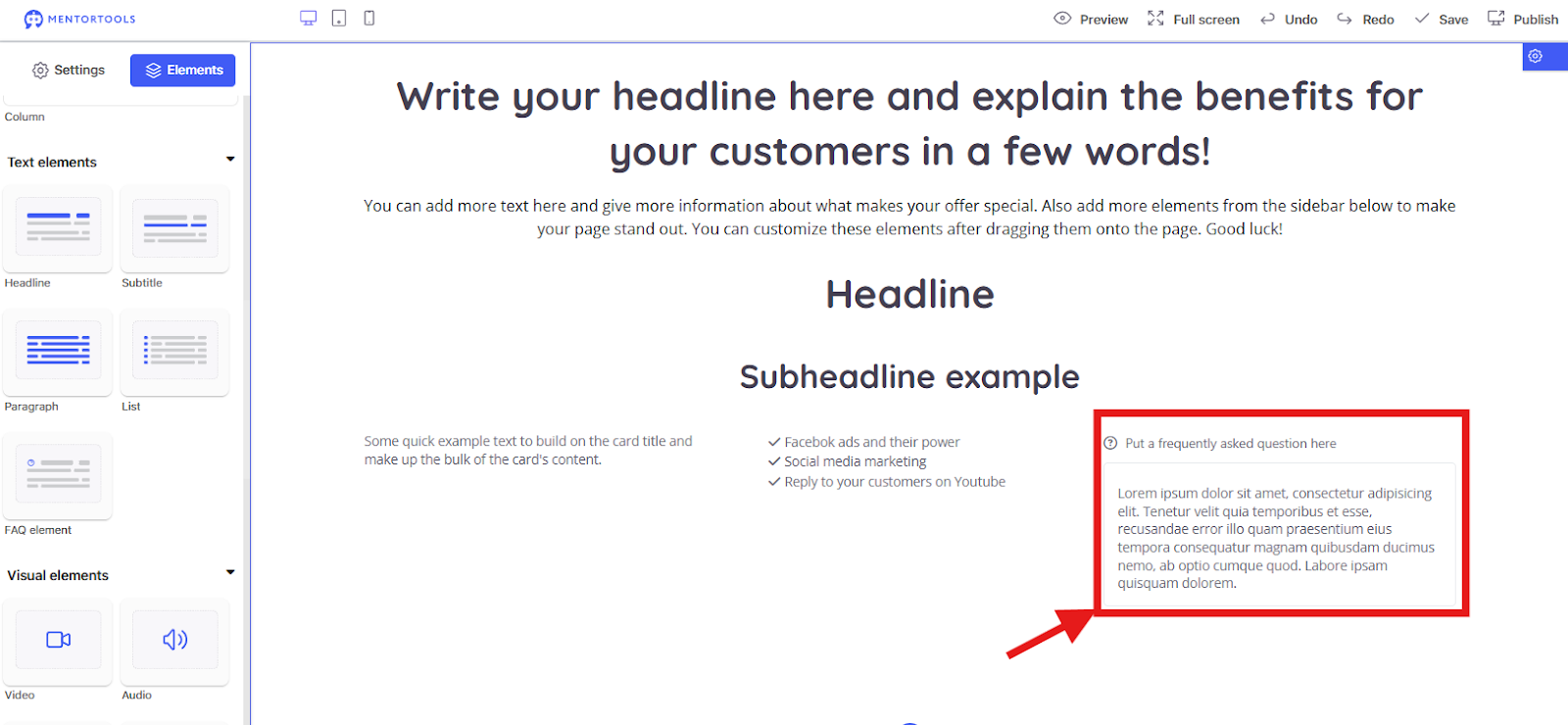
FAQ Element The FAQ Element (Frequently Asked Questions) is specifically for questions and answers. This element usually collapses and expands (a so-called accordion), so the user only sees the answer when they click on the question. This helps keep the page tidy and only shows the information the user really wants to see. It's perfect for answering your customers' most frequent questions.
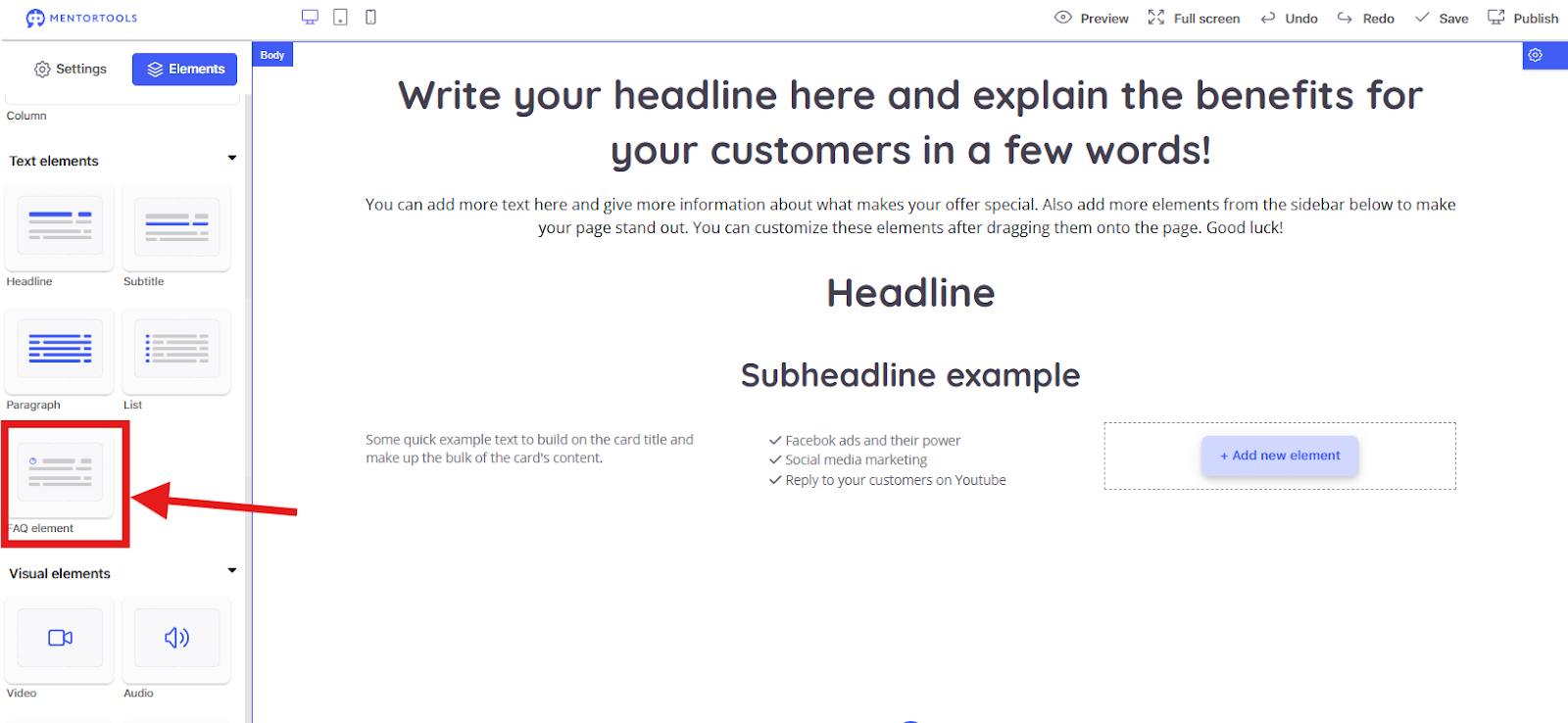
In the example, I dragged an "FAQ Element" into the right column.
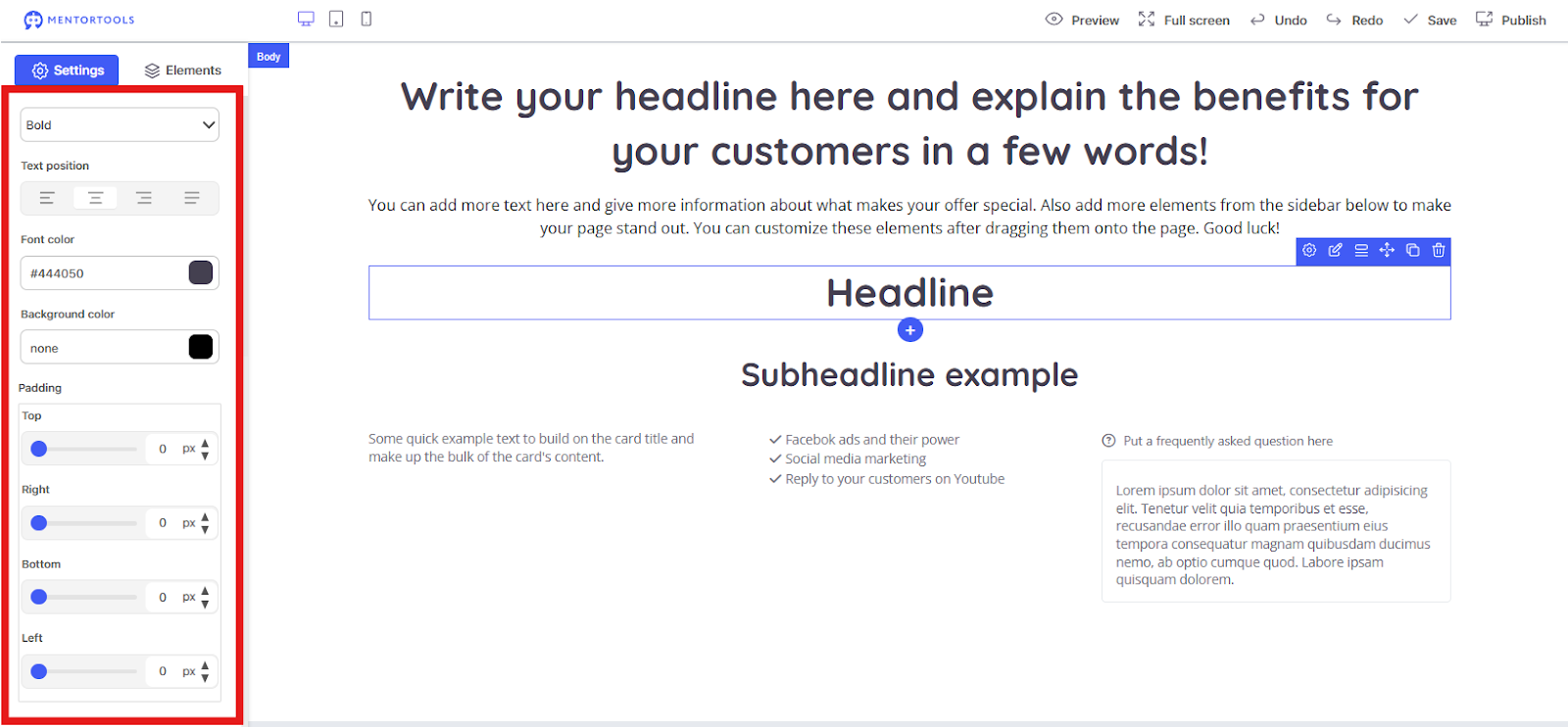
Text Element Settings
When you click on one of the text elements and open the settings by clicking the gear icon, the setting options for that element open on the left side.
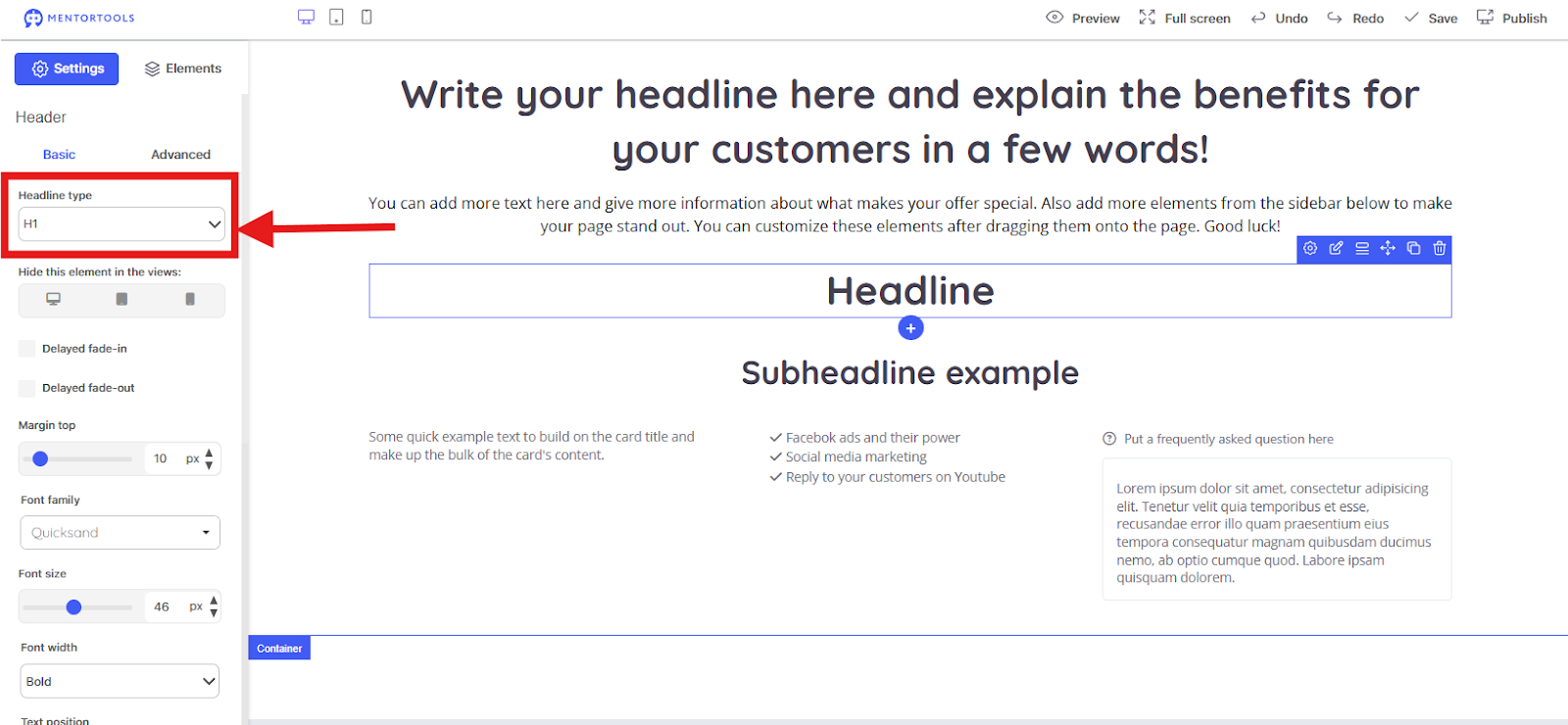
Headline Type Here you can set the HTML tag for the heading, e.g., H1, H2, H3, H4, H5, or H6. H1 is the most important heading and should only be used once per page. The other tags structure the content hierarchically. This is important for search engine optimization (SEO) and accessibility.
Hide Element With these three icons, you can set whether the heading should be hidden on certain devices.
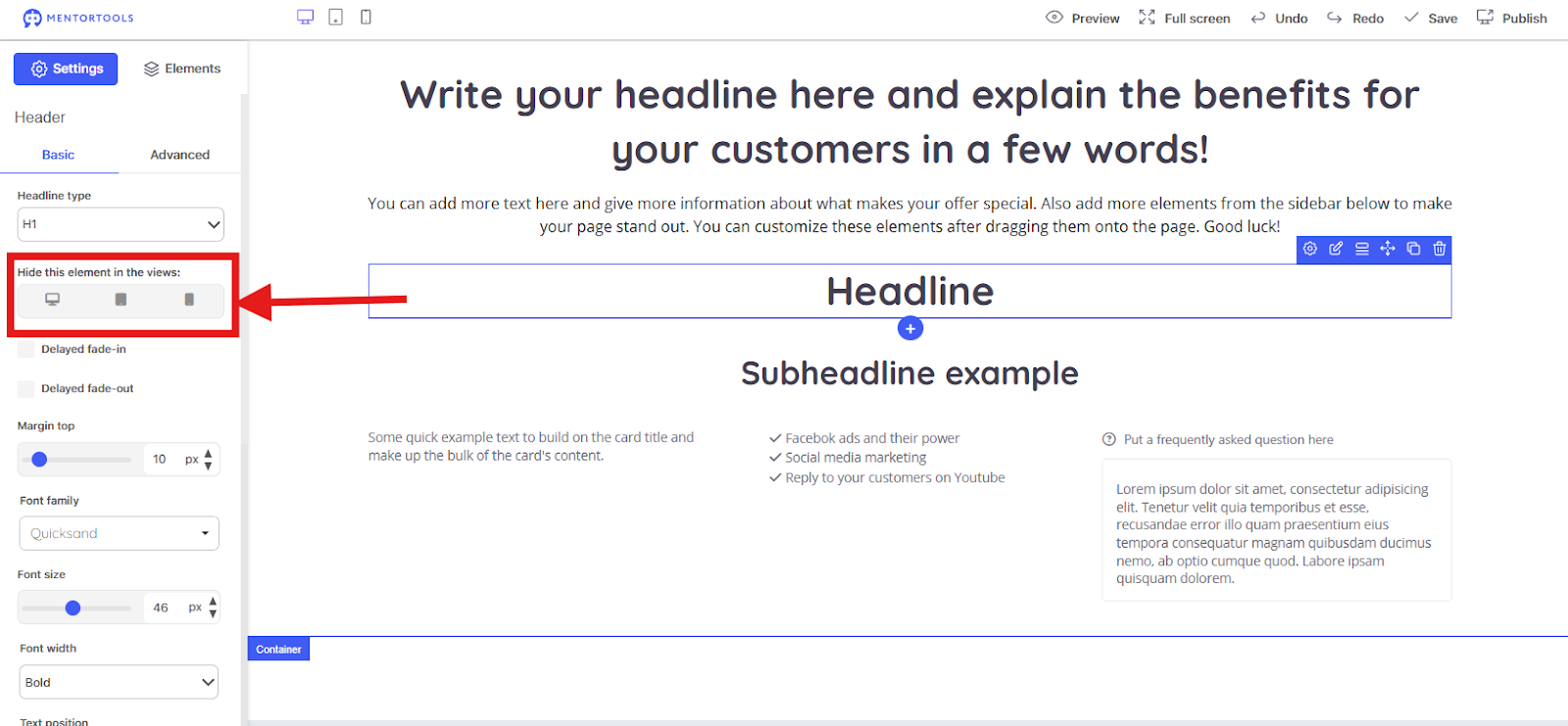
From left to right:
Desktop: The element is only shown on computers.
Tablet: The element is only shown on tablets.
Smartphone: The element is only shown on smartphones.
Fade in and fade out
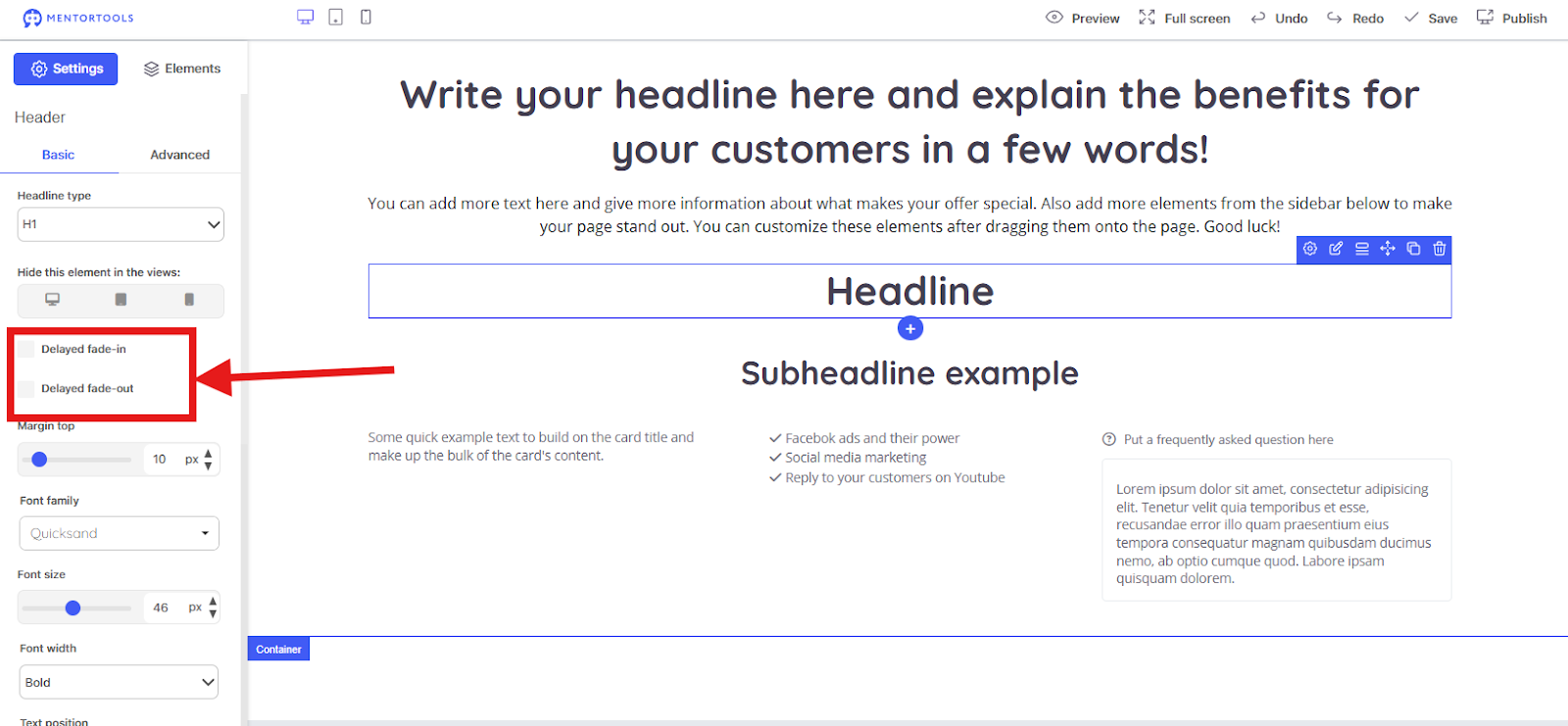
Delayed fade-in: If you activate this field, the heading will fade in with an animation. This creates a dynamic effect.
Delayed fade-out: If you activate this field, the heading will fade out with an animation.
Spacing and Font
Outer top margin: Here you set the external spacing above the heading. This is the space between the heading and the element above it. The value is given in pixels (px).
Font: Here you select the font for the text, e.g., "Quicksand."
Font size: With the slider or the arrows, you set the size of the letters. The value is also given in pixels (px).
Font weight: You can adjust the font weight, for example, "Bold."
Text Alignment: With the four icons, you can control the alignment of the text:
Left-aligned: The text starts on the left side.
Centered: The text is aligned in the middle.
Right-aligned: The text starts on the right side.
Justified: The text is aligned flush with both the left and right margins.
Font "font-size:11pt;font-family:Inter,sans-serif;;background-;font-weight:400;font-style:normal;font-variant:normal;text-decoration:none;vertical-align:baseline;white-space:pre;white-space:pre-wrap;"> With the color field, you can change the color of the font. The code "#444050" is a hex code for the exact color.
Background "font-size:11pt;font-family:Inter,sans-serif;;background-;font-weight:400;font-style:normal;font-variant:normal;text-decoration:none;vertical-align:baseline;white-space:pre;white-space:pre-wrap;"> Here you can set a background color for the heading. If "none" is selected, the background is transparent.
Inner spacing (Padding): This area controls the inner spacing (padding) around the text of the heading. Think of it like a cushion. You can set the spacing for each side (Top, Right, Bottom, Left) separately. The values are also given in pixels (px).
Advanced Text Options Here are the advanced settings for your text elements. They help you precisely adjust the appearance and position of your text.
Character Spacing
normal: This is the standard spacing between letters.
Other values (numbers): With the arrows, you can increase or decrease the spacing between letters. A higher value makes the spacing larger, a negative value makes it smaller.
Line Height
Value (e.g., 1.37): With this, you set the vertical spacing between text lines. A higher value increases the spacing and makes the text looser.
Border
Width: Here you set how thick the border around your text element should be.
Style: Here you select the type of border, for example, "Solid" for a continuous line or other options for dashed or dotted lines.
Color: Click on the color field to choose the color for your border.
Border Radius
Top Left, Top Right, Bottom Right, Bottom Left: With these four fields, you can round the corners of your text element. If you enter the same value everywhere, you get uniformly rounded corners.
Opacity
Slider (and value): With the slider, you set the transparency of your text or text element. 0 means completely invisible, and 1 means completely opaque (i.e., full opacity).
Text Shadow and Box Shadow
Plus symbol (+): When you click here, you can add a shadow for the text itself or for the entire text element (the "box" around it). More settings will then open to precisely adjust the shadow.
Visual Elements
Let's go through the visual elements for your Landing Page Editor. These are all drag-and-drop options that you can easily pull onto your page.
Video
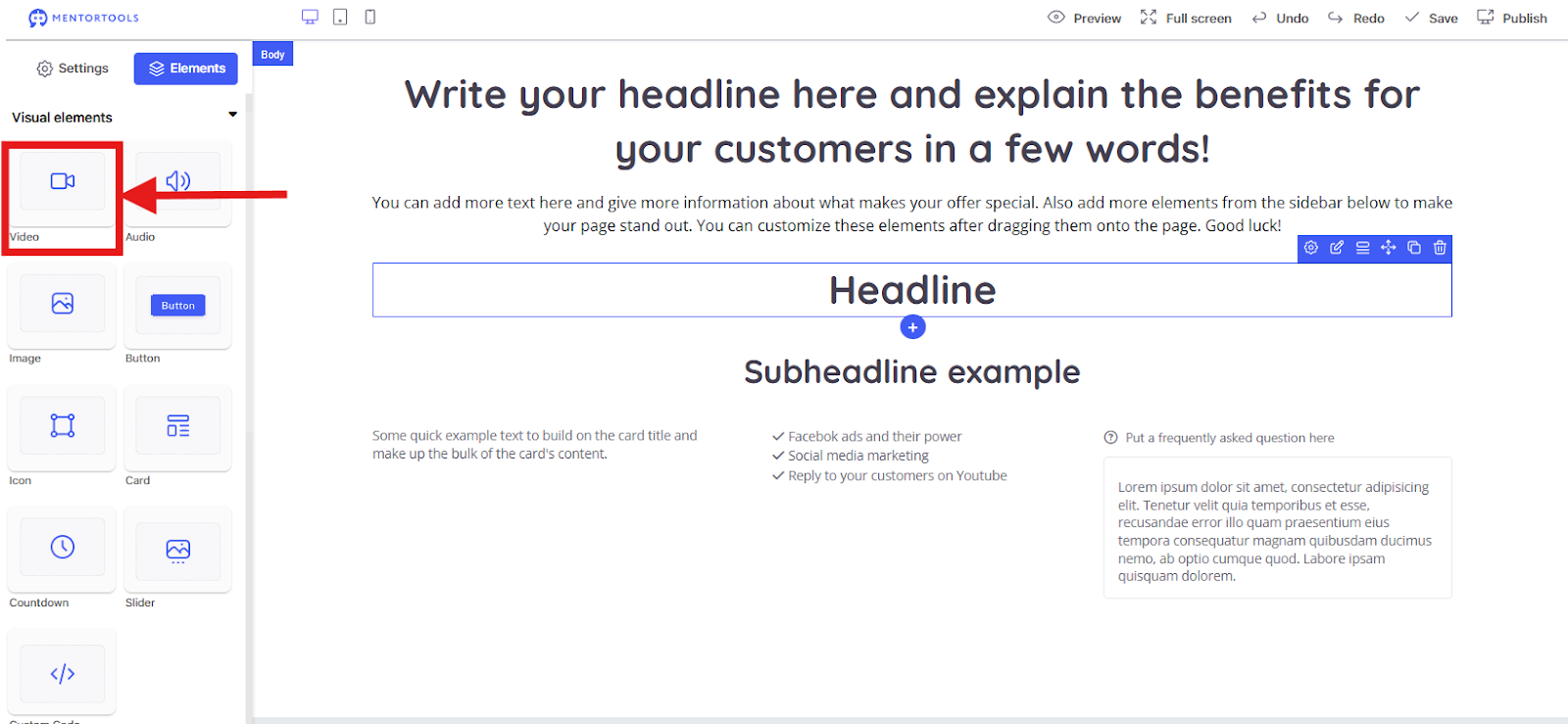
What it is: A video element.
What it's for: To embed a video from, for example, YouTube, upload your own video, or use one of your videos from the media library. You also have access to videos from the "AI Video Creation" here. Perfect for showcasing products or telling a story.
In the example, I added a Video element to a row with only one column.
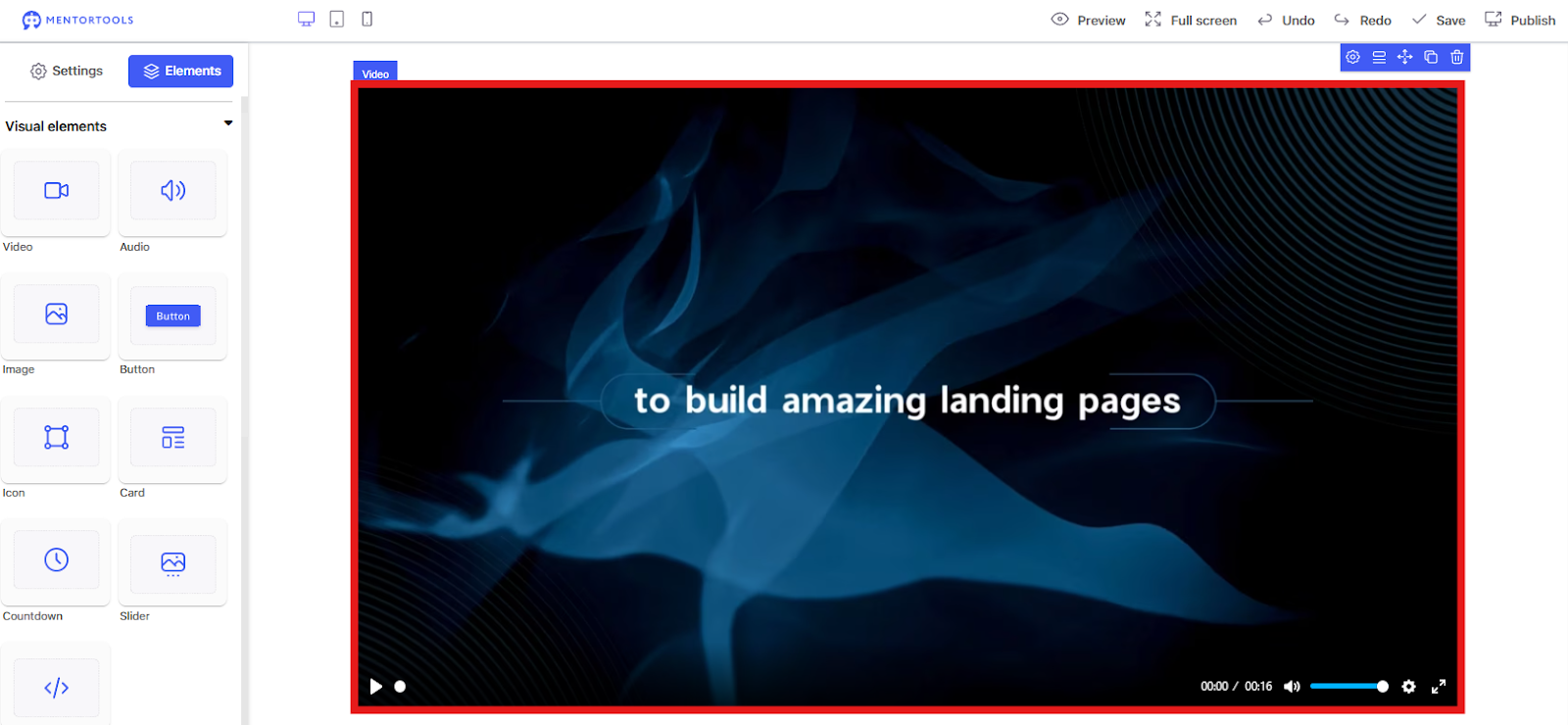
Video Settings (Basic)
With these options, you can easily embed and customize videos on your page.
Video Source and Playback
Video URL: Here you insert the link (URL) to your video. This can be a YouTube link to a video file you have uploaded.
My Videos: This button opens your media library, where you can select videos you have already uploaded or upload a new one.
Pulsating Play Button: When you activate this, the video's play button will get bigger and smaller to grab visitors' attention and encourage them to play the video.
Autoplay: The video starts playing automatically as soon as the page loads. Caution: Many browsers block "autoplay" if the video is not muted. Therefore, it makes sense to activate the "Mute" option at the same time.
Loop: The video plays again from the beginning as soon as it ends. Ideal for short, animated backgrounds or GIFs.
Mute: The video plays without sound. This is important if you use autoplay to avoid startling visitors and to ensure playback in all browsers.
Show Video Controls: If you activate this option, the video's controls (play/pause, volume, progress bar) are visible. If you deactivate them, they disappear, which is good for background videos that should simply run.
Subtitle Default Language: If your video has subtitles, you can set the language that should be displayed by default here.
Appearance and Layout
Player main color: Here you select the main color for the video's controls, e.g., the color of the play button or the progress bar. This allows you to match the video player to your page's design.
Alignment: Determines whether the video is aligned left, centered, or right in its container (the column).
Hide this element on: As with rows and columns, you can hide the video element on certain devices.
Delayed fade-in/fade-out: The video only appears or disappears with a delay.
Outer top margin: Sets the spacing to the element above it.
Width / Height: Here you can set the exact dimensions of the video. You can enter fixed values in pixels (px) or percentage values (%). If you choose "auto," the video will maintain its original aspect ratio.
In short: With these settings, you have full control over the behavior and appearance of your video, from playback to placement and design.
Video Settings (Advanced)
This area offers you further options to personalize the appearance of your video.
What is new or different?
Border: You are already familiar with these options. They work exactly like for "Rows" and "Columns." You can place a border around your video here.
Width: How thick should the border be?
Style: Should it be solid, dashed, or dotted?
Color: What color should the border be?
Border Radius: You are also familiar with this function. You can round the corners of your video player to give it a softer, more modern look.
Top Left, Top Right, Bottom Right, Bottom Left: Here you set the rounding for each corner individually.
Box Shadow: And here you also have the option to give your video a cool shadow. This gives the video more depth and makes it optically "pop out" from the page.
In summary: The advanced settings for the video element are almost identical to those for "Rows" and "Columns." There are no special, additional options that only apply to videos. Instead, they are general design settings that you can use for almost all elements on your landing page. Super practical because you don't have to learn a new setting every time!
Audio

What it is: An audio element.
What it's for: To play a podcast, a song, or a voice message. Ideal for interviews or to add a personal touch.
In the example, I inserted an Audio element below the Video.

Audio Player Settings
An audio player element is for playing sound files (like podcasts, music, or voice messages) on your page.
What is new or different?
Src (Source): The link to your audio file is displayed here.
Audio files: This button opens your media library, where you can upload and manage audio files.
What is the same? The rest of the settings are already familiar to you and work exactly like with the other elements:
Hide this element on: You can hide the audio player on desktop, tablet, or mobile.
Delayed fade-in/fade-out: Makes the player appear or disappear with a delay.
Outer top margin: Sets the spacing to the element above it.
Outer left margin: Sets the spacing to the element to its left.
Image
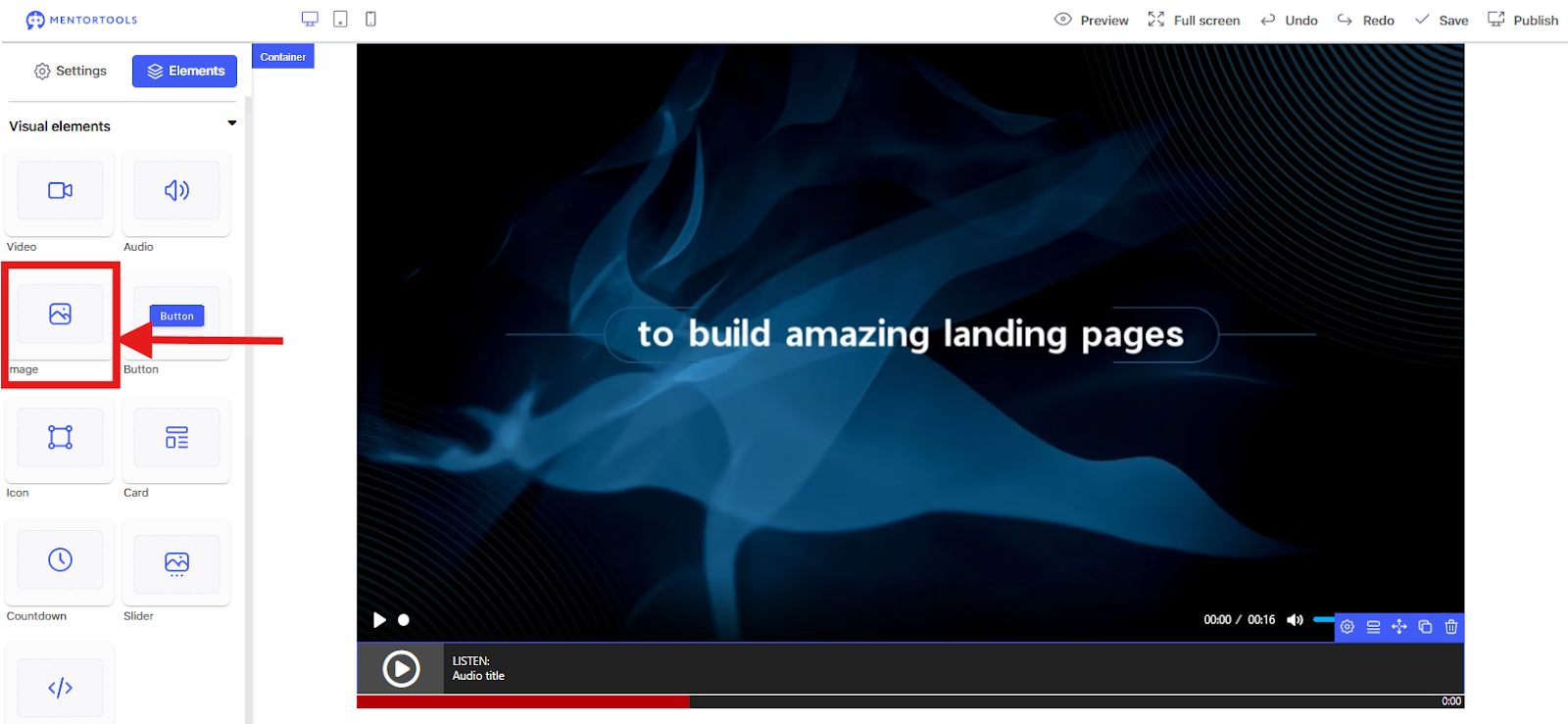
What it is: An image element.
What it's for: To insert photos, graphics, or illustrations. A must for any design to make your page more appealing. In the example,
I dragged an Image element under the Audio element.
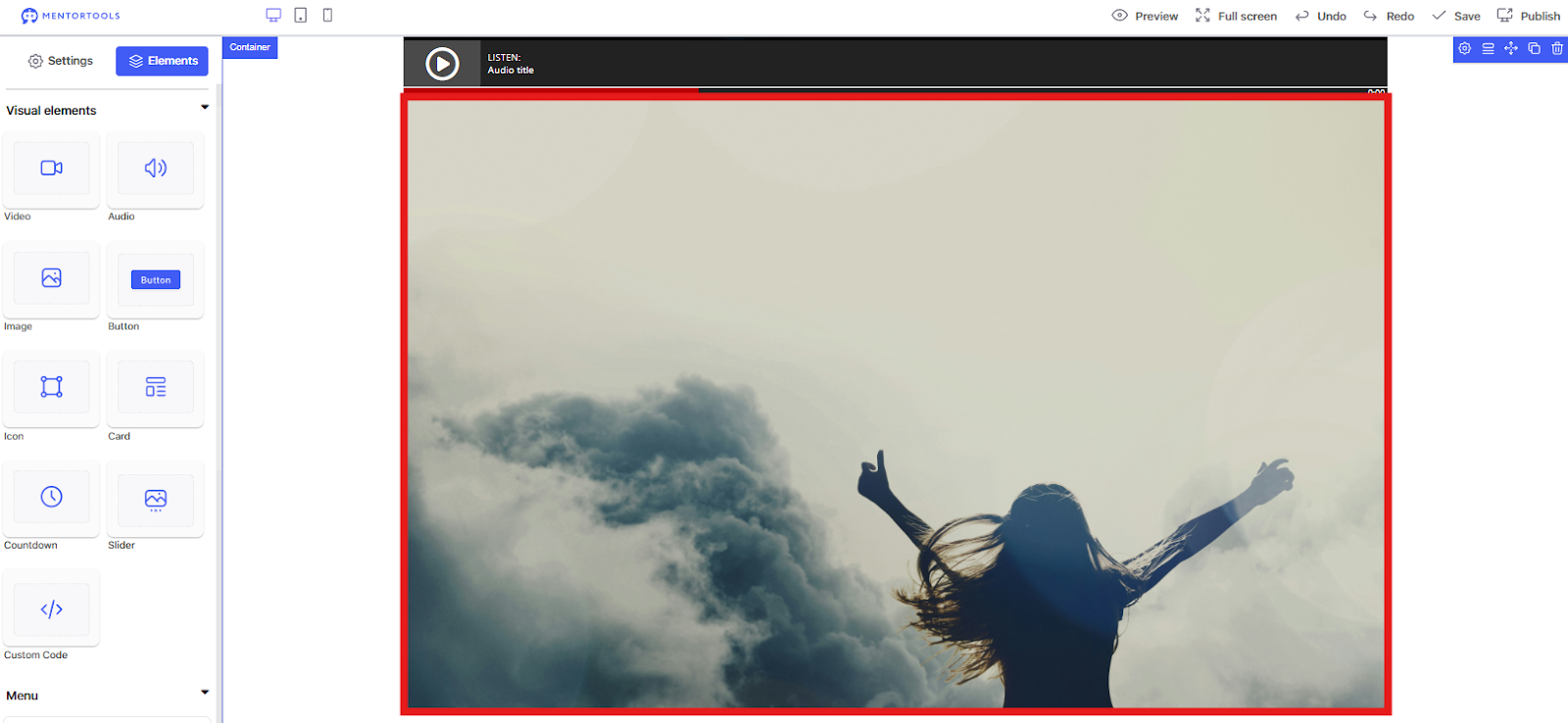
Image Settings
With these settings, you can not only insert images but also make them interactive.
Linking Options These options are new and specific to this element. They turn your image into a clickable link.
Link Element: Here you choose whether your image should be a link or not.
Yes: Activates the linking functions.
No: Your image remains just an image.
Link Type: Determines where the link leads.
Internal: The link refers to another landing page or page within Mentortools.
External: The link leads to a completely different website (e.g., https://www.google.com/search?q=Google.com).
File: With this option, you can create a link directly to a file that you have uploaded (e.g., a PDF, a ZIP file, or an image). When the user clicks on the linked element, the file download begins. This is perfect for offering a flyer, a report, or an e-book, for example.
Within the page: This function is extremely useful if you want to jump to a specific area on the same page. This is known as "anchor links." For example, you can have a button at the top of your page that scrolls the user directly to a section further down, like the contact form. This way, you don't have to create a new page, but rather just direct the user to a specific element.
Connection: Here you select the exact page that the link should lead to. If you selected "Internal," you will see a list of your pages here. If you selected "External," an input field for the URL will appear.
Link Target: This is an important option for user-friendliness.
Open in this window: The link opens in the same browser tab/window. The visitor leaves your page.
Open in new window: The link opens in a new tab. Visitors stay on your landing page, which is usually the better choice if you don't want them to leave your site.
Alternative Text (Alt-Text): This is a very important point for search engine optimization (SEO) and accessibility. The text you enter here describes the image. Search engines use this text to understand the content of the image. It is also displayed if the image cannot be loaded, and screen readers (for visually impaired people) read it aloud. Make it a habit to always enter a short, precise description here.
Layout Settings The following options are already familiar to you:
Alignment: You can align the image left, center, or right within its column.
Hide this element on: As with the other elements, you can hide the image on certain devices.
Delayed fade-in/fade-out: Makes the image appear with a small effect.
Outer top margin: Sets the spacing to the element above it.
Width / Height: Here you set the exact dimensions of your image. You can use fixed pixel values or relative percentage values.
In summary: The linking options and the alternative text are the most important new functions in the image settings that you should definitely use to make your page more interactive and search-engine friendly.
Button
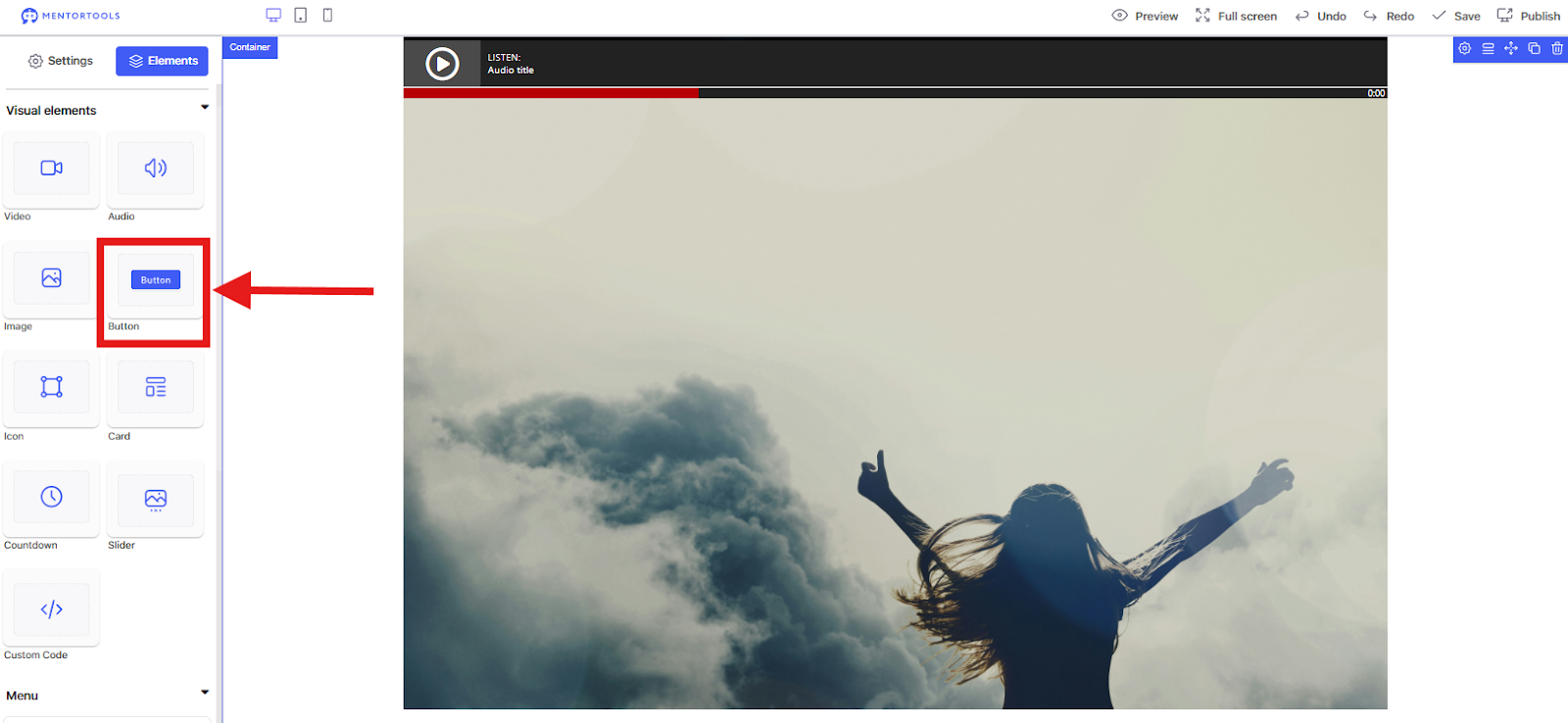
What it is: A clickable button.
What it's for: To prompt visitors to take a specific action (e.g., "Buy Now," "Learn More"). This button is super important for your Call-to-Action (CTA).
In the example, I placed a Button element under the Image element.
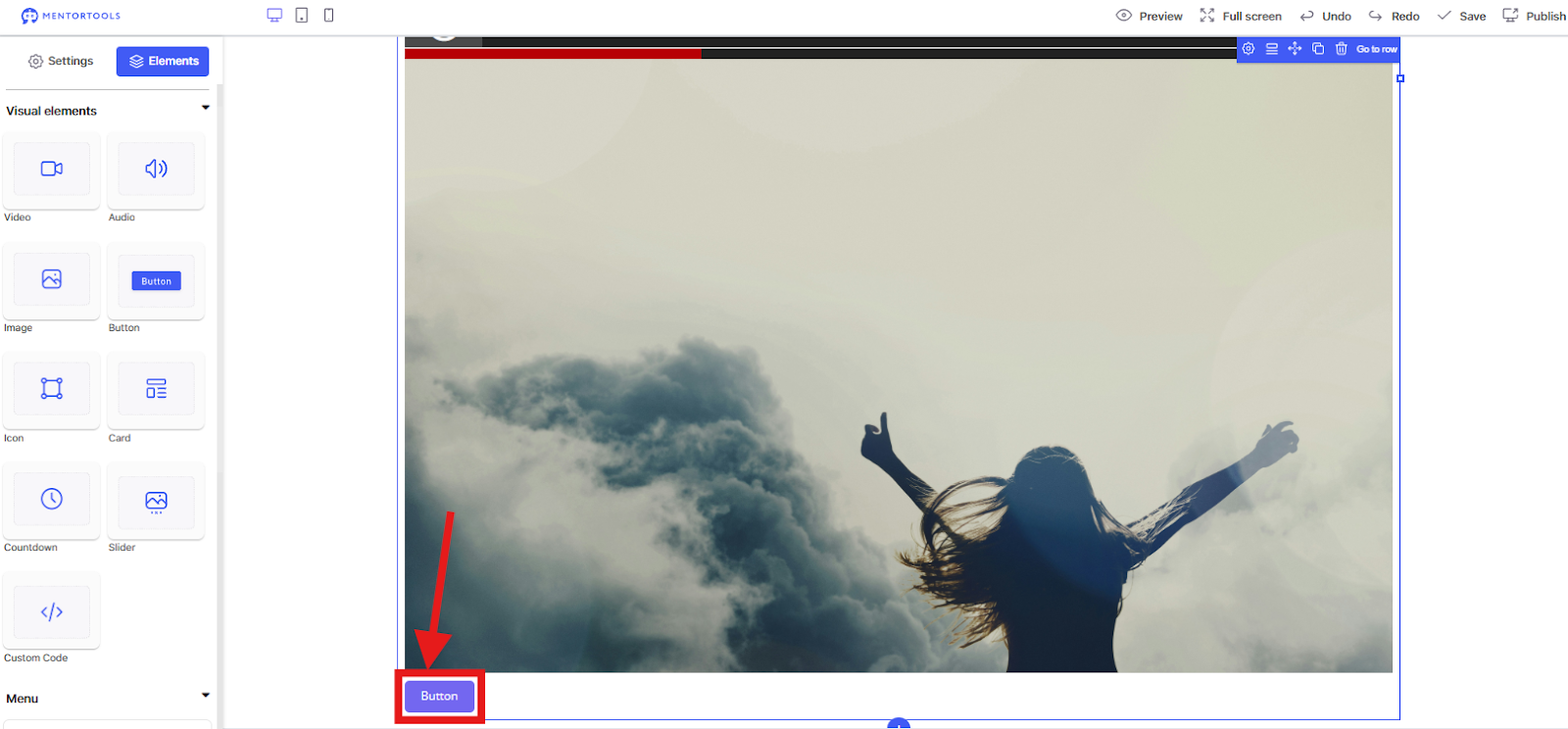
Button Basic Settings
With these options, you not only make your button clickable but also visually appealing.
Linking and Content
Link Type / Connection / Link Target: You are already familiar with this from the Image element. You can link your button to an internal or external page, a file, or a specific location on the current page.
Button Text: Here you write the text that should appear on the button, for example, "Buy Now" or "Learn More." Keep the text short and action-oriented.
Icon before/after button text: With these options, you can add an icon before or after the text. This is great for strengthening the visual impact, e.g., a shopping cart icon for a shop button.
Design and Appearance
Show Button Designs: This button opens a selection of pre-made button designs. This allows you to quickly find a suitable style and you don't have to make all the settings manually.
Animation: Here you can select an animation for your button so that it pulsates. This helps to grab visitors' attention.
Background image / background "font-size:11pt;font-family:Inter,sans-serif;;background-;font-weight:400;font-style:normal;font-variant:normal;text-decoration:none;vertical-align:baseline;white-space:pre;white-space:pre-wrap;"> You can give the button a color or a background image. However, note that small images work best here.
Font / Font Size / Font Weight / Font Color:With these options, you set the appearance of the text on your button. You can determine the font, size, weight (normal, bold, etc.), and color of the text so that it stands out from the background.
Inner Spacing (Padding): This is the space between the button text and the button's border. Here you have full control for Top, Right, Bottom, and Left. With uniform padding, you ensure that your button looks harmonious.
What is the same as with other elements?
The following options work exactly like with "Rows" and "Columns":
Alignment: You can align the button left, centered, or right within its column.
Hide this element on: With this option, you can hide the button for desktop, tablet, or mobile.
Delayed fade-in / fade-out: Makes the button appear with a delay.
Outer top/left margin: This sets the spacing to the element above or to the left of it.
Width / Height: You can manually adjust the width and height of the button.
Icon
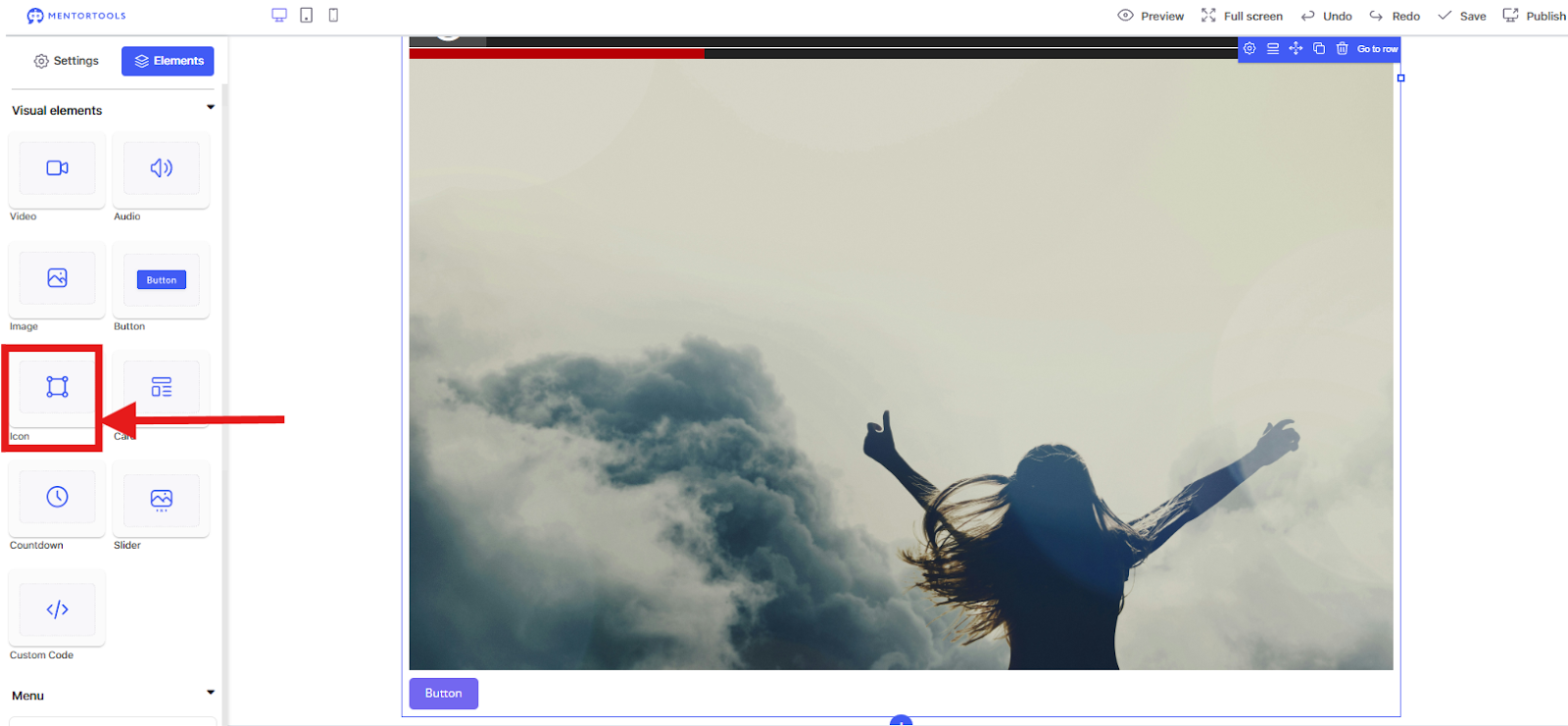
What it is: An icon element.
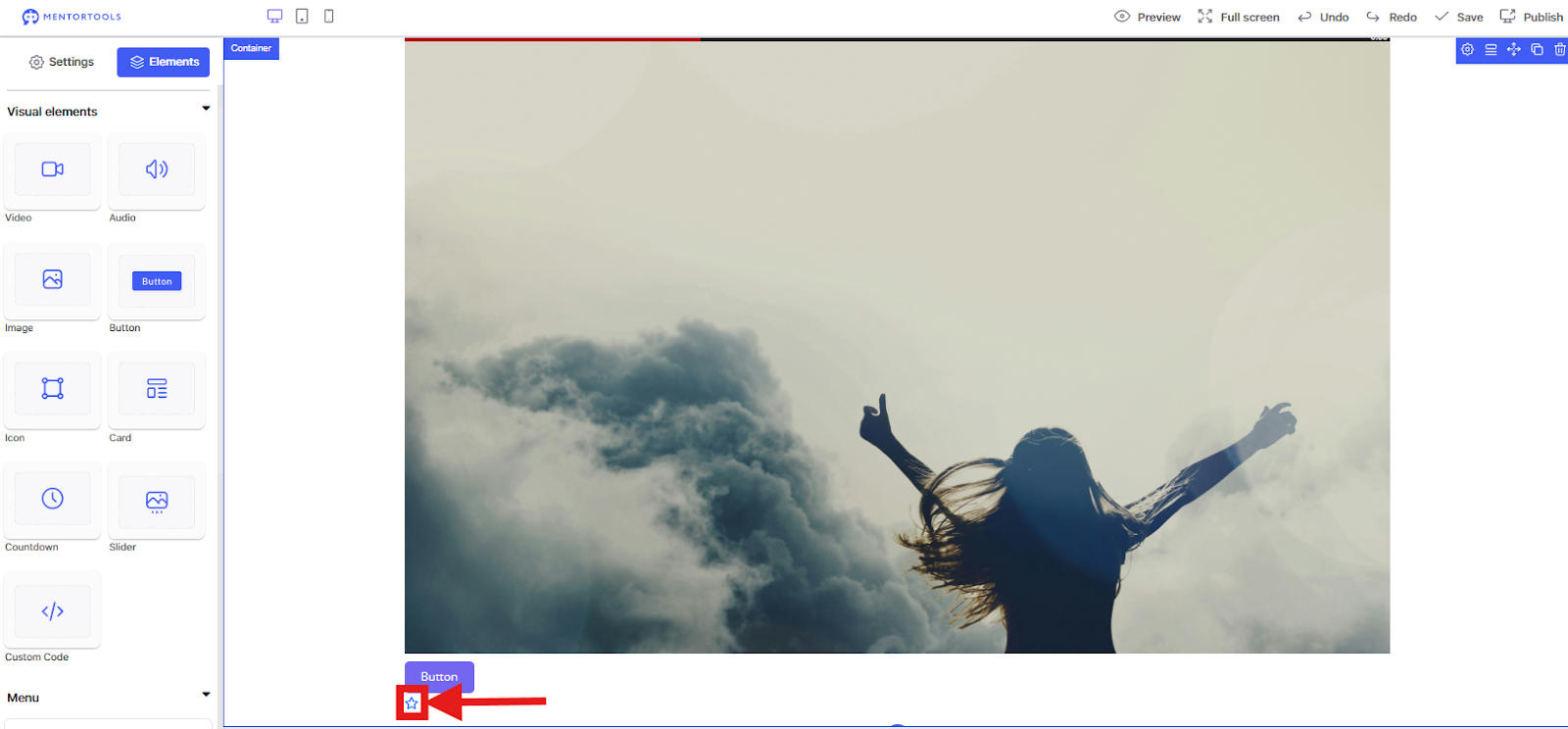
What it's for: To add small symbols that visualize something. Icons are great for structuring lists or features without using a lot of text. The icons can also be linked, for example, to go to your Instagram page.
In the example, I placed an Icon under the Button.
Card
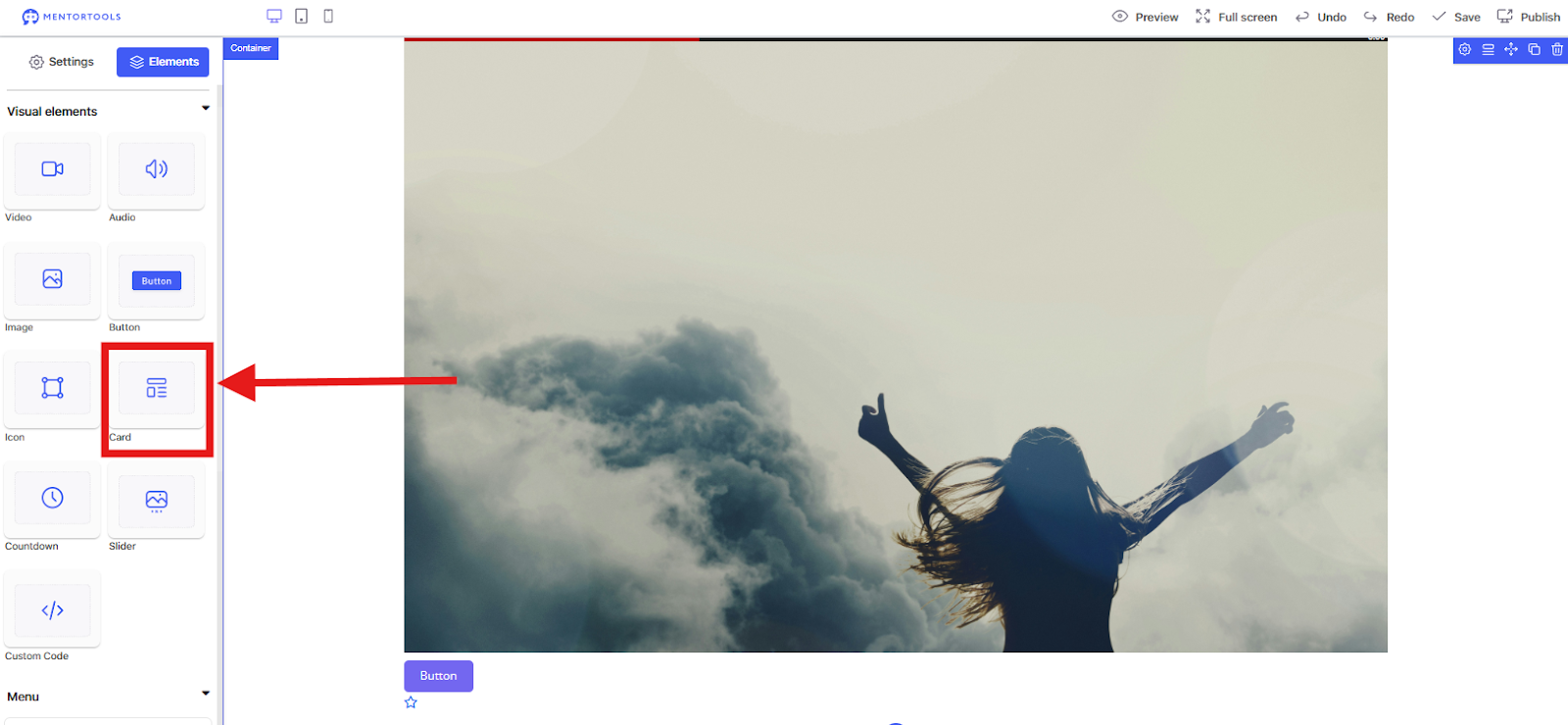
What it is: A card element.
What it's for: To display content in small, clear tiles. This is suitable for team members, testimonials, or product features.
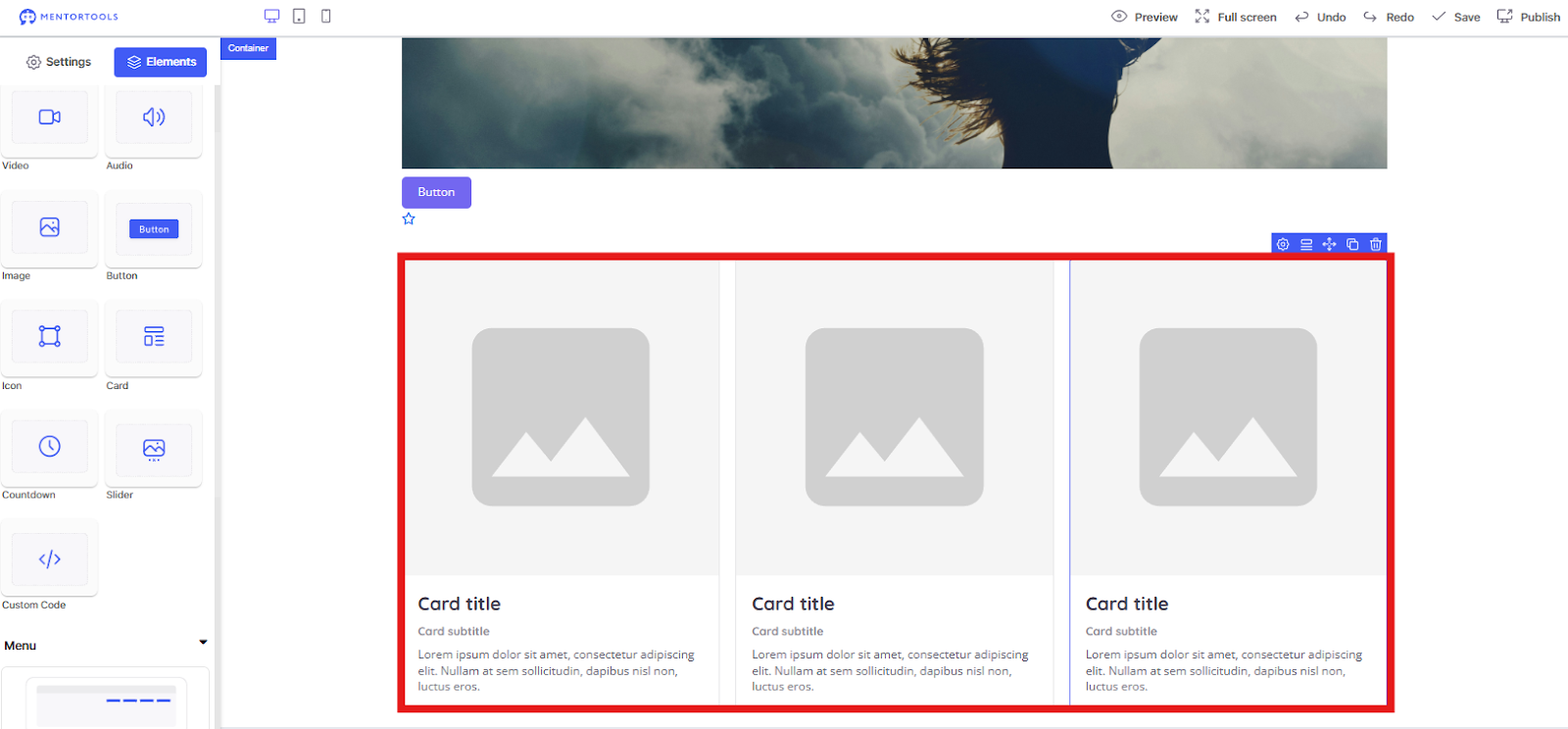
In the example, I dragged a row with three columns under the icon and filled them with cards. You can now change the text and add images if you want.
Settings for the Card Element
A card is basically a small container that combines different content types, such as an image, a title, text, and a footer.
Content Settings These options are new and specific to this element. They control which content is displayed on your card:
Show image above: If you activate this option, an image is placed at the top of your card.
Show image caption: If you have an image, you can use this to display a small text (an image caption) directly below the image.
Show image in the middle: This option places an image in the middle of your card.
Show main text: This activates the main text area. This is the space for a short description or further information.
Show footer: If you activate this, a row will be displayed at the bottom of your card. This is useful for additional information such as a price, a category, or a link.
Show image below: This option places an image at the bottom of your card, below the main text.
Layout and Design The remaining settings are already familiar to you from the other elements. They work exactly the same:
Hide this element on: You can hide the card on desktop, tablet, or mobile.
Delayed fade-in / fade-out: Makes the card appear or disappear with a small effect.
Outer top margin: Sets the spacing to the element above it.
Background image / background "font-size:11pt;font-family:Inter,sans-serif;;background-;font-weight:400;font-style:normal;font-variant:normal;text-decoration:none;vertical-align:baseline;white-space:pre;white-space:pre-wrap;"> You can give the entire card its own background image or color.
Inner spacing: With these sliders, you create "breathing room" between the card's content and its border. You can set the spacing for Top, Right, Bottom, and Left separately.
Countdown
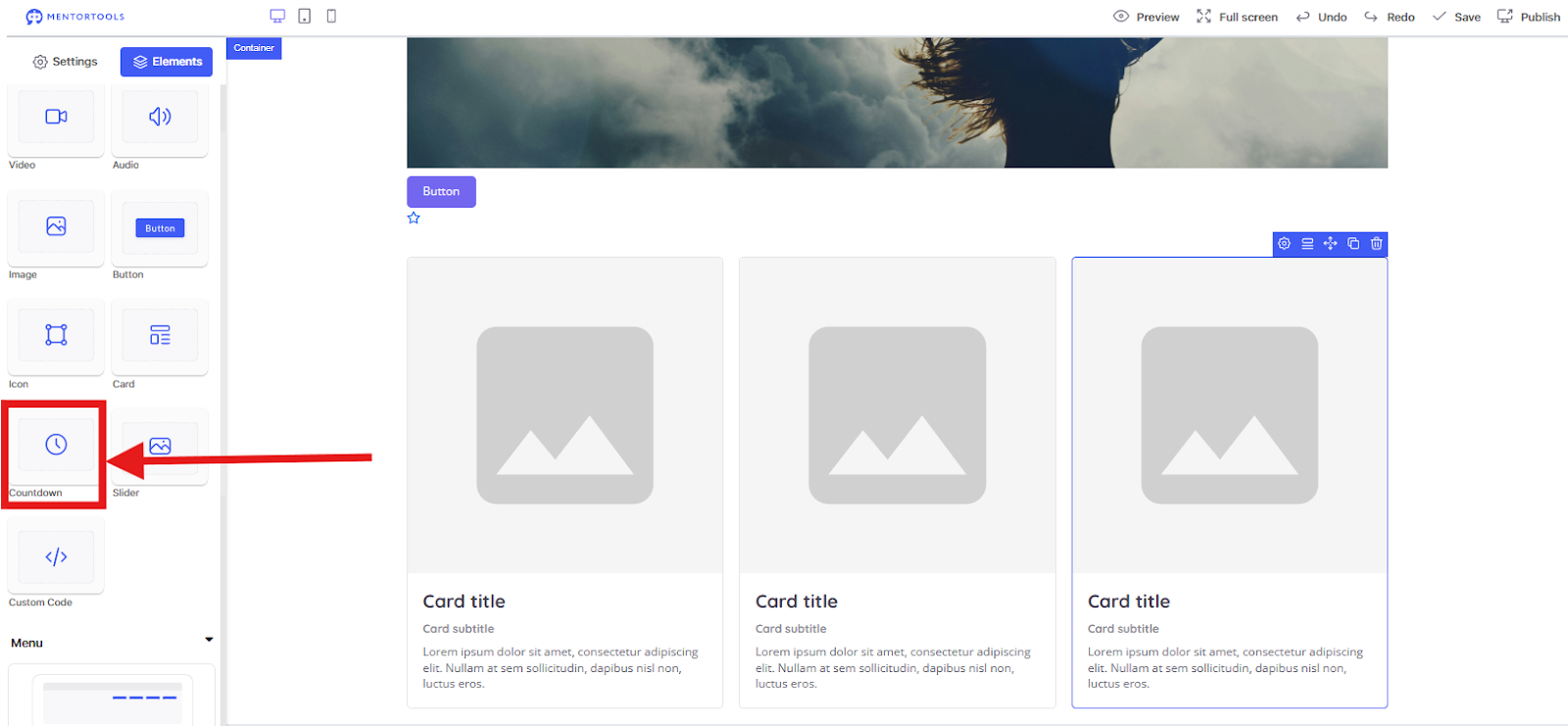
What it is: A countdown timer.
What it's for: To create urgency. If you have a limited-time offer (e.g., "Offer ends in..."), this is your best friend.
In the example, I dragged a Countdown under the row with the cards.

Countdown Basic Settings
With these options, you can set up and customize your countdown.
Countdown runs until: Here you set the exact date and time until which your countdown should run. Click the calendar icon to select the date.
Text after expiration: When the countdown has expired, it disappears and this text is displayed instead. You can write here, for example: "OFFER EXPIRED" or "SALE ENDED."
Show days / hours / minutes / seconds: With these checkboxes, you decide which time units should be visible in your countdown. For example, if you only need a countdown for hours and minutes, you can deactivate the boxes for days and seconds.
Countdown repeats after end: If you activate this option, the countdown will automatically restart after it expires.
Layout and Design
Hide this element on: As with the other elements, you can hide the countdown on desktop, tablet, or mobile.
Delayed fade-in / fade-out: Makes the countdown appear or disappear with a small delay.
Outer top / left margin: Sets the spacing to the element above and to the left of it.
Background "font-size:11pt;font-family:Inter,sans-serif;;background-;font-weight:400;font-style:normal;font-variant:normal;text-decoration:none;vertical-align:baseline;white-space:pre;white-space:pre-wrap;"> You can give the countdown element a background color. Note that this usually applies to the entire countdown container, not the individual numbers.
Inner spacing: With these sliders, you set the "padding," i.e., the space between the content (the countdown numbers) and the element's border. This provides more "breathing room" and a cleaner design.
Slider
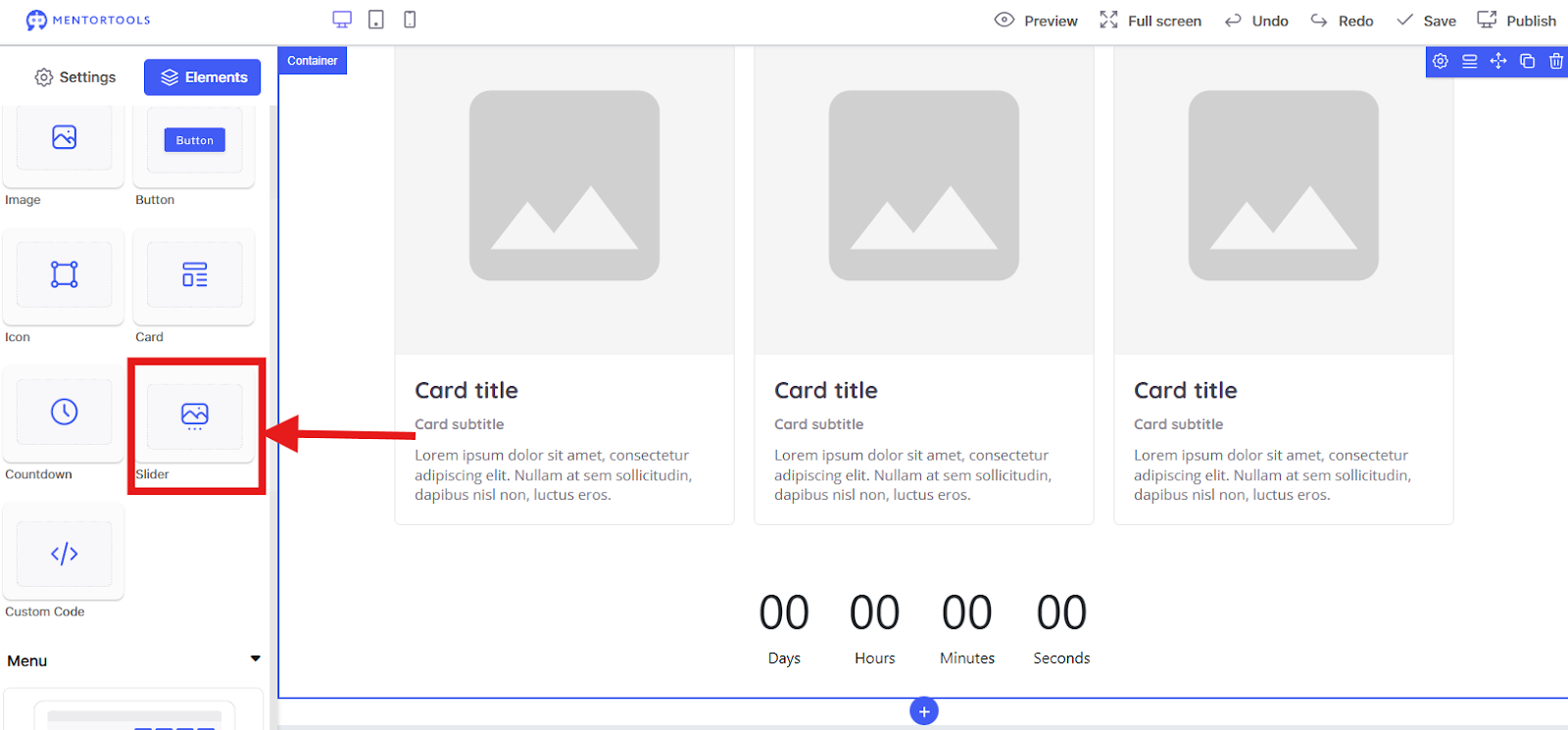
What it is: An image carousel or slider.
What it's for: To present multiple images or content in a small space. Visitors can swipe or click through the images. Perfect for product galleries or customer testimonials.
In the example, I placed a Slider under the Countdown.
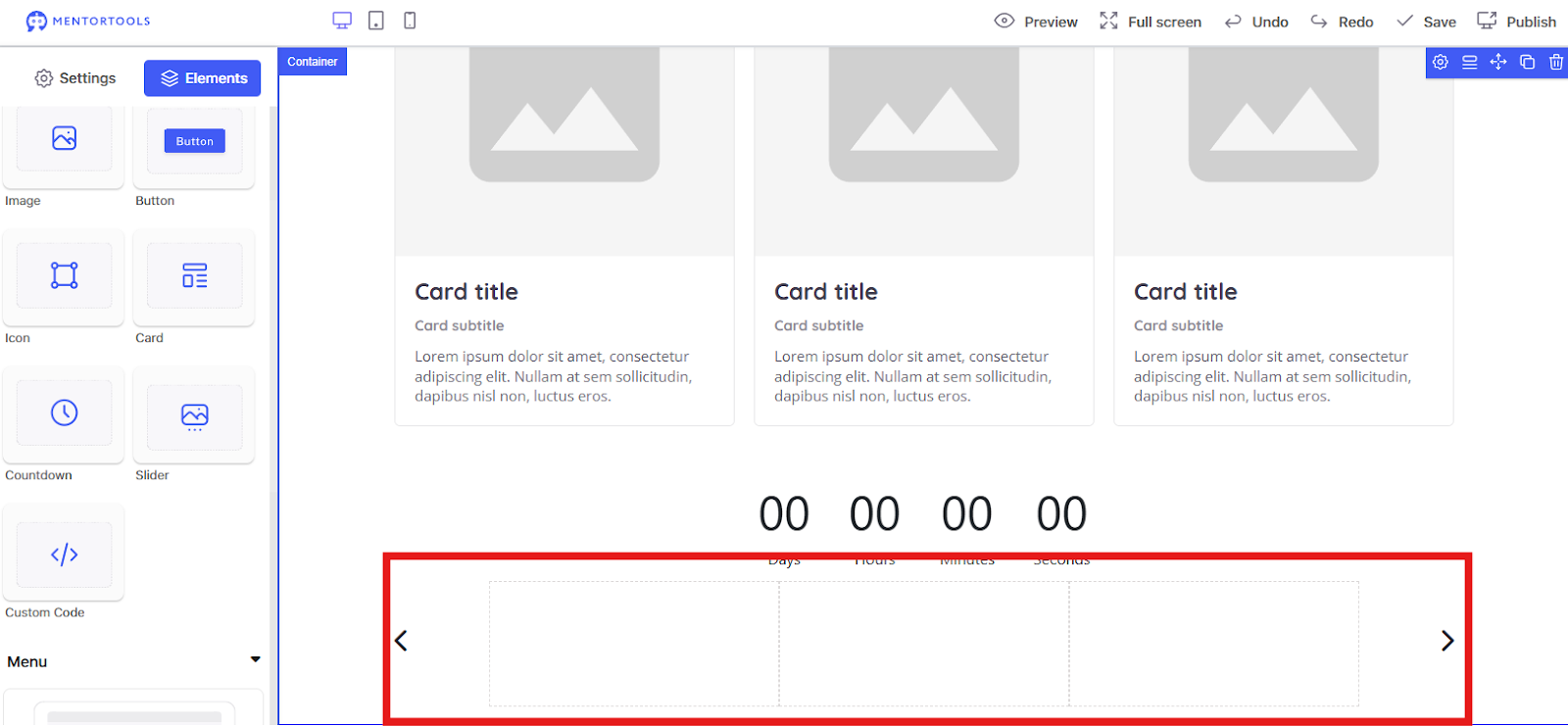
Code

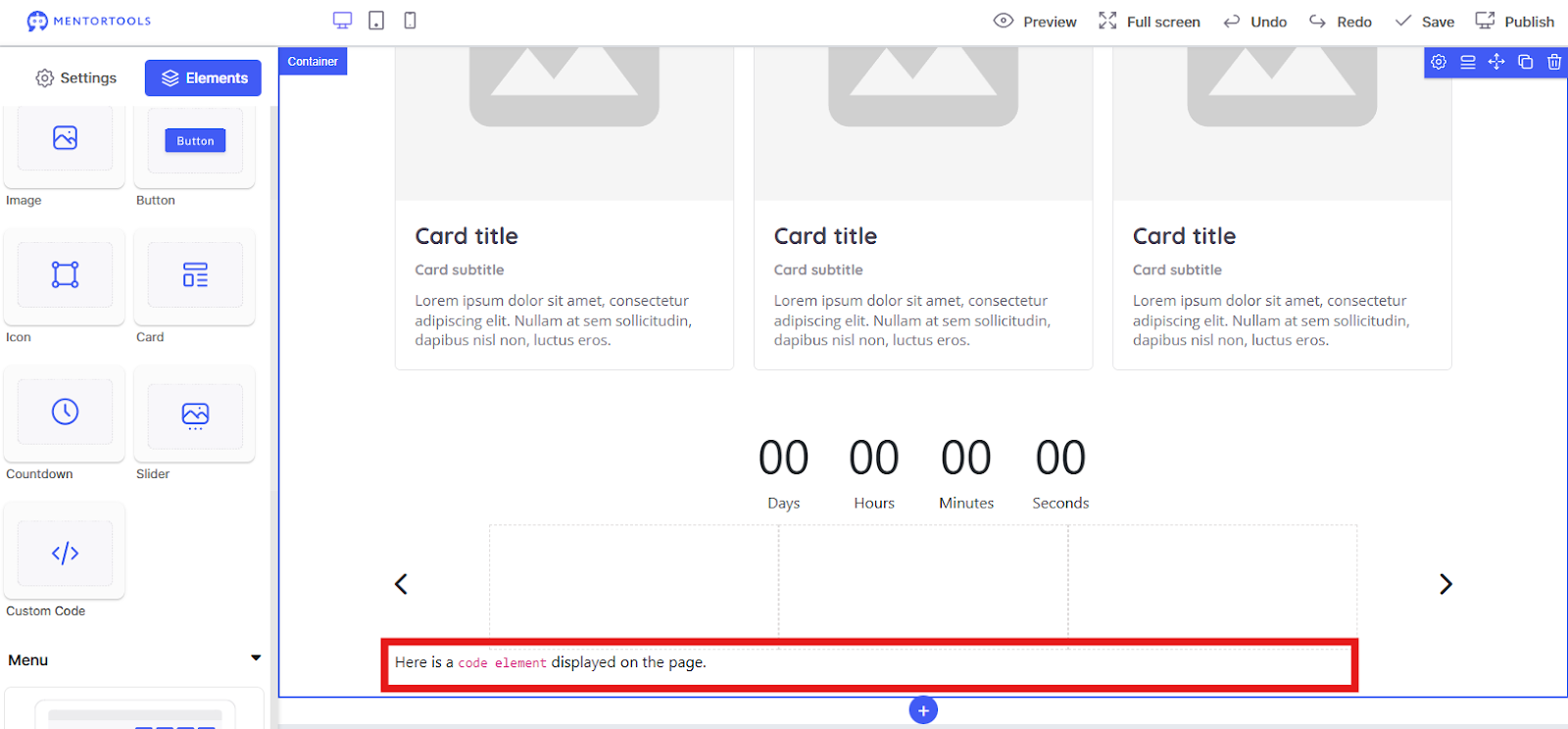
What it is: A code element.
What it's for: For advanced users. Here you can insert your own HTML code to implement special functions that are not standard in the editor.
In the example, I dragged a Code element under the Slider and entered code that displays "Here is a code element displayed on the page.".
Menu Elements
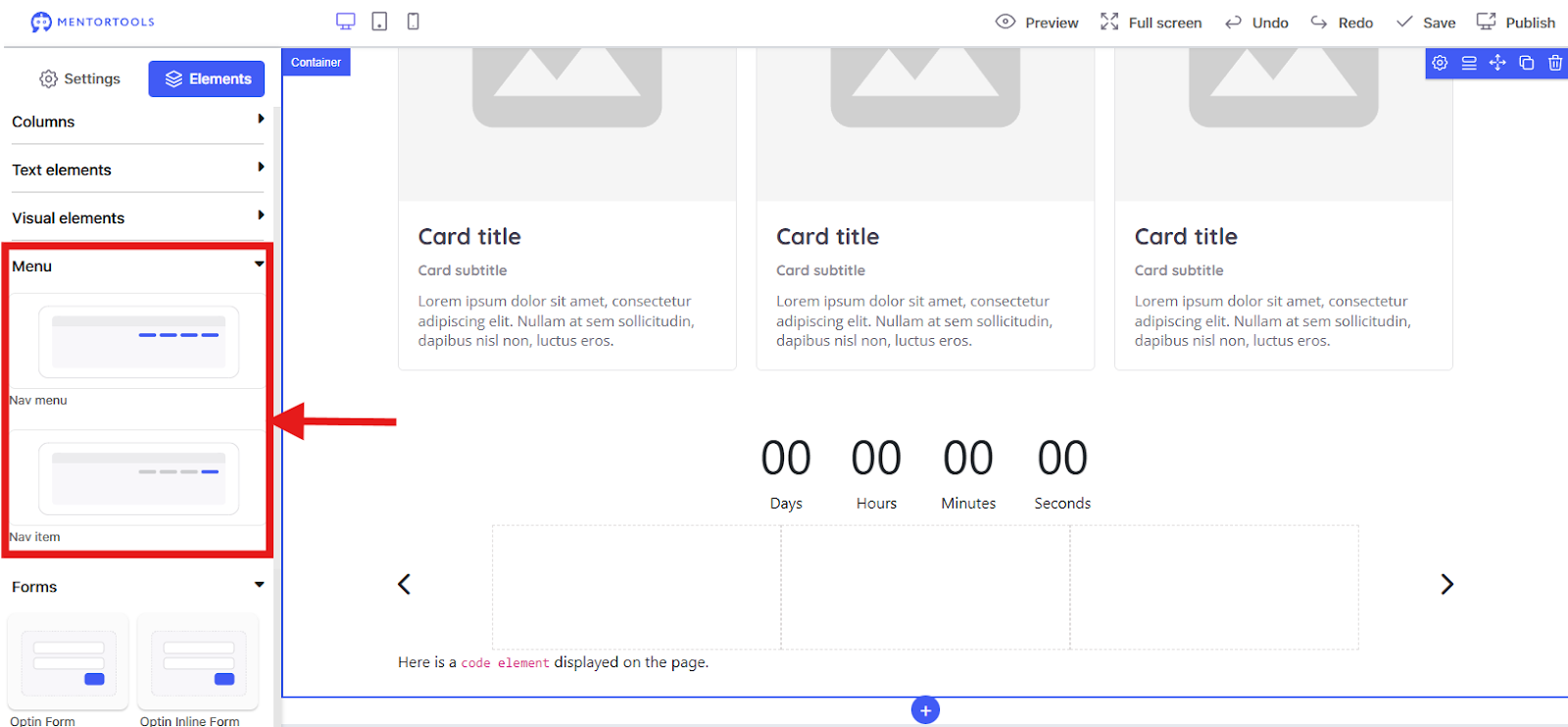
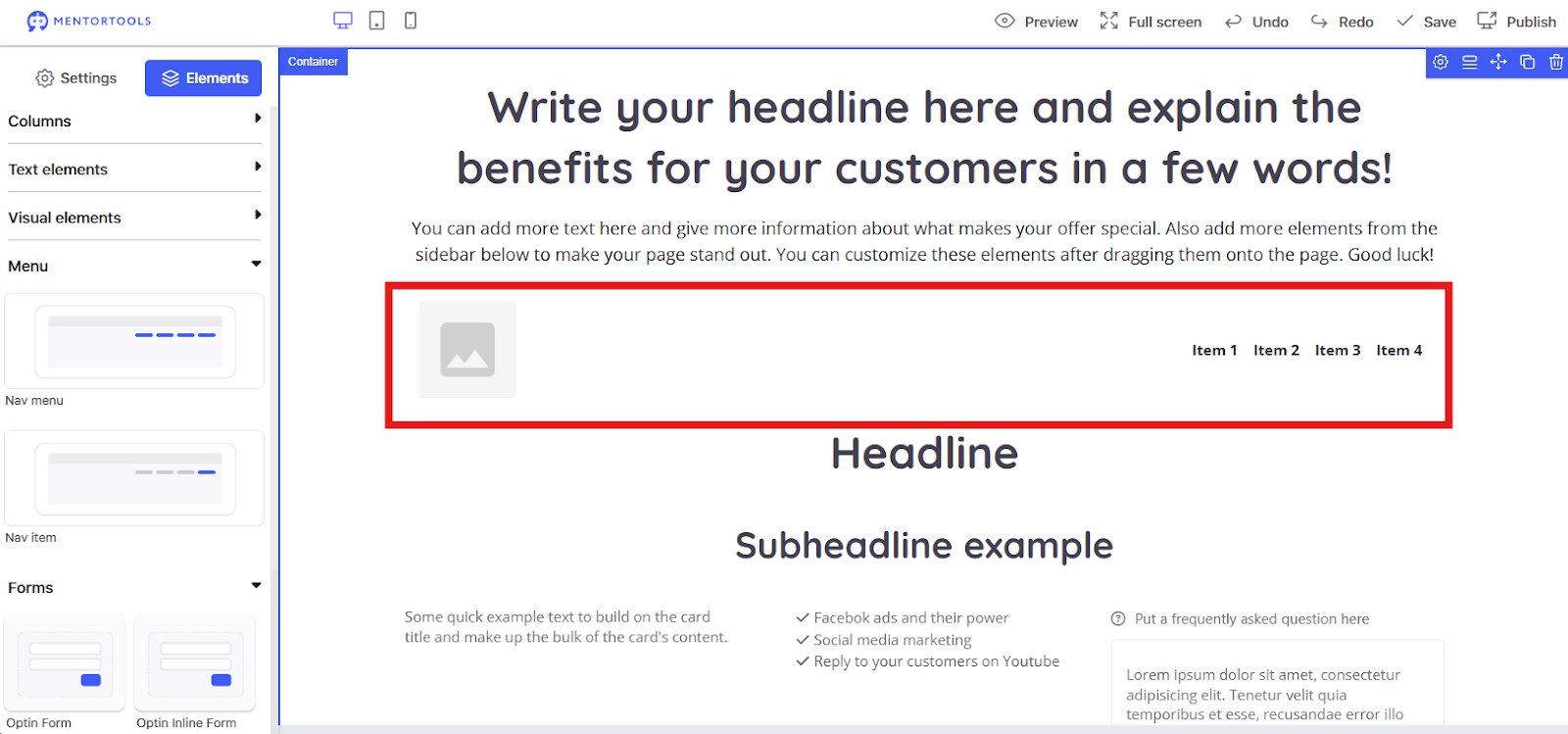
This option is the main menu for your page. When you drag it into your editor, a complete navigation area is created. It's perfect for linking all your most important pages (like "About Us," "Services," or "Contact") in one central location.
Purpose: Ideal for the top bar (the "header") of your landing page so visitors can quickly navigate to other parts of your website.
In the example, I placed a Menu element above the Headline.
Menu Item
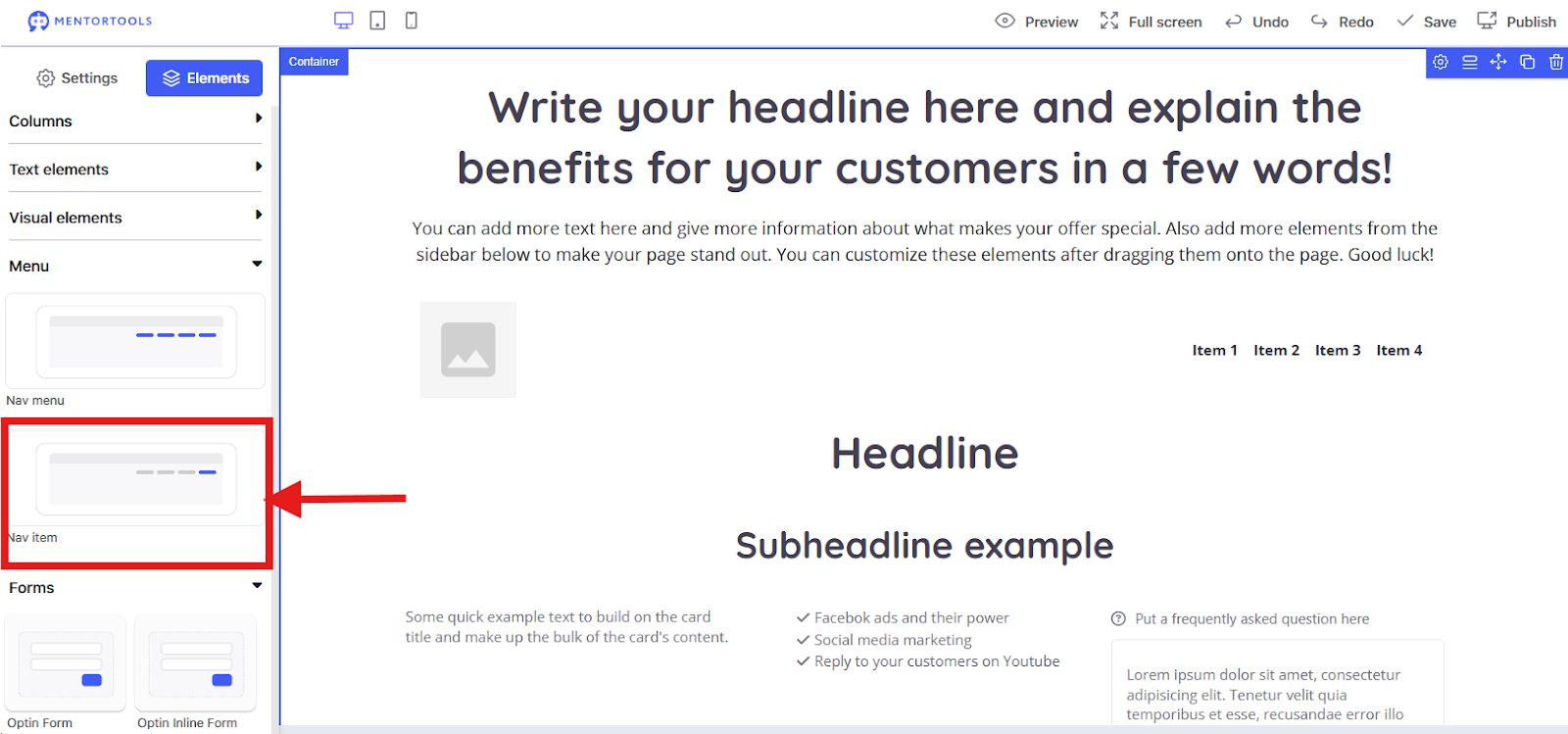
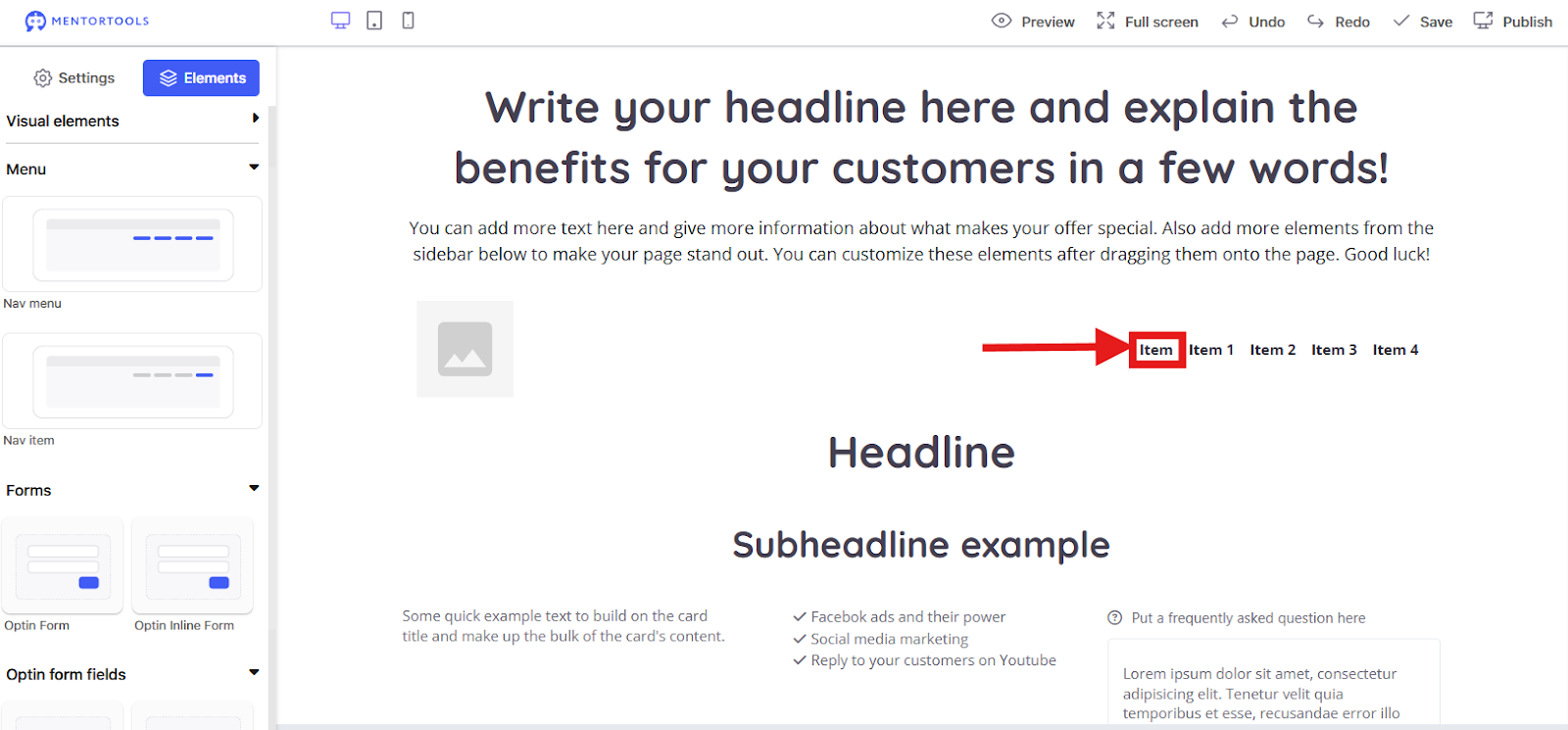
This is a single point within a menu. Think of it like a button that you drag into the larger menu field. With this option, you can add new links to your existing menu.
Purpose: You use it to expand your main menu. Do you need an additional link for your new blog or a product page? Then simply drag a "Menu Item" into your menu. It allows you to customize your page's navigation.
In the example, I placed a Menu Item before "Item 1."
Forms

Opt-in Form: A complete form that contains all the important fields, such as email address, name, and a submit button. This form is typically used to collect contact data for a newsletter or similar offers.
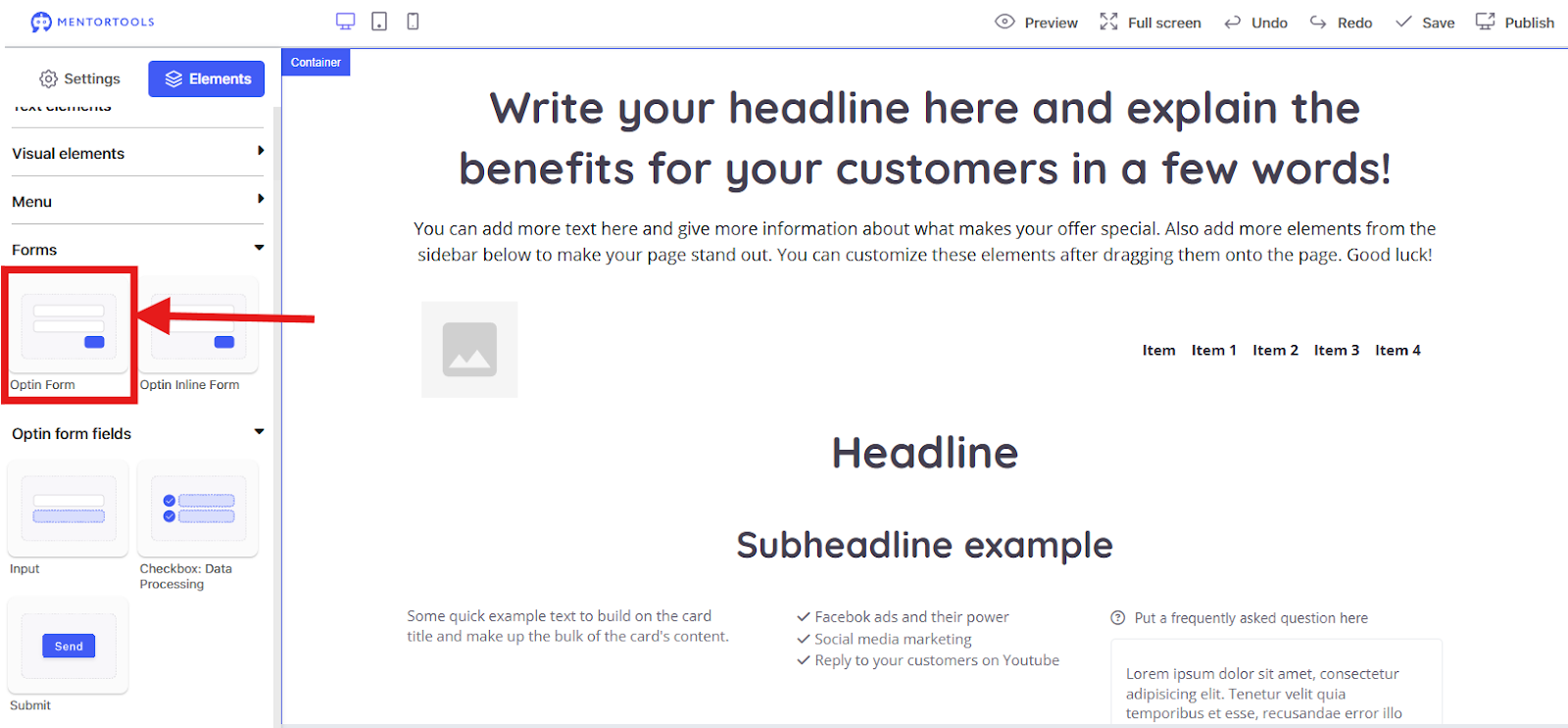
In the example, I dragged an Opt-in Form under the Subheading.
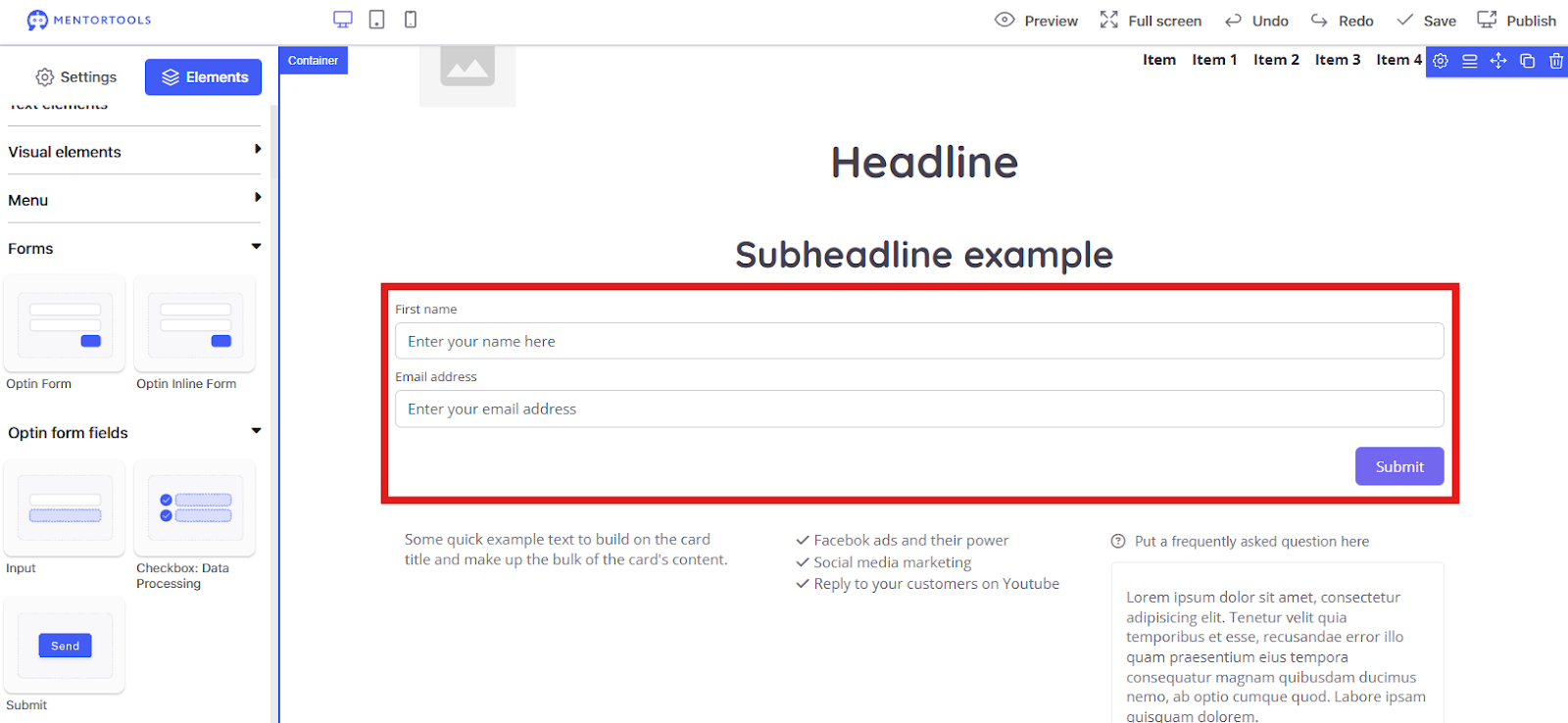
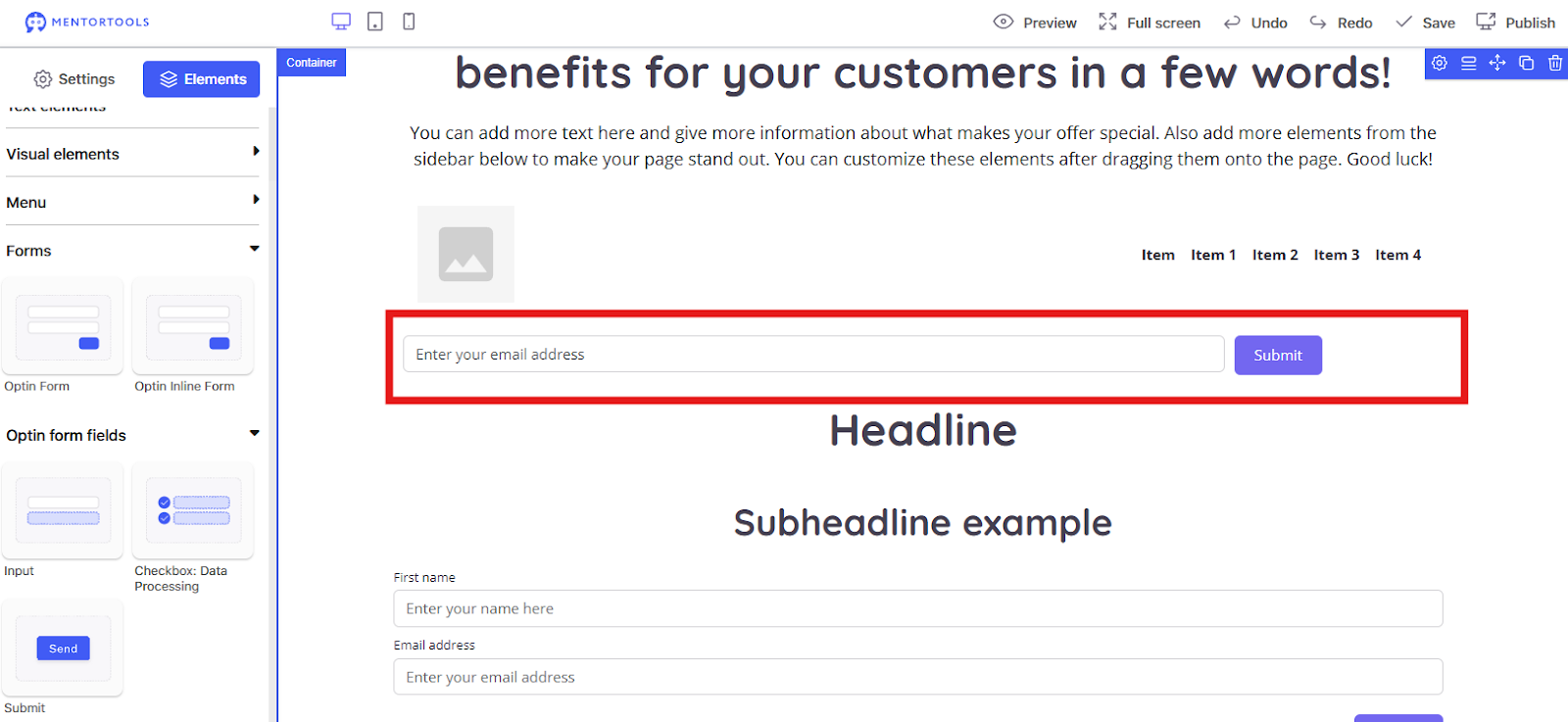
Opt-in Inline Form: This form is a bit more minimalist and only contains the most important fields, such as the email address and the submit button. It's designed to be embedded directly into the content of your landing page (inline) so that it integrates seamlessly into the design and doesn't interrupt the flow of reading.
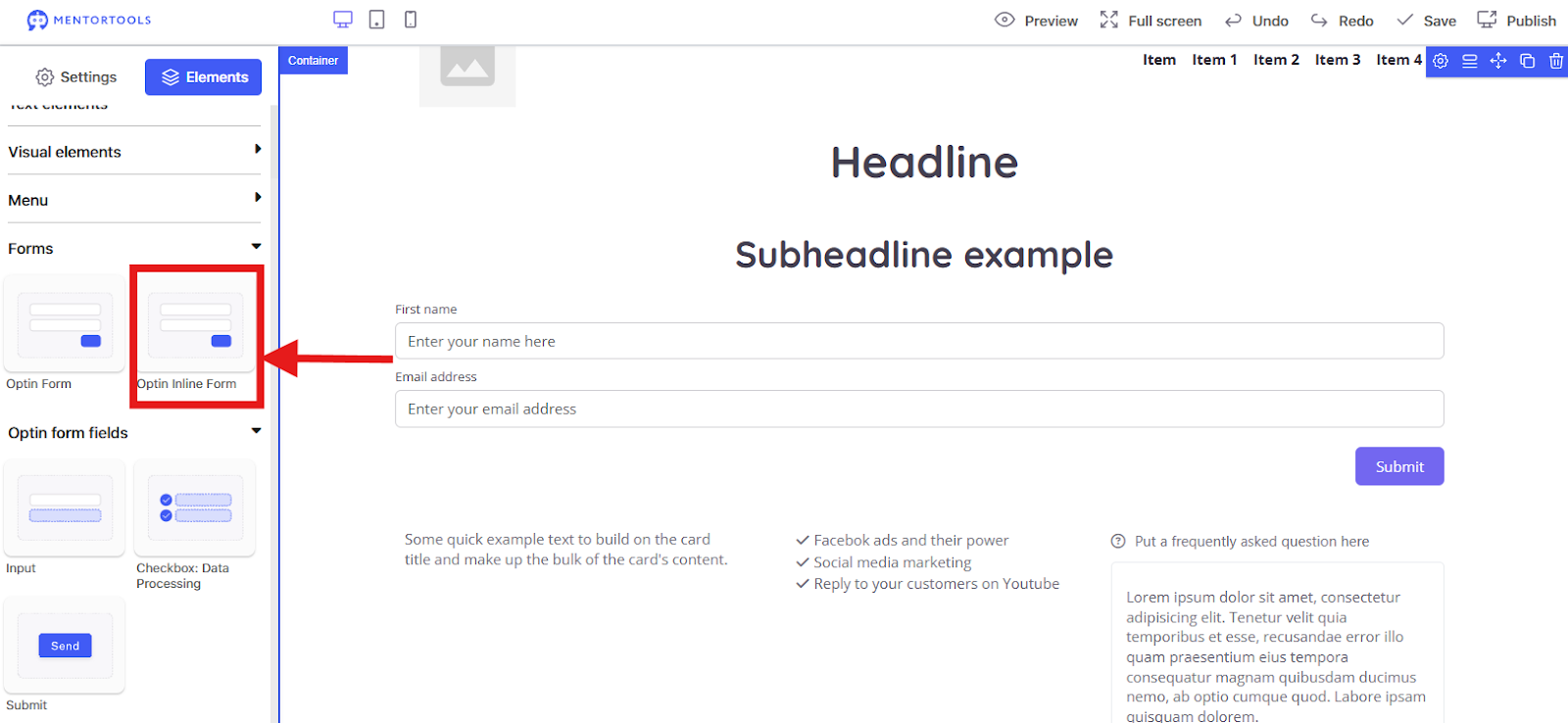
In the example, I dragged an Opt-in Inline Form above the Heading.
Form Fields
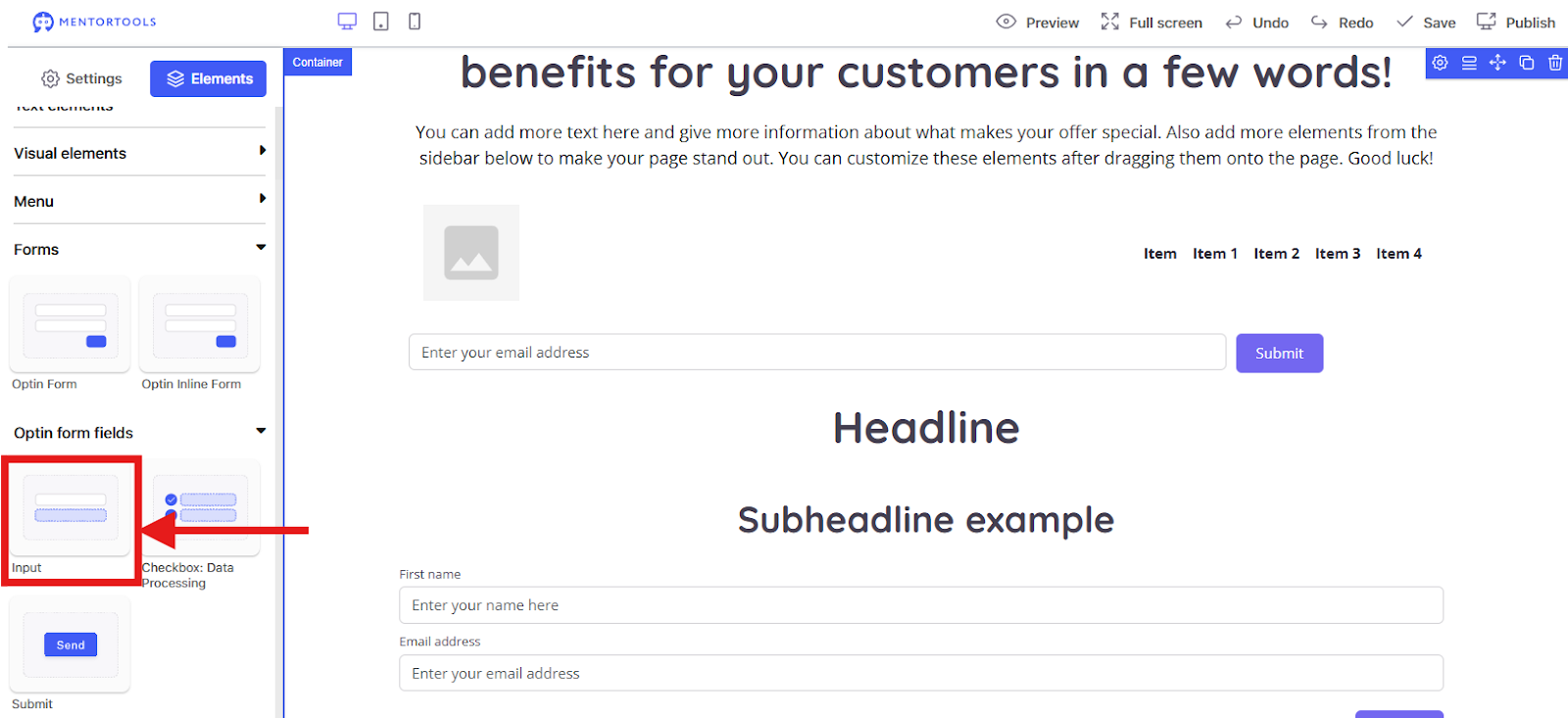
Form Field: Input: This is a single text field. You use it to collect specific information, such as a name or email address. You can add several of these, depending on what data you need.
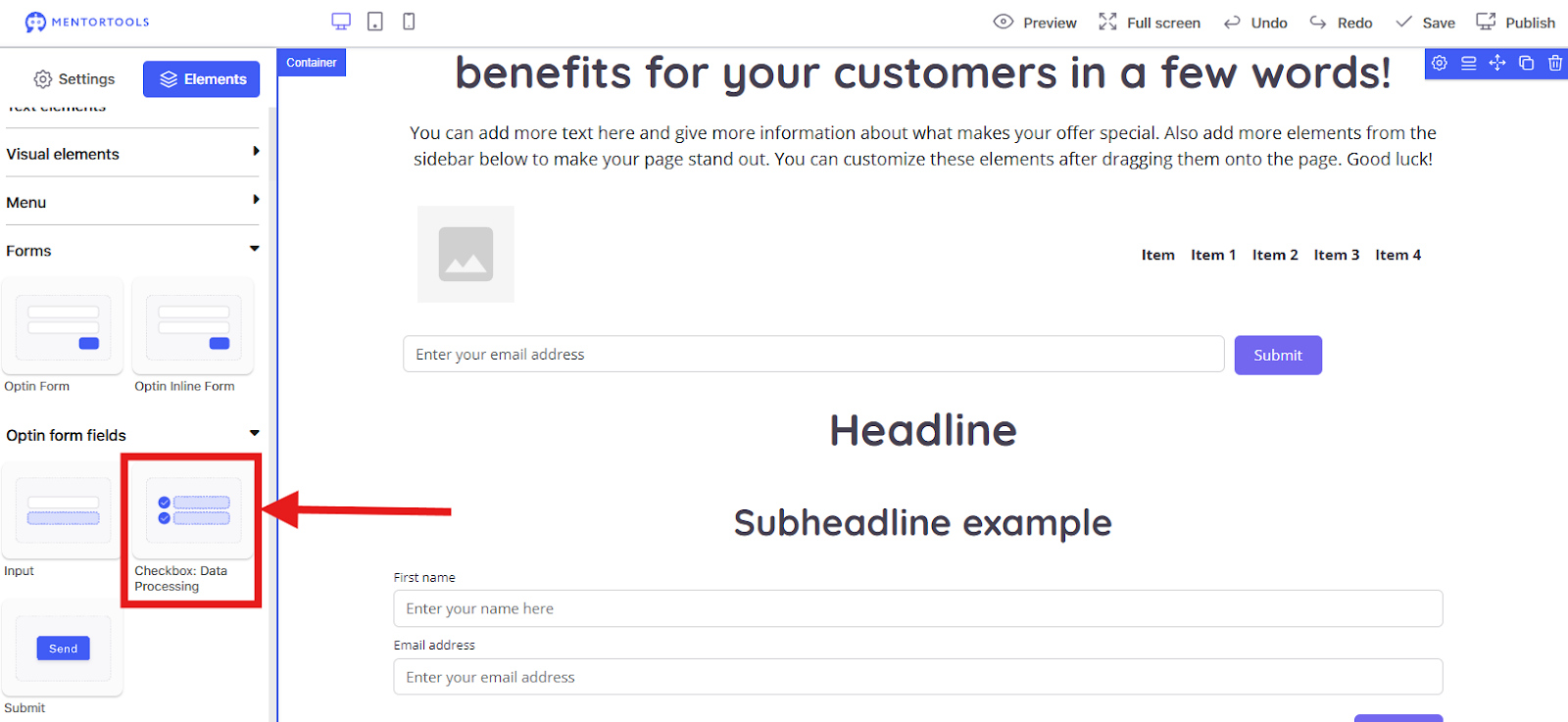
Checkbox: Data Transfer: With this checkbox, you let the user confirm that they agree to something. This is super important for GDPR so people consent to their data being processed.
Submit: This is the button the user clicks to submit the completed form. Nothing works without it! You can customize the text on it, such as "Submit."
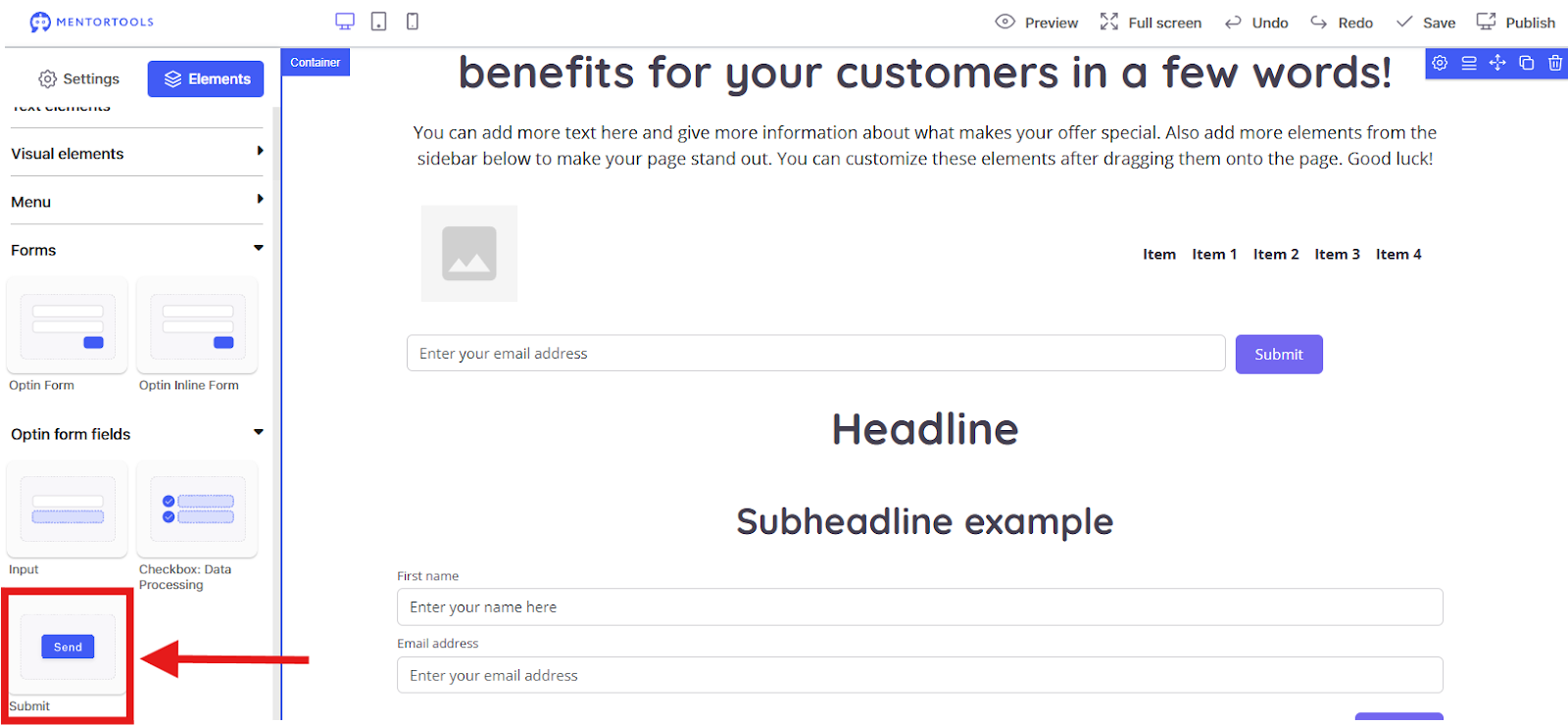
Note: You can only drag form fields into already existing forms. Each opt-in form can be connected to an opt-in process you have created or to an HTML form. You can find more information on this in our tutorial about opt-in processes.
Summary
That's it! You now have all the tools and tricks to design an impressive and effective landing page. Remember: Regular saving is your best friend, and don't be afraid to experiment with the different elements and settings. With a little practice, you'll quickly become a pro. If you have more questions, feel free to check out our other tutorials. Have fun building your next great page!