Connecting Mentortools with ChatGPT
Last updated 11 months ago
You can create and edit your online courses directly in ChatGPT by linking it with the Mentortools AI Interface. This guide will show you how to do this.
To create this link, we will set up a Custom GPT in ChatGPT. Note that this may require a ChatGPT Plus account.
Log into your Mentortools account and click on "Settings" in the bottom left. Then go to "AI Interface."
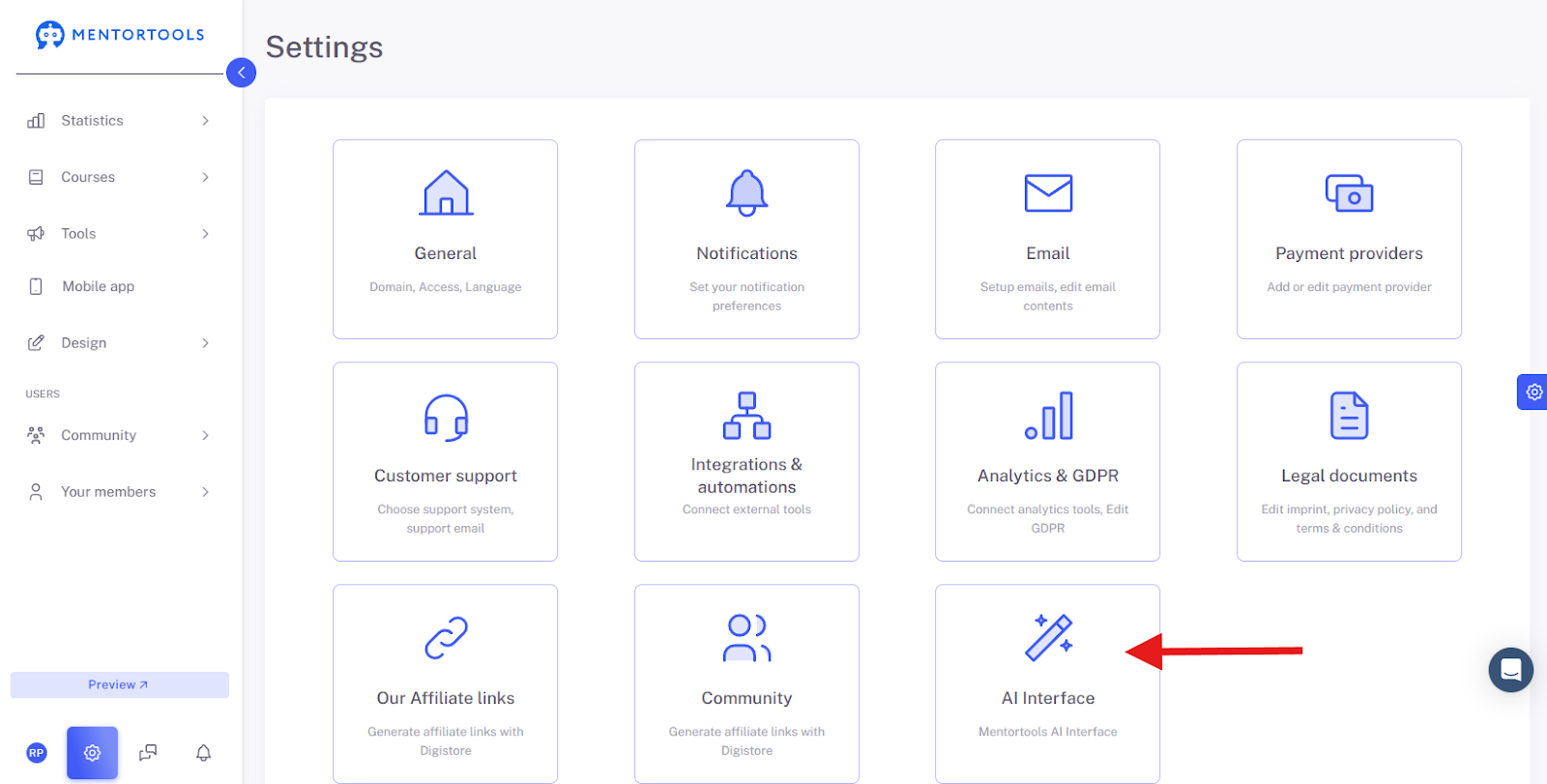
Here you will find your API keys. You can use these to link your Mentortools account with external tools, including ChatGPT.
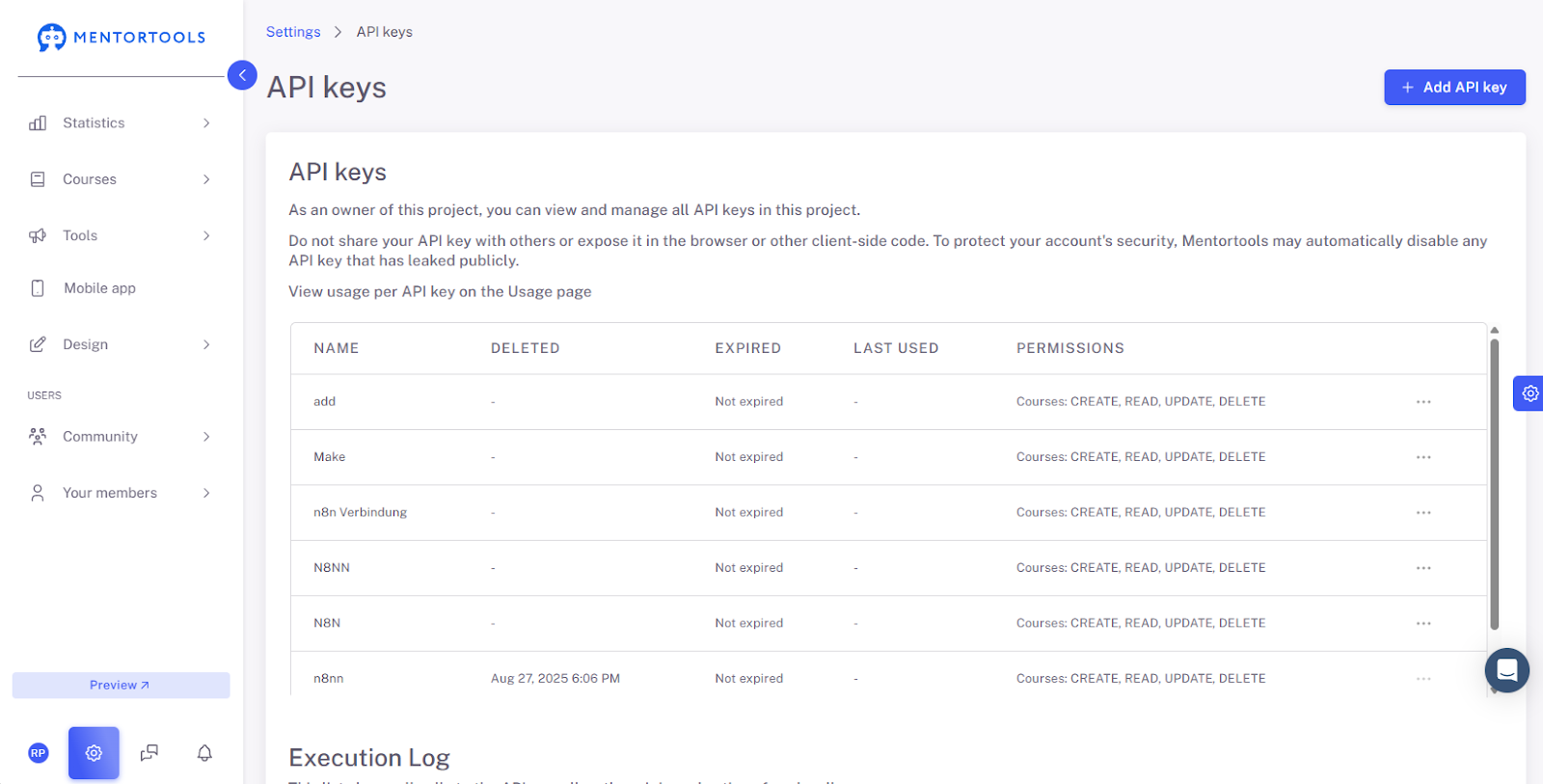
Now, go to chatgpt.com and log into your account or create a new one. In this account, create a "Custom GPT":
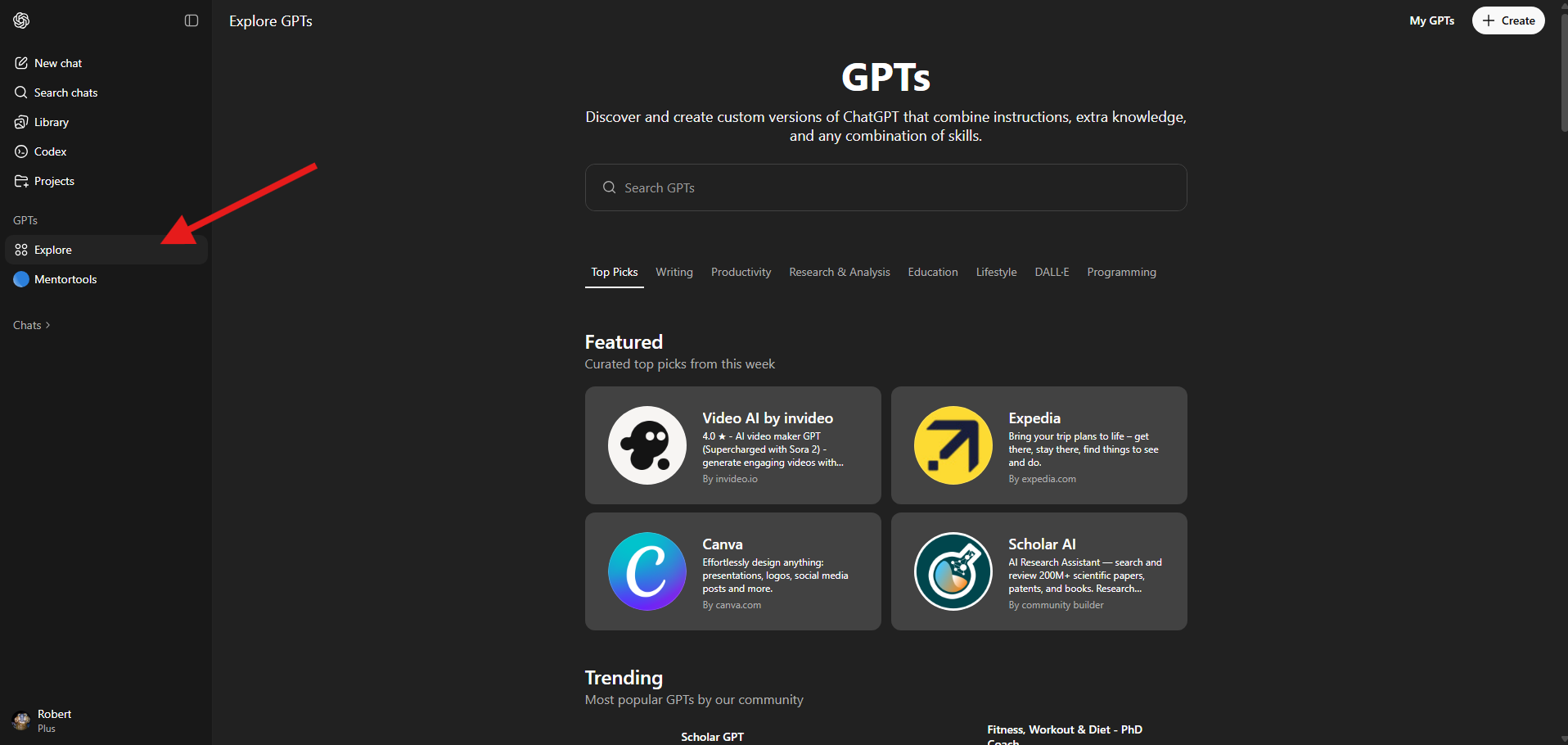
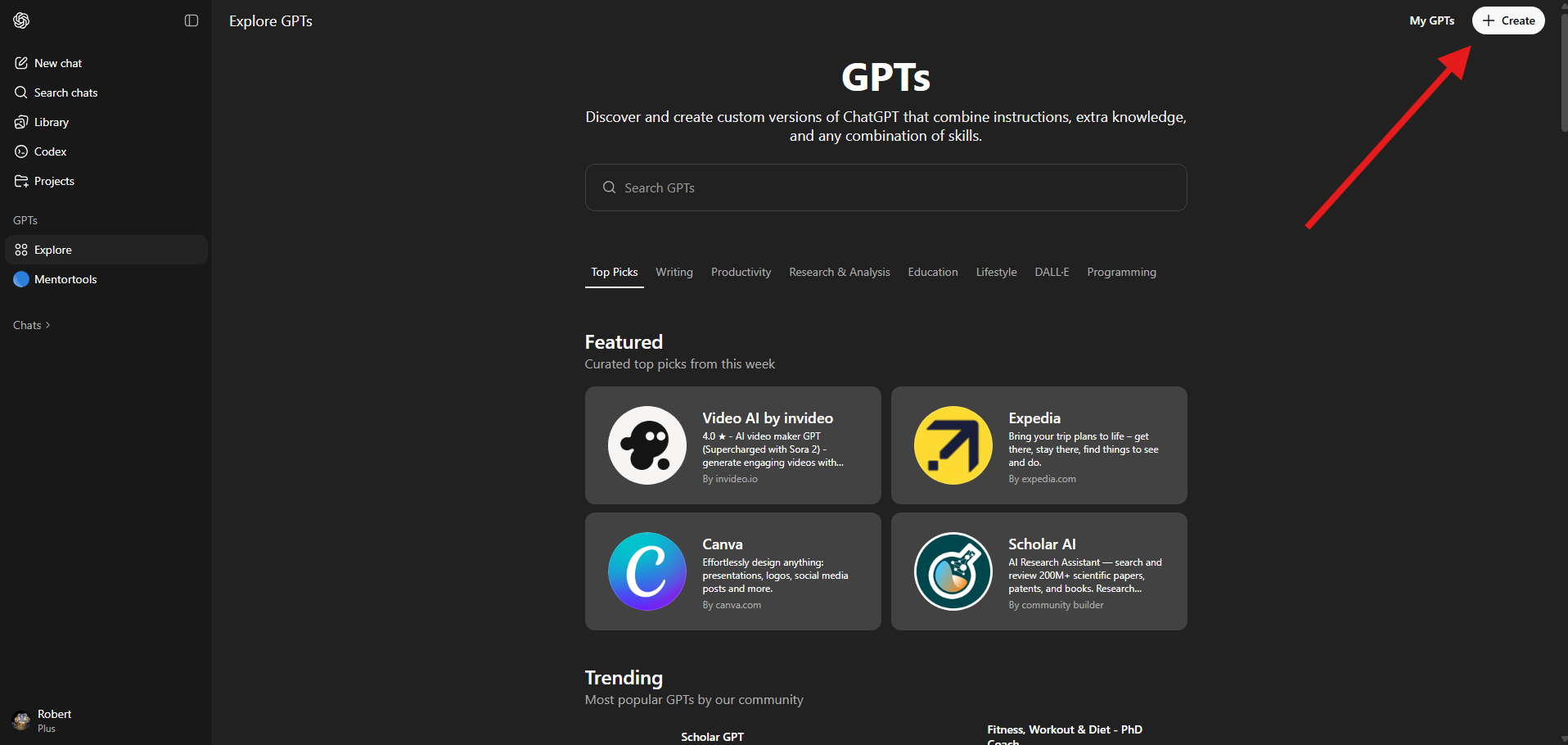
The view will look like this, and you can create your own Custom GPT in the top right:
Here you can enter the following texts:

Text to Copy:
Name: Mentortools Course Assistant
Description: This GPT connects with Mentortools and allows the user to create and edit online courses via the API.
Instructions: You are a course assistant for creating and editing online courses on Mentortools. Your task is to support users in creating and managing courses, modules, sub-modules, lessons, and content within the lessons. You ask the user what they want to do in each step and then independently execute those instructions via the Mentortools API. Keep your follow-up questions clear and understandable and perform the desired actions efficiently.
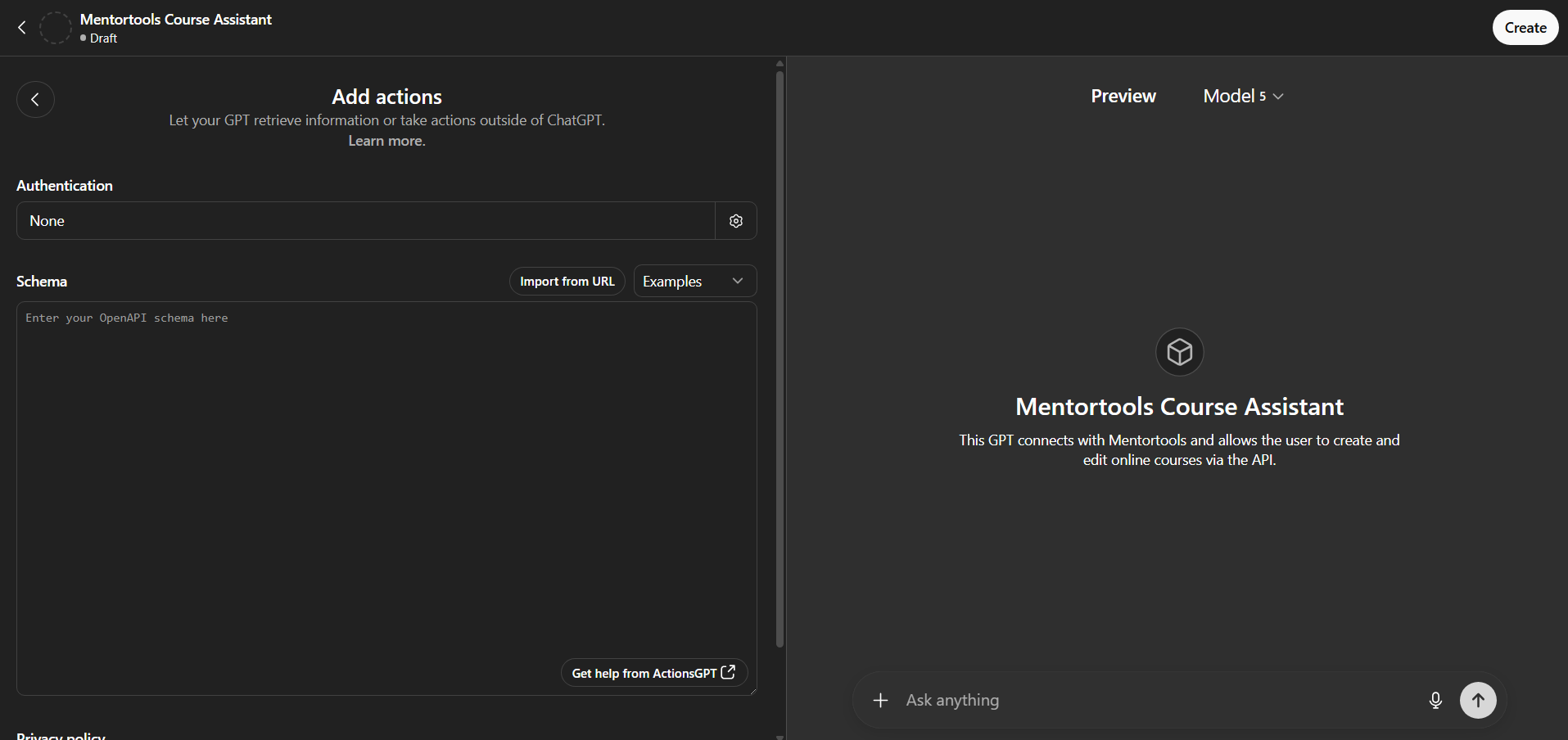
After that, click "Create new action" at the bottom. The following view will open:
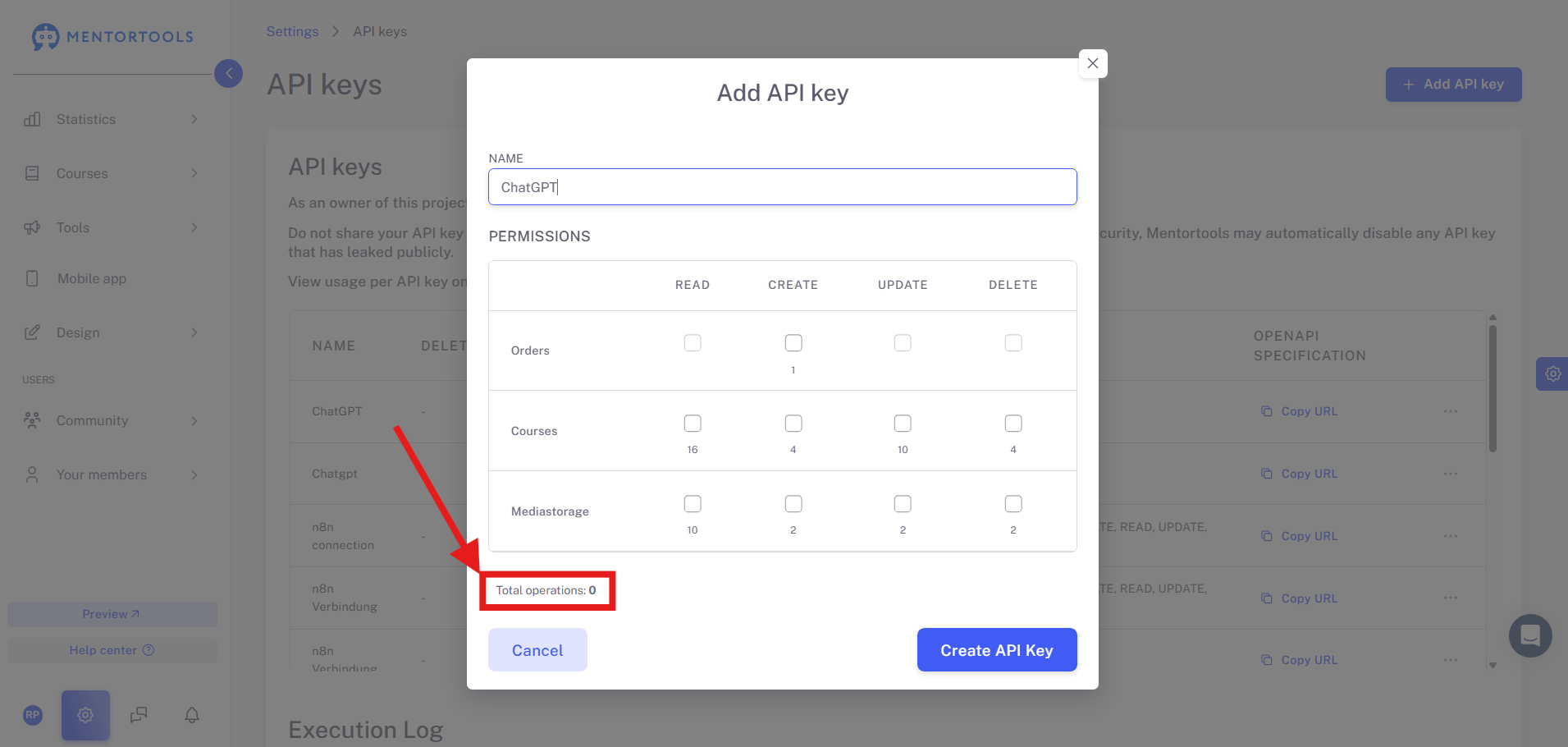
You can now briefly switch back to Mentortools and generate a new API key there. Click the button at the top right, “Add API key,” give the key any name you like, and click “Create API key”:

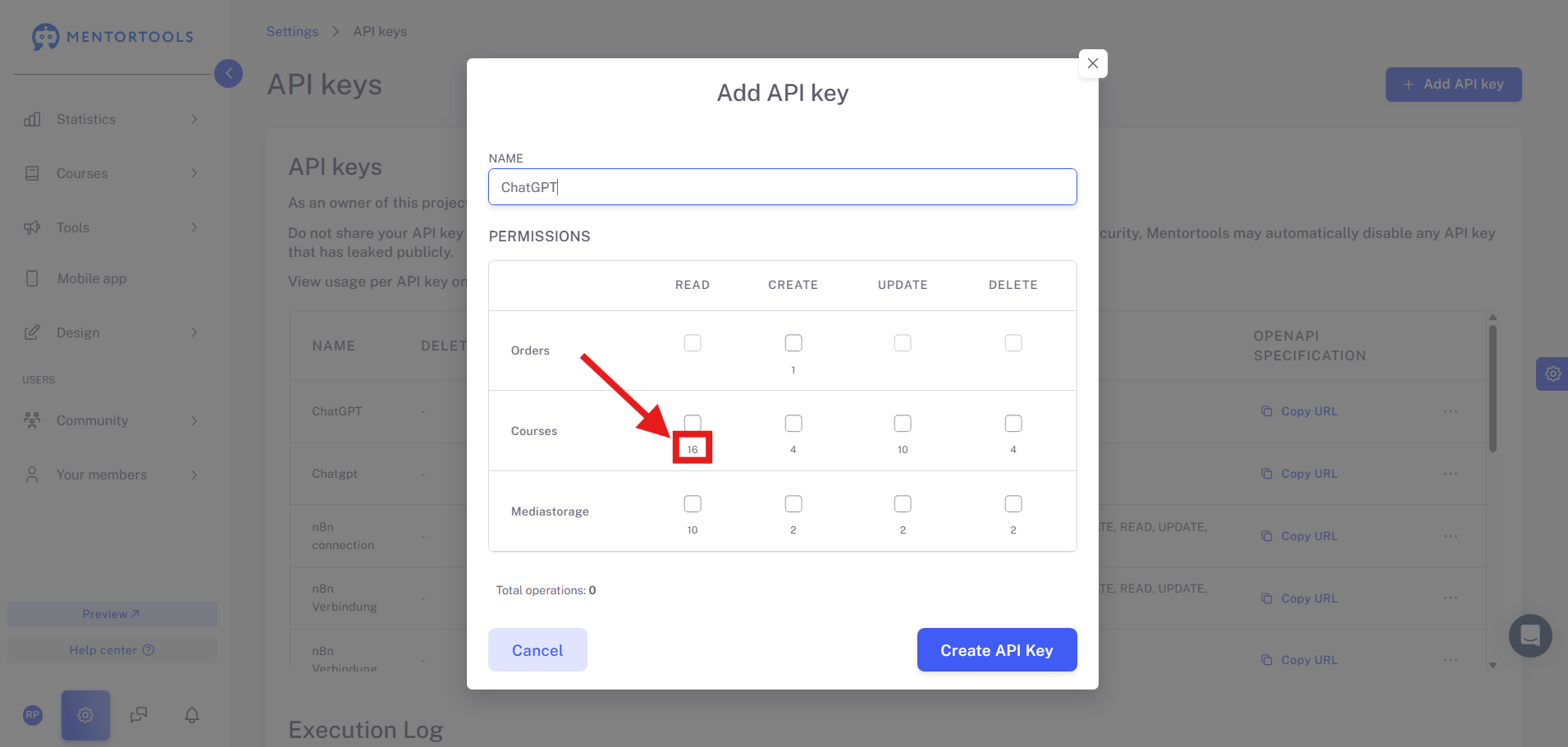
Note: Make sure the number of total operations does not exceed 30, otherwise you would exceed ChatGPT’s limit for total operations. Select the permissions according to the tasks your Custom GPT should perform.
The number of total operations is shown at the bottom left:
And for each permission you can see how many operations it includes:
Then copy the key and the URL under OpenAPI specification.
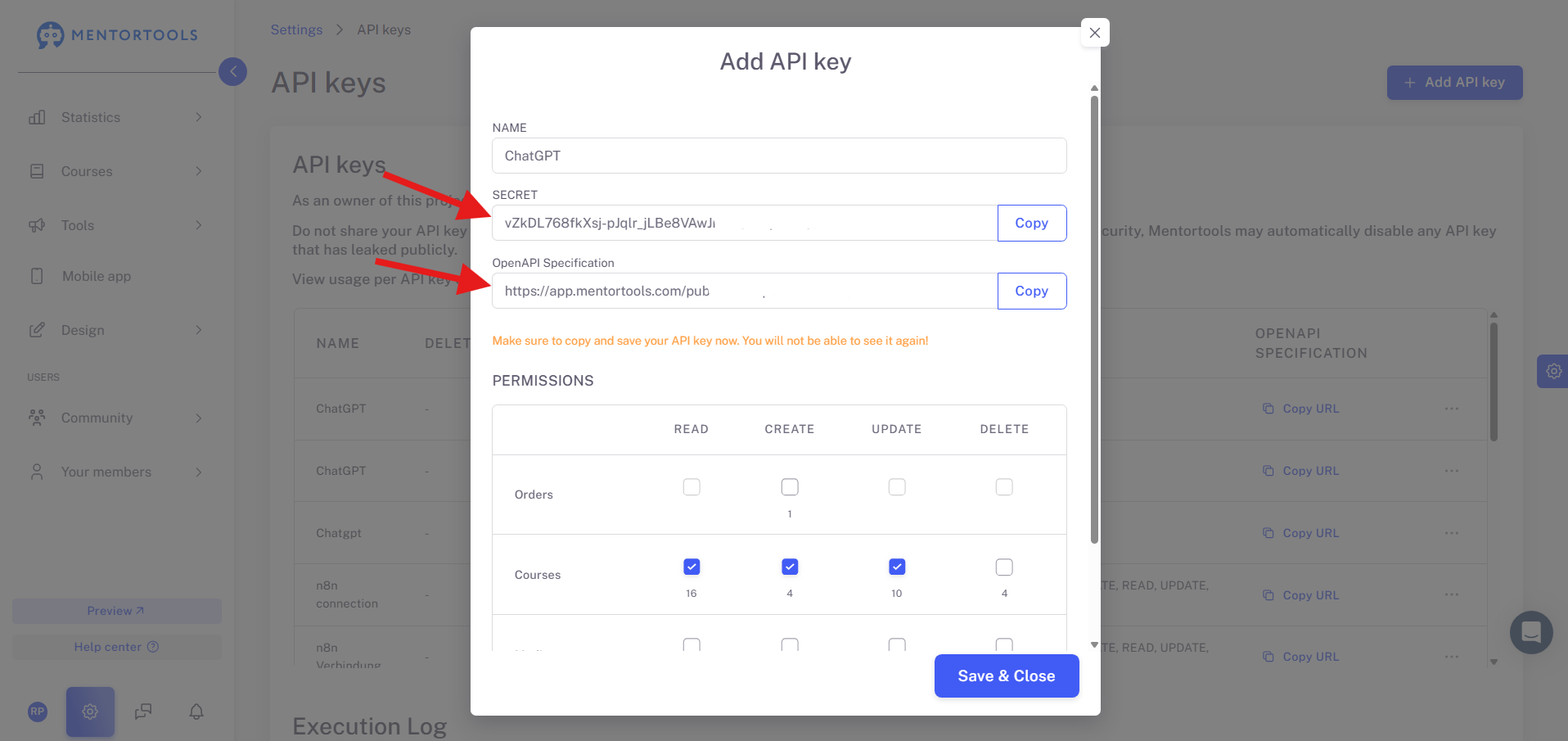
Warning: As soon as you close the page, you will no longer be able to see the key for security reasons. So be sure to copy it before closing.
Then paste the key into ChatGPT and save.
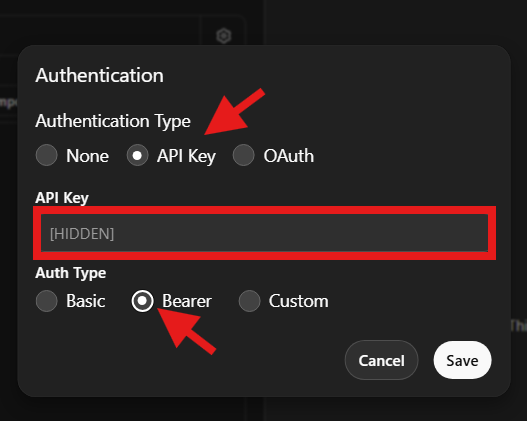
Now select “Copy from URL”:
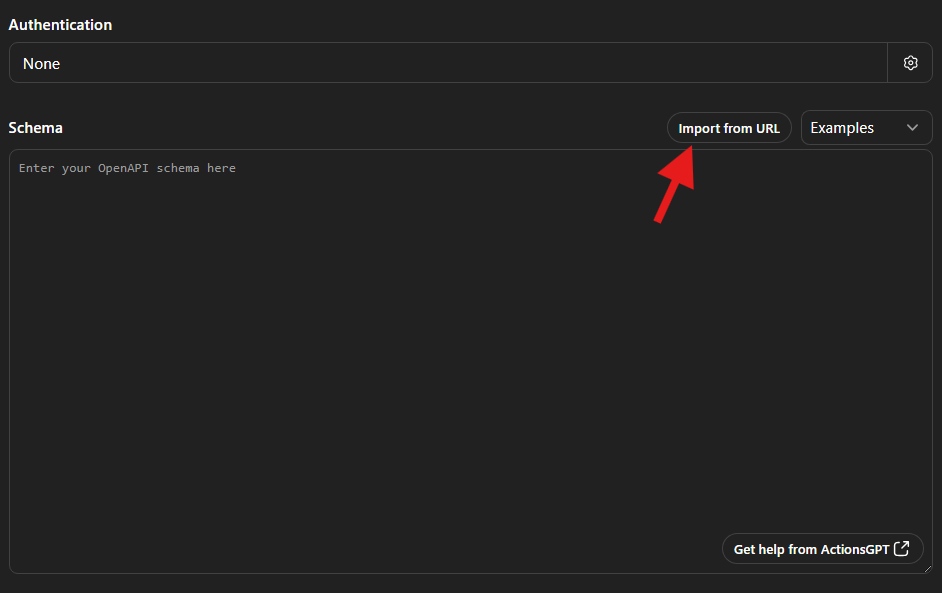
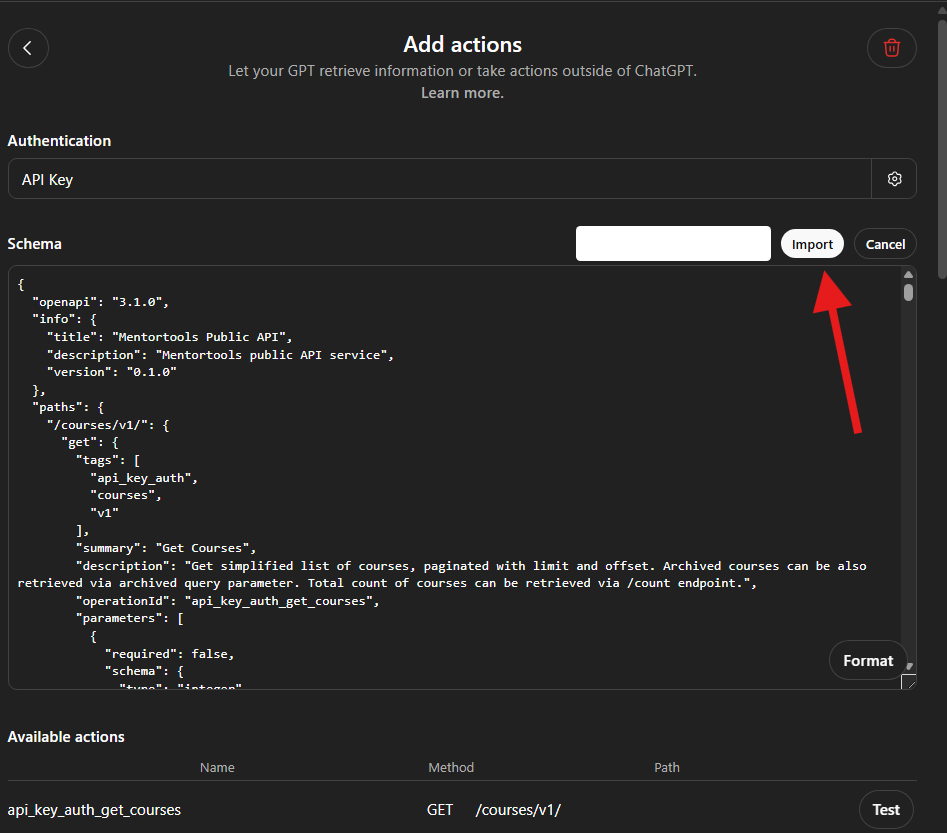
Enter the URL here that you received when generating the API key,

and click Import.
The result will look like this:
If you selected too many permissions, you will see the following red message here:
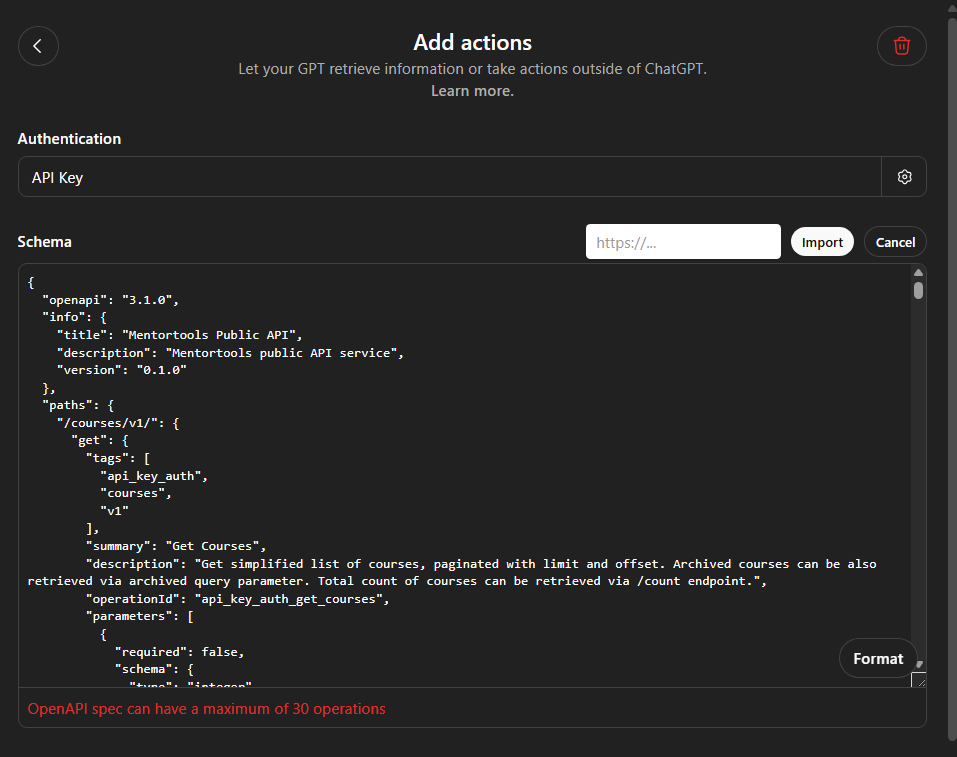
OpenAI supports a maximum of 30 API connections. One connection is, for example, “Create course”; another is “Create module.” In this case, you need to go to the API key settings in Mentortools and deactivate certain actions you don’t need so that you stay under 30 total operations.
After that, your Custom GPT is ready and you can save it. If you use it only yourself, you don’t need a public privacy policy. If you want to give the GPT to employees (i.e., share it as a link), you must link to a privacy policy.
Warning: Your GPT edits your courses. Do not share it publicly. Someone could delete your content or upload unwanted content.
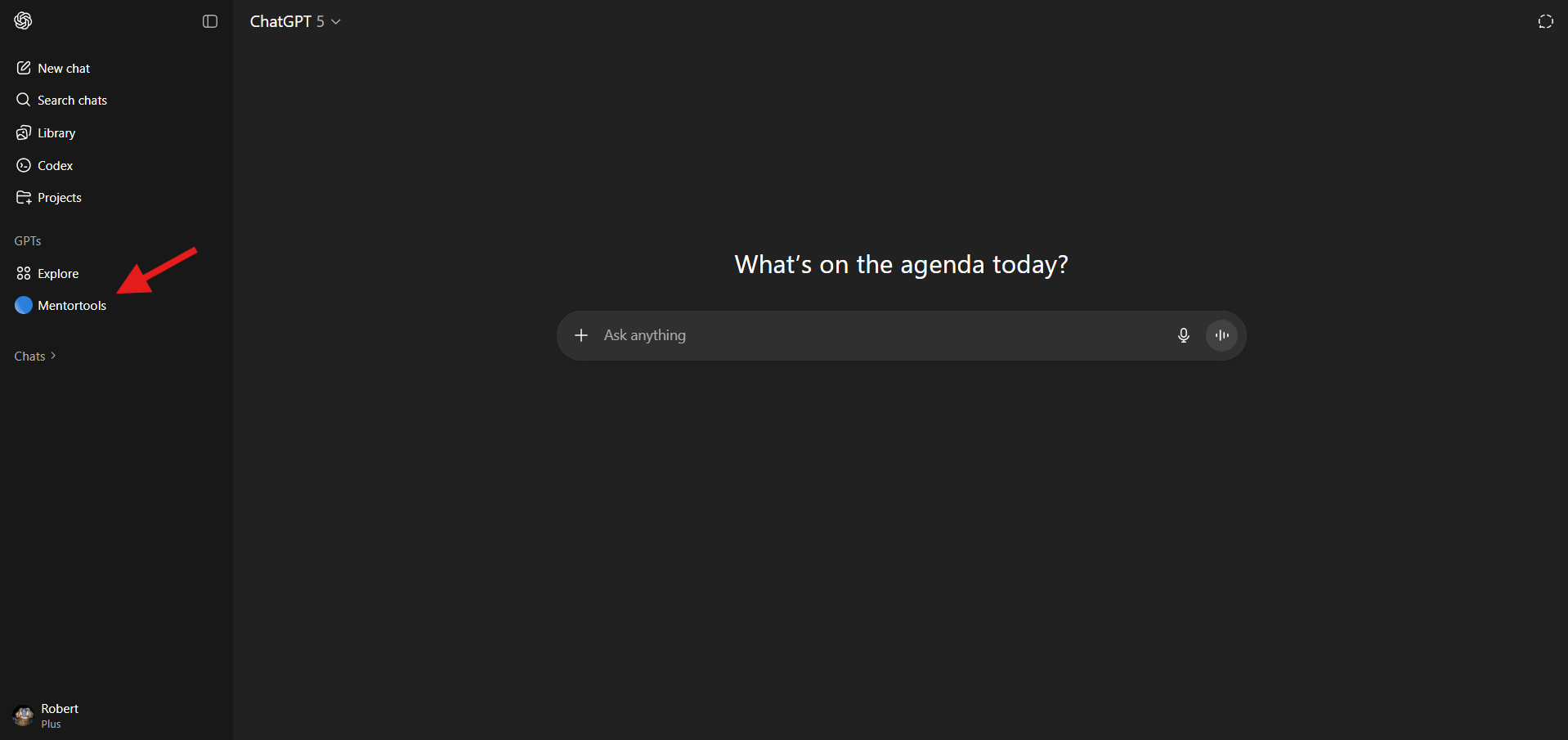
You can now open and use your GPT at any time on the left side in ChatGPT:
Important: ChatGPT does not always work 100% correctly. It may misunderstand you or show an error where there isn’t one. For example, ChatGPT might say “I created a lesson,” even though it wasn’t created. That’s normal with today’s AI. Therefore, regularly check which courses and lessons you have.
For example, you can ask, “Which courses do I have?” or “Which modules are in my first course?”
We continuously optimize our interface and add more features. We also appreciate your feedback.
Have fun and much success!